Repository navigation
Sequences and Playlists
Sequences and playlists change what a channel plays over time.
- A sequence stays on one theme and moves through some of its presets, gliding from one to the next. The scene changes, but it's still the same place: light rain becomes a storm, and the storm passes.
- A playlist moves through several themes: an hour in the tavern, then a forest, then rain.
Any user who can play channels can run and edit sequences and playlists (see Sign-in and Users).
A sequence is a list of a theme's presets in the order you choose. The channel plays the first preset for a while, then glides into the second, and so on. It belongs to its theme, is saved with it, and is exported with it.
For example, the forest theme "Forest Morning" has the presets "Dawn chorus", "Wind picks up" and "Rain shower". A sequence of those three is a shower that blows in; with At the end set to Reverse, it then blows over and the birds come back.
A sequence has these settings:
| Setting | Range | Default | What it does |
|---|---|---|---|
| Name | up to 100 characters | — | Must be different from the theme's other sequences. |
| Time on each preset | minutes, two boxes | the theme default: 5 to 15 | Each preset plays for a random time between the two values, drawn fresh each time, so the changes don't feel scheduled. |
| Ramp | seconds, 0 or more | the theme default: 30 | How long the glide to the next preset takes. During the ramp every track moves gradually to its level in the next preset, like several people slowly turning volume knobs at once. A long ramp is a change you barely notice; a short one is a storm that arrives quickly. |
| At the end | Reverse, Start again, Stop | Reverse | What happens after the last preset. Reverse plays the list backwards (the storm builds, then dies down again), Start again goes back to the first preset, Stop stays on the last one. |
| Presets | at least 2 | — | The presets it plays, in order. Each preset can be in it once. |
Theme defaults: a sequence whose Time on each preset or Ramp box is left empty uses the theme's defaults, shown in the empty box. They are set at the bottom of the Sequences menu, and changing them changes every sequence of the theme that follows them.
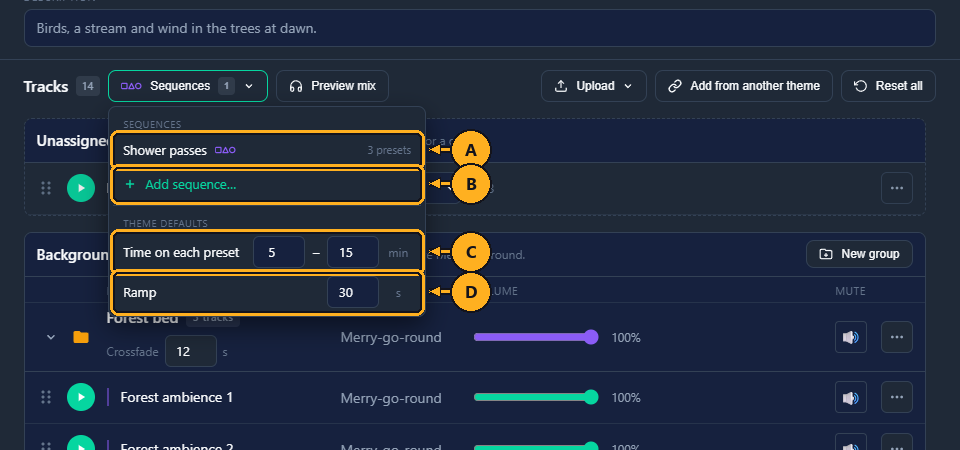
Sequences, above the track list in the Theme Editor. The number on the button is how many sequences the theme has.
- A: the theme's sequences, with how many presets each plays. Click one to edit it.
- B: Add sequence…: opens the Add sequence window (see How to make a sequence).
- C: Time on each preset: the theme default, in minutes. The shortest can't be more than the longest.
- D: Ramp: the theme default, in seconds.
A changed default is saved when you leave its box; the message says "Theme defaults saved".
Before you start: a sequence plays presets you've already saved, so the theme needs at least two (see How to create a preset).
1: On the Channels page, click Themes in the menu on the left.
2: On the theme's card, click Edit (see Theme Editor).
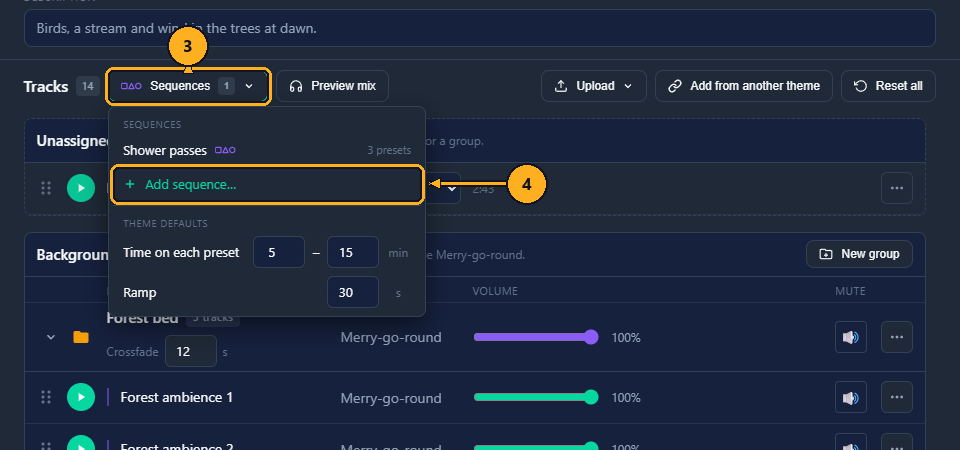
3: Click Sequences, above the list of tracks. The menu opens.
4: Click Add sequence…. The Add sequence window opens.
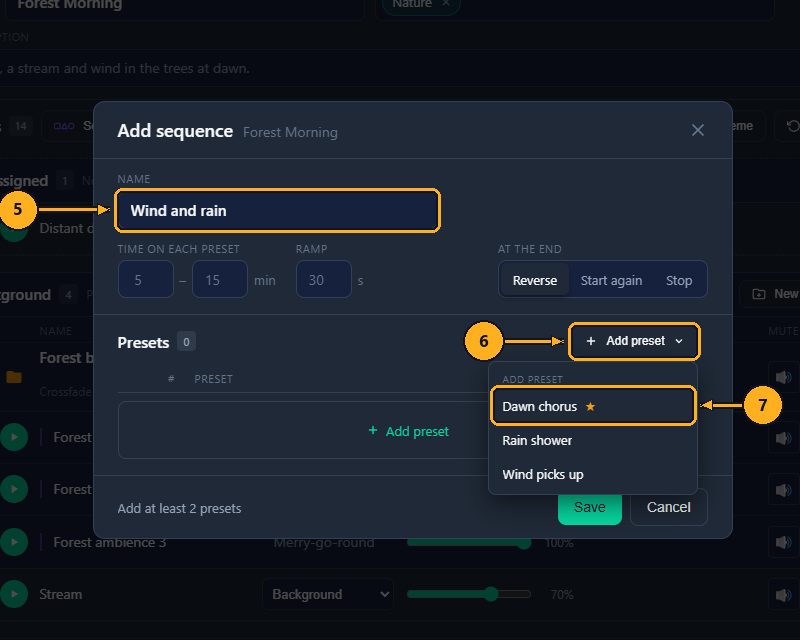
5: Type a name in the Name box, for example "Wind and rain".
6: Click Add preset. A menu lists the theme's presets; ★ marks the default, and presets already in the sequence can't be picked and are marked "added".
7: Click the preset that should play first. It is added to the list.
Repeat steps 6 and 7 for each preset, in the order they should play. Change Time on each preset, Ramp and At the end if you want other values than the theme's defaults.
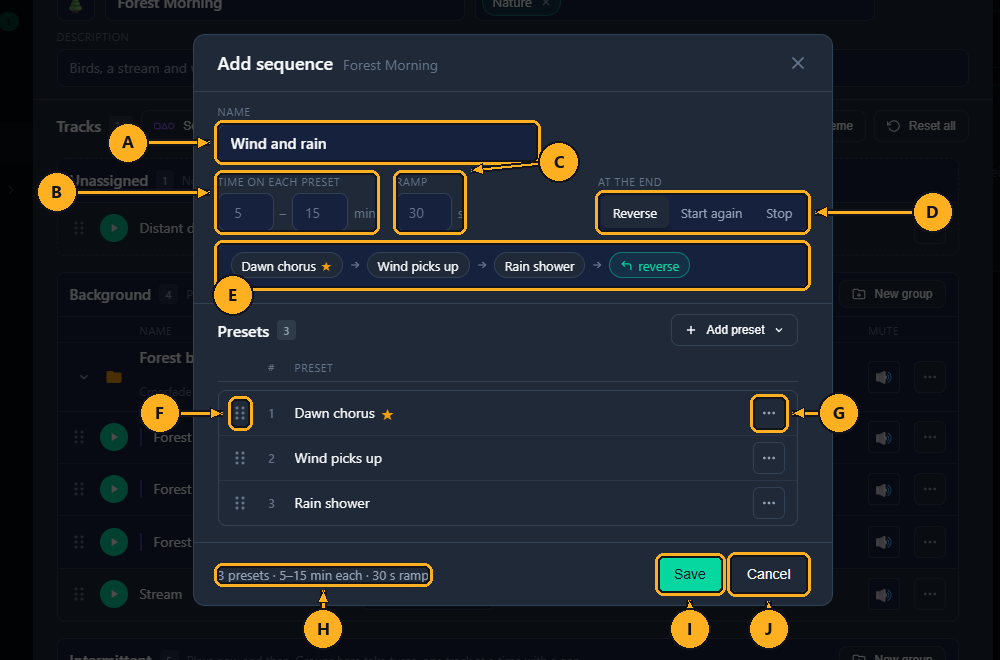
- A: Name.
- B: Time on each preset: minutes; empty uses the theme default.
- C: Ramp: seconds; empty uses the theme default.
- D: At the end: Reverse, Start again or Stop.
- E: Order: the presets in the order they play, with an arrow between each, and what happens at the end (reverse, start again or stop).
- F: Drag handle: drag a preset up or down to change the order.
- G: ⋯: Move up, Move down, Advanced… and Remove (see A step's ⋯ menu).
- H: Summary: for example "3 presets · 5–15 min each · 30 s ramp". With fewer than two presets it reads "Add at least 2 presets".
- I: Save.
- J: Cancel: closes the window without saving.
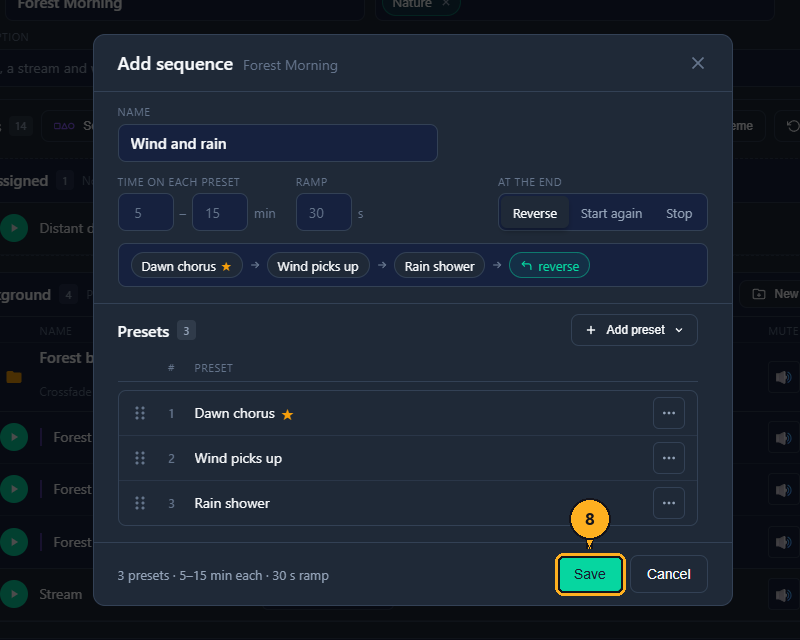
8: Click Save. The message says "Saved "Wind and rain"".
The sequence is saved at once; you don't need Save theme for it. It now appears in the Preset list of every channel playing this theme, after the presets, marked with the sequence icon (a square, a triangle and a circle).
What Save checks: a name ("Enter a name"), a name not used by another sequence of the theme ("A sequence with that name exists"), a shortest time not above the longest ("Minimum is more than maximum"), a ramp of 0 or more ("Enter the ramp in seconds") and at least two presets ("Add at least 2 presets").
Keyboard: in the Name box, press the Enter key to save. Press the Esc key to close a menu, or the window without saving.
1: On the Channels page, click Themes in the menu on the left.
2: On the theme's card, click Edit.
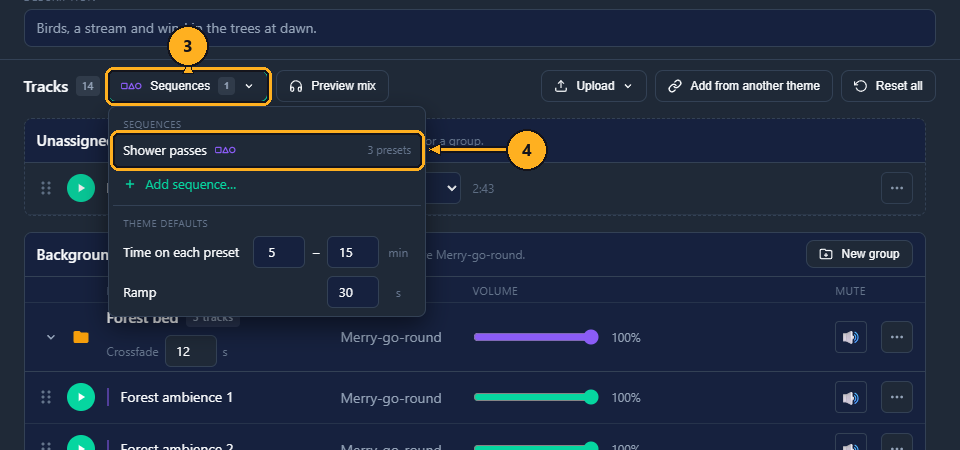
3: Click Sequences.
4: Click the sequence. The Edit sequence window opens: the same window as Add sequence, with a ⋯ button in its top right.
5: Change what you want, then click Save.
You can also pick the sequence in the Preset field at the bottom of the editor and click Edit next to it.
A channel playing the sequence follows the saved changes.
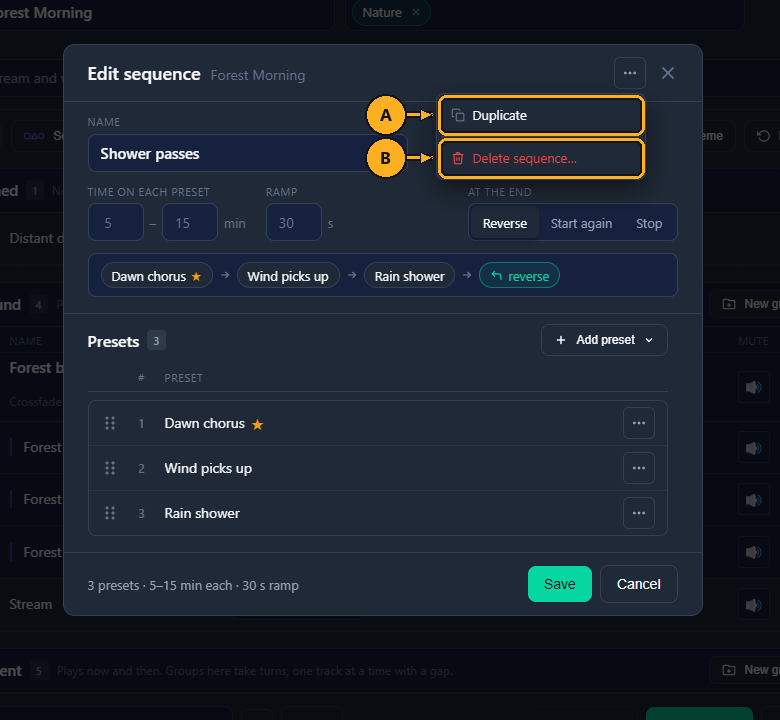
The ⋯ in the top right of Edit sequence:
- A: Duplicate: turns the window into a new sequence with the same settings, named "… (copy)". Save saves it as a new sequence; the original is unchanged.
- B: Delete sequence…: asks Delete "…"?; Delete removes the sequence. Channels playing it stop the sequence and stay on the preset they were on.
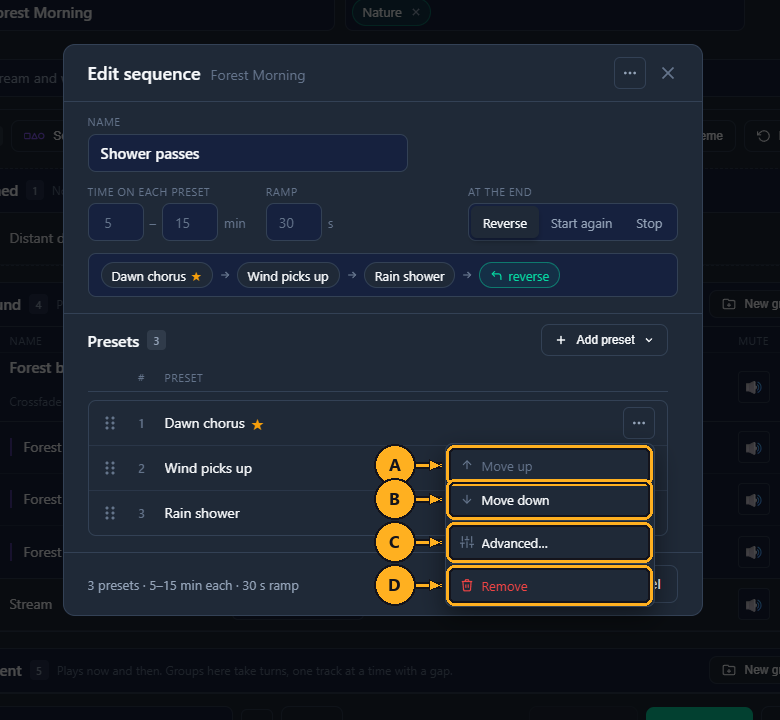
- A: Move up: can't be clicked on the first preset.
- B: Move down: can't be clicked on the last preset.
- C: Advanced…: how this step plays and how tracks come in and leave (see While playing and Advanced transitions). It shows "On" when the step has anything set, and a dot appears on the step's ⋯.
- D: Remove: takes the preset out of the sequence. The preset stays in the theme.
Changes to the order are kept when you click Save in Edit sequence. Save in the Advanced window saves the whole sequence, order included.
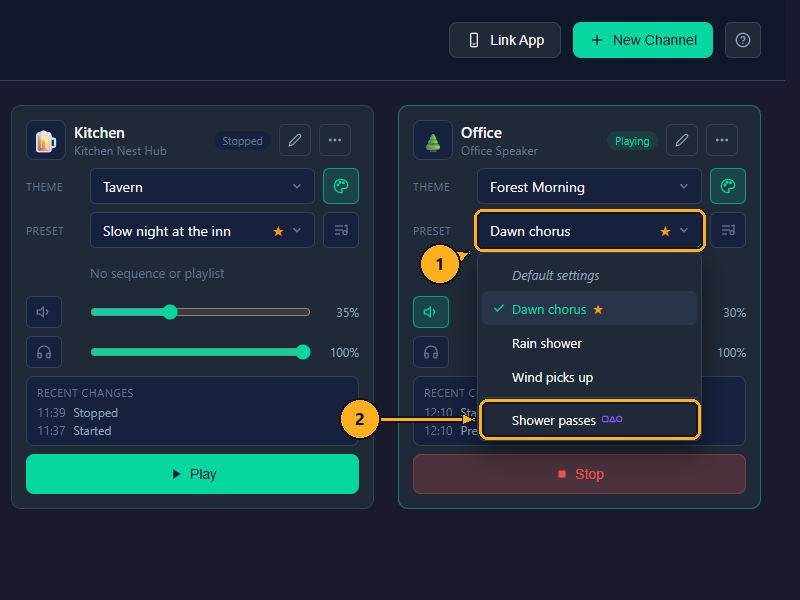
1: On the Channels page, click the channel's Preset field. The list shows Default settings, the theme's presets, then its sequences, marked with the sequence icon.
2: Click the sequence.
3: Click Play if the channel isn't playing yet.
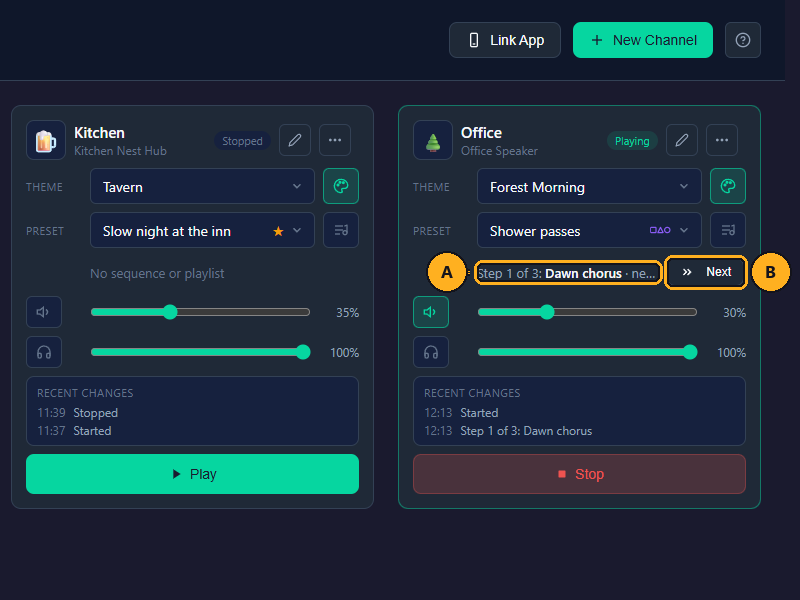
- A: which step is playing, for example "Step 1 of 3: Dawn chorus", and the countdown to the next one ("next in 6:12").
- B: Next: skips to the next step now, with a 3-second glide. Can't be clicked while the channel is stopped.
What to expect:
- The sequence starts from its first preset. Each change is listed under the card's Recent changes.
- Picking a preset in the Preset field, or another theme, stops the sequence; the channel keeps playing.
- Stopping the channel stops the sequence's clock; pressing Play again starts the sequence from its first preset.
- Each step's lines in the log start with "Playback:" (see Troubleshooting).
In Home Assistant, sequences are options of the channel's Preset select, named "sequence name (sequence)" (see MQTT Entities).
Each step of a sequence normally plays its preset exactly as it was saved. While playing lets one sequence play a step differently, without changing the preset. Other sequences, and channels that pick the preset directly, still get the preset as saved.
For example, "Wind picks up" might be used in two sequences. In one of them you want the stream quieter during that step. You lower the stream in that step's While playing tab, and only that sequence is affected.
1: On the Channels page, click Themes in the menu on the left.
2: On the theme's card, click Edit.
3: Click Sequences.
4: Click the sequence. The Edit sequence window opens (see the picture under How to edit a sequence).
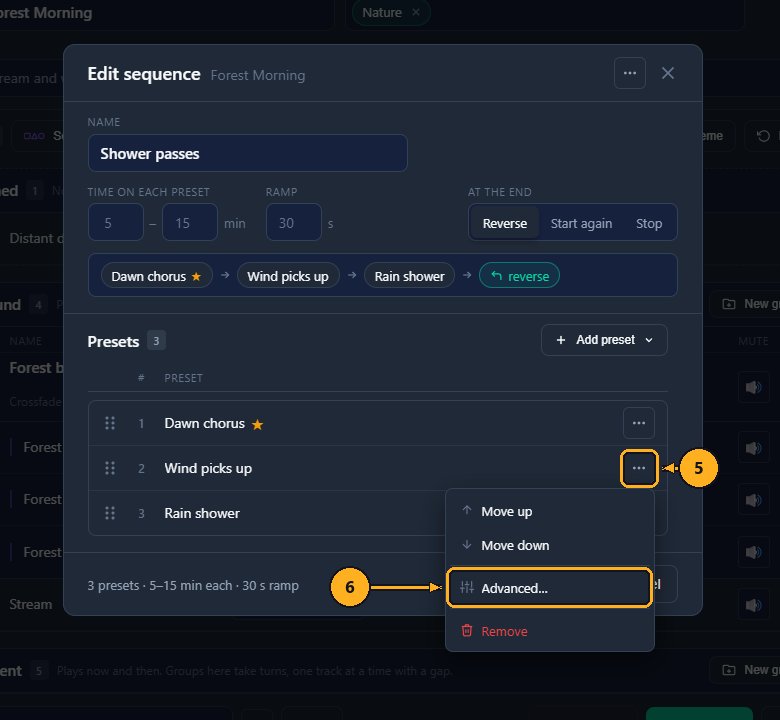
5: On the step you want to change, click ⋯ at the right of its row.
6: Click Advanced…. A window opens, titled with the step's preset, its sequence and its place, for example "Wind picks up in Shower passes · step 2". The While playing tab is selected.
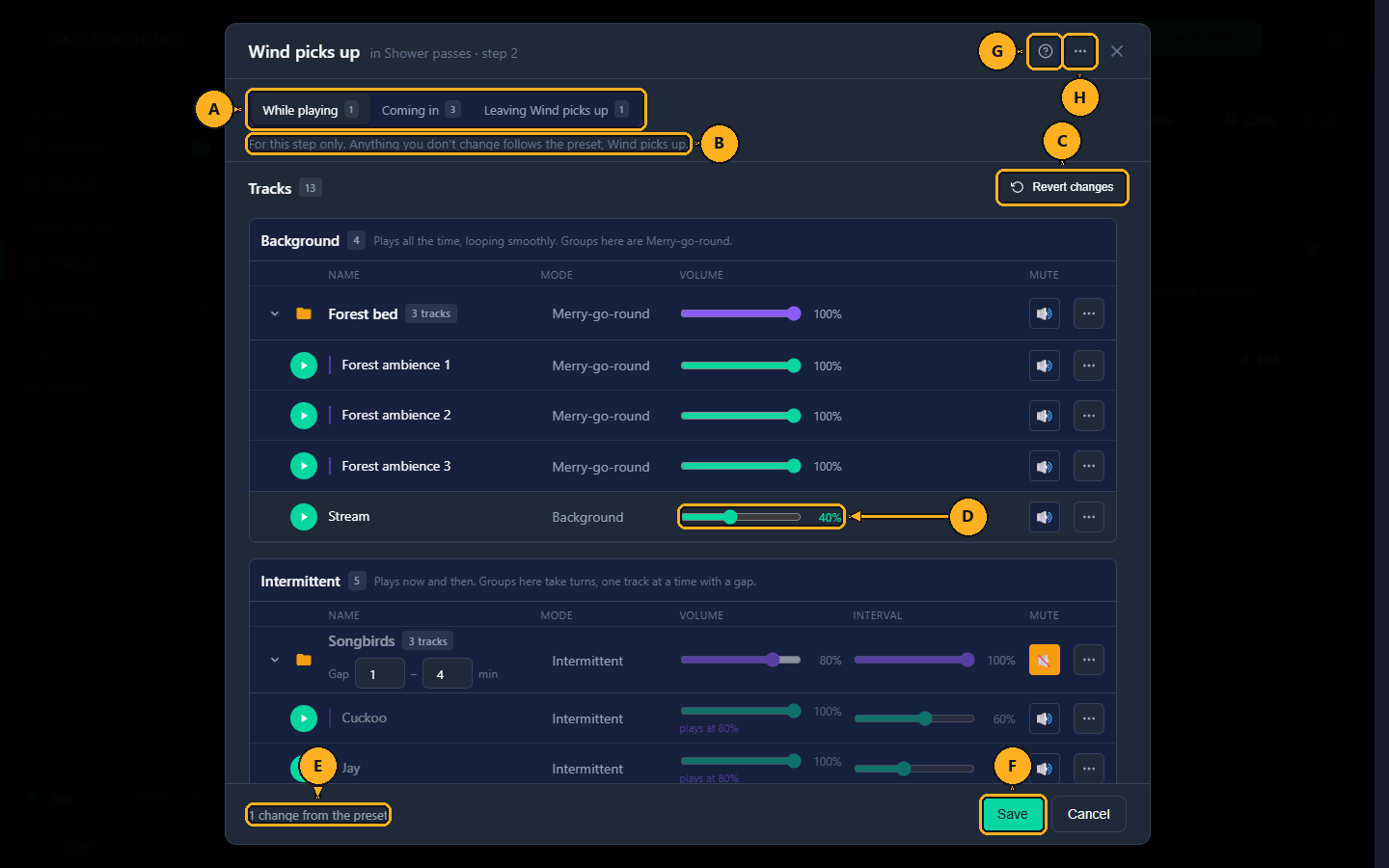
- A: Tabs: While playing, Coming in and Leaving this preset. The number on each tab counts what it holds: values changed, or tracks that come in or leave.
- B: "For this step only. Anything you don't change follows the preset, …".
- C: Revert changes: puts back the values as they were when Save was last clicked. Each track's and group's ⋯ menu has it too, for that track or group.
- D: a value changed from the preset is highlighted.
- E: Summary: "1 change from the preset", or "Follows the preset".
- F: Save.
- G: ?: the window's help.
- H: ⋯: Reset to Smooth… (see Advanced transitions).
7: Change any value with the same controls as the Theme Editor: Volume, Interval or Duration, Mute, and in a track's or group's ⋯ menu, Ebb & Flow's Rise and pauses. Every value starts as the preset's value.
8: Click Save.
What to expect:
- Save saves the whole sequence, closes this window and leaves Edit sequence open; the message says "Saved "Wind picks up"". Channels playing this step follow the change straight away.
- Anything you don't change keeps following the preset, even if the preset is edited later. Setting a value back to the preset's value counts as unchanged again.
- A step's Mode, groups and Crossfade can't be changed here; they belong to the theme.
- Cancel, the × or the Esc key closes the window without saving.
The Coming in and Leaving tabs of the same window set how tracks change as the step starts and ends. Without them, every track moves to its new level over the sequence's Ramp. With them, a track can arrive in gusts, start far away and come closer, or finish what it's playing before it stops. Styles can be combined, and a change can start up to 90 seconds before the step.
- Coming in lists the tracks this step turns on or makes louder. Its subtitle names the preset it comes from and the ramp, for example "from Dawn chorus · ramp 30 s". On the first step it comes from the preset before it when the sequence goes round (with Reverse, the second preset; with Start again, the last one), and with Stop it reads "The sequence starts here".
- Leaving lists the tracks the next step turns off or makes quieter, "to" the next preset. On the last step with Stop it reads "Nothing comes after this preset".
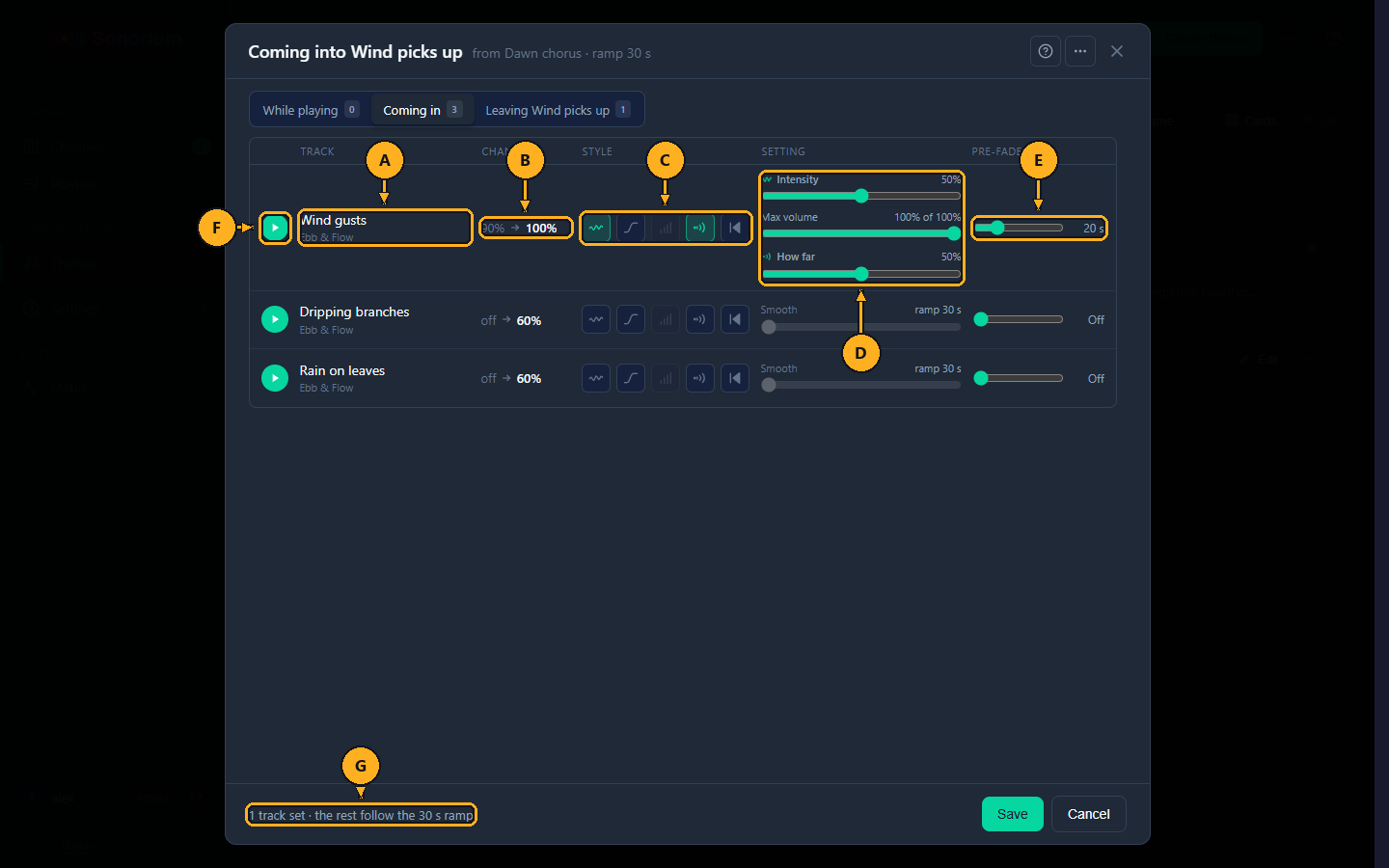
- A: Track: the track's name and mode.
- B: Change: its level before and after the step, for example "40% → 100%", or "off".
- C: Style: five buttons: click one to turn that style on, click it again to turn it off. Several can be on together. With none on the track is Smooth: it follows the sequence's ramp.
- D: Setting: one slider for each style that is on.
- E: Pre-fade: starts the change this many seconds before the step: 0 (Off) to 90, in steps of 5.
- F: ▶: plays this track's change in this browser, and follows your edits as you make them.
- G: Summary: for example "1 track set · the rest follow the 30 s ramp", or "All Smooth · the 30 s ramp".
The styles, as the window's help names them (the first name is for Coming in, the second for Leaving):
| Style | What it does | Setting | Default |
|---|---|---|---|
| Gusts / Gusts dying down | Rises or falls in uneven surges. The surges are the same each time the step plays. | Intensity (0–100%): how rough. Max volume: caps the peaks, at most the track's volume in the preset. | 50%; the preset's volume |
| Swell / Smooth fade | One curved fade. | Speed: how many seconds of the fade time (pre-fade plus ramp) it uses, from 5 seconds to all of it. | 20 s |
| Build / Thin out | Intermittent tracks play more often and louder over the fade, or less often and quieter. The slider shows what it does, for example "Interval 24% → 60%". The button can't be clicked on other tracks. | Amount (0–100%) | 60% |
| Distance / Recede | Starts faint and muffled, like far-off thunder, and ends clear at the preset volume; or drifts away. | How far (0–100%) | 50% |
| Start fresh / Finish then stop | Plays from the start of the file with a short fade, for music, voices and rhythm; or lets the current play finish, then stops. | none | — |
- File fades: a file's Fade in and Fade out (Theme Editor, the track's ⋯ menu) apply on top of every style.
-
Combining styles: several styles can be on together. They all work over the same fade time (pre-fade plus ramp). For example:
- Gusts + Distance: wind starts far off and muffled, and surges unevenly as it comes closer.
- Gusts + Swell: the surges ride on one curved rise instead of a steady one.
- Gusts + Start fresh: the file plays from its start and rises in uneven surges.
- Build + Distance: thunder comes more often and louder as it moves from far off to close.
- Thin out + Recede: thunder comes less often and quieter as it drifts away.
- Smooth fade + Finish then stop: fades out over the fade time; if the current play ends first, it stops there with a short fade.
⋯ › Reset to Smooth… asks Reset every track in "…" to Smooth?; Reset turns every style and pre-fade of this step off. Save keeps the result.
Example: wind that arrives from far away. In "Shower passes", open Advanced… on "Wind picks up", go to Coming in, and turn on Gusts and Distance for "Wind gusts", with a Pre-fade of 20 seconds. Twenty seconds before the step, the gusts start faint and muffled, and surge unevenly as they come closer, reaching their preset level as the 30-second ramp ends. Press ▶ on the row to hear it before you save.
A pre-fade never starts before the glide into the current preset has finished; with a short Time on each preset it is shortened. Next on the channel drops the planned changes and glides over 3 seconds instead.
A playlist is a list of themes that play one after another on a channel. Each entry is a theme, with one of its presets or sequences if you want one; an entry without one plays the theme's default preset. Playlists don't belong to a theme: they are on the Playlists page, and any channel can play any playlist.
A playlist has these settings:
| Setting | Range | Default | What it does |
|---|---|---|---|
| Name | up to 100 characters | — | Must be different from the other playlists. |
| Play each entry | minutes, two boxes | 30 to 60 | Each entry plays for a random time between the two values, drawn fresh each time. Then the next entry starts. |
| Order | In order, Shuffle | In order | In order plays the entries as listed. Shuffle plays every entry once per round in a random order, never the same theme twice in a row, and with three or more themes never one theme, another, then the first again. |
| Repeat | on / off | on | On, the playlist starts a new round after the last entry. Off, the channel fades out and stops after the last entry; playing it again starts from the first. |
| Fit sequences into the playlist time | on / off | off | Off, an entry with a sequence plays the whole sequence once (each of its presets once, first to last), however long that takes, then the playlist moves on. On, it gets the playlist's time like any other entry, and its steps are shortened or lengthened to fit. |
| Entries | at least 1 | — | The themes, in order. A theme can be in several entries. |
Each new entry crossfades from the last one (over the Crossfade on Audio Settings). A channel remembers its playlist and where it is in it, so a stopped channel, or a restarted Sonorium, carries on from the entry it was on. An entry whose theme was deleted is skipped.
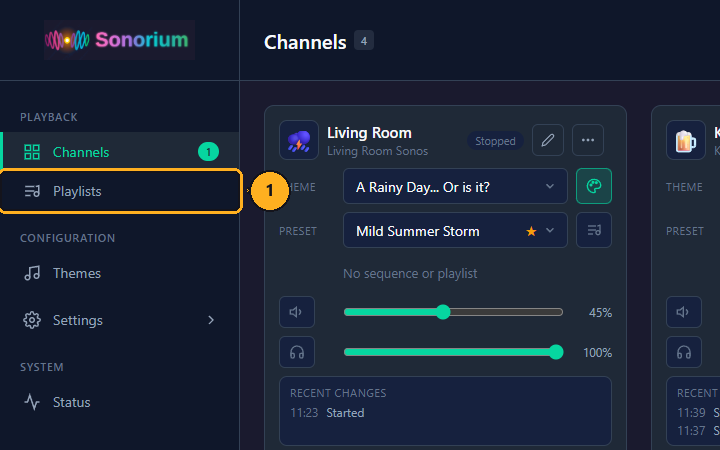
1: On the Channels page, click Playlists in the menu on the left.
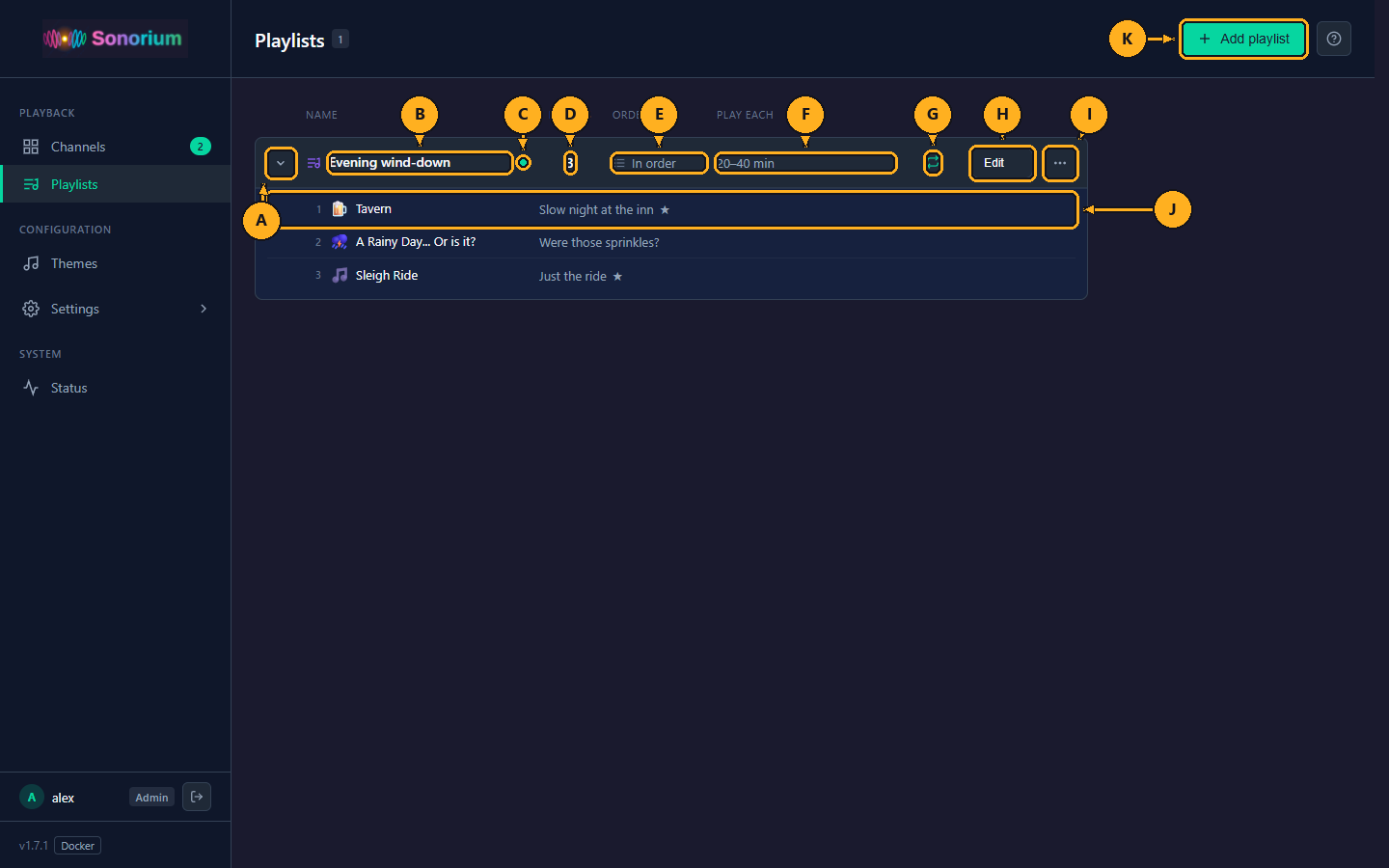
- A: Arrow: shows or hides the playlist's entries.
- B: Name.
- C: Green dot: a channel is playing the playlist now. Point at it to see which.
- D: Entries: how many entries it has.
- E: Order: In order or Shuffle.
- F: Play each: the time range of each entry, in minutes.
- G: Repeat: the repeat icon when it repeats, a dash when it stops after the last entry.
- H: Edit: opens the playlist in the Edit playlist window.
- I: ⋯: Duplicate and Delete….
- J: Entries: each entry's number, theme, and preset or sequence. A deleted theme shows "Theme deleted".
- K: Add playlist: opens the Add playlist window (see How to make a playlist).
With no playlists, the page says No playlists.
1: On the Channels page, click Playlists in the menu on the left.
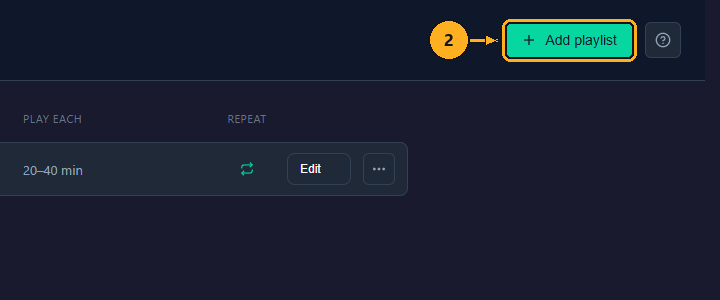
2: Click Add playlist in the top right. The Add playlist window opens.
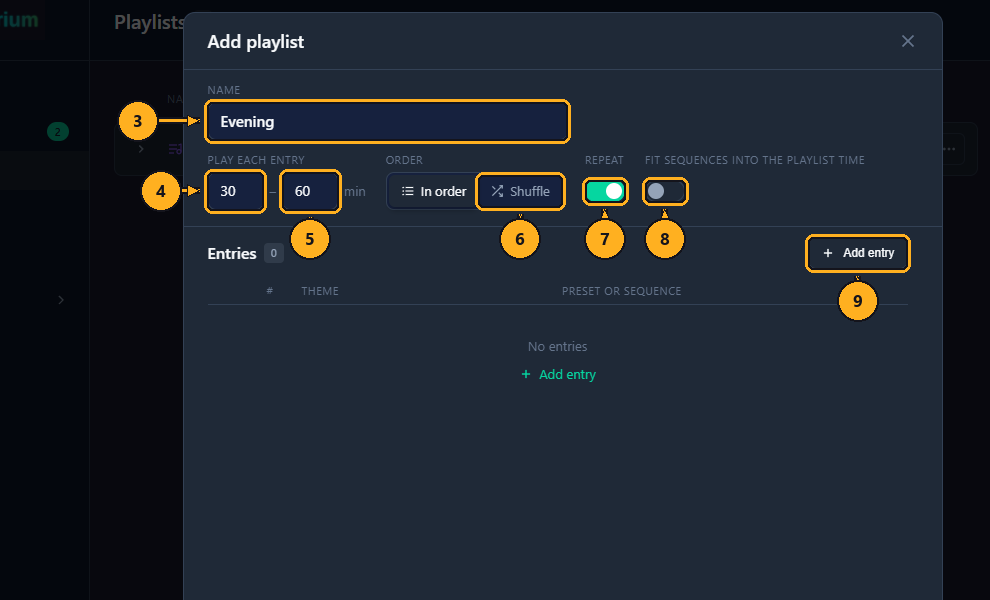
3: Type a name in the Name box, for example "Evening".
4: In Play each entry, type the shortest time in minutes, for example 30.
5: Type the longest time, for example 60.
6: Click In order or Shuffle.
7: Click the Repeat switch if the channel should stop after the last entry instead of starting over.
8: Click the Fit sequences into the playlist time switch if sequence entries should play for the playlist's time instead of one whole pass.
9: Click Add entry. An empty entry is added to the list.
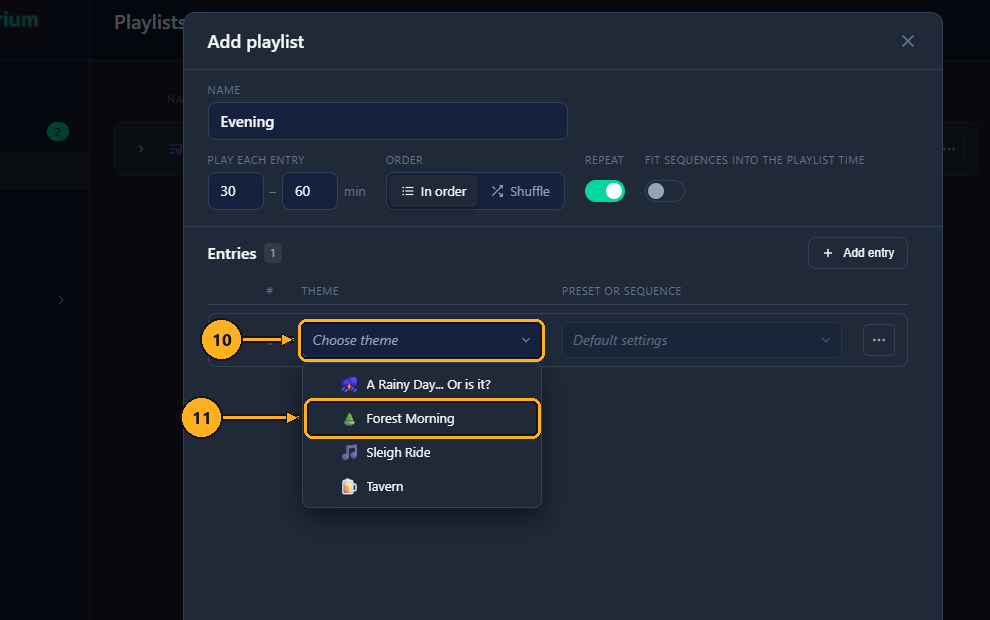
10: Click the entry's Choose theme box. The list of your themes opens.
11: Click the theme.
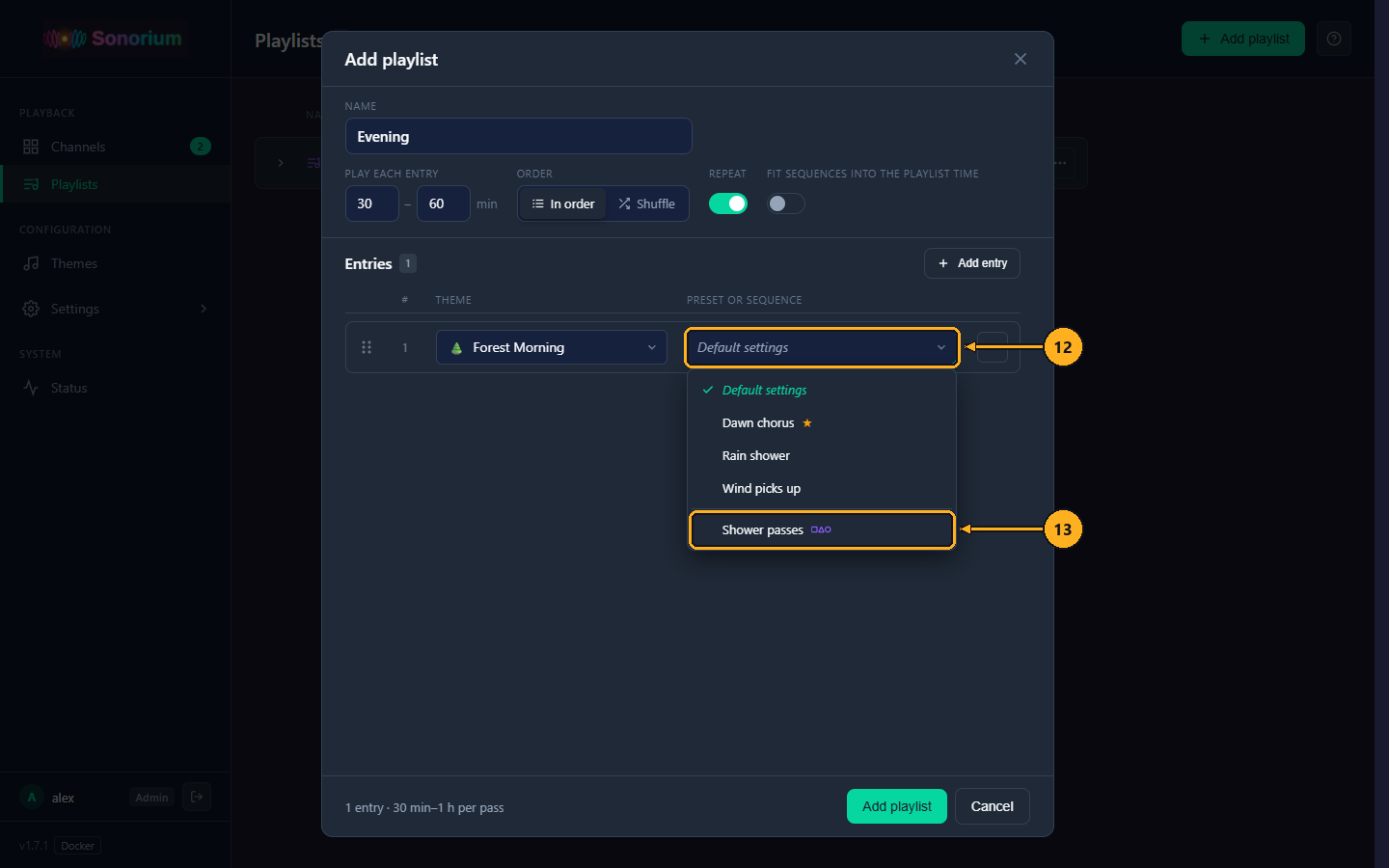
12: To play one of the theme's presets or sequences, click the entry's Default settings box. The list shows Default settings, the presets, then the sequences, marked with the sequence icon.
13: Click the preset or sequence.
Repeat steps 9 to 13 for each theme.
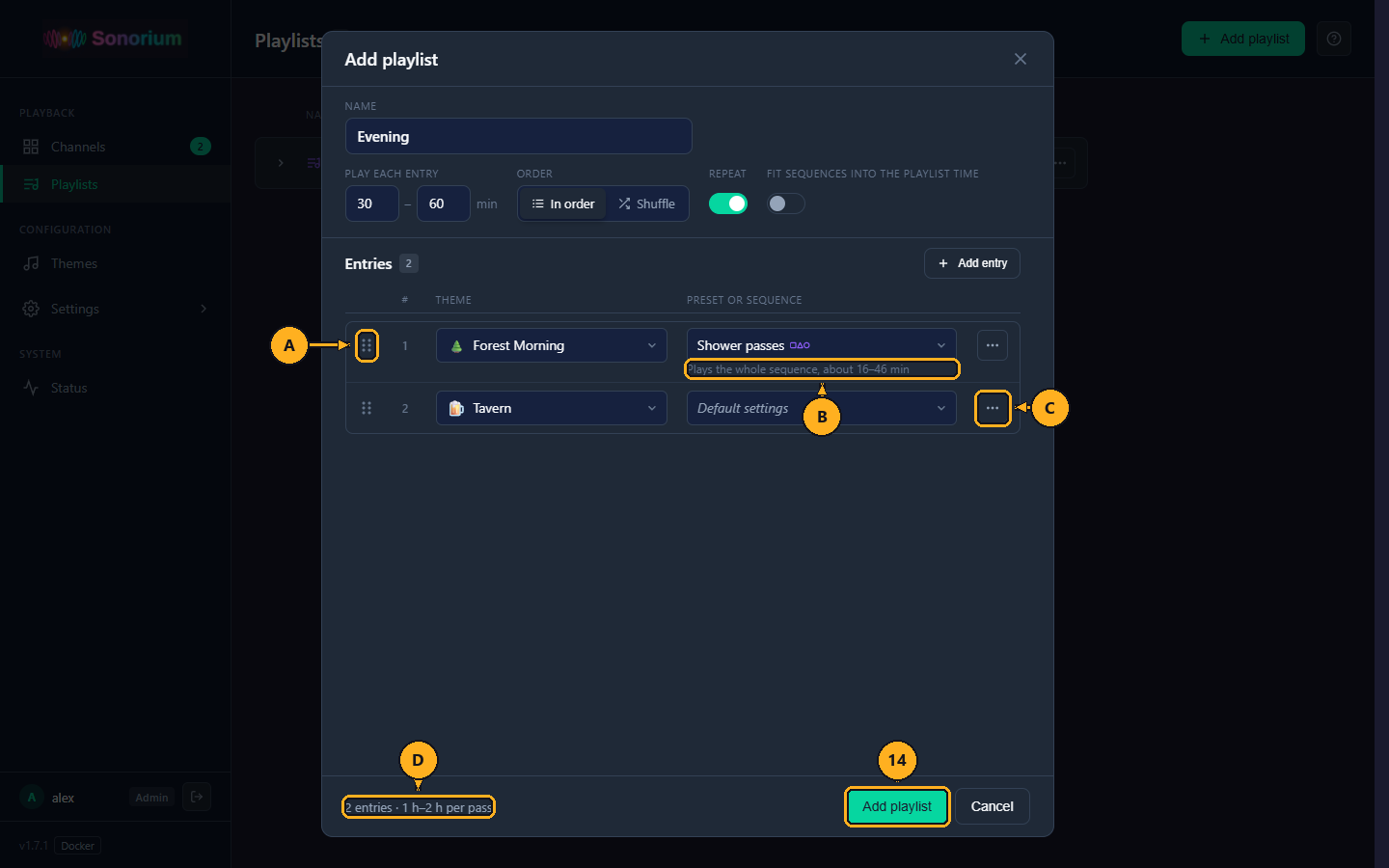
- A: Drag handle: drag an entry up or down to change the order.
- B: under a sequence entry, how long it plays: "Plays the whole sequence, about 16–46 min", or with Fit sequences into the playlist time on, "Fits into 30–60 min".
- C: ⋯: Move up, Move down, Duplicate and Remove.
- D: Summary: how many entries, and how long one pass takes, for example "2 entries · 1 h–2 h per pass".
14: Click Add playlist. The message says "Playlist added", and the playlist is on the Playlists page with its entries shown.
What Add playlist checks: a name ("Enter a name"), a name not used by another playlist ("A playlist with that name exists"), both times filled in ("Enter the play time") with the shortest not above the longest ("Minimum is more than maximum"), at least one entry ("Add at least one entry") and a theme in every entry ("Choose a theme for every entry").
Keyboard: in the Name box, press the Enter key to save. Press the Esc key to close a menu, or the window without saving.
1: On the Channels page, click Playlists in the menu on the left.
2: Click Edit on the playlist's row. The Edit playlist window opens: the same window as Add playlist.
3: Change what you want, then click Save. The message says "Playlist saved".
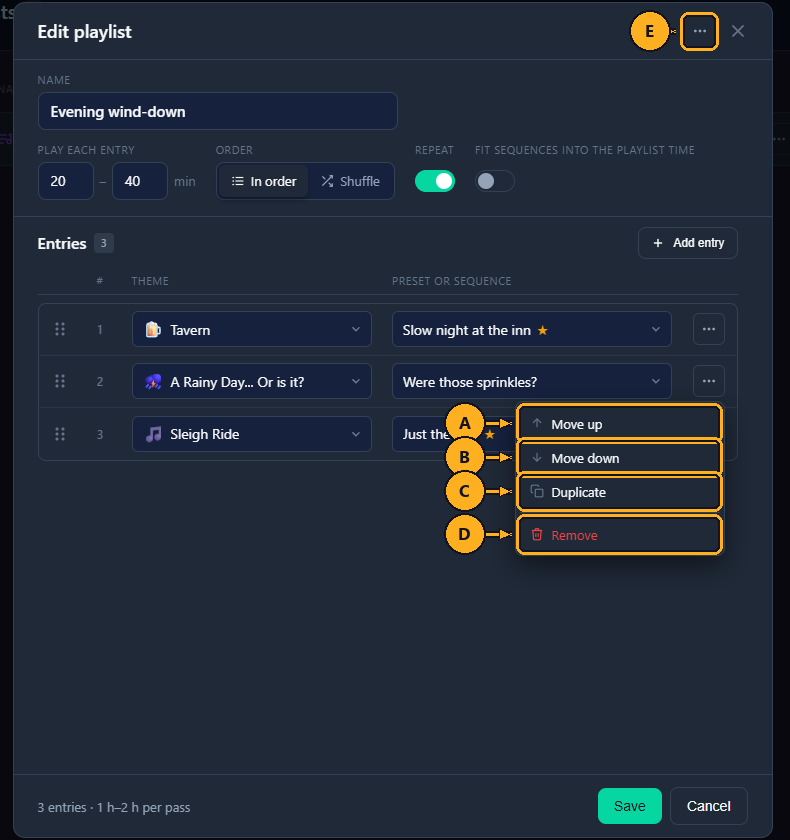
- A: Move up and B: Move down: move the entry one place.
- C: Duplicate: adds a copy of the entry under it.
- D: Remove: takes the entry out of the playlist.
- E: ⋯: Duplicate (turns the window into a new playlist named "… (copy)"; Save adds it) and Delete playlist….
A channel playing the playlist follows the saved changes.
1: On the Channels page, click Playlists in the menu on the left.
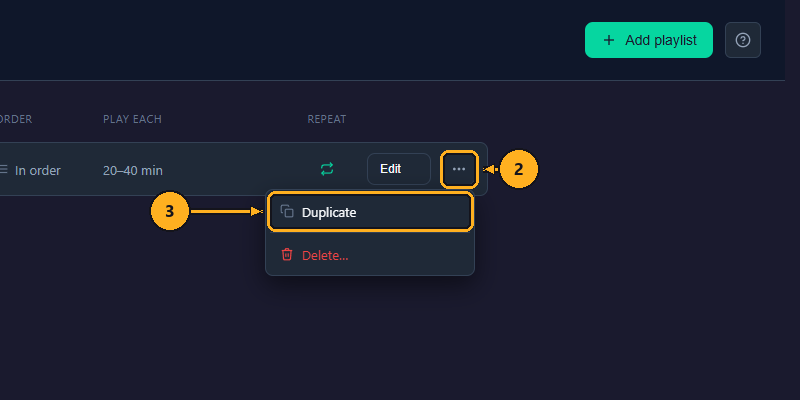
2: Click ⋯ on the playlist's row.
3: Click Duplicate. A copy named "… (copy)" appears under the original, and the message says "Duplicated".
To delete it instead:
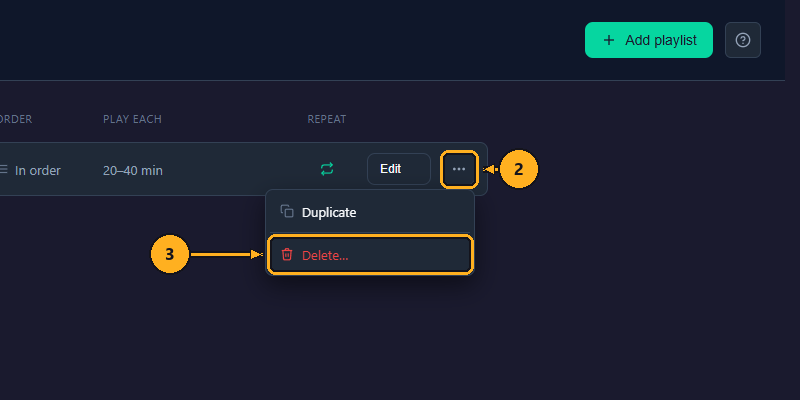
2: Click ⋯ on the playlist's row.
3: Click Delete…. A box asks Delete "…"?, and names the channels that will stop playing it.
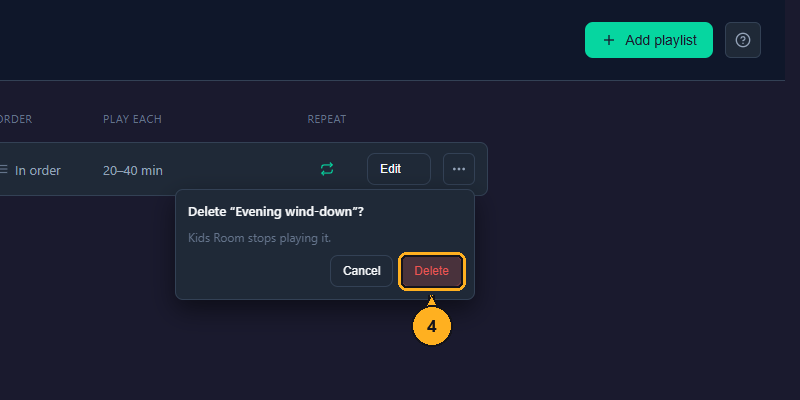
4: Click Delete. The message says "Playlist deleted". Channels that were playing it keep playing their current theme.
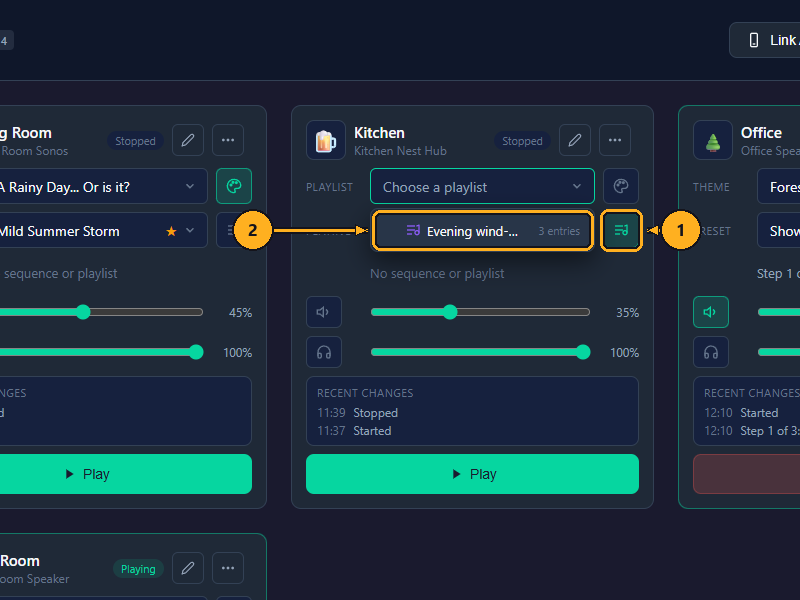
1: On the Channels page, click Play a playlist, the lower of the two buttons to the right of the channel's fields. The fields change to Playlist and Playing, and the list of playlists opens.
2: Click the playlist. The message says "Playing "…"".
3: Click Play if the channel isn't playing yet. On a stopped channel the playlist waits until it plays.
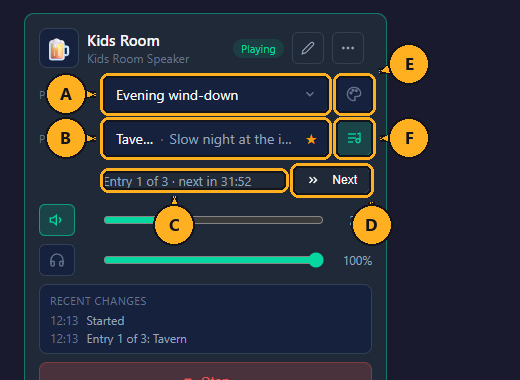
- A: Playlist: click it to pick another.
- B: Playing: the entry's theme, and its preset or sequence.
- C: which entry is playing in this round, for example "Entry 1 of 3", and the countdown to the next ("next in 31:52").
- D: Next: skips to the next entry now. Can't be clicked while the channel is stopped.
- E: Play a theme: stops the playlist; the channel keeps playing its current theme, and the fields go back to Theme and Preset.
- F: Play a playlist: the button that is on while the channel plays a playlist.
An entry with a sequence also runs the sequence's steps (one pass, see What a playlist is); the channel's step line then shows the entry. More on channels: Channels.
In Home Assistant, each channel has a Playlist select, a Next button and a Step sensor (see MQTT Entities).
- Presets: the steps of a sequence.
- Track Settings: the controls in the While playing tab.
- API Reference: sequences and playlists over the REST API.