Repository navigation
Sign in and Users
Sonorium can ask who is using it. Think of it as a building with a front door: the Users plugin hands a keycard to each person who lives there, and their role decides which rooms the card opens. Devices and programs get a different kind of key that opens only some rooms (see Keys), and a phone is linked with a QR code (see Link App).
The Users plugin comes with Sonorium and is switched on by default (see Plugins). Switching it off, or uninstalling it, makes Sonorium open to anyone on your network again; Sonorium asks before it does. The accounts are kept, so switching the plugin back on brings them back.
Sign-in covers the web UI and the API on Sonorium's ports (8008 and 8808). It never stands between Sonorium and your speakers: see What works without signing in.
The first visit to http://sonorium.local:8008 (or the address of the machine Sonorium runs on, for example http://192.0.2.10:8008) shows Create the admin account. Sign-in is on from the start: Require login is on for a new install.
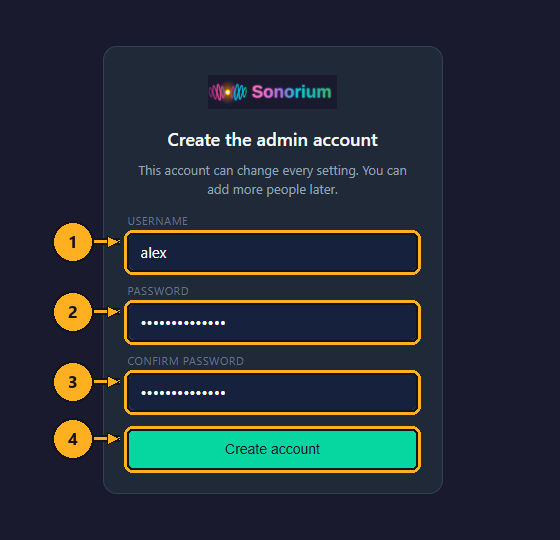
1: Type a username: 1 to 32 letters, numbers, dots, dashes or underscores (@ works too), starting with a letter or a number.
2: Type a password of at least 8 characters.
3: Type the password again.
4: Click Create account.
Sonorium makes the account, signs you in and opens the Channels page. This first account is an Admin: it can change every setting and add more people later (see How to add a user). If the two passwords differ, the screen says "The passwords don’t match." and nothing is made. The log records Users: admin account alex made from 192.0.2.25.
After an update from a version without sign-in, nothing changes: Require login is off, so Sonorium stays open to anyone on your network, as before. A banner at the top of every page says Sign-in is off. "Anyone on your network can use and change Sonorium.", with a button for the next step.

1: Click Create the admin account in the banner. The Create the admin account screen opens; fill it in as for a new install.
Back on the Channels page, the banner now offers Require login: see How to turn on Require login.
In the Home Assistant app there is no admin account to create: Home Assistant's users are Sonorium's users (see Home Assistant's users). Open Sonorium from Home Assistant's sidebar; Home Assistant has already signed you in.
- A new install starts with Require login on: on ports 8008 and 8808 you sign in with your Home Assistant username and password.
- An update starts with Require login off, and the banner offers Require login to anyone who is an Admin (see How to turn on Require login). No Sonorium password is needed first.
Require login decides what happens on ports 8008 and 8808 when nobody is signed in.
| Require login off | Require login on | |
|---|---|---|
| The web UI on port 8008 or 8808 | Opens for anyone on your network, who can use and change everything except Users & devices and Keys | Shows the Sign in screen first |
| The API | Answers anyone | Answers a signed-in browser, a linked phone or a key |
| The banner | Sign-in is off. on every page | None |
While it is off, anyone can still sign in (the banner shows Sign in to a visitor who isn't signed in) and then works with their role.
These work the same with Require login on or off:
-
Speakers and streams: speakers can't sign in, so the audio streams (
/stream/...) and the speaker test sound stay open. Anyone on your network can listen to a channel that is playing, but can't change anything. - Home Assistant's entities and MQTT: Home Assistant talks to Sonorium over MQTT, which sign-in doesn't cover (see MQTT Entities).
- Home Assistant's sidebar (the Home Assistant app): Home Assistant signs the person in.
Plugin triggers and the event stream always need a key or a plugin token, also while Require login is off.
The switch is the Require login button in the banner. It shows to an Admin who is signed in while Require login is off.

1: Click Require login in the banner at the top of the page.
The page reloads and the banner is gone. From now on every browser that isn't signed in gets the Sign in screen. The log records Users: Require login is on.
In Docker, Sonorium refuses with "Give an admin account a password first." until an Admin account has a password.
- A: ×: hides the banner in this browser. It stays hidden in this browser until its stored site data for Sonorium is cleared; other browsers still show it.

A visitor who isn't signed in sees Sign in in the banner instead (1 above): it opens the Sign in screen.
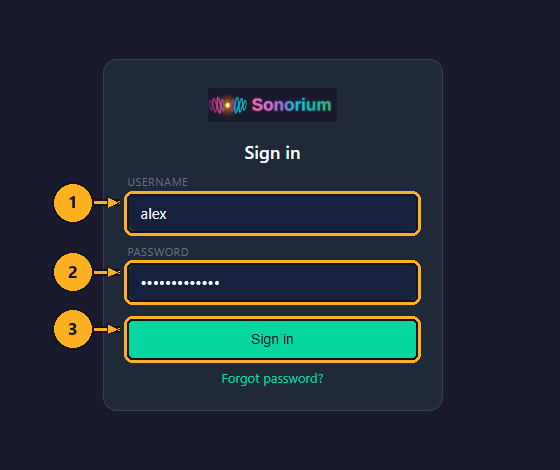
1: Type your username.
2: Type your password.
3: Click Sign in. You can press the Enter key instead.
Sonorium opens the Channels page. A wrong username or password shows "Wrong username or password." under the button.
- How long a browser stays signed in: 30 days at most, and it is signed out sooner when it hasn't been used for 14 days.
-
Wrong passwords: after five failed tries from one address, Sonorium refuses further tries with "Too many attempts. Try again in a minute." One try comes back every 12 seconds, so five a minute at most. Each failure is written to the log, for example
Sign-in failed for 'alex' from 192.0.2.25. - Home Assistant app: on ports 8008 and 8808, Home Assistant's users sign in with their Home Assistant username and password. Sonorium passes the password to Home Assistant to check and never keeps or logs it.
The person signed in is shown at the bottom of the menu on the left.
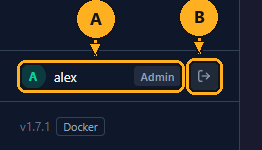
- A: the username and role.
- B: Sign out: signs this browser out. The Sign in screen opens (with Require login on).
In Home Assistant's sidebar there is no Sign out button: Home Assistant signs you in and out.
A phone linked to your account with the Sonorium app for Android can show a six-digit sign-in code. The code works once, for 5 minutes, and after five wrong tries it stops working.
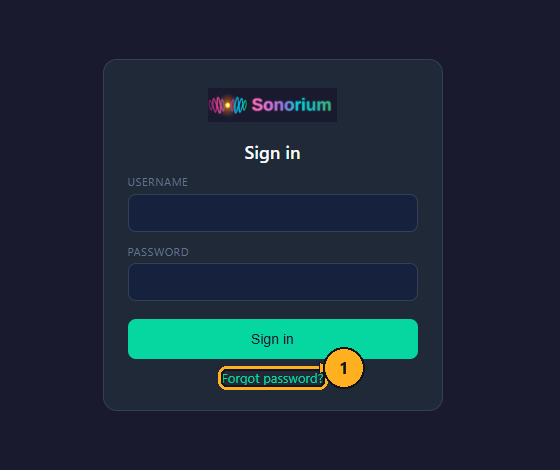
1: On the Sign in screen, click Forgot password?. The Sign in with a code screen opens.
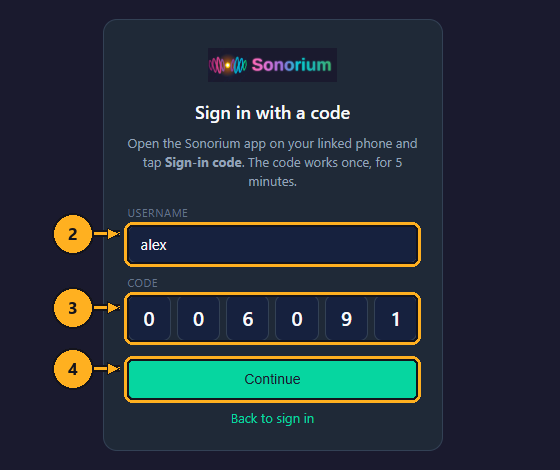
2: Type your username.
3: In the Sonorium app on your linked phone, tap Sign-in code, and type the six digits shown there into the six boxes. Each digit moves to the next box; a pasted code fills all six.
4: Click Continue. The Choose a new password screen opens.
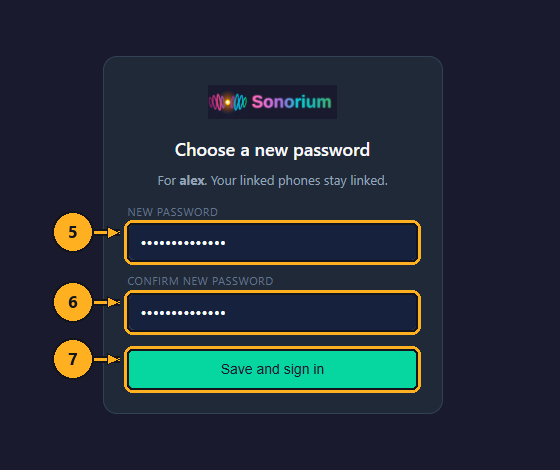
5: Type a new password of at least 8 characters.
6: Type it again.
7: Click Save and sign in.
You are signed in with the new password. Every other browser signed in to your account is signed out; your linked phones stay linked. You have 10 minutes after step 4 to choose the password. Back to sign in on the code screen returns to the Sign in screen. A wrong or expired code shows "That code didn't work."
This doesn't apply to Home Assistant's users in the Home Assistant app: their password is Home Assistant's.
The recovery switch lets the web UI open without signing in, so an Admin can set a new password. Think of it as the spare key under the mat: use it, then take it back in.
While it is on, a banner on every page says Sign-in is off. "BYPASS_LOGIN is set to true, so anyone on your network can use and change Sonorium. Reset your account under Settings › Users & devices, then set it back to false.", and the log warns at every start. Linked phones and keys keep working.

Docker:
-
Open your
docker-compose.ymland setBYPASS_LOGIN=truein itsenvironment:part (add the line if it isn't there):environment: - BYPASS_LOGIN=true
-
In the folder of the compose file, run
docker compose up -d. Docker starts Sonorium again with the switch on. -
Open Sonorium in your browser (
http://sonorium.local:8008). The banner shows; no sign-in is asked. -
Reset your password: follow How to reset a password for your account.
-
Set
BYPASS_LOGIN=falsein the compose file, and rundocker compose up -dagain. -
Sign in with the new password.
Home Assistant app: Home Assistant's users sign in with their Home Assistant password, so this is only for accounts made in Sonorium.
- In Home Assistant, open Settings › Add-ons › Sonorium and its Configuration tab.
- Turn on
bypass_loginand click Save. - Restart the add-on on its Info tab.
- Open Sonorium, and reset the account's password: follow How to reset a password.
- Turn
bypass_loginoff on the Configuration tab, click Save, and restart the add-on.
Every account has one of two roles.
| Admin | User | |
|---|---|---|
| Channels: see, play and stop, change theme, preset and volume, change speakers, add and remove | Yes | Yes |
| Playlists and sequences: see, run and edit | Yes | Yes |
| Themes and presets | See, edit, upload and delete | See |
| Speakers | Everything | See, mute and change volume |
| Settings, plugins and plugin pages, the logs, Users & devices, Keys | Yes | No: hidden in the menu, refused by Sonorium |
| Announcements through the API, plugin triggers | Yes | No |
| Link a phone to their account (Link App) | Yes | Yes |
Sonorium always keeps at least one Admin. With Zones on, a channel can also belong to one user, and only that user and the Admins change it.
A User who tries something only an Admin may do gets "Only an admin can do this".
In the Home Assistant app, everyone with a Home Assistant login is a Sonorium user. Home Assistant is the building's front desk: it already knows who lives here and who manages the place, so Sonorium reads its list instead of keeping one of its own.
| In Home Assistant | In Sonorium |
|---|---|
| Owner, or in the Administrators group | Admin |
| Users or another group | User |
| Can log in switched off, or the user removed | Switched off: their browsers are signed out, their phones and the keys they made are refused |
- The sidebar: every Home Assistant user sees Sonorium in Home Assistant's sidebar and opens it without a second sign-in, with their role.
- Ports 8008 and 8808: they sign in with their Home Assistant username and password.
- A change in Home Assistant (role, switched off) applies within about a minute, at the user's next request. Sonorium reads Home Assistant's list at most once a minute, and at once when someone it hasn't seen opens it in the sidebar. If Home Assistant doesn't answer, Sonorium keeps the roles it last knew.
- Renaming a user in Home Assistant keeps their Sonorium user, phones and settings.
- In Users & devices they carry a Home Assistant label. Make Admin, Make User and Reset password… can't be clicked for them ("Set in Home Assistant"): their role and password are set in Home Assistant.
- Accounts made in Sonorium keep working alongside. Add user refuses a username a Home Assistant user already has.
To keep the web UI in Home Assistant's sidebar only, turn on web_ui_only_through_ha on the add-on's Configuration tab, click Save and restart the add-on. Ports 8008 and 8808 then serve only the streams, linked phones and keys; a browser there gets no web UI and no sign-in screen. The log says The web UI is only served through Home Assistant's sidebar (web_ui_only_through_ha). The option is off by default.
Settings › Users & devices lists the people who can sign in, and the browsers and phones each one uses. Only an Admin sees it.
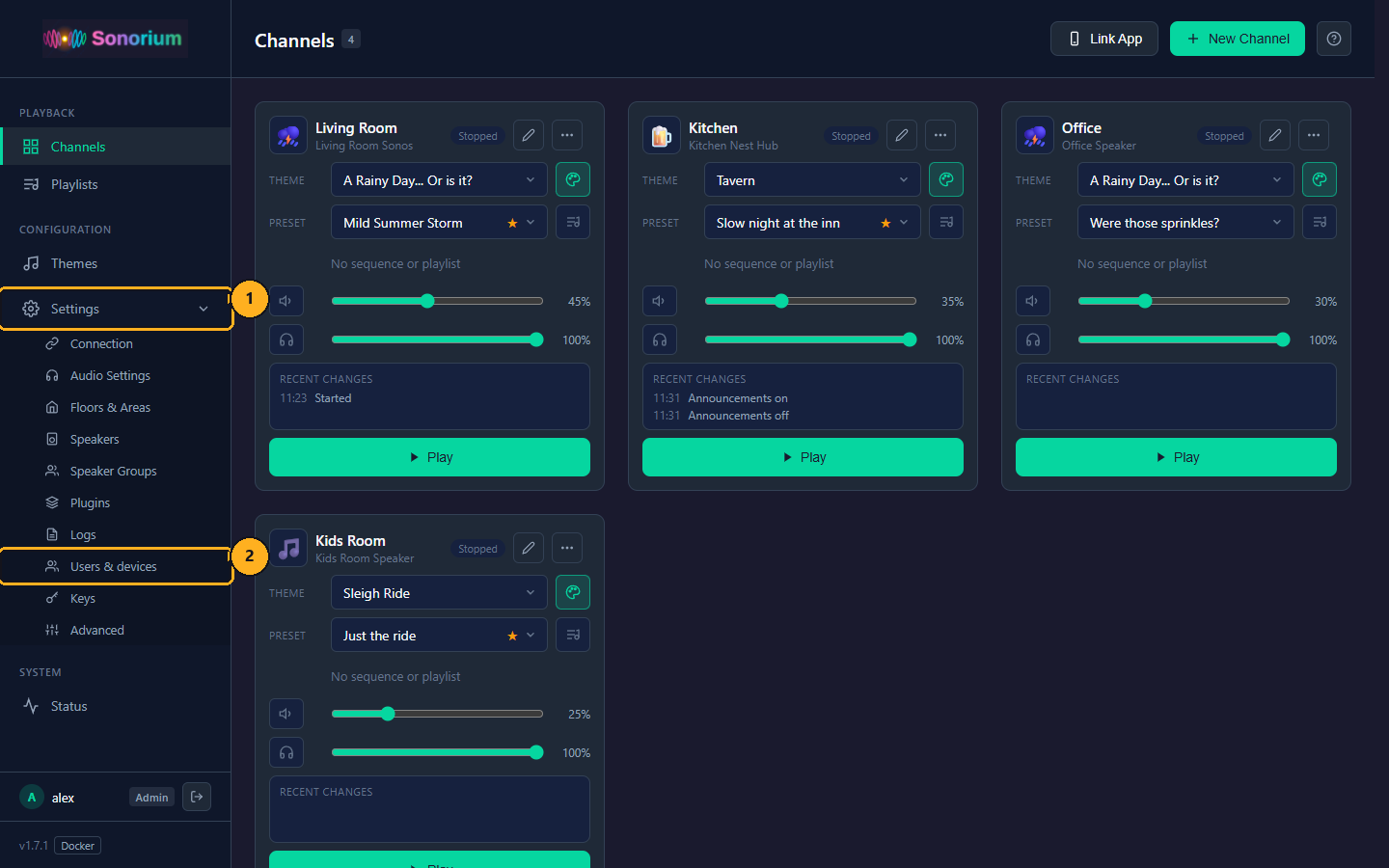
1: On the Channels page, click Settings in the menu on the left. The menu opens to show the settings pages.
2: Click Users & devices.
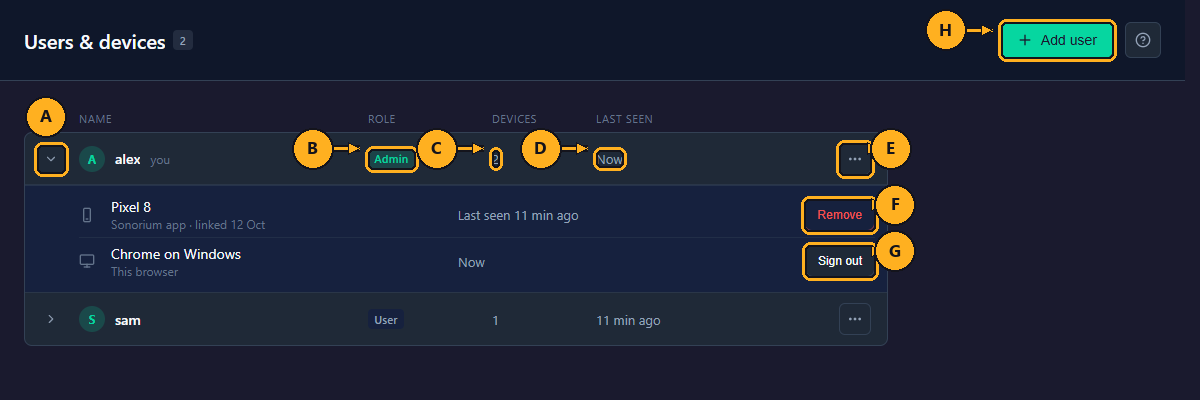
Each user has one row; yours comes first and is marked you. The number next to the page title is how many users there are.
- A: Arrow: shows or hides the user's browsers and phones. Your list is open when the page opens; the arrow can't be clicked for a user with no devices.
- B: Role: Admin or User.
- C: Devices: how many browsers and phones are signed in.
- D: Last seen: when the user last used Sonorium, from any device: Now (the last two minutes), 5 min ago, Today 19:42, Yesterday, or a date.
- E: ⋯: the user's menu (below).
- F: Remove: signs that browser out, or unlinks that phone. You confirm first.
- G: Sign out: on the browser you're using now (marked This browser): signs it out.
- H: Add user: opens the Add user window (see How to add a user).
Each device row shows its name (a browser is named after itself and its system, such as "Chrome on Windows"; a phone by the name the app gave it), "Sonorium app · linked date" or "Browser · signed in date", and when it was last seen.
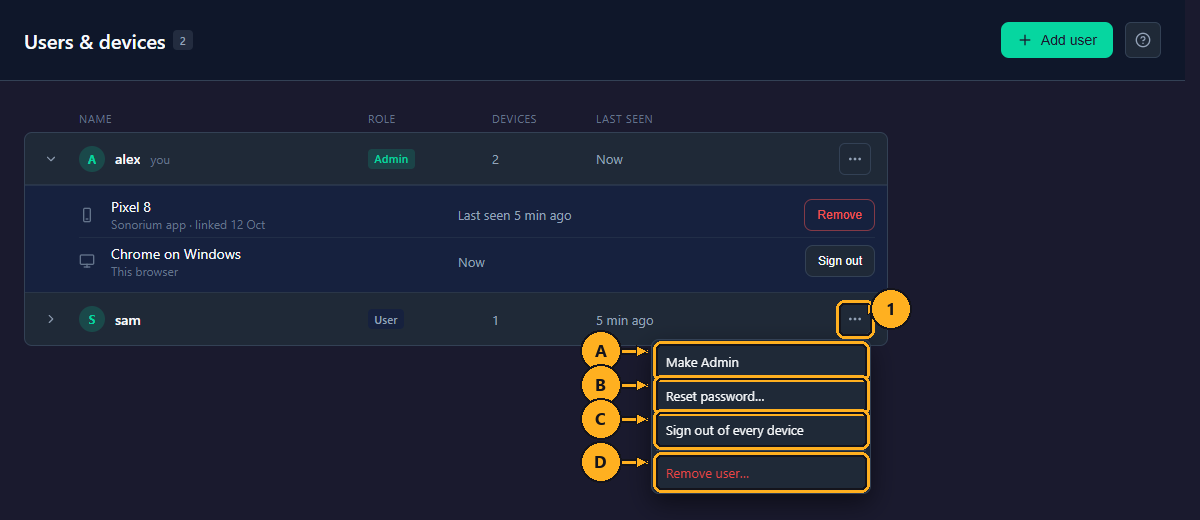
1: Click ⋯ on the user's row. The menu opens.
- A: Make Admin (on an Admin: Make User): changes the role. It can't be clicked for the last Admin ("Sonorium needs at least one admin."). Changing your role reloads the page.
- B: Reset password…: sets a new password. The user's browsers are signed out; linked phones stay linked.
- C: Sign out of every device: signs out every browser and unlinks every phone of the user. You confirm first.
- D: Remove user…: removes the account and signs out its devices. You confirm first. It can't be clicked on your account ("You can’t remove your own account.") and on the last Admin.
With Zones on, the menu also has Can leave a link (see Zones).
To close the menu without picking, press the Esc key or click elsewhere on the page.
1: On the Channels page, click Settings in the menu on the left.
2: Click Users & devices (see How to open Users & devices).
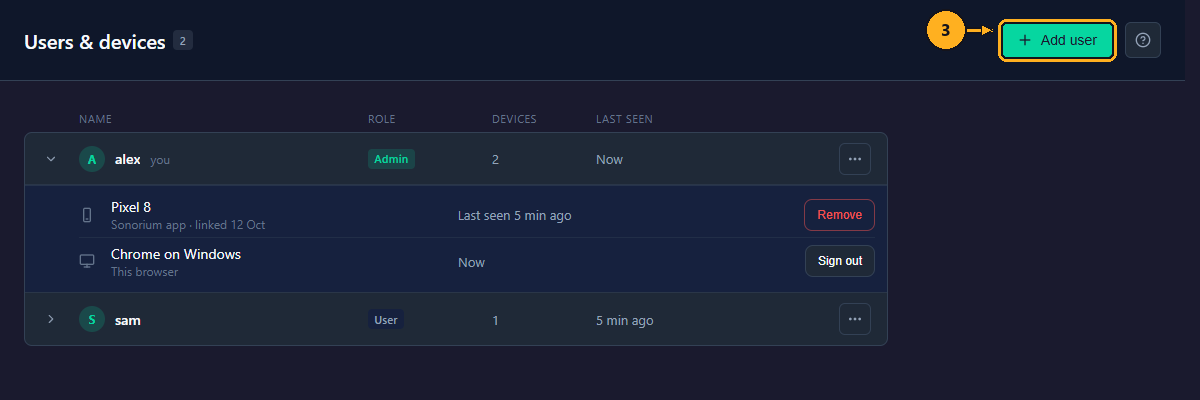
3: Click Add user in the top right. The Add user window opens.
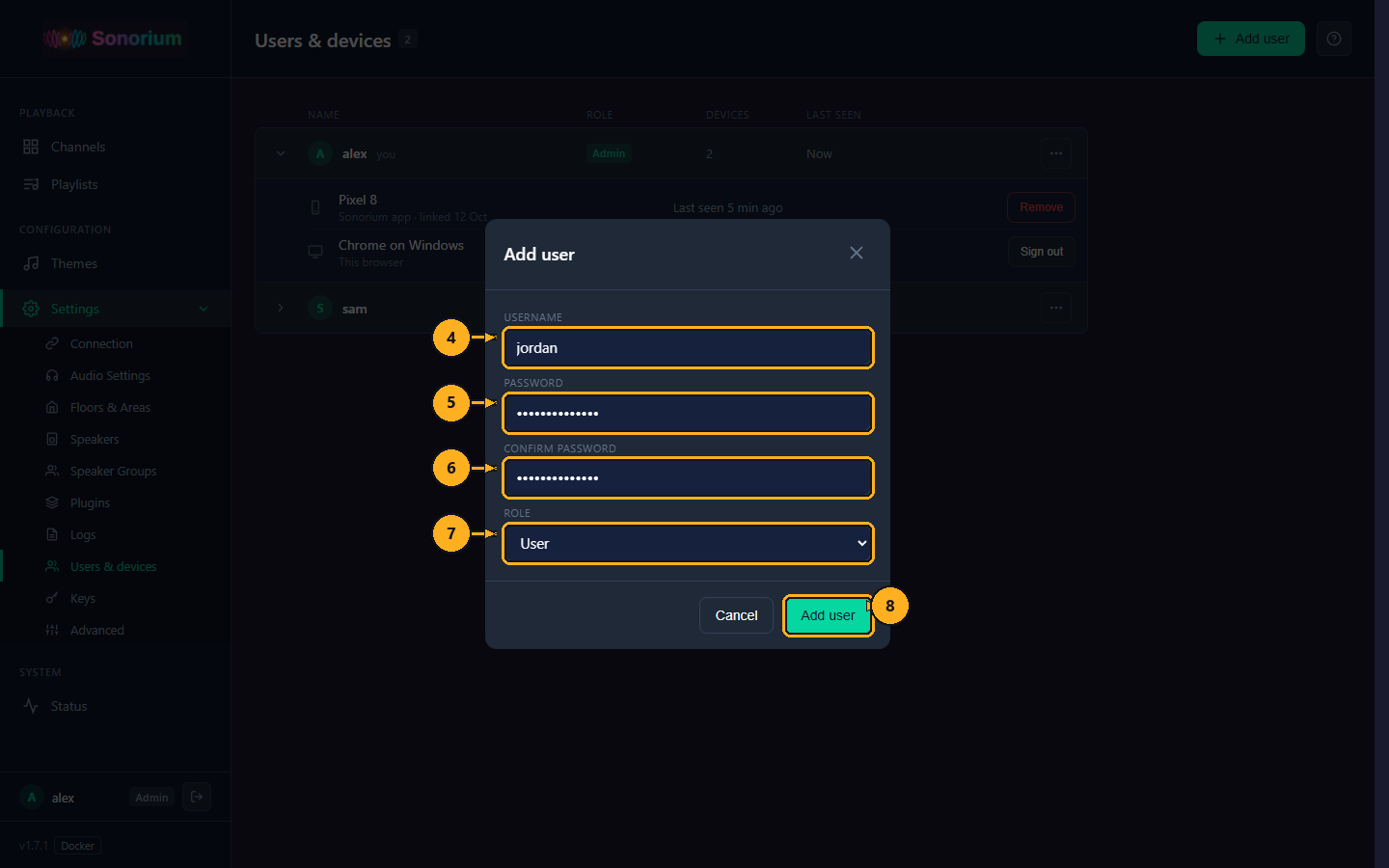
4: Type a username: 1 to 32 letters, numbers, dots, dashes or underscores, starting with a letter or a number.
5: Type a password of at least 8 characters.
6: Type the password again.
7: Pick a Role: User (the default) or Admin (see Roles).
8: Click Add user. You can press the Enter key in any field instead.
The window closes and the new user is in the list. Give the person their username and password; they can sign in straight away. If something is wrong, the window says why and stays open: "The passwords don’t match.", "Use at least 8 characters.", "Use 1 to 32 letters, numbers, dots, dashes or underscores." or "That username is taken.". Cancel closes the window without adding anyone.
1: On the Channels page, click Settings in the menu on the left.
2: Click Users & devices.
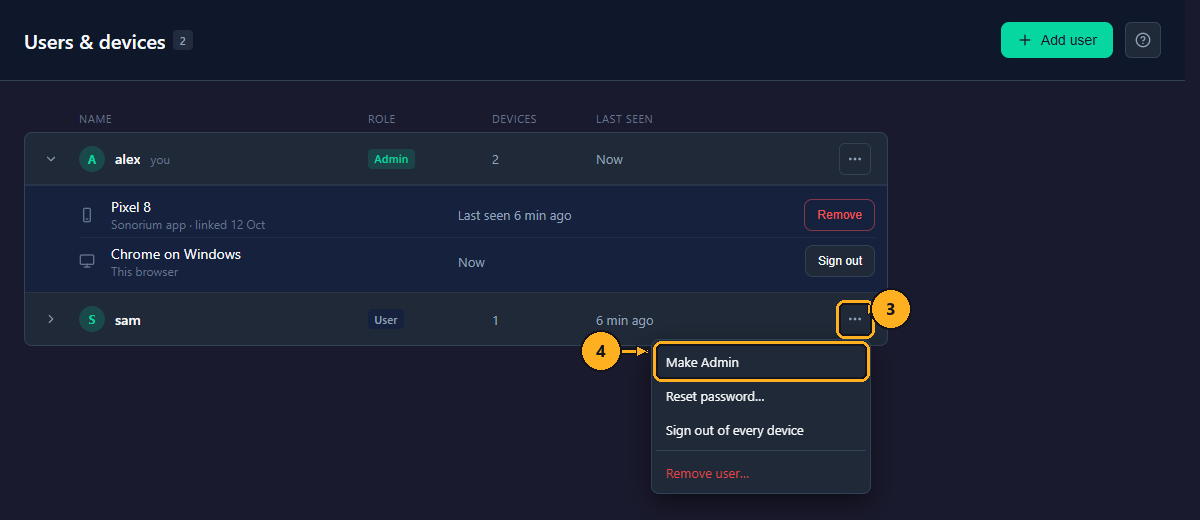
3: Click ⋯ on the user's row.
4: Click Make Admin (on an Admin: Make User).
The Role column changes at once. The user gets the new role from their next click; their phones too.
1: On the Channels page, click Settings in the menu on the left.
2: Click Users & devices.
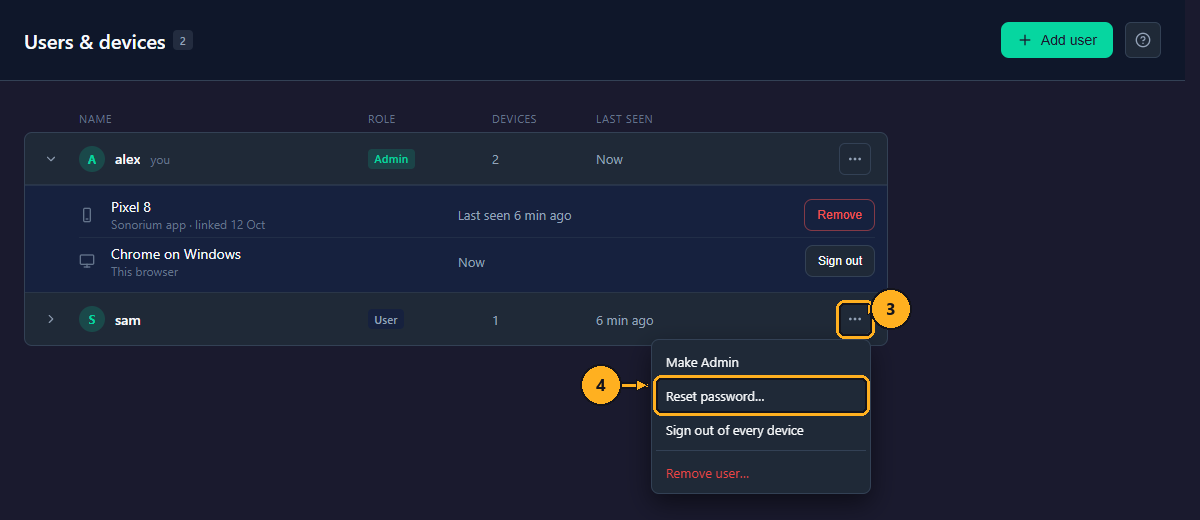
3: Click ⋯ on the user's row (your row, to change your password).
4: Click Reset password…. The Reset password window opens, "For username".
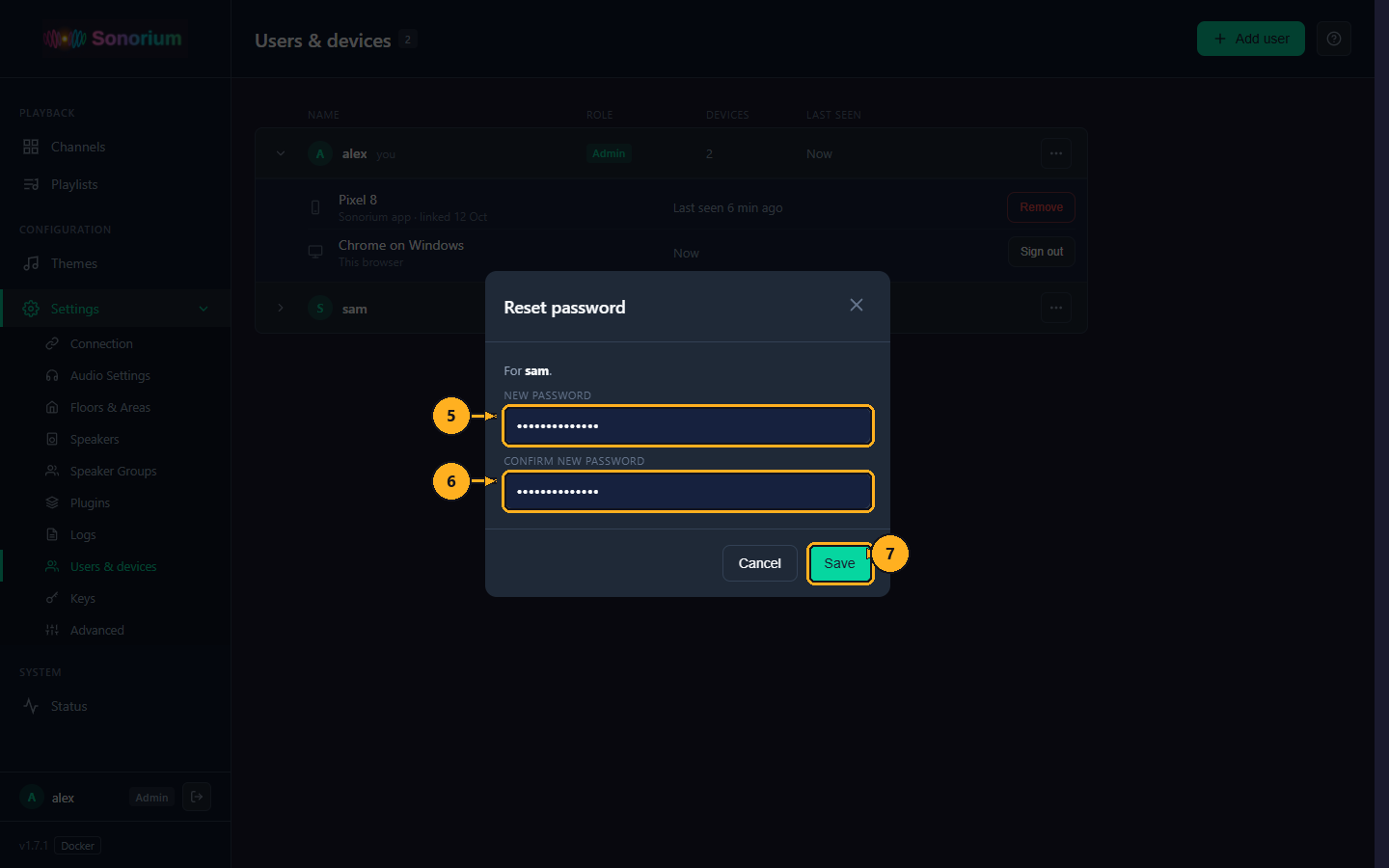
5: Type the new password (at least 8 characters).
6: Type it again.
7: Click Save. You can press the Enter key instead.
The user's browsers are signed out (when it is your password, the browser you're using stays signed in); their linked phones stay linked.
Use this when a phone is lost or a password may be known to someone else.
1: On the Channels page, click Settings in the menu on the left.
2: Click Users & devices.
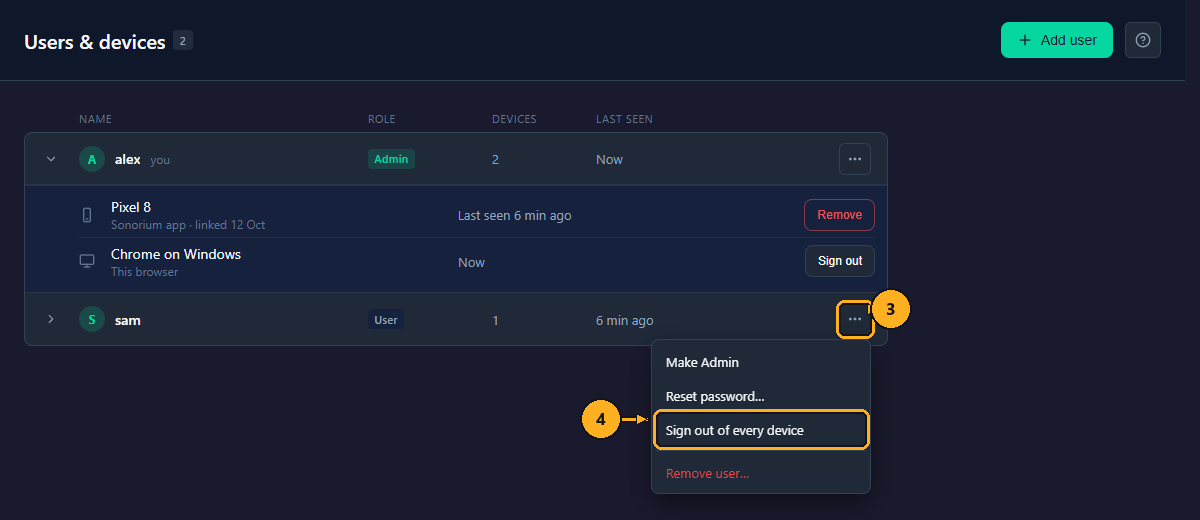
3: Click ⋯ on the user's row.
4: Click Sign out of every device. Sonorium asks "Sign username out of every device?" "Linked phones are unlinked."
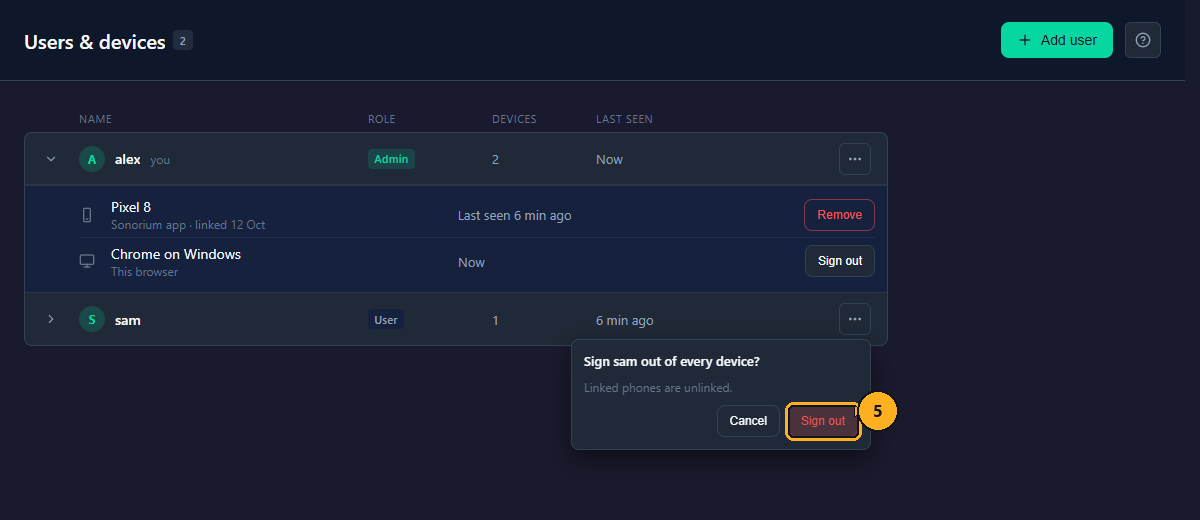
5: Click Sign out.
Every browser of the user is signed out and every phone is unlinked; the Devices column shows 0. The phones have to be linked again with Link App. Doing this on your account signs out the browser you're using too.
1: On the Channels page, click Settings in the menu on the left.
2: Click Users & devices.
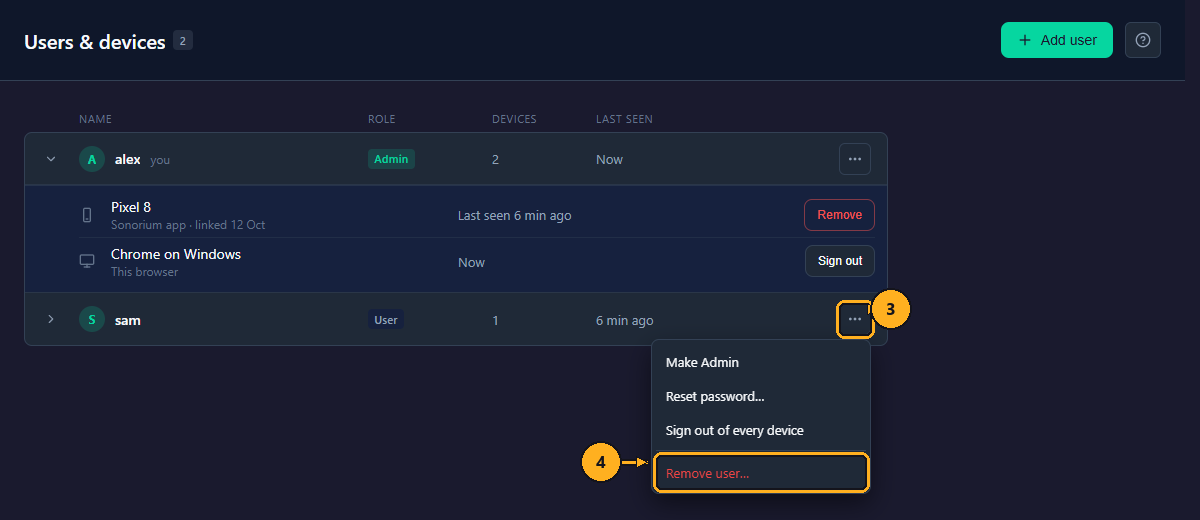
3: Click ⋯ on the user's row.
4: Click Remove user…. Sonorium asks "Remove username?".
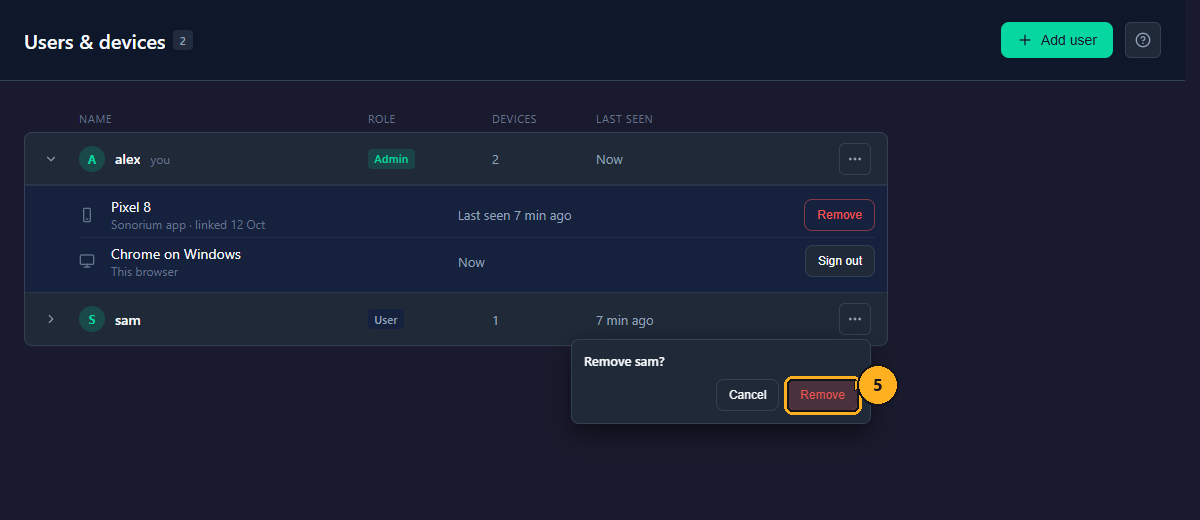
5: Click Remove.
The account leaves the list, its browsers are signed out and its phones unlinked. With Zones on, the channels it owned have no owner from then on. It can't be undone; add the user again to give them access.
1: On the Channels page, click Settings in the menu on the left.
2: Click Users & devices.
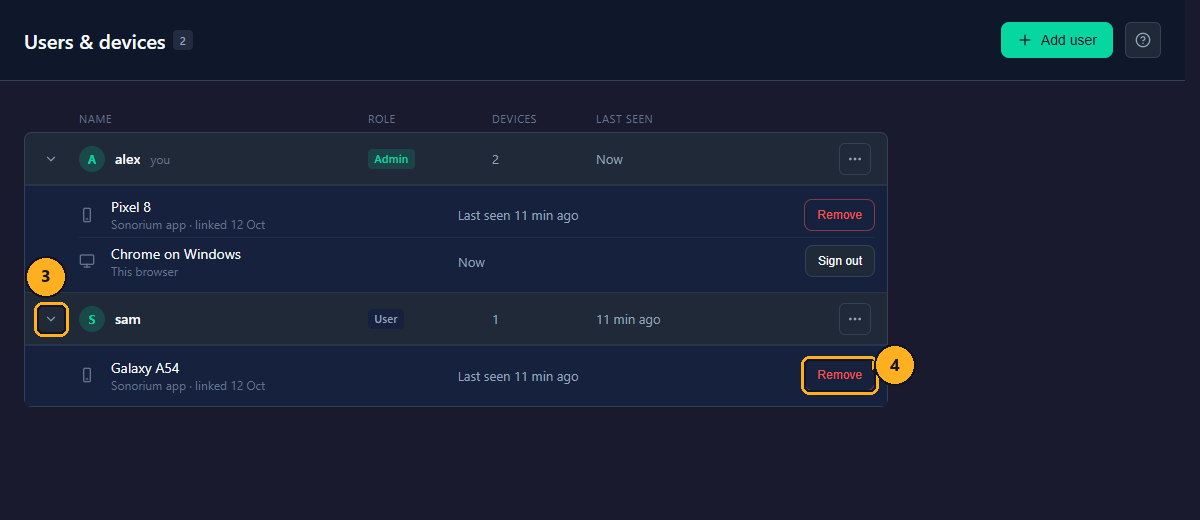
3: Click the arrow on the user's row. The user's browsers and phones show below it.
4: Click Remove on the browser or phone. Sonorium asks "Remove name?".
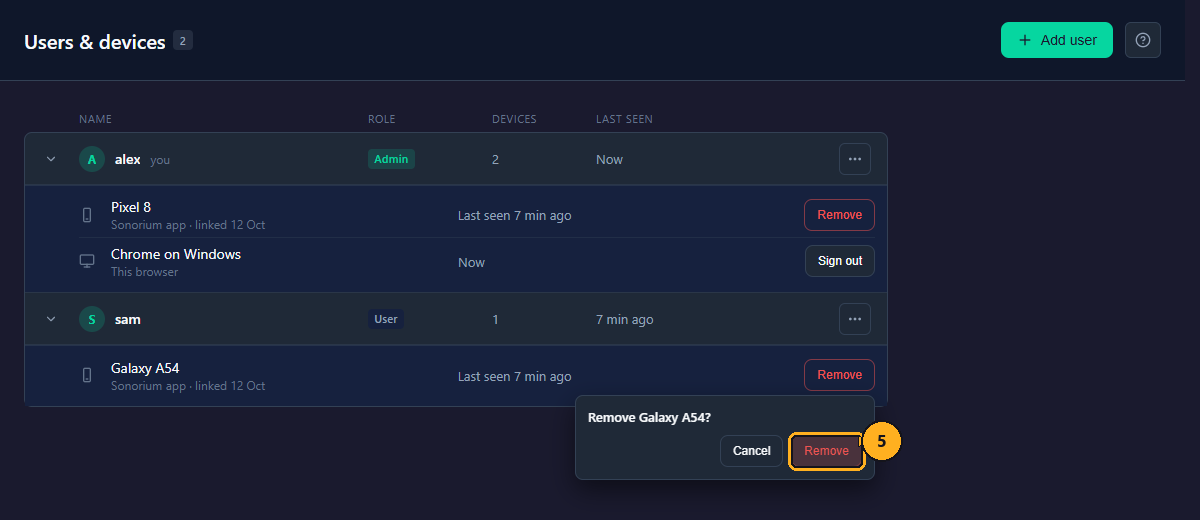
5: Click Remove.
A browser is signed out; a phone is unlinked and refused from its next request. The device leaves the list. On the browser you're using, the button is Sign out instead (G on the page).
| Port | What it serves |
|---|---|
| 8008 | The web UI, the API and the audio streams, over HTTP. Speakers use this port. |
| 8808 | The web UI and the API over HTTPS. The Sonorium app uses it. The certificate is made by Sonorium (self-signed), so a browser warns about it the first time; the app checks the certificate's fingerprint from the QR code instead. |
-
Docker: with
network_mode: host, both ports are open on the host. Without host networking, publish both (8008:8008and8808:8808).SONORIUM_HTTPS_PORTin the compose file'senvironment:changes the HTTPS port. - Home Assistant app: the add-on's port 8080 is mapped to 8008 on the Home Assistant machine, and 8808 to 8808. Change the mapping on the add-on's Network tab. Home Assistant's sidebar reaches Sonorium inside Home Assistant and needs neither port.
sonorium.local: the Docker version with network_mode: host announces itself on your network, so a browser can open http://sonorium.local:8008 and https://sonorium.local:8808. If another device already uses that name, Sonorium takes sonorium-2.local (then -3, up to -9). The log says which name it got, for example mDNS: Sonorium announced as sonorium.local (192.0.2.10), http://sonorium.local:8008 and https://sonorium.local:8808. Some networks and devices don't resolve .local names; use the machine's address (for example http://192.0.2.10:8008) there.
The Home Assistant app doesn't announce itself (the log says so once at start); use the Home Assistant machine's address, or Home Assistant's sidebar.
The technical description is in docs/AUTH.md.