Repository navigation
Getting Started Windows
This page explains how to install Sonorium on a Windows PC or Windows Server, from the download to Sonorium's web page open in your browser, and how to use the tray icon and the settings window. When you're done, What's next sends you to the Sonorium documentation to turn on speakers and play your first channel.
Other ways to run Sonorium: Home Assistant app · Docker · Compare them
The Windows app runs Sonorium on a Windows PC or Windows Server, with no Home Assistant needed. You use it in two places:
- Sonorium's web page, in your browser: channels, themes, speakers and everything that plays.
- The tray icon, by the clock: starting and stopping Sonorium, and its settings window for the port, the folders, the connections and updates.
- Requirements
- For me only, or for all users?
- Installing
- The first start
- The tray icon and its menu
- The settings window
- Starting, stopping and restarting
- Switching between a service and "When I sign in"
- Changing the port
- Moving the themes or data folder
- Checking for and installing updates
- Reading the logs
- Linking the Sonorium app on your phone
- Uninstalling
- Troubleshooting
- What's next
- Windows 10 version 2004 or later, Windows 11, or Windows Server 2025; 64-bit.
- About 335 MB of free disk space.
- Speakers on the same network as the PC: Google Cast, Sonos, DLNA, AirPlay, LinkPlay or HEOS. Sonorium finds them on the network.
- Home Assistant and an MQTT broker are optional. With Home Assistant connected, Sonorium can also play to Home Assistant's speakers and use its floors and areas.
The installer is self-contained: nothing else needs installing.
The installer asks this first. The choice decides how Sonorium can run.
| Install for me only | Install for all users | |
|---|---|---|
| Administrator permission | Not needed | Needed once, to install |
| Sonorium runs | While you're signed in to Windows | While you're signed in, or as a Windows service |
| Firewall | Windows asks to allow it the first time | Allowed by the installer |
As a Windows service, Sonorium starts with Windows, before anyone signs in, and keeps playing when you sign out. Pick this for a PC that plays sound around the clock, such as a PC in a closet or a home server. A service is like the heating in a building: it runs whether or not anyone is in the room.
When I sign in starts Sonorium when you sign in to Windows and stops it when you sign out. Pick this for a PC you use every day, where Sonorium only needs to play while you're there.
You can switch between the two later on the General page, as long as Sonorium is installed for all users.
1: On the Releases page, click Sonorium-Setup-<version>.exe under the newest release to download it.
2: Open the downloaded file.
The installer isn't signed yet. Windows SmartScreen may show Windows protected your PC: click More info, then Run anyway.
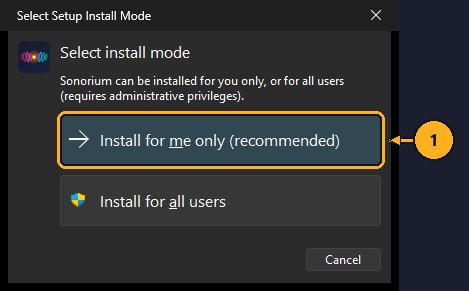
1: Click Install for me only (recommended).
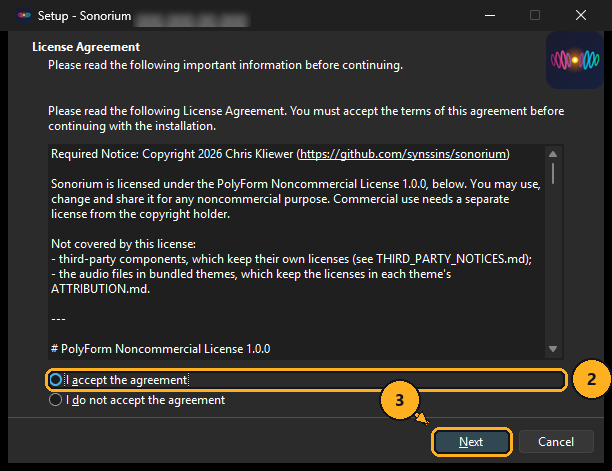
2: Click I accept the agreement.
3: Click Next.
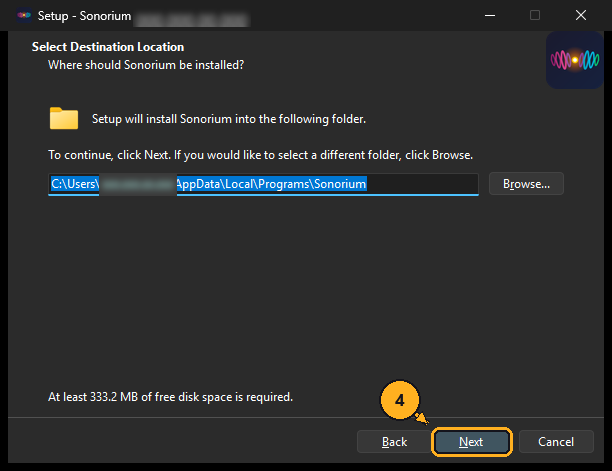
4: Click Next.
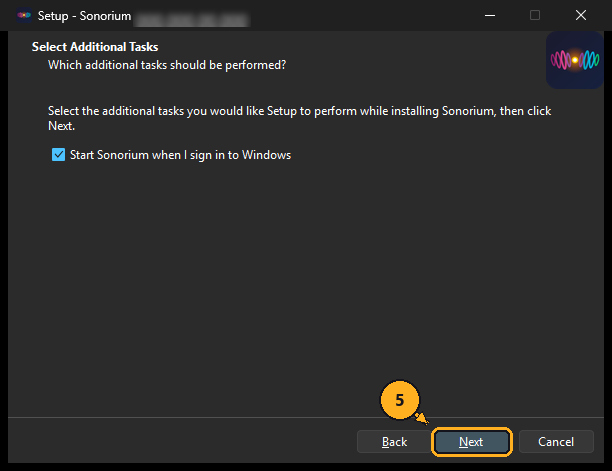
Start Sonorium when I sign in to Windows is ticked: Sonorium and the tray icon start each time you sign in. Leave it ticked unless you prefer to start Sonorium from the Start menu.
5: Click Next.
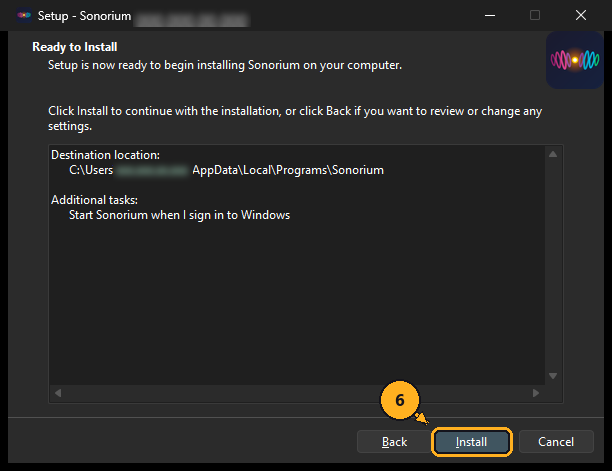
6: Click Install.
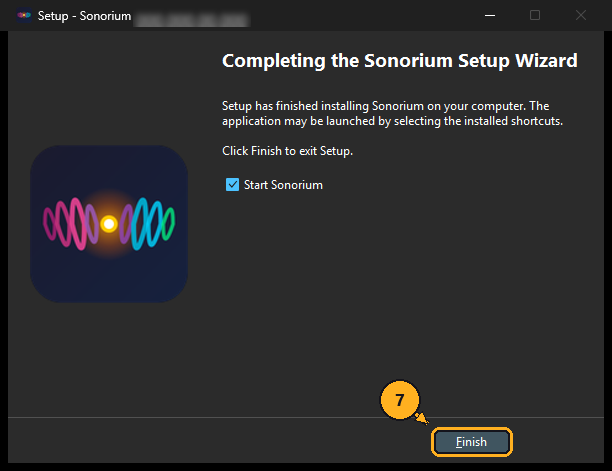
7: Leave Start Sonorium ticked and click Finish.
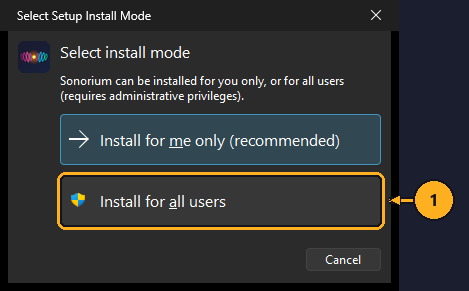
1: Click Install for all users.
2: Windows asks for administrator permission: click Yes.
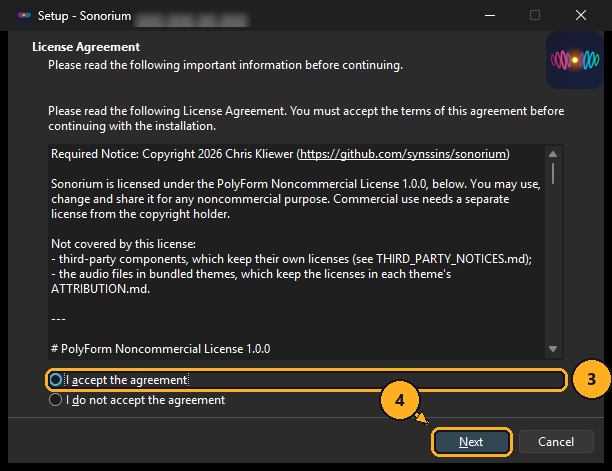
3: Click I accept the agreement.
4: Click Next.
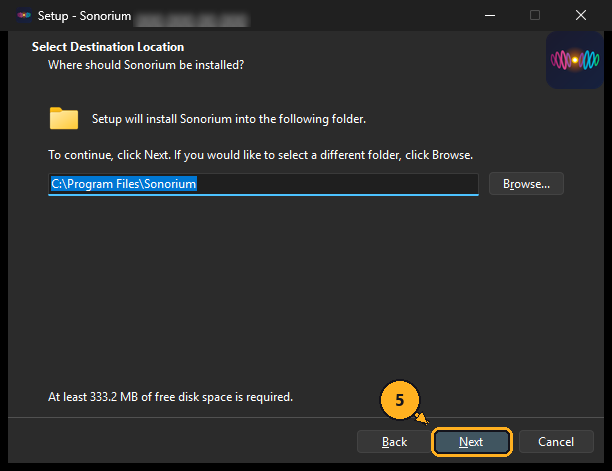
5: Click Next.
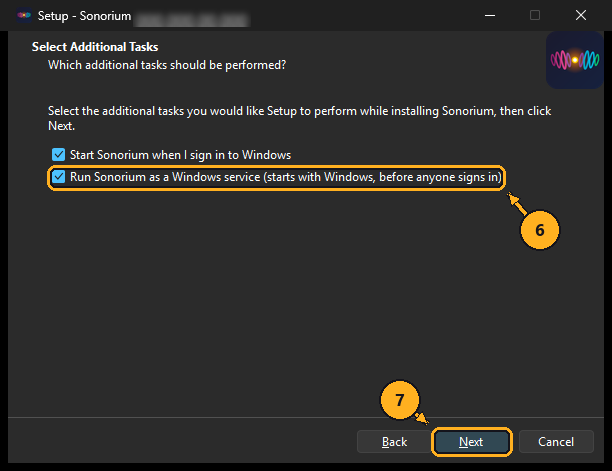
6: Click Run Sonorium as a Windows service (starts with Windows, before anyone signs in).
7: Click Next.
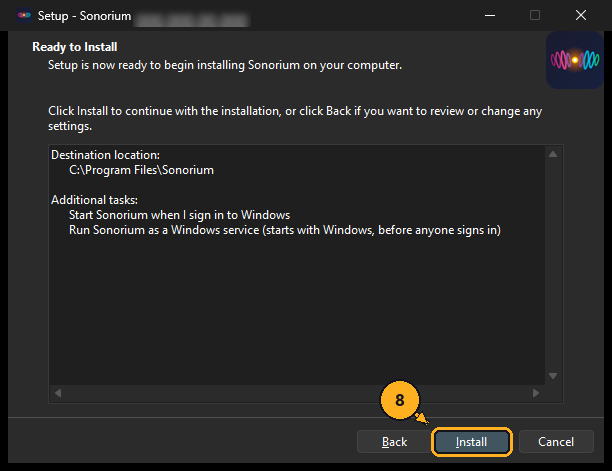
8: Click Install.
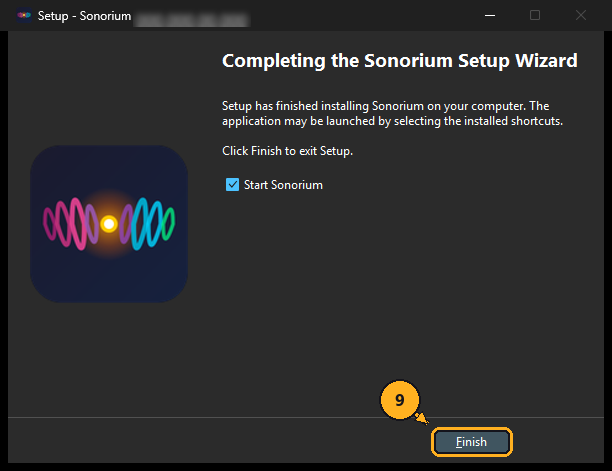
9: Leave Start Sonorium ticked and click Finish.
You, the user who installed Sonorium, can then start, stop and update it without administrator permission.
To install for all users without the service, leave step 6 out.
When the installer finishes, the Sonorium icon appears in the notification area by the clock. Windows puts a new icon with the hidden icons, behind the ^ arrow, until you drag it onto the taskbar.
A new Sonorium needs its first account:
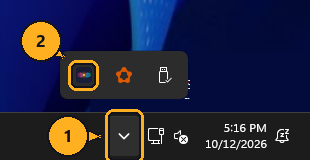
1: Click the ^ arrow by the clock. The hidden icons open.
2: Right-click the Sonorium icon.
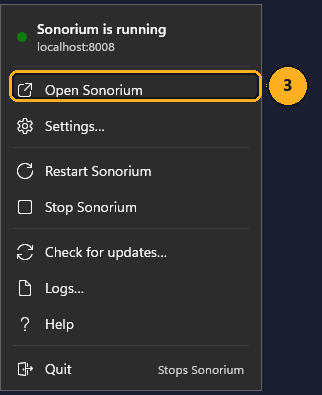
3: Click Open Sonorium. Your browser opens Sonorium's web page.
4: Create the admin account Sonorium asks for. This account signs you in to Sonorium's web page from any device on your network.
Sonorium comes with three themes, so there is something to play straight away. What to do next in the web page is in What's next.
Click the Sonorium icon to open the settings window. Right-click it for the menu.
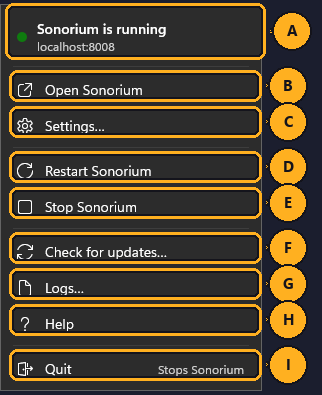
A. Status: the dot and the first line show whether Sonorium is running, starting or stopped. The second line shows the address of the web page on this PC, and how many channels are playing when any are.
B. Open Sonorium: opens Sonorium's web page in your browser.
C. Settings…: opens the settings window on the Status page.
D. Restart Sonorium: stops Sonorium and starts it again.
E. Stop Sonorium: stops Sonorium; speakers stop playing. While Sonorium is stopped, this item reads Start Sonorium.
F. Check for updates…: opens the Updates page and checks for a newer version. A dot next to it means an update is waiting.
G. Logs…: opens the Logs page.
H. Help: opens Sonorium's documentation.
I. Quit: stops Sonorium, the service too when it runs as one, and removes the tray icon. To start again, open Sonorium from the Start menu.
What Sonorium plays, and on which speakers, is set in Sonorium's web page; this window covers how Sonorium runs on this PC.
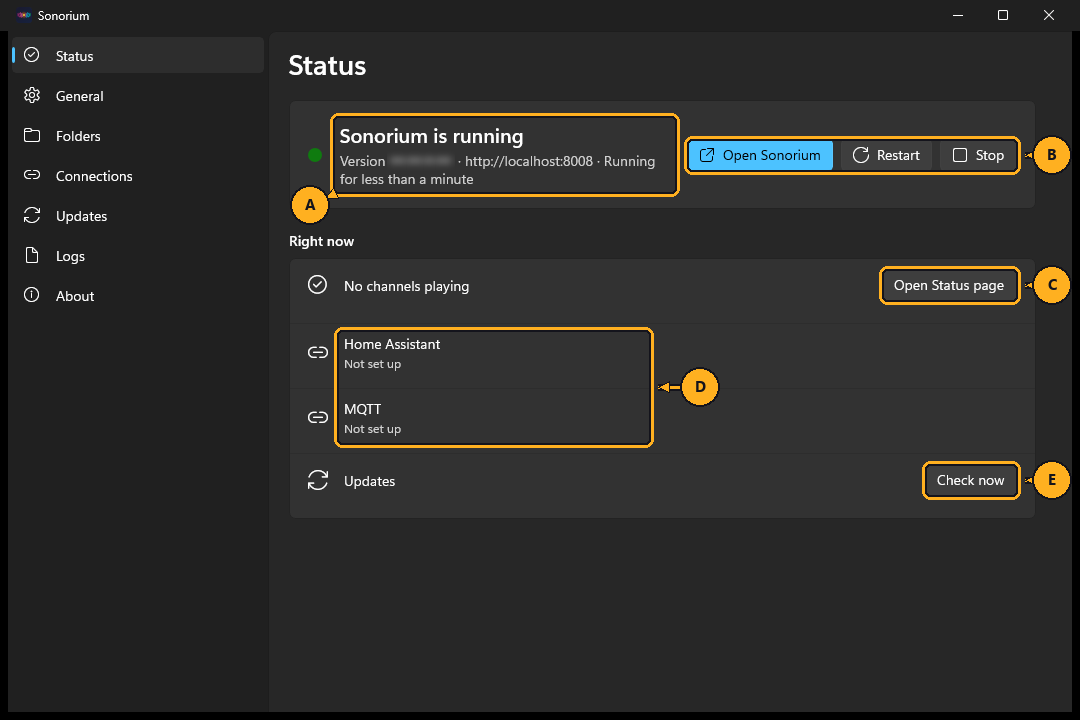
A. Whether Sonorium is running, its version, the address of its web page on this PC, and how long it has been running.
B. Open Sonorium, Restart and Stop: as in the tray menu. While Sonorium is stopped, Stop reads Start.
C. Channels playing: each playing channel and its theme. Open Status page opens Sonorium's web page.
D. Home Assistant and MQTT: whether Sonorium is connected, and to which address. Not set up means no address is saved on the Connections page.
E. Updates: the result of the last check. Check now checks again.
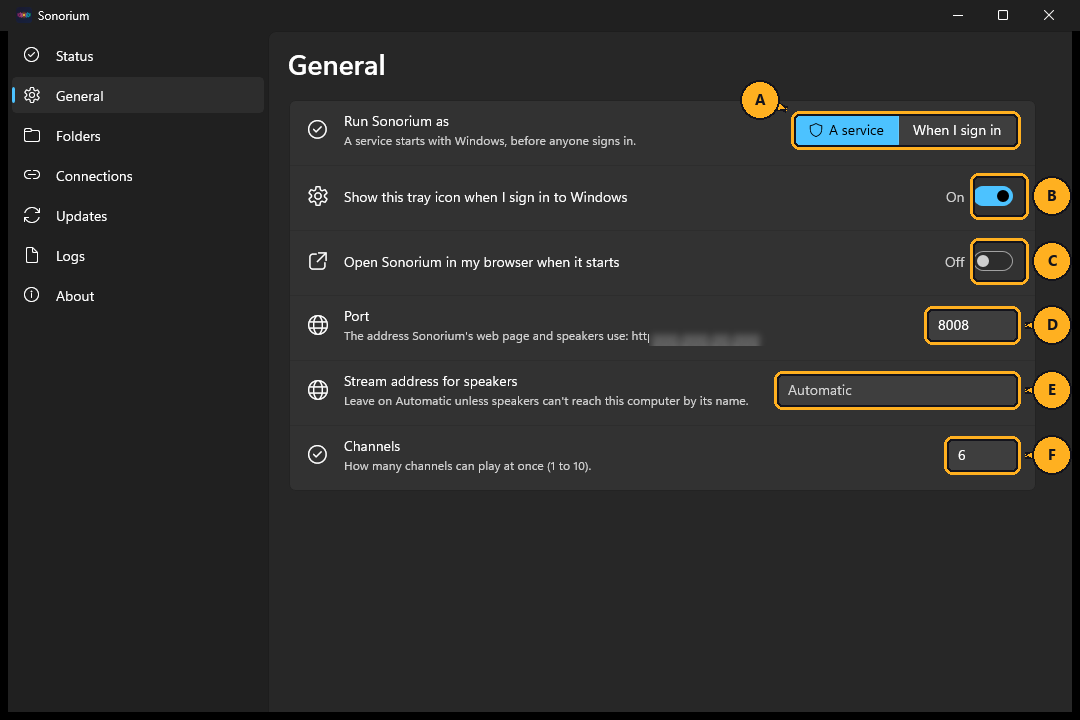
A. Run Sonorium as: A service or When I sign in (see For me only, or for all users?). The shield means Windows asks for administrator permission when you change it. How to switch: Switching between a service and "When I sign in".
B. Start Sonorium when I sign in to Windows: on by default. When Sonorium runs as a service, this reads Show this tray icon when I sign in to Windows: the service starts with Windows, and this switch decides whether the tray icon appears.
C. Open Sonorium in my browser when it starts: off by default. When on, Sonorium's web page opens each time the tray icon starts and Sonorium is ready.
D. Port: the network port of Sonorium's web page and of the streams speakers play: 8008 by default. The line under it shows the address other devices use. Change it only when another program already uses 8008: Changing the port.
E. Stream address for speakers: Automatic by default. Type an address, such as http://192.0.2.10:8008, only when speakers can't reach the PC by the address Sonorium picks, for example on a PC with several network adapters. Sonorium restarts to use it.
F. Channels: 6 by default. Each playing channel uses some of the PC's processor. Sonorium restarts to use it.
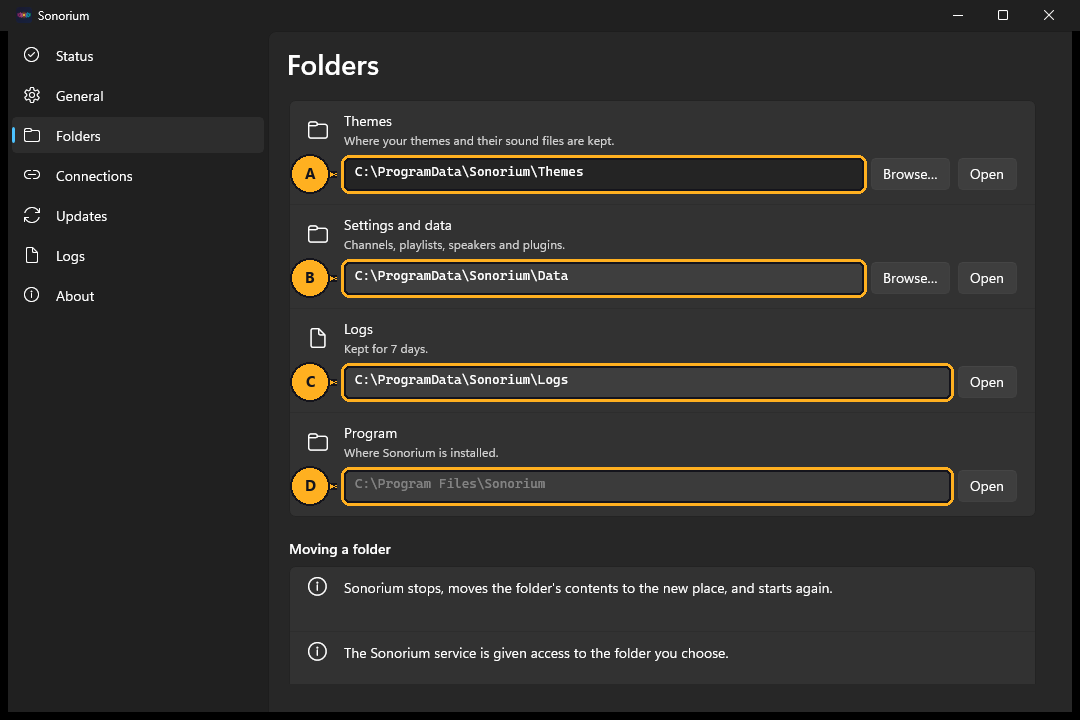
A. Themes: one folder per theme.
B. Settings and data: also holds the accounts.
C. Logs and D. Program: Open only; they can't be moved.
Browse… moves a folder (see Moving the themes or data folder). Open shows the folder in File Explorer.
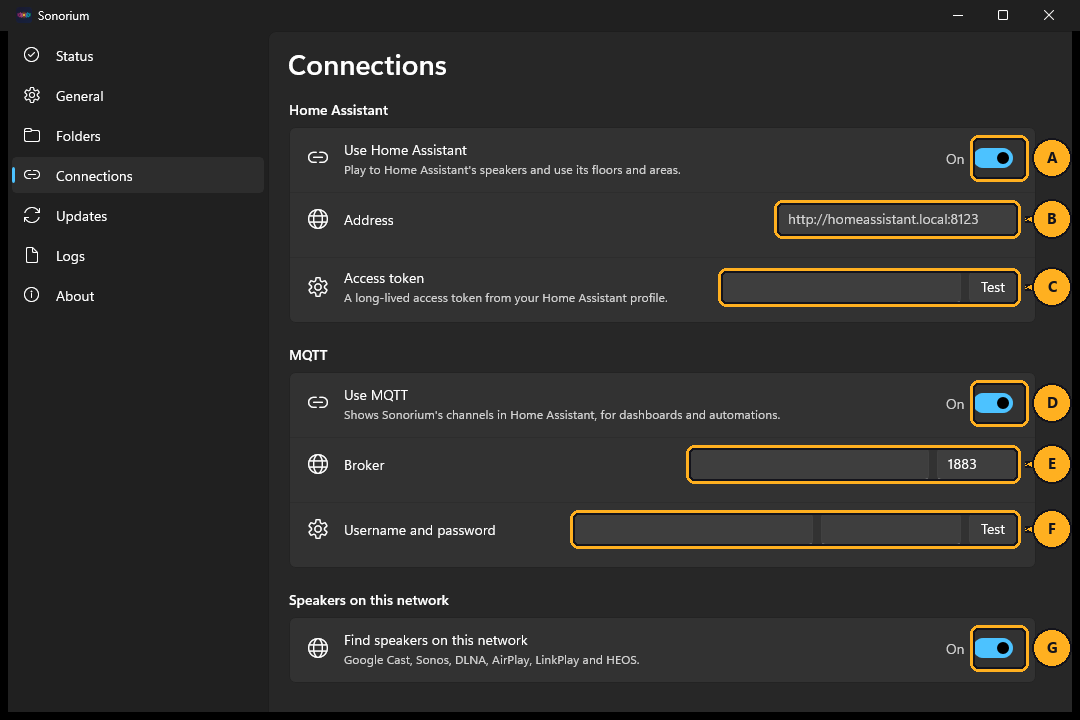
A field is saved when you click away from it or press Tab; Sonorium then restarts to use it.
A. Use Home Assistant: turning it off removes the saved address and token.
B. Address: Home Assistant's address, for example http://homeassistant.local:8123.
C. Access token: create one in Home Assistant: your profile, Security, Long-lived access tokens, Create token. After saving, the box shows dots instead of the token; leaving it empty keeps the saved token. Test tries the address and token as typed, without saving them.
D. Use MQTT: needs an MQTT broker, such as Home Assistant's Mosquitto broker add-on. Turning it off removes the saved broker and login.
E. Broker: the MQTT broker's address and port (1883 by default).
F. Username and password: the broker login. Test tries the values as typed.
G. Find speakers on this network: on by default. Changing it restarts Sonorium.
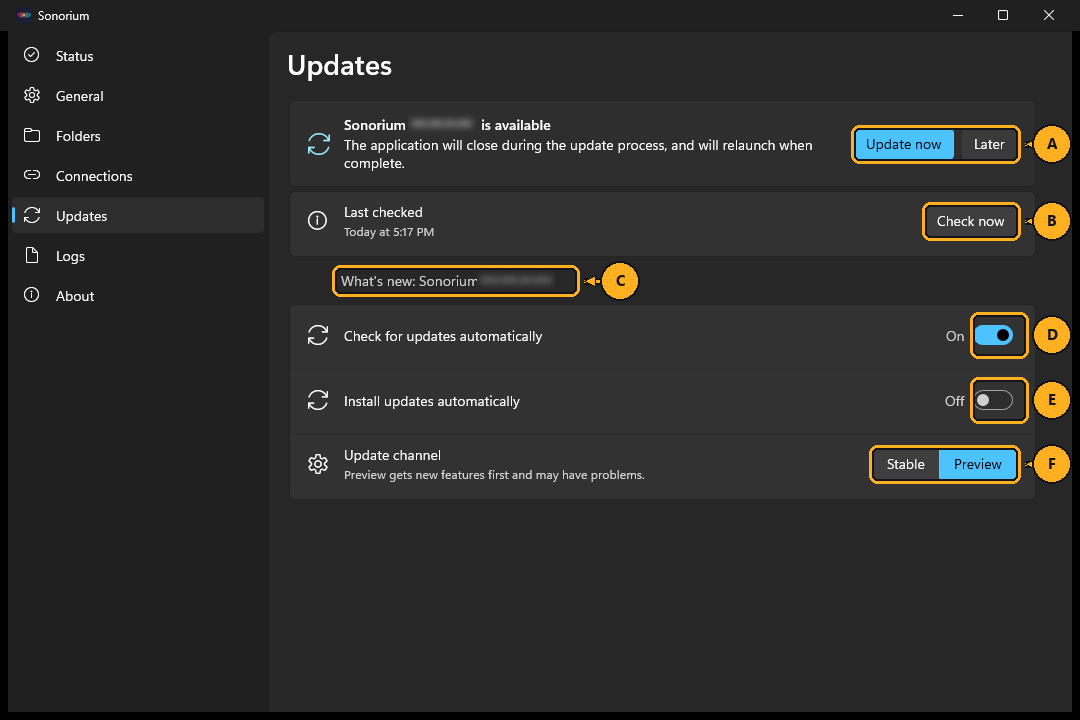
A. Shown when a new version is waiting. Update now installs it; Later hides the notice until a newer version is out.
B. Last checked and Check now: when Sonorium last checked for a new version.
C. What the new version changes.
D. Check for updates automatically: on by default. Sonorium checks 30 seconds after the tray icon starts, then every 6 hours, and shows a Windows notification when a new version is out.
E. Install updates automatically: off by default. When on, a new version installs as soon as it's found.
F. Update channel: Stable gets releases; Preview also gets test versions.
How an update installs: Checking for and installing updates.
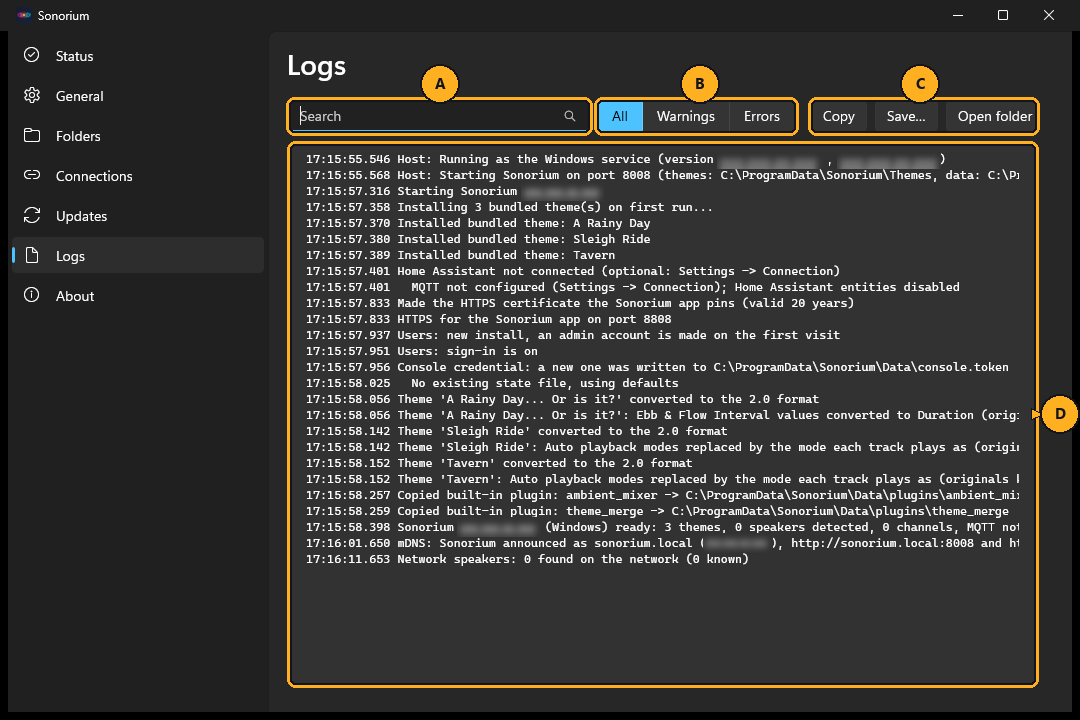
A. Search: shows only the lines containing what you type.
B. All, Warnings, Errors: shows all lines, warnings and errors, or errors only.
C. Copy: copies the selected lines, or every line shown when none is selected. Save… saves the lines shown to a file. Open folder opens the logs folder.
D. Today's log, following new lines as Sonorium writes them.
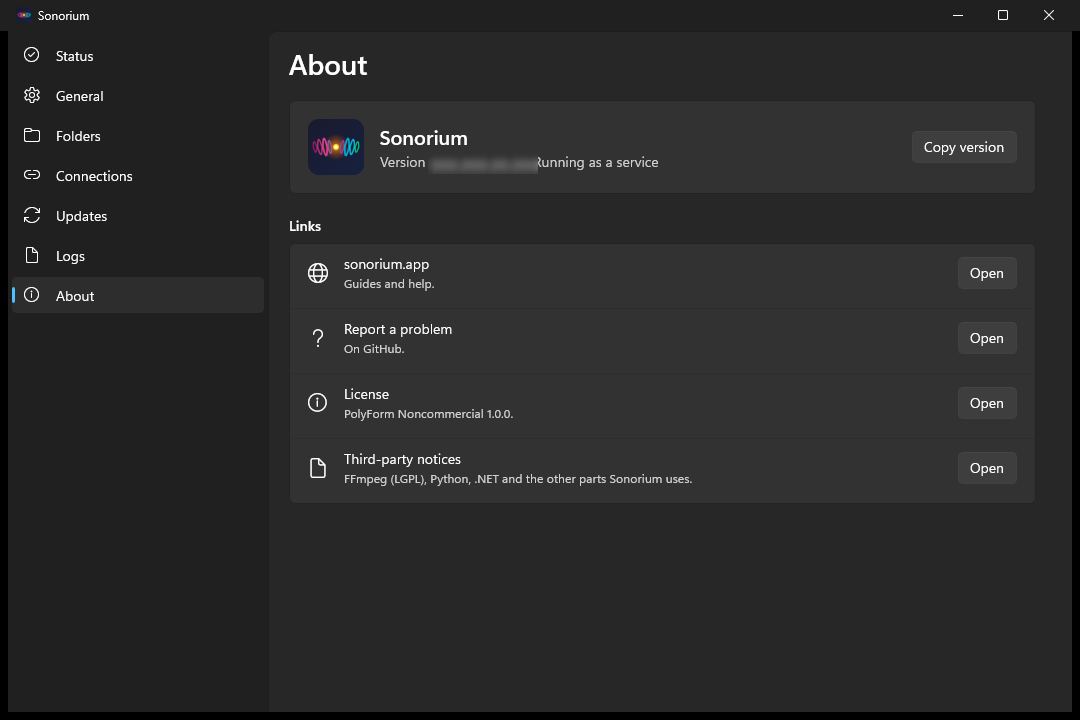
The version, how Sonorium runs, Copy version (for a bug report), and links to the documentation, to GitHub issues, to the License and to the Third-party notices.
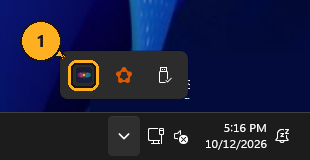
1: Right-click the Sonorium icon.
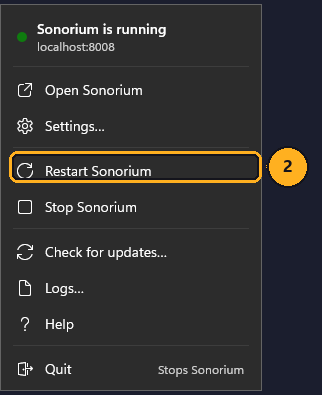
2: Click Restart Sonorium, Stop Sonorium or, when stopped, Start Sonorium.
The first line of the menu shows the result: Sonorium is running, Sonorium is starting or Sonorium is stopped.
1: Open the Start menu.
2: Type Sonorium.
3: Click Sonorium. The tray icon appears and starts Sonorium if it isn't running.
Keyboard: press the Windows key, type Sonorium, then press Enter.
Sonorium must be installed for all users. Your channels, themes and settings come across. The Home Assistant access token and the MQTT password don't: type them again on the Connections page after switching.
1: Click the Sonorium icon. The settings window opens.
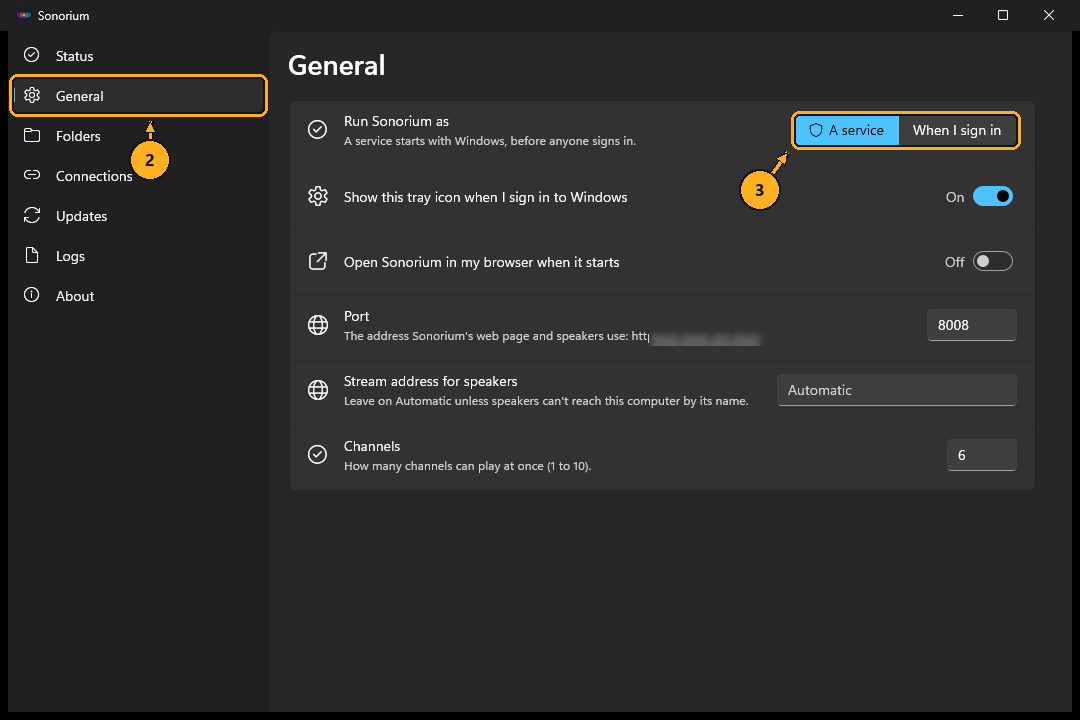
2: Click General.
3: Under Run Sonorium as, click A service or When I sign in.
4: Windows asks for administrator permission: click Yes.
Sonorium stops, switches and starts again. About shows the new mode.
1: Click the Sonorium icon. The settings window opens.
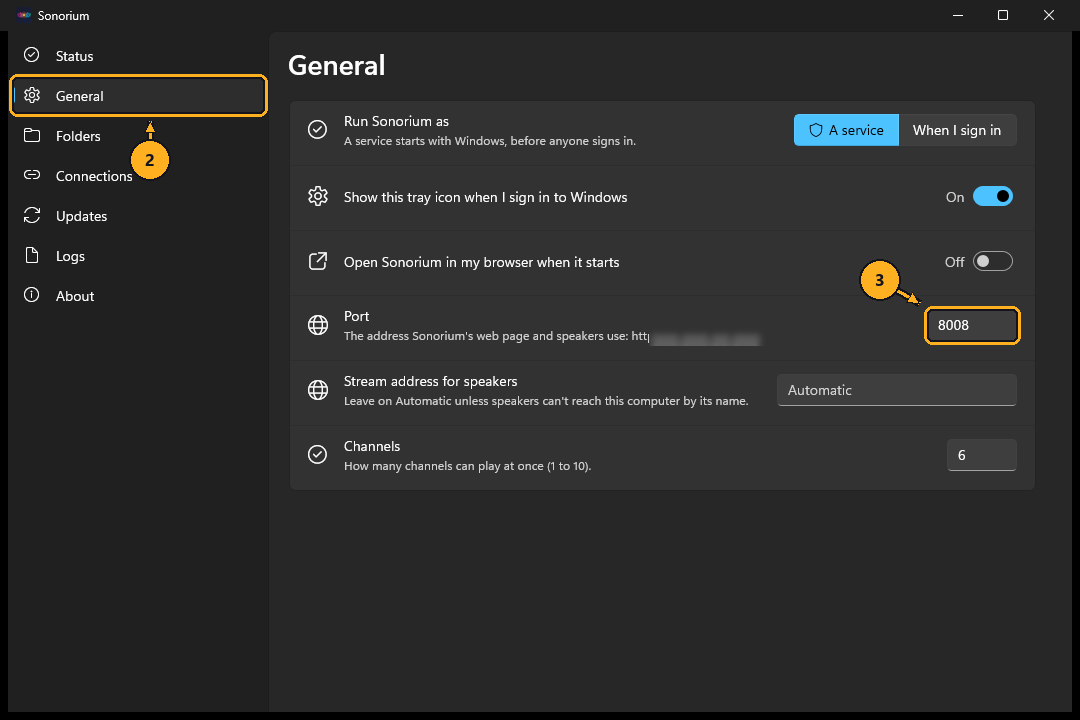
2: Click General.
3: Click the Port box and type the new port, from 1 to 65535.
4: Press Enter. Sonorium restarts on the new port.
Sonorium's web page is then at http://localhost:<port> on this PC and at the address under Port from other devices.
1: Click the Sonorium icon. The settings window opens.
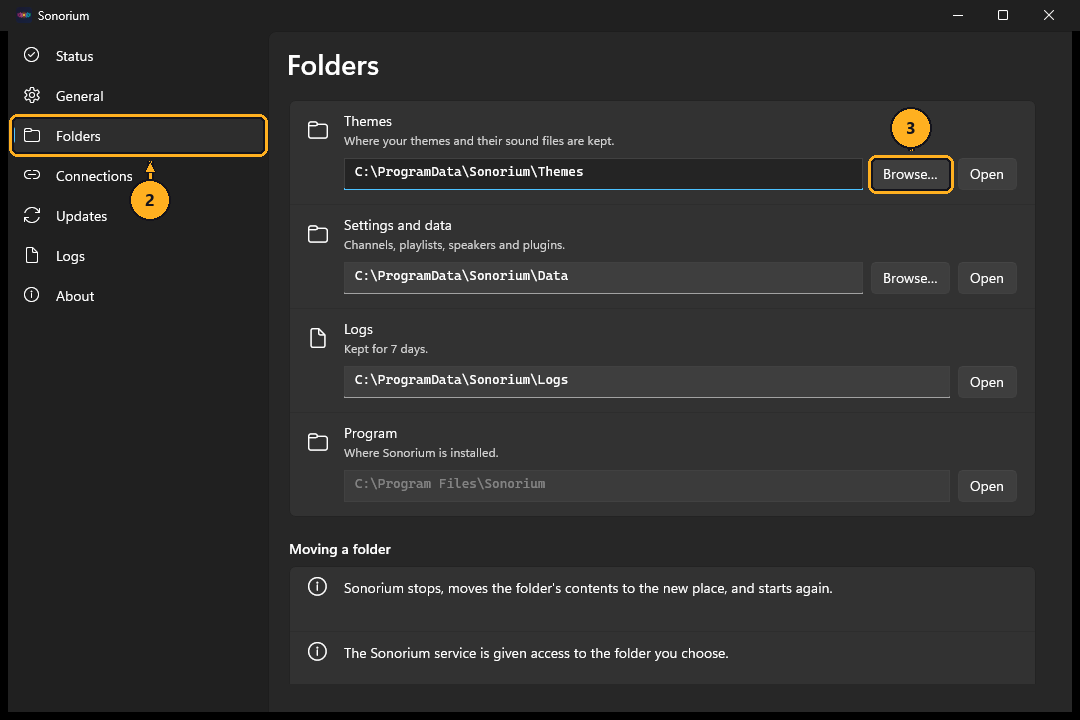
2: Click Folders.
3: Click Browse… next to Themes or Settings and data.
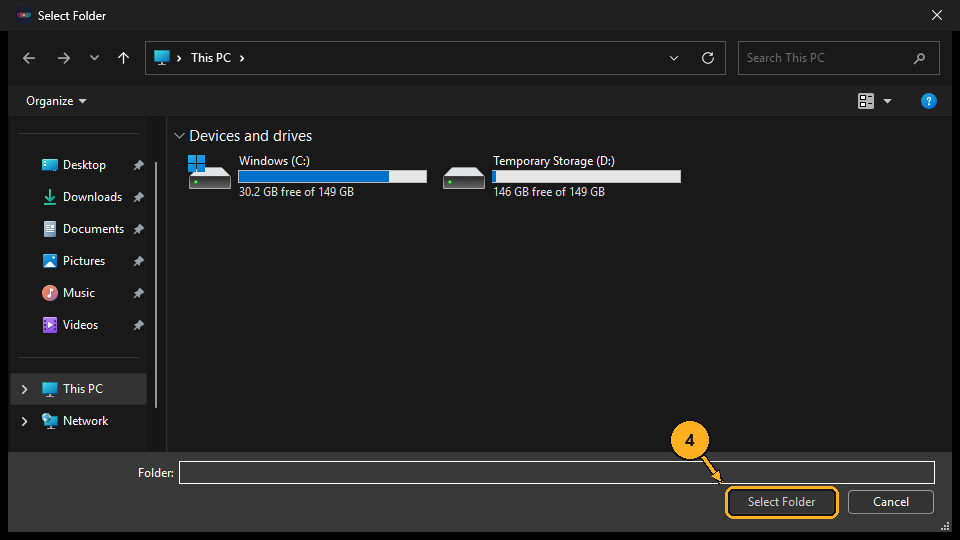
4: Choose the new folder and click Select Folder.
Sonorium stops, moves the folder's contents to the new place, and starts again. As a service, choose a network share by its address (\\server\share), not by a mapped drive letter.
1: Right-click the Sonorium icon.
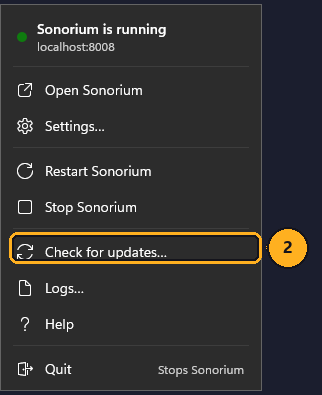
2: Click Check for updates…. The Updates page opens and checks for a new version.
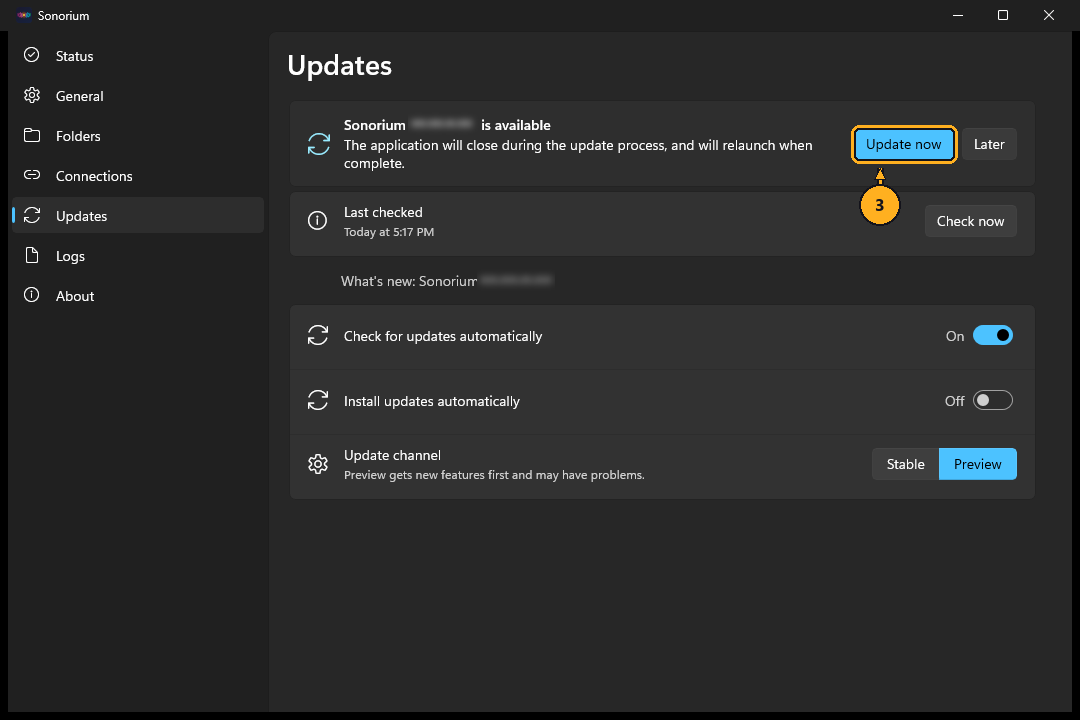
3: When a new version is listed, click Update now.
What happens next:
- The tray icon and the settings window close, and Sonorium stops.
- The update downloads and installs in the background, without asking for administrator permission.
- Sonorium and the tray icon start again on the new version. About shows it.
A Windows notification, Sonorium <version> is available, also offers Update now when the automatic check finds one.
Stable gets releases. Preview also gets test versions: they have new features first and may have problems. A test version follows Preview until you choose Stable on the Updates page.
Attach the updater's log to a bug report: Updater-<date>.log in the logs folder, or for an all-users install C:\ProgramData\Sonorium\Updates\updater.log.
1: Right-click the Sonorium icon.
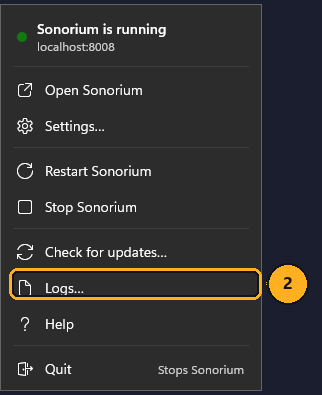
2: Click Logs….
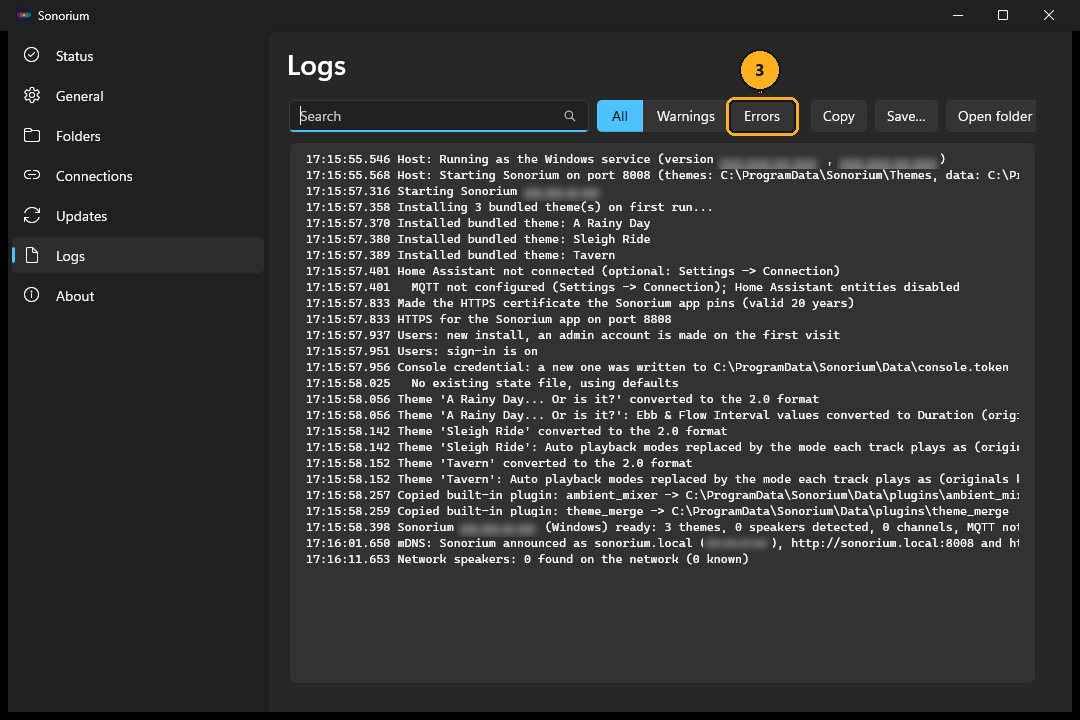
3: Click Errors to see only errors, or type in Search.
Each line starts with the time. When reporting a problem, Save… the log and attach it to the report.
The Sonorium app links to Sonorium with the Link App button on Sonorium's Channels page; the steps are in Link App.
The phone and the PC must be on the same network. With Install for me only, allow Sonorium when Windows Firewall asks (see Troubleshooting).
1: Open Settings in Windows.
2: Click Apps, then Installed apps (on Windows 10: Apps & features).
3: Find Sonorium, click ⋯ (on Windows 10: click Sonorium), then Uninstall.
4: Confirm with Uninstall. For an all-users install, Windows asks for administrator permission.
Uninstalling keeps the themes, the settings and data, and the logs. To remove those too, note where they are on the Folders page before uninstalling, then delete the folders.
"Windows protected your PC" when running the installer. The installer isn't signed yet. Click More info, then Run anyway.
Windows Firewall asks to allow Python. With Install for me only, Windows Firewall may ask the first time Sonorium starts; the prompt names Python. Allow it on Private networks so speakers and phones can reach Sonorium.
The menu stays on "Sonorium is starting". Another program may use the port. The Logs page then shows an error with 10048 in it. Change the port: Changing the port.
Speakers aren't found. Check that Find speakers on this network is on (Connections), that the PC and speakers are on the same network, and that the network is set to Private in Windows (Settings, Network & internet).
Sonorium is running. The rest happens in Sonorium's web page and is the same on every install:
- Turn on your speakers: Sonorium lists every speaker it finds, but uses only the ones you turn on.
- Make your first channel and play it.
- Themes: the bundled themes, making your own and adding sound files.
- Presets, Sequences and Playlists: different versions of a theme, and channels that change over time.
- Sign-in and Users: add the people in your home.
All of Sonorium's documentation starts at Home.