Repository navigation
Link App
Link App links a phone to your Sonorium account. The Sonorium app for Android uses it: the phone scans a QR code once, and from then on it controls Sonorium as you, without a password. Think of it as a hotel keycard: the front desk (Sonorium) codes the card for your room once, and the card opens the door until the desk cancels it.
The Link App button is at the top right of the Channels page. It shows on a screen as wide as a computer's; on a phone or a narrow window it is hidden. Every signed-in user, Admin or User, can link a phone to their account.
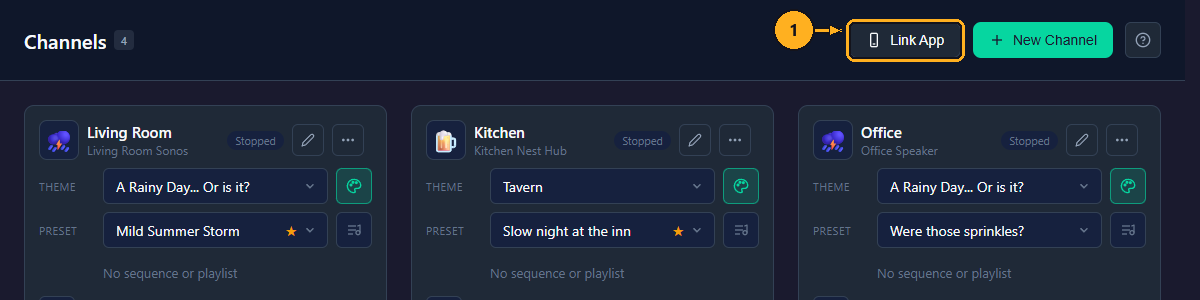
1: On the Channels page, click Link App. The Link App window opens with a new code.
-
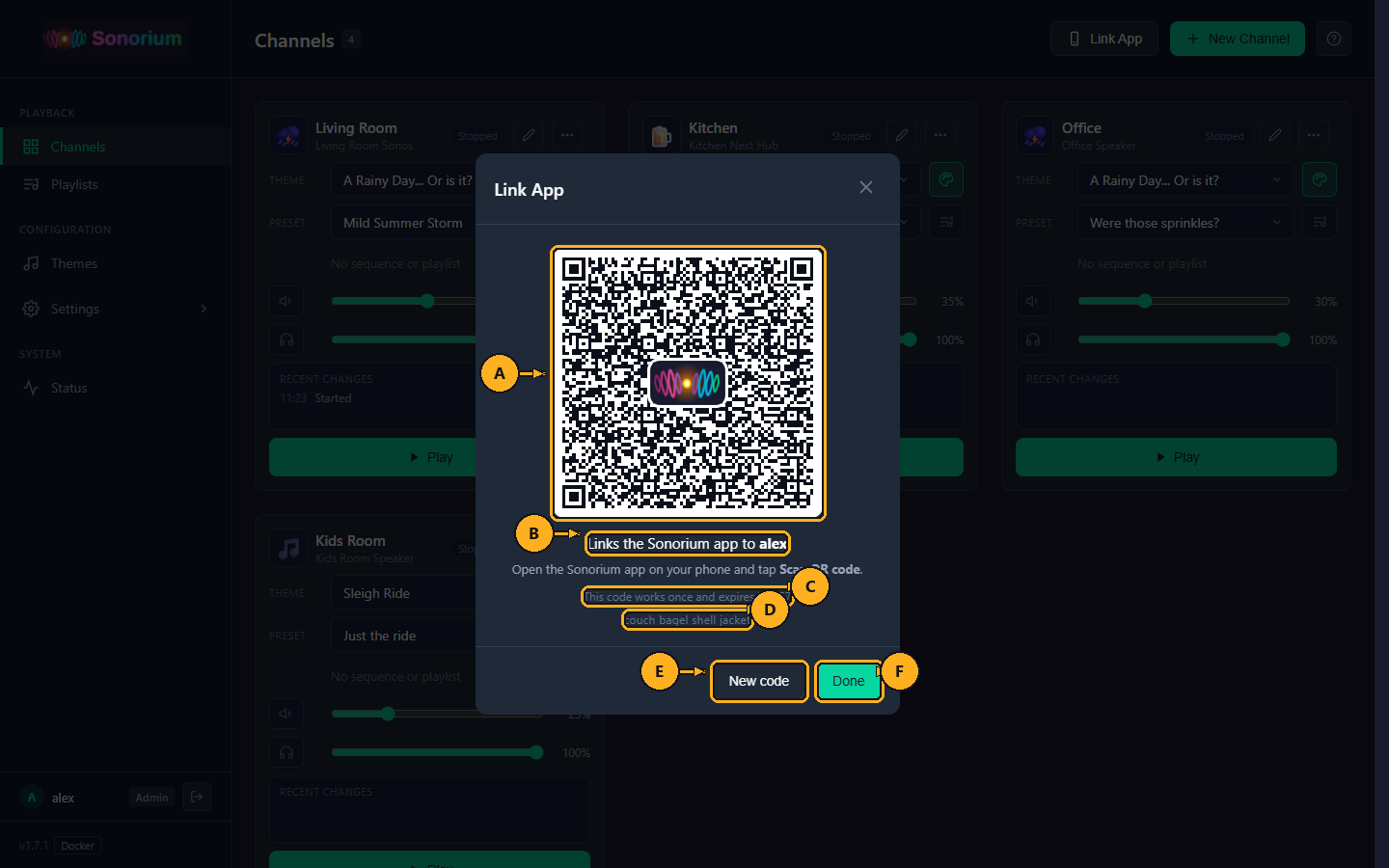
A: QR code: an ordinary web address (
https://sonorium.app/link#...), so any camera app can read it. With the Sonorium app installed, the app opens it; without it, the page at sonorium.app says how to get the app. Everything after the#stays on the phone (browsers never send that part to a website). It holds Sonorium's addresses on your network, its ports, the one-time code, and a fingerprint of Sonorium's HTTPS certificate, so the phone can check it is talking to your Sonorium before it sends anything. - B: the account the phone is linked to: "Links the Sonorium app to your username". Under it: "Open the Sonorium app on your phone and tap Scan QR code."
- C: the code works once, and expires 5 minutes after the window opened. The countdown shows the time left ("This code works once and expires in 4:52"). At 0:00 the line reads "This code has expired" and the QR code fades.
- D: four words made from Sonorium's certificate. A phone that signs in with a username and password instead of the QR code shows four words too; if they are the same four words, the phone is talking to your Sonorium.
- E: New code: makes a new code and QR code. The old code stops working.
- F: Done: closes the window. The code keeps working until it is used or expires. Opening the window again makes a new code, and your previous one stops working.
The × in the window's corner, or a click outside the window, also closes it.
Each code shown is written to the log (Settings › Logs): Link App: a code for alex (works once, for 5 minutes). When a phone uses it: Link App: Pixel 8 at 192.0.2.40 is linked to alex. A wrong or expired code is logged too, and a phone gets five tries a minute.
- The phone acts as the user who showed the code, with that user's role (see Roles). It never manages users, devices or keys, even for an Admin.
- The phone talks to Sonorium over HTTPS on port 8808 (see Addresses and ports) and trusts only the certificate whose fingerprint was in the QR code.
- The link has no end date. It lasts until it is removed, the user is removed, or the user is signed out of every device.
- A linked phone can show a six-digit sign-in code for the web UI when its user forgets the password (see Forgotten password).
- Changing the user's password leaves the phone linked.
- Home Assistant app: a phone linked in Home Assistant's sidebar is linked to that Home Assistant user. If the user is switched off or removed in Home Assistant, the phone is refused and has to be linked again.
Linked phones are listed on Settings › Users & devices, under their user, with the phone's name, "Sonorium app · linked date" and when it was last seen. Only an Admin sees that page.
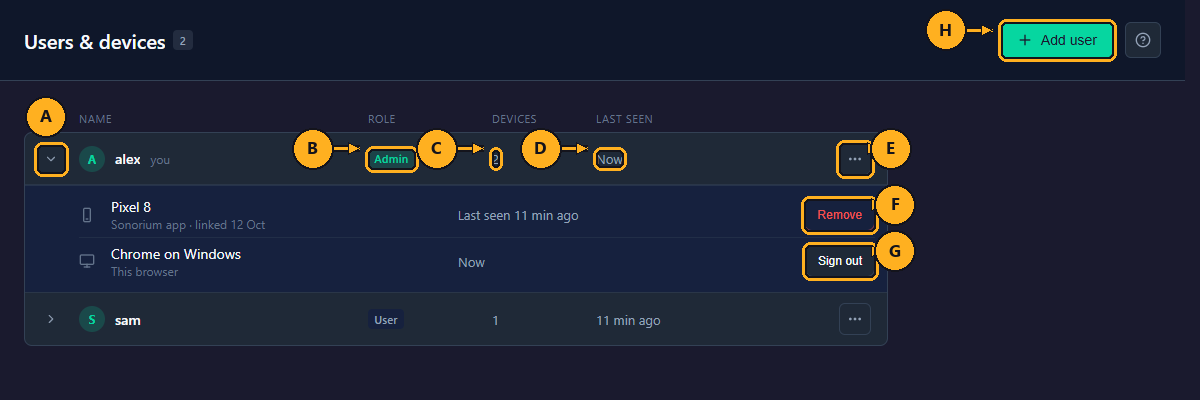
In this example, Pixel 8 is alex's linked phone; F is its Remove button.
Removing the phone stops its link at once: its next request is refused. To use it again, link it again with a new code.
Follow How to remove one device on the Sign-in and Users page, and pick the phone. Sign out of every device in the user's ⋯ menu unlinks all of that user's phones and signs out all of their browsers at once.
The app can also unlink itself; it then disappears from the list.