Repository navigation
Target Sections
On Draw Steel 1.2, every ability chat message has a section for each target, with the system's own apply buttons. Combat Tools works inside those sections, so Draw Steel: Target Damage is not needed on 1.2. Leave it off there: while it is active, the menus and rows on this page do not appear.
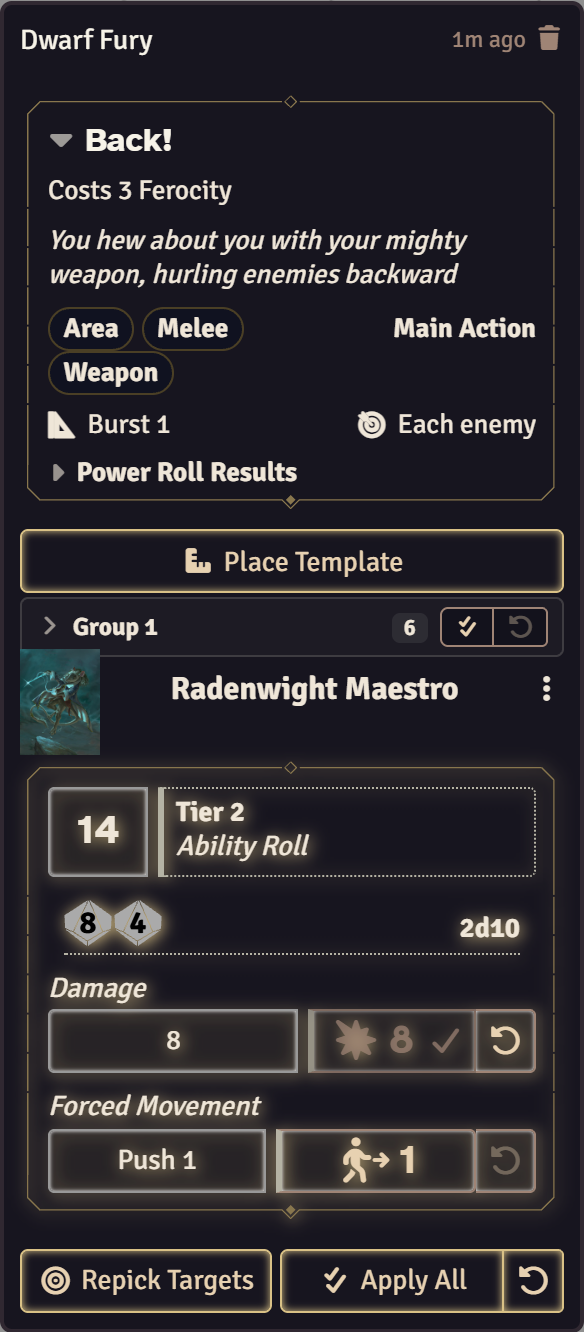
On Draw Steel 1.1, Target Damage still provides the per-target rows. See Target Damage Integration.
| Part | What it does |
|---|---|
| Three dots menu | Opens a modifier window for the power roll, each damage roll, the forced movement and each applied effect |
| Damage | Each modifier shows as its own term in the damage formula, with a tooltip. The apply button's tooltip lists the whole damage |
| Forced Movement row | Shows the push, pull or slide with its modifiers, moves this target, and undoes the move |
| Applied Effect row | Shows the effect's potency and whether it applies to this target |
| Effect buttons | Grab, conditions, forced movement, teleports, heals and flat effects act on this section's target |
| Modified marker | The target's name is underlined when modifiers changed the result. Hover the name or picture for the list |
The Director and the owner of the chat message see these entries in each section's three dots menu:
| Entry | What it opens |
|---|---|
| Modify Power Roll | The power roll window for this target |
| Modify Power Roll (Global) | One window for every target's power roll, when the ability has more than one target |
| Modify 7 Damage | The damage window for that damage roll. It takes the place of the system's own Modify Damage Roll entry |
| Modify Forced Movement | The forced movement window for the ability's push, pull or slide |
| Modify Slowed | The window for that applied effect, one entry per effect |
Once a result has modifiers, its entry counts them, as in Modify 7 Damage (2 modifiers). The system's own Adjust Potency entry stays where it is.
A result that has been applied can't be modified until you undo it, so its entry leaves the menu. Modify Power Roll leaves as soon as anything in the section is applied, since a new roll would change everything in it.
Every window works the same way. The top shows the result before and after your modifiers, and each modifier is a pill below it.
| Action | What it does |
|---|---|
| Click a pill | Switches it off, or back on |
| Right-click a pill | Removes it |
| + | Adds a modifier |
| Apply | Saves the changes to the chat message |
| Cancel | Closes the window and keeps nothing |
A damage modifier added by a trigger can be switched off but not removed. Hover a pill and the creature it came from lights up on the map.
Add edges, banes, bonuses and tier changes for this target only. The modifiers the roll was made with are listed too, by the names the roll window gave them, such as +1 Edge · Flanking, and clicking one switches it off. The tier is worked out again as soon as you apply, and the damage follows the new tier. A tier set by a modifier reads (Automatic) beside it.
Hover the power roll result to see every modifier on it.
The window has a Global row above the target's own row, as the roll window does. Global modifiers sit there, and switching one off there changes this target only.
Modify Power Roll (Global) changes the power roll for every target at once. It lists the global modifiers from the roll window, such as +1 Bane · Weakened, and anything added with its +, including a negated bane. Applying it works out every target again. A target that is already applied keeps its roll, and catches up once you undo it.
The same damage window as Visible Modifiers: halve, double, bonus, penalty, surge and damage type. Surges are spent from the hero when you apply, and given back when you remove them.
In the section, each modifier becomes a term of its own in the damage formula, such as 7 + 2. Hover a term to see what it is, where it came from, and the total before and after it. A damage type change shows the new type in front of the formula and changes the apply button's icon.
Hover the apply button for the whole damage: the total and its type, the base formula, and every modifier on it.
The ability's push, pull or slide becomes a Forced Movement row in each target's section. Its formula shows the movement and each modifier, such as Push 2 + 1, and hovering a term explains it. The button at the end shows the final distance and moves this target. Hover it for the movement, its base and every modifier.
The creature that used the ability does the moving, whatever token you have selected. Once the target has moved, the button shows as applied and the undo beside it puts everything back: the target's square, collision damage and any grab the move ended. It works the same when a trigger held the move first. While Draw Steel: Triggers holds the move on its Trigger Stack, the button shows an hourglass and can't be clicked, so the move can't be started twice. Undoing the move from its own chat message or from the Battle Log line clears the row too.
The + in the window opens the same Modify panel as the Forced Movement panel: change the distance or the type, make it vertical, ignore stability, drop collision damage, reduce fall damage or set it to Auto.
The window for an applied effect shows its duration before and after. The + offers Change the Duration, Save Bonus and Save Penalty, and the recurring damage modifiers when the effect carries recurring damage. See Effect Modifiers.
The modifiers are written into the effect when you press its apply button.
Each effect the ability applies gets an Applied Effect row in the target's section, with the effect's apply button at its end.
The formula shows the potency and the verdict for this target, such as M < 2 · Applies or M < 2 · Resisted. An effect with no potency reads No Potency. The system's own potency line for that effect is left out, since the row already shows it.
Hover the formula or the button for the full detail:
- Potency: the potency, whether it applies, the target's score in that characteristic, and Potency adjusted when the potency was changed, by the system's Adjust Potency or by a trigger.
- Duration: when the effect ends, or Until removed when it has no end. A changed duration also shows what it was.
- Effects: each modifier from the effect's window, with its reason and where it came from.
When modifiers changed a result, the target's name is underlined. Hover the name or the picture to list every modifier on that target, by section.
Modified Marker on Results (Ability Automation, Modifiers in Chat) turns it off. Everyone sets their own.
With Group Actions on, each extra minion on a target adds its free strike as a Free Strike damage modifier in that target's section, named after the minion. The system's own Minions field in the roll window is hidden while Group Actions is on, so the free strikes are not counted twice. See Squad Targeting.
Rolled against the wrong creature, or forgot to target at all? Update Targets sits at the bottom of the chat message, beside Apply All. It rolls the ability again against new targets with the same dice, so nothing about the roll changes except who it is against.
- It gets the new targets. With the target picker on, it reads Repick Targets when you have nothing targeted, or when Always Re-Pick Targets is on, and opens the ability's picker: the area picker for an area, the target picker otherwise. Without a picker, or with targets already chosen, it uses what you have targeted.
- The roll window opens for the new targets, with every edge, bane and modifier worked out for each of them, as at roll time. Change anything you like there.
- Anything already applied from the message is undone, then each new target gets its own section. Nothing is spent again: resource costs and spends stay as they were. With Apply My Abilities Automatically on, the new results are applied like a fresh roll.
The button looks disabled when it has nothing to work with, that is with nothing targeted and no picker for the ability. Hover it to see why. Only the Director and the message's owner see it.
Effect buttons in a target's section act on that section's target, not on whatever you have targeted: grabs, conditions, forced movement, teleports, heals, Purifying Fire, and tiered and flat effects. A grab follows the section's tier, so a power roll changed in the window grabs at the new tier.
Flat effects that go to each target get buttons in every section. Flat effects for the user or for other creatures stay in the ability's own section.
A flat Damage effect that joins the rolled damage, as described on Flat Effects, is added as a damage modifier in each target's section. It shows in the formula like any other modifier and can be switched off in the damage window.
An ability with chain targets shows a Pick Chain Target (1 of 2) button under the ability. Each creature you pick gets its own target section, with the same power roll and the same modifiers as the others.
A Choose effect that is picked after the roll shows its options under the ability as Choose one: buttons. Once you pick, every section shows only the text and buttons of the chosen mode. A choice with its own Distance or Target rebuilds the target sections from the placed area, and a section already applied stays.
Draw Steel 1.2 applies some edges and banes itself. When it does, the Alternative Ability Roll UI shows Prone, High Ground and Adjacent Enemy as named labels for the system's edge or bane, so nothing is counted twice.
An ability that can be melee or ranged opens in the mode its targets need: ranged when any target is beyond melee reach, otherwise melee. The system's switch in the roll window still lets you pick the other one, and switching rebuilds each target's edges and banes. Forced movement, the size rule and melee-only riders follow the mode the ability was used in.
Switching to melee while a target is out of reach whispers a reminder. A mode you picked by hand is kept when a held roll resumes against the same targets.
Applying, undo and Apply All Damage come from Draw Steel: CTLib. It adds a small undo button beside each apply button, and lets players apply to creatures they do not own through the Director. See the CTLib wiki for details.
An applied button stays disabled until you undo it, so nothing is applied twice. It keeps its outline and its tooltip. The modify windows and pills of an applied result are locked until then too.
With Apply My Abilities Automatically on, everything on a chat message for one of your own abilities is applied as soon as the result is in, one effect at a time. Grabs, teleports and pushes without Auto stay for you to click.
Target sections work with Draw Steel Plus's Improved Chat: the rows, tier lines, Apply All and every modifier find their place in its chat messages, and its button rows stay rows.
Draw Steel: Battle Log can fold these sections into the compact panel Target Damage used on Draw Steel 1.1, one row per target, with the modifiers shown as pills you can click. Everything on this page works the same inside it.
These settings change Target Damage's panel, so they do nothing on Draw Steel 1.2: Potency Checks, Sort Targets Nearest First, Shorter Apply Buttons, Quick Forced Movement Button, Group Squads in Damage Panels and Open Squad Sections by Default.
Other modules add modifiers to target sections through api.resultModifiers and api.globalModifiers. See Module API.