Repository navigation
Custom themes
Documentation home · Settings and help
Preview feature: the custom theme editor and JSON import/export are currently available in the local test build. They are not included in the public Tagcast 1.1.0 downloads. This page previews a planned update; no release number is assigned yet. See Upcoming changes.
A charcoal-grey interface with amber highlights, adapted from Amber · Original in ibfetch. The file includes separate Light and Dark variants. It changes Tagcast's colour roles while keeping its existing layout and controls.
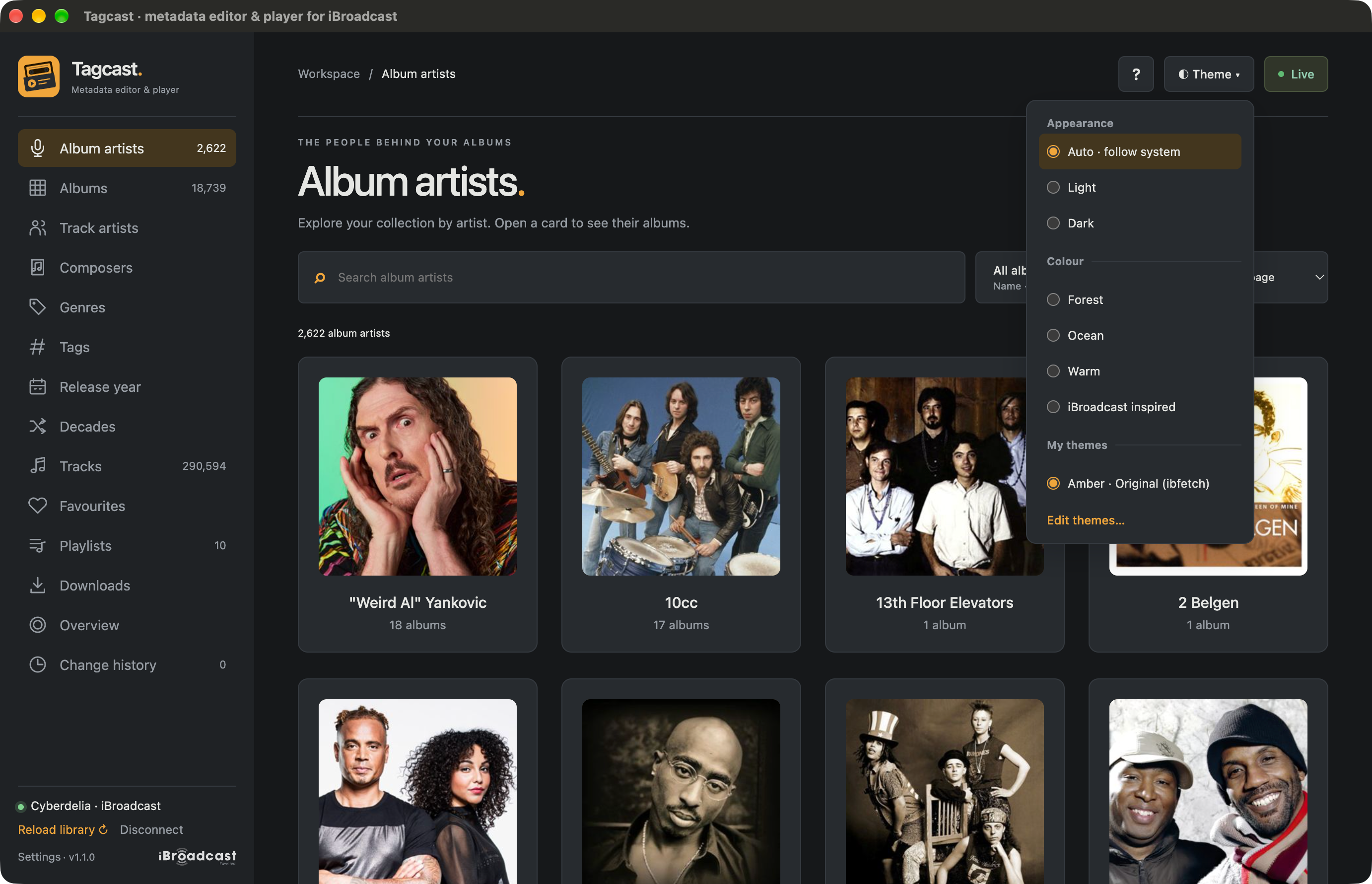
Amber · Original (ibfetch), shown with Dark colours and Auto appearance in the local macOS test build, 30 October 2026. The 1.1.0 footer is the test build's version label; the custom-theme controls are not part of the public 1.1.0 release.
- Save the linked file as ibfetch-amber-original.json. If your browser displays
JSON text, save that file with its
.jsonextension. - In a build that includes the theme editor, open Settings → Appearance.
- Choose Import JSON… and select the file.
- Check the component preview. Switch between Light and Dark to inspect both colour variants; this does not change the app's appearance preference.
- Choose Save & use to save and apply the theme. Save theme saves it without changing your current theme.
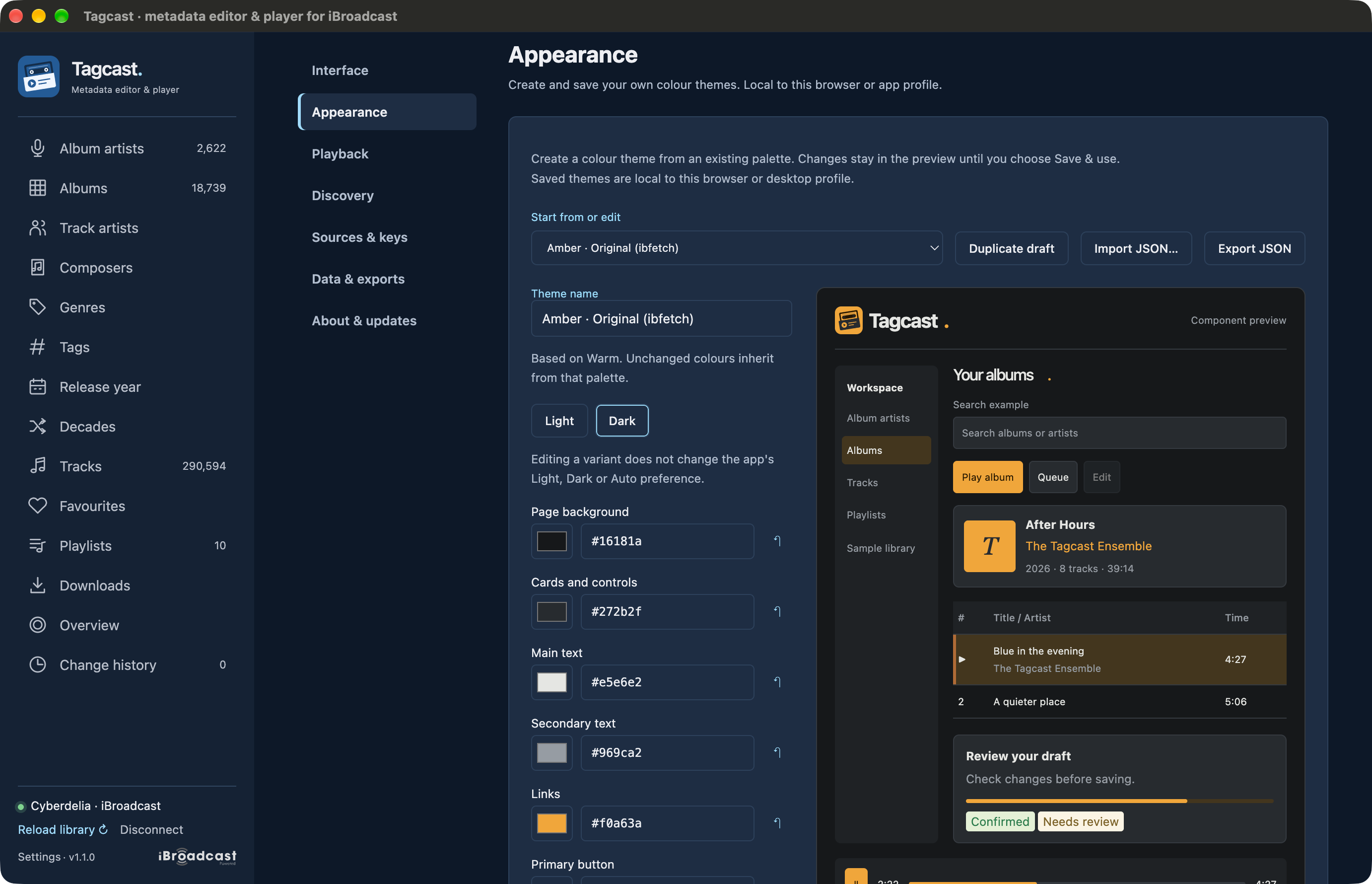
The imported Amber theme in the local test build's editor. The component preview uses Amber while the surrounding app still uses the current iBroadcast-inspired palette; previewing does not apply the draft. Import/export buttons share the current theme as JSON.
The theme then appears under Theme → My themes. Auto · follow system, Light and Dark remain independent choices. Importing creates a new unsaved preview; it does not overwrite another saved theme or change your library.
Start from an existing palette or saved theme, give your draft a name, and adjust colours alongside the component preview. Duplicate draft starts a separate copy. Built-in palettes remain available.
Export JSON downloads the current valid draft, including both colour variants, without saving or applying it. Invalid colour fields must be corrected first. Each file contains one theme: its name, built-in base palette and colour overrides. It does not include account details, tokens, library data or other preferences.
Theme files are limited to 16 KB and accept known colour roles with six-digit hex values. Saving is explicit. Saved themes are local to this browser or desktop profile; export/import lets you move them to another installation.
Contrast checks highlight representative text, button and focus combinations; they are guidance rather than a guarantee for every screen. Native audio controls, output pickers and window borders can retain operating-system styling. Warning and error colours keep their existing meaning.