Repository navigation
The OSD OS Image
On a Raspberry Pi, OSD/OS can be the whole system: one image that you flash to an SD card and that starts straight into OSD/OS. This page covers what the image is made of, everything it changes in Raspberry Pi OS and why, how its boot works, the film partition, USB drives, the network, SSH, the user and its password, quitting and updating, where every file lives, and how to build the image yourself. The source of all of it is the os/ folder of the repository, and its README.
| The boot screen | Settings, once it is up |
|---|---|
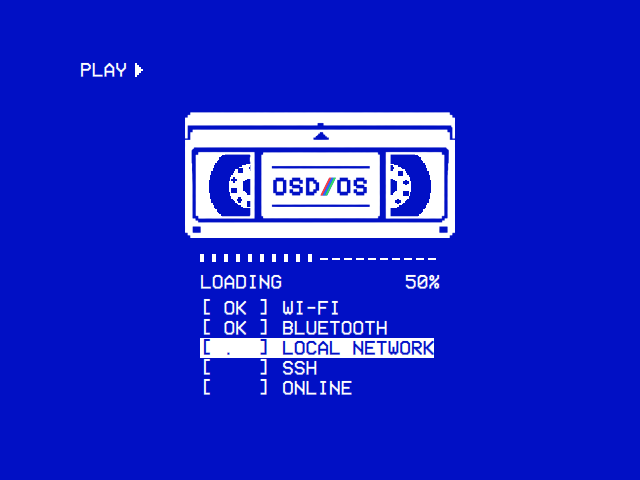 |
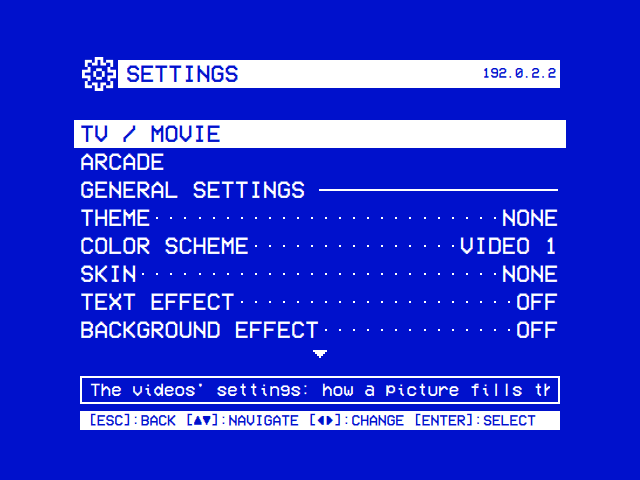 |
From power on, the screen is OSD/OS's. The cassette winds its tape while the services start, [ OK ] once each is up. |
The title bar shows the version and the Pi's network address, which is handy for SSH. |
Installed as an app (Installation), OSD/OS runs on a system that is already set up: Raspberry Pi OS, SteamOS or macOS. That system boots its own way first, with its splash, its boot messages and its login prompt or desktop. The image is the system itself:
- It boots into OSD/OS. There is no rainbow splash, no boot text and no login prompt. The first thing on screen is OSD/OS's boot screen, in the theme's colours, or white on blue with Settings → Boot Screen Colors → Default.
- No desktop. There is no display server (X11 or Wayland), no window manager and no file manager. OSD/OS draws straight to the screen through the kernel's display driver, and so does mpv (Nothing between the app and the screen).
- Every screen is OSD/OS's own: the boot screen, the menus, the file browser, the on-screen keyboard, Settings, Bluetooth pairing, updates, and power off. It hands the screen over only to what plays: mpv for a video, Chromium (full screen, nothing around it) for Netflix, Prime Video and YouTube's sign-in, MAME or RetroArch for the Arcade module's games, and a script of yours that asks for the screen.
- Nothing runs that a TV box doesn't need. Wi-Fi, Bluetooth, the local network and SSH wait until OSD/OS is on screen. The timers that wake the SD card at random times are gone.
- Films go on the card, on a partition of their own that Windows and macOS can open.
- USB drives show up in Local Files as they are plugged in, read-only.
- Raspberry Pi OS Lite (64-bit), the system without a desktop that Raspberry Pi makes for its boards. It is based on Debian 13 "trixie", arm64. Its packages are Debian's, with Raspberry Pi's on top from Raspberry Pi's archive: the kernel, the firmware, a patched FFmpeg, Widevine and more.
-
pi-gen, the tool Raspberry Pi builds Raspberry Pi OS with, at a pinned commit of its
arm64branch (PI_GEN_REFinos/build.sh, today4d8ee447dd3d37e8b0ef8752e460d9082d9d435d). Its stages 0 to 2 make Raspberry Pi OS Lite. -
One stage of OSD/OS's own,
os/stage-osdos, on top. It adds the app and changes the system as this page describes. - The release name is OSD/OS (
PI_GEN_RELEASE). pi-gen writes it to/boot/firmware/issue.txt.
flowchart LR
    S0["pi-gen stage0<br/>Debian trixie base"] --> S1["stage1<br/>a system that boots"]
    S1 --> S2["stage2<br/>Raspberry Pi OS Lite"]
    S2 --> SO["stage-osdos<br/>OSD/OS and its changes"]
    SO --> IMG["export-image<br/>the .img.xz and its .info"]
    TAR["OSD-OS-version-linux-arm64.tar.gz<br/>the app, from its release"] --> SO
The kernel, the firmware, the Wi-Fi and Bluetooth drivers and the patched FFmpeg that mpv's Pi 4 HEVC decoding relies on are exactly Raspberry Pi OS's.
What changes against flashing Raspberry Pi OS Lite and running scripts/install.sh with its autostart service:
Raspberry Pi OS Lite + install.sh
|
The OSD/OS image | |
|---|---|---|
| When OSD/OS starts | After multi-user.target, once every other service is up |
After basic.target, as soon as the display driver is ready |
| First thing on screen | The boot messages, until OSD/OS starts | Black, then OSD/OS's boot screen |
| Wi-Fi, Bluetooth, mDNS, SSH | Start with the system, ahead of OSD/OS | Wait for OSD/OS's first frame, then start one after another |
| apt, man-db, e2scrub and dpkg-backup timers, cron | Running | Switched off |
| Raspberry Pi Connect agent | Installed | Removed |
| cloud-init | Runs at every boot | First boot only |
| Where films go | ~/.local/share/OSD-OS/media/Movies |
Movies on the card's own exFAT partition, /media/OSD-OS/Movies
|
| USB drives | Not mounted by themselves | Mounted read-only under /media/usb as they come |
| Netflix, Prime Video, YouTube sign-in | Install Chromium, Widevine, cage and wtype yourself | Included |
| YouTube | Install yt-dlp and Deno yourself | Included; yt-dlp updates itself |
| Arcade | Install MAME yourself, and RetroArch for FinalBurn Neo (its core downloaded in Settings) | Included: Debian's MAME 0.276, and Debian's RetroArch with the FinalBurn Neo core |
| Settings → Display Output | Not offered | Offered |
| Bluetooth adapter blocked by rfkill | Stays blocked | Unblocked as Bluetooth starts |
Everything else is the same as an app install: the launcher, the in-app updater, Exit to Terminal, and the data folder ~/.local/share/OSD-OS. The launcher, the stop helper, the terminal unit, the sockets behind At Next Start and the Wi-Fi country, and the polkit rule that lets OSD/OS use NetworkManager are taken from scripts/install.sh when the image is built, so the two can't drift apart.
Download OSD-OS-<version>-raspberry-pi.img.xz from the latest release and flash it with Raspberry Pi Imager (Use custom); from a terminal, curl -fsSL https://osdos.tv/get.sh | sh -s -- image downloads it and checks it against the SHA-256 GitHub keeps for it. Installation has the steps, and os/README.md → Flashing the details. Two things to know first:
-
Raspberry Pi Imager 2 offers no OS customisation (Wi-Fi, a user, SSH, locale, keyboard) for an image chosen with Use custom: it can't tell which kind of customisation the image takes. OSD/OS Setup takes its place. Imager's own customisation needs the image opened through a local manifest that gives it
"init_format": "cloudinit-rpi"(Imager's notes). Imager 1 seems to apply it, but on trixie its settings never take effect. -
Without either, Ethernet needs nothing. For Wi-Fi, edit
network-configon the card's boot partition before the first boot (Wi-Fi).
OSD/OS Setup is a page where what a card starts with is chosen before it goes into the Pi: first what it goes into, a TV or an arcade cabinet, then the display output, the device's name, Wi-Fi and its country, pi's password, SSH and its keys, the time zone, the keyboard, every setting of OSD/OS itself, with the chosen theme's main menu and Arcade screen shown as the app draws them, and the Arcade's RetroAchievements account. A cabinet's file starts on the Arcade screen (Start on Module, the Arcade turned on with it); the page puts the TV / Movie settings out of sight for it and lists the JAMMA outputs first. It runs in the browser, and nothing typed on it leaves the browser. Its file, osdos-setup.json, goes on the boot partition (bootfs), with the chosen display output's osdos-display.txt beside it, which the zip it gives holds both of (Installation has the steps).
As the Pi starts, /usr/local/sbin/osdos-setup applies the file in two stages:
-
osdos-setup-app.service, afterbasic.targetand before OSD/OS (ConditionPathExists=the file, or what a start cut short left), takes the file off the boot partition at once, root's alone from then on (/var/lib/osdos-setup/pending.json), and sets what OSD/OS reads as it starts: its settings and the RetroAchievements account. -
osdos-setup.service, once OSD/OS is on screen and ahead of NetworkManager, avahi and SSH, sets the rest. The boot screen lists it as SETTINGS (a step of/etc/osdos/boot-unitsit shows only on a start that has the file):[ OK ]when all of it was set,[FAIL]when anything wasn't. Then it writesosdos-setup.logon the boot partition: what was done, and why anything wasn't, never a password.
Each part is applied on its own, so that one that can't be applied leaves the rest to go ahead. The same lines go to the journal (journalctl -u osdos-setup-app -u osdos-setup).
| Part | How it is applied |
|---|---|
| The device's name |
osdos-stop device-name, as Settings → About → System Information renames it |
| The Wi-Fi country |
osdos-stop wifi-country, as Settings → Wi-Fi sets it |
| Wi-Fi | A NetworkManager connection, /etc/NetworkManager/system-connections/osdos-setup-<network>-<id>.nmconnection (root's alone), joined as NetworkManager starts. With its country set, Wi-Fi is switched on in NetworkManager's state too, which an image built without a country starts with it off |
pi's password |
The SHA-512 crypt hash the page made in the browser (100,000 rounds), with chpasswd -e: the password itself is never in the file |
| SSH |
systemctl enable and start (or disable and stop) ssh.service; the keys added to pi's ~/.ssh/authorized_keys, each one checked whole; password login on or off in /etc/ssh/sshd_config.d/00-osdos-setup.conf, the first of sshd's drop-ins, so that no other undoes it. Password login only with pi's password set in the same file, never over the one an image was built with, which every card of it shares; SSH not turned on without a key or that password to log in with |
| The time zone and the keyboard |
timedatectl set-timezone; raspi-config nonint do_configure_keyboard
|
| OSD/OS's settings | Merged into ~/.local/share/OSD-OS/config.json: what the file doesn't name stays as it is |
| The RetroAchievements account | Handed to OSD/OS in ~/.local/share/OSD-OS/arcade/retroachievements-setup.json (pi's alone): the Arcade module keeps the Web API key, and RetroArch signs in with the password as Settings' Sign In has it. Started before the network is up, it checks again every 30 seconds, ten times at most and never beside a game, and the file goes once RetroAchievements has answered or a game has had the password. A file for the account signed in already keeps its token. OSD/OS never keeps the password |
| The display output |
osdos-stop next-start, as Display Output's At Next Start writes it, a Pi 5's SCART RGB line included; when it changes what the firmware reads, the Pi restarts once. One the Pi the card is in hasn't (chosen for another) is left as it is |
pi's files are read and written by osdos-setup run again as pi, never by root, so that nothing in pi's folder can point root's reads or writes elsewhere. A file it can't read is deleted, its passwords with it, and the log says why. What a start cut short leaves in /var/lib/osdos-setup is applied at the next. The file can go on a card that has already started: it is applied at the next start. Like cloud-init's files beside it, it is read from a partition anyone with the card can write, and until the card takes it, it holds the Wi-Fi and RetroAchievements passwords as typed: keep it to yourself. Set a thing in one place only, on the page or in Imager's customisation: Imager's time zone and keyboard are applied later on the first boot.
OSD/OS on a computer takes the page's settings too, only its own and the RetroAchievements account: pasted in Settings, or from osdos-setup.json in its data folder at the next start (Installation).
The first boot does a few things once and takes longer:
- In the initramfs, the card is split: the system's partition grows to 8 GiB and the rest becomes the film partition, formatted exFAT (Films on the card). A first boot cut short before the film partition is formatted leaves that to the next boot.
- The root file system grows to fill its partition (Raspberry Pi OS's
rpi-resize.service). - cloud-init applies what Raspberry Pi Imager or
network-configasked for: a user, Wi-Fi, SSH, the locale. Thenosdos-cloud-init-once.serviceswitches cloud-init off for good. - With an
osdos-setup.jsonon the boot partition,osdos-setup-app.servicesets OSD/OS's own settings from it, andosdos-setup.servicethe rest once OSD/OS is on screen, as SETTINGS on the boot screen (OSD/OS Setup); the Pi restarts once if the display output changed. - OSD/OS starts as on every boot, with the boot screen.
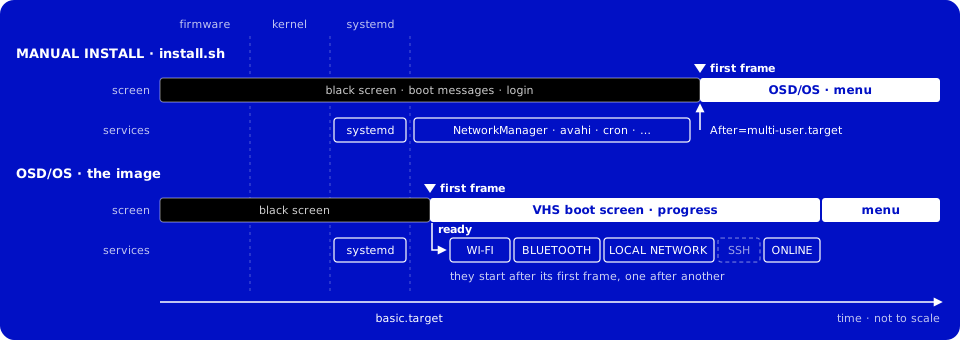
A manual install starts OSD/OS last, once every service is up, with the boot messages on screen until then. The image turns that around. OSD/OS starts as soon as systemd reaches basic.target. Wi-Fi, Bluetooth, the local network and SSH (when enabled) wait for its first frame, then start one after another. The boot screen shows them coming up.
-
Firmware. It loads the kernel with no splash (
disable_splash=1) and no one-second pause (boot_delay=0). -
Kernel. It boots quietly and logs to
tty3, sotty1, the screen, stays black:console=tty3 quiet loglevel=3 logo.nologo vt.global_cursor_default=0 consoleblank=0incmdline.txt. -
systemd reaches
basic.target.osdos.servicestarts. Itswait-for-displayholds it, at most five seconds, until the KMS display driver has a connector: this early in the boot there may be none yet, and Qt's EGLFS fails without one. -
The launcher (
/usr/local/bin/osdos) applies a staged update if there is one, picks the DRM card and output, and starts the app. -
The first frame is on screen. The app writes
/run/osdos/ready(OSDOS_READY_FILE), holding its process id. A five-second timer writes it anyway, should the window never report a frame. - The held-back services start, one after another: NetworkManager (Wi-Fi), Bluetooth, avahi-daemon (the local network), and SSH if it was enabled when the image was built.
-
The boot screen follows them, then the check that the network is online (
NetworkManager-wait-online.service, at most 20 seconds here instead of a minute). - The boot screen closes once every step has settled, or after a minute whatever happens. The startup module opens then, so a module that needs the network finds it ready.
sequenceDiagram
    participant FW as Firmware and kernel
    participant SD as systemd
    participant App as osdos.service
    participant Held as Held-back services
    FW->>SD: quiet boot, messages on tty3
    SD->>App: basic.target reached, start
    App->>App: wait-for-display, at most 5 s
    App->>App: launcher, then the first frame
    App->>Held: writes /run/osdos/ready
    Held->>Held: NetworkManager, bluetooth, avahi-daemon (ssh if built with it), in turn
    loop every 300 ms
        App->>SD: systemctl show the units
        SD-->>App: their states
    end
    App->>App: all settled, or 60 s: boot screen closes
    App->>App: the startup module opens
Each held-back unit gets a drop-in, /etc/systemd/system/<unit>.d/osdos-defer.conf, that runs /usr/lib/osdos/wait-for-app before it starts and orders it after the unit before it. For bluetooth.service:
# OSD/OS image: start once the app is on screen, after the service before it.
[Unit]
After=NetworkManager.service

[Service]
ExecStartPre=+-/usr/lib/osdos/wait-for-app
wait-for-app returns as soon as /run/osdos/ready exists, or after 20 seconds whatever happens, and at once when OSD/OS isn't starting this boot at all (not running and no start job queued). It never fails, so a service always comes up. It is a wait rather than an After=osdos.service ordering on purpose: the worst a wait can cost is its timeout, while an ordering cycle with an early-boot unit could stall the whole boot.
The units and their labels are listed in /etc/osdos/boot-units, in start order. On an image built without SSH:
# Services OSD/OS's boot screen follows, as unit|LABEL, in start order;
# unit|LABEL|optional for one it lists only once it starts. All but the
# last hold back until the app is on screen (see their osdos-defer.conf
# drop-ins); the last is the network-online check.
osdos-setup.service|SETTINGS|optional
NetworkManager.service|WI-FI
bluetooth.service|BLUETOOTH
avahi-daemon.service|LOCAL NETWORK
NetworkManager-wait-online.service|ONLINE
An image built with ENABLE_SSH=1 has ssh.service|SSH before the last line, and SSH waits too, after avahi-daemon. SETTINGS is OSD/OS Setup's (above): on a start without its file the unit's condition fails at once, and the boot screen neither lists it nor counts it.
The boot screen (views/BootScreen.qml, its state in src/boot/BootProgress) is a deck playing a tape: PLAY ▶ in the corner, the OSD/OS cassette (views/Components/VhsCassette.qml) whose reels turn while the tape winds from one onto the other with the progress bar, then LOADING... (or READY) with a percentage, and a line per service. The one starting now is inverted, like a selected menu line.
| Mark | Means |
|---|---|
[ ] |
Waiting its turn |
[ . ], [ .. ], [ ...]
|
Starting |
[ OK ] |
Started |
[FAIL] |
Failed |
[ -- ] |
Skipped: not installed, masked, or its condition failed (bluetooth.service on a board without Bluetooth) |
- The bar. A step that has settled (started, failed or skipped) counts whole, one that is starting half; an optional one only once it has started, and the bar never goes back. Once all have settled the screen stays at 100% for 1.2 seconds, so the last line can be read, then closes.
- It never stays more than a minute, whatever the services do.
- Keys do nothing while it is up, so none reaches the menu underneath. The one exception is Ctrl+Q on a keyboard, which quits OSD/OS, and on the image that powers the Pi off.
-
Only during the boot. At start,
BootProgressaskssystemctl is-system-running. Unless systemd saysinitializingorstarting, there is no boot screen, so OSD/OS started again later (after an update, or Exit to Terminal and back) opens straight on its menu. -
Only on the image. Without
OSDOS_BOOT_UNITS_FILE, which only the image's service sets,BootProgressdoes nothing at all. - Over it, after a display switch, comes the question whether to keep the new display output (Display Output).
-
A label is the text after the
|in/etc/osdos/boot-units. Change it there (sudo nano /etc/osdos/boot-units); it shows from the next boot. A third field,|optional, lists a step only once its unit starts. -
Another service can be held back and shown too. Give it the same drop-in, after the last held-back unit, and add a line for it before
ONLINE(16 lines at most). For a service of yours calledexample.service:sudo mkdir -p /etc/systemd/system/example.service.d sudo tee /etc/systemd/system/example.service.d/osdos-defer.conf > /dev/null << 'EOF' [Unit] After=avahi-daemon.service [Service] ExecStartPre=+-/usr/lib/osdos/wait-for-app EOF sudo sed -i 's/^NetworkManager-wait-online.service|ONLINE$/example.service|EXAMPLE\n&/' /etc/osdos/boot-units sudo systemctl daemon-reload
The app logs when its first frame appeared and when each service settled, counted from its own start:
journalctl -b -u osdos | grep '\[boot\]'
systemd-analyze critical-chain osdos.service
systemd-analyze blame
The [boot] lines read boot screen up, watching 4 unit(s), first frame … ms after start, <unit> done at … ms (or failed, skipped), and boot screen closed at … ms (all services settled), (timed out) naming what was still starting.
| Unit | On the image |
|---|---|
osdos.service |
Enabled. OSD/OS itself, as the first user (pi) |
NetworkManager.service, bluetooth.service, avahi-daemon.service, ssh.service (if built with ENABLE_SSH=1) |
Held back until OSD/OS's first frame, then started in that order |
NetworkManager-wait-online.service |
Gives up after 20 seconds (NM_ONLINE_TIMEOUT=20) instead of a minute |
osdos-cloud-init-once.service |
After the first boot, writes /etc/cloud/cloud-init.disabled: cloud-init's stages would otherwise delay every boot. Delete that file to have cloud-init run again |
osdos-setup-app.service, osdos-setup.service
|
Enabled, and run only with an osdos-setup.json on the boot partition (or what a start cut short left): OSD/OS Setup's file taken off it and OSD/OS's own settings set before OSD/OS starts, the rest once it is on screen, as SETTINGS on the boot screen (OSD/OS Setup) |
osdos-yt-dlp-update.timer |
Updates yt-dlp two minutes after each boot and once a day (Updates) |
osdos-usb-mount@<device>.service |
One per USB drive plugged in (USB drives) |
osdos-media-folders.service |
Started by the film partition's mount (media-OSD\x2dOS.mount.wants): makes the Movies folder on it, so the card has it from its first boot on. OSD/OS itself may start before the partition is mounted (it is mounted nofail, which holds nothing back), and a folder it made then would lie under the mount point |
osdos-jamma.service |
Enabled, and does something only with the JAMMA display preset in force: a Raspberry Pi to JAMMA board's joysticks and buttons as two gamepads (Controls), as a user of its own (DynamicUser=yes) in the i2c and input groups. Without the preset it exits at once; with it and no board, after 15 seconds |
osdos-display.socket |
Enabled: Settings → Display Output's At Next Start, through osdos-display@.service (At Next Start's socket) |
osdos-wifi.socket |
Enabled: Settings → Wi-Fi's country, through osdos-wifi@.service (The Wi-Fi country's socket) |
osdos-name.socket |
Enabled: Settings → About → System Information's rename, through osdos-name@.service (The device name's socket) |
osdos-terminal.service |
Not enabled. Started only by Exit to Terminal |
getty@tty1.service, autovt@.service
|
Masked: tty1 belongs to OSD/OS, and no login prompt appears on the console mpv switches to |
apt-daily.timer, apt-daily-upgrade.timer, man-db.timer, e2scrub_all.timer, dpkg-db-backup.timer, cron.service
|
Disabled. They wake the CPU and the SD card at random times, mid-film included. Updating the system is the image's business, not a timer's |
rpi-connect-lite |
Purged: a remote-access agent has no place on a TV box |
osdos.service, as the image has it (systemctl cat osdos shows it, with its comments, and its drop-in):
[Unit]
Description=OSD/OS Media Player
After=sound.target
Wants=network-online.target
StartLimitIntervalSec=120
StartLimitBurst=3
OnFailure=osdos-terminal.service

[Service]
Type=simple
User=pi
SupplementaryGroups=tty video input
AmbientCapabilities=CAP_SYS_TTY_CONFIG
Environment=QT_QPA_PLATFORM=eglfs
Environment=QT_QPA_EGLFS_ALWAYS_SET_MODE=1
Environment=QT_QPA_EGLFS_KMS_ATOMIC=1
Environment=QML2_IMPORT_PATH=/usr/lib/aarch64-linux-gnu/qt6/qml
Environment=OSDOS_AUTOSTART=1
Environment=OSDOS_BOOT_UNITS_FILE=/etc/osdos/boot-units
Environment=OSDOS_READY_FILE=/run/osdos/ready
RuntimeDirectory=osdos
ExecStartPre=+-/usr/bin/systemctl stop osdos-terminal.service
ExecStartPre=-/usr/lib/osdos/wait-for-display
ExecStart=/usr/local/bin/osdos
Restart=on-failure
RestartSec=5s
RestartMode=direct
SuccessExitStatus=10 12 20 21 22 23 24 25 26 27 28 29 30 40 41 42 43 44 45 46 47 48 49 50 129 130 143
ExecStopPost=+/usr/local/bin/osdos-stop
StandardOutput=journal
StandardError=journal

[Install]
WantedBy=multi-user.target-
After
sound.target, notmulti-user.target. The default dependencies put it afterbasic.target.Wants=network-online.targetpulls in the online check the boot screen ends on, without waiting for it. -
SupplementaryGroupsandCAP_SYS_TTY_CONFIGlet it switch virtual terminals and hand the screen to mpv. A udev rule (/etc/udev/rules.d/99-osdos-tty.rules) lets thettygroup open/dev/tty0for that. -
OSDOS_AUTOSTART=1tells OSD/OS it runs as the system's own: Quit offers Power Off, Restart and Exit to Terminal, and Settings offers Display Output. -
Restart=on-failurestarts OSD/OS again five seconds after a crash or an error exit.StartLimitBurst=3inStartLimitIntervalSec=120makes the third start in two minutes the last: when that one fails too, the service is failed, andOnFailure=startsosdos-terminal.service, a login prompt on the screen.RestartMode=direct(systemd 254 or later; the image has 257) keeps the failures before that from bringing the prompt up too: without it, systemd runsOnFailure=at every failure, a restart to follow or not. The Pi stays on throughout. -
SuccessExitStatuscounts Exit to Terminal (10), a restart (12), a display switch (20 to 30, and 40 to 50 with a power-off) and a stop from outside (129, 130, 143) as no failure, so systemd neither starts OSD/OS again over them nor brings up the login prompt.osdos-stopacts on them (Quitting). -
The drop-in
/etc/systemd/system/osdos.service.d/osdos-media.confaddsEnvironment=OSDOS_MEDIA_DIR=/media/OSD-OS: Local Files opens the Movies folder on the film partition while its Media Directory setting is unset, and the Arcade module its Games/Arcade folder while its Games Folder setting is.
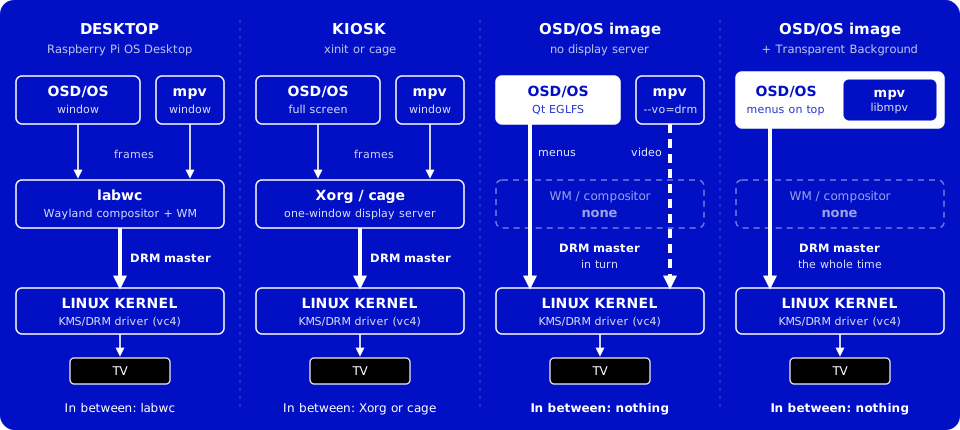
On a desktop, OSD/OS and mpv are windows. They hand their frames to a compositor (labwc on Raspberry Pi OS), and the compositor holds the screen. A kiosk replaces the desktop with one full-screen window, but Xorg or cage still sits in between.
The image has no display server at all. OSD/OS draws through Qt's EGLFS platform straight to the kernel's KMS/DRM driver (vc4), as Kodi does on LibreELEC. Only one program draws at a time, the one holding the DRM master, so there are no windows to manage. DisplayHandoff gives the screen to whatever takes over and takes it back when that exits:
- mpv (
--vo=drm) while a video plays; - Chromium, in the
cagekiosk compositor, for Netflix, Prime Video and YouTube's sign-in; - MAME or RetroArch, for a game in the Arcade module;
- a takeover script from the Scripts module.
With Transparent Background, mpv runs inside OSD/OS as libmpv instead. OSD/OS then keeps the screen the whole time, draws the video as part of its own picture, and lays its menus over it. How it works → The display path has the mechanics, and Display Output how the output itself is chosen.
The card's free space becomes a partition of its own, in exFAT, labelled OSD-OS. Windows and macOS read and write exFAT, so films copied into its Movies folder from a computer show up in Local Files.
On the first boot, Raspberry Pi OS grows its system partition to the end of the card. The image replaces that step. Raspberry Pi OS does it in the initramfs, in a script called resize_early (from raspberrypi-sys-mods). A script of the same name in /etc/initramfs-tools/scripts overrides it, and the image puts its own there:
- It acts only on a freshly flashed card: when
resizeis on the kernel command line, which Raspberry Pi OS removes after the first boot. - It grows the system partition (the second) to
OSDOS_ROOT_SIZEGiB, 8 by default, counted from where it starts. It never shrinks it. - It makes a third partition from the next 4 MiB boundary to the end of the card, of MBR type 0x07, where Windows looks for exFAT.
- It formats it with
mkfs.exfat -L OSD-OS. The image's initramfs carriesmkfs.exfatfor this, andblkid(the hook/etc/initramfs-tools/hooks/osdos-media). - Should less than 2 GiB be left after the system, there is no film partition: the system takes the whole card, as on stock Raspberry Pi OS. The same goes for an image built with
OSDOS_ROOT_SIZE=0.
Nothing in it can stop the boot. A step that fails is logged, and the card is left as far as it got. A first boot cut short after the split finds the film partition there and leaves the partitions alone. One cut short between making the film partition and formatting it leaves the partition blank: the next boot formats it then, but only when blkid finds no file system on it at all. A partition with a file system of any kind, or one blkid can't read, is left as it is.
| Partition | Label | File system | Size | Mounted at |
|---|---|---|---|---|
| 1 | bootfs |
FAT32 | 512 MiB | /boot/firmware |
| 2 | rootfs |
ext4 | 8 GiB (OSDOS_ROOT_SIZE) |
/ |
| 3 | OSD-OS |
exFAT | the rest of the card | /media/OSD-OS |
The boot partition starts 8 MiB into the card, so the first two take about 8.5 GiB. A card needs about 10.5 GiB (11.3 GB as cards are sold) for a film partition. Worked out from these sizes, not measured: an 8 GB card gets none, a 16 GB card about 6 GiB of films, a 32 GB card about 21 GiB. The partition table is MBR, so on a disk over 2 TiB the partitions stop at 2 TiB. On a USB disk the system boots from, the film partition is sda3 instead of mmcblk0p3.
/etc/fstab has this line (1000 is the first user's id):
LABEL=OSD-OS /media/OSD-OS exfat rw,noexec,nosuid,nodev,nofail,noatime,uid=1000,gid=1000,umask=0022,x-systemd.device-timeout=10s 0 2
| Option | Why |
|---|---|
rw |
Films are copied onto it from a computer, and the Playlists module downloads its offline playlists' videos into it |
noexec,nosuid,nodev |
It only ever holds media, and anyone with the card can write to it, so nothing on it can run |
uid=1000,gid=1000,umask=0022 |
exFAT keeps no owners, so its files belong to the user OSD/OS runs as |
nofail, x-systemd.device-timeout=10s
|
A card without the partition doesn't hold the boot more than 10 seconds |
noatime |
No write each time a film is read |
0 2 |
Checked at every boot with fsck.exfat before it is mounted: switching the Pi off at the wall mid-download can leave it untidy |
The Playlists module writes each downloaded video to the card as it completes, into a Playlists folder in Movies (its Download Folder setting can name another).
- Quit OSD/OS (Settings → Quit → Power Off) and take the card out.
- In a computer's card reader the card shows up as two drives, bootfs and OSD-OS. Copy films into the Movies folder on OSD-OS, in folders if you like.
- Windows also offers to format the system's partition, which it can't read. Always say no (Cancel): formatting it erases the system.
- Put the card back in the Pi. Local Files opens the Movies folder on OSD-OS (
/media/OSD-OS/Movies) until its Media Directory setting names another folder (Local Files).
Arcade games go on it too, beside Movies, so they never show among the films: the Arcade module plays the MAME ROM sets in a Games/Arcade folder on it, which it makes the first time it opens, or which you can make on the computer. Its Games Folder setting can name another (Arcade).
Flashing an image again erases the whole card, the films on OSD-OS included: the new image's first boot formats the partition afresh. Copy the films off first (Moving to a new image).
Images from before offline playlists mount the film partition read-only (ro in /etc/fstab), and offline playlists' downloads fail, naming the folder as the reason. Flash a new image, or edit the film partition's line in /etc/fstab (/media/240-MP, as those images named it): change ro to rw,noexec,nosuid,nodev, and its last 0 to 2.
A USB stick or disk plugged into the Pi is mounted by itself, read-only, under /media/usb, in a folder named after its label. Local Files lists it at the top of its tree as USB: <label>. Pulled out, its folder goes, and so does its row.
- Read-only, so a drive can be pulled out at any moment, mid-film included, with nothing on it half written. A file system with a journal is mounted without replaying it, which would write to the drive.
-
Its files belong to the user OSD/OS runs as on FAT, exFAT, NTFS and HFS+, as the film partition's do, and nothing on it can run (
noexec). -
Named after its label, else its UUID, else its device. A slash becomes
_; control characters, leading dots and spaces, and trailing spaces are taken out. Two drives with one label: the second is named after its device too (KINGSTON (sdb1)). -
Never the system's own. A partition already mounted (what
/etc/fstabmounts, the card's OSD-OS partition) or on the disk the system boots from is left alone. -
An app install doesn't do this: Raspberry Pi OS Lite mounts nothing by itself. Local Files still lists a drive mounted under
/mediasome other way.
| File system | Mounted as | Options besides ro,nosuid,nodev,noexec
|
|---|---|---|
FAT32 (vfat) |
vfat |
owner, umask=0022, utf8
|
| exFAT | exfat |
owner, umask=0022
|
| NTFS |
ntfs3, the kernel's driver; ntfs-3g where that fails |
owner, umask=0022
|
| HFS+ (a Mac's) | hfsplus |
owner |
| ext3, ext4 | as is |
noload: the journal isn't replayed |
| XFS | xfs |
norecovery |
| btrfs | btrfs |
nologreplay |
| ext2, F2FS, ISO 9660, UDF (a disc in a USB drive) | as is | none |
| Swap, RAID or LVM members, encrypted volumes | not mounted |
"Owner" is uid and gid of the user OSD/OS runs as.
A udev rule, /etc/udev/rules.d/99-osdos-usb-mount.rules, starts a service for each file system that appears on a USB drive:
ACTION=="add", SUBSYSTEM=="block", ENV{ID_BUS}=="usb", ENV{ID_FS_USAGE}=="filesystem", TAG+="systemd", ENV{SYSTEMD_WANTS}+="osdos-usb-mount@%k.service"
osdos-usb-mount@<device>.service is bound to the device (BindsTo=dev-%i.device): it runs /usr/lib/osdos/usb-mount add <device> as the drive comes and usb-mount remove <device> as it goes. The script notes each mount point in /run/osdos-usb/<device>, and unmounts lazily (umount -l), since a player may still hold a file open on a drive pulled out. Each mount, and why a drive couldn't be mounted, is in the journal:
journalctl -u 'osdos-usb-mount@*'usb-mount: /dev/sda1 (vfat) mounted read-only at /media/usb/KINGSTON
The network is NetworkManager's, as on Raspberry Pi OS. Settings → Wi-Fi joins networks through it (Settings → Wi-Fi); Raspberry Pi Imager's customisation, network-config before the first boot and a shell set it up too.
In OSD/OS, Settings → Wi-Fi turns Wi-Fi on and off, searches for networks, joins one with its password typed on the on-screen keyboard (one that doesn't say its name too), and forgets saved ones. The service runs OSD/OS outside any login session, where NetworkManager would ask for a password nobody can type: the polkit rule /etc/polkit-1/rules.d/50-osdos-networkmanager.rules lets OSD/OS's user use the five NetworkManager actions they take, which reach every connection NetworkManager keeps (Ethernet's too), and nothing else.
Raspberry Pi OS starts every radio blocked (rfkill.default_state=0) so that Wi-Fi stays off until its country is set. Raspberry Pi Imager's customisation sets it with the network, an image built with WPA_COUNTRY has it from the start, and in network-config it is regulatory-domain. Without one, Settings → Wi-Fi asks for the country as Wi-Fi is turned on, and sets it through osdos-wifi.socket (The Wi-Fi country's socket).
Before the first boot, with the card in a computer, open network-config on the bootfs drive. It is cloud-init's file, in netplan's format, and holds commented examples. cloud-init applies it on the first boot only. For one Wi-Fi network, the file can read:
network:
  version: 2
  wifis:
    wlan0:
      dhcp4: true
      optional: true
      access-points:
        "MyHomeWiFi":
          password: "my-wifi-password"
      regulatory-domain: GB
Use spaces, never tabs, to indent. GB is a two-letter country code: yours.
After the first boot, network-config is no longer read. From a shell (Exit to Terminal, or SSH over Ethernet), sudo raspi-config sets Wi-Fi under System Options, or NetworkManager's own tool does:
sudo nmcli device wifi connect "MyHomeWiFi" password "my-wifi-password"Both need sudo, so an image built with a password (The user, its password and sudo).
The hostname is osdos (TARGET_HOSTNAME), unless Raspberry Pi Imager set another; Settings → About → System Information shows it and renames the device (The device name's socket). Give each OSD/OS on one network a name of its own. avahi-daemon publishes it on the local network as osdos.local. Settings shows the Pi's IPv4 address in its title bar, Ethernet's before Wi-Fi's, read again every five seconds.
Settings → Bluetooth searches for, pairs and connects keyboards, gamepads and remotes through BlueZ (Controls). The image prepares two things for it:
-
The user OSD/OS runs as is in the
bluetoothgroup, which BlueZ's D-Bus policy lets in. -
Bluetooth is unblocked as bluetoothd starts. After blocking every radio, Raspberry Pi OS unblocks Bluetooth only on the adapters pi-gen knows by device path. The Pi 4 this was found on wasn't one of them: its adapter stayed blocked, and BlueZ couldn't turn it on (
Failed to set mode: Failed (0x03)). The drop-in/etc/systemd/system/bluetooth.service.d/osdos-unblock.confunblocks it, and systemd-rfkill keeps it so from one boot to the next:# OSD/OS image: Bluetooth is switched in the app, through BlueZ; rfkill never blocks it. [Service] ExecStartPre=+-/usr/sbin/rfkill unblock bluetooth
Bluetooth starts after OSD/OS is on screen. Settings → Bluetooth calls BlueZ only once it is on the bus, so it doesn't start it early.
SSH is off on the image as it comes (ENABLE_SSH=0). Two ways to have it:
- Raspberry Pi Imager's customisation enables it, with the user it creates (Imager 2 needs the local manifest, see Getting it onto a card).
-
Build the image with
ENABLE_SSH=1. SSH is then held back like the other services, after the local network, and has its own line on the boot screen. Built withPUBKEY_SSH_FIRST_USERtoo, a public key goes into/home/pi/.ssh/authorized_keys, andPUBKEY_ONLY_SSH=1turns password logins off.
Then, from a computer on the same network:
ssh pi@osdos.localor the address in Settings' title bar in place of osdos.local. The user, and whether it has a password, are set when the image is built (below).
The image's first user is pi (FIRST_USER_NAME), and OSD/OS runs as that user, whatever user Raspberry Pi Imager creates beside it. Its data folder is therefore /home/pi/.local/share/OSD-OS. pi-gen's first-boot rename wizard is off (DISABLE_FIRST_BOOT_USER_RENAME=1): the service needs the name it was built with, and the wizard would fight OSD/OS for tty1.
The user is in pi-gen's groups (adm dialout cdrom audio users sudo video games plugdev input gpio spi i2c netdev render), and the image adds bluetooth. adm lets it read the system journal without sudo.
| Built | Logging in as pi
|
Exit to Terminal | sudo |
|---|---|---|---|
With FIRST_USER_PASS (in CI, the secret OS_FIRST_USER_PASS) |
With that password, on the console, and over SSH when SSH is on | A login prompt | Asks for that password |
| Without one (the account is locked) | Not with a password; over SSH with a key (PUBKEY_SSH_FIRST_USER), on an image built with ENABLE_SSH=1
|
Logs pi in by itself |
Unusable: there is no password to give |
Without a password, os/build.sh hands pi-gen a random one and the stage locks it (passwd -l pi). Exit to Terminal would otherwise end at a login nobody can pass, so the terminal logs pi in by itself (/etc/systemd/system/osdos-terminal.service.d/osdos-autologin.conf). Whoever is at the keyboard could take the card out anyway. That shell has no root, though. For sudo, build the image with a password, or log in as the user Raspberry Pi Imager's customisation creates.
| Quit | Update |
|---|---|
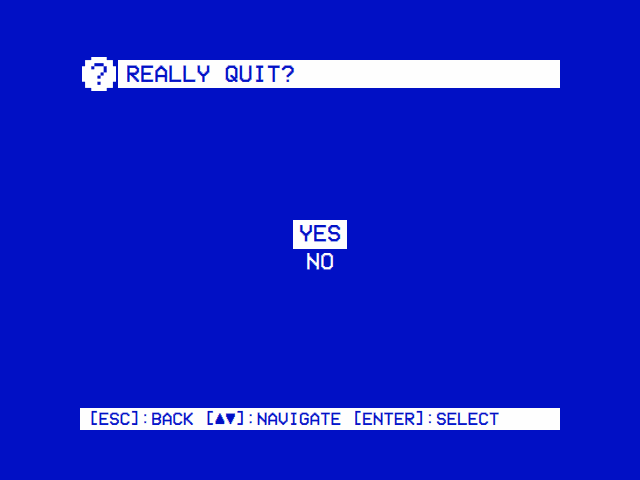 |
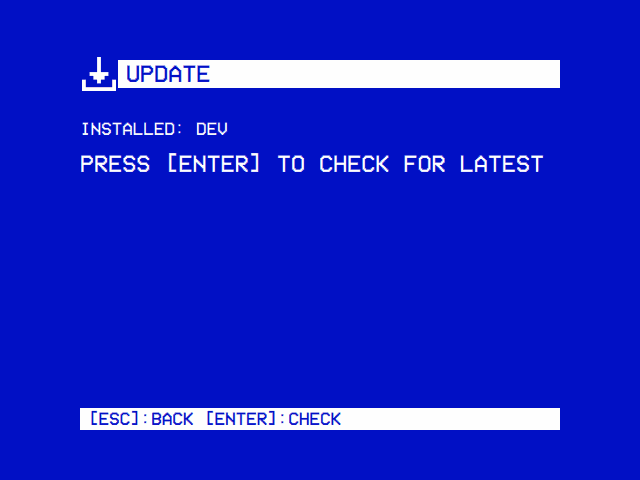 |
| Settings → Quit, run by hand: Yes or No. Started with the system, as on the image, it offers Power Off, Restart, Exit to Terminal and Cancel instead. | Settings → Update checks for a newer release and installs it. |
Settings → Quit on the image asks Really quit? with:
| Choice | Offered | OSD/OS exits with | Then |
|---|---|---|---|
| Power Off | Always | 0 | The Pi powers off |
| Restart | Launcher API 2 or later (the image's is 7) | 12 | The Pi reboots |
| Exit to Terminal | Always | 10 | A login shell on the screen (tty1); the Pi stays on |
| Cancel | Always | Back to Settings |
Ctrl+Q on a keyboard quits at once, from most screens, as Power Off does.
The service's ExecStopPost=+/usr/local/bin/osdos-stop runs as root each time OSD/OS ends, with its exit code (or the signal that ended it) in EXIT_STATUS. That is how an app run as pi powers off, reboots and writes to the boot partition without sudo:
case "${EXIT_STATUS:-}" in
    0)  systemctl poweroff ;;  # Quit → Power Off, or Ctrl+Q
    10) systemctl start osdos-terminal.service ;;
    11) : ;;  # in-app update restart — Restart=on-failure brings the app back up
    12) systemctl reboot ;;  # the quit menu's Restart
    2[0-9]|30) display_output "${DISPLAY_PRESETS[EXIT_STATUS - 20]}"; systemctl reboot ;;
    # The same, then off: on the new output the next time the Pi is switched on.
    4[0-9]|50) display_output "${DISPLAY_PRESETS[EXIT_STATUS - 40]}"; systemctl poweroff ;;
    # Anything else leaves the Pi on: a stop from outside (129, 130, 143, or the
    # signal itself), and a crash or an error exit, after which systemd starts
    # the app again (Restart=on-failure), or brings up a login prompt.
    *)  : ;;
esac| Exit | From | Effect |
|---|---|---|
| 0 | Quit → Power Off, Ctrl+Q | Power off |
| 10 | Quit → Exit to Terminal |
osdos-terminal.service starts |
| 11 | Update → Apply & Restart | Nothing: systemd starts OSD/OS again (Restart=on-failure) and the launcher applies the update first |
| 12 | Quit → Restart | Reboot |
| 20 to 28, 30 | Settings → Display Output | That output's preset written, then a reboot (Display Output) |
| 29 | A new display output not kept | The previous preset written back, then a reboot |
| 40 to 48, 50 | Settings → Display Output → Switch and Power Off | That output's preset written, then the Pi powers off |
| 129, 130, 143, or killed by SIGHUP, SIGINT, SIGTERM or SIGKILL |
systemctl stop, systemctl restart, a shutdown |
Nothing: the Pi stays on |
| anything else: a crash, an error exit such as 1 | Nothing: systemd starts OSD/OS again five seconds later (Restart=on-failure). The third start in two minutes is the last; when it fails too, osdos-terminal.service starts (OnFailure=) |
OSD/OS catches SIGTERM, SIGINT and SIGHUP and exits with 128 plus the signal's number (143, 130, 129), so sudo systemctl stop osdos and sudo systemctl restart osdos leave the Pi on.
The launcher exports OSDOS_LAUNCHER_API, and OSD/OS offers only what the launcher and its stop helper can do:
OSDOS_LAUNCHER_API |
What it adds |
|---|---|
| set at all | The launcher applies staged updates: Settings → Update can install them |
| 2 or more |
osdos-stop reboots on exit 12: Quit offers Restart |
| 3 or more |
osdos-stop writes a display preset on exits 20 to 29, and the launcher takes the output a preset names: Settings offers Display Output |
| 4 or more |
osdos-stop also writes the JAMMA preset on exit 30: Display Output offers JAMMA 240p 15 kHz (720x240) |
| 5 or more |
osdos-stop also powers off after a preset on exits 40 to 50, and writes one for the next start through osdos-display.socket: Display Output offers Switch and Power Off and At Next Start |
| 6 or more |
osdos-stop also writes the JAMMA board's other modes on exits 31 to 38, and powers off after them on 51 to 58: Display Output offers them |
| 7 or more | NetworkManager lets OSD/OS's user scan, join and forget networks and turn Wi-Fi on and off (the polkit rule 50-osdos-networkmanager.rules), and osdos-stop sets the Wi-Fi country through osdos-wifi.socket: Settings offers Wi-Fi |
| 8 or more |
osdos-stop also names the device through osdos-name.socket: Settings → About → System Information renames it |
The image's launcher is level 8, as install.sh's is.
Settings → Display Output's At Next Start writes a preset while OSD/OS runs, as the Pi isn't to restart. osdos-stop does it as root, behind a socket (Display Output → At the next start):
-
osdos-display.socketlistens on/run/osdos-display.sock, owned by root and OSD/OS's user's group, mode 0660, one connection at a time. -
osdos-display@.servicerunsosdos-stop next-startfor each request, the socket as its input and output. -
osdos-stop next-startreads a preset's name, at most 64 characters, from a list of its own names (notprevious), and writes that preset. It never repeats the name back. It answersok, or why not, which it also logs; either way the request unit ends cleanly and is unloaded (CollectMode=inactive-or-failed). -
The output this boot started on is kept in
/run/osdos-display-boot.txtfrom the first request on. A switch made before the next start goes back to that one, not to the one waiting.
journalctl -u 'osdos-display@*' -b # what At Next Start didRaspberry Pi OS keeps Wi-Fi off until the country the Pi is used in is set, and setting it takes root. Settings → Wi-Fi has osdos-stop set it, behind a socket, as At Next Start does:
-
osdos-wifi.socketlistens on/run/osdos-wifi.sock, owned by root and OSD/OS's user's group, mode 0660, one connection at a time. -
osdos-wifi@.servicerunsosdos-stop wifi-countryfor each request, the socket as its input and output. Unlike At Next Start's, it keeps the system's network (noPrivateNetwork=): raspi-config sets up the Pi's own Wi-Fi. -
osdos-stop wifi-countryreads a line, at most 64 characters, and takes it only as two capital letters that the time zone database lists as a country (/usr/share/zoneinfo/iso3166.tab, which raspi-config checks against too). It never repeats it back. It runsraspi-config nonint do_wifi_countrywith that code, which writes it into/boot/firmware/cmdline.txt(cfg80211.ieee80211_regdom=), sets it in the kernel (iw reg set) and turns Wi-Fi on (nmcli radio wifi on); what raspi-config says goes to the journal. It flushes the boot partition to the card, then answersok; or it answers why not, which it also logs. Either way the request unit ends cleanly and is unloaded (CollectMode=inactive-or-failed).
journalctl -u 'osdos-wifi@*' -b # what setting the Wi-Fi country didThe device's name is its hostname: what a router lists it under, what avahi-daemon publishes as <name>.local, and the name LAN Play's games are hosted under. Setting it takes root, so Settings → About → System Information has osdos-stop set it, behind a socket, as the Wi-Fi country is (Settings → About → System Information):
-
osdos-name.socketlistens on/run/osdos-name.sock, owned by root and OSD/OS's user's group, mode 0660, one connection at a time. -
osdos-name@.servicerunsosdos-stop device-namefor each request, the socket as its input and output, without a network of its own (PrivateNetwork=yes): hostnamectl and systemctl reach their daemons over D-Bus. -
osdos-stop device-namereads a line, at most 64 characters, and takes it only as a name the network takes: letters, digits and hyphens, 63 at most, neither end a hyphen, read as the C locale reads them whatever the system's language (under en_GB.UTF-8, a range such as A-Z takes ç and é too). It never repeats it back. It writes a new/etc/hostsaside, whose127.0.1.1line, as pi-gen and raspi-config keep it, names the device by the new name in place of the old, the names made of the old one (<old>.lan) following it, the line's other names and the file's other lines kept (the line added if there is none, the file made if there is none); sets the name withhostnamectl set-hostname, which writes/etc/hostname; and only then puts the new/etc/hostsin place, so that the two never name the device apart: should either step fail, it askshostnamectlfor the old name back. It restarts avahi-daemon, so that<name>.localfollows at once, and flushes both files to the card. Then it answersok; or it answers why not, which it also logs. Either way the request unit ends cleanly and is unloaded (CollectMode=inactive-or-failed).
journalctl -u 'osdos-name@*' -b # what renaming the device didExit to Terminal starts osdos-terminal.service on tty1:
[Unit]
Description=OSD/OS exit-to-terminal login shell

[Service]
Type=idle
ExecStart=-/sbin/agetty --noclear tty1 linux
StandardInput=tty
StandardOutput=tty
TTYPath=/dev/tty1
TTYReset=yes
TTYVHangup=yes
KillMode=process
Restart=no
On an image built without a password, its drop-in replaces the ExecStart with agetty --autologin pi --noclear tty1 linux. To come back to OSD/OS from that shell:
-
sudo systemctl start osdos: the service again, which first stops the terminal (needs the password); -
sudo reboot: the Pi starts from scratch, into OSD/OS (needs the password); -
osdos: the app run by hand in this shell, unmanaged; its Quit is then Yes or No, and Yes returns to the shell; - or switch the Pi off and on again.
Settings → Update checks GitHub for the latest release (Installation). On an image made by a release:
-
CHECK reads the latest release and its notes, and offers it only when its version is newer than the one installed: an older release is never offered. DOWNLOAD fetches its
OSD-OS-<version>-linux-arm64.tar.gzinto~/.local/share/OSD-OS/updates, checks it against the SHA-256 digest GitHub keeps for it, and needs three times its size free. -
INSTALL offers Apply & Restart and Discard Update. Apply & Restart arms the update (
staged.sha256) and exits with 11. - systemd starts OSD/OS again, and the launcher, before it starts the app, checks the tarball's SHA-256, unpacks it into
/opt/osdos/.new, flushes it to the card and swaps its folders in, the old ones moved into/opt/osdos/.oldon the way. The update stays staged until the swap has finished. A swap the power cut short is undone at the next start, the release before put back from.old, and the update applied again: the Pi starts on one release or the other, whole. A tarball that won't unpack is set aside rather than tried at every boot. Settings stay as they were.
This works because /opt/osdos belongs to pi, the launcher's API is set, and the app is /opt/osdos/bin/osdos. install.sh run on the image (for a particular release, say) keeps the image's own osdos.service as it is, with its user, and brings the app, the launcher and the helpers around the service up to date.
An image built by the OS image workflow (or locally from a branch) has an app built as dev. Its Update screen checks, to read the notes, but says Dev build — self-update is disabled. That way a branch's image can't replace itself with a release that doesn't have the branch's changes.
YouTube changes often, and a yt-dlp a few weeks old soon stops finding its videos. The image carries yt-dlp's latest nightly build in ~/.local/share/OSD-OS/bin/yt-dlp, where OSD/OS looks first, and osdos-yt-dlp-update.timer replaces it with the newest build two minutes after each boot and once a day:
[Service]
Type=oneshot
User=pi
ExecCondition=/usr/bin/nm-online -q -t 300
ExecStart=/home/pi/.local/share/OSD-OS/bin/yt-dlp --update
Nice=19
IOSchedulingClass=idle
A check is one small request to GitHub, an update one write of about 3 MB, at the lowest priority so a film playing isn't disturbed. Without a connection within five minutes the run is skipped, not failed: a player that only plays its own films may never be online. journalctl -u osdos-yt-dlp-update shows each run.
Nothing updates the system's packages by itself: the apt timers are off. A newer image brings newer packages. To update by hand, from a shell, with sudo:
sudo apt update && sudo apt full-upgradeFlashing a new image replaces everything on the card: the system, OSD/OS's data folder (settings, lists, sign-ins) and the film partition. Before you flash, copy what you want to keep onto the film partition from a shell, then off the card with a computer:
cp ~/.local/share/OSD-OS/config.json ~/.local/share/OSD-OS/lists.json /media/OSD-OS/After the new image's first boot, put the films back on OSD-OS from the computer, and the two files back into the data folder from Exit to Terminal (OSD/OS isn't running then):
cp /media/OSD-OS/config.json /media/OSD-OS/lists.json ~/.local/share/OSD-OS/Then start OSD/OS again (Exit to Terminal). Configuration files lists the other files in the data folder.
| Path | What |
|---|---|
/opt/osdos/bin/osdos |
The app |
/opt/osdos/bin/osdos-jamma |
A JAMMA board's controls as gamepads, run by osdos-jamma.service
|
/opt/osdos/share/osdos/ |
Its QML, modules, assets, mpv scripts and LICENSE (the app's APP_ROOT) |
/usr/local/bin/osdos |
The launcher: applies a staged update, picks the display, starts the app |
/usr/local/bin/osdos-stop |
The stop helper, run as root when the app ends |
/etc/systemd/system/osdos.service |
The service; its drop-in osdos.service.d/osdos-media.conf
|
/etc/systemd/system/osdos-terminal.service |
Exit to Terminal's login shell |
/etc/systemd/system/osdos-display.socket, osdos-display@.service
|
Display Output's At Next Start (At Next Start's socket) |
/etc/systemd/system/osdos-wifi.socket, osdos-wifi@.service
|
Settings → Wi-Fi's country (The Wi-Fi country's socket) |
/etc/systemd/system/osdos-name.socket, osdos-name@.service
|
Settings → About → System Information's rename (The device name's socket) |
/etc/polkit-1/rules.d/50-osdos-networkmanager.rules |
Lets OSD/OS's user scan, join and forget networks and turn Wi-Fi on and off through NetworkManager from its service, which runs outside any login session, where polkit would otherwise ask for a password |
/etc/systemd/system/osdos-cloud-init-once.service |
Turns cloud-init off after the first boot |
/usr/local/sbin/osdos-setup, /etc/systemd/system/osdos-setup-app.service, osdos-setup.service
|
Applies OSD/OS Setup's osdos-setup.json from the boot partition (OSD/OS Setup) |
/etc/systemd/system/osdos-jamma.service, /etc/modules-load.d/osdos-jamma.conf
|
A JAMMA board's controls, and the kernel modules they go through (i2c-dev, uinput) |
/etc/systemd/system/<unit>.d/osdos-defer.conf |
The held-back services' drop-ins |
/etc/osdos/boot-units |
What the boot screen follows |
/usr/lib/osdos/wait-for-app, wait-for-display, usb-mount
|
The image's helpers |
/etc/udev/rules.d/99-osdos-tty.rules, 99-osdos-usb-mount.rules, 99-osdos-uinput.rules
|
The /dev/tty0 and USB drive rules, and /dev/uinput for the input group (a JAMMA board's gamepads) |
/run/osdos/ready |
Written at OSD/OS's first frame |
/run/osdos-display.sock, /run/osdos-display-boot.txt
|
At Next Start's socket, and the display preset this boot started on once one waits for the next start |
/run/osdos-wifi.sock |
The Wi-Fi country's socket |
/home/pi/.local/share/OSD-OS/ |
The data folder: config.json, lists.json, sign-ins, bin/yt-dlp, updates/ (Configuration files) |
/media/OSD-OS |
The film partition: films in Movies, the Arcade module's games in Games/Arcade
|
/media/usb/<label> |
USB drives, read-only |
/boot/firmware/config.txt |
The firmware's settings, including osdos-display.txt
|
/boot/firmware/osdos-display.txt, osdos-display-*.txt
|
The display output in force, and the presets (Display Output) |
/boot/firmware/overlays/osdos-jamma-dpi.dtbo |
A JAMMA board's DPI pins on a Pi 5, without GPIO 0 and 1 (Display Output) |
/boot/firmware/osdos-jamma.txt |
A JAMMA board's pins, should they differ from the built-in mapping: not there unless you write it (Controls) |
/boot/firmware/cmdline.txt |
The kernel's command line |
/boot/firmware/network-config, user-data, meta-data
|
cloud-init's first-boot files |
/boot/firmware/osdos-setup.json, osdos-setup.log
|
OSD/OS Setup's file, there until the card starts, and what became of it |
/var/lib/osdos-setup/pending.json |
What of OSD/OS Setup's file is still to be set, root's alone, there from the moment the card takes it until the boot screen's SETTINGS is done |
/etc/initramfs-tools/scripts/local-premount/resize_early |
The first boot's card split |
/usr/local/bin/deno |
The JavaScript runtime yt-dlp needs for YouTube |
/usr/games/mame, /etc/mame/mame.ini
|
MAME, which the Arcade module plays its games in, and MAME's own settings (Arcade) |
/usr/bin/retroarch, /usr/local/lib/libretro/fbneo_libretro.so, /usr/local/share/libretro/fbneo/, /usr/local/share/doc/fbneo/
|
RetroArch and the FinalBurn Neo core, the Arcade module's second engine, with FinalBurn Neo's list of arcade games, its licence and which nightly build it is (BUILD) (Arcade) |
/usr/share/doc/osdos/NOTICE |
What the image is made of, and under which licences |
/tmp/osdos-mpv.log |
mpv's own log (Logs) |
OSD/OS writes its log to the journal. The first user is in the adm group, so it reads it without sudo:
journalctl -u osdos -b                    # this boot
journalctl -u osdos -f                    # as it happens
journalctl -u osdos -b | grep '\[boot\]'   # the boot screen's timings
journalctl -u 'osdos-usb-mount@*'         # USB drives
journalctl -u osdos-yt-dlp-update         # yt-dlp's updates
journalctl -u osdos-jamma                 # a JAMMA board's controls
journalctl -u 'osdos-display@*'           # Display Output's At Next Start
journalctl -u 'osdos-wifi@*'              # Settings → Wi-Fi's country
mpv's messages reach the journal too, as [mpv] lines, with every token blanked out. mpv also writes its own, more detailed log to /tmp/osdos-mpv.log, of the last video only (mpv empties it as it starts); it is readable only by pi, as it can hold a server's token. Troubleshooting has more, and How it works → Logs the tags each part of OSD/OS logs under.
os/NOTICE, which the image carries as /usr/share/doc/osdos/NOTICE, lists what the image is made of and under which licences:
-
OSD/OS, under the GNU GPL version 3, with its licence at
/opt/osdos/share/osdos/LICENSEand in Settings → About → License. Its source is the commit Settings → About → Build names. For the High Scores module it has openhi2txt (GPL-3.0) with RapidXML (Boost or MIT) built in, and hi2txt's game definitions (GPL-2.0) with it, their licence beside them in/opt/osdos/share/osdos/modules/highscores/data/; for the Arcade module, the LZMA SDK's 7z decoder (public domain). -
Raspberry Pi OS's and Debian's packages, unmodified, each with its own licence in
/usr/share/doc/<package>/copyright. Which packages, at which versions, the image says itself:dpkg-query -Won it. Their source is in the Debian and Raspberry Pi archives, and OSD/OS offers the source of the GPL and LGPL software on an image for three years after it is published. -
What the stage adds: yt-dlp (public domain, The Unlicense), Deno (MIT; its licence in
/usr/local/share/doc/deno/LICENSE.md), MAME (GPL-2.0 or later; Debian'smameandmame-datapackages, from Debian's archive, with their copyright files in/usr/share/doc), RetroArch (GPL-3.0, Debian'sretroarchpackage), FinalBurn Neo (Team FB Neo's own licence: it may be used and shared with its text, never sold, nor used by a project that asks for donations; libretro's nightly build, its licence's full text in/usr/local/share/doc/fbneo/license.txt), and Widevine, Google's proprietary module, from Raspberry Pi's archive as Raspberry Pi OS installs it. An image built withOSDOS_YOUTUBE=0has neither yt-dlp nor Deno; one built withOSDOS_STREAMING=0has no Chromium or Widevine; one built withOSDOS_ARCADE=0has no MAME, RetroArch or FinalBurn Neo. - The data the modules show: TMDB (with the notice its terms ask for), Open-Meteo (CC BY 4.0) and Wikidata (CC0).
- pi-gen's licence, since its configuration stays on the image.
- The Raspberry Pi firmware's licence, which asks to be reproduced with it.
- Trademarks: Raspberry Pi is a trademark of Raspberry Pi Ltd, Debian a registered trademark of Software in the Public Interest, Inc., and the services' names their owners'. OSD/OS is endorsed by none of them.
Credits has who made OSD/OS and what it stands on.
The image is built by pi-gen from the app's arm64 tarball: OSD-OS-<version>-linux-arm64.tar.gz, as a release has it, or one you build. os/build.sh does the rest.
- Fork the repository and enable Actions on the fork.
- Optionally, add the repository secret
OS_FIRST_USER_PASS(Settings → Secrets and variables → Actions): it becomespi's password. Without it the account is locked. - Run the OS image workflow (
os-image.yml) from the Actions tab, on the branch you want. - The image is the run's
osdos-imageartifact: the.img.xzand its.info, kept for 30 days. A failed run uploads pi-gen's logs aspi-gen-logs.
The workflow also runs on every pull request that touches os/, src/boot/, views/BootScreen.qml, views/Components/VhsCassette.qml, scripts/install.sh or the workflow itself. It has two jobs, both on GitHub's arm64 runner (ubuntu-24.04-arm), so pi-gen needs no emulation:
-
app builds OSD/OS from the branch with
APP_VERSIONleft atdevand packs it asOSD-OS-dev-linux-arm64.tar.gz; -
image frees disk space, then runs
os/build.shon that tarball, with up to three hours to do it.
With a release: pushing a version tag (Building from source) runs the release workflow, whose build-os-image job builds the image from that release's own tarball, names it OSD-OS-<tag>-raspberry-pi.img.xz and attaches it to the release, which is published only once the regression tests have passed on the tagged commit. Its app is the release's and updates itself from later releases.
You need Docker, on an arm64 Linux host. An x86 host works too, through QEMU emulation, but takes hours. First the tarball, built on an arm64 Debian or Ubuntu machine with the dependencies in Building from source, the way the workflow does it:
cmake -B build -DCMAKE_BUILD_TYPE=Release -DCMAKE_INSTALL_PREFIX="$PWD/install/usr/local"
cmake --build build --parallel
cmake --install build
tar -czf OSD-OS-dev-linux-arm64.tar.gz -C install .
Or download a release's tarball, whose app updates itself:
curl -fLO https://github.com/mehmetraif/OSD-OS/releases/download/<tag>/OSD-OS-<tag>-linux-arm64.tar.gzThen the image:
FIRST_USER_PASS='choose-a-password' os/build.sh OSD-OS-dev-linux-arm64.tar.gzThe image lands in os/work/pi-gen/deploy/, named by pi-gen after the date and IMG_NAME (image_<date>-osdos.img.xz, and <date>-osdos.info).
All of them come through the environment:
| Variable | Default | What it does |
|---|---|---|
FIRST_USER_PASS |
none | The first user's password. Without one the account is locked (The user) |
FIRST_USER_NAME |
pi |
The first user, as which OSD/OS runs |
OSDOS_DISPLAY |
hdmi |
The display preset the image starts on, by its name: hdmi, crt-ntsc, crt-pal, crt-gpio-ntsc, crt-gpio-pal, scart-rgb-ntsc, scart-rgb-pal, scart-rgb-240p, scart-rgb-288p, jamma-240p, jamma-240p-native, jamma-240p-super, jamma-288p, jamma-288p-super, jamma-480i, jamma-576i, jamma-25k, jamma-31k (Display Output) |
OSDOS_STREAMING |
1 |
0 leaves out the browser Netflix, Prime Video and YouTube's sign-in open (Chromium, Widevine, cage, wtype), about 400 MB |
OSDOS_YOUTUBE |
1 |
0 leaves out yt-dlp, Deno and ffmpeg, about 90 MB; the YouTube module then says yt-dlp is missing |
OSDOS_ARCADE |
1 |
0 leaves out MAME (mame, mame-data), about 450 MB, and RetroArch with FinalBurn Neo, about 230 MB; the Arcade module then says MAME is not installed |
OSDOS_ROOT_SIZE |
8 |
GiB the system keeps of the card; the rest becomes the film partition. A whole number. 0: no film partition, the system takes the whole card |
ENABLE_SSH |
0 |
1 enables SSH, held back after the local network |
TARGET_HOSTNAME |
osdos |
The hostname |
IMG_NAME |
osdos |
Part of the image's file name |
DEPLOY_COMPRESSION |
xz |
pi-gen's compression for the image |
WPA_COUNTRY |
unset | The Wi-Fi country, set at build time |
LOCALE_DEFAULT |
pi-gen's, en_GB.UTF-8
|
The locale |
KEYBOARD_KEYMAP, KEYBOARD_LAYOUT
|
pi-gen's, gb and English (UK)
|
The console keyboard, Exit to Terminal's included |
TIMEZONE_DEFAULT |
pi-gen's, Europe/London
|
The time zone |
PUBKEY_SSH_FIRST_USER |
unset | A public key for the first user's SSH logins |
PUBKEY_ONLY_SSH |
pi-gen's, 0
|
1 turns SSH's password logins off |
OSDOS_NATIVE |
0 |
1 runs pi-gen's build.sh directly, as root on a Debian host, instead of in Docker |
OSDOS_PREPARE_ONLY |
0 |
1 sets up the pi-gen tree and its config, then stops |
PI_GEN_REF |
the pinned commit | The pi-gen commit to build from |
PI_GEN_REPO |
https://github.com/RPi-Distro/pi-gen |
Where pi-gen is fetched from |
WORK |
os/work |
The scratch folder |
OSDOS_TARBALL |
none | The tarball, when it isn't given as the argument |
For example, a US keyboard, a PAL composite start, SSH and a bigger system partition:
FIRST_USER_PASS='choose-a-password' ENABLE_SSH=1 OSDOS_DISPLAY=crt-pal OSDOS_ROOT_SIZE=16 \
  WPA_COUNTRY=US KEYBOARD_KEYMAP=us KEYBOARD_LAYOUT='English (US)' \
os/build.sh OSD-OS-dev-linux-arm64.tar.gzflowchart TD
A["os/build.sh tarball"] --> B["fetch pi-gen at PI_GEN_REF into os/work/pi-gen"]
B --> C["copy os/stage-osdos into it"]
C --> D["SKIP 04-streaming, 06-youtube, 08-arcade or 05-media<br/>as OSDOS_STREAMING, OSDOS_YOUTUBE, OSDOS_ARCADE and OSDOS_ROOT_SIZE say"]
D --> E["take the launcher, the stop helper, the terminal unit,<br/>the sockets and the polkit rule out of scripts/install.sh"]
E --> F["copy in the tarball and os/NOTICE"]
F --> G["write pi-gen's config: stage0 stage1 stage2 stage-osdos"]
G --> H{"OSDOS_NATIVE=1?"}
H -- no --> I["build-docker.sh"]
H -- yes --> J["build.sh, as root"]
I --> K["os/work/pi-gen/deploy/"]
J --> K
- pi-gen's stage 2 (Lite) is built but exports no image (
stage2/SKIP_IMAGES); onlystage-osdosdoes (itsEXPORT_IMAGE). -
build.shmakes the stage's scripts executable itself, since pi-gen silently skips a script that isn't, and a ZIP download or a Windows clone loses the bits. - Without
FIRST_USER_PASSit printsnote: no FIRST_USER_PASS; the first user's password will be locked.
| Part | What it does | Left out by |
|---|---|---|
00-packages |
What install.sh installs, without recommends and without qt6-wayland, plus alsa-utils: Qt 6, SDL2, pcsclite, mpv and libmpv2, FluidSynth, the TimGM6mb SoundFont and openmpt123 for the menu music, and polkitd, which reads the NetworkManager rule |
|
01-app |
The tarball unpacked into /opt/osdos, owned by pi; the launcher; the NOTICE |
|
02-system |
The service, the terminal, the stop helper, At Next Start's socket and the Wi-Fi country's, the NetworkManager polkit rule, the cloud-init switch, OSD/OS Setup's applier and its service, the tty rule, the JAMMA controls' service, modules and uinput rule, the boot order, the online check's 20 seconds, the Bluetooth unblock, the autologin of a locked user; the bluetooth group, the masked getty, the removed timers, cron and Raspberry Pi Connect |
|
03-boot |
config.txt, the display presets and osdos-display.txt (from OSDOS_DISPLAY), the JAMMA preset's Pi 5 overlay (osdos-jamma-dpi, compiled with device-tree-compiler), the quiet cmdline.txt
|
|
04-streaming |
chromium, rpi-chromium-mods, libwidevinecdm0, libgl1-mesa-dri, fonts-liberation, cage, wtype
|
OSDOS_STREAMING=0 |
05-media |
exfatprogs, the resize_early override and its initramfs hook, /media/OSD-OS, its fstab line, osdos-media-folders.service and OSDOS_MEDIA_DIR
|
OSDOS_ROOT_SIZE=0 |
06-youtube |
Python with pycryptodome, requests and brotli; ffmpeg; yt-dlp's nightly build, checked against its SHA-256 sums; Deno, pinned (today v2.9.7) with its checksum and licence; the update timer |
OSDOS_YOUTUBE=0 |
07-usb |
ntfs-3g, the USB rule, unit and script, /media/usb
|
|
08-arcade |
Debian's mame and mame-data: MAME 0.276 for the Arcade module, with its data and plugins (the hiscore plugin among them), about 450 MB with what they depend on; Debian's retroarch, and the FinalBurn Neo core, its list of games and its licence, downloaded as the image is built (libretro's latest nightly build), about 230 MB more |
OSDOS_ARCADE=0 |
A file named 00-packages-nr is pi-gen's list of packages to install without their recommends. To put another package on the image, add its name to os/stage-osdos/00-packages/00-packages-nr, for example a line with mc for Midnight Commander.
- Installation: flashing the image, or installing OSD/OS as an app
- Display Output: HDMI, composite and SCART RGB, and their cables
- Audio Output: the AV jack, HDMI or a USB sound card
- How it works: the app inside, the display path and playback
- Local Files: the films on the card and on USB drives
- Configuration files: the data folder
- Troubleshooting
- Building from source