Repository navigation
Skins
A skin dresses the window: it gives the shapes of OSD Background's window frame, the title bar, the hint bar and the selected line, and it can draw icons of its own in place of OSD/OS's. A skin gives only shapes. They are drawn in the color scheme's two colours, so every skin goes with every scheme. This page covers what each part dresses, the two skins that come with OSD/OS, every key of skin.json, how a picture becomes a part of the window (two colours, art pixels, nine slices), drawing pictures by hand or from text drawings, icons, making a skin from the template step by step, a complete example, skins inside themes and skins from before skins had their name, and what to do when a part doesn't show.
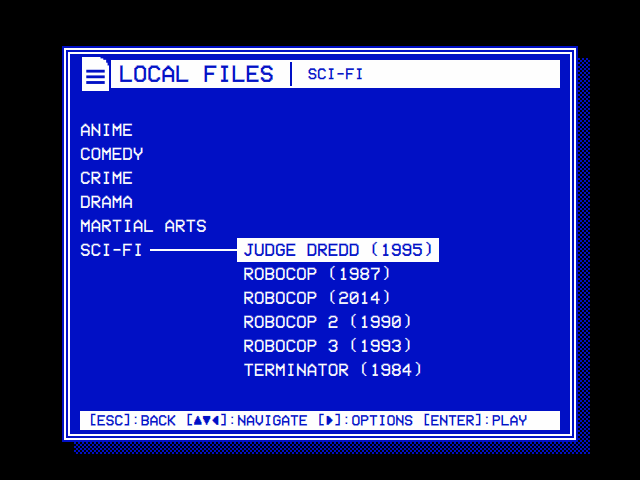
| Skin: DOS, Window Frame: Shadow | Skin: Rounded |
|---|---|
 |
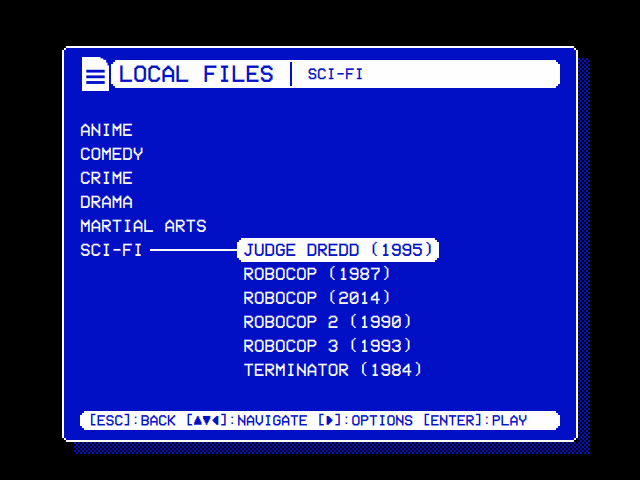 |
| DOS gives the window a double line. Window Frame: Shadow adds a DOS window's shadow, a half tone of the window's colour (over a video, it darkens the picture). | Rounded rounds the window's corners and the ends of its bars and of the selected line. |
| The skin template, in Video 1 |
|---|
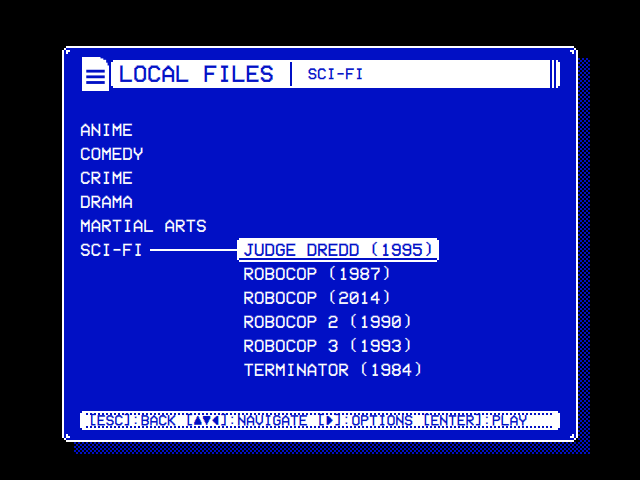 |
| The skin template: all four parts and an icon of its own, the television left of the title bar. |
| Part | Key | Where it shows | Without the skin's picture |
|---|---|---|---|
| The window's frame | window |
With Settings → OSD Background: Window, and Window Frame On or Shadow. The picture is drawn over the whole window, so its middle is the window's ground | A line an art pixel wide in the scheme's colour, round a window of its background |
| The title bar | titleBar |
At the top of every screen, behind the title, right of the logo | A solid bar in the scheme's colour |
| The hint bar | hintBar |
At the foot of every screen and dialog, behind the key hints (none with Settings → Hint Bar: Off) | A solid bar |
| The selected line | selection |
Every selected line: the main menu, Settings and every module's settings, the tree's cursor, the answers of a question | A solid bar |
| Icons | icons |
The logo at the left end of the title bar | OSD/OS's own icons |
The on-screen keyboard's keys stay plain bars: a key isn't a line. The selector effect plays round the selected line whatever its shape (Effects).
Settings → Skin offers THEME (while there is a theme: the theme's skin), None (OSD/OS's own drawing), DOS, Rounded, and every skin in the data folder's skins, by name. It is saved as app.skin in config.json: the skin's folder name, "Off" for None, "" for THEME. Choosing a theme sets it back to THEME (Themes). A skin chosen before skins had their own row was saved as app.theme, and is read while app.skin is unset.
| Setting | Values | Default | What it does | Config key |
|---|---|---|---|---|
| Skin | THEME (with a theme), None, DOS, Rounded, and the skins in the data folder's skins
|
THEME; without a theme, None | The shapes of the window's frame, the title and hint bars and the selected line, and icons of its own, in the color scheme's colours | app.skin |
They are in assets/skins. Their pictures are a few pixels each, drawn here as text: # light (the scheme's colour), o dark (its background), . clear.
A double line round the window, as a DOS program drew its windows. It dresses the window only: the bars and the selected line stay OSD/OS's own.
{
    "name": "DOS",
    "window": { "image": "window.png", "border": 4 }
}window.png, 9 × 9:
ooooooooo
o#######o
o#ooooo#o
o#o###o#o
o#o#o#o#o
o#o###o#o
o#ooooo#o
o#######o
ooooooooo
With "border": 4, each corner is the 4 × 4 square in it, kept as drawn. The edges between the corners are its middle row and column, o#o# from the outside in: a dark art pixel, a light line, another dark one and a second light line. They are stretched along the window's sides, and the middle pixel, dark, fills the rest: the window's ground.
Round corners on the window, and round ends on the title bar, the hint bar and the selected line, which share one picture.
{
    "name": "Rounded",
    "window": { "image": "window.png", "border": 4 },
    "titleBar": { "image": "bar.png", "border": 3 },
    "hintBar": { "image": "bar.png", "border": 3 },
    "selection": { "image": "bar.png", "border": 3 }
}window.png, 9 × 9, and bar.png, 7 × 7:
..#####..        ..###..
.#ooooo#.        .#####.
#ooooooo#        #######
#ooooooo#        #######
#ooooooo#        #######
#ooooooo#        .#####.
#ooooooo#        ..###..
.#ooooo#.
..#####..
The bar's corners are 3 × 3 quarter circles; its middle, light, takes the text written over it in the dark colour.
{
    "name": "Template",
    "window":    { "image": "window.png", "border": 4 },
    "titleBar":  { "image": "titlebar.png", "border": [2, 2, 5, 2] },
    "hintBar":   { "image": "hintbar.png", "border": 3, "tile": "repeat" },
    "selection": { "image": "selection.png", "border": 3 },
    "icons":     { "logo": "logo.png" }
}
That is the skin template's, which uses every option.
| Key | What it is | Left out |
|---|---|---|
name |
What Settings → Skin shows, 28 characters at most (runs of spaces count as one) | The folder's name |
window |
The frame of OSD Background's window, drawn over the whole window | A line round the window |
titleBar |
The bar at the top of every screen, behind the title | A solid bar |
hintBar |
The bar at the foot, behind the key hints | A solid bar |
selection |
The selected line | A solid bar |
icons |
Icons of its own, by name (below) | OSD/OS's icons |
Every key is optional. A part left out, or whose picture can't be used, is drawn as OSD/OS draws it without a skin. Keys OSD/OS doesn't know are ignored.
A part is a picture's file name, stretched whole over the part:
{ "hintBar": "hintbar.png" }or an object:
| Key | Takes | Left out |
|---|---|---|
image |
The picture: a PNG, GIF or BMP in the skin's folder (in a folder inside it if you like) | The part as OSD/OS draws it |
border |
How many of the picture's pixels at each edge are its frame: one whole number for all four sides, or four, [left, top, right, bottom], from 0 to 512 |
0: the picture stretched whole |
tile |
How the edges and the middle fill the part: "stretch" stretches them, "repeat" repeats them at their own size (a dotted line), "round" repeats them scaled so that a whole number of them fit |
"stretch" |
-
bordercounts whole pixels:2.5counts as 0, and the picture is stretched whole, without a line in the log. Numbers over 512 count as 512. - A
borderthat is neither a number nor a list of four numbers ("wide",[3, 3]) is logged, and the picture is stretched whole. - A
tileother than the three is taken as"stretch", without a line in the log. - A picture that isn't a PNG, GIF or BMP, isn't there, or lies outside the skin's folder (a path or a link out of it) is logged, and the part is drawn as OSD/OS draws it.
An object of names and files: { "logo": "tv.png", "youtube": "yt.svg" }. Each file is a PNG, SVG, GIF, BMP or JPEG in the skin's folder, drawn in place of OSD/OS's icon of that name. The names are in Icons below. A name is letters, digits, - and _, up to 40 of them, read in lower case ("Settings" is settings); one with anything else ("My Logo") is logged and left out.
A skin gives shapes, and the color scheme gives the colours. Every pixel of a picture is one of three kinds:
| A pixel that is | Is drawn | Draw it in |
|---|---|---|
| less than half opaque | not at all: what is behind shows through | transparent |
| at least half opaque, and at least half bright | in the scheme's colour (light) | white |
| at least half opaque, and darker | in the scheme's background (dark) | black |
Brightness is the eye's: grey = (11 × red + 16 × green + 5 × blue) / 32, light from 128 up. Pure red (87) and even pure green (127) count as dark, yellow (215) as light. A drawing in colours works, but white, black and transparent show what you will get. There are no half tones: a soft edge becomes hard, one side or the other.
The picture is drawn again in new colours when the scheme changes, and with Settings → OSD Background: Off, where the menus are in the scheme's lighter colour on black.
Each pixel of a picture is an art pixel, a pixel of a 240-line picture, drawn as a square of screen pixels without smoothing so that it stays crisp:
| Screen lines | Screen pixels per art pixel |
|---|---|
| 480, 576 | 2 × 2 |
| 720 | 3 × 3 |
| 1080 | 4 × 4 |
(It is the screen's height divided by 240, rounded down.) The parts are small in art pixels. At 480 lines the title bar is 14 art pixels tall, a selected line 12 (the tree) to 14 (Settings), the hint bar 9 to 11. A border of 2 to 4 at the top and the bottom leaves room for the text.
border cuts a picture into nine. The four corners are drawn as they are. The four edges stretch (or repeat) between them, the top and bottom ones across, the left and right ones down. The middle fills the rest. Here is the template's 9 × 9 window with its "border": 4, cut apart:
..##  #  ##..     the top corners, and between them the top edge,
.#oo  o  oo#.     one column wide, stretched along the window
#o##  o  ##o#
#o#o  o  o#o#

#ooo  o  ooo#     the left and right edges, one row tall, and the middle

#o#o  o  o#o#
#o##  o  ##o#     the bottom corners and edge
.#oo  o  oo#.
..##  #  ##..
The corners keep their brackets and their clipped tips wherever the window's corners are, and the one-pixel edges and middle become the window's sides and ground.
-
An edge or a middle more than a pixel across is stretched as a whole by
"stretch", so a pattern in it stretches too, and unevenly when it doesn't divide the length. Repeat it ("repeat","round") to keep a pattern's pixels square. -
A
borderof 0 on two sides, as[3, 0, 3, 0], makes the left and right parts edges from top to bottom: they stretch with the part's height and keep their width. The example's selected line below is drawn that way. -
"repeat"keeps the pattern at its size and cuts the last one short;"round"scales it a little so that whole ones fit.
- The window's frame is drawn over the whole window, its middle the window's ground. Draw the middle dark for the scheme's background, as DOS, Rounded and the template do. Clear, it lets through what is behind the window: black, or a video playing behind the menus with Transparent Background. What the corners leave clear shows what is around the window.
-
The background effect is drawn inside the window's frame: the skin's
borderis how far in it starts, in art pixels on each side (Effects). - The title bar, the hint bar and the selected line have their text written over them in the dark colour. Keep their middles light.
A skin's icon replaces OSD/OS's in the title bar, by name (the skin template's television, above, is its logo):
| Name | Where it shows |
|---|---|
logo |
The main menu, About |
settings |
Settings, a module's settings, the file browser that picks a folder or a file |
keyboard |
Controls |
wifi |
Wi-Fi |
bluetooth |
Bluetooth |
update |
Update |
question |
A question: resume, quit, install an update |
notice |
A notice: an error, a code to type |
ambient_mode, emby, jellyfin, local_files, netflix, nfc_reader, playlists, plex, prime_video, scripts, weather, youtube
|
Each module's screens, by its folder's name in modules |
A module's icon goes by its folder's name, any other by its file's name without the extension (assets/images/settings.svg is settings).
How an icon is drawn:
- From its shape alone. Only how opaque each pixel is counts, and the icon is drawn in the scheme's colour, the title bar's. Its own colours are ignored; half-transparent pixels stay half transparent, so smooth edges stay smooth.
- Trimmed of the clear margin round it, then scaled to the logo's height: a fifth taller than the title bar, in whole art pixels, 17 art pixels (34 screen pixels) at 480 lines. An SVG is drawn at that height. A picture of pixels is scaled without smoothing as it grows, so a drawing 17 pixels tall is exactly doubled at 480 lines, its pixels square. At 720 lines it is exactly tripled; at other heights, such as 576 and 1080 lines, it is scaled by a factor that isn't whole, and some of its pixels come out a screen pixel wider than others.
- On a ground of the scheme's background, so a video behind the menus doesn't show through its gaps. Its width is the drawing's, at that height: a wide icon takes room from the title bar.
Only the title bar's logo is a skin's to replace: About's lettering, the boot screen's cassette and the screen saver's logo stay OSD/OS's.
Draw at one pixel per art pixel, in white, black and transparent, and save as PNG (a GIF or BMP works too). Keep pictures small: a window of 9 × 9 to 13 × 13, bars 7 pixels tall. Name the files whatever you like, and give the names in skin.json.
The template comes with make-pictures.py, which draws the pictures from text drawings in it and writes them as PNGs. It needs Python 3 and nothing else. In a drawing every character is one art pixel:
| Character | Pixel |
|---|---|
# |
light: the scheme's colour |
o |
dark: its background |
. |
clear |
The drawings are a dictionary, PICTURES, of file names and rows. Every row of a drawing must be as long as the others. Here is the template's hint bar, which its skin.json gives "border": 3 and "tile": "repeat", so that the two middle columns of its top and bottom edges repeat along the bar as a dotted line:
PICTURES = {
    "hintbar.png": [
        ".######.",
        "###o####",
        "########",
        "########",
        "########",
        "###o####",
        ".######.",
    ],
}
Run it in the skin's folder, or name the folder to write in:
python3 make-pictures.py
python3 make-pictures.py ~/.local/share/OSD-OS/skins/my-skin
It prints each picture and its size (hintbar.png: 8x7). It stops, writing nothing more, at a drawing with another character (window.png: x is not one of # o .) or rows of different lengths (window.png: its rows are not all as long).
-
Get the template from the repository (it isn't installed with OSD/OS):
curl -L https://github.com/mehmetraif/OSD-OS/archive/refs/heads/main.tar.gz | tar -xz -C /tmp -
Copy it into the data folder's
skins, under a folder name of your own. That name is what Settings saves. A folder nameddosorroundedis used in place of OSD/OS's of that name.# Raspberry Pi OS, the OSD/OS image, other Linux mkdir -p ~/.local/share/OSD-OS/skins cp -r /tmp/OSD-OS-main/docs/skin-template ~/.local/share/OSD-OS/skins/my-skin # macOS mkdir -p ~/Library/Application\ Support/OSD-OS/skins cp -R /tmp/OSD-OS-main/docs/skin-template ~/Library/Application\ Support/OSD-OS/skins/my-skin
On the OSD/OS image, do it as
pi, over SSH or from Exit to Terminal (The OSD/OS image). -
Name it:
"name": "My Skin"inskin.json, 28 characters at most. -
Draw it: change the drawings in
make-pictures.pyand run it, or edit the PNGs in a pixel editor. -
Choose it: open Settings (a new folder is listed the next time it opens) and set Skin to My Skin. For the frame, set OSD Background to Window and Window Frame to On or Shadow.
-
See a change: a picture already shown stays in memory. Restart OSD/OS (Settings → Quit) to see one you changed under the same file name, or save it under a new name and change
skin.jsonto match, then choose the skin again. Choosing it readsskin.jsonagain. -
Check the log for what couldn't be used (below).
A skin of its own from start to finish: rounded corners with a screw in each, like a cassette's shell, bars with clipped corners, a selected line pointed at both ends like a tag, and a cassette for the logo.
skins/cassette/
├── skin.json
├── make-pictures.py     the template's, with the drawings below
├── window.png
├── bar.png
├── selection.png
└── cassette.png
skin.json:
{
    "name": "Cassette",
    "window":    { "image": "window.png", "border": 5 },
    "titleBar":  { "image": "bar.png", "border": 3 },
    "hintBar":   { "image": "bar.png", "border": 3 },
    "selection": { "image": "selection.png", "border": [3, 0, 3, 0] },
    "icons":     { "logo": "cassette.png" }
}
The drawings, in place of PICTURES in a copy of the template's make-pictures.py:
PICTURES = {
    # The window's frame, "border": 5: rounded corners, each with a screw, as
    # on a cassette's shell; one light line round a dark ground.
    "window.png": [
        "..#######..",
        ".#ooooooo#.",
        "#ooooooooo#",
        "#oo#ooo#oo#",
        "#ooooooooo#",
        "#ooooooooo#",
        "#ooooooooo#",
        "#oo#ooo#oo#",
        "#ooooooooo#",
        ".#ooooooo#.",
        "..#######..",
    ],
    # The title bar and the hint bar, "border": 3: a light bar with clipped
    # corners. Their text is written in the dark color, so it stays light.
    "bar.png": [
        ".#####.",
        "#######",
        "#######",
        "#######",
        "#######",
        "#######",
        ".#####.",
    ],
    # The selected line, "border": [3, 0, 3, 0]: pointed at both ends, like a
    # tag. Only its middle columns stretch along the line; its ends stretch
    # up and down with it.
    "selection.png": [
        "...###...",
        "..#####..",
        ".#######.",
        "#########",
        ".#######.",
        "..#####..",
        "...###...",
    ],
    # An icon, "logo": a cassette in place of OSD/OS's logo. Only drawn (#)
    # and clear (.) count; 17 pixels tall, the logo's height at 480 lines.
    "cassette.png": [
        "#########################",
        "#.......................#",
        "#.#####################.#",
        "#.#...................#.#",
        "#.#..###.........###..#.#",
        "#.#.#...#.......#...#.#.#",
        "#.#.#.#.#.......#.#.#.#.#",
        "#.#.#...#.......#...#.#.#",
        "#.#..###.........###..#.#",
        "#.#...................#.#",
        "#.#####################.#",
        "#.......................#",
        "#.......#########.......#",
        "#......#.........#......#",
        "#.....#...........#.....#",
        "#....#.............#....#",
        "#########################",
    ],
}
cd ~/.local/share/OSD-OS/skins/cassette
python3 make-pictures.pywindow.png: 11x11
bar.png: 7x7
selection.png: 9x7
cassette.png: 25x17
-
The window: with
"border": 5, each screw (#at the fourth pixel in, on the fourth row) is inside its 5 × 5 corner, so there is one in each corner of the window, at any size. The edges are the middle row and column: a light line and dark pixels, stretched. -
The selected line:
[3, 0, 3, 0]makes the three columns at each end edges from top to bottom, stretched to the line's height with their points, and the three middle columns, all light, the middle that stretches along the line. The text starts three art pixels in, past the point. - The cassette is 25 × 17, drawn at 50 × 34 screen pixels at 480 lines. It is narrower than OSD/OS's logo, so the title bar starts further left.
A theme names a skin, or brings one of its own:
{
    "name": "Tape Deck",
    "colors": "Late Night",
    "skin": "cassette"
}
{
"name": "Tape Deck",
"colors": "Late Night",
"skin": {
"window": { "image": "window.png", "border": 5 },
"selection": { "image": "selection.png", "border": [3, 0, 3, 0] },
"icons": { "logo": "cassette.png" }
}
}In the second, the pictures are in the theme's folder. A skin inside a theme takes the same keys as a skin.json, but name, and the same rules. With Settings → Skin on THEME, the theme's skin is used; any other choice there replaces it (Themes).
Before skins had their own folder, a skin was a theme.json in the data folder's themes. Such a file is still read as a skin, listed under Skin, and not under Theme, when it has at least one of window, titleBar, hintBar and selection, and none of colors, skin, effects and music:
themes/early-tag/
├── theme.json
└── frame.png
{
    "name": "Early Tag",
    "window": { "image": "frame.png", "border": 5 }
}
Its id is its folder's name, as any skin's. A skin of the same folder name in skins comes first. To make it a skin like any other, move the folder to skins and rename theme.json to skin.json.
When a skin is read, the log names it and where it came from, and has a line for each thing in it that couldn't be used. These are the lines, as OSD/OS writes them, for a skin in the folder my-skin (in a theme's own skin, they begin theme <folder>: instead):
| Line | What happened | What is drawn |
|---|---|---|
[AppCore] skin my-skin: /home/pi/.local/share/OSD-OS/skins/my-skin |
The skin was read, from there | Last of its lines |
[AppCore] skin my-skin: not found, none used |
The saved skin, or the one a theme names, has no folder with a skin.json
|
OSD/OS's own drawing |
[AppCore] /home/pi/.local/share/OSD-OS/skins/my-skin/skin.json: object is missing after a comma |
The file isn't JSON; the reason follows the colon | Not listed in Settings |
[AppCore] skin my-skin: its window, "window.jpg", is not a png/gif/bmp file in its folder |
A part's picture is missing, of another type, or out of the folder | That part as OSD/OS draws it |
[AppCore] skin my-skin: its titleBar's border is not a number or four: drawn whole, stretched |
border is a string, or a list not of four numbers |
The picture stretched whole |
[AppCore] skin my-skin: "My Logo" is not an icon's name |
An icon's name has a space or another character | That icon left out |
[AppCore] skin my-skin: its icon settings, "notes.txt", is not a png/svg/gif/bmp/jpg/jpeg file in its folder |
An icon's file is missing, of another type, or out of the folder | OSD/OS's icon |
Where to read the log: Themes.
| What you see | Why | What to do |
|---|---|---|
| The skin isn't in Settings → Skin | Settings was open when you made the folder; or skin.json isn't JSON (logged); or the file isn't named skin.json, or the folder isn't in the data folder's skins
|
Open Settings again; fix the JSON |
| No frame round the window | OSD Background isn't Window, or Window Frame is Off; or the skin has no window, or its picture couldn't be used (logged) |
Settings → OSD Background: Window, Window Frame: On or Shadow |
| A part is drawn as OSD/OS draws it | Its picture couldn't be used (logged), or the skin has none for it | Check the log |
| The text on a bar or the selected line is hard to read | The middle of its picture is dark, or clear | Draw the middle light |
| Parts of a picture come out in the wrong colour | Its colours are taken as light or dark by brightness, and alpha under half as clear | Draw in white, black and transparent |
| A pattern along an edge is uneven |
"stretch" stretches an edge more than a pixel long as a whole |
"tile": "repeat" or "round"
|
| The whole picture is stretched, corners and all |
border is missing, not a whole number, or not one number or four |
Give a whole number, or four |
| An icon doesn't change | Its name isn't the one OSD/OS looks for (a module's is its folder's name, local_files, not "Local Files"); or the file couldn't be used (logged) |
Check the names |
| A changed picture looks as it did | One already shown stays in memory | Restart OSD/OS, or use a new file name |
- Themes: the whole look, a skin among it
- Effects: what goes on behind and round what a skin draws
- Settings: Skin, OSD Background and Window Frame
-
Configuration files: the data folder and its
skins - The skin template, in the repository