Repository navigation
Scripts
Your own shell scripts, run from the remote. The Scripts module lists the .sh files in a folder and runs the one you choose, so OSD/OS can start anything else on the machine: an update, RetroArch or a game, a TV-channel simulator like FieldStation42, a backup. A script either runs in a console, with OSD/OS showing its output, or takes over the whole screen until it exits. A small text file beside each script sets its name and how it runs, so a script you didn't write never has to be edited. This page covers setting it up, every option of that text file, the two modes, favourites on the main menu, running a script at start, what a script receives, three complete examples, and troubleshooting.
| Scripts | A console script |
|---|---|
 |
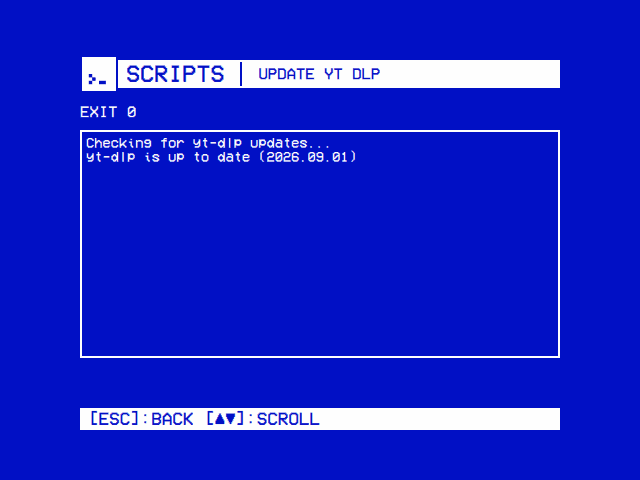 |
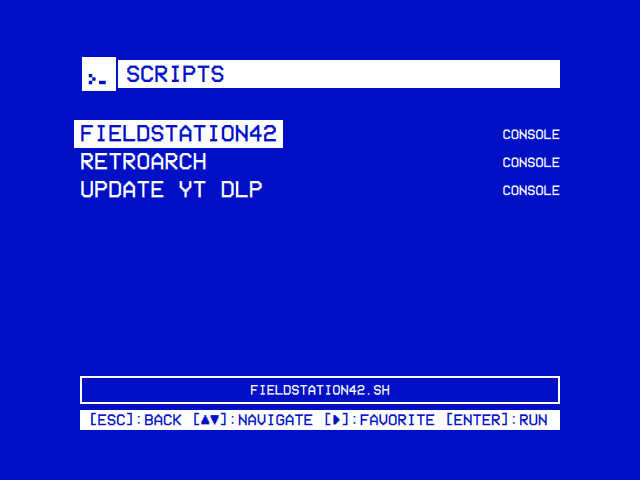
| Your own shell scripts, each with its mode. ► puts one on the main menu. The line at the foot shows the selected script's file. | A console script shows its output. A takeover script gets the whole screen until it exits. |
-
Settings → Scripts → ENABLED: On. Scripts appears on the main menu.
-
Put your scripts in the scripts folder:
user_scriptsin the data folder, which OSD/OS creates.System Folder OSD/OS image, Raspberry Pi OS, SteamOS ~/.local/share/OSD-OS/user_scripts/macOS ~/Library/Application Support/OSD-OS/user_scripts/Or pick another with Settings → Scripts → Scripts Directory, on the same folder tree Local Files is browsed with: USE THIS FOLDER picks the one open, Default Folder goes back to
user_scripts. -
Open Scripts. Every script gets its
.txtfile the first time it is listed; edit it to name the script and choose its mode.
The scripts are the files ending in .sh (in any case: FOO.SH counts) directly in the folder, not in folders under it, sorted by name. Hidden files are left out. The folder is read again every time the list opens, so a script you add, or a .txt you edit, shows the next time you open Scripts. Rescan Scripts in Settings reads it at once and writes any missing .txt files.
A script doesn't need to be executable. If it is, OSD/OS runs it directly, so its #! line is honoured (#!/bin/bash, #!/usr/bin/env python3); if not (a script copied off a Mac or a USB stick often loses the bit), OSD/OS runs it with /bin/sh, which is not bash. A bash script should therefore be executable: chmod +x.
Each row is the script's name, with its mode on the right (CONSOLE or TAKEOVER) and a * before the mode when it is a favourite. The box at the foot shows the selected script's file name, and FAVORITE and CONFIRM when its .txt sets them.
| Action | Keyboard | Gamepad | What it does |
|---|---|---|---|
| Move | ▲ ▼ | D-pad, left stick | Up and down the list (it wraps) |
| Run | Enter | A | Runs the script (after a yes/no question, if its .txt asks for one) |
| Favourite | ► | D-pad right | Puts the script on the main menu, or takes it off |
| Back | Esc | B | Back to the main menu |
With no scripts in the folder, the screen says No scripts found: Please add .sh files to the scripts directory.
Each script's settings are in a text file with its name and .txt in place of .sh: retroarch.sh → retroarch.txt, in the same folder. The script itself is never read or changed, so a script that comes from someone else (a launcher kept in git, say) can be listed as it is.
The format:
- one
key = valueper line, split at the first=, so a value may itself hold one; - spaces around the key and the value don't matter, and keys are not case-sensitive;
-
#starts a comment, but only at the start of a line; - blank lines are ignored, a byte-order mark and Windows line ends are fine;
- a key OSD/OS doesn't know is ignored (it says so in the log), so a
.txtwritten for a newer OSD/OS still works with an older one; - a key left out keeps its default.
| Key | Values | Default | What it does |
|---|---|---|---|
name |
Any text | The file name without .sh, with _ and - made spaces (update-yt-dlp.sh → update yt dlp) |
The name the list (and the main menu, for a favourite) shows. The menus show it in capitals. |
mode |
console, takeover
|
console |
console: OSD/OS keeps the screen and shows the output. takeover: the script gets the whole screen until it exits. Anything else is read as console (with a warning in the log): a typo must never hand the screen to a script. See Console and takeover. |
favorite |
yes, no
|
no |
yes also puts the script on the main menu. ► in the list rewrites this line for you. |
confirm |
yes, no
|
no |
yes asks Run script? first, with Cancel selected, so a stray select can't run something destructive. Asked from the main menu too, but not when the script runs at start. |
args |
Arguments | Nothing | Added after the script's path. Split on spaces, with double quotes keeping spaces together ("/media/OSD-OS/Channel 3"). It is not a shell: $VARIABLES, ~, * and ` |
wait |
pgroup, child
|
pgroup |
Takeover only. pgroup: OSD/OS takes the screen back only once everything the script started has exited. child: as soon as the script itself exits. Anything else is read as pgroup. |
tty |
yes, no
|
no |
Takeover on a Linux system without a desktop only. yes gives the script a real terminal (the screen's virtual console) for its input and output, for a program that reads typed keys. Needs a udev rule: see tty = yes. |
For favorite, confirm and tty, yes, on, true and 1 mean yes, and no, off, false and 0 mean no; anything else leaves the default.
A script without a .txt gets one, holding its defaults and the format, the first time OSD/OS lists it. For update-yt-dlp.sh:
# OSD/OS script metadata for update-yt-dlp.sh
# Whole-line comments only. Unknown keys are ignored.
# Delete this file to regenerate it with defaults.

# Row label shown in OSD/OS.
name = update yt dlp

# console  = OSD/OS stays on screen and shows this script's output.
# takeover = the script gets the whole screen (a TV app, a game front end).
mode = console

# yes = also show this script on the main menu.
favorite = no

# yes = ask for confirmation before running.
confirm = no

# Extra arguments passed to the script. Split on spaces, quotes respected.
# Not a shell: $VARIABLES, globs and pipes are not expanded.
args =

# takeover only. pgroup = wait for everything the script started before
# taking the screen back; child = wait only for the script itself.
wait = pgroup

# takeover on Linux only, and needs a udev rule (see the wiki:
# github.com/mehmetraif/OSD-OS/wiki/Scripts).
# yes = give the script a real terminal, for one that needs typed input.
tty = no
Delete the .txt to have it written again. OSD/OS never writes over a .txt that is already there: if one of the same name exists (your own notes, say), it is read as settings, and whatever it doesn't set stays at its default. In a folder OSD/OS can't write to (a read-only share), the scripts still run, on their defaults.
OSD/OS stays on the screen and shows the script's output, its standard output and errors together, as it comes. It works the same on every system.
- The status line says RUNNING…, then EXIT 0 (or another exit code), STOPPED or FAILED TO START; a script OSD/OS refused to start says COULD NOT START: and why.
- The output keeps the last 500 lines (64 KB at most). A carriage return rewrites the line, so a progress bar (yt-dlp's, curl's, apt's) stays one line that updates. ▲ ▼ scroll; the view follows the end unless you scroll up, and follows it again when you scroll back down.
-
Back while it runs stops it: OSD/OS sends
SIGTERMto the script and everything it started, andSIGKILLthree seconds later if they are still there. The view stays, so you can read the end. Back again leaves. Holding back counts as one press.
The script gets the whole screen until it exits. For a program with a picture of its own: RetroArch, a game, a TV-channel simulator, a browser.
-
On a Linux system without a desktop (the OSD/OS image, Raspberry Pi OS Lite), OSD/OS draws a black screen saying RUNNING... and the script's name, then hands the screen over (
DisplayHandoff: it switches to a free virtual console, gives up the display, and saves its state), and starts the script. The script, or what it starts, draws straight to the display (through KMS/DRM, as mpv with--vo=drmor RetroArch do). When it is done, OSD/OS restores the display and switches back. - On a desktop, macOS or SteamOS, nothing has to be handed over: the program's window simply covers OSD/OS's.
- There is no stop key while a takeover script runs. The script owns the input: on a Pi, every key reaches both OSD/OS and the script, and a back key that stopped it would fire inside RetroArch, which uses Esc in its own menus. Quit the program its own way, and OSD/OS comes back.
-
When it exits, with
wait = pgroup(the default) OSD/OS waits until every process the script started has gone before taking the screen back. That covers a launcher that starts a program in the background and exits at once: the screen stays the program's until it has really gone. Withwait = child, OSD/OS takes the screen back as soon as the script itself exits. - Exit code 0 returns to where you started it (the list, or the main menu for a favourite), as after a video. Any other ending stays on the takeover screen, with the exit code and the output the script printed, the only way to see what went wrong on a Pi.
- If the display's state couldn't be saved (it then couldn't be put back), OSD/OS doesn't hand it over: it runs the script anyway, without the screen, and says DISPLAY COULD NOT BE HANDED OVER — RAN WITHOUT IT. Back then stops the script, as in a console.
- A process that hasn't started within five seconds counts as failed to start, so the screen is never left handed over to nothing. It is stopped for good then, so it can't start later, once OSD/OS has the screen and the sound back.
- Starting a takeover ends a video OSD/OS had left playing behind its menus (Transparent Background).
While any script runs, console or takeover, the menu music is held off, and comes back afterwards.
sequenceDiagram
    participant You
    participant OSD as OSD/OS
    participant H as DisplayHandoff
    participant S as Your script
    You->>OSD: Select on a takeover script
    OSD->>OSD: Draws RUNNING..., waits 120 ms for it to reach the screen
    OSD->>H: Acquire (no desktop: free VT, drop DRM master, save the display)
    OSD->>S: Start, in its own process group
    Note over S: Has the screen and the input
    S-->>OSD: Exits
    OSD->>OSD: wait = pgroup: until its process group is empty
    OSD->>H: Release (restore the display, switch back)
    OSD->>You: Exit 0: the list. Otherwise: the exit code and the output
A takeover script normally runs without a terminal: its output is captured (and shown if it fails), and nothing it reads from standard input comes from a keyboard. Most programs don't need one: RetroArch reads the keyboard and gamepads itself. A program that takes its keys from a terminal does, mpv among them.
With tty = yes, on a Linux system without a desktop, OSD/OS makes the virtual console it switched to (/dev/tty2, typically) the script's controlling terminal, and its standard input, output and error. The keyboard then types into the script, and its output goes to that console rather than to OSD/OS (so nothing is shown if it fails). Where the screen wasn't handed over (a desktop, macOS, a console script), tty does nothing.
OSD/OS has to open that console for reading and writing, and on Linux the consoles /dev/tty2 and up belong to root:tty with mode 0620: the tty group may write but not read. So it takes a udev rule widening them to 0660, which OSD/OS doesn't install. On the OSD/OS image (and with the service install.sh sets up), the app runs with the tty group, so this rule is enough:
echo 'KERNEL=="tty[1-9]*", GROUP="tty", MODE="0660"' | sudo tee /etc/udev/rules.d/99-osdos-vt.rules
sudo udevadm control --reload-rules
sudo udevadm trigger --subsystem-match=tty
It lets every member of the tty group read the virtual consoles, which is what a script with tty = yes needs, and what you trade for it. Without the rule, a tty = yes script still runs, but without a terminal, and the log says tty=yes requested but /dev/ttyN is not openable … running without a controlling terminal. (This is a different rule from the one OSD/OS installs, 99-osdos-tty.rules, which only lets the tty group open /dev/tty0 to switch consoles.)
A script marked favorite = yes (or with ► in the list) gets a row of its own on the main menu, beside the modules, after them. Choosing it runs the script straight away, without the list: a confirm = yes script still asks first, and when it ends you are back on the main menu. The rows come and go with the .txt files, and only while the Scripts module is enabled.
► in the list rewrites only the favorite line of the script's .txt (or adds one), keeping your comments and the other lines as they are.
To have OSD/OS run a script every time it starts, for a machine that should boot into RetroArch or a TV channel, say:
- Settings → Scripts → Auto-Run On Startup: the script (None by default).
- Settings → Start on Module: Scripts.
At start, OSD/OS opens Scripts and, after three quarters of a second (time for the screen's first frame, which a takeover has to save), runs the script, without asking even if its .txt says confirm = yes: nobody is there to answer. When it is done you are on the main menu (a takeover that exits with 0 goes there by itself; otherwise back does). If the script no longer exists, the Scripts list opens instead. A favourite chosen with Play at Startup (Settings) comes before Start on Module.
The setting stores the script's file name, not its path, so moving the scripts folder doesn't break it.
| Working folder | The script's own folder. |
| Arguments | The .txt's args, split as described. |
APP_ROOT |
OSD/OS's own folder (its QML, scripts and assets). |
DATA_ROOT |
The data folder (~/.local/share/OSD-OS on Linux and the image), where bin/yt-dlp, config.json and the rest are. |
OSDOS_MODE |
console or takeover: how it is really running (console for a takeover that couldn't be handed the screen). |
OSDOS_VT |
Only when the screen was handed over (a takeover on Linux without a desktop): the number of the virtual console OSD/OS switched to. |
ALSA_CARD |
Only when Settings → Audio Output names a sound card: that card, so a program playing through ALSA's default device plays where OSD/OS does. |
SDL_KMSDRM_DEVICE_INDEX |
Only on a Pi 5: the number of the DRM card of the output the display preset names (1 for the launcher's OSDOS_DRM_DEVICE=/dev/dri/card1), so an SDL program opens that output rather than the first card with a screen plugged in. One already in the environment is kept. |
OSDOS_PLAYER1_NAME, OSDOS_PLAYER1_GUID, OSDOS_PLAYER1_DEVICE |
Player 1's pad (Settings → Controls → Players): its name, SDL's GUID for it, and its device node (/dev/input/event7 on Linux), for a game or an emulator to give player 1 that pad. OSDOS_PLAYER2_… to OSDOS_PLAYER6_… the same for players 2 to 6. None for a player without a pad. |
MP240_MODE, MP240_VT |
The same as OSDOS_MODE and OSDOS_VT, under 240-MP's names, for scripts written for it. |
| Everything else | The environment OSD/OS itself was started with. On the image that includes QT_QPA_PLATFORM=eglfs, which a Qt program started from a script will follow. |
A script runs in a process group of its own (setsid), so stopping it stops everything it started, and an empty group is how OSD/OS knows a takeover is done. On SteamOS, the Gaming Mode overlay library of the wrong word size is taken out of LD_PRELOAD, so its loader warning doesn't appear in the console as if your script had printed it.
Three complete scripts, each with its .txt. Put both files in the scripts folder.
Updates the yt-dlp the YouTube module uses, from the remote: the copy in the data folder if there is one (the OSD/OS image's, which also updates itself daily), else the one on the PATH.
update-yt-dlp.sh:
#!/bin/sh
# Updates the yt-dlp OSD/OS's YouTube module uses: the data folder's copy
# if there is one (where OSD/OS looks first), else the one on the PATH.
if [ -x "$DATA_ROOT/bin/yt-dlp" ]; then
    YTDLP="$DATA_ROOT/bin/yt-dlp"
else
    YTDLP=$(command -v yt-dlp) || { echo "yt-dlp is not installed"; exit 1; }
fi
echo "Updating $YTDLP"
exec "$YTDLP" --updateupdate-yt-dlp.txt:
name = Update yt-dlp
mode = console
favorite = yes
confirm = no
args =
wait = pgroup
tty = no
The console shows yt-dlp's answer (yt-dlp is up to date (…), or the version it updated to) and EXIT 0. A copy installed by root in /usr/local/bin can't replace itself as the user OSD/OS runs as; yt-dlp says so, and the script exits with its error.
RetroArch with the whole screen. On Raspberry Pi OS and the OSD/OS image, install it and a core or two from Debian's packages:
sudo apt install retroarch libretro-nestopiaWithout a desktop, RetroArch draws straight to the display, and reads the keyboard and gamepads itself (the app's user is in the input and video groups). Quit it from its own menu (Main Menu → Quit RetroArch) to come back to OSD/OS.
retroarch.sh:
#!/bin/sh
# RetroArch with the whole screen, passing on any arguments from the .txt.
exec retroarch "$@"retroarch.txt:
name = RetroArch
mode = takeover
favorite = yes
confirm = no
args =
wait = pgroup
tty = no
For one game, straight in, a second script with the core and the game as its arguments. alter-ego.sh (the same one line):
#!/bin/sh
exec retroarch "$@"alter-ego.txt, for a NES game kept on the card's film partition:
name = Alter Ego
mode = takeover
favorite = yes
args = -L /usr/lib/aarch64-linux-gnu/libretro/nestopia_libretro.so "/media/OSD-OS/Games/NES/Alter Ego.nes"(-L names the core; Debian's cores are in /usr/lib/aarch64-linux-gnu/libretro/ on a 64-bit Pi. The keys left out keep their defaults.)
In the spirit of FieldStation42: every video in a folder, in a shuffled order, round and round, like a station that never signs off. It uses the mpv OSD/OS already has. Keys reach mpv through the terminal, so it needs tty = yes and the udev rule: q on a keyboard ends the channel, space pauses, ◄ ► seek.
channel-3.sh:
#!/bin/sh
# Channel 3: every video in a folder (the first argument), shuffled once,
# then round and round. q ends it (with tty = yes in channel-3.txt).
CHANNEL=${1:-/media/OSD-OS/Channel 3}
LIST=$(mktemp) || exit 1
trap 'rm -f "$LIST"' EXIT

find "$CHANNEL" -type f \( -iname '*.mp4' -o -iname '*.mkv' -o -iname '*.avi' \
    -o -iname '*.mov' -o -iname '*.m4v' -o -iname '*.mpg' -o -iname '*.mpeg' \) | shuf > "$LIST"
if [ ! -s "$LIST" ]; then
    echo "No videos in $CHANNEL"
    exit 1
fi

if [ -n "${WAYLAND_DISPLAY:-}${DISPLAY:-}" ]; then
    # A desktop: a full-screen window over OSD/OS.
    mpv --fs --loop-playlist=inf --really-quiet --playlist="$LIST"
else
    # No desktop (the OSD/OS image): straight to the screen OSD/OS handed over.
    mpv --vo=drm --hwdec=auto-safe --loop-playlist=inf --really-quiet --playlist="$LIST"
fichannel-3.txt:
name = Channel 3
mode = takeover
favorite = yes
confirm = no
args = "/media/OSD-OS/Channel 3"
wait = pgroup
tty = yes
On a Pi 4, --hwdec=v4l2m2m-copy in place of --hwdec=auto-safe decodes H.264 in hardware, as OSD/OS's own playback does there. mpv plays through Settings → Audio Output's card (ALSA_CARD). Without the udev rule mpv gets no keys, and with no stop key during a takeover the channel runs until it is stopped from elsewhere: over SSH, pkill -x mpv ends mpv (OSD/OS's own mpv isn't running during a takeover), the script then exits, and OSD/OS shows mpv's exit code with back to leave. Ending only the script wouldn't do: mpv, which it started, would keep the screen, and OSD/OS waits for it (wait = pgroup).
FieldStation42 itself, or any program with a launcher of its own, is listed the same way: a short takeover script that changes to its folder and starts it, and wait = pgroup so OSD/OS waits for whatever the launcher leaves running.
Settings → Scripts:
| Setting | Values | Default | What it does | Config key |
|---|---|---|---|---|
| ENABLED | On, Off | Off | Shows Scripts, and the favourites' rows, on the main menu. | modules.com.osdos.scripts.enabled |
| Scripts Directory | A folder, or Default Folder | Default (user_scripts in the data folder) |
The folder holding your .sh files. |
modules.com.osdos.scripts.scripts_directory ("" for the default) |
| Auto-Run On Startup | None, or one of your scripts | None | Runs that script when OSD/OS starts on this module (Settings → Start on Module: Scripts). |
modules.com.osdos.scripts.startup_script (the script's file name, or None) |
| Rescan Scripts | Select | Reads the scripts folder again and writes any missing .txt files. |
| File | What it is |
|---|---|
user_scripts/*.sh (or the Scripts Directory) |
Your scripts |
user_scripts/*.txt |
Each script's settings |
{
    "app": {
        "startup_module": "com.osdos.scripts"
    },
    "modules": {
        "com.osdos.scripts": {
            "enabled": true,
            "scripts_directory": "",
            "startup_script": "channel-3.sh"
        }
    }
}No scripts found. The files must end in .sh and sit directly in the scripts folder (check Settings → Scripts → Scripts Directory), readable by the user OSD/OS runs as.
COULD NOT START: … OSD/OS refused before starting anything: File no longer exists, Not a regular file, File is not readable, Not executable and /bin/sh is missing, Another script is still running (a takeover's processes are still exiting), or The screen is in use (something else holds the display).
FAILED TO START. The system couldn't run it: a #! line naming a program that isn't installed, or a script with Windows line ends (#!/bin/sh\r). The output says [OSD/OS] Failed to start: and why. sed -i 's/\r$//' script.sh removes Windows line ends.
A bash script fails with /bin/sh errors ([[: not found, Syntax error). It isn't executable, so it ran with /bin/sh. chmod +x it, with #!/bin/bash as its first line.
$HOME, ~ or * in args arrive as they are. args is not a shell. Expand them in the script instead.
A takeover script leaves a black screen, or OSD/OS doesn't come back. OSD/OS waits for every process the script started (wait = pgroup). Something it started is still running: quit it, or over SSH find it with ps -ef and end it. Set wait = child if you really want the screen back as soon as the script exits, but then whatever it left running loses the screen.
A takeover program shows nothing on a Pi without a desktop. It has to draw to the display itself (KMS/DRM), with no X11 or Wayland: a program that needs a desktop can be started inside a kiosk compositor such as cage, as the web players do.
Typed keys don't reach a takeover program. It reads its keys from a terminal: set tty = yes and add the udev rule. The log says when the console couldn't be opened.
DISPLAY COULD NOT BE HANDED OVER — RAN WITHOUT IT. OSD/OS couldn't save the display's state, so it didn't give the screen up. This can happen when a takeover runs before OSD/OS has drawn a first frame; try again from the list.
To read the log on the image: sudo journalctl -u osdos -f; it says which script ran, how (direct or /bin/sh, console or takeover, the console's number) and how it finished. More in Troubleshooting.
- YouTube: yt-dlp, which the first example updates
- Netflix and Prime Video: their web player runs as a takeover too
- Arcade: arcade games in MAME, which runs as a takeover too
- Settings: Start on Module and Play at Startup
- How it works: the display hand-off
- The OSD/OS image: SSH, the film partition, the services
- Configuration files