Repository navigation
Ambient Mode
A backdrop for the room, like the art or wallpaper modes of modern TVs: a video of your choice (a fireplace, an aquarium, rain on a window) plays on a loop, with music of your own instead of its sound if you like. This page covers the media folder and the files it takes, choosing a video and music (one file, a playlist, or everything shuffled), how it plays, starting it by itself when OSD/OS starts, the settings, and troubleshooting.
| Ambient:Mode | Picking the media folder |
|---|---|
 |
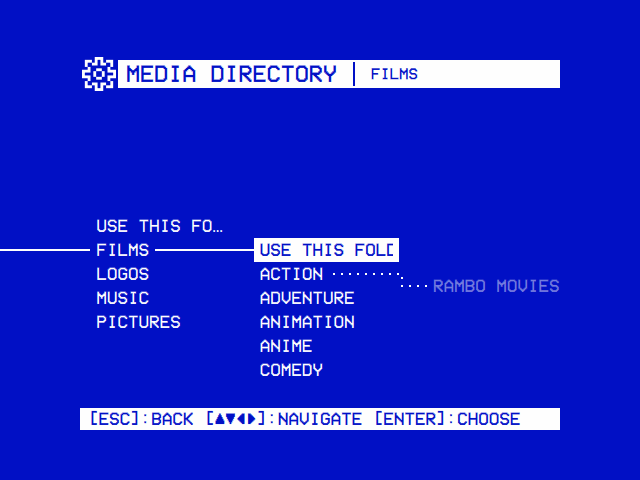 |
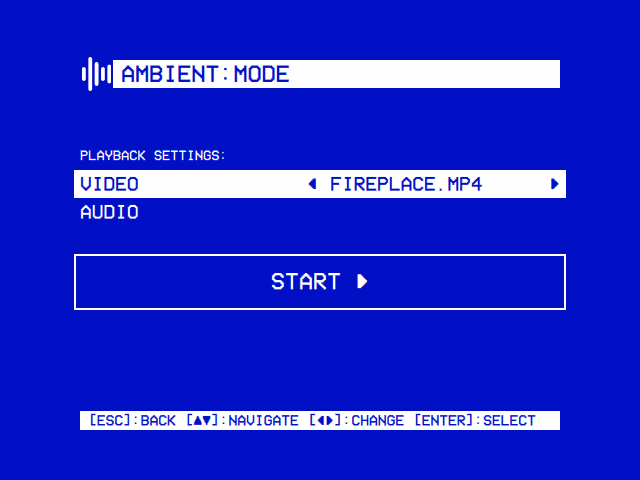
| A video, with music of your choice, on a loop: ◄ ► choose the video and the audio, START plays. | Settings → TV / Movie → Ambient:Mode → Media Directory is picked on the same tree Local Files is browsed with (shown here for Local Files): USE THIS FOLDER picks the one open, Default Folder the module's own. |
-
Settings → TV / Movie → Ambient:Mode → ENABLED: On. Ambient:Mode appears on the main menu.
-
Put your clips, and any music, in its media folder:
ambientin the data folder. Create it if it isn't there: OSD/OS makes it only when you pick Default Folder in Media Directory.System Folder OSD/OS image, Raspberry Pi OS, SteamOS ~/.local/share/OSD-OS/ambient/macOS ~/Library/Application Support/OSD-OS/ambient/Or pick another with Settings → TV / Movie → Ambient:Mode → Media Directory. On the OSD/OS image the easiest is a folder on the card's film partition, which Windows and macOS open too: make an
Ambientfolder on the card's OSD-OS drive from a computer, copy the clips into it, then pick/media/OSD-OS/Ambientin Media Directory. -
Open Ambient:Mode from the main menu.
Only files directly in the folder are listed (not in folders under it), by name, and only these types (in any case):
| Row | File types |
|---|---|
| Video |
mp4, mkv, avi, mov, m4v, webm, wmv, flv, f4v, mpg, mpeg, vob
|
| Audio |
mp3, wav, flac, m4a, ogg, aac, and the playlists m3u and m3u8
|
Other audio mpv plays (Opus, for one) can go in an m3u, which may list files anywhere (below). The folder is read each time the module opens.
The screen has three rows. ▲ ▼ move between them; ◄ ► change the value on the Video and Audio rows (wrapping round, and only offered when there is more than one choice); select on START plays.
| Row | Choices |
|---|---|
| Video | Each video in the folder, then SHUFFLE (when there is more than one): every video, in a shuffled order. |
| Audio | VIDEO AUDIO (the video's own sound), then each audio file and playlist in the folder, then SHUFFLE (when there is more than one): all of them, shuffled. |
SHUFFLE sits one ◄ away from each row's first choice, since the rows wrap.
| Action | Keyboard | Gamepad |
|---|---|---|
| Move between rows | ▲ ▼ | D-pad up, down |
| Change the video or the audio | ◄ ► | D-pad left, right (or the shoulder buttons) |
| Play | Enter on START | A |
| Leave | Esc | B |
With no video in the folder, the screen says No items found: Please add items in the ambient:mode media directory. Audio files alone don't count.
-
The video loops forever, full screen: one clip round and round, or with SHUFFLE all of them, in an order mpv shuffles once and then repeats (
--loop-playlist=inf, with--shuffle). It only stops when you stop it. - With VIDEO AUDIO, you hear the clip's own sound.
-
With music chosen, the clip plays silent (
--no-audio), and the music plays from a second mpv of its own, apart from the video:mpv <files> --no-video --loop-playlist=inf --no-terminal --really-quiet, with--shufflefor SHUFFLE, on Settings → Audio Output's card. The two run side by side; they aren't mixed, the music replaces the clip's sound. The music loops forever too, so its length doesn't have to match the clip's. - With Audio on SHUFFLE, the files and playlists are shuffled as whole entries: a playlist counts as one, and its tracks play in their own order when its turn comes. The order is shuffled once, then repeats.
- The menu music (Settings → Menu Music) is held off while the clip and the music play, and comes back afterwards.
- The screen saver stays away while it plays.
- The module's own Scaling applies: how a 16:9 clip fills a 4:3 screen (Settings → TV / Movie → Ambient:Mode → Scaling, or Settings → TV / Movie → Scaling while it says Default).
During playback:
| Action | Keyboard | Gamepad | What it does |
|---|---|---|---|
| Its menu | ▲ or ▼ | D-pad up, down | A small menu at the foot: CROP steps through the four Scalings live (not offered on a Pi 3 with 1080p Playback on), STOP ends playback. ◄ ► choose, select presses. It hides after five seconds. |
| Pause | Enter or Space | A or Start | Pauses the clip (the music goes on). |
| Stop | Esc | B | Ends playback, and the music, and returns to the Ambient:Mode screen. |
With Transparent Background (Settings → TV / Movie), back returns to the Ambient:Mode screen with the clip playing on behind the menus, your music with it, until the clip is closed or another video starts. START takes it back to full screen and starts the music afresh; play/pause on the main menu stops the clip (Using OSD/OS).
An m3u or m3u8 file in the media folder appears on the Audio row under its own name. Chosen, its tracks play in order, then from the top again. mpv reads it, so:
- one track per line: a file path or a URL;
- a relative path is relative to the playlist's own folder;
- lines starting with
#are comments (#EXTM3Uand#EXTINFlines are fine); - any format mpv plays.
Cozy Jazz.m3u, in the media folder, with music in a music folder beside it and more on the card's film partition:
#EXTM3U
#EXTINF:-1,Blue Hour
music/Blue Hour.mp3
#EXTINF:-1,Rain on the Window
music/Rain on the Window.opus
/media/OSD-OS/Music/Lounge/Midnight Lounge.flac
The music folder itself isn't listed (only files directly in the media folder are), but the playlist reaches into it.
Auto-Launch Playback plays straight away when OSD/OS starts on this module, for a TV that should come on as a fireplace:
- Settings → TV / Movie → Ambient:Mode → Auto-Launch Playback: On.
- Settings → Start on Module: Ambient:Mode.
At start it always shuffles: the videos on SHUFFLE when there is more than one (the only one otherwise), and the music on SHUFFLE when there is more than one audio file or playlist; with one or none, the clip's own sound. It doesn't happen when you open the module from the main menu, so the screen stays reachable to choose, and back from the auto-launched playback lands on the Ambient:Mode screen rather than starting it again. A favourite chosen with Play at Startup comes before Start on Module (Settings).
A fireplace and an aquarium, a thunderstorm recording and a jazz playlist, starting by themselves:
~/.local/share/OSD-OS/ambient/
├── Aquarium.mkv
├── Fireplace.mp4
├── Cozy Jazz.m3u
├── Thunderstorm.flac
└── music/
    ├── Blue Hour.mp3
    └── Rain on the Window.opus
The Video row offers AQUARIUM.MKV, FIREPLACE.MP4 and SHUFFLE; the Audio row VIDEO AUDIO, COZY JAZZ.M3U, THUNDERSTORM.FLAC and SHUFFLE. With the settings below, OSD/OS starts on the two clips shuffled, with the playlist and the thunderstorm shuffled under them, the clips filling the 4:3 screen:
{
    "app": {
        "startup_module": "com.osdos.ambient_mode"
    },
    "modules": {
        "com.osdos.ambient_mode": {
            "enabled": true,
            "media_directory": "",
            "auto_launch": true,
            "video_scaling": "Pan & Scan"
        }
    }
}
Settings → TV / Movie → Ambient:Mode:
| Setting | Values | Default | What it does | Config key |
|---|---|---|---|---|
| ENABLED | On, Off | Off | Shows Ambient:Mode on the main menu. | modules.com.osdos.ambient_mode.enabled |
| Media Directory | A folder, or Default Folder | Default (ambient in the data folder) |
Where the clips and the music are. |
modules.com.osdos.ambient_mode.media_directory ("" for the default) |
| Auto-Launch Playback | On, Off | Off | Plays, shuffled, as soon as OSD/OS starts on this module. See Starting by itself. | modules.com.osdos.ambient_mode.auto_launch |
| Scaling | Default, Letterbox, 14:9, Pan & Scan, Anamorphic | Default | How a 16:9 clip fills a 4:3 screen in this module. Default follows Settings → TV / Movie → Scaling. | modules.com.osdos.ambient_mode.video_scaling |
The module keeps no other files: what you chose on its screen isn't remembered between visits.
No items found. No video of a listed type sits directly in the media folder. Check Settings → TV / Movie → Ambient:Mode → Media Directory, the files' extensions, and that they aren't in a folder under it.
A file I put in the folder isn't on the Audio row. Its type isn't listed (Opus, for one): put it in an m3u.
No music. The music needs mpv on the PATH (or beside the app): the log says [AmbientMode] mpv not found in PATH — audio will not play otherwise. In a playlist, check the paths: a relative one is relative to the playlist's folder, and names are case-sensitive on Linux. Check Settings → Audio Output too.
I hear the clip's own sound. Audio is on VIDEO AUDIO. Choose a file, a playlist or SHUFFLE.
Black bars round the clip. Set Scaling (Pan & Scan fills a 4:3 screen with a 16:9 clip), or use CROP in the playback menu.
It doesn't start by itself. Settings → Start on Module must be Ambient:Mode, Auto-Launch Playback on, and the folder must hold at least one video. A Play at Startup favourite takes precedence.
The clip stutters on a Pi. A Pi decodes H.264 in hardware (a Pi 5 on its GPU), and a Pi 4 or 5 HEVC too; other codecs, VP9 and AV1 among them, are decoded by the CPU (Playback and mpv). A 1080p or 720p H.264 copy of the clip loops smoothly.
More in Troubleshooting.
- Weather: another screen to leave running, with music
- Local Files: the film partition on the image, and playlists of films
- Playback and mpv: Scaling, CROP and decoding on each Pi
- Menu music: the tune Ambient:Mode holds off
- Audio Output: which sound card the music plays on
- Settings: Start on Module, Transparent Background