Repository navigation
Installation
Everything it takes to get OSD/OS running: the OSD/OS image, which makes a Raspberry Pi boot straight into OSD/OS, and OSD/OS as an app on Raspberry Pi OS, on an Apple Silicon Mac, on SteamOS or another x86_64 Linux, on Windows 11, and on FreeBSD or OpenBSD. It also covers updating, uninstalling, and which hardware OSD/OS has been tried on.
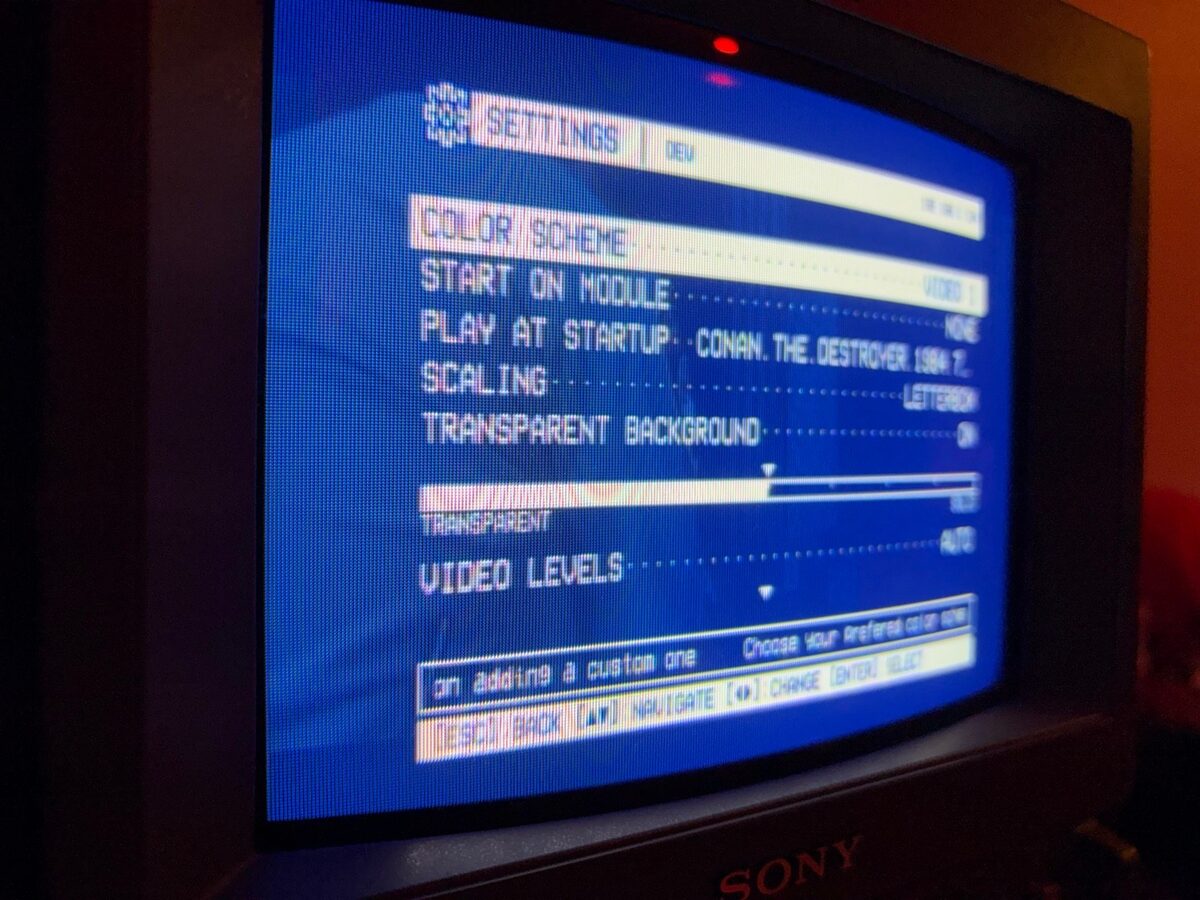
| The OSD/OS image | App on Raspberry Pi OS | App on macOS | App on SteamOS / Linux x86_64 | App on Windows | App on FreeBSD / OpenBSD | |
|---|---|---|---|---|---|---|
| Runs on | Raspberry Pi 4 or 5 (Supported hardware) | Raspberry Pi OS Trixie, 64-bit | Apple Silicon Macs | x86_64 Linux with X11 or XWayland, glibc 2.39 or newer | Windows 11 on x64 | FreeBSD 15 or OpenBSD 8.0 on amd64, with a desktop |
| You download | OSD-OS-<version>-raspberry-pi.img.xz |
install.sh, which fetches OSD-OS-<version>-linux-arm64.tar.gz
|
OSD-OS-<version>-macOS-arm64.dmg |
OSD-OS-linux-x86_64.AppImage |
OSD-OS-<version>-windows-x64.zip |
OSD-OS-<version>-freebsd-amd64.pkg or OSD-OS-<number>-openbsd-amd64.tgz
|
| Starts | At power-on, before the rest of the system | At boot (with the autostart service), or with osdos
|
Like any app | Like any app, or from Steam |
osdos.exe, from its folder |
With osdos, from the desktop's terminal |
| mpv | On the image | Installed by install.sh
|
brew install mpv |
In the AppImage | A Windows build from mpv.io, beside it | The system's package |
| Transparent Background | Yes | Yes (libmpv2) |
Yes (Homebrew's libmpv) | No | No | Yes (the system's libmpv) |
| Settings → Display Output | Yes | No | No | No | No | No |
| What YouTube, Netflix, Prime Video and Arcade run | On the image (yt-dlp, Deno, Chromium with Widevine, MAME) | Installed by hand (below) | See YouTube, Netflix and Prime Video and Arcade | See the same pages | MAME and RetroArch downloaded from Settings → Arcade; yt-dlp by hand; no Netflix or Prime Video (below) | FinalBurn Neo's core in the package; MAME, RetroArch and yt-dlp from the system's packages; no Netflix or Prime Video (below) |
The OSD/OS image is the simplest way, and the only one where OSD/OS is the whole system. The app installs keep the system you already have.
All the files are on the latest release:
| File | What it is |
|---|---|
install.sh |
The installer for Raspberry Pi OS |
OSD-OS-<number>-openbsd-amd64.tgz |
The app for OpenBSD 8.0 on amd64, as an OpenBSD package, with FinalBurn Neo's core. Named by the release's number without its v (OSD-OS-0.0.24-openbsd-amd64.tgz), as pkg_add takes a package's name from its file's |
OSD-OS-linux-x86_64.AppImage |
The app for SteamOS and other x86_64 Linux. No version in its name: it updates itself in place |
OSD-OS-<version>-freebsd-amd64.pkg |
The app for FreeBSD 15 on amd64, as a FreeBSD package, with FinalBurn Neo's core |
OSD-OS-<version>-linux-arm64.tar.gz |
The app for Raspberry Pi OS, as install.sh installs it |
OSD-OS-<version>-macOS-arm64.dmg |
The app for Apple Silicon Macs |
OSD-OS-<version>-raspberry-pi.img.xz |
The OSD/OS image, to flash to an SD card |
OSD-OS-<version>-windows-x64.zip |
The app for Windows 11 on x64: one folder, osdos, unzipped anywhere |
The release page lists them under Assets by their file names, in this order, the order of the Downloads table in the release's notes, each with its SHA-256 digest. To check a download, run this in the folder you downloaded it to (shasum -a 256 in place of sha256sum on a Mac) and compare what it prints with the digest shown:
sha256sum OSD-OS-<version>-raspberry-pi.img.xzOr let a terminal download the file and check it. curl -fsSL https://osdos.tv/get.sh | sh downloads the file for the computer it runs on into the current folder: the DMG on an Apple Silicon Mac, the AppImage on Linux x86_64, install.sh on Raspberry Pi OS, the package on FreeBSD and OpenBSD, where fetch -qo - and ftp -MVo - take curl -fsSL's place. With sh -s -- image at its end it downloads the OSD/OS image, on any of them. In Windows PowerShell, irm https://osdos.tv/get.ps1 | iex downloads the zip and unzips it into an osdos folder there, and iex "& { $(irm https://osdos.tv/get.ps1) } image" the image. Each checks the file against the SHA-256 GitHub keeps for it, deletes it if the two don't match, keeps a file already there that matches, installs nothing, and says what comes next. The website gives each system's command at its top.
The script that sets up an NFC reader is in the repository (NFC Reader).
The OSD/OS image is Raspberry Pi OS Lite (64-bit), based on Debian 13 "trixie" and built with Raspberry Pi's own image builder, pi-gen, with one stage on top that makes it boot straight into OSD/OS. There is no desktop, no login prompt and no boot text: from power-on the screen is OSD/OS's, starting with its boot screen. OSD/OS starts as soon as the display driver is up, and Wi-Fi, Bluetooth and the local network wait until it is on screen. On the first boot the card's free space becomes a partition of its own, in exFAT, for your films. Chromium (for Netflix and Prime Video), yt-dlp and Deno (for YouTube), MAME (for the Arcade module), FluidSynth and openmpt123 (for menu music) are already on it. The OSD/OS image has the details; this section is how to get it onto a card.
- A Raspberry Pi 4 or 5 (see Supported hardware).
- A microSD card. The system keeps 8 GiB of it; the rest becomes the film partition, as long as at least 2 GiB is left over: on a 16 GB card that is about 6 GiB for films, on an 8 GB card none.
- A TV. The image starts on HDMI. For a CRT, it switches to composite (or SCART RGB on the GPIO pins) in Settings → Display Output, or you can pick the output on the card before the first boot (below).
- A USB keyboard, remote or gamepad. A Bluetooth one can be paired later, from Settings → Bluetooth (Controls).
- A network, if you want the network modules: an Ethernet cable, or Wi-Fi, set up while flashing or later in Settings → Wi-Fi.
Download OSD-OS-<version>-raspberry-pi.img.xz from the latest release (OSD-OS-v0.0.2-raspberry-pi.img.xz, for example). There is no need to unpack it: Raspberry Pi Imager and balenaEtcher read .img.xz as it is. From a terminal, curl -fsSL https://osdos.tv/get.sh | sh -s -- image downloads it into the current folder and checks it against the SHA-256 GitHub keeps for it (iex "& { $(irm https://osdos.tv/get.ps1) } image" in Windows PowerShell).
An image from the OS image workflow (the Actions tab, for a branch or a pull request) comes as a zip, the run's osdos-image artifact: take the .img.xz out of it. Its app is built as dev, which turns in-app updates off, so that a branch image never replaces itself with a release that lacks its changes. A release's image updates itself from later releases.
- Open Raspberry Pi Imager, choose your Raspberry Pi, then for the operating system choose Use custom and pick the
.img.xz. - Choose the SD card and write.
OS customisation. Raspberry Pi Imager 2 skips OS customisation (Wi-Fi, a user and password, SSH, the hostname, the locale and the keyboard) for an image chosen with Use custom: it can't tell which kind of customisation the image takes. Imager 1 seems to apply it, but on Trixie its settings never take effect. Without customisation, the image still works: Ethernet needs nothing, and Wi-Fi can be set up by hand. The simplest way to have it all the same is OSD/OS Setup, below, which also chooses the display output and OSD/OS's own settings. Imager's own customisation needs the image opened through a local manifest, as follows.
A manifest is a small JSON file that tells Imager about an image, including the customisation it takes. Raspberry Pi OS Trixie, and so the OSD/OS image, takes "init_format": "cloudinit-rpi" (Imager's notes on local manifests). The manifest also has to give the size and the SHA-256 checksum of the unpacked image, which Imager checks the written card against. This Python script works them out and writes the manifest next to the image. Save it as make_manifest.py:
#!/usr/bin/env python3
# make_manifest.py: writes a Raspberry Pi Imager manifest for an OSD/OS image,
# so that Imager offers its OS customisation (Wi-Fi, user, SSH, locale) for it.
# Usage: python3 make_manifest.py OSD-OS-<version>-raspberry-pi.img.xz
import datetime, hashlib, json, lzma, pathlib, sys

image = pathlib.Path(sys.argv[1]).expanduser().resolve()
sha, size = hashlib.sha256(), 0
with lzma.open(image) as f:              # the .img inside the .img.xz
    while chunk := f.read(1 << 20):
        sha.update(chunk)
        size += len(chunk)

icons = "https://downloads.raspberrypi.com/imager/icons/"
manifest = {
    "imager": {"devices": [
        {"name": "Raspberry Pi 5", "tags": ["pi5-64bit", "pi5-32bit"],
         "icon": icons + "RPi_5.png", "matching_type": "exclusive",
         "description": "Raspberry Pi 5, 500 / 500+, and Compute Module 5"},
        {"name": "Raspberry Pi 4", "tags": ["pi4-64bit", "pi4-32bit"],
         "icon": icons + "RPi_4.png", "matching_type": "inclusive",
         "description": "Raspberry Pi 4 Model B, 400, and Compute Module 4 / 4S"},
        {"name": "Raspberry Pi 3", "tags": ["pi3-64bit", "pi3-32bit"],
         "icon": icons + "RPi_3.png", "matching_type": "inclusive",
         "description": "Raspberry Pi 3 Model A+ / B / B+ and Compute Module 3 / 3+"},
    ]},
    "os_list": [{
        "name": "OSD/OS",
        "description": "Raspberry Pi OS Lite (64-bit) that boots straight into OSD/OS",
        "icon": "https://downloads.raspberrypi.com/raspios_armhf/Raspberry_Pi_OS_(32-bit).png",
        "url": image.as_uri(),
        "extract_size": size,
        "extract_sha256": sha.hexdigest(),
        "image_download_size": image.stat().st_size,
        "release_date": datetime.date.fromtimestamp(image.stat().st_mtime).isoformat(),
        "init_format": "cloudinit-rpi",
        "devices": ["pi5-64bit", "pi4-64bit", "pi3-64bit"],
    }],
}
out = image.with_name("OSD-OS.rpi-imager-manifest")
out.write_text(json.dumps(manifest, indent=2) + "\n")
print("Wrote", out)
Run it on the downloaded image (Python 3.8 or later; it takes a minute, as it unpacks the image to measure it):
python3 make_manifest.py ~/Downloads/OSD-OS-*-raspberry-pi.img.xzIt writes OSD-OS.rpi-imager-manifest beside the image, pointing at it by its full path (so keep the image where it is). The device entries and the icons are the ones Raspberry Pi's own manifest uses for Raspberry Pi OS Lite (64-bit). Then open the manifest in Imager, in one of three ways:
- double-click
OSD-OS.rpi-imager-manifest; - or in Imager, App Options → Content Repository → EDIT → Use custom file, pick the manifest, then APPLY & RESTART;
- or start Imager with it:
rpi-imager --repo ~/Downloads/OSD-OS.rpi-imager-manifest.
OSD/OS is then on Imager's OS page, and Imager offers its customisation: fill in the Wi-Fi, a user with a password, SSH and the locale. cloud-init applies them on the first boot, and the image then switches cloud-init off, so that it doesn't slow down later boots.
Any tool that writes disk images works, balenaEtcher for example, but none of them customises the image. On Linux, dd does it from the command line. Find the card's device first with lsblk, and make sure it is the card: dd overwrites whatever it is given.
xz -dc ~/Downloads/OSD-OS-*-raspberry-pi.img.xz | sudo dd of=/dev/sdX bs=4M conv=fsync status=progressReplace /dev/sdX with the card's device (a whole disk, such as /dev/sdb or /dev/mmcblk0, not a partition such as /dev/sdb1).
OSD/OS Setup is a web page where you choose what the card starts with, before it goes into the Pi. It looks like OSD/OS's own menus, and has:
- Device: what the card goes into, a TV or an Arcade Cabinet. A cabinet starts on the Arcade screen, has the JAMMA outputs first, and puts the TV / Movie settings and modules out of sight (its TV / Movie Settings switch shows them);
- Raspberry Pi and Display Output: the Pi the card is for, and its output (HDMI, composite, SCART RGB, a JAMMA cabinet), the ones that Pi has;
- Network: the device's name, the Wi-Fi country, and a Wi-Fi network with its password (hidden or not);
-
System:
pi's password, SSH on or off with password login or keys only, the time zone and the keyboard; - OSD/OS: every setting of Settings, the theme and the effects among them, each module on or off with its own settings, and the Arcade's RetroAchievements account (user name, password and Web API key). A live preview shows the main menu or the Arcade screen in the look chosen, at 640×480, as OSD/OS draws it: its own effects running in the browser, and, once it is clicked, the remote's keys working on it.
Each on/off setting is a checkbox, each password field has a Show / Hide button, and only what you change goes into the file (marked •; ↺ leaves a setting as the card has it). Everything happens in your browser: nothing you type leaves it.
- Choose your settings, then Download for the card (zip). It holds
osdos-setup.jsonand, with a display output chosen,osdos-display.txt. - After flashing, take the card out and put it back in: the computer shows the boot partition as a drive called bootfs.
- Unpack the zip onto bootfs, letting
osdos-display.txtreplace the one there, so that a CRT has its picture from the first start. - Put the card in the Pi and switch it on. Before OSD/OS starts, the card takes
osdos-setup.jsonoff bootfs and sets OSD/OS's own settings; the rest it sets once OSD/OS is on screen, as the boot screen's SETTINGS line. Then it writesosdos-setup.logon bootfs, which says what was done and why anything wasn't. If the display output changes, the Pi restarts once to switch to it.
Export saves osdos-setup.json alone, and Import reads it back to change it, or reads OSD/OS's own config.json (from ~/.local/share/OSD-OS) to start from its settings. The file can go on a card that has already been started too: it is applied at the next start.
- The file holds the Wi-Fi and RetroAchievements passwords as you typed them, and
pi's password only as a hash: keep it to yourself. It is deleted from the card once it has been applied. - The RetroAchievements account is handed to OSD/OS, which signs in through RetroArch once the network is up, as Settings → Arcade → RetroAchievements Account does: OSD/OS never keeps the password.
- A display output chosen for one Pi is not applied on another kind (made for a Pi 5, the card left in a Pi 4): the card stays on the output it has, and the log says so.
- Set a thing in one place only, on this page or in Imager's customisation: Imager's time zone and keyboard are applied after these on the first boot.
The OSD/OS image has how each setting is applied. OSD/OS on a computer takes its own settings from the page too (below).
Without Imager's customisation, set up Wi-Fi before the first boot by editing network-config on the card's boot partition. After flashing, take the card out and put it back in: the computer shows the boot partition as a drive called bootfs (Windows and macOS open it). network-config is a netplan-style file that cloud-init applies on the first boot. As it comes, it holds only comments and commented-out examples. Add these lines at its end, with your network's name, its password and your two-letter country code. They are what Raspberry Pi Imager itself writes there for a Wi-Fi network:
network:
  version: 2
  ethernets:
    eth0:
      dhcp4: true
      dhcp6: true
      optional: true
  wifis:
    wlan0:
      dhcp4: true
      regulatory-domain: "GB"
      access-points:
        "My Home WiFi":
          password: "correct battery horse staple"
optional: true- Keep the
ethernetslines: whatnetwork-configsets up replaces Raspberry Pi OS's default, and they keep the Ethernet port working beside the Wi-Fi. -
regulatory-domainis the Wi-Fi country. Raspberry Pi OS keeps Wi-Fi switched off until a country is set. - Indent with spaces, never tabs: YAML reads the indentation. Keep the quotes around the name and the password.
- For an open network, replace the
password:line withauth:and, under it,key-management: none; for a hidden one, addhidden: trueat the same level aspassword:. - It is applied on the first boot only. To change the Wi-Fi later, use Settings → Wi-Fi, or NetworkManager on the Pi itself, over SSH or from Exit to Terminal:
sudo nmcli device wifi connect "My Home WiFi" password "correct battery horse staple".
The image starts on HDMI. If the Pi will only ever see a CRT, choose its output on the card before the first boot, as the image's config.txt explains: copy one of the presets on bootfs over osdos-display.txt. For example, for composite PAL from a Pi 4's AV jack or a Pi 5's TV pads, on Linux or macOS (on Windows, copy the file and rename it in the file manager):
cp /media/$USER/bootfs/osdos-display-crt-pal.txt /media/$USER/bootfs/osdos-display.txt   # Linux
cp /Volumes/bootfs/osdos-display-crt-pal.txt /Volumes/bootfs/osdos-display.txt # macOS| Preset | Output | Pi 4 | Pi 5 |
|---|---|---|---|
osdos-display-hdmi.txt |
HDMI, resolution detected (the default) | ✓ | ✓ |
osdos-display-crt-ntsc.txt, osdos-display-crt-pal.txt
|
Composite NTSC / PAL, 4:3: the AV jack, or a Pi 5's TV pads | ✓ | ✓ |
osdos-display-crt-gpio-ntsc.txt, osdos-display-crt-gpio-pal.txt
|
Composite from a Pi 5's GPIO pins | ✓ | |
osdos-display-scart-rgb-ntsc.txt, osdos-display-scart-rgb-pal.txt
|
SCART RGB on the GPIO pins, 480i / 576i | ✓ | ✓ |
osdos-display-scart-rgb-240p.txt, osdos-display-scart-rgb-288p.txt
|
SCART RGB on the GPIO pins, 240p / 288p | ✓ | |
osdos-display-jamma-240p.txt |
A JAMMA arcade cabinet through a Raspberry Pi to JAMMA board in RGB-Pi's layout, 240p: its picture, sound and controls | ✓ | ✓ |
osdos-display-jamma-240p-native.txt, -240p-super.txt, -288p.txt, -288p-super.txt, -25k.txt, -31k.txt
|
The same board in its other modes: 320×240, 1920×240, 720×288, 1920×288, and a 25 kHz or 31 kHz monitor's (only for such a monitor) | ✓ | ✓ |
osdos-display-jamma-480i.txt, osdos-display-jamma-576i.txt
|
The same board interlaced, 480i / 576i | ✓ |
A Pi 5's SCART RGB also needs a line on the system partition (options drm_rp1_dpi force_csync=1 in /etc/modprobe.d/osdos-display.conf), which Windows and macOS can't reach: choose it on OSD/OS Setup, or in Settings → Display Output, which both write it. Once running, Settings → Display Output switches outputs, and keeps a new one only when you confirm it on its own screen. Display Output has the cables and every detail.
Put the card in the Pi, connect the TV and the keyboard, remote or gamepad, and switch it on. On the first boot:
- The card is split. Before the system starts, the root partition grows to 8 GiB instead of the whole card, and the rest becomes a third partition in exFAT, labelled OSD-OS. This happens once, on a freshly flashed card. A card with less than 2 GiB to spare past the system gets no film partition, and the system takes all of it. A first boot cut short after the partition is made but before it is formatted leaves it blank, and the next boot formats it, but only a partition with no file system at all.
- OSD/OS Setup's file, if you put one on bootfs, sets OSD/OS's own settings before it starts (above), and the rest once the boot screen is up, as its first line, SETTINGS. If it changes the display output, the Pi restarts once.
-
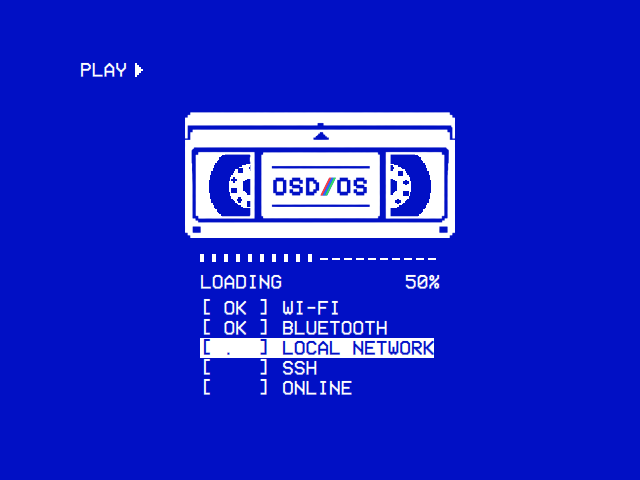
The boot screen. OSD/OS comes up as soon as the display driver is ready and shows its boot screen: the OSD/OS cassette, its reels turning and its tape winding from one onto the other as the progress bar fills, and a line per service,
[ OK ]once it has started:SETTINGS(only with OSD/OS Setup's file),WI-FI,BLUETOOTH,LOCAL NETWORK,SSH(only when the image was built with SSH on) andONLINE, a check that the network is really up, which gives up after 20 seconds without one. The boot screen closes by itself once every service has settled, or after a minute. Keys do nothing while it is up, but Ctrl+Q, which powers the Pi off. -
cloud-init applies Imager's customisation or your
network-config, then is switched off for later boots. - The main menu. Out of the box it lists Local Files and Playlists, the two modules that are on by default (or the ones OSD/OS Setup turned on). Turn the others on in Settings (back, on the main menu); each module's own page says how to set it up (Modules).
Later boots skip the first, second and fourth steps. Using OSD/OS goes through every screen from here.
Films on the card. Local Files opens the Movies folder on the OSD-OS partition (/media/OSD-OS/Movies) until its Media Directory setting names another folder. To fill it from a computer: quit OSD/OS (Settings → Quit → Power Off), take the card out, and copy films into the Movies folder on the drive called OSD-OS, in folders if you like; the Arcade module's games go in Games/Arcade beside it. Windows also offers to format the system's partition, which it can't read: always answer Cancel, as formatting it erases the system. A USB stick or disk plugged into the Pi shows up in Local Files too, as USB: <label>. The OSD/OS image and Local Files have the details.
The image's own user is pi, and OSD/OS runs as that user. You only need to log in for Exit to Terminal (Settings → Quit) or SSH.
-
The password. A release image's
pigets the password the repository secretOS_FIRST_USER_PASSholds, when the release was built with one. An image built without a password haspi's account locked: Exit to Terminal then logspiin by itself (whoever is at the keyboard could take the card out anyway), but that shell has no root, assudoasks for the passwordpidoesn't have. If Exit to Terminal gives you a login prompt instead, the image has a password. -
pi's password on OSD/OS Setup. OSD/OS Setup givespia password of your own, which unlocks a lockedpi: thenpilogs in over SSH and usessudowith it. -
A user of your own. The user Imager's customisation creates can log in, with a password, and use
sudo. That is another way to SSH andsudoon an image whosepiis locked. -
SSH is off on a release image. Turn it on on OSD/OS Setup (with password login, or with your public keys alone), in Imager's customisation (through the local manifest), or from a shell on the Pi with a user who can use
sudo:sudo systemctl enable --now sshThen connect by the hostname,
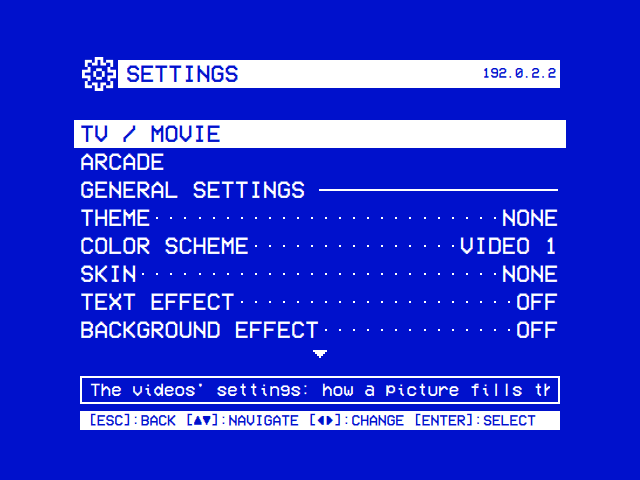
osdosunless the customisation set another, or by the IP address, which Settings shows at the right of its title bar:ssh your-user@osdos.local
Once in, journalctl -u osdos -b shows OSD/OS's log for this boot (Troubleshooting).
Plug the cable in, before or after switching on: there is nothing to set up. NetworkManager takes an address by DHCP, and the boot screen's ONLINE line waits for it.
Installed this way, OSD/OS is an app on a Raspberry Pi OS you set up yourself: the system boots its own way, then OSD/OS starts, at boot if you install the autostart service, or when you type osdos. Choose this to keep a system you already have; otherwise the image is simpler.
- A Raspberry Pi with Raspberry Pi OS Trixie (Debian 13), 64-bit. Raspberry Pi OS Lite is the one these steps use; the installer refuses anything but arm64 (
aarch64). - An SD card of at least 4 GB.
- A keyboard to begin with, and network access (Wi-Fi or Ethernet).
- Optional: a USB remote or gamepad; a CRT and a composite cable.
In Raspberry Pi Imager, choose Raspberry Pi OS (other) → Raspberry Pi OS Lite (64-bit). Imager's customisation works for this official image: fill in the hostname, a user, the Wi-Fi, and turn SSH on, which saves setting them up later.
When Imager has finished, take the card out and put it back in, and replace config.txt on its bootfs drive with the one that matches your TV. These are the settings the OSD/OS image uses too.
Composite to a CRT (NTSC; set sdtv_mode=2 for PAL):
# --- Global ---
auto_initramfs=1
disable_splash=1
disable_overscan=1
dtparam=audio=on

# Composite
enable_tvout=1
sdtv_mode=0      # 0 = NTSC, 2 = PAL
sdtv_aspect=1    # 1 = 4:3

# --- Pi 3B ---
[pi3]

# Drivers & Video
dtoverlay=vc4-fkms-v3d,cma-256

# Overclocking
over_voltage=4
arm_freq=1300
core_freq=450
sdram_freq=500

# --- Pi 3B+ ---
[pi3+]

# Drivers & Video
dtoverlay=vc4-fkms-v3d,cma-256

# Overclocking
over_voltage=2
arm_freq=1500
core_freq=500
sdram_freq=500

# --- Pi 4B ---
[pi4]

# Drivers & Video
dtoverlay=vc4-fkms-v3d,cma-256
dtoverlay=rpivid-v4l2

# Overclocking
over_voltage=2
arm_freq=1750
gpu_freq=600

# --- Pi 5 ---
[pi5]

# Drivers & Video
dtoverlay=vc4-kms-v3d,cma-512,composite=1

# --- Global ---
[all]
HDMI to a modern TV:
# --- Global ---
auto_initramfs=1
disable_splash=1
disable_overscan=1

# HDMI
display_auto_detect=1
hdmi_force_hotplug=1

# --- Pi 3B ---
[pi3]

# Drivers & Video
dtoverlay=vc4-fkms-v3d,cma-256

# Overclocking
over_voltage=4
arm_freq=1300
core_freq=450
sdram_freq=500

# --- Pi 3B+ ---
[pi3+]

# Drivers & Video
dtoverlay=vc4-fkms-v3d,cma-256

# Overclocking
over_voltage=2
arm_freq=1500
core_freq=500
sdram_freq=500

# --- Pi 4B ---
[pi4]

# Drivers & Video
dtoverlay=vc4-fkms-v3d,cma-256
dtoverlay=rpivid-v4l2

# Overclocking
over_voltage=2
arm_freq=1750
gpu_freq=600

# --- Pi 5 ---
[pi5]

# Drivers & Video
dtoverlay=vc4-kms-v3d

# --- Global ---
[all]
The Pi 3 and Pi 4 run the firmware's "fake" KMS driver (vc4-fkms-v3d), the Pi 5 the full KMS driver (vc4-kms-v3d); OSD/OS picks its video decoding to match (Playback and mpv). The overclocking lines are the ones these configurations have always carried; remove them if you'd rather not overclock.
Put the card in the Pi and let it boot. Raspberry Pi OS Lite has no desktop: you may see boot messages, a text login, or a blinking cursor for a while. Then connect over SSH, with the hostname and user you gave Imager, or the Pi's IP address (your router's client list has it, or hostname -I on the Pi):
ssh your-user@your-hostname.localRun sudo raspi-config and set System Options → Auto Login → Yes and Advanced Options → Expand Filesystem, then Finish and let the Pi restart.
Over SSH again, run:
bash <(curl -fsSL https://github.com/mehmetraif/OSD-OS/releases/latest/download/install.sh)It installs the latest release. To install a particular one, download that release's install.sh and give it the release's tag, as the Releases page lists it:
TAG=v0.0.1   # the release you want, as the Releases page names it
curl -fsSLO "https://github.com/mehmetraif/OSD-OS/releases/download/$TAG/install.sh"
bash install.sh "$TAG"
It asks two questions:
-
Install systemd autostart service? [y/N]: y makes the Pi start OSD/OS at every boot, an appliance as close to the image as an install gets. N (the default) installs the app only; a service installed before is kept as it is, with the user it runs as, and what goes with it is brought up to date. -
Run service as user [default: pi]:(only after y): the user OSD/OS runs as. Give your own user's name if it isn'tpi. With a service installed before, the default offered is the user it runs as.
On the OSD/OS image it asks neither: it keeps the image's own service, and the user it runs as, and brings what goes with it up to date (the stop helper, the Exit to Terminal unit, At Next Start's socket).
Installing the dependencies can take a while; over Wi-Fi, about 20 minutes. Then osdos starts OSD/OS at any time, and with the service installed, the next boot goes straight into it. Follow the service's log with sudo journalctl -u osdos -f.
| Step | What |
|---|---|
| Finds the release | The latest release from GitHub's API, or the one whose tag you gave it: its tag, and the SHA-256 GitHub keeps for its tarball |
| Installs packages | libqt6quick6 libqt6qml6 libqt6opengl6 libqt6network6 libqt6svg6 qt6-svg-plugins qt6-wayland qml6-module-qtquick qml6-module-qtquick-controls qml6-module-qtquick-window libsdl2-2.0-0 libpcsclite1 libmpv2 mpv fluidsynth timgm6mb-soundfont openmpt123 polkitd |
| A udev rule |
/etc/udev/rules.d/99-osdos-tty.rules: lets the tty group open /dev/tty0, for handing the screen to mpv and back |
The bluetooth group |
Adds the user OSD/OS runs as, so Settings → Bluetooth can talk to BlueZ |
| A polkit rule | With a service, a new one or one kept: /etc/polkit-1/rules.d/50-osdos-networkmanager.rules, which lets the user the service runs OSD/OS as scan, join and forget networks and turn Wi-Fi on and off through NetworkManager for Settings → Wi-Fi. The service runs outside any login session, where polkit would otherwise ask for a password nobody can type |
| Puts the app in place |
OSD-OS-<version>-linux-arm64.tar.gz, checked against the SHA-256 GitHub keeps for it, into /opt/osdos the way the launcher applies an in-app update: unpacked whole into /opt/osdos/.new first, then bin and share swapped in through /opt/osdos/.old, so that a Pi switched off meanwhile starts on the release before, which the launcher puts back whole. OSD/OS, if it is running, stops for the swap and starts again as the script ends. All of it is owned by the user OSD/OS runs as (run as sudo bash install.sh, the user who ran sudo), so in-app updates can replace it; it warns when that user still can't write there, as in-app updates then won't apply |
| Replaces 240-MP | An install from OSD/OS's days as 240-MP (/opt/240mp, 240mp.service) is removed once OSD/OS is in place, so the two never fight over the screen and a download that fails leaves it as it was. OSD/OS moves 240-MP's data folder over to its own on its first start |
| The launcher |
/usr/local/bin/osdos: applies a downloaded update, then starts OSD/OS on Wayland or X11 when there is a desktop, or straight on the screen (Qt's EGLFS) when there isn't, on the right display card (a Pi 5's video card is not always the first) |
| The service | After y: /etc/systemd/system/osdos.service. With any service, a new one or one kept, what goes with it: its stop helper /usr/local/bin/osdos-stop, osdos-terminal.service for Exit to Terminal, osdos-display.socket with osdos-display@.service for Display Output's At Next Start, osdos-wifi.socket with osdos-wifi@.service for Settings → Wi-Fi's country, and osdos-name.socket with osdos-name@.service for renaming the device in Settings → About → System Information. After y, and on the OSD/OS image, the console login on tty1 is masked (getty@tty1, autovt@), so the screen is OSD/OS's. The OSD/OS image's own osdos.service, and one kept with N, is left as it is, enabled or not; one kept with N leaves the login on tty1 as it is too. The rest is written afresh |
The service starts OSD/OS after the rest of the system (multi-user.target), as the user you named, with access to the screen and the input devices. When OSD/OS exits, the stop helper osdos-stop decides what happens by its exit code:
| Exit code | Comes from | What happens |
|---|---|---|
| 0 | Quit → Power Off (or Ctrl+Q) | The Pi powers off |
| 10 | Quit → Exit to Terminal | A login prompt on tty1; the service stays installed for the next boot |
| 11 | Settings → Update → Apply & Restart | Nothing: systemd starts OSD/OS again through the launcher, which applies the update |
| 12 | Quit → Restart | The Pi reboots |
| 20–38 | Settings → Display Output (the OSD/OS image) | A display preset is written, then the Pi reboots |
| 40–58 | Settings → Display Output → Switch and Power Off | A display preset is written, then the Pi powers off |
| 129, 130, 143 (SIGHUP, SIGINT, SIGTERM, which OSD/OS turns into these), or SIGKILL |
systemctl stop / restart, a shutdown |
Nothing: the Pi stays on |
| Anything else: a crash (SIGSEGV, SIGABRT…), an error exit such as 1 | Nothing: the Pi stays on, and systemd starts OSD/OS again five seconds later. After three starts in two minutes it gives up and starts osdos-terminal.service: a login prompt on tty1, where sudo systemctl reset-failed osdos and sudo systemctl start osdos try again |
From a shell, sudo systemctl start osdos brings OSD/OS back after Exit to Terminal. To run it by hand while debugging, stop the service first, so the two don't fight over the screen; run by hand, quitting just returns to the shell:
sudo systemctl stop osdos
osdosinstall.sh installs what the app and its menu music need. A few modules need more, which the OSD/OS image has and a manual install doesn't:
-
YouTube needs yt-dlp, kept up to date, and a JavaScript runtime for it, Deno. Raspberry Pi OS's own yt-dlp is too old; get the latest from yt-dlp's releases:
sudo wget https://github.com/yt-dlp/yt-dlp/releases/latest/download/yt-dlp -O /usr/local/bin/yt-dlp && sudo chmod a+rx /usr/local/bin/yt-dlpInstall Deno following yt-dlp's EJS guide, and make sure
denois on thePATHof the user OSD/OS runs as. OSD/OS looks for yt-dlp first in its data folder (~/.local/share/OSD-OS/bin/yt-dlp), then next to its own program, then on thePATH. YouTube has the rest. -
Netflix and Prime Video (and YouTube's sign-in) open the service's own player in Chromium, with Widevine, under the
cagekiosk compositor when there is no desktop, and close it withwtype:sudo apt install chromium libwidevinecdm0 cage wtype
-
Arcade plays its games in MAME:
sudo apt install mame
A MAME of your own at
~/.local/share/OSD-OS/bin/mameis used first. See Arcade. -
An NFC reader needs device access set up once: see NFC Reader.
-
USB drives are not mounted by themselves on Raspberry Pi OS Lite, as they are on the image. Local Files still lists a drive mounted under
/mediasome other way. -
A gamepad that isn't seen: the service runs OSD/OS with access to the input devices; run by hand, your user needs to be in the
inputgroup:sudo usermod -aG input $USER, then reboot.
-
A picture slightly squeezed or stretched. On a CRT's display output (or off the image, a TV's mode: 288 lines or fewer at least twice as many pixels wide, or 720×480 or 720×576) OSD/OS tells mpv the screen is 4:3, whose pixels aren't square. A tube whose picture still isn't quite right can have its shape tuned in
~/.config/mpv/mpv.conf(for the user OSD/OS runs as) against a 4:3 test pattern: start from OSD/OS's 4:3 and raise or lower it until a circle is round. A line there takes the place of OSD/OS's 4:3:monitoraspect=1.333monitoraspectis the screen's shape, the same in every mode;monitorpixelaspectis a pixel's, which changes with the mode (pixel aspect ratio). Amonitorpixelaspect=0.888889line from earlier advice is only right for 720×480: remove it, and OSD/OS gives mpv the screen's shape itself. -
Composite sound unusually quiet:
amixer sset PCM 100%, andsudo alsactl storeto keep the level across reboots. -
No sound at all: Settings → Audio Output picks the sound card (the AV jack, HDMI or a USB card) where plain ALSA plays, as on Raspberry Pi OS Lite. Audio Output also covers choosing it for the whole system.
OSD/OS runs on Apple Silicon Macs (not Intel ones), full screen. It plays videos with Homebrew's mpv, which you install yourself.
-
Download
OSD-OS-<version>-macOS-arm64.dmgfrom the latest release. Or in Terminal:curl -fsSL https://osdos.tv/get.sh | shdownloads it into the current folder and checks it against the SHA-256 GitHub keeps for it. -
Open it and drag osdos.app onto the Applications folder beside it.
-
Install mpv with Homebrew, and the optional extras you want:
brew install mpv                  # required: plays the videos, and libmpv for Transparent Background
brew install fluid-synth libopenmpt   # optional: menu music from MIDI files and trackers' XM, MOD, S3M and IT
brew install yt-dlp deno          # optional: the YouTube module
brew install mame                 # optional: the Arcade module
A MIDI file needs a General MIDI SoundFont (an
.sf2file) in the data folder'ssoundfontsfolder,~/Library/Application Support/OSD-OS/soundfonts/: Homebrew's FluidSynth doesn't bring one. -
Open osdos from Applications. If macOS refuses because it can't check it (a release that isn't notarized; its notes say so), go to System Settings → Privacy & Security and choose Open Anyway, or run the line below and open it again. You only need to do this the first time.
xattr -dr com.apple.quarantine /Applications/osdos.app
On a Mac:
-
The data folder, with your settings, is
~/Library/Application Support/OSD-OS/. -
OSD/OS Setup. Settings → Paste OSD/OS Setup, or its file in the data folder or in the folder
osdos.appis in (OSD/OS Setup on a computer). -
There is no Settings → Bluetooth: pair keyboards, remotes and gamepads in macOS's own Bluetooth settings. Settings → Display Output and Audio Output are not offered either.
-
With several displays, OSD/OS opens on the main one. To open it on another (a CRT through an adapter, say), find the display's number in the log (
[main] display index 1: …) and setdisplay_indexinconfig.json, then start it again; videos follow it:{ "app": { "display_index": 1 } }Configuration files has the whole file.
On SteamOS (a Steam Deck) and other x86_64 Linux, OSD/OS comes as an AppImage: a single file with Qt, SDL2 and mpv 0.40 inside, so there is nothing else to install, even on SteamOS's read-only system.
It needs a graphical session, X11, or Wayland with XWayland (the AppImage carries Qt's X11 platform plugin only), and a recent system: it is built on Ubuntu 24.04, so it needs glibc 2.39 or newer (a current Steam Deck and current distributions; not Ubuntu 22.04, Debian 12 or an older SteamOS). It carries spare Wayland client libraries for X11-only systems that have none, such as Batocera, and uses them only when the system lacks its own.
-
On SteamOS, switch to Desktop Mode first.
-
Download
OSD-OS-linux-x86_64.AppImagefrom the latest release. Or from a terminal:curl -fsSL https://osdos.tv/get.sh | shdownloads it into the current folder, checks it against the SHA-256 GitHub keeps for it and makes it executable, which is step 3. -
Make it executable: in the file manager, right-click it → Properties → Permissions → tick Is executable, or from a terminal:
chmod +x OSD-OS-linux-x86_64.AppImage
-
Double-click it to start OSD/OS.
Gaming Mode. In Desktop Mode, open Steam → Games → Add a Non-Steam Game to My Library, choose Browse, and pick the AppImage. In Gaming Mode it is then in your library under Non-Steam games.
YouTube. yt-dlp is deliberately not inside the AppImage: YouTube changes often, and yt-dlp has to be updated apart from OSD/OS. Put a copy in the data folder, where OSD/OS looks first, and where it can update itself even on SteamOS:
mkdir -p ~/.local/share/OSD-OS/bin
curl -fsSL -o ~/.local/share/OSD-OS/bin/yt-dlp https://github.com/yt-dlp/yt-dlp/releases/latest/download/yt-dlp
chmod +x ~/.local/share/OSD-OS/bin/yt-dlp
~/.local/share/OSD-OS/bin/yt-dlp -U    # later, to update it
OSD/OS hands the same copy to mpv. For a JavaScript runtime for it, see yt-dlp's EJS guide.
On the AppImage:
- The data folder is
~/.local/share/OSD-OS/, as on the Pi. - OSD/OS Setup. Settings → Paste OSD/OS Setup, or its file in the data folder or beside the AppImage (OSD/OS Setup on a computer).
- Transparent Background is not offered: the AppImage is built without libmpv, which it needs.
- Gamepads work through Steam Input too: when Steam's virtual gamepad is present, OSD/OS listens to it alone, so that no press arrives twice (Controls).
-
display_indexchooses the display, as on a Mac (above).
On Windows 11 on x64, OSD/OS comes as a zip: one folder, osdos, with osdos.exe, Qt and the libraries it needs, and OSD/OS's own files. Nothing is installed: the folder runs from wherever you put it.
- Download
OSD-OS-<version>-windows-x64.zipfrom the latest release. Or in PowerShell:irm https://osdos.tv/get.ps1 | iexdownloads it into the current folder, checks it against the SHA-256 GitHub keeps for it and unzips it there, which is step 2. - Unzip it where you want to keep OSD/OS, for example in
C:\Games. It unpacks to one folder,osdos. - Download a Windows build of mpv from mpv.io, which plays the videos, and put its folder inside
osdosasmpv, ormpv.exebesideosdos.exe; mpv anywhere on thePATHworks too. - Double-click
osdos.exe. Windows may stop the first start of a program it doesn't know yet (Windows protected your PC): choose More info, then Run anyway.
On Windows:
- The data folder, with your settings, is
%APPDATA%\OSD-OS\, apart from the app. - OSD/OS opens no console window. Its log is
osdos.login the data folder, the run before's kept asosdos-previous.log; started from a Command Prompt or PowerShell, it writes the log there as well (Troubleshooting). - Arcade. Settings → Arcade → MAME downloads MAME, and Settings → Arcade → FinalBurn Neo downloads RetroArch and the FinalBurn Neo core, the versions the OSD/OS image has, so a PC plays online and over the local network with a Pi (Arcade).
-
YouTube. Put
yt-dlp.exein the data folder'sbinfolder (%APPDATA%\OSD-OS\bin\), besideosdos.exeor on thePATH, anddeno.exeon thePATH. - Window Mode. Settings → Window Mode shows OSD/OS in a window on the desktop instead of the whole screen; F11 or Alt+Enter switches at any time.
-
OSD/OS Setup. Settings → Paste OSD/OS Setup, or its file in the data folder or beside
osdos.exe(below). - Netflix and Prime Video, Transparent Background, Display Output, Audio Output's cards, Bluetooth and Wi-Fi are not offered: pair gamepads and choose the sound device in Windows' own settings.
On FreeBSD 15 and OpenBSD 8.0 on an amd64 PC with a desktop, OSD/OS comes as a package of the system's: the app, and FinalBurn Neo's libretro core for the Arcade module, built for the system from FinalBurn Neo's source, as libretro builds none for either and OpenBSD's packages have none. Qt 6, SDL2 and mpv are the system's own packages. The packages are built, installed and started in a virtual machine of each system's for every release; they haven't been tried on a BSD computer yet.
Download the package from the latest release, or from a terminal: fetch -qo - https://osdos.tv/get.sh | sh on FreeBSD and ftp -MVo - https://osdos.tv/get.sh | sh on OpenBSD download it into the current folder, check it against the SHA-256 GitHub keeps for it and give the commands below. Then:
-
FreeBSD, as root: the packages it needs, then the app.
pkg install -y qt6-base qt6-declarative qt6-svg sdl2 minizip mpv
pkg add OSD-OS-<version>-freebsd-amd64.pkg
-
OpenBSD, as root: the packages it needs come with it from the mirror.
-D unsigned, as the package isn't signed with OpenBSD's key, which signs OpenBSD's own packages alone. The file is named by the release's number without itsv(OSD-OS-0.0.24-openbsd-amd64.tgz), aspkg_addtakes a package's name from its file's: keep the name it is downloaded with. On the system the package is calledOSD-OS. An OpenBSD package is made for one release of OpenBSD, 8.0 for now: a newer OpenBSD needs the OSD/OS package built for it.pkg_add -D unsigned OSD-OS-<number>-openbsd-amd64.tgz
Then start it from the desktop's terminal: osdos. On the BSDs:
- The data folder, with your settings, is
~/.local/share/OSD-OS/, as on Linux. -
Arcade. MAME and RetroArch are the system's packages:
pkg install mame retroarch(FreeBSD) orpkg_add mame retroarch(OpenBSD), as root. FinalBurn Neo's core comes with OSD/OS, in/usr/local/lib/osdos/, apart from any core of the system's; Settings → Arcade → FinalBurn Neo shows it, with the games it knows. With RetroArch there, its games play with RetroAchievements and online play, as on the other systems (Arcade). -
YouTube.
pkg install yt-dlporpkg_add yt-dlp. - Window Mode. Settings → Window Mode shows OSD/OS in a window on the desktop instead of the whole screen; F11 or Alt+Enter switches at any time.
- OSD/OS Setup. Settings → Paste OSD/OS Setup, or its file in the data folder (below).
- Netflix and Prime Video (no browser on the BSDs has Widevine), Display Output, Audio Output's cards (the default device plays), Bluetooth and Wi-Fi are not offered: the system's own tools do those.
INSTALL.md has each system's steps in full.
The settings chosen on OSD/OS Setup work on a computer too: on Windows, a Mac, the AppImage, Raspberry Pi OS with install.sh, or a BSD. There OSD/OS takes two parts of them: its own settings (every setting of Settings, the theme and the effects among them, and each module on or off with its own settings) and the Arcade's RetroAchievements account. The device's name, the display output, Wi-Fi, pi's password, SSH, the time zone and the keyboard are set on an OSD/OS card alone; OSD/OS names any of them the settings hold, and leaves them as they are.
- Copy and paste. On the page, choose Copy for a computer; then in OSD/OS, Settings → Paste OSD/OS Setup. The settings are set at once, and a window says what was set. The row is offered where there is a desktop to copy on, so not on a Pi without one, such as the OSD/OS image, whose card takes the file instead.
-
The file. Export
osdos-setup.jsonand put it in the data folder (below), or beside the app: in theosdosfolder besideosdos.exeon Windows, in the folderosdos.appis in on a Mac, or beside the AppImage. OSD/OS takes it as it starts, before anything else: it deletes the file first, as it holds the RetroAchievements password and would otherwise be applied at every start, then sets what it can, and a window says what was set until select or back closes it. A file that can't be deleted isn't applied, and the window says so.
The account goes to the Arcade module, which signs in through RetroArch, as Settings → Arcade → RetroAchievements Account does, and keeps the token it gets, never the password.
Wherever OSD/OS runs, it keeps your settings apart from the app, so reinstalling or updating never loses them:
| System | Data folder |
|---|---|
Raspberry Pi (the image and install.sh), SteamOS, Linux, FreeBSD, OpenBSD |
~/.local/share/OSD-OS/, in the home of the user OSD/OS runs as ($XDG_DATA_HOME/OSD-OS when XDG_DATA_HOME is set) |
| macOS | ~/Library/Application Support/OSD-OS/ |
| Windows |
%APPDATA%\OSD-OS\, that is C:\Users\<you>\AppData\Roaming\OSD-OS\
|
It holds config.json (the settings), lists.json (each module's Recently Watched and Favorites), sign-ins, and the folders the modules use. The environment variable DATA_ROOT, set to an existing folder, puts it elsewhere; on a Raspberry Pi, set it where the launcher can see it too (in the service), or it won't find downloaded updates. Configuration files describes every file.
![Settings → Update: INSTALLED: DEV, and PRESS [ENTER] TO CHECK FOR LATEST](https://raw.githubusercontent.com/mehmetraif/OSD-OS/main/docs/screenshots/update.png)
Settings → Update checks GitHub for the latest release of OSD/OS and installs it, on every system. It shows the version installed, the latest one and its release notes (▲ ▼ scroll them), and select does the next step:
stateDiagram-v2
    [*] --> Check
    Check --> UpToDate: the latest release is not newer than the installed version
    Check --> Available: a newer release
    Available --> Downloading: select (DOWNLOAD)
    Downloading --> Ready: the file matches its digest
    Downloading --> Available: back cancels it
    Ready --> Install: select (INSTALL), then the apply choice
    Ready --> Available: Discard Update
-
CHECK asks GitHub for the latest release, and offers it only when it is newer than the installed version (You're up to date otherwise). Versions are compared by their numbers, so
v0.10.0comes afterv0.9.0, and a pre-release before its release (v0.2.0-rc.1beforev0.2.0): an older release is never offered. Pre-releases (tags with-rc,-betaor-alpha) are never the latest, so they are never offered. -
DOWNLOAD fetches the file for this system (the
.tar.gzon a Raspberry Pi, the.dmgon a Mac, the AppImage on x86_64 Linux; on Windows the page names the new zip instead, below) into the data folder'supdatesfolder, and checks it against the SHA-256 digest GitHub keeps for it. It needs three times the file's size free. Back during the download cancels it. -
INSTALL asks Install update? A downloaded update does nothing until you choose to apply it; back, or Discard Update, leaves the installed version as it is. A download that is no longer newer than the version running when OSD/OS next starts (a newer one installed with
install.shmeanwhile, say) is deleted then.
What applying does depends on the system:
| System | The choice | What happens |
|---|---|---|
The OSD/OS image, or install.sh with the autostart service |
Apply & Restart | OSD/OS exits (code 11), systemd starts it again through the launcher, and the launcher swaps the new version into /opt/osdos before starting it |
install.sh without the service |
Quit & Apply on Next Launch | OSD/OS quits; the launcher applies the update the next time you run osdos
|
macOS, the app in /Applications
|
Apply & Relaunch | The new app replaces the old one in /Applications and opens |
| macOS, the app anywhere else | Quit & Open Disk Image | OSD/OS quits and opens the downloaded .dmg, to drag the app into place yourself |
| Windows | None | The page names the new version's zip: download it, close OSD/OS, and put the zip's osdos folder in place of the old one. The settings, in %APPDATA%\OSD-OS\, stay; put mpv back in the new folder if it was inside the old one |
| FreeBSD, OpenBSD | None | The page names the new version's package and the command that installs it: download it and, as root, pkg add OSD-OS-<version>-freebsd-amd64.pkg or pkg_add -D unsigned OSD-OS-<number>-openbsd-amd64.tgz, which puts it in the place of the version installed. The settings, in ~/.local/share/OSD-OS/, stay |
| The AppImage | Quit & Apply on Next Launch | The new AppImage replaces the old one in place, keeping a .bak of the old one until the new one starts; in Desktop Mode it then starts again by itself, in Gaming Mode it quits and you start it from Steam (the path is the same, so the shortcut still works) |
On a Raspberry Pi the launcher unpacks the new version beside the old one, makes sure it is on the card, then swaps the two in with renames. Should the power go in the middle, the next start puts the version before back whole from what it kept of it, and applies the update again, which stays downloaded until a swap has finished: the Pi starts on one version or the other, never on a file half written.
Your settings stay as they are. Some installs can't update in place, and the page says why: an install from before in-app updates (run install.sh once more, below), an install in a non-standard place, an AppImage in a read-only folder (download the new one by hand), or a dev build, such as an image from the OS image workflow, which can check and read the notes but not download.
On Raspberry Pi OS, running the installer again also updates OSD/OS, keeping your settings. It is the way for an install made before in-app updates existed:
bash <(curl -fsSL https://github.com/mehmetraif/OSD-OS/releases/latest/download/install.sh)If the service is installed, answer y to the autostart question: the service and its helpers are written afresh, with the user it runs as offered as the default. N keeps the service as it is, and its user, and brings what goes with it up to date; either way the app's files go to that user, which in-app updates need. OSD/OS, if it is running, stops while the new release goes in and starts again on it. Without a service, N keeps going without one. On the OSD/OS image there is no question: the image's own service stays as it is, and what goes with it is brought up to date. Then sudo reboot.
Settings → Update updates OSD/OS, which lives in /opt/osdos and isn't a Debian package. The system underneath, Raspberry Pi OS (the kernel, the firmware, mpv, Qt, Chromium), updates with apt. The image has switched off the timers that would run apt by itself, so that nothing wakes the card mid-film: update it by hand when you choose, from SSH or Exit to Terminal, as a user who can use sudo:
sudo apt update
sudo apt full-upgrade
sudo reboot
YouTube's yt-dlp is the exception: on the image it replaces itself with its newest nightly build two minutes after each boot and once a day (osdos-yt-dlp-update.timer), when there is a connection.
The OSD/OS image is the whole system: to use the card for something else, flash another image over it. Copy your films off the OSD-OS partition first.
On Raspberry Pi OS, stop and remove the service (if you installed it), then the app, its launcher and its udev rule, and last your settings if you don't want them back:
sudo systemctl disable --now osdos.service osdos-display.socket osdos-wifi.socket osdos-name.socket
sudo systemctl unmask getty@tty1.service autovt@.service
sudo rm -f /etc/systemd/system/osdos.service /etc/systemd/system/osdos-terminal.service /usr/local/bin/osdos-stop
sudo rm -f /etc/systemd/system/osdos-display.socket /etc/systemd/system/osdos-display@.service
sudo rm -f /etc/systemd/system/osdos-wifi.socket /etc/systemd/system/osdos-wifi@.service
sudo rm -f /etc/systemd/system/osdos-name.socket /etc/systemd/system/osdos-name@.service
sudo rm -f /etc/polkit-1/rules.d/50-osdos-networkmanager.rules
sudo systemctl daemon-reload
sudo rm -rf /opt/osdos
sudo rm -f /usr/local/bin/osdos /etc/udev/rules.d/99-osdos-tty.rules
rm -rf ~/.local/share/OSD-OS
Stopping the service from outside leaves the Pi on. The packages install.sh installed stay; remove them with apt if nothing else uses them.
On macOS, drag osdos from Applications to the Bin, and delete ~/Library/Application Support/OSD-OS/.
The AppImage: delete OSD-OS-linux-x86_64.AppImage (and remove it from Steam if you added it), and delete ~/.local/share/OSD-OS/.
On Windows, delete the osdos folder, and %APPDATA%\OSD-OS\ with your settings and the MAME and RetroArch OSD/OS downloaded.
On FreeBSD or OpenBSD, remove the package as root, pkg delete osdos or pkg_delete OSD-OS, and delete ~/.local/share/OSD-OS/. The system's packages it needed stay: on FreeBSD, pkg delete the ones installed for it if nothing else uses them; on OpenBSD, pkg_delete -a removes those that came with it and nothing else uses.
OSD/OS is tested on a Raspberry Pi 4 and a Raspberry Pi 5 (8 GB): the Pi 4 as a TV, the Pi 5 in a JAMMA arcade cabinet, and LAN Play between the two. Nothing else has been tested with OSD/OS so far: on another board, please tell us how it went in an issue.
OSD/OS reads the board's model (/proc/device-tree/model) and sets itself up for its family: the mpv flags it plays videos with, and the outputs Settings → Display Output offers.
| Board | With OSD/OS | Display driver | mpv's video flags | Settings → Display Output offers (on the image) |
|---|---|---|---|---|
| Raspberry Pi 4 | Tested | Fake KMS (vc4-fkms-v3d) |
--vo=drm --hwdec=drm-copy,v4l2m2m-copy |
HDMI, composite (AV jack), SCART RGB 480i/576i/240p/288p, JAMMA 240p/288p/480i/576i/25 kHz/31 kHz |
| Raspberry Pi 5 | The owner also tests on one (8 GB) | Full KMS (vc4-kms-v3d) |
--vo=drm --hwdec=auto-safe |
HDMI, composite (TV pads, or GPIO), SCART RGB 480i/576i, JAMMA 240p/288p/25 kHz/31 kHz |
| Raspberry Pi 3B / 3B+ | Not tested with OSD/OS | Fake KMS (vc4-fkms-v3d) |
--vo=gpu --gpu-context=drm --hwdec=v4l2m2m |
HDMI, composite (AV jack) |
| Raspberry Pi 400 / 500 | Not tested | As a Pi 4 / Pi 5 | As a Pi 4 / Pi 5 | As a Pi 4 / Pi 5, without the AV jack's or the TV pads' composite |
| Any other board | Not tested | --vo=drm --hwdec=auto-safe |
Not offered |
Of the outputs, only the Pi 4's HDMI and composite have been tried on a TV. The others are starting points; a new output stays only when you keep it on its own screen, so one that shows nothing comes back to the old one by itself after 30 seconds.
- No AV jack. Its composite video comes from two pads on the board (J7), which need wires or a pin header soldered on. Settings → Display Output calls it Composite NTSC or PAL, as on a Pi 4. A Pi 5 can also send composite from its GPIO pins, as an 8-bit code for a DAC to turn into a picture; the pads are the simpler way. A Pi 5 may keep HDMI on beside the CRT: the display preset names the output and the mode OSD/OS and its videos use.
- No analog sound. Sound goes out over HDMI, or through a USB sound card for a CRT, chosen in Settings → Audio Output.
-
Full KMS. It boots the full KMS driver (
vc4-kms-v3d), so mpv draws straight to the screen (--vo=drm), and--hwdec=auto-safepicks FFmpeg's Vulkan decoder on the Pi 5's GPU, which reaches its HEVC hardware and keeps H.264 light too, with crop working. - SCART RGB on its GPIO pins is the kernel's (480i and 576i, no 240p or 288p), with the composite sync SCART needs made on GPIO 1.
- The display card. On a Pi 5 the GPU's render-only device often comes first, so OSD/OS's launcher picks the card that has a display connected.
Display Output and Audio Output have the wiring and the settings.
-
Raspberry Pi 3B / 3B+. OSD/OS keeps the settings 240-MP's author used on a Pi 3. Its mpv flags send the video straight to a hardware overlay, which keeps 1080p H.264 smooth but can't crop: Settings → TV / Movie → 1080p Playback (shown on a Pi 3 only) trades that the other way, and Playback and mpv shows how to set the flags yourself (
mpv_video_args). Some USB flash drives hang a Pi 3 booting from USB: if it won't start from one, try an SD card first. - Raspberry Pi 400 / 500 are read as a Pi 4 and a Pi 5, without the AV jack or TV pads they don't have.
-
Boards without a 64-bit Raspberry Pi OS (the Pi 1 and the first Pi Zero, for example) can't run OSD/OS: the image and the app are 64-bit (arm64), and
install.shstops on anything else. - Other computers: an Apple Silicon Mac, an x86_64 Linux machine with the AppImage, or a Windows 11 PC (above).
- Using OSD/OS: every screen, from the boot screen on
- Controls: keyboards, remotes, gamepads, Bluetooth
- The OSD/OS image: how the image boots, its films partition and USB drives
- Display Output and Audio Output
-
Configuration files: the data folder and
config.json - Troubleshooting
- Building from source: building the app and the image yourself