Repository navigation
Settings
Settings is OSD/OS's own menu: the look, the menus, playback, startup, the outputs, and a page for every module. Its first screen opens with two pages, TV / Movie for the videos and Arcade for the games, then lists the general settings, the modules that belong to neither page, and the application's own rows. This page goes through every row in the order the screens list them, with its values, its default, what it does, the key it is saved under in config.json, and when it is offered at all.
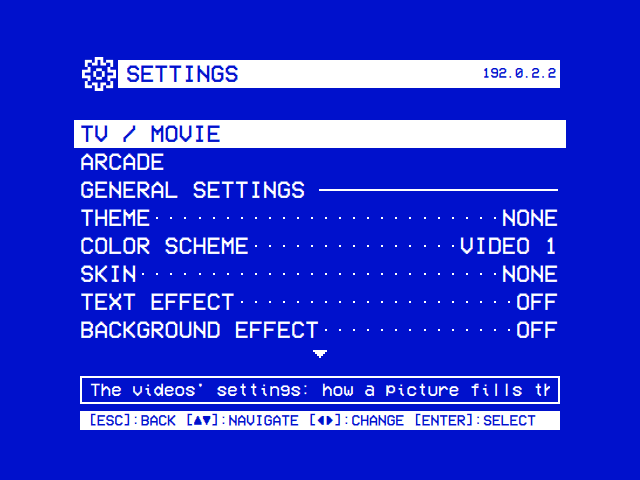
Back on the main menu opens Settings (the hint bar there says [ESC]:SETTINGS). Each row reads like a camcorder's menu, LABEL······VALUE. The first screen opens with two rows that lead to a page each, TV / Movie and Arcade; under them come three headings drawn as a rule, GENERAL SETTINGS, MODULES and APPLICATION.
| Action | Keyboard | Gamepad | What it does in Settings |
|---|---|---|---|
| ▲ ▼ | Up, Down | D-pad, left stick | Moves to the row above or below. Past the last row the cursor goes round to the first |
| ◄ ► | Left, Right | D-pad, left stick, LB, RB | Changes the value, round from the last choice to the first. A slider moves by 10 |
| Select | Enter | A | Opens a page (TV / Movie, Arcade, a module's settings, Controls, Wi-Fi, Bluetooth, Update, About), the list of Display Output, the file browser of Music File and Logo Image, or the Quit question. On Transparent Background it turns the setting on or off |
| Back | Esc, Backspace | B, or the pad's Back/Select button | Back to the main menu; from a page, back to the row that opened it |
-
A change is saved at once. Settings calls
appCore.save_setting("", key, value), on TV / Movie's page as on the first screen, which writes the value intoconfig.jsonunderapp.<key>(Configuration files). Most rows take effect at once. The rows mpv is started with (Scaling, Video Levels, Channel Logo, Logo Image, Screen Saver during a video) apply from the next video. A value that can't be saved (a full or read-only disk) isn't applied, here or on a module's page: the row stays on the value saved, and the log says[AppCore] Setting not saved: …. -
The title bar of the first screen shows a release's version; a build made from source shows none there (About names it
DEV). TV / Movie's page shows its name there instead,SETTINGS | TV / MOVIE. The first screen's title bar shows the device's IP address on the network at its right end, before the status icons, wired before Wi-Fi, read again every five seconds: handy for SSH. - The help line under the list explains the selected row, and scrolls when the text is longer than the box. Settings → Help Line turns it off.
- Rows that come and go. Some rows are offered only sometimes. A row that depends on another row (Window Frame on OSD Background, Music File and Music Volume on Menu Music, Logo Image on Channel Logo) stays in the list without a line while it isn't offered: the list doesn't move as it comes and goes, and the cursor skips over it.
| Row | Offered when |
|---|---|
| 1080p Playback (TV / Movie) | On a Raspberry Pi 3 only |
| Transparent Background (TV / Movie) | libmpv could be opened (libmpv2 on Raspberry Pi OS and the image, Homebrew's mpv on a Mac), in a build made with libmpv's headers |
| Logo Image (TV / Movie) | Channel Logo isn't Off |
| Text Effect, Background Effect, Screen Effect, and the Ripple, Wave and Drop transitions | The build has Qt Shader Tools (the releases and the OSD/OS image do) and Qt draws with a GPU, not its software renderer |
| Music File | Menu Music is File |
| Music Volume | Menu Music isn't Off |
| Window Frame | OSD Background is Window |
| Startup From | A favourite is set to Play at Startup |
| Display Output | On the OSD/OS image, started by its service, on a Pi with more than one output to offer |
| Audio Output | On Linux where plain ALSA plays, with no PipeWire or PulseAudio server: the image and Raspberry Pi OS Lite |
| Wi-Fi | On Linux builds made with Qt D-Bus (not on a Mac); on the OSD/OS image, from a launcher at level 7 |
| Bluetooth | On Linux builds made with Qt D-Bus (not on a Mac) |
The first row opens TV / Movie's page, SETTINGS | TV / MOVIE: the rows for the videos, then under a MODULES heading a row for each video module (below). Back returns to the first screen. These rows change how mpv plays, and what comes with a video: the screen it loads behind, the channel logo, a film's info screen. Everything about mpv itself, the flags each row adds and how they layer, is in Playback and mpv.
| Setting | Values | Default | What it does | Config key |
|---|---|---|---|---|
| 1080p Playback | On, Off | On | Raspberry Pi 3 only. On: the smooth overlay path that plays 1080p, where cropping can't work, so 14:9 and Pan & Scan show the whole picture and the deck menu has no CROP. Off: the scaler path, where cropping works but 1080p stutters. From the next video | app.smooth_playback |
| Scaling | Letterbox, 14:9, Pan & Scan, Anamorphic | Letterbox | How a 16:9 picture fills a 4:3 screen, in every module whose own Scaling is Default. Letterbox: all of it, bars above and below. 14:9: a little of the sides cut, thinner bars. Pan & Scan: fills the screen, the sides cut. Anamorphic: fills it squeezed, for a TV set to 16:9. From the next video; the deck menu's CROP changes it during one | app.video_scaling |
| Transparent Background | Off, or a slider from TRANSPARENT to SOLID, 0 to 100 in steps of 10 | Off | Plays the video inside OSD/OS's own window (libmpv), so back from a video returns to the menus with the picture going on behind them; the main menu's first row takes it back to full screen. The slider says how solid the menus' ground is over the picture: at SOLID none of it shows, but it plays on, sound and all. Select turns it on or off. ◄ ► on it while it is off turn it on where its bar waits: at 40, or where it was if you turned it off on this visit to Settings. A change shows at once over a video playing behind the menus, and turning it off stops that video |
app.transparent_background: a number from 0 to 100, or "Off"
|
| Video Levels | Auto, Limited, Full | Auto | The colour range mpv sends: Limited if blacks look crushed, Full if blacks look grey. Auto adds nothing, leaving mpv's default and your mpv.conf. From the next video |
app.video_output_levels |
| Loading Effect | On, Off | On | While a video loads, a tape's noise and tracking bands roll over the dubbing deck's counters. Off leaves the counters alone on the plain background | app.loading_effect |
| Loading Screen Colors | Theme, Default | Theme | The colours of the screen a video loads behind: the theme's or colour scheme's, or OSD/OS's own, white on a VCR's blue, whatever the look |
app.loading_colors: "Theme" or "Default"
|
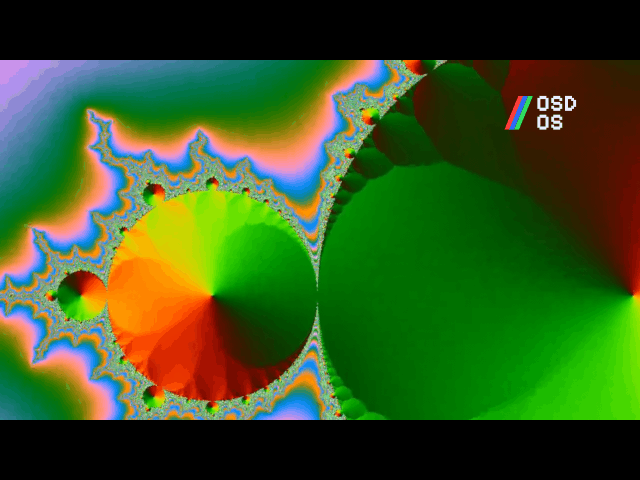
| Channel Logo | Off, Top Left, Top Right, Bottom Left, Bottom Right, All Corners | Top Right | OSD/OS's logo in a corner of the picture while a video plays, the way a channel's sits in a broadcast. mpv draws it into the picture, so with Transparent Background the menus lie over it. From the next video |
app.video_logo: off, tl, tr, bl, br or all
|
| Logo Image | OSD/OS Logo, or a picture picked on the file browser: PNG, JPG, JPEG, SVG, GIF, BMP or WebP | OSD/OS | Offered while Channel Logo isn't Off. A picture of your own in the logo's place, made as tall as OSD/OS's logo (7% of the screen's height), its shape kept. A PNG with a clear background works best. A picture that can't be read leaves OSD/OS's logo. From the next video |
app.video_logo_image: the file's full path, "" for OSD/OS's |
| Info Screen | Off, Key, 1 sec, 2 sec, 3 sec, 5 sec | 3 sec | A film's details (story, genre, director, cast, rating) in the Netflix, Prime Video and YouTube trees. Key: only with ► on a film. A number: also on its own once the cursor has rested on a film that long. Off: no info screen; ► offers the film's options instead |
app.info_screen: off, key, 1, 2, 3 or 5
|
The older setting app.auto_crop (On or Off), from before Scaling, still counts while Scaling has never been set: On reads as Pan & Scan.
| Channel Logo | Under the menus |
|---|---|
 |
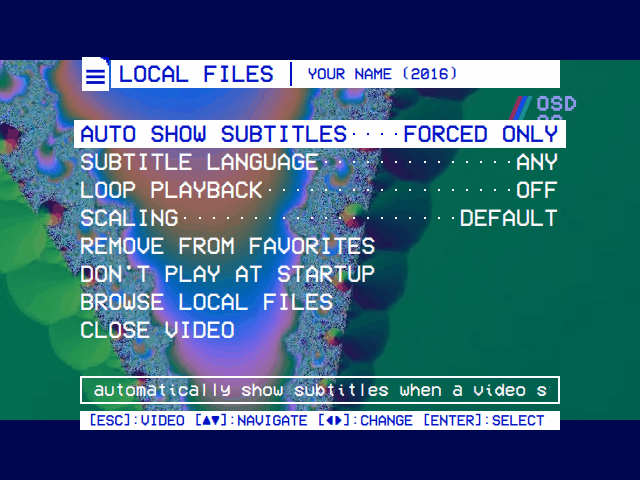 |
| OSD/OS's logo in a corner of the picture while a video plays. | It is in the picture itself, so with Transparent Background the menus lie over it. |
| Logo Image | Picking the picture |
|---|---|
 |
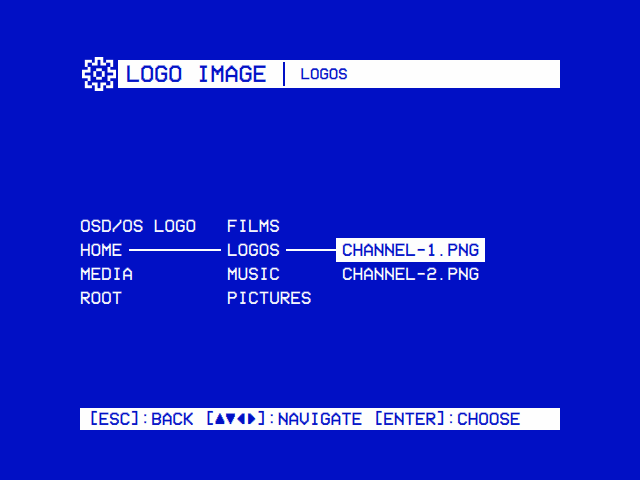 |
| A picture of your own in the logo's place, as tall as OSD/OS's logo. | Picked on the same file browser as everything else: select on a picture, or OSD/OS Logo at the top to go back to it. |
The file browser that Music File and Logo Image open is the tree Local Files is browsed with. At its top is the default (No File, OSD/OS Logo), then the places that exist on this system: Home, Media (/media, where the image mounts its OSD-OS partition and USB drives), Drives (/run/media/<user>), Volumes (/Volumes, on a Mac) and Root (/). It shows folders and the files of the types the setting takes, hidden ones left out, and opens at the file chosen now. Select on a file picks it and goes back; back at the top leaves the setting as it was.
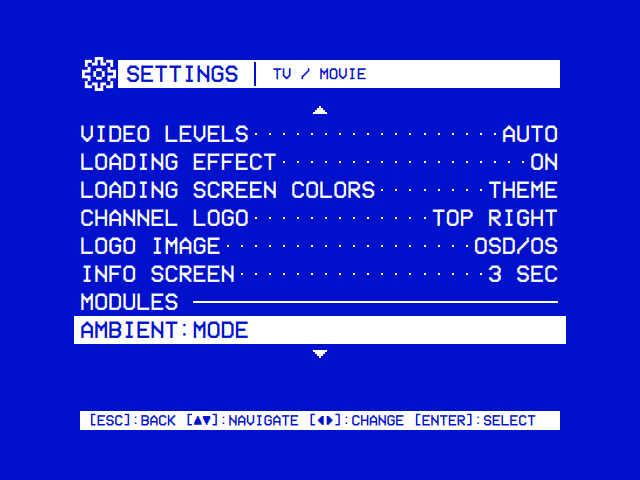
Under the page's MODULES heading is a row for each module of the TV / Movie group ("settings_group": "tv" in its manifest), in the order of their folders: Ambient:Mode, Emby, Jellyfin, Local Files, Netflix, NFC Reader, Playlists, Plex, Prime Video, Weather, YouTube. Select opens the module's own page; Modules below lists their rows.
The second row opens the games' page, SETTINGS | ARCADE: the Arcade module's own rows, then under a HIGH SCORES heading the High Scores module's, its Enabled, which puts High Scores on the main menu. The two modules make up the Arcade group ("settings_group": "arcade"), which shares one page: the cursor steps over the heading, and each row is saved in its own module, under modules.com.osdos.arcade or modules.com.osdos.highscores. Neither module has a row under a MODULES heading.
Under the GENERAL SETTINGS heading are the rows for the whole app: the look, what the menus are drawn on, starting up, and the menus' bars, screen saver and pointer.
The first rows under the heading set how the menus look: Theme, then one row for each part of a theme.
-
Theme names one of the themes, or None. Eight come with OSD/OS, and any folder with a
theme.jsonin the data folder'sthemesis one too (Themes). Choosing one with ◄ ► sets every part row below back to THEME, including the rows that are hidden at the time. -
THEME in a part row (saved as
"") means the part as the theme has it. -
Off (saved as
"Off") means none of that part, whatever the theme says. - A choice of its own (saved by its name) replaces the theme's. It stays as you set it until you choose another theme.
-
Without a theme the rows have no THEME choice, and
""shows as what the part is without one: Video 1, None or Off. - Color Scheme has no Off: everything is always drawn in two colours.
| Setting | Values | Default | What it does | Config key |
|---|---|---|---|---|
| Theme | None, then the themes by name: Arcade, Demoscene, Green Screen, Inferno, Late Show, Matrix, Trinitron, Winter, and those in the data folder's themes
|
None | The whole look in one: the color scheme, the skin, the effects and the menu music. Two themes of one name are told apart by their folder, Name (folder)
|
app.osd_theme: the theme's folder name (trinitron, late-show), "" for None |
| Color Scheme | THEME (with a theme), Video 1, Late Night, Synthwave, Terminal, T-120, Amber, Kinescope, SMPTE ECR 1-1978, and your own | THEME; without a theme, Video 1 | The two colours everything is drawn in: the text, lines and selection, and the background |
app.color_scheme: the scheme's name, "" for THEME |
| Skin | THEME (with a theme), None, DOS, Rounded, and those in the data folder's skins
|
THEME; without a theme, None | The shapes of the window's frame, the title and hint bars and the selected line, and icons of its own, drawn in the color scheme's colours (Skins) |
app.skin: the skin's folder name (dos, rounded), "Off" for None, "" for THEME |
| Text Effect | THEME, Off, Rainbow, Shimmer, Glow, Flicker | THEME; without a theme, Off | What the text, the lines and the bars do, drawn by the GPU | app.text_effect |
| Background Effect | THEME, Off, Matrix, Fire, Stars, Snow, Checkered Flag, Plasma | THEME; without a theme, Off | What goes on behind the menus, in the window, drawn by the GPU | app.background_effect |
| Selector Effect | THEME, Off, Sparkles, Welding, Lightning, Rainbow, Snow | THEME; without a theme, Off | What goes on round the selected line. Drawn by the CPU, so offered everywhere | app.selector_effect |
| Screen Effect | THEME, Off, Scanlines, CRT, VHS | THEME; without a theme, Off | A picture tube's or a tape's look over the whole screen, drawn by the GPU | app.screen_effect |
| Transition | THEME, Off, Fade, Cube, Ripple, Wave, Drop | THEME; without a theme, Off | How one window gives way to the next. Ripple, Wave and Drop need a GPU; without one a theme's falls back to Fade | app.transition |
| Menu Music | THEME, Off, File | THEME; without a theme, Off | A tune under the menus: the theme's, if it has one (Green Screen has none), or the file below (Menu music) |
app.menu_music: "", "Off" or "File"
|
| Music File | A file picked on the file browser: MP3, WAV, OGG, Opus, FLAC, M4A, AAC, MID, MIDI, XM, MOD, S3M or IT; or No File | None | The menu music's own file, played over and over. Select opens the file browser |
app.menu_music_file: the file's full path |
| Music Volume | A slider from QUIET to LOUD, 0 to 100 in steps of 10 | 60 | How loud the menu music is. It changes while the music plays |
app.menu_music_volume: a number |
The effects and the menu music rest while a video plays, loads or has its menu open, and while a player has the screen (Effects).
The eight color schemes, by the two colours they draw with (primary on surface):
| Scheme | Text, lines, selection | Background |
|---|---|---|
| Video 1 | #FFFFFF |
#0110C5, the blue of a VCR's menu |
| Late Night | #FFFFFF |
#000000 |
| Synthwave | #FFFFFF |
#12012B |
| Terminal | #4AF626 |
#000000 |
| T-120 | #000000 |
#FAF5E8 |
| Amber | #FFB000 |
#000000 |
| Kinescope | #FFFFFF |
#121212 |
| SMPTE ECR 1-1978 | #BFBFBF |
#131313 |
Schemes of your own come from two files in the data folder: custom_color_schemes.json, which adds any number of them by name, and custom_color_scheme.json, which adds one called Custom. Both are described, with examples, in Configuration files.
| Setting | Values | Default | What it does | Config key |
|---|---|---|---|---|
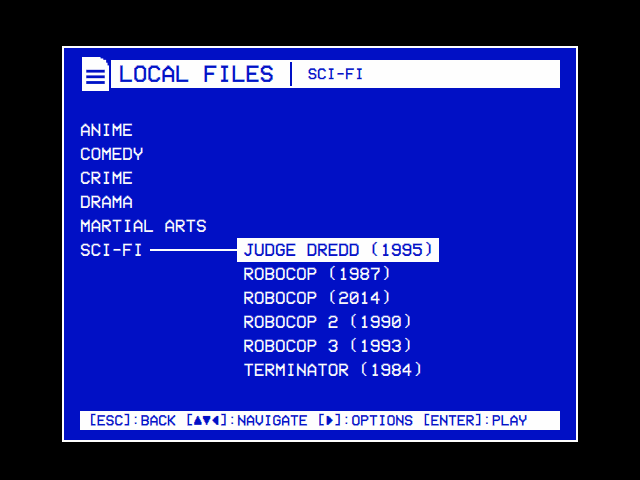
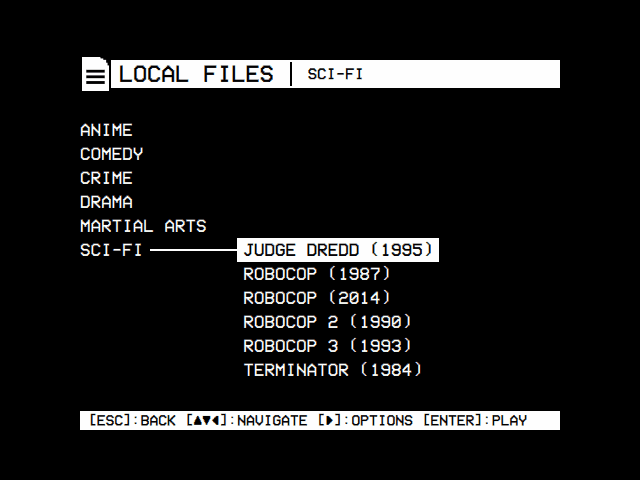
| OSD Background | Full, Off, Window | Full | What the menus are drawn on. Full: the color scheme's background over the whole screen. Off: none; the menus on black, in whichever of the scheme's two colours is the lighter, like a deck's on-screen display with nothing playing (so T-120's dark text doesn't vanish). Window: a framed window of the scheme's background behind the menus, black around it. Over a video playing behind the menus, the window lies over the picture, which shows whole around it | app.osd_background |
| Window Frame | On, Off, Shadow | On | Offered with Window only. On: a line round the window in the scheme's colour, or the skin's own frame. Off: no frame. Shadow: the line and a DOS window's shadow down the right side and along the foot, a half tone of the window's colour (over a video, it darkens the picture) | app.osd_frame |
| OSD Background: Window | OSD Background: Off | Window Frame: Shadow |
|---|---|---|
 |
 |
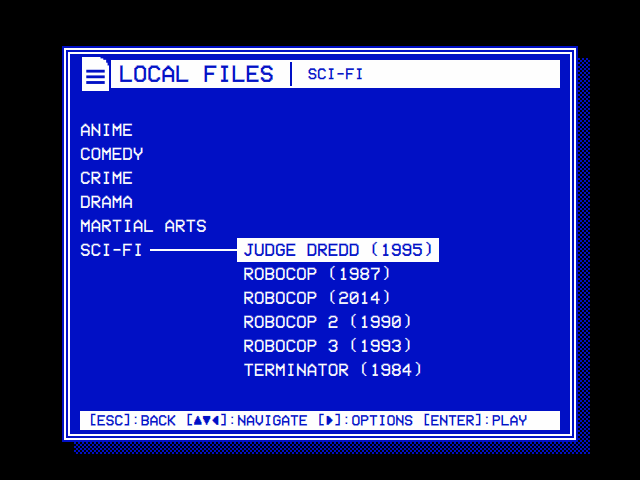 |
| The menus in a framed window of the color scheme's background, black around it. | No background: the menus on black, in the scheme's lighter colour. | Skin DOS gives the frame a double line; Window Frame Shadow adds a DOS window's shadow. |
| Setting | Values | Default | What it does | Config key |
|---|---|---|---|---|
| Start on Module | None, then each module that is turned on, by name | None | Opens that module straight after start (on the OSD/OS image, once the boot screen has closed). A module turned off later is never opened, and the row shows None |
app.startup_module: the module's id, such as com.osdos.local_files; "None"
|
| Play at Startup | None, or the name of the favourite chosen | None | A favourite played straight after start, ahead of Start on Module. You choose it in its module: ► on the entry, then Play at Startup (it goes on Favorites too). Here you can only turn it off. It plays only while it is still one of that module's favourites |
app.startup_favorite: { "module", "path", "name" }, or "" for None |
| Startup From | Resume, Beginning | Resume | Offered while there is a favourite to play at startup. Where it begins, without asking: where it was stopped, or from the start | app.startup_from |
| Boot Screen Colors | Theme, Default | Theme | The colours of the boot screen on the OSD/OS image, its cassette and the services coming up: the theme's or colour scheme's, or white on blue |
app.boot_colors: "Theme" or "Default"
|
The Scripts module's Auto-Run On Startup runs a script when OSD/OS starts on that module, so it needs Start on Module set to Scripts (Scripts).
| Setting | Values | Default | What it does | Config key |
|---|---|---|---|---|
| Hint Bar | On, Off | On | The key hints on the bar at the foot of every screen. Off hides every one, and what is above it takes its room: a row more in every menu, more of the file browser, a help line moved down into its place; the keys work as before, and the window stays as it is | app.hint_bar |
| Help Line | On, Off | On | The box under a menu with a line about the selected row. Off hides it everywhere but About, whose lines are the page, and the menu above it gets a row more | app.help_line |
| Status Icons | On, Off | On | What is on, at the right end of every title bar and at the bottom right of the Arcade screen (below). Off hides them | app.status_icons |
| Screen Saver | OFF, 30, 60, 120 | OFF | Seconds before a black screen with the OSD/OS logo bouncing across it, against CRT burn-in: in the menus after that long without a key or a mouse move, and over a video paused that long (mpv draws it then). Never over a playing video, a running script or the boot screen. The first key only wakes it |
app.screensaver_timeout: "OFF" or the seconds |
| Mouse Pointer | Off, 2 sec, 5 sec, 10 sec, 30 sec, Always | 5 sec | A mouse's pointer, or a keyboard touchpad's, drawn in the OSD's pixels: it shows as the mouse moves and goes again after this long without moving. Off: never shown. Always: stays. Moving the mouse also wakes the screen saver. The menus still go by keys |
app.mouse_pointer: off, 2, 5, 10, 30 or always
|
With Status Icons on, the right end of every title bar shows what is on, the way a phone's status bar does, in the bar's pixel symbols:
| Icon | Shown while |
|---|---|
| HI | Arcade's Save High Scores is on (Arcade) |
| A trophy | Arcade's Online High Scores is RetroAchievements and its account is signed in, or signs in at the next game |
| A globe | Arcade's Online Play is on |
| A network, two machines joined to a third | Arcade's LAN Play is on |
| Bluetooth's rune | Bluetooth is on; with a dot either side while a device is connected |
| Wi-Fi's bars | Wi-Fi is on: the signal of the network it has joined, or the bars' feet alone while it has joined none |
The Arcade screen, whose bar is its own, shows them at its bottom right, beside the help line (with the help line off, at the right end of the hint bar, while the keys still fit beside them). A module turned off takes its icons with it.
Under the first screen's MODULES heading is a row for each module that belongs to neither page: Scripts, and a module of your own that names no group. Every module that has settings, which is all fourteen, brings them in its manifest.json (Writing a module), and select on its row opens its page, SETTINGS | <MODULE>; the Arcade group's two share the Arcade page. Where a module's row is depends on its group, settings_group in the manifest:
| Group | Where the module's page is | Modules, in the order of their folders |
|---|---|---|
| None | Under MODULES on the first screen, after the general settings | Scripts |
"tv" |
Under MODULES on TV / Movie's page (above) | Ambient:Mode, Emby, Jellyfin, Local Files, Netflix, NFC Reader, Playlists, Plex, Prime Video, Weather, YouTube |
"arcade" |
The Arcade page, which the group's modules share, each after the first under its name as a heading (above) | Arcade, High Scores |
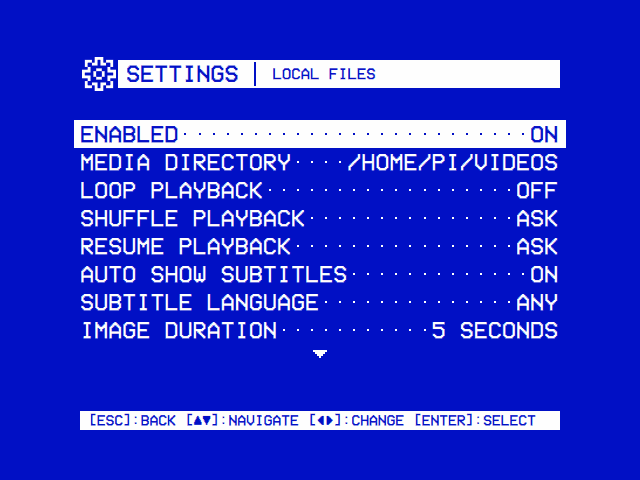
| A module's settings | Picking a folder |
|---|---|
 |
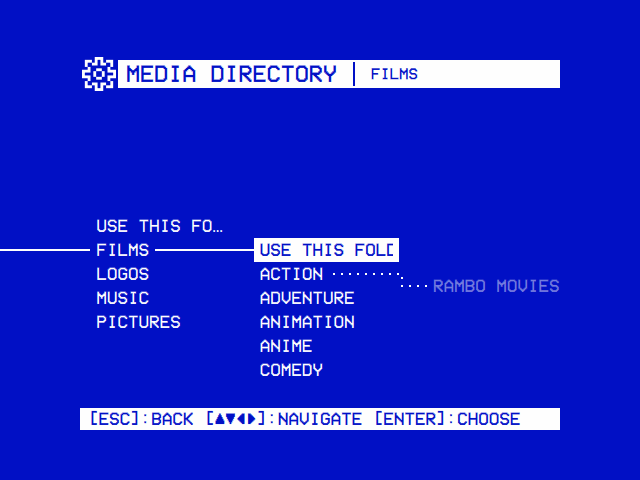 |
| Local Files: its folder, looping, shuffle, resume, subtitles, and its own Scaling. | A folder is picked on the same tree: Use This Folder picks the folder open, Default Folder the module's own. |
Every module's first row is Enabled. A module that is turned off is left off the main menu, can't be chosen in Start on Module, and an NFC card can't hand off to it. Until you change the row, the manifest's default applies: Local Files and Playlists are on, the other twelve off. The main menu picks up a change the next time you go back to it. The setting is saved as modules.<module id>.enabled, true or false.
| Module | Module id | On by default | Its rows, in order |
|---|---|---|---|
| Ambient:Mode | com.osdos.ambient_mode |
No | Enabled, Media Directory, Auto-Launch Playback, Scaling |
| Arcade | com.osdos.arcade |
No | Enabled, Games Folder, Hide Hacks and Bootlegs, Screen, Play at Startup, Start Info Screen, Save High Scores, Online High Scores (with RetroAchievements, RetroAchievements Account), Pictures From, Game Pictures, Online Play (with On, Relay Server), LAN Play, Online Name (with either on), FinalBurn Neo, Emulator Video (Screen Shape, Integer Scale, MAME Video), Read the Games Again; with Screen on Arcade, Start Filter, Menu Filters, List Style, Border, Info Background, Screen Adjustment, Hint Bar and Help Line too |
| Emby | com.osdos.emby |
No | Enabled; once signed in Libraries, Video Quality, Resume Playback, Autoplay Next Episode, Intro Skip, Credit Skip; Scaling; Sign out once signed in |
| High Scores | com.osdos.highscores |
No | Enabled, on the Arcade page under the HIGH SCORES heading |
| Jellyfin | com.osdos.jellyfin |
No | Enabled; once signed in Libraries, Video Quality, Resume Playback, Autoplay Next Episode, and Intro Skip and Credit Skip where the server has the Intro Skipper plugin; Scaling; Sign out once signed in |
| Local Files | com.osdos.local_files |
Yes | Enabled, Media Directory, Loop Playback, Shuffle Playback, Resume Playback, Auto Show Subtitles, Subtitle Language, Image Duration, Hide File Extensions, Scaling |
| Netflix | com.osdos.netflix |
No | Enabled, Catalogue Region, Catalogue Language, Scaling, Sign in, Sign out |
| NFC Reader | com.osdos.nfc_reader |
No | Enabled, Tags Directory, Resume Playback, YouTube Video Resolution, Auto Show Subtitles, Subtitle Language, Scaling |
| Playlists | com.osdos.playlists |
Yes | Enabled, Download Folder, Subtitles, Loop Playback, Scaling |
| Plex | com.osdos.plex |
No | Enabled; once signed in Current User, Auto Sign In, Server, Libraries, Video Quality, Resume Playback, Autoplay Next Episode; Scaling; Sign out once signed in |
| Prime Video | com.osdos.prime_video |
No | Enabled, Catalogue Region, Catalogue Language, Scaling, Sign in, Sign out |
| Scripts | com.osdos.scripts |
No | Enabled, Scripts Directory, Auto-Run On Startup, Rescan Scripts |
| Weather | com.osdos.weather |
No | Enabled, Displays, Music, Units, Screen Time, Hours Format |
| YouTube | com.osdos.youtube |
No | Enabled, Advanced (Playback Resolution, Video Codec, Max Frame Rate, Scaling, Audio Language, Subtitles, Subtitle Language, Playback Speed, Resume Playback, Display Shorts), Delete Watch Later, Delete Recently Watched, Sign in, Sign out |
Each module's page on this wiki explains its rows. Every module that plays video has its own Scaling: Default (follow Settings → TV / Movie → Scaling) or one of the four, for that module only.
Kind (type in the manifest) |
How the row looks | ◄ ► | Select | Saved in modules.<id> as |
|---|---|---|---|---|
toggle |
LABEL······ON |
Flips it | Flips it |
true or false; unset, the manifest's default ("ON" or "OFF") |
list_single |
LABEL······VALUE |
Steps through the choices, round | Nothing | The choice's text for a fixed list ("Pan & Scan"); for a list the module supplies ("options_source": "dynamic"), the choice's id ("ask", "forced") |
multiselect_submenu |
LABEL |
Nothing | Opens a page of NAME······ON lines, one per choice, under headings when the module groups them; ◄, ► or select flips one, and on a heading turns all of its group on, or off once they all are on |
An object under the key, { "<id>": true, "<id>": false }, saved whole at every change; a choice not in it is on (Plex's Libraries: every library shows until you turn it off), unless the module makes it off until turned on (Arcade's Menu Filters' publishers) |
submenu |
LABEL |
Nothing | Opens a page of its own rows, titled MODULE / LABEL (YouTube's Advanced) |
Nothing itself; its rows' keys stay flat under the module |
directory_browser |
LABEL······/PATH, or DEFAULT
|
Nothing | Opens the folder picker: Default Folder first, then the places, and Use This Folder at the top of every folder | The folder's path; "" for the module's own |
slider |
LABEL, and under it the deck's tape bar between its two ends' names |
Moves the ▼ a step toward either end | Nothing | A number from 0 to 100; unset, the manifest's default (Arcade's Info Background) |
action |
LABEL |
Nothing | Runs it at once: Sign out, Delete Watch Later, Rescan Scripts | Nothing |
module_view |
LABEL |
Nothing | Opens the module on one of its own screens, enabled or not: Sign in for Netflix, Prime Video and YouTube, Arcade's Screen Adjustment | Nothing |
Some rows wait for something:
-
Once signed in (
requires_auth): Plex's, Jellyfin's and Emby's server rows appear only after you have signed in, from inside the module. -
When the server can (
requires_capability): Jellyfin's Intro Skip and Credit Skip appear only when the server reports media segments, which its Intro Skipper plugin provides. -
At once (
apply_slot): changing Plex's Current User or Server tells the module straight away, and it switches.
| Setting | Values | Default | What it does | Config key |
|---|---|---|---|---|
| Display Output | HDMI, Composite NTSC, Composite PAL, GPIO Composite NTSC, GPIO Composite PAL, SCART RGB NTSC, SCART RGB PAL, SCART RGB 240p, SCART RGB 288p, JAMMA 240p 15 kHz (720x240), JAMMA 240p 15 kHz (320x240), JAMMA 240p 15 kHz (1920x240), JAMMA 288p 15 kHz (720x288), JAMMA 288p 15 kHz (1920x288), JAMMA 480i 15 kHz (720x480), JAMMA 576i 15 kHz (720x576), JAMMA 25 kHz (496x384), JAMMA 31 kHz (640x480): those this Pi has | The image's build setting, HDMI unless built otherwise | On the OSD/OS image only. Where the picture goes. A change restarts the Pi on the new output, powers it off for it, or waits for its next start, and the new output stays only when you keep it. Next: while one waits | None: the preset is copied over /boot/firmware/osdos-display.txt
|
| Audio Output | Auto, then each sound card that can play: AV Jack, HDMI (HDMI 0 and HDMI 1 when there are two), a USB card by its name | Auto | Which sound card plays, from the moment you choose it, for a video playing behind the menus too. Auto is the Pi's own default |
app.audio_output: "" for Auto, or { "card", "name" }
|
| Controls | A page | Each controller connected, with its own buttons and a pad's button labels; the pads of players 1 to 6; and one more key for each action on every keyboard and remote |
app.controllers.<key>, app.players, app.remote_keymap.<action>
|
|
| Wi-Fi | A page | The networks within reach, joined with their passwords; one not listed; the networks saved; the country Wi-Fi keeps to the rules of | None: NetworkManager keeps the networks joined | |
| Bluetooth | A page | Searching for, pairing and connecting keyboards, gamepads and remotes | None: BlueZ keeps the pairings | |
| Update | A page | Checks for a newer release, downloads it and installs it | None | |
| About | A page | This device's System Information first: its name, which tells it apart from others on the network, what it is and each network connection's IP and MAC addresses, the name renamed on the OSD/OS image. Then what OSD/OS is, who makes it, what it is made of, the arcade's free software and sites, and their licenses | None: the device's name is the system's hostname | |
| Quit | A question | Quits OSD/OS, or under the image's service powers off, restarts or drops to a terminal | None |
Select opens the list of the outputs this Pi has, with the board's model and the output in use (Now: HDMI). Choose another, then:
- Switch and Restart: OSD/OS restarts the Pi on it.
- At Next Start: it is written now, and the Pi stays on as it is. It starts on the new output the next time it starts. The row reads Next: until then; choosing the output in force again takes it back (Stay on ?, Stay).
- Switch and Power Off: it is written, and the Pi powers off, to start on it when switched on. With At Next Start, the way to set up a screen that isn't here, as a JAMMA cabinet's.
On the new output it first asks Keep this display output?. Keep keeps it. Switch Back, or 30 seconds without an answer (a TV that shows nothing), goes back to the output before, restarting again, and says so. Back does nothing there, so a key pressed at random on a blank screen can't keep it.
The row needs the OSD/OS image's presets beside config.txt, the app started by the image's service, and a launcher new enough to switch (OSDOS_LAUNCHER_API 3; 4 for JAMMA 240p; 5 for At Next Start and Switch and Power Off; 6 for the JAMMA board's other modes). JAMMA 25 kHz and 31 kHz say first that they are for a monitor made for that scan rate only: too high a one can damage a 15 kHz monitor. The outputs, the cables and how to put a card right from a computer are in Display Output.
◄ ► step through Auto and the cards ALSA lists that can play (so a webcam's microphone isn't one). The Pi's analog card is AV Jack, its HDMI cards HDMI, and any other card shows by its own name, its id after it when two share one. mpv is told the card as --audio-device=alsa/default:CARD=<id>, and a script or a web player's browser gets ALSA_CARD=<id>. A card chosen and then unplugged stays chosen, shown as NAME (Unplugged): sound goes as on Auto until it is back. Without a USB sound card to choose, the help line says what the system sees of one: none plugged in, one plugged in that the system made no sound card of, and on a Pi a power supply too weak for USB devices. On Auto nothing is added, so audio-device in mpv.conf and /etc/asound.conf still choose. More in Audio Output.
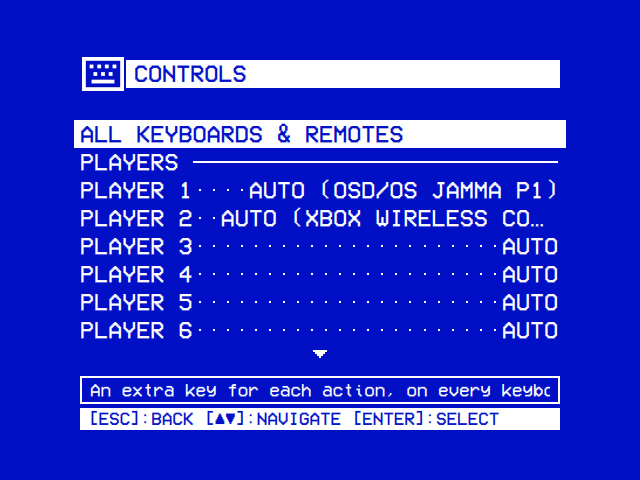
Controls lists every controller connected: each gamepad (the JAMMA board's two sticks among them, as ARCADE) and, on Linux, each keyboard and remote, with ◄ on the one used last. Controllers away with settings of their own follow under Not Connected. Above them, Player 1 to Player 6 choose the pad each player has in games, from the pads connected, or Auto (the JAMMA board's stick of that number, else the pads in the order they came): all six lines, whatever is connected. Select on a controller opens its page:
- Button Labels (a pad's): Auto, Xbox, PlayStation, Nintendo or Arcade, what its buttons are called on its page and in the hints.
- Arcade Buttons (a pad's): which of its buttons is each of an arcade cabinet's, Button 1 to 8, Coin and Start, in the Arcade module's games: a layout (Default, Fighting 6, Neo Geo 4) or each set by a press, with a cabinet's control panel drawn beside them (Controls → Arcade Buttons).
- Up, Down, Left, Right, Select / OK, Back, Play / Pause: what does each on it. Select, then press a button on that controller: on a pad that button does the action from then on; on a keyboard or remote the key is one more for it, on that one only. Another controller's Back cancels, and so does whatever does Back on a keyboard or remote; the wait ends by itself after 10 seconds. A pad keeps one Select / OK, one Back, one Up and one Down, and a keyboard's or remote's keys for Select / OK, Up and Down and the keys the menus use keep what they do: the help line says why nothing changed.
- Clear a Button (a pad's) or Remove a Key, and Reset to Defaults.
The first line, All Keyboards & Remotes, adds one more button to each of six actions on all of them at once: Up, Down, Left, Right, Select / OK and Back. Select on a row asks Press a new button for [ACTION]. The next key pressed is saved: a keyboard's key, a remote's own button (a remote's separate Consumer Control buttons such as Home or Menu, read straight from the device on Linux), or a mouse button (an air mouse's OK is often a left click, which without a desktop is Select / OK already). Whatever does Back cancels instead of binding, and the buttons that do Select / OK, Up or Down and the keys the menus use (the arrows, Enter, Space) keep what they do. The row then reads DEFAULT + KEY.
- The default key always keeps working, so a bad choice can't lock you out.
- One button serves one action: binding a button to an action takes it off any other.
- Reset to Defaults clears all six.
- Saved as
app.remote_keymap.up,.down,.left,.right,.selectand.back, each a number: a Qt key code; a Consumer Control button as 33554432 (0x02000000) plus its Linux key code; a mouse button as 50331648 (0x03000000) plus Qt's button number (1 left, 2 right).0means none.
A controller's own settings are saved under app.controllers, by its key. Every gamepad's buttons, the map each pad starts from, can also be set in the data folder's input.cfg. All of it is in Controls.
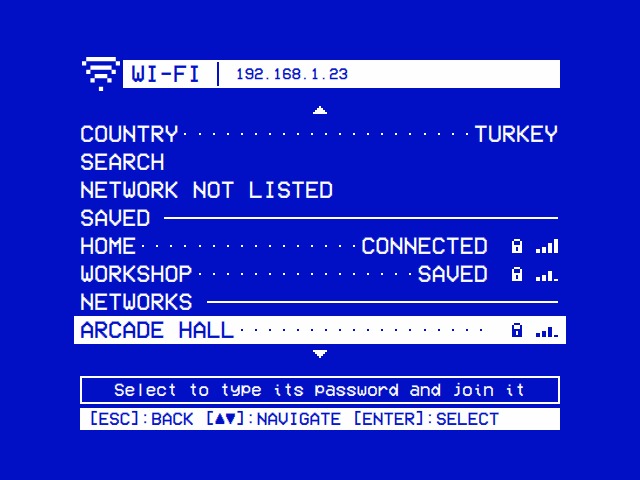
| Wi-Fi | The country |
|---|---|
 |
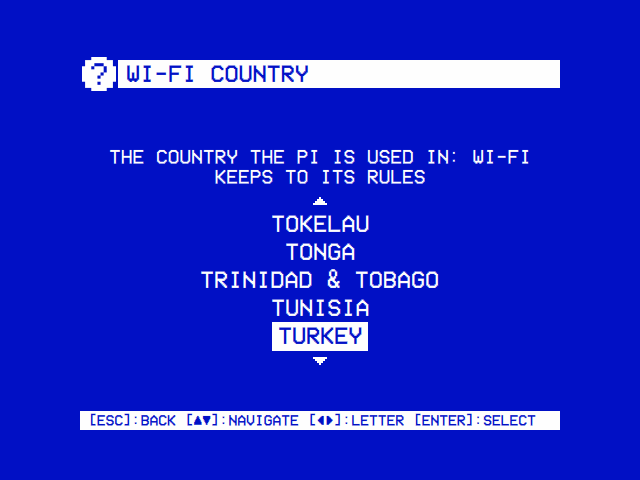 |
| Each network with its lock, when it wants a password, and its signal in bars. The one joined says so, and the title bar shows the Pi's address on it. | Wi-Fi stays off until the country is set. ▲ ▼ move a country at a time, ◄ ► from letter to letter. |
The page talks to NetworkManager, Raspberry Pi OS's network service, as the user OSD/OS runs as. On the OSD/OS image, and after install.sh with its autostart service, a polkit rule lets that user use it from the service, which runs outside any login session (launcher level 7).
- Wi-Fi turns it on or off. Blocked means a switch keeps the radio off.
- Country is the country the Pi is used in, whose rules the radio keeps to. Raspberry Pi OS keeps Wi-Fi off until it is set, so turning Wi-Fi on without one opens its chooser first, on the system time zone's country.
- Search looks for networks for a minute; select stops it early. The networks NetworkManager hears are listed without it too.
- Network Not Listed joins one that doesn't say its name: type its name, then choose whether it is open or type its password.
- Saved lists the networks NetworkManager keeps: the one joined first, then those it joins by itself, and those out of reach as Not Here. Select offers Connect, New Password and Forget; on the one joined, Disconnect and Forget.
-
Networks lists the others, the strongest first. Select one and type its password on the on-screen keyboard; an open one is joined at once. A network joined is saved and joined by itself from then on, after a restart too; one that couldn't be joined, a wrong password say, isn't kept. One that wants a user name too (WPA Enterprise) can't be joined here. A network chosen while another is being joined takes its place. A password with a character the on-screen keyboard hasn't (such as
/,:or a bracket) can be typed on a real keyboard into the same box. - The help line says how it went: Connected to …, or why not (wrong password?, it gave no address (DHCP), it is out of reach).
- Leaving the page stops a search.
If NetworkManager isn't running, or the computer has no Wi-Fi, the page says No Wi-Fi. On a Mac, join networks in the Mac's own settings.
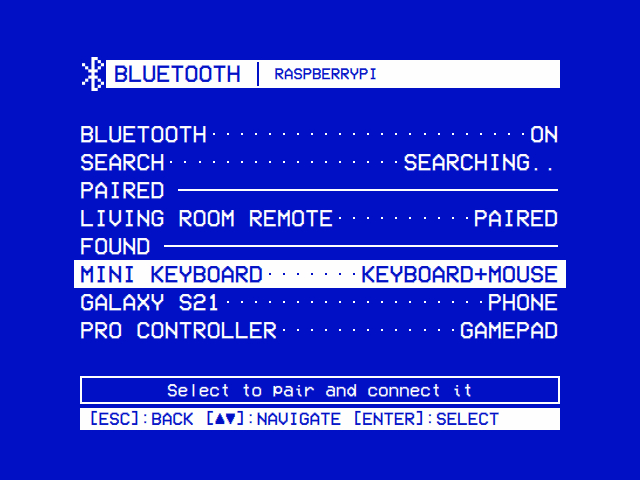
| Bluetooth | Pairing a keyboard |
|---|---|
 |
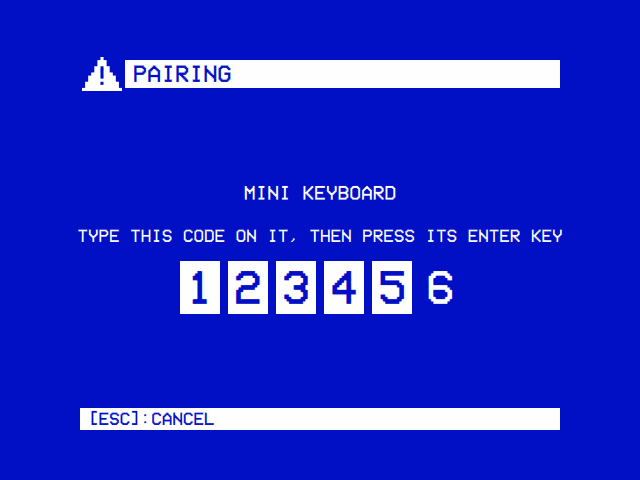 |
| Search finds what is in pairing mode nearby for a minute. Select pairs one and connects it. | A keyboard is paired by typing the code it asks for, then its Enter. The digits light up as they are typed. |
The page talks to BlueZ, Linux's Bluetooth service, as the user OSD/OS runs as (who must be in the bluetooth group; install.sh and the image add it).
- Bluetooth turns the adapter on or off. If it won't turn on, a Details line appears with what the system says about it (the adapter's state, rfkill's switches, the system log's last Bluetooth lines), so a photo of the screen shows what went wrong.
- Search looks for devices for a minute; select stops it early. Put the device in pairing mode first.
- Found lists what the search found. Select pairs a device, trusts it so it reconnects by itself after a restart, and connects it. A keyboard shows a code to type on it; a phone shows the same code on both, to confirm; a gamepad or mouse asks nothing. Back cancels a pairing.
- Paired lists the paired devices. Select offers Connect or Disconnect, and Forget.
- Leaving the page stops a search and cancels a pairing.
If BlueZ isn't running, or the computer has no adapter, the page says No Bluetooth. On a Mac, pair devices in the Mac's own Bluetooth settings.
![Update: INSTALLED: DEV, PRESS [ENTER] TO CHECK FOR LATEST](https://raw.githubusercontent.com/mehmetraif/OSD-OS/main/docs/screenshots/update.png)
Update compares the installed version with the latest release of mehmetraif/OSD-OS and shows its notes (▲ ▼ scroll them). Select does the next step, which the hint bar names:
- CHECK asks GitHub for the latest release, and offers it only when its version is newer than the one installed: an older one is never offered (You're up to date).
-
DOWNLOAD fetches this platform's file (
-linux-arm64.tar.gzon a Pi,-linux-x86_64.AppImage,-macOS-arm64.dmg) into the data folder'supdates, with a progress bar, and checks it against the SHA-256 digest GitHub keeps for it. Back during a download cancels it. -
INSTALL asks Install update?:
-
Apply & Restart on a Pi under the autostart service: OSD/OS exits, and the launcher swaps the new release into
/opt/osdosbefore it starts again. -
Quit & Apply on Next Launch on a Pi run by hand, and on an AppImage: on a Pi the launcher applies it at the next start; an AppImage swaps the new file over itself at once (keeping a
.bakuntil the new one starts), then starts it again in a desktop session, or just quits in Steam's Gaming Mode, for Steam to start it. -
Apply & Relaunch on a Mac with the app in
/Applications, or Quit & Open Disk Image when it is elsewhere. - Discard Update deletes the download.
-
Apply & Restart on a Pi under the autostart service: OSD/OS exits, and the launcher swaps the new release into
A build made from source (DEV) can check but not download, and so can the OSD/OS image when built from a branch rather than a release. An install that can't apply updates says why under the status line: one made before in-app updates, or 240-MP's, needs the installer run once more; one outside /opt/osdos must be updated by hand. Everything about installing is in Installation.
| About | The license |
|---|---|
 |
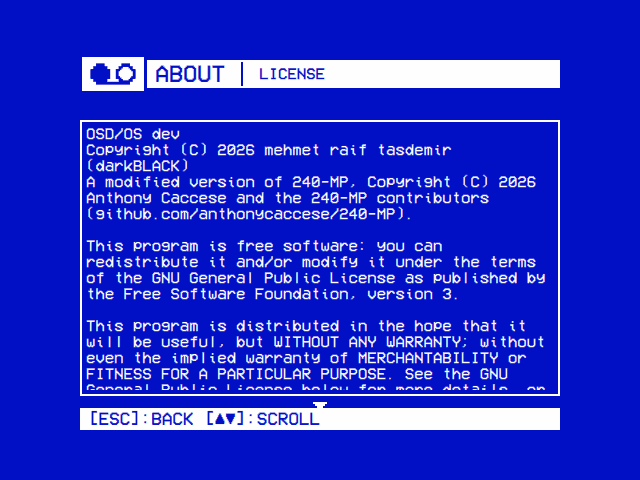 |
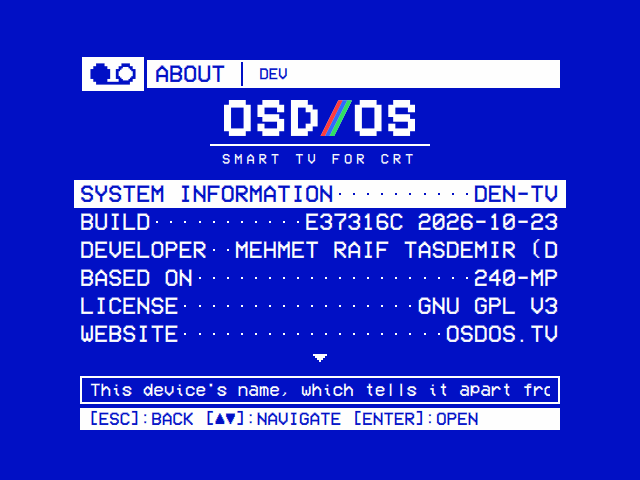
| The wordmark, then System Information with this device's name, and a line for each part of what OSD/OS is, its detail in the help line. | Behind the LICENSE line: the notice, then the GNU GPL's text, a page at a time. |
About opens on the OSD/OS wordmark and SMART TV FOR CRT. Its first line, System Information, shows this device's name, and select opens its page (below). Under it are lines whose help line carries the detail, shown even with Help Line off: Build (the commit the build was made from and the day; the version is in the title bar), Developer, Based On (240-MP), License (GNU GPL v3), Website (osdos.tv, with OSD/OS Setup), Source, Written With (Claude Code), Artwork (ChatGPT), Fonts (VCR OSD Mono, Unifont), Built With (Qt, SDL2, mpv), Image OS (Raspberry Pi OS) and Data (TMDB, Open-Meteo). Select on License shows the notice the GPL asks for, then the license's text from the LICENSE file every build carries, a page at a time with ▲ ▼ (Credits).
Under the ARCADE heading are the free software the Arcade and High Scores modules play and read with, MAME, RetroArch, FinalBurn Neo, openhi2txt, hi2txt, RapidXML and minizip, zlib, and the sites they read from, RetroAchievements (leaderboards, pictures and badges), Online Play (libretro's lobby), progetto-SNAPS (the pictures' packs and catver.ini, by AntoPISA) and ArcadeDB (Arcade Database by motoschifo, whose service gives the pictures game by game). Select on a software line shows its license the same way: the GNU GPL v3 or v2, RapidXML's or zlib's, which every build carries, and FinalBurn Neo's from the core as it was installed or downloaded (without it, where to download it).
| System Information | Renaming the device |
|---|---|
 |
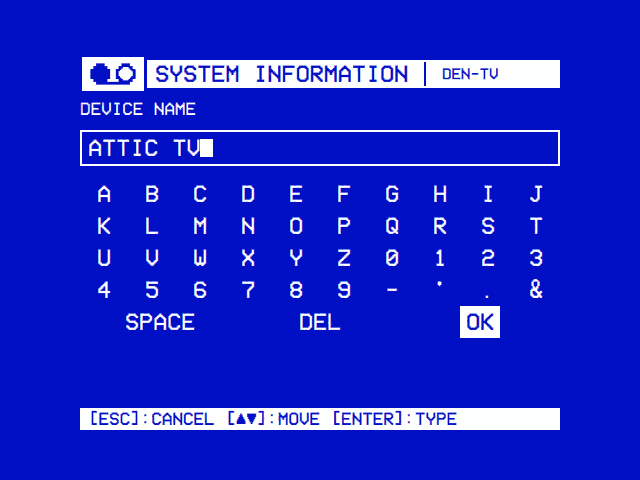 |
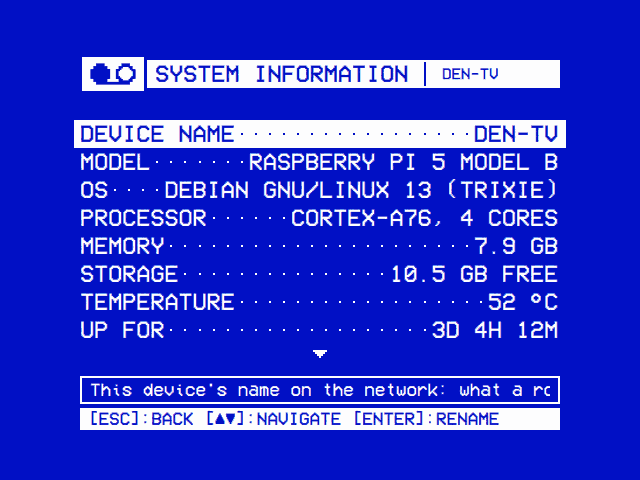
| The device's name first, and in the title bar, then what it is and each connection's addresses, read again every few seconds. | On the image, select on the name types a new one: a space becomes a hyphen, and capitals small letters. |
About's first line, System Information, opens a page that tells one OSD/OS from another on the same network, and says what it runs on:
-
Device Name is the system's hostname: what a router lists the device under, and what the others on the network reach it at,
<name>.local. LAN Play's games are hosted under it too, unless Arcade → Online Name says another (Arcade → LAN play). Every OSD/OS image starts asosdos, unless Raspberry Pi Imager's customisation named it, so give each one a name of its own. - Model is the board (Raspberry Pi 5 Model B) or the computer, a Pi's revision and serial number in the help line. OS is the operating system, OSD/OS's version and the kernel's in the help line; Processor its kind and how many cores it has; Memory how much there is, how much is free in the help line.
- Storage is what is free on the drive the data folder is on, and Media Storage what is free on the films' own drive where it is another, the image's OSD-OS partition. Temperature is the processor's, Up For the time since the system last started.
- Network lists each of the device's own connections, Ethernet first, then Wi-Fi, not a bridge's or a tunnel's: its IP address (the first IPv4 one; every one in the help line), or Not Connected, and its MAC address, by which a router can keep the same IP address for the device. Two of a kind are Ethernet and Ethernet 2.
On the OSD/OS image, select on Device Name renames the device on the on-screen keyboard: letters, digits and hyphens, 63 at most, neither end a hyphen. A space or an underscore becomes a hyphen, and capitals small letters. The new name holds at once and after a restart, and the help line says Now called …, or why not. The image's stop helper sets it as root (launcher level 8, The device name's socket). Elsewhere, rename the computer in its own settings: sudo hostnamectl set-hostname <name> on Raspberry Pi OS.
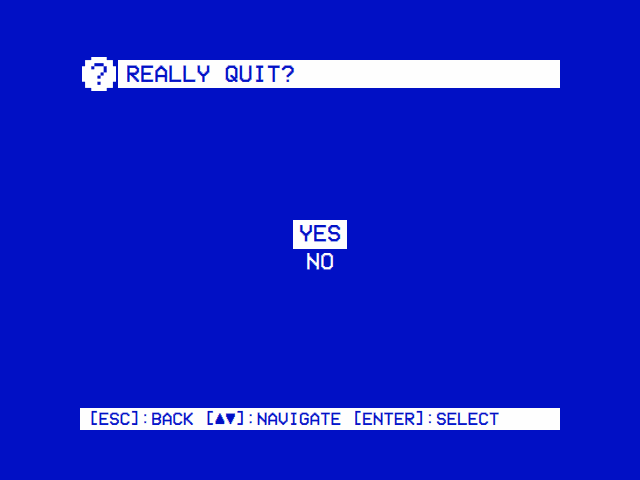
Select asks Really quit?. Run by hand, or on a Mac, the answers are Yes and No. Started by the autostart service (OSDOS_AUTOSTART is set, as on the OSD/OS image), they are:
| Answer | Exit code | What the service's stop helper (osdos-stop) does |
|---|---|---|
| Power Off | 0 | Powers the Pi off |
| Restart | 12 | Reboots. Offered when the launcher is new enough (OSDOS_LAUNCHER_API 2 or later) |
| Exit to Terminal | 10 | Starts a login shell on tty1; sudo systemctl start osdos brings OSD/OS back |
| Cancel | Nothing |
Ctrl+Q on a keyboard quits too, which under the service is the same as Power Off. sudo systemctl stop osdos over SSH stops the app and leaves the Pi on.
A few app settings have no row and are set in config.json by hand, with OSD/OS stopped (Configuration files):
| Key | Values | What it does |
|---|---|---|
app.display_index |
A number, 0 by default |
The display the menus open on, and mpv plays on, when a Mac or a Linux desktop has several. The log lists them at start: [main] display index 1: "…" 1280x720 at (3840,0). Out of range falls back to 0 |
app.mpv_video_args |
A string of mpv flags, separated by spaces | Replaces the video output and decoder flags OSD/OS picks for the device (Playback and mpv) |
app.auto_crop |
On, Off
|
The setting before Scaling: On reads as Pan & Scan while app.video_scaling is unset |
app.theme |
A skin's folder name | The Skin setting before skins had their own name, read while app.skin is unset |
-
Configuration files:
config.jsonand everything else in the data folder - Playback and mpv: what Scaling, Transparent Background, Video Levels, Channel Logo and Audio Output do to mpv
- Themes, Skins, Effects and Menu music: the look in detail
- Display Output and Audio Output
-
Controls: keyboards, remotes, gamepads and
input.cfg - Modules: what each module does
- Using OSD/OS