Repository navigation
Editor Assets
Open Model → GLB preview in Arkline Editor. This workspace lets you check a static model's geometry, scale and material batches before keeping a copy in your project. It uses a separate preview; importing does not replace the live ship or create a world object.
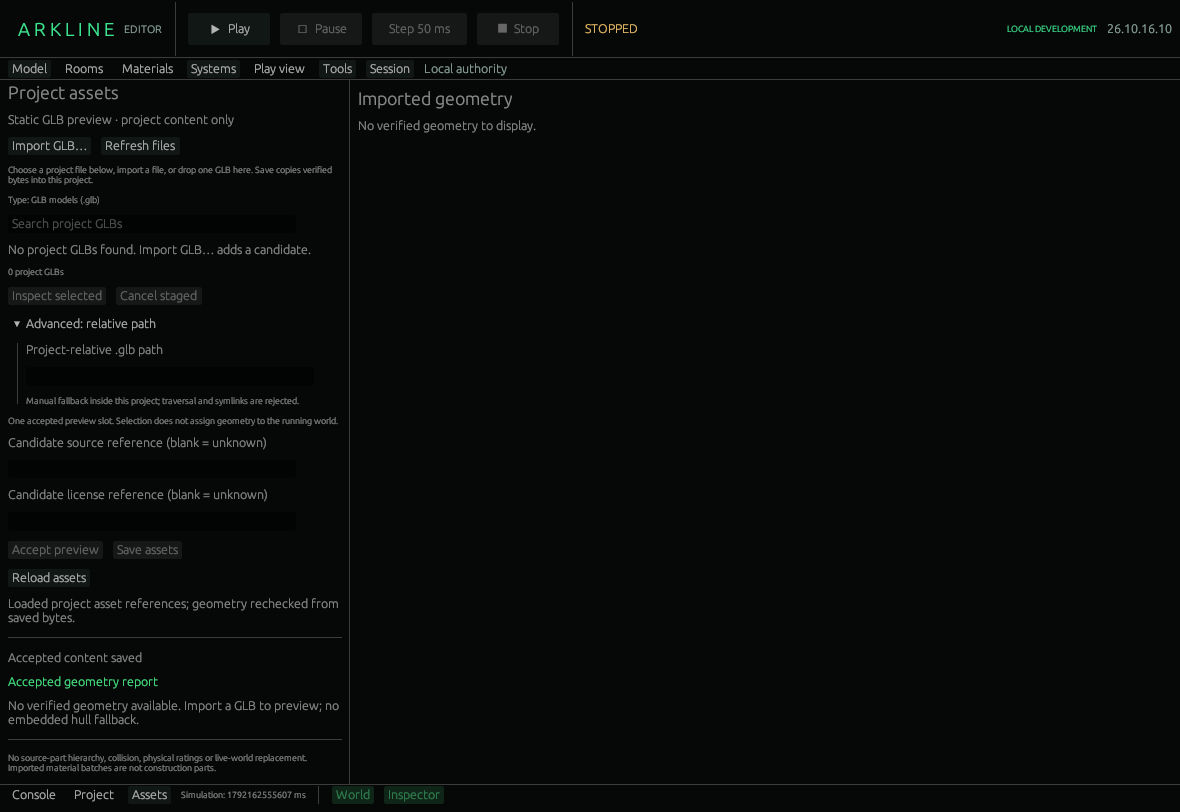
Project assets workspace before importing a GLB.
The searchable Project assets list shows GLB files. Refresh files scans again. Select a file and choose Inspect selected, or double-click it. Import GLB… opens a native file chooser; dropping one GLB also stages it. The chooser and drop can read an external file without changing the original. Advanced: relative path provides a project-relative fallback.
These actions have different effects:
| Action | Effect |
|---|---|
| Inspect | Stages verified geometry for review. Selecting a file alone does not inspect or accept it. |
| Accept preview | Replaces the local accepted preview with the staged candidate. It is still unsaved. |
| Cancel staged | Discards the candidate and keeps the accepted content. |
| Save assets | Copies verified bytes into the project and saves the accepted record. |
| Reload assets | Reads the saved record and verifies its bytes again. Unsaved accepted changes are replaced. |
Enter Candidate source reference and Candidate license reference before accepting. Blank means unknown. These references belong to the accepted revision; changing candidate text alone does not change the saved record.
Drag to orbit and scroll to zoom. The meter ruler helps judge scale. The report gives measured XYZ dimensions, origin-relative minimum/maximum bounds, triangle count, material-batch count and decoder notes. Expand Material bindings to read batch names; they are not editable construction parts. Show staged geometry switches between the candidate and accepted report/preview when both exist.
Coordinates preserve the exported origin: +X forward, +Y up, +Z starboard, in metres. The importer does not rotate or resize the model to fit a ship.
- Import a supported GLB and inspect its bounds and decoder notes.
- Orbit the model and compare its dimensions with your intended export.
- Add known source/license references, then choose Accept preview and Save assets.
- Reopen the project or choose Reload assets. Check the asset ID, revision and SHA256 alongside the saved geometry.
There is one accepted slot. Accepting a replacement keeps its asset ID and advances its revision. Saved bytes live under Assets/Imported/; the record is Assets/ImportedAssets.json. The external original is no longer needed after a successful save.
Supported content is static indexed triangles with positions/normals and opaque, untextured scalar materials: at most 16 MiB and 600,000 triangle indices. Textures, animation, skins, morphs, cameras and external buffers are unsupported. A GPU context is needed to display geometry; the validation report remains available without one.
A failed replacement retains verified content. Missing or corrupt saved bytes show unavailable rather than a substitute hull. An unreadable asset index locks Save: repair it and Reload assets, or explicitly choose Allow replacing unreadable asset index before saving a reviewed replacement. That permission button writes nothing itself.
Stable source-part identity, editable assemblies, placement, collision and validated export remain editor work in #45. Physical ratings require the separate engineering contract in #32.
For the source-verified controls, decoder limits and storage details, see the GLB guide at 2a678863.