Repository navigation
Editor Projects and Play
Arkline Editor keeps a development world, its pilot and authoring files in a project folder. Its viewport runs the real game client. Try changes, pause the world and inspect what the authority reports.
These instructions use the development version, including the PR60 navigation.
For a matching development build, follow the pinned source prerequisites and editor launch/package instructions, using the source versions described here.
Launch the editor with a project path and pilot name:
arkline-editor --project work/my-world --pilot LayoutPilotARKLINE_EDITOR_PROJECT supplies a default path; --project overrides it. There is no in-app project browser. The Project drawer shows the active folder. Click its tab again to collapse it; Console shows status messages.
The saved world, clock and local pilot credentials live in .arkline-studio. Authoring documents have their own Save controls, usually under Assets. Local identities belong to this world, separate from official game accounts and GitHub contributor sign-in. Keep credentials private; do not copy them between worlds.
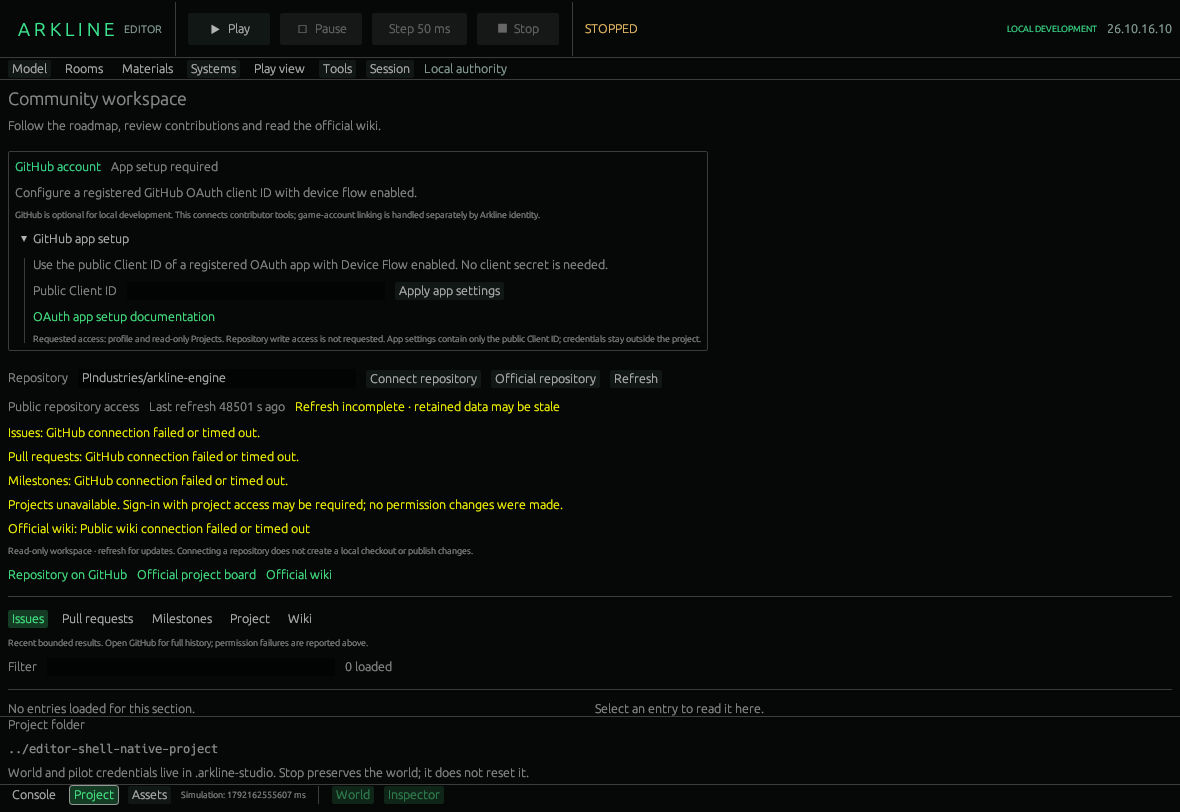
Project drawer showing the current relative project folder.
| Control | Effect |
|---|---|
| Play | Returns to the player viewport and runs the local simulation. After Stop, reconnects the saved pilot. |
| Pause | Freezes authoritative simulation time, including movement and timed systems. |
| Step 50 ms | Advances one complete simulation tick while paused, then remains paused. Event-flow node stepping is separate. |
| Stop | Pauses and disconnects the local session. Preserves the world rather than resetting it. |
| F5 | Plays/resumes, or pauses a running game viewport. From a separate workspace or Engineering, returns to Play view. Text editing keeps keyboard input. |
In a shared session the host owns the clock. A guest sees Game / resume and Suspend controls; those affect the guest's controls, not the host's simulation. See Sessions.
Open Play view for the game viewport. The bottom World and Inspector switches hide or show its side panels. The World outliner selects pilots, lists navigation objects and asteroids, and links available equipment or candidate components. Pilot selection changes the read-only Inspector: vessel, cargo, position, motion, power, mining and drones. Private room data is available only for your active pilot. This is reported state, not arbitrary property editing.
The scene bar offers Cockpit, Station Hangar, Interior · Deck 1 and Interior · Deck 2 when a docked ship supports them. Interior placement requires a Pioneer. These place your sandbox pilot while preserving simulation time and systems; normal gameplay uses walking and boarding.
Free camera moves only the view: WASD, E/Q or Space/C vertically, Shift faster, right mouse to look. Ship/avatar input is suspended. Player camera restores player controls. Free camera works while paused.
- Open a disposable project and wait for PAUSED.
- Choose Play view, select your pilot, and read the simulation time.
- Click Step 50 ms once; check the new time and reported state.
- Use Free camera to inspect the scene without moving your pilot.
- Return to Player camera, Play, then Stop. Reopen the same project to continue from its saved world and clock.
Reopening starts paused; startup cleanup stops active jobs, so this is not a saved execution debugger. Switching tools does not promise to pause the world: check the toolbar. Placement gizmos and broader authoring remain in #45; shared-session acceptance is tracked in #51.
Source guide at 2a678863 · Arkline Editor · Development version