Repository navigation
Editor Cockpit
Choose Systems → Cockpit panels to arrange a local ship control panel. This workspace supports a Pioneer airlock pressure gauge and light switch. It creates a panel overlay, not 3D cockpit geometry. These source-verified controls describe the development version.
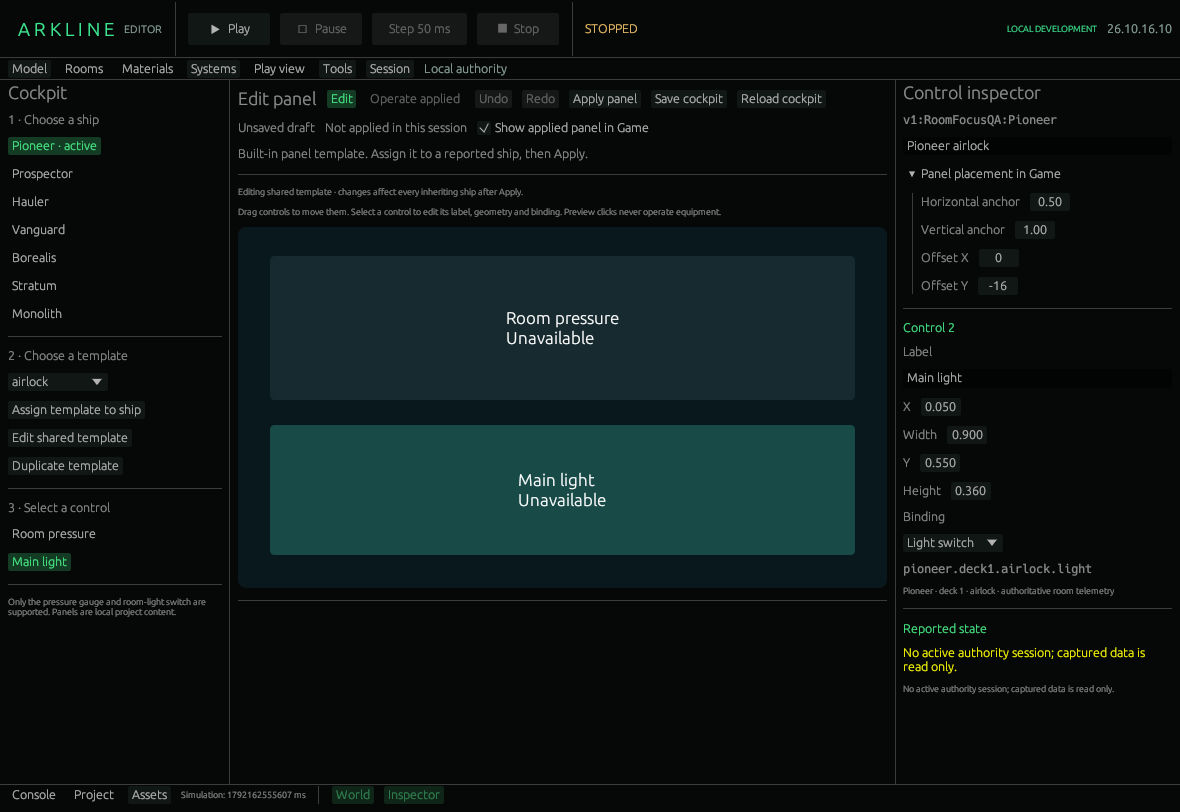
Cockpit panel editor with the main-light control selected.
The left column lists ships, saved assignments, templates and controls. If no ship appears, open Play view and board one to obtain its vessel ID. You can edit the shared template before a compatible ship is available.
Assign template to ship makes that ship inherit the selected template. Edit shared template changes every inheriting ship after Apply. Customize this ship copies the complete panel into an override; it then stops inheriting template edits. Edit this ship override edits the copy; Use shared template removes it. Duplicate template makes a separate template.
In Edit, select a control from the list or canvas. Drag it to move it, or use the right-hand Control inspector:
- Label sets the text. X/Y and Width/Height define the rectangle as fractions of the panel size, not pixels.
- Binding chooses Pressure gauge or Light switch. Their equipment targets are the Pioneer deck-one airlock pressure sensor and light. The gauge also exposes Maximum kPa, from 1–1000.
- The panel title and Panel placement in Game set its horizontal/vertical anchors (0–1) and pixel offsets. Anchor 0 aligns the left/top edge; 1 aligns the right/bottom edge.
Preview clicks select controls; they never operate equipment. Undo/Redo affects this cockpit document only. There is no control for arbitrary equipment bindings, scripts or adding a new kind of instrument.
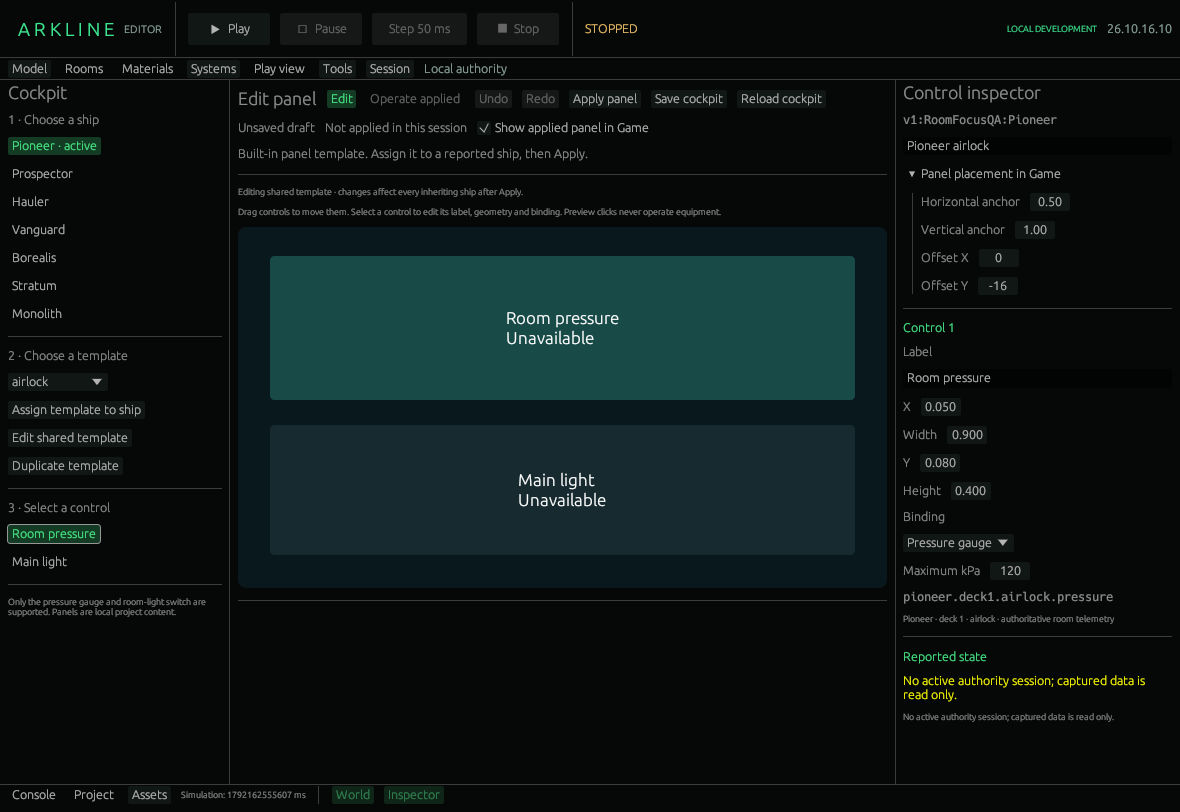
Pressure-gauge binding and panel placement controls.
Save cockpit writes the draft to Assets/Cockpit.panels.json. Reload cockpit loads that file. Apply panel separately installs a validated snapshot for the current session; later edits need another Apply. The status distinguishes Saved/Unsaved and the applied revision, including when the draft differs. Reopening does not automatically apply the saved panel.
Operate applied uses the installed snapshot. Show applied panel in Game displays it over the game viewport. The inspector shows the vessel, binding, measurement time, room interlock and reported state. Pressure is converted from Pa to kPa. The light’s commanded state and actual output are separate readings.
- Select the reported Pioneer, choose a template and Assign template to ship.
- Choose Customize this ship, select the gauge and change its label or size.
- Save cockpit, then Apply panel and enable its Game overlay.
- To test the switch, commission room power through Equipment, Play, and use the active Pioneer from its cockpit or deck one.
- Choose Operate applied, inspect the reported state and operate the light. After editing again, Apply to test the new revision.
Commands use the existing client and authority checks. Paused/stopped, disconnected, stale, uncommissioned or incompatible contexts disable operation. The panel waits for a newer matching room report; it does not predict success, automatically retry, or provide a correlated request acknowledgement. Dismiss unconfirmed request sends nothing. Session changes clear the applied panel and pending command.
Only the Pioneer airlock has compatible telemetry. Documents stay local; Host/Join does not synchronize templates. Files are limited to 256 KiB, 16 templates and 64 ship assignments. Failed reads lock Save until a successful Reload or explicit Allow replacing unreadable cockpit file; that permission alone writes nothing. Invalid documents and symbolic-link destinations are rejected. A save already submitted can finish after the panel closes.
Room/equipment authoring (#50) and editor integration (#45) track broader authoring and acceptance. More control types require supported telemetry and authority behavior; they are not available through free-form bindings today.