Repository navigation
Live TV
An HDHomeRun tuner’s channels, live with sound on your screens, with an optional guide.
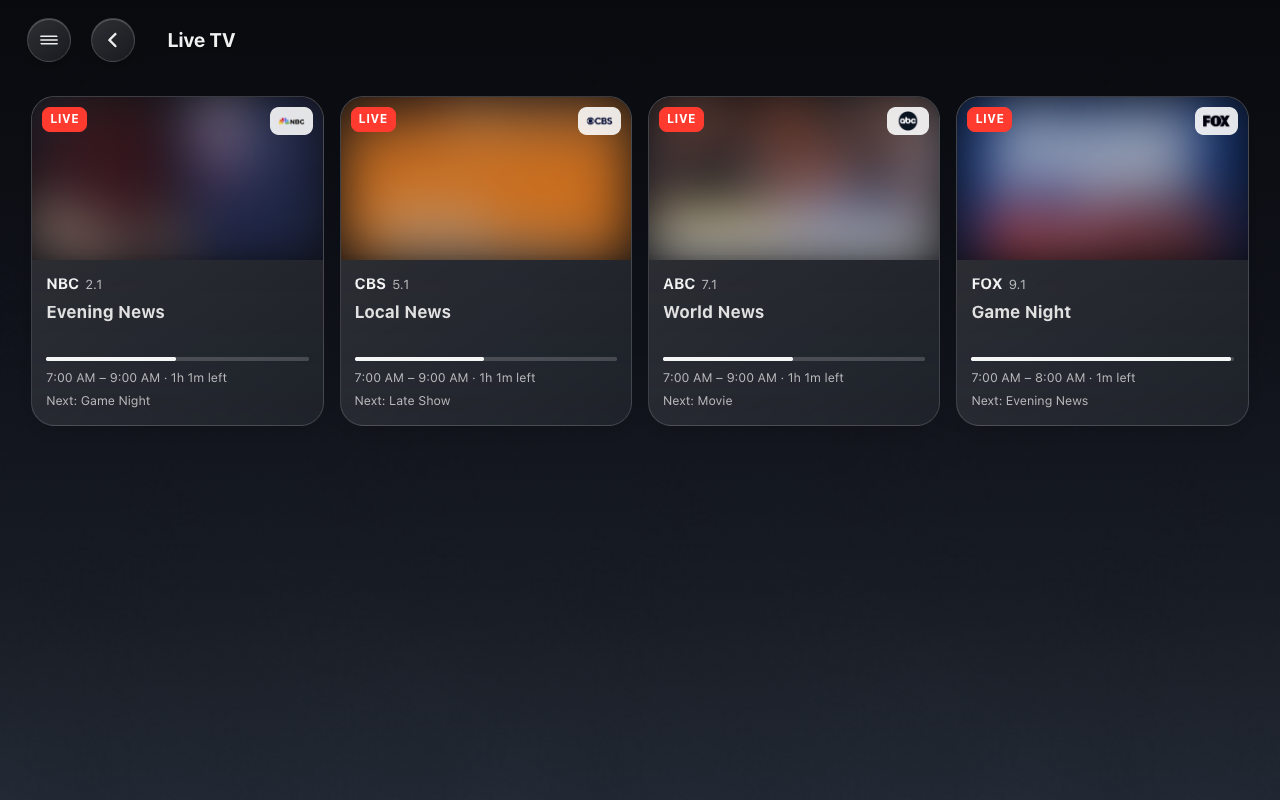
An HDHomeRun sends MPEG-2 video with AC-3 audio, which no browser can play, and the tuner cannot convert it. So each channel you pick becomes a camera entity whose stream is converted by ffmpeg on your Home Assistant host (to H.264 video and AAC audio) and played through Home Assistant’s own go2rtc, the same way any camera is.
- An HDHomeRun tuner on your network, with a channel scan already run (in its own app or web page). You need its IP address.
- ffmpeg on the Home Assistant host. Home Assistant OS and the Home Assistant container include it.
- Home Assistant’s go2rtc integration, which
default_configloads. - Some processor to spare: one 720p channel uses about 0.8 of one core; 1080p uses about 40% more. Screens watching the same channel share one stream.
- Optional: an XMLTV guide file at an address Home Assistant can read (from a guide service or a grabber you run). Without one, the channels still play; they just have no “what’s on.”
- HK Frontend → Add feature → Live TV.
- Enter the HDHomeRun address (its IP address) and, optionally, the Guide (XMLTV) address.
- Pick the Channels to show and the Picture quality: 720p (recommended) or 1080p.
A channel named by its station (“WXYZ-DT”) takes its network’s name (“NBC”) when the guide says which network it is.
| Entity | What it is |
|---|---|
camera.tv_<channel name> |
The channel, live. Its still picture is the current program’s artwork (or the channel logo), never a frame, so a thumbnail never ties up a tuner. |
sensor.tv_<channel name>_now |
What is on now (the state is the title; “Live” without a guide). Attributes: channel, network, name, logo, camera, and from the guide subtitle, description, start, end, image, next_title, next_start, next_image. |
sensor.tv_viewers |
How many screens are watching now. Attributes: users (the signed-in user on each) and channels. |
On generated screens, a Live TV page lists the channels with what is on and how far through it is. Tap a channel and it plays full screen with sound; close it to go back. The first picture arrives about six seconds after the tap. Each channel being watched holds one of the tuner’s tuners, and the tuner is freed about five seconds after the last screen stops watching.
While a channel plays, the screen reports itself as a viewer about once a
minute, and it stays on its page (Return to Home waits). A screen that stops
reporting drops out of sensor.tv_viewers after about two and a half
minutes.
The gear on the Live TV item adds or removes channels, changes the picture quality, and sets or clears the guide address. The tuner must be reachable to open it.
HK Settings → Pages → Live TV has the same settings, plus two that the gear does not:
| Setting | Default | What it does |
|---|---|---|
| Channels | Those picked when the feature was added | Add or remove channels from the tuner’s lineup (Shown and More Channels). Tap a channel to rename it (up to 40 characters), or to use its network’s or station’s name. |
| Quality | 720p | 720p or 1080p. 1080p uses about 40% more of Home Assistant’s processor for each channel being watched. |
| Tuner & Guide → Tuner Address | Set when the feature was added | The HDHomeRun’s address, if it moves. The new address is checked before it is saved. |
| Tuner & Guide → Guide Address | None | An XMLTV file (http:// or https://), or empty for no guide. With a guide, each channel shows what’s on and uses the network’s name. |
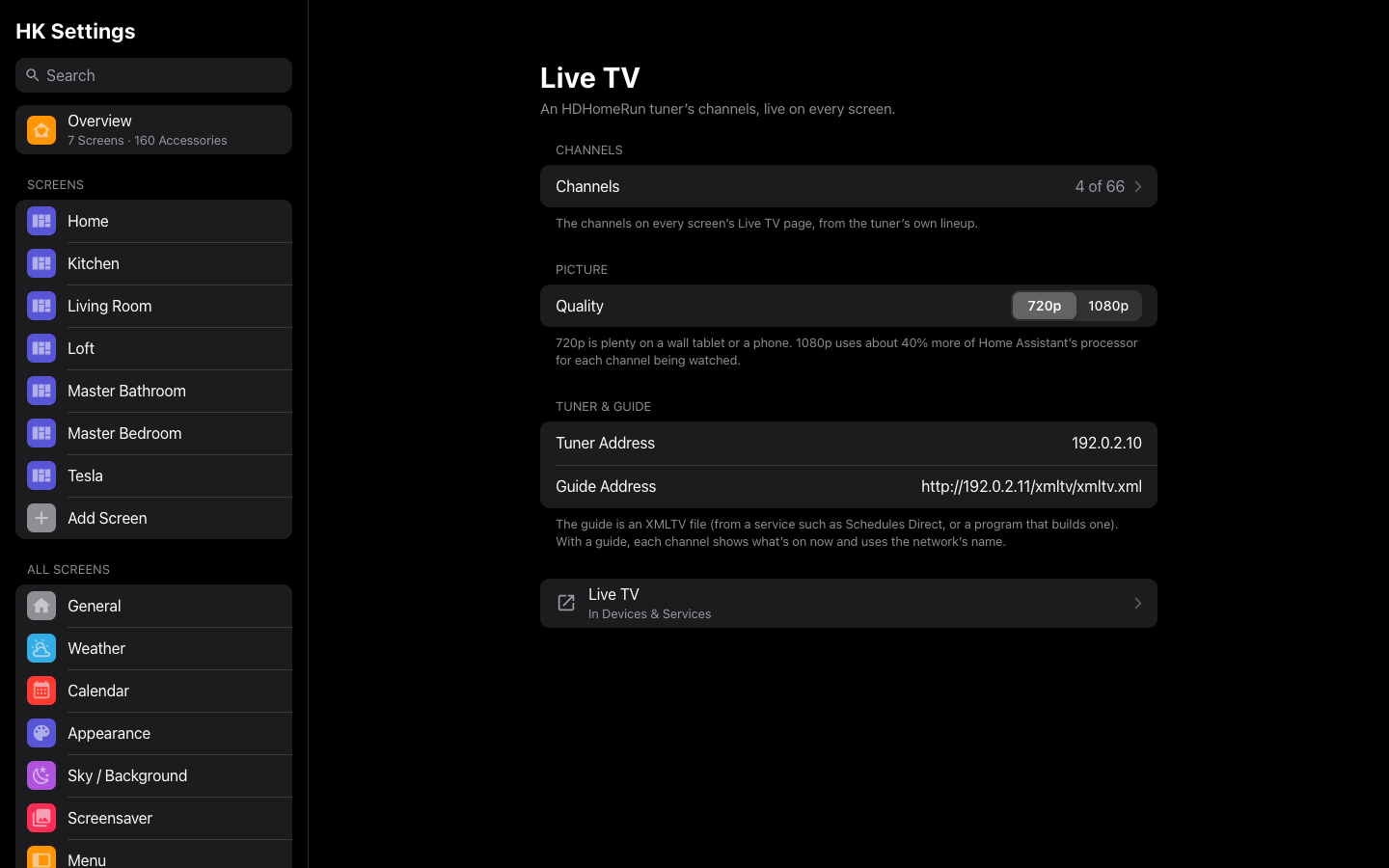
Saving restarts the feature, the way its gear does. A channel you take off the list takes its camera and “now” sensor with it.
HK Frontend never turns a screen off. If you sleep your wall tablets with an automation, add a condition so it leaves them on while TV is playing:
conditions:
  - condition: numeric_state
    entity_id: sensor.tv_viewers
    below: 1
To keep only the tablet that is watching awake, test its user instead:
"{{ 'Kitchen Tablet' not in state_attr('sensor.tv_viewers', 'users') }}".
-
A channel that will not start: check Settings → System → Logs for
lines starting
channel <number>:. An HTTP 503 from the tuner means all its tuners are busy (another app, or other channels). - The guide is read every 30 minutes.