Repository navigation
Cameras
Your cameras appear in three places:
- The camera strip on Home. One camera plays live, the others show snapshots that refresh.
- The Cameras page. Every camera live, three across.
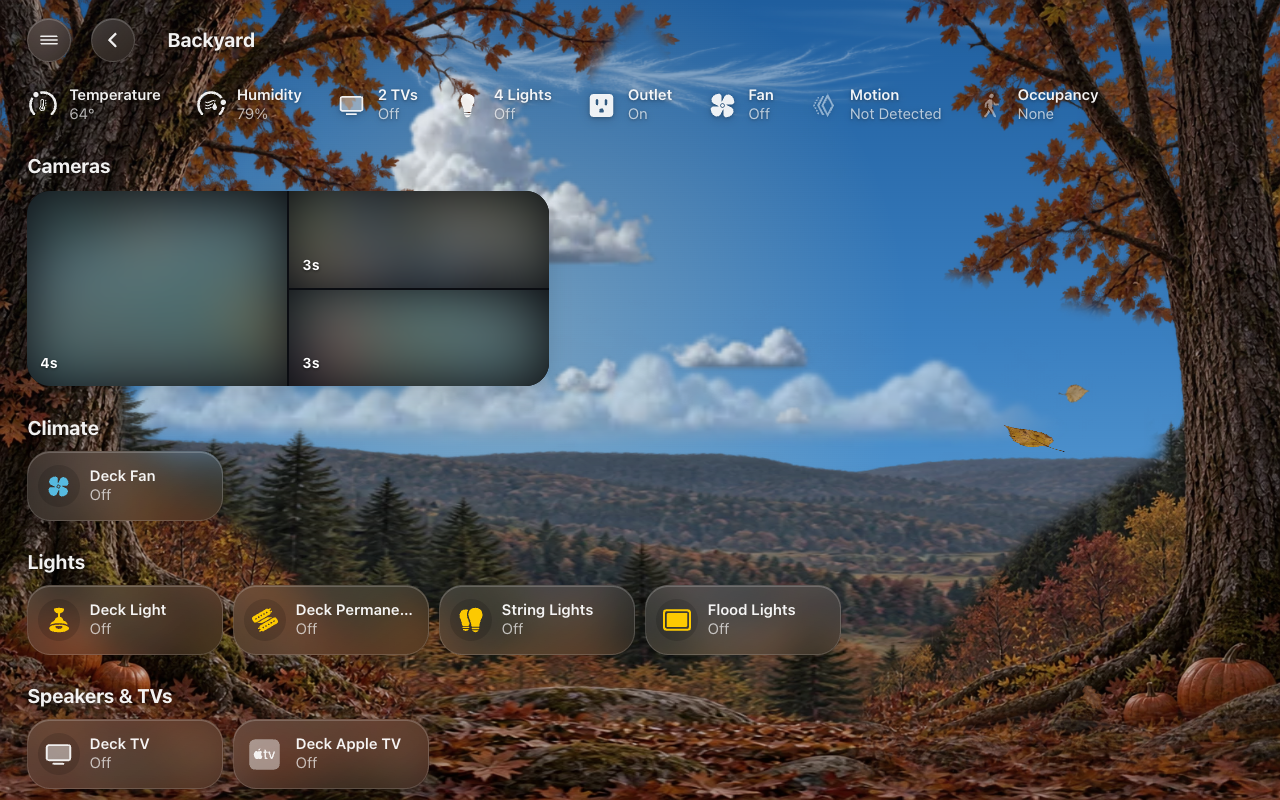
- A room’s page. That room’s cameras, as snapshots.
Tap any camera to open it full size, live, with sound, and hold-to-talk if it has a speaker (talking needs Home Assistant over https).
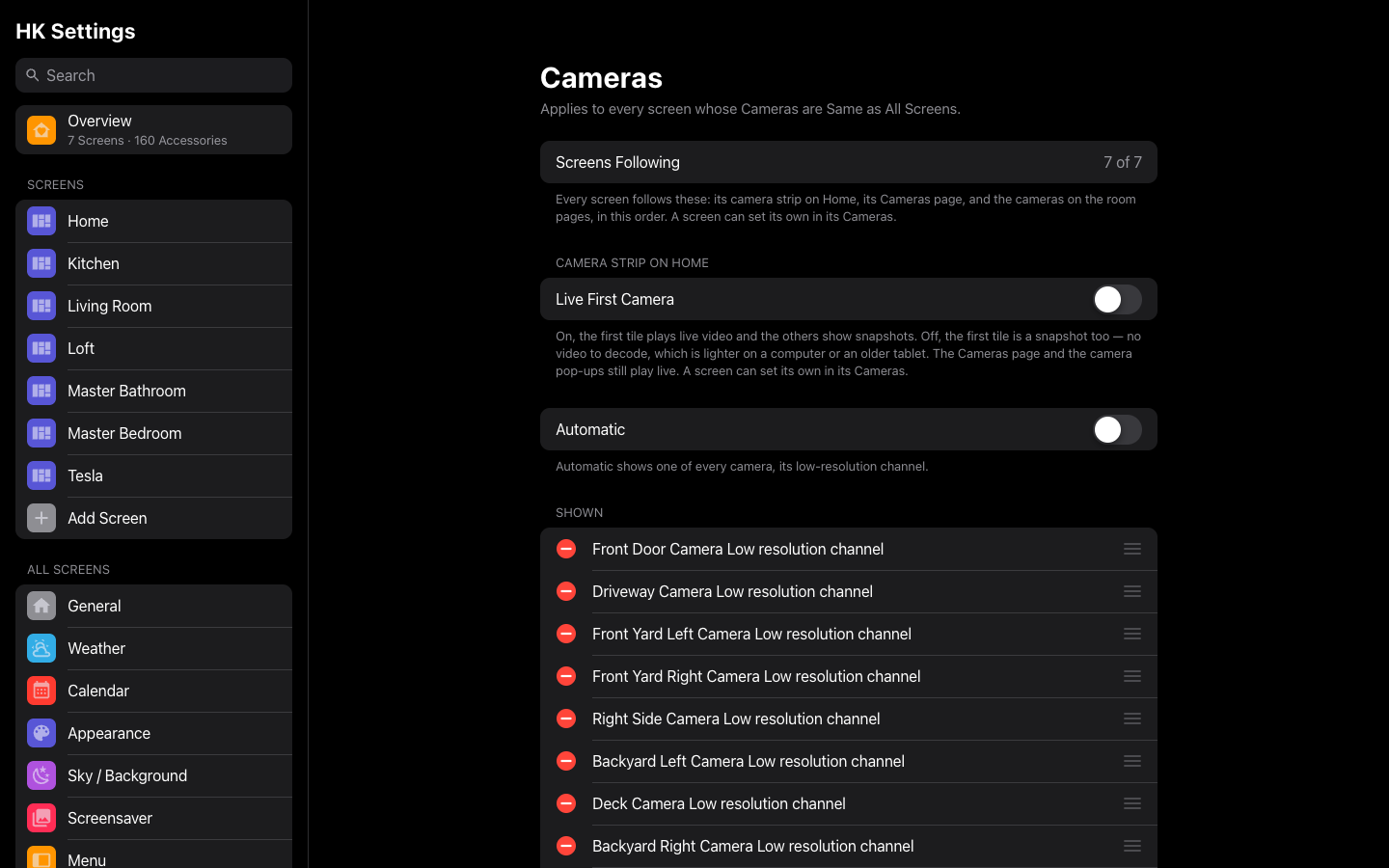
HK Settings → All Screens → Cameras is one list for every screen: its camera strip on Home, its Cameras page, and the cameras on its room pages, in this order.
- Automatic (on) shows one tile per camera, using its low-resolution channel when it has several, and never a wall tablet’s own camera or a Live TV channel. Turn it off to add, remove and drag cameras into your order.
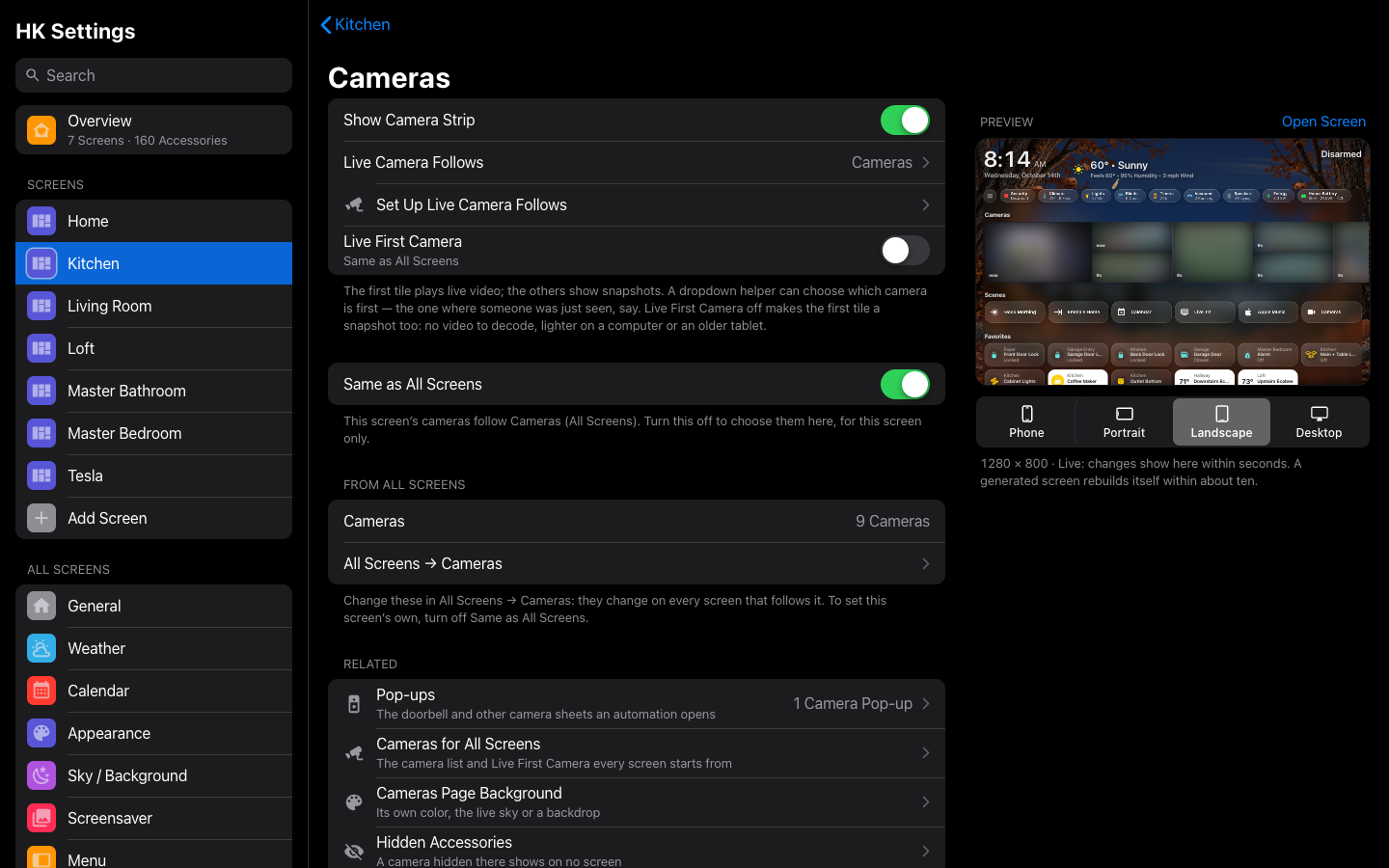
- A screen of its own: Screens → (the screen) → Cameras → Same as All Screens, off, and that screen keeps its own list (it starts from All Screens’). Turn it on again to follow All Screens.
Before 1.6.0 every screen kept its own list. Upgrading moves the list most screens shared to All Screens, and every screen with that list (or none) follows it. A screen whose list was different keeps its own.
The strip under the status chips on a generated screen’s Home: the live camera large on the left, then the others in columns, two stacked and one tall, taking turns.
- Choose the live one: see Live Camera Follows below. Nothing chosen: the first camera.
- Turn it off: Screens → (the screen) → Cameras → Show Camera Strip.
- No live video: Cameras → Live First Camera (All Screens), or a screen's own under its Cameras. Off, the first tile is a snapshot too — in the same place and size, still the camera Live Camera Follows picks — so there is no video to decode: lighter on a computer or an older tablet. The Cameras page and the camera pop-ups still play live.
- Under a black screen or the photo screensaver the strip rests: its stills stop and its live video lets go, even if it is rebuilt meanwhile (Live Camera Follows picking another camera), and both come back after.
- Related settings: both Cameras pages end with links to the camera pop-ups, each screen's strip, the Cameras page's background and the cameras hidden from every screen.
Every camera live, three across. To be easy on the browser and on Home Assistant’s streaming, the cameras take turns connecting, three at a time:
- Each tile opens on the camera’s last picture: the last frame kept from the strip or the page, else its snapshot.
- When its turn comes it connects underneath that picture, and the picture goes away only once the live video is actually on screen, so a tile never blinks blank.
- The next camera starts as soon as one is playing, or after 2.5 seconds at most.
- A camera that hasn’t shown a picture after 8 seconds is reconnected, up to three times.
- Leaving the page puts every tile back on its picture, so coming back takes turns again.
All the cameras are live within a few seconds. The page is all silent: sound plays only in a camera’s own sheet (tap it).
Why turns: desktop Safari could not connect nine live cameras at once. Each connection hung for good, and the page showed nothing but snapshots. Three at a time connect every time, in every browser.
A room with cameras shows them under its status, as a strip of snapshots, never live: one tall, then two stacked, and so on, as the Home app draws a room. A room with a single camera shows one wide 16:9 snapshot. Each shows how old its picture is, and tapping one opens it live. The order is the camera list’s (above).
The strip plays one camera live. Live Camera Follows lets something else choose which one, so the strip can jump to where someone was just seen.
It takes a dropdown helper (an input_select, or a select) whose options
are your cameras’ names. Whichever option is chosen, that camera plays live.
An option names a camera when it is the camera’s name or the start of it, so
Front Door names Front Door Camera Low resolution channel. An option that
names no camera, or nothing chosen, plays the first camera.
HK Settings → Screens → (the screen) → Cameras → Set Up Live Camera Follows does the rest for you:
- The dropdown. It lists the option each camera in the strip needs. Create the Dropdown makes a helper called Live Camera with those options and chooses it. If you already chose one, it shows which cameras your dropdown has no option for.
- The automation. It writes one for your cameras, from the person sensor on each camera’s device (or its motion sensor): when that sensor turns on, its camera is chosen; after five minutes with every sensor off, the first camera is chosen again. Copy Automation, then in Settings → Automations & Scenes choose Create Automation → Create New Automation → ⋮ → Edit in YAML, paste it over everything there, and save.
The automation it writes looks like this, for two cameras:
alias: Live camera follows motion
mode: queued
triggers:
  - trigger: state
    entity_id: binary_sensor.front_door_person_detected
    to: "on"
    id: "Front Door"
  - trigger: state
    entity_id: binary_sensor.driveway_person_detected
    to: "on"
    id: "Driveway"
  - trigger: state
    entity_id:
      - binary_sensor.front_door_person_detected
      - binary_sensor.driveway_person_detected
    to: "off"
    for:
      minutes: 5
    id: all quiet
actions:
  - if:
      - condition: trigger
        id: all quiet
    then:
      - condition: state
        entity_id:
          - binary_sensor.front_door_person_detected
          - binary_sensor.driveway_person_detected
        state: "off"
      - action: input_select.select_option
        target:
          entity_id: input_select.live_camera
        data:
          option: "Front Door"
    else:
      - action: input_select.select_option
        target:
          entity_id: input_select.live_camera
        data:
          option: "{{ trigger.id }}"
Each trigger’s id is the option it chooses, so it must be spelled exactly as
in the dropdown.
| Setting | Default | What it does |
|---|---|---|
| Show Camera Strip | On | Generated. The live camera strip under the chips. |
| Same as All Screens | On | The cameras and their order are All Screens’ (All Screens → Cameras). Off: this screen’s own, starting from All Screens’. |
| Live Camera Follows | First Camera | A dropdown helper (input select or select) whose option names the camera to show live, set by an automation (for example on person detection). An option matches the camera whose name starts with it. The other tiles show snapshots. |
| Set Up Live Camera Follows | — | Explains it, lists the option each camera needs, makes the dropdown for you (Create the Dropdown), and writes the automation for your cameras’ person or motion sensors (Copy Automation). See Screens. |
| Automatic | On | One tile per camera, using its low-resolution channel when it has several. Never a wall tablet’s own camera or a Live TV channel. (All Screens, or a screen of its own.) |
| Shown / More | — | The cameras, in order: the strip, the Cameras page and the room pages. |