Repository navigation
Status Chips
The row of small summaries under the header: Lights, Security, Climate and the rest. Each opens its own page.
Each chip summarizes one kind of thing and opens its page:
| Chip | Shows | Opens |
|---|---|---|
| Smoke & CO | Smoke Detected or CO Detected, in red, while an alarm is going off | Nothing |
| Weather Alerts | The current alert, while there is one | Weather |
| Security | The alarm’s state, or how many locks are unlocked | Security |
| Doors & Windows | How many doors, windows and garage doors are open | Doors & Windows |
| Climate | The indoor temperature and how many fans are on; its glyph shows heating or cooling | Climate |
| Lights | How many lights are on | Lights |
| Blinds | How many blinds are open | Climate |
| Timers | How many timers are running | Timers |
| Vacuums | How many vacuums are running | Vacuums |
| Speakers | How many speakers are playing | Music |
| Water | Whether a leak sensor is wet | Water |
| Energy | Power use, in kW | The Energy page, or a custom page with the address energy
|
What each chip counts is the same on every screen. Each kind finds its own accessories, and you change that on the accessory: hide it from a chip in Hidden Accessories, or count it where it isn’t found with its Also Count As. Each type’s page in Accessories shows the result. The alarm is in General, the indoor temperature and power sensor on the Climate and Energy chips’ own pages (below); the alerts sensor is in Weather. A kind your home has nothing of never shows a chip.
Smoke & CO is on every screen. In a home with a smoke or carbon monoxide alarm, the Smoke & CO chip leads every screen’s chip row, before the chips the screen chooses, and appears only while an alarm is going off. A screen can’t remove or move it; turn the whole row off (Show Status Chips) and it goes with it. Accessories → Smoke & CO (Types) lists the alarms that set it off: hide a camera that only hears the alarm from Smoke & CO, or count a gas detector with its Also Count As.
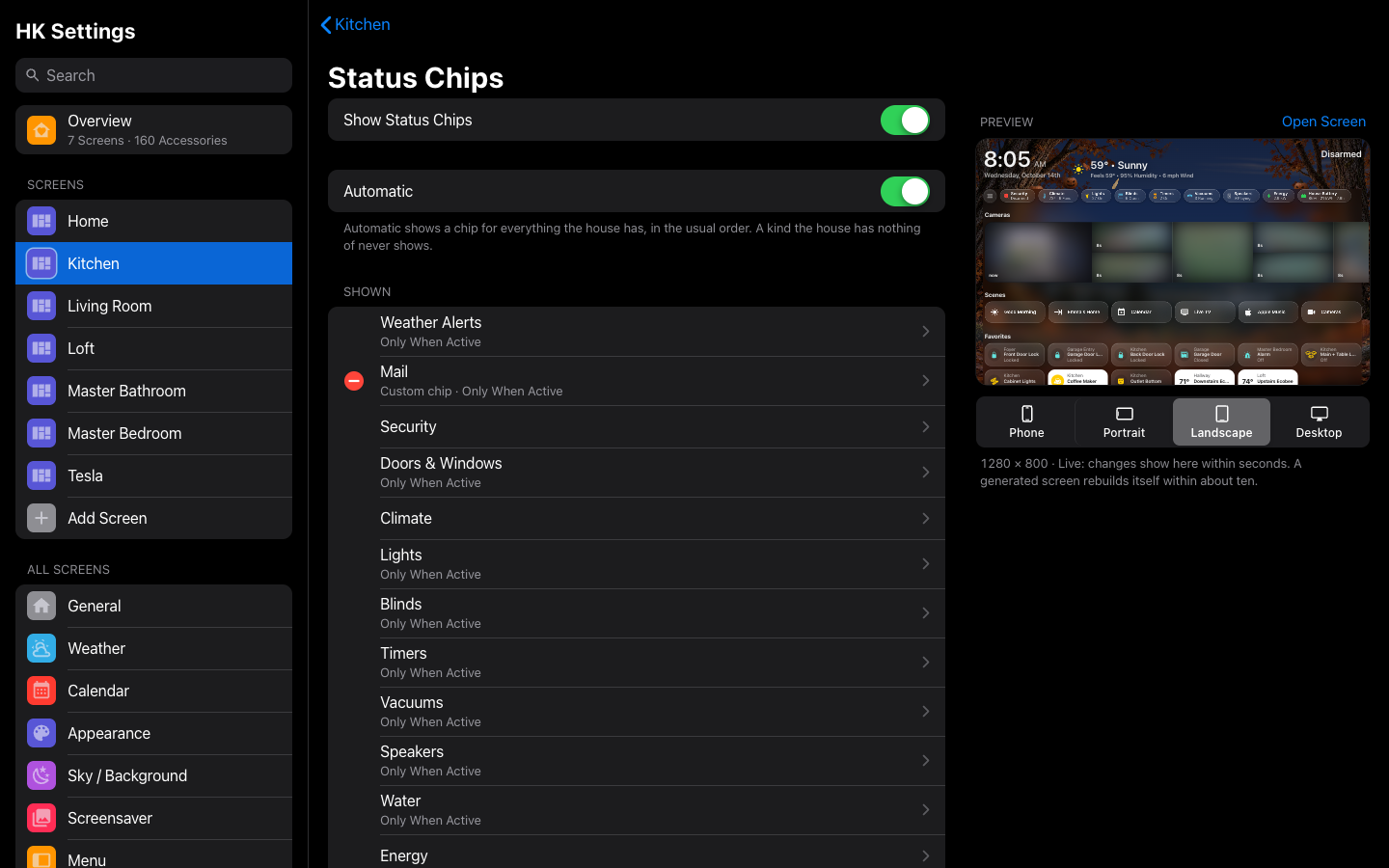
Only when there’s something to report. Some chips are quiet: they appear only while something is on, open, running or wet, so the row carries news rather than a permanent “All Closed”. Weather Alerts, Doors & Windows, Blinds and Water start quiet. To change one on every screen at once:
- Open HK Settings → All Screens → Status Chips.
- Tap the chip under Chips (or your own under Custom Chips).
- Set each screen to When Active (quiet) or Always.
One screen alone: Screens → (the screen) → Status Chips, tap the chip’s row, and set Show.
Choose and order the chips. On the same page, turn Automatic off. Drag the chips into order, remove the ones you don’t want, and add others back from More.
An accessory as a chip. Any entity can be a chip of its own: select Add Accessory Chip… and pick it. The chip shows its name and state. In its accessory settings you can give it a color, show it only in one state (a mail sensor only when its state is “Delivered”), show one of its attributes instead of its state, or give it a label.
Custom chips. For a chip you design yourself (several values, its own tap action, a chip that appears only sometimes), write it once in the Library and add it to any screen:
- Open HK Settings → Library → Custom Chips → Add Custom Chip.
- Give it a Name, and choose where it Sits: at the start, after a kind of chip, or at the end.
- Write the chip in YAML: an
hk-status-chip-card, or one inside aconditionalcard. There is an example on the page. - Select Add Chip.
- On each screen that should show it, open Status Chips and add it from More. All Screens → Status Chips then sets it Always or When Active, screen by screen.
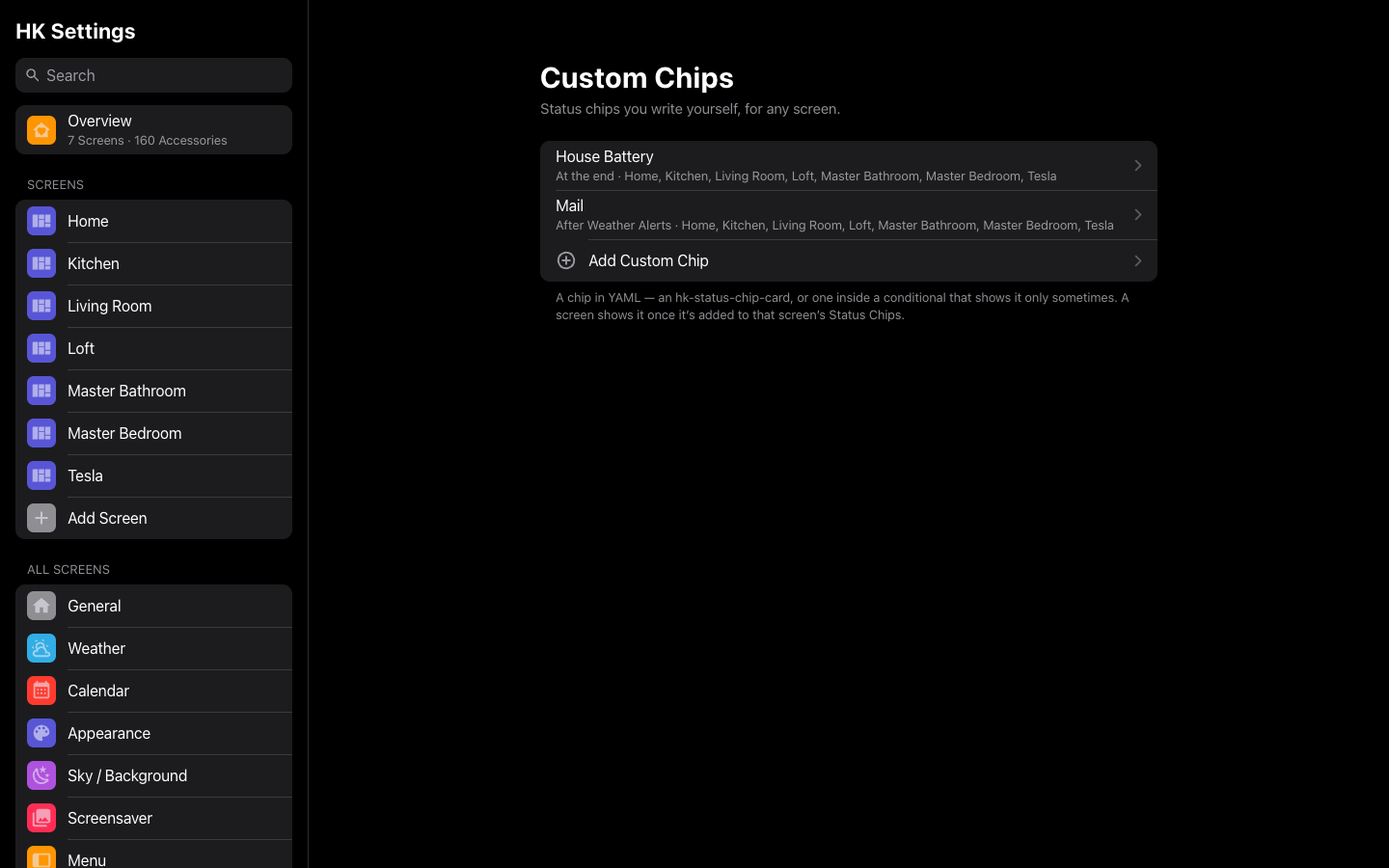
A custom chip’s minus on a screen takes it off that screen only. Delete Chip in the Library removes it everywhere.
Each screen's chip row is its own: HK Settings → the screen → Home Page → Status Chips. To see them all side by side, use All Screens → Status Chips:
- Screens lists every screen's chip row (Off, Automatic, or its own chips), each a tap from that screen's page.
- Chips lists each chip with where it shows ("Always on 6 · When Active on 1"). A chip's page sets Always or When Active for every screen at once, lists the screens that don't show it, and what it counts.
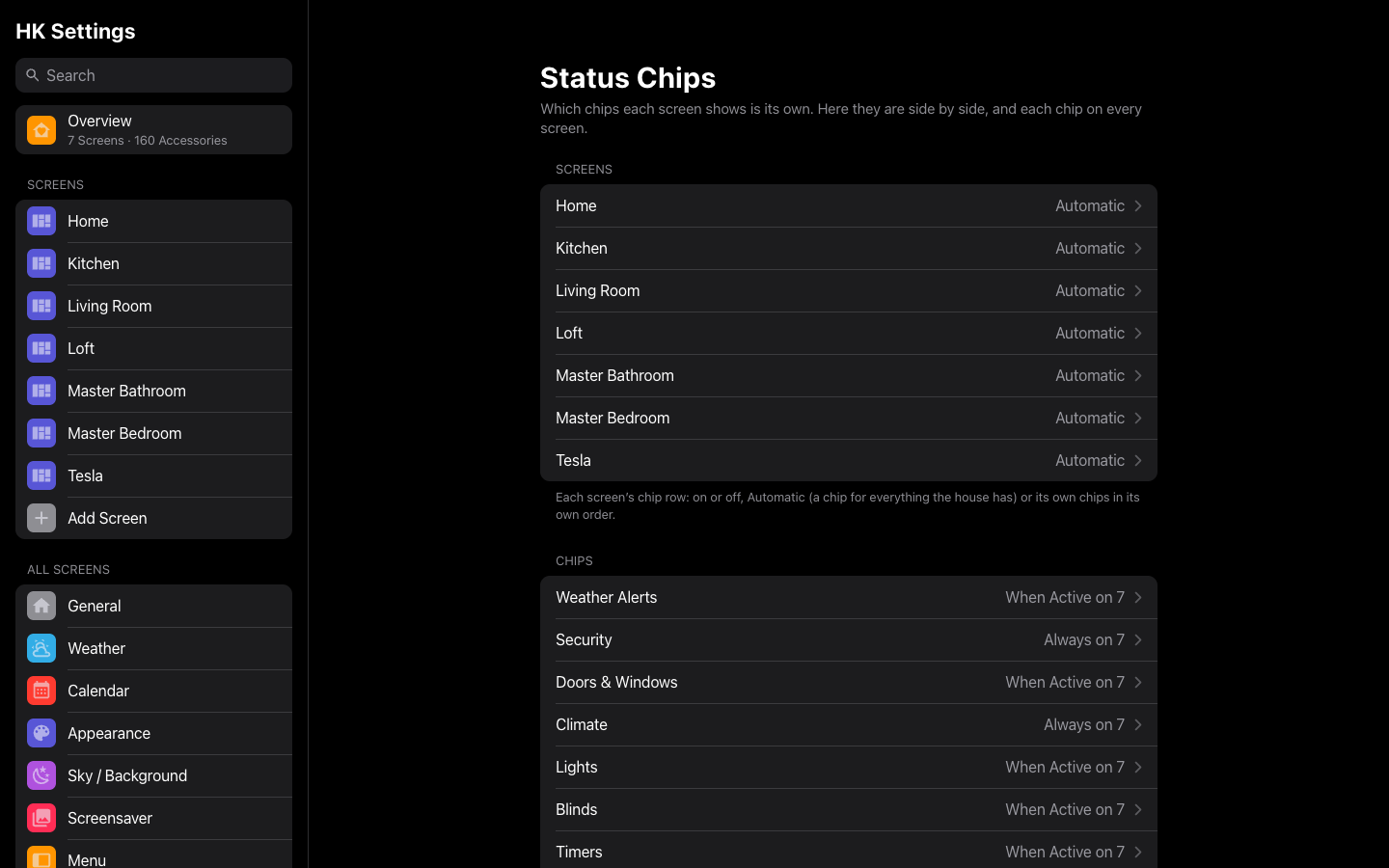 All Screens → Status Chips: every screen’s chips side by side.
Custom Chips are listed there too, set the same way for each screen.
A chip left alone shows as written: one inside a conditional card only when
its condition is met (When Active), any other always. Always takes a
conditional chip out of its condition. When Active shows a status chip
only while its entity is on, open or running, or as its own active: rules
say, so a reading that is never off (a battery's percent) needs active:
rules for When Active to mean anything. A custom chip written as another kind
of card shows as written. Each custom chip's own page (Library → Custom
Chips) links to its screens.
Each type's page under Accessories also has a Chips group: the chips that count that type, each opening that chip's page.
What the Chips Count ends All Screens' and each screen's Status Chips page: Accessories, to add to a chip or hide from it type by type, and Custom Chips. A chip's page says the same under What It Counts: tap a type, then Add… to count something more, or open an accessory to hide it from the chip. A chip that reads one setting (Weather Alerts, Energy) says so.
| Setting | Default | What it does |
|---|---|---|
| Show Status Chips | On | Off: no chip row on this screen. |
| Automatic | On | A chip for every kind your home has, in the usual order: Weather Alerts, Security, Doors & Windows, Climate, Lights, Blinds, Timers, Vacuums, Speakers, Water, Energy. A kind your home has nothing of never shows. |
| Shown | — | The chips, in order. A kind’s row opens its own page (below). |
| More | — | Kinds you took off, and your custom chips. |
| Add Accessory Chip… | — | Any entity as a chip of its own: its name and state. Its look is set in its accessory settings. |
Each kind’s page:
| Setting | Default | What it does |
|---|---|---|
| Show | When Active for Weather Alerts, Doors & Windows, Blinds and Water; Always for the rest | When Active: the chip appears only while something is on, open, running or wet. Always: it is always there. |
| What It Counts | — | The kinds the chip counts, each with how many and opening its type’s page in Accessories, and a link to the single setting it reads elsewhere (Alarm Panel, Weather Alerts). The same on every screen. |
| Indoor Temperature | First Thermostat’s | Climate chip, on a screen’s page for it. A temperature sensor for the chip’s reading (an average, say). The house’s: the same on every screen. |
| Power Use | None | Energy chip, on a screen’s page for it. A power sensor for the chip, which needs it. W or kW; shown in kW. The same on every screen. |
The Climate, Lights, Doors & Windows, Water and Security pages have a room-style status row under their titles: 3 Lights · 2 On, Motion · Emma’s Room, Valve · Running. Each counts what its type’s page in Accessories lists; tap an item for its room-labeled accessory list. Choose what each row shows, its order and the rooms it leaves out in All Screens → Status Rows (Status rows).
What each status chip, the header’s security line and the generated pages count, on every screen, is each type’s page under Library → Accessories (Types): Lights, Locks, Doors, Temperature and the rest. A screen’s chip page (What It Counts) and a status row’s Sources open them. Every kind finds its own entities, and what you change, you change on the accessory — hide it from a kind in Hidden Accessories, or count it where it isn’t found with its Also Count As (or Add… on the type’s page). The Lights chip and the Lights page count the same lights, so they can’t disagree. (What Counts was a page of its own, and before that Status & Chips; its old links open the type’s page.)
| Kind | Found automatically | The chip counts |
|---|---|---|
| Smoke & CO | Binary sensors of class smoke or carbon monoxide | Going off (the Smoke & CO chip appears). Count a gas detector with its Also Count As; hide a camera that only hears the alarm from Smoke & CO. |
| Temperature | An area’s designated temperature sensor, else its thermostat’s current temperature | Range on the Climate page |
| Humidity | An area’s designated humidity sensor, else its thermostat’s current humidity | Range on the Climate page |
| Lights | Every light | On (Lights chip) |
| Fans | Every fan | On (Climate chip) |
| Doors | Binary sensors of class door | Open (Doors & Windows chip) |
| Windows | Binary sensors of class window | Open (Doors & Windows chip) |
| Garage Doors | Covers of class garage or gate, binary sensors of class garage door | Open (Doors & Windows chip); the Security page lists the covers |
| Locks | Every lock | Unlocked (Security chip) |
| Blinds & Shades | Covers of class awning, blind, curtain, shade, shutter or window, or with no class | Open (Blinds chip) |
| Leak Sensors | Binary sensors of class moisture | Wet (the Water chip appears) |
| Thermostats | Every climate entity | Heating or cooling (the Climate chip’s glyph) |
| Timers | Every timer helper | Running (Timers chip) |
| Vacuums | Every vacuum | Cleaning, returning, paused or in error (Vacuums chip) |
| Speakers | Media players that aren’t TVs or receivers | Playing (Speakers chip). With the Music feature, its speakers are counted instead. |
Never found: hidden or disabled entities, configuration and diagnostic entities, groups of other entities (a light group would count its lights twice; add one with Add… on its type’s page if you want it), and anything hidden everywhere in Hidden Accessories. An accessory hidden from a kind there isn’t counted in it. One shown as something else (a switch Shown as a light) is counted as its accessory settings say.
In Hide From and on an accessory’s Where it shows, a kind goes by the page it is on: thermostats are Climate, locks Security, leak sensors Water and garage doors Garage; the rest keep their names.
A type’s page lists what it counts room by room. Hidden marks one hidden from this kind in Hidden Accessories (a car’s windows, a second copy of a blind); Added marks one counted because its Also Count As is on (an outlet you think of as a light, a switch that runs a fan). Show All on (the page) Again… opens the kind in Hidden Accessories, where Show All Again shows everything it finds again; what was added stays. See Types.
The chips’ two readings, Indoor Temperature and Power Use, are chosen on the Climate and Energy chips’ pages under any screen’s Status Chips (Status Chips settings); either one is the house’s, the same on every screen.
A kind you never touch stays automatic, so a light you add tomorrow is counted tomorrow. The category pages of a generated screen (Lights, Doors & Windows, …) list what their kinds count.
Library → Custom Chips. Status chips you write yourself in YAML: an
hk-status-chip-card, or one inside a conditional card that shows it only
sometimes. A screen shows one once it is added to that screen’s
Status Chips.
| Setting | Default | What it does |
|---|---|---|
| Name | — | Its name in the lists. |
| Sits | At the End | At the Start, After a kind (After Weather Alerts, After Security, …), or At the End. A screen that orders its chips itself places it where you drag it. |
| The chip (YAML) | — | One card, with a type. Add Chip or Save Chip saves it. |
| Delete Chip | — | Removes it from every screen that shows it. |
For example:
type: custom:hk-status-chip-card
entity: sensor.house_battery
name: House Battery
icon: hk:home-battery
icon_color: green
tap_action:
  action: navigate
  navigation_path: ./energy