Repository navigation
HK Settings
HK Settings is the page where you set up everything HK Frontend draws: each
screen, the settings every screen shares, how your accessories show up, and the
optional features. It is in Home Assistant’s sidebar as HK Settings, at
/hk-settings. Only administrators can open it.
Each topic’s settings are on that topic’s page (the menu’s on Menu, the weather’s on Weather, and so on). This page is how HK Settings itself works.
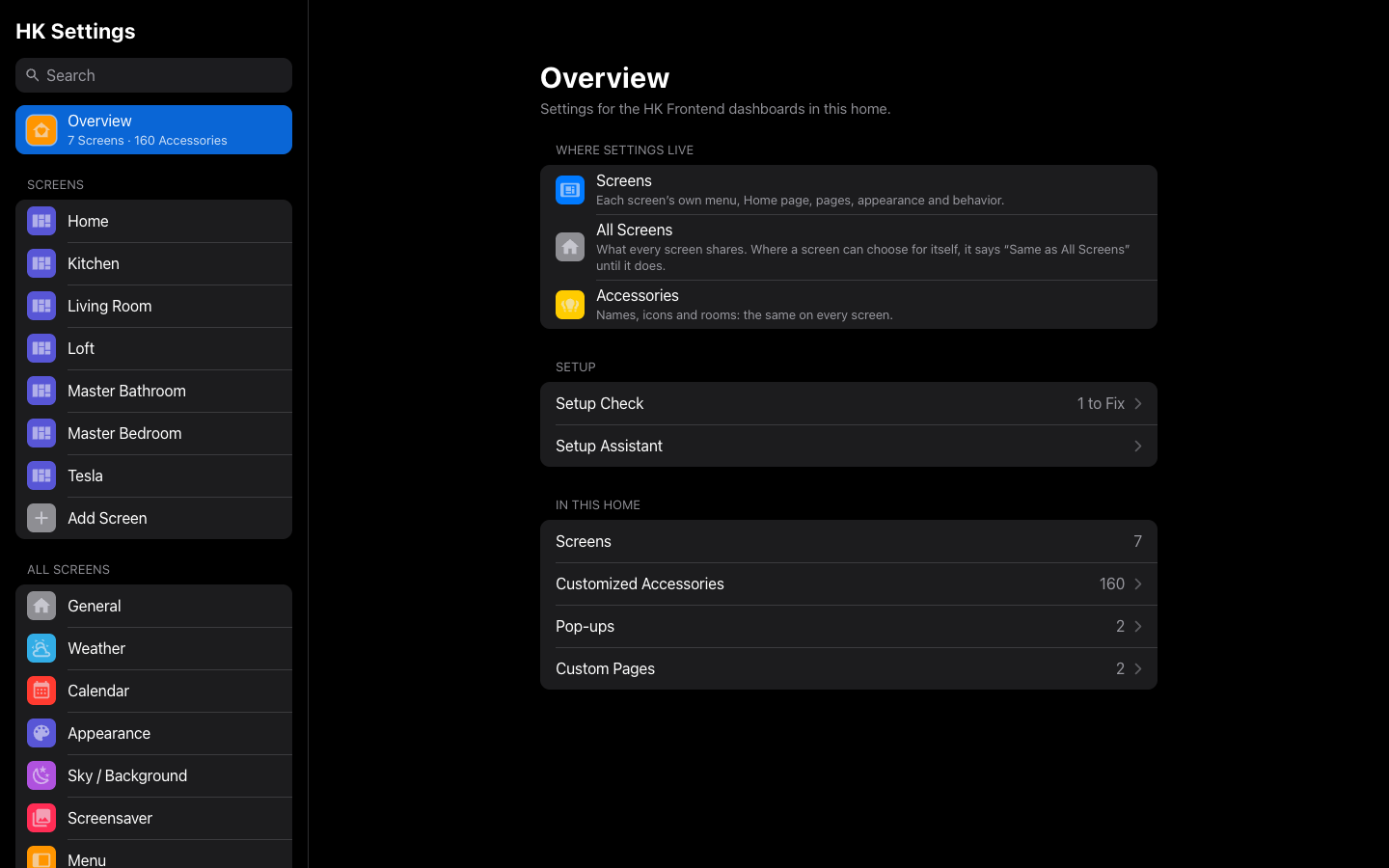
- In Home Assistant’s sidebar, select HK Settings.
- If it isn’t in the sidebar, go to Settings → Devices & services → HK Frontend → Configure → HK Settings page and use the link there.
The first time you open it, before any screen has settings, it starts the Setup Assistant (see Your First Screen).
On a wide window the list sits on the left and the page you pick on the right. On a phone the list is its own page, and each page has a back button. The address in the browser follows the page you are on, so Back, reload and bookmarks work.
| Group | Pages | Applies to |
|---|---|---|
| Overview | Where settings live, the Setup Check status, and counts of your screens, customized accessories, pop-ups and custom pages | — |
| Screens | One page per screen, then Add Screen | That screen only |
| All Screens | General, Weather, Calendar, Appearance, Sky / Background, Screensaver, Menu, Rooms, Cameras, Status Chips, Status Rows, Wall Tablets (each tablet its own page, then Add Tablet…) | Every screen |
| Features | Music, Live TV, Alarm PIN, Clean Areas, Energy (with its Power Page), Notifications | Every screen |
| Library | Accessories (by type, then by room, with Hidden Accessories and Added Accessories), Pop-ups, Custom Pages, Custom Chips | Every screen that uses them |
| System | Advanced, Setup Check | — |
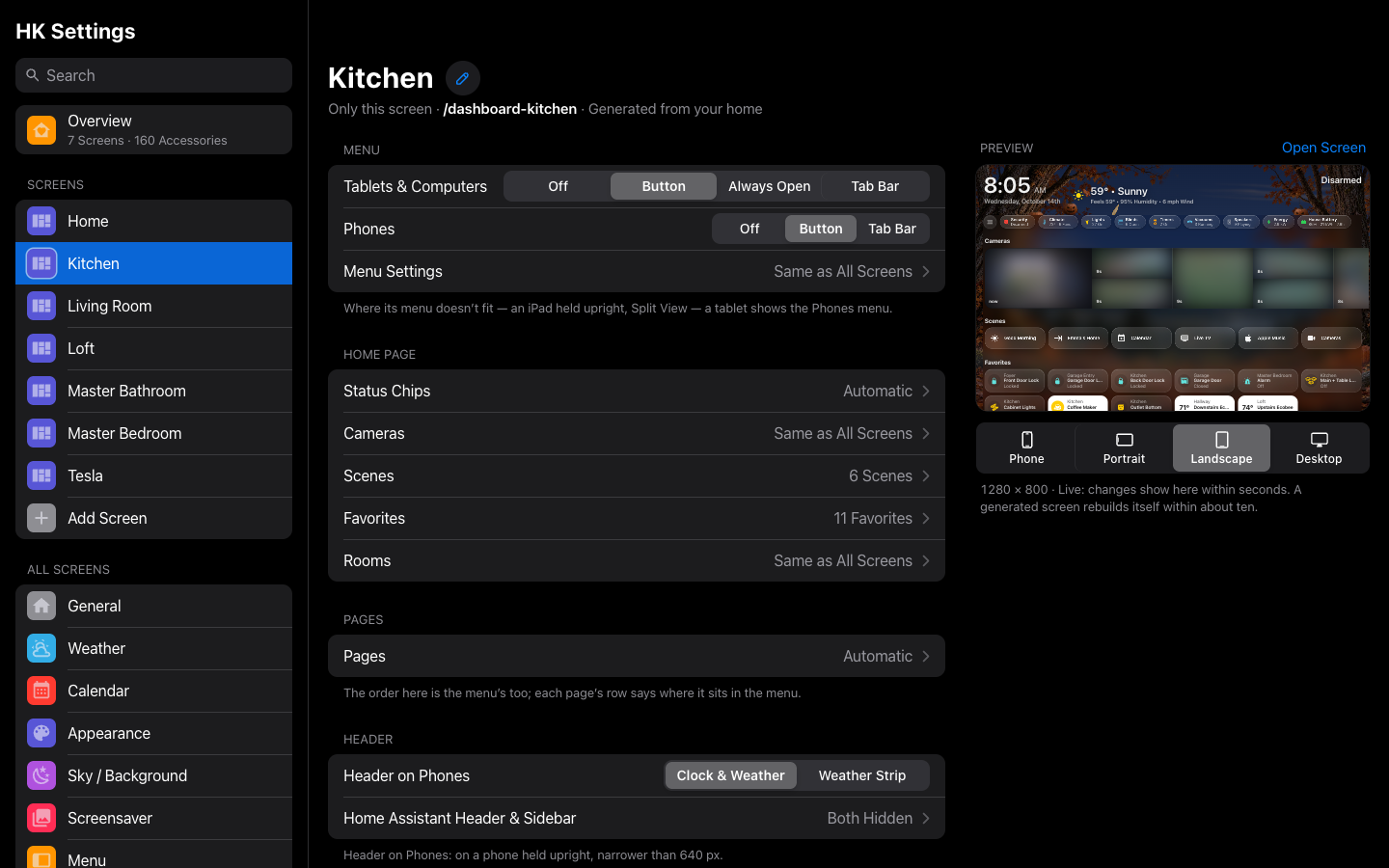
A screen’s page shows a live preview of that screen beside its settings (above them on a narrower window). Changes show in the preview within seconds. Under it, pick the size to look at -- Phone (390 × 844), Tablet Portrait (an iPad upright, 820 × 1180), Tablet Landscape (1280 × 800, a wall tablet), Desktop (1440 × 900), and Car (804 × 638, with the car’s zoom) on a screen with Car Browser on. The preview is that size, so it shows the layout that device really gets. It opens on the size the screen is used at, and remembers your last choice for each screen in that browser. When the preview column is too narrow for the full names, the two tablet sizes read Portrait and Landscape.
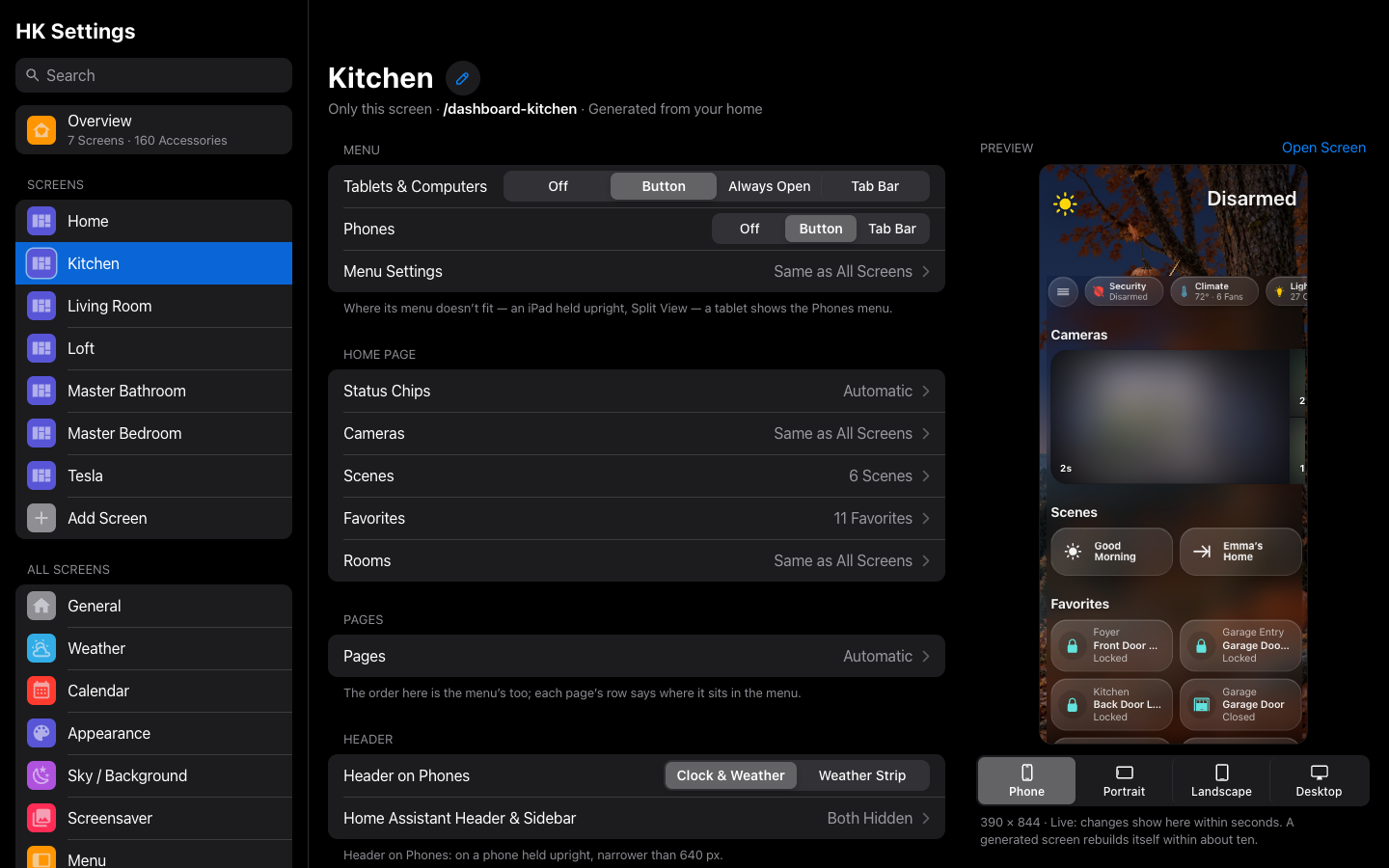 Open Screen opens the screen itself in a new tab.
- Every control saves as you change it. There is no Save button, except on pages where you type YAML. The top bar says Saved, or says what went wrong beside the field. A value that can’t be saved is never quietly swapped for a default.
- Changes reach open screens within about a second, without a reload. A generated screen (see Screens) rebuilds itself within about ten seconds when something it is built from changes, and stays on the page you were looking at. Nothing here needs a restart.
- A screen setting that can follow All Screens says so. Under its name a screen’s row reads Same as All Screens, beside the value it follows (Blur), until you choose one for that screen, and its amount sliders are marked Same as All Screens until you move them. Once it has its own, it reads Just This Screen, and a Reset to All Screens (50%) button follows All Screens again. A screen that follows All Screens’ Menu Settings, Rooms or Cameras lists the values it takes, in place, under From All Screens, ending with a link to that All Screens page.
-
Lists work the same way everywhere (status chips, cameras, scenes,
favorites, rooms, pages, Discover rows, a room’s tile order):
- An Automatic switch at the top. On, the list follows your home: a light you add tomorrow shows up tomorrow. Turn it off to choose.
- Shown: what is on the screen, in order. Drag a row by its handle to move it, or focus the handle and press the up and down arrow keys. Tap the red minus to remove a row.
- More: what you can add. Tap the green plus.
- Add… opens a searchable list. Every picker works the same way, as Hide Accessories’ does: the search matches a name, an entity ID or a room, and the choices are listed under their rooms, each with its glyph and entity ID. Where you can pick one, tap it. Where you can pick several, each has a check box from the start: tick them (they stay ticked while you change the search), and a bar says N Selected, with Clear and Add. While a search matches several, Select All ticks them all. Adding a dozen sensors to Added Accessories is one search and two taps.
- Removing, deleting and going back to Automatic ask first.
- Back returns to the page you came from. A page you reached from a link on another page (a status chip’s link to its type in Accessories, say) goes back there.
Type in Search at the top of the list to find any setting by name or by a word you might use for it (“blur”, “doorbell”, “idle”). A setting that every screen has is listed once per screen. Search also finds screens, pop-ups, custom pages, rooms and the features’ settings. Selecting a result opens its page and highlights the setting.
When the same thing can be set in more than one place, the most specific wins:
- A screen’s own setting (Screens → the screen).
- A card’s own YAML (a weather card’s
entity:, a keypad’s alarm). - The All Screens setting.
- The default.
All Screens → General. What your home has, for every screen.
| Setting | Default | What it does |
|---|---|---|
| Alarm Panel | No Alarm | The alarm for the header’s security line, the Security chip and page, and every alarm keypad that names no panel of its own. When none is chosen, the page offers Use (your first alarm panel); a generated screen’s Security page uses the first alarm panel until you choose. |
| House Timers | None | Timer helpers people start themselves (a nap, bedtime), shown as one-tap pills on the Timers page, in order. Each starts for its own duration and is named as the timer is, less a trailing “Timer”. |
The chips’ Indoor Temperature and Power Use are on the Climate and Energy chips’ own pages, under a screen’s Status Chips; they are the same on every screen.
System → Advanced. What almost nobody changes. Everything here works when left empty.
| Setting | Default | What it does |
|---|---|---|
| Time Sensor | sensor.time |
Home Assistant’s Time & Date sensor, which keeps every screen’s clock in step. Without it, each screen uses its own clock. |
| Date Sensor | sensor.date |
The same, for the date. |
| Clean-Areas Script | None (the Clean Areas feature) | Only for a home whose own script should receive areas: [area ids] instead of the Clean Areas feature sending the vacuums. |
| Wrong-Code Indicator | Automatic | Only for an alarm panel that fails silently on a wrong code (a template panel that checks the code itself): an input boolean or binary sensor your automation turns on briefly. Most panels refuse a wrong code, and the keypad shows “Wrong Code” by itself. For an alarm that takes no code at all, use Alarm PIN. |
| Show in Sidebar | On | Off: HK Settings leaves the sidebar for everyone. It is still reachable from Configure (below). Each person can also hide it from their own sidebar in their profile. |
| Your Files → Folder | hk_local |
A folder under /config for the files that can’t ship with HK Frontend: Apple’s SF Pro font (fonts/SF-Pro.woff2) and the SF Symbols glyphs (iconset/hk-glyphs.js). SF Pro Font and SF Symbols Glyphs say whether each is found. See Your files. |
| Your Own Dashboards → YAML Reference | — | What a dashboard you write yourself can use, each ready to copy and filled in from your home: hiding Home Assistant’s header, the photo screensaver, the live sky, views in the menu, HK cards for Live TV, Clean Areas and Music, and HK Frontend’s actions. The same as Your Own Dashboard. A dashboard of your own links to it from the bottom of its page. |
| Setup Assistant | — | Runs the Setup Assistant again. |
Settings → Devices & services → HK Frontend → Configure is only the way to HK Settings, plus two things you may need before it works:
| Page | Setting | Default | What it does |
|---|---|---|---|
| HK Settings page | (a link) | — | Opens HK Settings. |
| HK Settings page | Show HK Settings in the sidebar | On | The same as Advanced → Show in Sidebar. |
| Your files | Folder (under /config) | hk_local |
The same as Advanced → Your Files. It is served without sign-in, like /local/, so use a folder that holds nothing else. A folder containing Home Assistant’s own files is refused. |
| Setup check | — | — | The same report as Setup Check. Submitting it goes back. |
The integration’s page also lists each screen, pop-up, custom page and custom chip as an item. A screen’s gear links to its page in HK Settings. Download diagnostics exports every setting (birthdays and PIN hashes are left out). Features are added from Add feature on the same page.
Several settings can point at helpers or sensors you make yourself. All are optional, and each has a fallback.
| Setting | Typically points at | Left empty |
|---|---|---|
| Advanced → Time Sensor, Date Sensor |
sensor.time, sensor.date (Time & Date) |
Each screen’s own clock |
| Status Chips → Climate → Indoor Temperature | Any temperature sensor (an average, say) | The first thermostat’s reading |
| Status Chips → Energy → Power Use | A whole-home power sensor | No Energy chip |
| Weather → Sensors → forecasts | Template sensors over weather.get_forecasts
|
Read from the weather entity |
| Weather → Sensors → Weather Alerts | The NWS Alerts integration (HACS) | No alerts chip or card |
| Sky → Sky Switch | An input boolean | Always on |
| Sky → Advanced → Holiday Season, Moon Phase | Template sensors | Worked out from the date |
| Sky → Advanced → Also Needs | An input boolean | Only the Seasonal decorations switch decides |
| A screen’s Cameras → Live Camera Follows | An input select set by your automation | The first camera is live |
| Advanced → Clean-Areas Script | A script that takes areas
|
The Clean Areas feature sends the vacuums |
| Advanced → Wrong-Code Indicator | An input boolean your alarm automation flashes | Refused codes are shown automatically |
All Screens → Sky / Background starts with the Background: Live Sky (the moving sky), Color (a still color, by day and by night), Photo (a photo of your own) or Landscapes (HK Frontend’s own photos: a new one each time the screen wakes, on a schedule, or the same one, with Choose a Landscape). Below it are only that choice’s settings. For the live sky: whether it animates (and, while it does, whether it holds still when the window isn’t in focus, Pause When Not in Focus, and whether its Moving Things pass behind the cards or in front of them), shows weather (and its falling Rain & Snow), how its clouds look (Clouds: Classic or Realistic), how bright its midday blue runs (Daytime Sky: Natural, Balanced or Deep) and its Sky Colors (Live Sky, eight curated palettes, Black, and Custom with four Day colors and four Night colors). Then seasonal decorations, Liveliness -- how many little moving things, and how often the crossers come -- one choice for every decoration, woodland season and the night sky, or Custom for each its own (Seasonal Decorations) -- and the Sky Switch. For a photo or the Landscapes, its Look (Blur, Dim, Saturation and a Color Tint) and Reset to Default. At the foot, Reset to Defaults… puts the whole page back, leaving the Pages’ own backgrounds (Reset to Defaults). Pages sets each page’s background, and Room Pages each room’s own, with its own Look (The live sky).
A screen has the same choice under Appearance → Sky / Background: Background reads Same as All Screens until you choose one, then Just This Screen, and Reset to All Screens follows All Screens again. A Color, a Photo or a Landscape can be its own, too, and Reset to Defaults… puts the whole page back to Same as All Screens. With the Live Sky, it has the same controls, plus its own Liveliness (Same as All Screens, a preset for every occasion, or Custom for each) and Calm When Nobody’s Around. Its Clouds, Daytime Sky, Decoration Style and Moving Things are the same tabs as All Screens’, saying Same as All Screens until changed; Reset to All Screens follows them again. Each flag reads Same as All Screens until changed, then Just This Screen; Reset to All Screens (On) follows All Screens again. Its Sky Colors offers Same as All Screens or colors just for that screen. Copy Settings includes these appearance settings. See Live Sky for the three Backgrounds and Choose its look for what each switch changes.