Repository navigation
Menu
The menu lists a screen’s pages and rooms, like the sidebar of Apple’s Home app. For a row of tabs at the bottom of the screen instead (or as well), see The tab bar.
The menu lists the screen’s pages and rooms, like the sidebar of Apple’s Home app: Home first, then the pages at the top, then Categories and Rooms. The page you are on is highlighted; choosing another slides the highlight over to it, as the tab bar’s does.
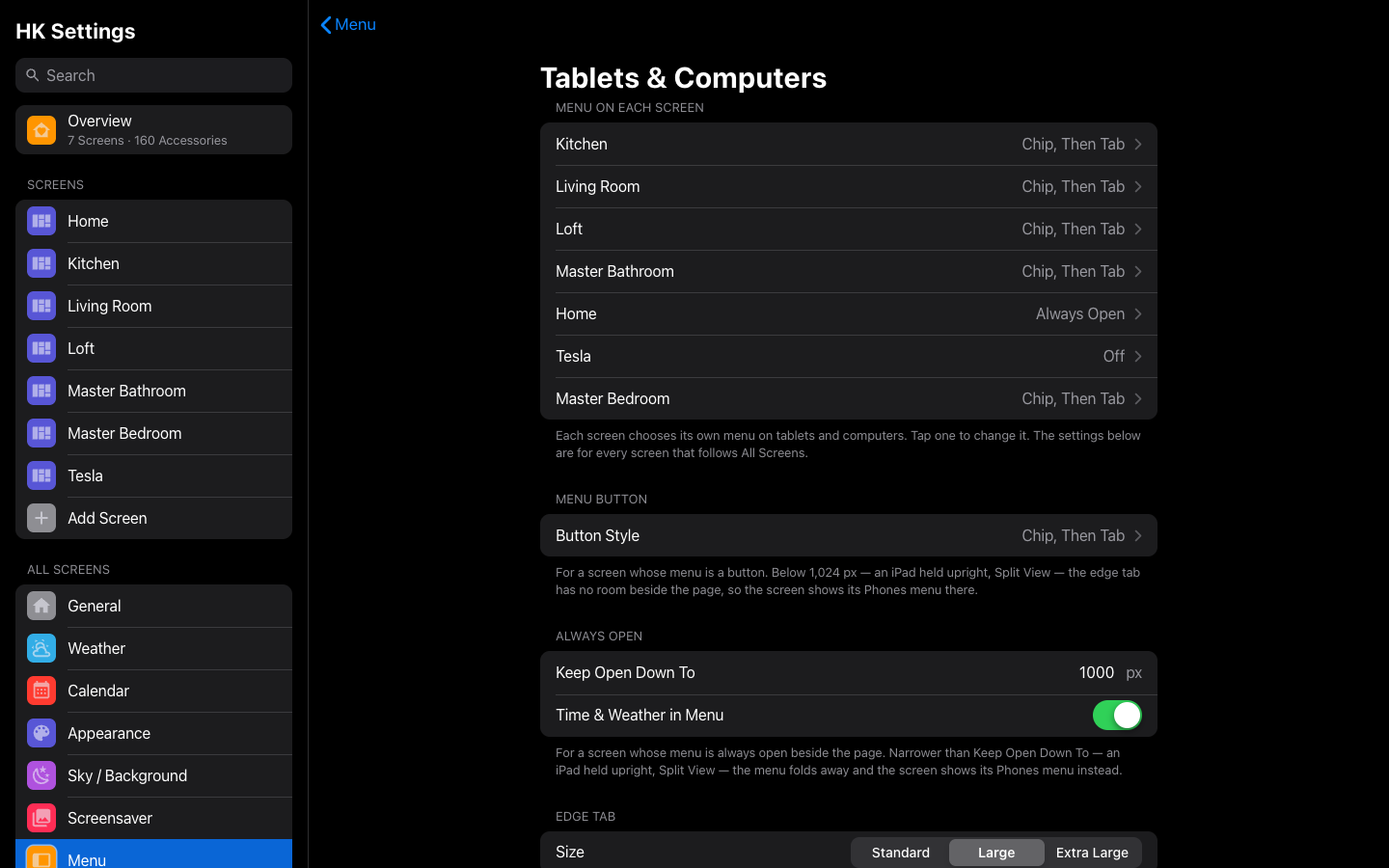
Each screen chooses its menu for each kind of device, under Screens → (the screen) → Menu: one for Tablets & Computers and one for Phones (see Phones and tablets). Everything else about the menu (its look, its button, the edge tab, what’s in it) is set once for every screen in All Screens → Menu, and a screen can set its own. On tablets and computers the menu can be:
-
Off: no menu. Pages are reached from the chips and pills.
-
Tab Bar: no side menu; the tab bar along the bottom of the screen instead.
-
Button: the menu is hidden until opened. Button Style picks how:
- Automatic: the round chip when Home has a menu button, otherwise the edge tab.
- Chip: a round button at the start of the status chips (and beside the back button on other pages).
- Chip, Then Tab: the chip, and a slim tab slides in from the left edge when the chip is scrolled out of sight.
- Chip on Home, Tab Elsewhere.
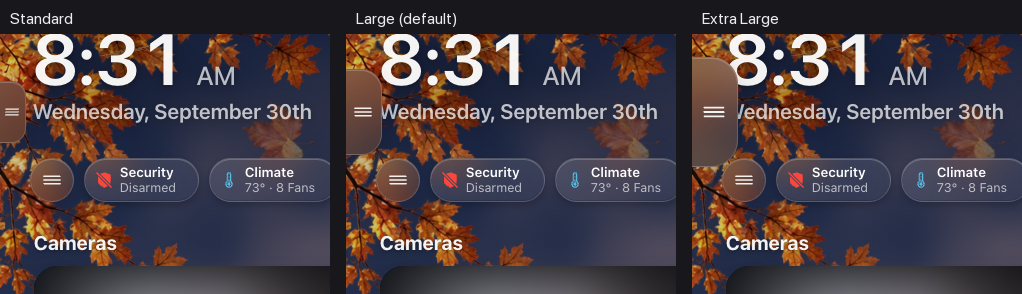
- Edge Tab: a slim tab on the left edge, level with the date. Its Position can move it.
- No Button: nothing on the page; swipe from the left edge to open the menu. Offered only while Swipe from Left Edge is on.
The button’s style is All Screens’ unless the screen sets its own.
-
Always Open: the menu stays beside the page, with no button. It needs room: narrower than Keep Open Down To (1,000 px unless you change it), it folds away. With Time & Weather in Menu, the time, date and weather sit at the top of the menu and the Home page gains the header’s space.
Where the tablet menu doesn’t fit, the screen shows its Phones menu. An always-open menu narrower than Keep Open Down To, and a button below 1,024 px (where the edge tab has no margin to sit in) — an iPad held upright, Split View, a narrow window — show the screen’s Phones menu instead, with all of Phones’ settings. If Phones is Off, they show the chip, so a tablet is never left with no way in. The tab bar fits at every width, so a tablet set to Tab Bar keeps it.
A phone is an iPhone or an Android phone, held either way up, or any browser window narrower than 640 px. Everything else is a tablet or computer: an iPad (even an iPad mini held upright), a wall tablet, a computer, the car. HK Frontend tells a phone held sideways by the size of its screen (its shorter side is under 500 px), so turning a phone never swaps it onto the tablet’s menu.
On phones the menu can be Off, a Button or the Tab Bar. A phone never keeps the menu always open: there is no room beside the page. So one screen can be always open on a wall tablet and a computer, and show the tab bar on a phone — and on an iPad held upright, where the open menu has no room.
Each device has its own page under Menu Settings. It starts with that device’s Menu (the same choice as on the screen’s page), then that menu’s settings: Tablets & Computers holds the tablet menu’s own settings (Button Style, Keep Open Down To, Time & Weather in Menu, the tablet’s edge tab size, its tab bar and More), and Phones the phone’s (its Button Style, its edge tab size, how its tab bar behaves while scrolling, and More’s style and rooms). Every Phones setting is its own value; none copies the tablets’. A screen that follows All Screens shows the values it takes from them in place, under From All Screens, with one way to change them. What both share (the highlight, the icon, the swipe, where the edge tab sits, the tab bar’s position, size and glass, the Home Assistant section) stays on Menu Settings itself.
Other ways to open it. These work alongside the button, each switched on or off by itself:
- Swipe from Left Edge: drag right from the screen's left edge and the menu follows your finger, the way the Home app's sidebar does. Let go past a third of the way, or flick it, and it opens; otherwise it slides back. It works at every width and with every Button Style, and an always-open menu gets it once it folds away. Dragging up or down at the edge still scrolls the page. In Safari the browser's own back swipe can get there first at the very edge. In the Home Assistant Companion app, set the app's own Swipe Right gesture to None (Settings → Companion App → Gestures). By default it opens Home Assistant's sidebar on the same swipe. If it does, HK Frontend closes that sidebar again at once (the screen keeps it hidden) and says once what to change in the app. The same happens on any screen that hides Home Assistant's sidebar, with or without the swipe, so the app's gesture can never leave the page frozen under a sidebar you can't see.
- Tap Clock to Open Menu: tapping the clock opens the menu, and the weather beside it opens the Weather page.
The chip and the edge tab aren't separate switches, because they depend on each other: "Chip, Then Tab" shows the tab only once the chip has scrolled out of sight. That's why they stay one Button Style. With the swipe on, Button Style can be No Button. If the swipe is turned off, a No Button screen goes back to Automatic (and Phones’ to the chip), so it always keeps a way in.
The highlight (the menu’s icons and the page you’re on) is Apple’s orange unless you choose another Highlight Color: one of Apple’s system colors or a color of your own. Over a pale one the page’s name turns dark.
Top of Menu and Categories. On a generated screen, Weather, Cameras and Live TV sit at the top of the menu, right under Home, and every other page is under Categories. To move one, open Pages and use the menu beside its row: Top of Menu, Categories or Not in Menu (still one tap away on its chip or pill). Use the Automatic Menu puts them back. Room pages are always under Rooms.
Rooms in the menu are A to Z, or in the screen’s room order (Rooms in Menu).
The Home Assistant section. Home Assistant Section adds Home Assistant’s own pages to the menu, above Categories: Integrations, Automations and Settings, Notifications, More (which folds out the rest of your Home Assistant sidebar, in your order, without what you hid), Show Menu (Home Assistant’s own sidebar, over the page, even where kiosk mode hides it) and Profile. Settings shows how many updates and repairs are waiting and Notifications how many notifications, as Home Assistant’s sidebar does. Everything is read live from Home Assistant, and each person sees only what they may open -- a wall tablet’s user gets Notifications, More, Show Menu and Profile. On Home Assistant’s own pages its sidebar (or its ☰) is the way back. Leave it off on a wall tablet everyone uses.
Placement puts the section right under Home (Top), Above Categories, Above Rooms (the default) or last (Bottom). It applies in the menu and in the tab bar's More alike.
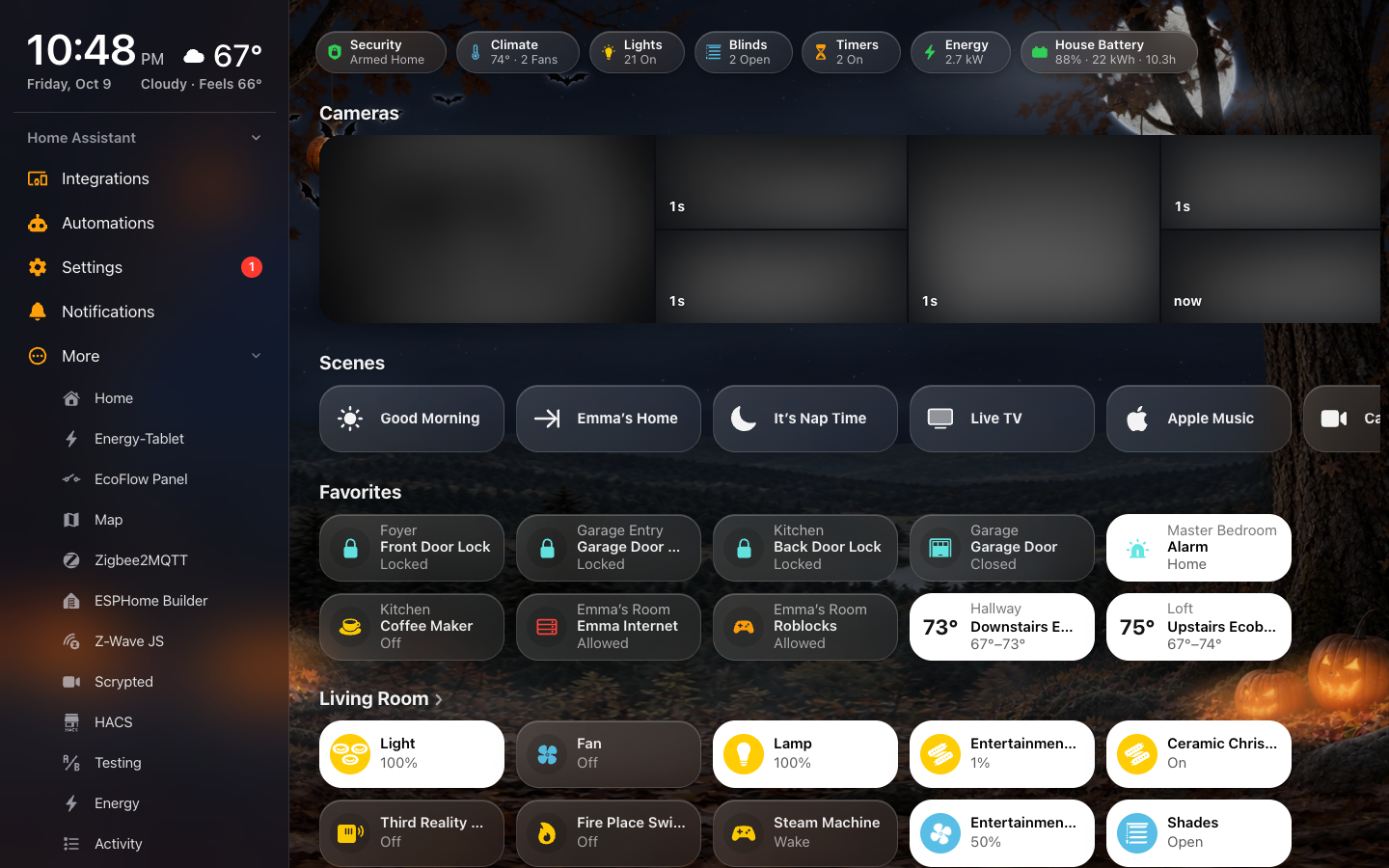
The menu closes itself when you choose a row, tap outside it, press Escape, leave it untouched for a minute, or when the page changes any other way.
A dashboard of your own gets the menu once it is added to HK Frontend: HK Settings → Screens → Add Screen → Existing Dashboards, then turn the menu on in its settings. A dashboard that isn't added has no menu (nor a tab bar).
Its list is read from the dashboard itself, in any view type:
- The first view is Home.
- A view with
area:is a room, named by its title (else the area’s name) and pictured by the area’s icon (Settings → Areas). - Categories are the pages Home’s status chips open, in chip order. With no chips, every other view with a title.
View keys adjust it:
| Key | Effect |
|---|---|
area: kitchen or area: [backyard, deck]
|
The view is a room. |
menu: top |
Listed at the top, right under Home. |
menu: false |
Not listed. Hidden views, views with no title and views this user can’t see are never listed. |
menu_title: |
The name in the menu, when it should differ from the view’s title. |
menu_icon: |
The icon in the menu, when it should differ from the view’s icon:. |
The screen’s Pages in Menu overrides menu: top and menu: false, page
by page.
A room page for a YAML dashboard is built from its area every time it opens:
- title: Kitchen
  path: room-kitchen
  subview: true
  strategy:
    type: custom:hk-room
    area: kitchen          # or a list: [backyard, deck]
To make a room heading on Home open it, give the heading the same area:
- type: custom:hk-heading-card
  name: Kitchen
  area: kitchen
A page you lay out yourself is a room too, as long as the view has area:.
Give it a status row with custom:hk-room-status-card:
- type: custom:hk-room-status-card
area: kitchen| Option | What it does |
|---|---|
area |
Required. One area or a list. |
items |
Which kinds show, in this order. Default: Status Rows → Room Pages. |
temperature, humidity
|
A sensor to use instead of the area’s own. |
entities |
The accessories on this page. Outlets, blinds, fans, locks and garage doors are then counted from this list rather than the whole area. |
exclude |
Entities to leave out of the counts. |
include |
Entities from outside the area to count too. |
Every card’s options: Card Library.
Screens → (the screen) → Menu.
| Setting | Default | What it does |
|---|---|---|
| Tablets & Computers | Button (a YAML screen added as Something Else: Off) | Off: no menu. Button: the menu is hidden until you open it. Always Open: the menu stays beside the page, like the sidebar of the Home app on a Mac. Tab Bar: the tab bar. The screen’s preset sets this first. Always the screen’s own. |
| Phones | As the screen showed on phones before | Off, Button or Tab Bar, on a phone. Always the screen’s own, and separate from Tablets & Computers: changing one never changes the other. |
| Menu Settings | Same as All Screens | Everything below: All Screens’, or this screen’s own. |
| Pages in Menu | Automatic | YAML screens. For each page: Top of Menu (right under Home), Categories, or Not in Menu. A generated screen sets this on its Pages instead. Use the Automatic Menu clears your choices. |
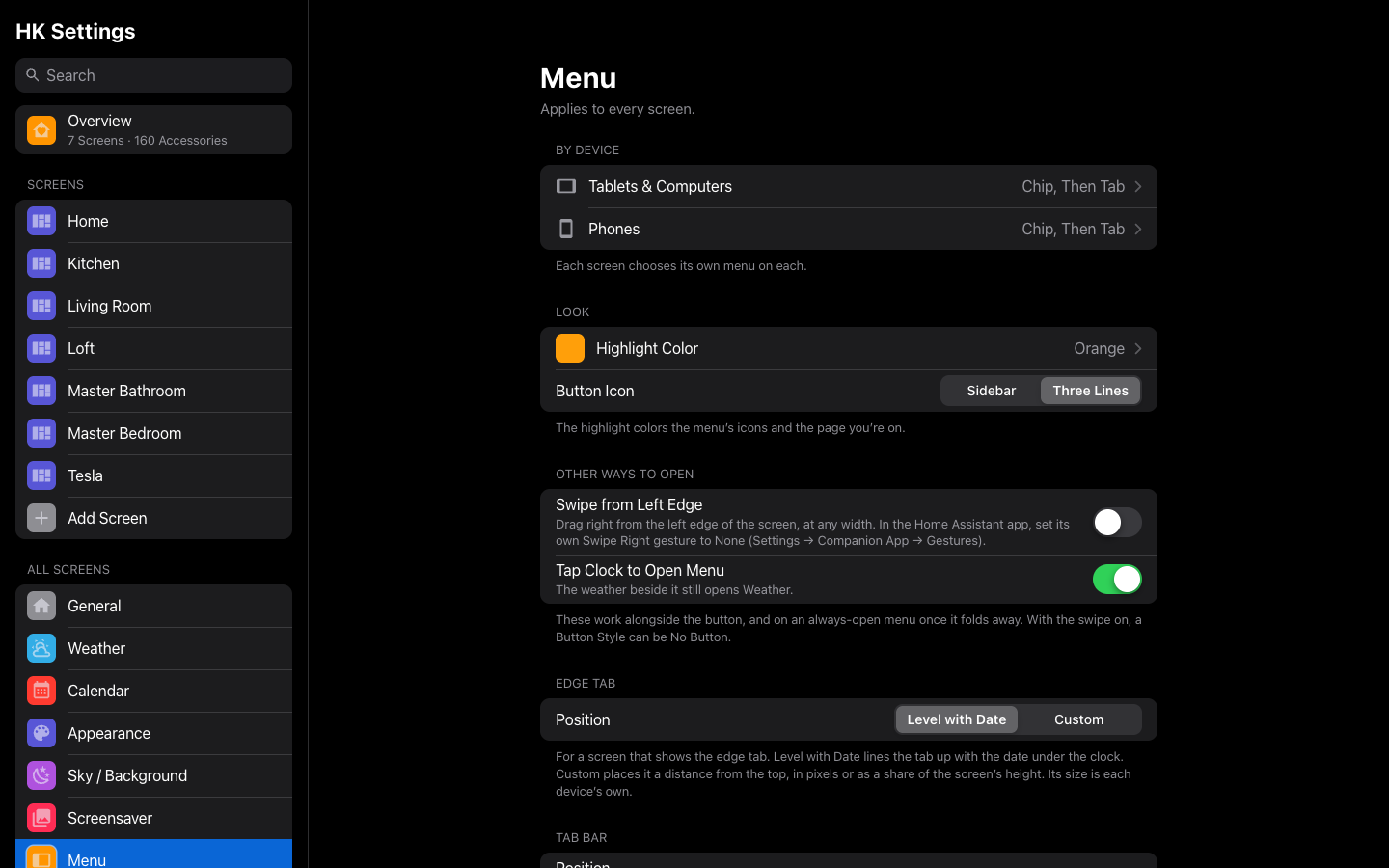
All Screens → Menu. Every screen with a menu follows these, unless it sets its own. The page starts with Tablets & Computers and Phones, each a page of that device’s settings; below them is what every device shares. Each device’s page begins with Menu on Each Screen: every screen and its menu on that device, each opening that screen’s page to change it. The settings for a menu button apply to the screens with a button, those for an always-open menu to the screens with one, so a wall tablet and a phone can both follow them. The page ends with whether each screen follows these. The menu’s rooms (A to Z or in the room order) are in Rooms, linked from In the Menu.
| Setting | Default | What it does |
|---|---|---|
| Highlight Color | Orange | The menu’s icons and the page you’re on: Orange, Yellow, Green, Mint, Teal, Cyan, Blue, Indigo, Purple, Pink or Red (Apple’s system colors), or Your Own Color. Over a pale color the page’s name turns dark. |
| Button Icon | Sidebar | The menu button’s picture: Sidebar or Three Lines. |
| Button Style | Automatic | Tablets & Computers: a menu button. Automatic: a round chip at the start of the status chips when the Home page has a menu button, otherwise the edge tab. Chip: the round chip. Chip, Then Tab: the chip, and a slim tab slides in from the left edge while the chip is scrolled out of sight. Chip on Home, Tab Elsewhere: the chip on Home, the edge tab on every other page. Edge Tab: a slim tab on the left edge, level with the date. No Button: nothing on the page; the swipe opens it (only with Swipe from Left Edge on). |
| Button Style (Phones) | Chip | Phones: a menu button — on a phone, and on a tablet whose own menu doesn’t fit. Chip, Chip, Then Tab, Edge Tab or No Button (only with Swipe from Left Edge on). |
| Swipe from Left Edge | Off | Other ways to open. Drag right from the screen’s left edge to pull the menu out, at any width, alongside the button. Lets Button Style be No Button. In the Home Assistant Companion app, set the app’s own Swipe Right gesture to None. |
| Tap Clock to Open Menu | On | Other ways to open. Tapping the header’s clock opens the menu. The weather beside it still opens the Weather page. |
| Keep Open Down To | 1,000 px | Tablets & Computers: always open. Narrower than this (700 to 3,000 px), the menu folds away and the screen shows its Phones menu. 1,000 keeps it open on a computer and an iPad held sideways and folds it on an iPad held upright. |
| Time & Weather in Menu | Off | Tablets & Computers: always open. The time, date and weather sit at the top of the menu instead of in the Home page’s header, and the status chips move up into the space. When the menu folds away, the header comes back. A Wall Tablet screen turns it on for itself when All Screens has it off. |
| Edge Tab Position | Level with Date | The edge tab, on every device. Level with Date: the tab’s middle lines up with the date under the clock. Custom: a Distance from Top, Measured In Pixels or % of Screen Height. |
| Edge Tab Size | Large | Tablets & Computers: the edge tab. How big it is on a tablet, an iPad or a computer: Standard (the slim tab that fits the margin), Large or Extra Large. A bigger tab lies over the page’s edge and stays on top of it, and its touch area reaches a little past it. |
| Edge Tab Size (Phones) | Standard | Phones: the edge tab. The same three sizes for a phone. On a phone even the standard tab lies over the first column of tiles, so a bigger one covers more of it. |
| Home Assistant Section | Off | Adds a Home Assistant section to the menu, above Categories: Integrations, Automations, Settings (with its updates-and-repairs count), Notifications (with its count), More (the rest of that person’s Home Assistant sidebar, in their order), Show Menu (Home Assistant’s own sidebar, even where it is hidden) and Profile. Each person sees only what they may open. Leave it off on a shared wall tablet. |
Screens → (the screen) → Menu → Menu Settings.
| Setting | Default | What it does |
|---|---|---|
| Same as All Screens | On | The screen’s menu is All Screens’. The page shows what it takes from them, under From All Screens, and a way to All Screens → Menu. |
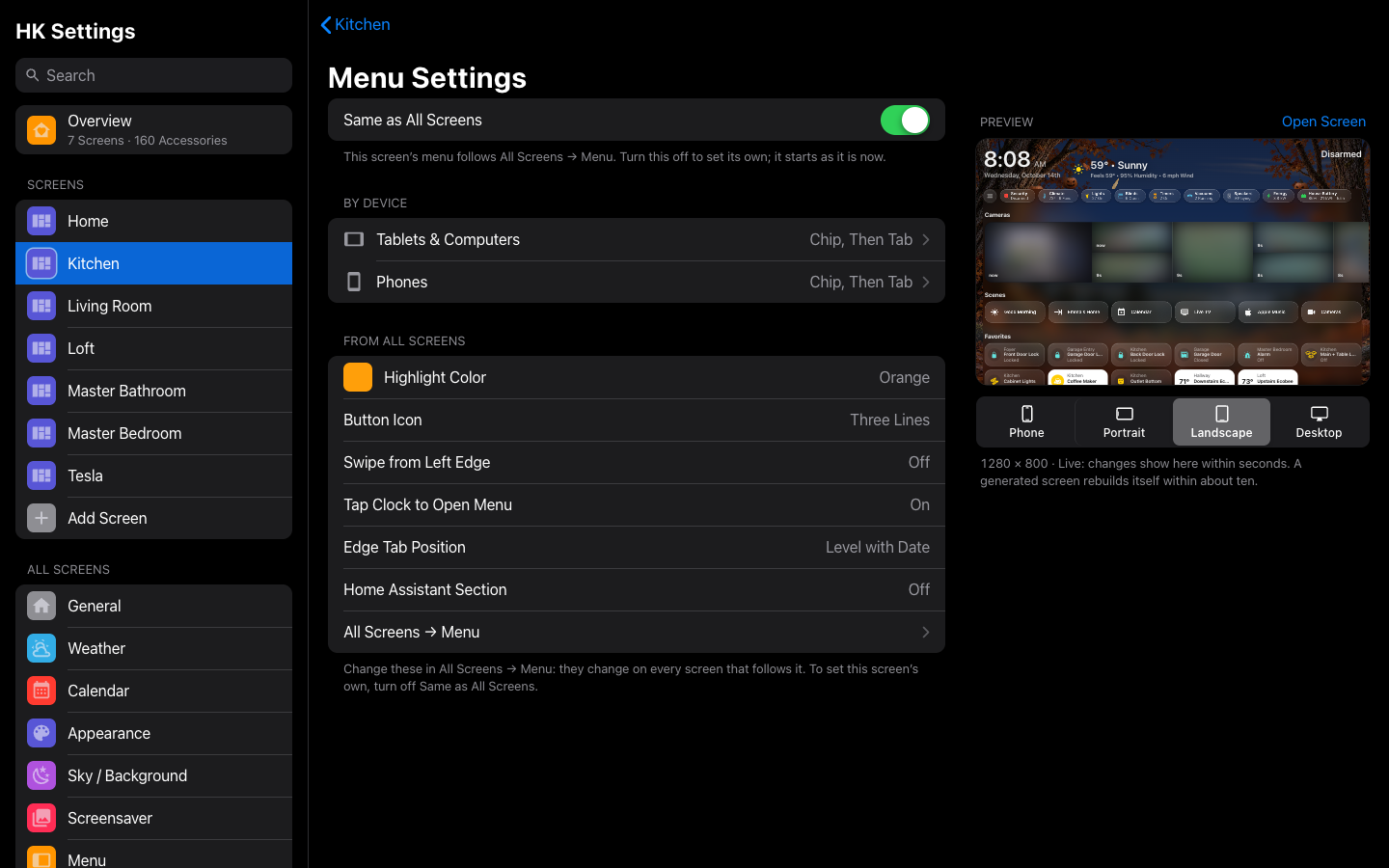
Turn Same as All Screens off to give the screen its own: they start as they are, then change on their own: the highlight, the icon, the clock tap, each device’s page (Tablets & Computers: the button, or Keep Open Down To and Time & Weather; Phones: the phone’s button or tab bar), the edge tab and the Home Assistant section. Turn it back on to follow All Screens again. Whether the screen has a menu at all stays its own either way.
Before, a phone used a screen’s narrow choice (On Narrow Screens / When Folded), and some phone settings copied the tablets’ (Same as Tablets). On the first start after updating:
- each screen’s menu on phones is written down as a phone showed it: the tab bar where the screen’s menu or its narrow choice was the tab bar, no menu where it had none, otherwise a button in the narrow choice’s style;
- every phone setting that copied the tablets’ gets that value as its own;
- the narrow choice goes. An upright iPad or a narrow window whose tablet menu doesn’t fit now shows the Phones menu. For most screens that is the same button as before; a screen that is always open on tablets with the tab bar on phones now shows the tab bar there too.
Nothing a phone, or a tablet with room, shows moves.
Before, each screen held its own copy of every menu setting. On the first start after updating, each one became All Screens’ as most screens with a menu had it (the button’s style among the screens with a button, Keep Open Down To among the always-open ones). A screen with exactly those follows All Screens; one that differed keeps its own (its Same as All Screens is off). Nothing on any screen moves.