Repository navigation
Screens
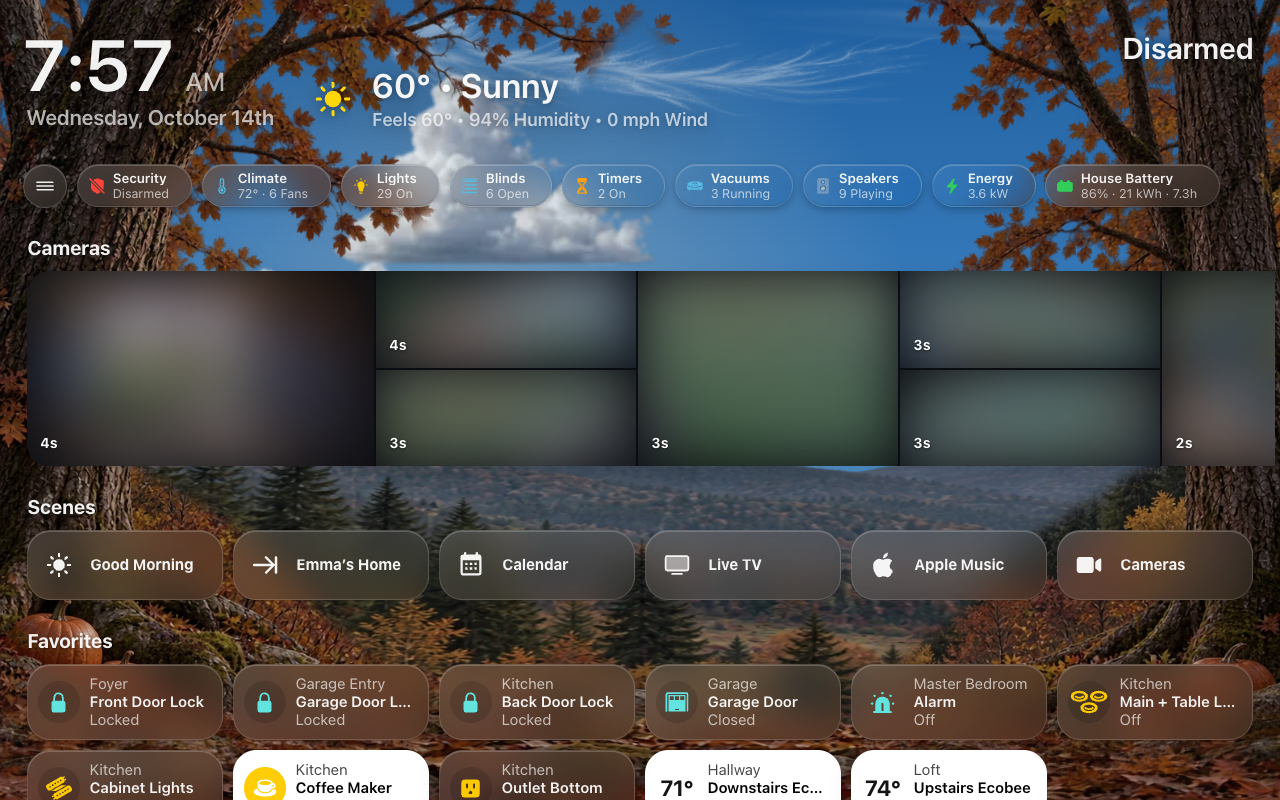
A screen is a Home Assistant dashboard that HK Frontend draws and keeps settings for: the dashboard on a wall tablet, on your phone, on your computer, in your car. This page is what a screen is and how to make one; the pages under Screens in the sidebar take each part in turn.
| Generated screen | Your own YAML dashboard | |
|---|---|---|
| What it is | A dashboard whose whole configuration is strategy: type: custom:hk-dashboard
|
A dashboard you write yourself, view by view, with HK Frontend’s cards |
| Where its content comes from | Your floors, areas, devices and entities, read every time it opens: a light you add appears by itself | Your YAML |
| How you shape it | HK Settings: its menu, Home page, pages, appearance and behavior | Your YAML, plus the HK settings its cards read |
Start with a generated screen. You can have as many as you like: one per wall tablet, one for phones, one for a computer. They all share the All Screens settings and the Library, and each has its own page in HK Settings.
The usual way is HK Settings → Screens → Add Screen: Your First Screen walks through it. What each Shown On choice starts with is under Add Screen below. There are two other ways.
You can also make one yourself: Settings → Dashboards → Add dashboard → New dashboard from scratch, then in its raw configuration editor:
strategy:
  type: custom:hk-dashboard
Every option is optional:
strategy:
  type: custom:hk-dashboard
  areas: [kitchen, living_room]        # only these areas, in this order
  exclude_areas: [garage]
  exclude_devices: [<device id>]
  exclude_entities: [switch.car_seat_heater]
  include_entities: [scene.movie_night]
  theme: HK Kiosk                      # default: HK Kiosk, when it is loaded
  sky: false                           # no live sky
  music: false                         # no Music page
  chips: false                         # no status chips
  pages: false                         # no Lights, Climate, Doors & Windows, Timers, Vacuums or Water pages
  rooms: false                         # no room pages
The lists add to HK Settings → Accessories → Hidden Accessories and Added Accessories, which apply to every generated screen. Then give the dashboard its settings as described next.
- Open HK Settings → Screens → Add Screen.
- Under Existing Dashboards, pick the dashboard.
- Pick what it is Shown On.
- Select Set Up Screen.
A YAML dashboard draws its own Home page and pages, so its page in HK Settings shows only what it can use:
| Setting | Reaches a YAML dashboard through |
|---|---|
| Menu | Every view (see The menu on your own dashboard) |
| Status Chips | custom:hk-chips-card |
| Scenes |
custom:hk-scenes-card (the list you pick replaces the card’s own) |
| Cameras |
custom:hk-camera-mosaic-card (the cameras you pick replace the card’s own) |
| Rooms (room order) | Room sections in a custom:hk-grid-view view: a card whose first card is an hk-heading-card with area:
|
| Glass, Sky / Background | Every view. The Background (Live Sky, Color, Photo or Landscapes) shows wherever the YAML puts the sky. |
| Allow Pop-ups, Car Browser | The whole dashboard |
| Home Assistant Header & Sidebar | The whole dashboard, unless its YAML has hk_kiosk: or kiosk_mode:
|
| Photo Screensaver and its options | The whole dashboard, on the wall tablets that run it (with their switches and In Use sensors), unless its YAML has hk_screensaver:
|
A wall tablet running it returns to Home and sleeps by its own settings, as on any screen.
Favorites, the camera strip switch, Header on Phones, Pages, the now-playing bar and WallPanel are for generated screens only. A YAML dashboard says those things in its own YAML: Your Own Dashboard has everything it can write, and so does HK Settings → Advanced → Your Own Dashboards.
Screens → Add Screen.
New Screen makes a new generated dashboard:
| Setting | Default | What it does |
|---|---|---|
| Name | — | Its title in the sidebar. Its address is made from the name (hk-kitchen for Kitchen). |
| Shown On | Wall Tablet | The preset it starts from (below). |
| Shows | Everything | Everything: a whole screen, with Home, rooms and every page. Only Some Pages: a page screen with no Home page, where you pick its pages next. Only the Energy Page: an energy display (with the Energy feature). See Whole screens and page screens. |
| Copy Settings From | Nothing | Another screen to start from: after the preset, the parts you tick are copied from it (see Copy settings from another screen). |
| Only Admins Can Open It | Off | Only administrators see it in the sidebar. |
Existing Dashboards lists your other dashboards. Pick one, choose what it is Shown On (and, for a generated one, what it Shows), and select Set Up Screen to give it HK settings.
What each preset starts with (everything else is the default, and every value can be changed afterwards; nothing remembers the preset):
| Shown On | Starts with |
|---|---|
| Wall Tablet | Menu Always Open, Time & Weather in Menu, Home Assistant’s header and sidebar hidden (returning to Home when idle is the tablet’s) |
| Phone or iPad | Menu as a button (Automatic), the time and weather in the header |
| Computer | Menu Always Open |
| Car | No menu, Car Browser on, Home Assistant’s header and sidebar hidden |
| Energy Display | Home Page off and only the Energy page, no menu, Home Assistant’s header and sidebar hidden (needs the Energy feature) |
| Something Else | The defaults: a generated screen gets the menu as a button, a YAML one no menu |
Hiding Home Assistant’s header and sidebar and the photo screensaver are part of HK Frontend: nothing else to install. A screen is what is drawn; the tablet on the wall that runs it is its own item, in All Screens → Wall Tablets. Setting up a wall tablet end to end: Wall Tablets.
Screens → (a screen). The settings of one dashboard. A screen written in YAML (not generated) only shows the settings its cards can read; the rows marked generated are left out for it. The pages under Screens in the sidebar explain what each part of a screen is.
The first line under the title says the screen’s address and whether it is Generated from your home or Written in YAML.
Rename a screen with the pencil beside its name: type the new name, then Save (or Return); Cancel (or Escape) leaves it. It renames the dashboard itself, so the new name is the one in Home Assistant’s sidebar too. Its address doesn’t change, so every link, tablet and automation that opens it keeps working. A dashboard written in YAML is named in its YAML, so it has no pencil.
Its settings come in groups, each explained on its own page:
| Group | Page |
|---|---|
| Menu | Menu |
| Home Page: Status Chips, Cameras, Scenes, Favorites and Rooms | Home Page, Status Chips, Cameras |
| Header | below |
| Pages | Pages |
| Appearance | Appearance |
| Behavior | below |
| Notifications | below |
| When Idle | below |
| Wall Tablets | below |
| This Device | below |
| Setting | Default | What it does |
|---|---|---|
| Header on Phones | Clock & Weather | Generated. What the top of Home shows on a phone held upright (narrower than 640 px): Clock & Weather (the header) or Weather Strip (one line of weather). See Home Page. |
| Home Assistant Header & Sidebar | Off (Wall Tablet, Car and Energy Display presets: Both Hidden) | Whether Home Assistant’s own header and sidebar show around this screen. It reads Off, Both Hidden, Header Hidden, Sidebar Hidden or Kiosk Mode Plugin, and opens its own page (Header & Sidebar). |
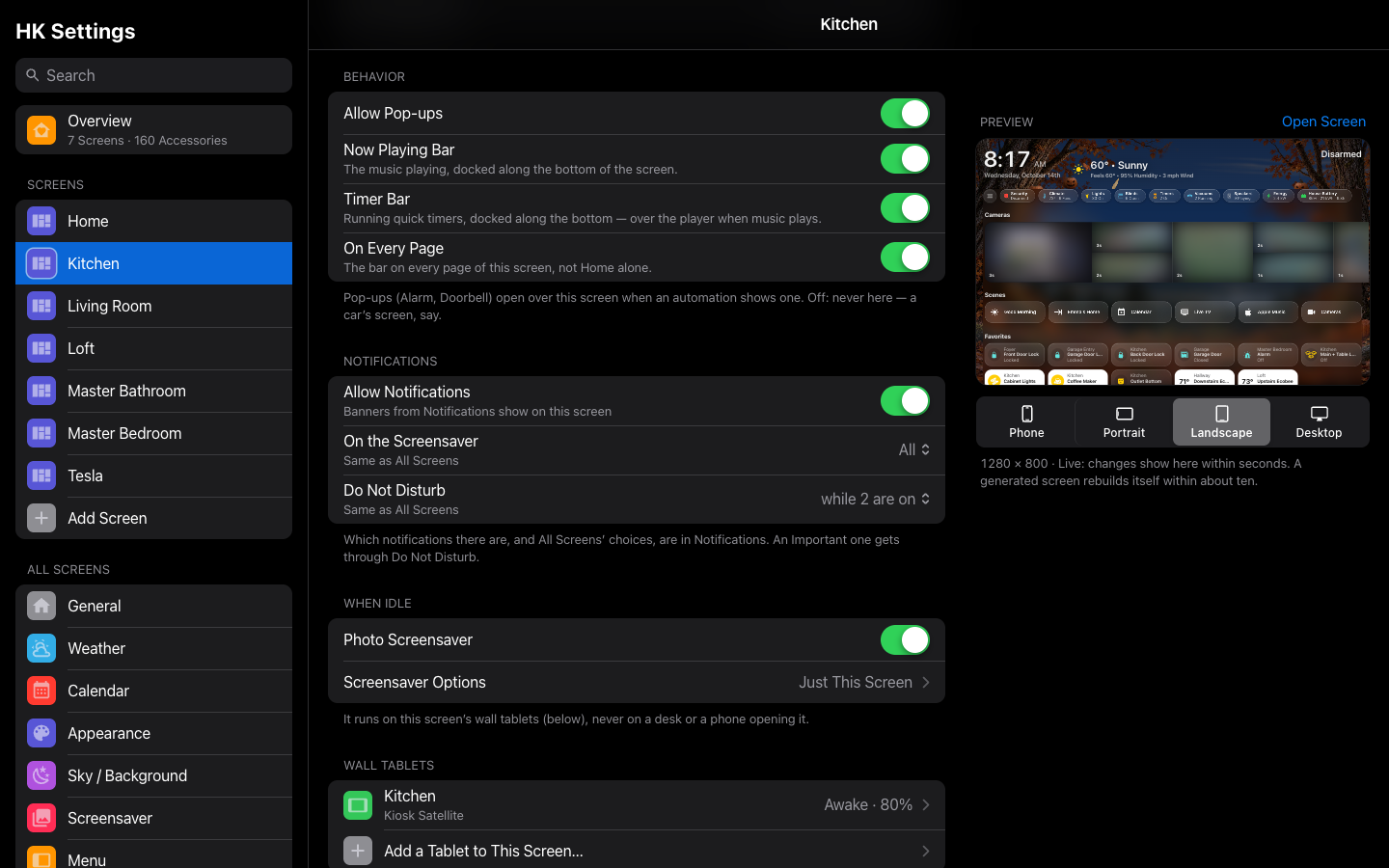 A screen’s Behavior: the docked bar’s three switches under Allow Pop-ups.
| Setting | Default | What it does |
|---|---|---|
| Allow Pop-ups | On | Your pop-ups may open over this screen. Off: never here (a car’s screen, say). |
| Now Playing Bar | Off | Generated. The music playing, docked along the bottom of the screen, full width (the page ends above it; a tab bar along the bottom rides over it). Needs the Music feature. What it does: Music → The Now Playing bar. |
| Timer Bar | Off | Generated. Running quick timers, a slim row docked along the bottom, over the player when music plays: soonest first, Restart, +1 min and Finish (swiped one at a time on a phone). Needs the quick timers, not Music. A screen that had the Now Playing Bar before has it on. |
| On Every Page | Off | With the Now Playing Bar or the Timer Bar. The bar on every page of the screen, not Home alone; it stays in place as you change pages. A tablet’s Music page is its own player, so the bar leaves it out there. |
Shown once the Notifications feature is added, right after Behavior.
| Setting | Default | What it does |
|---|---|---|
| Allow Notifications | On | Banners show on this screen. Off: never here. |
| On the Screensaver | Same as All Screens | With Allow Notifications on. Which banners show over this screen’s photo screensaver: All, Important Only or Off. |
| Do Not Disturb | Same as All Screens | With Allow Notifications on. Off on This Screen, or Its Own Hours: its own schedule (From, To) and Do Not Disturb While This Is On list. An Important notification still gets through. |
| Setting | Default | What it does |
|---|---|---|
| Photo Screensaver | Off | A photo screensaver on the wall tablets that run this screen, never on a desk or a phone opening it (how it works: Screensaver and Idle). The live sky and the cards hold still behind it. |
| Screensaver Options | Same as All Screens | With Photo Screensaver on. Same as All Screens, Just This Screen, or WallPanel when WallPanel draws it. See below. |
Returning to Home when idle, and Sleep Screen, are each wall tablet’s own: Wall Tablets.
| Setting | Default | What it does |
|---|---|---|
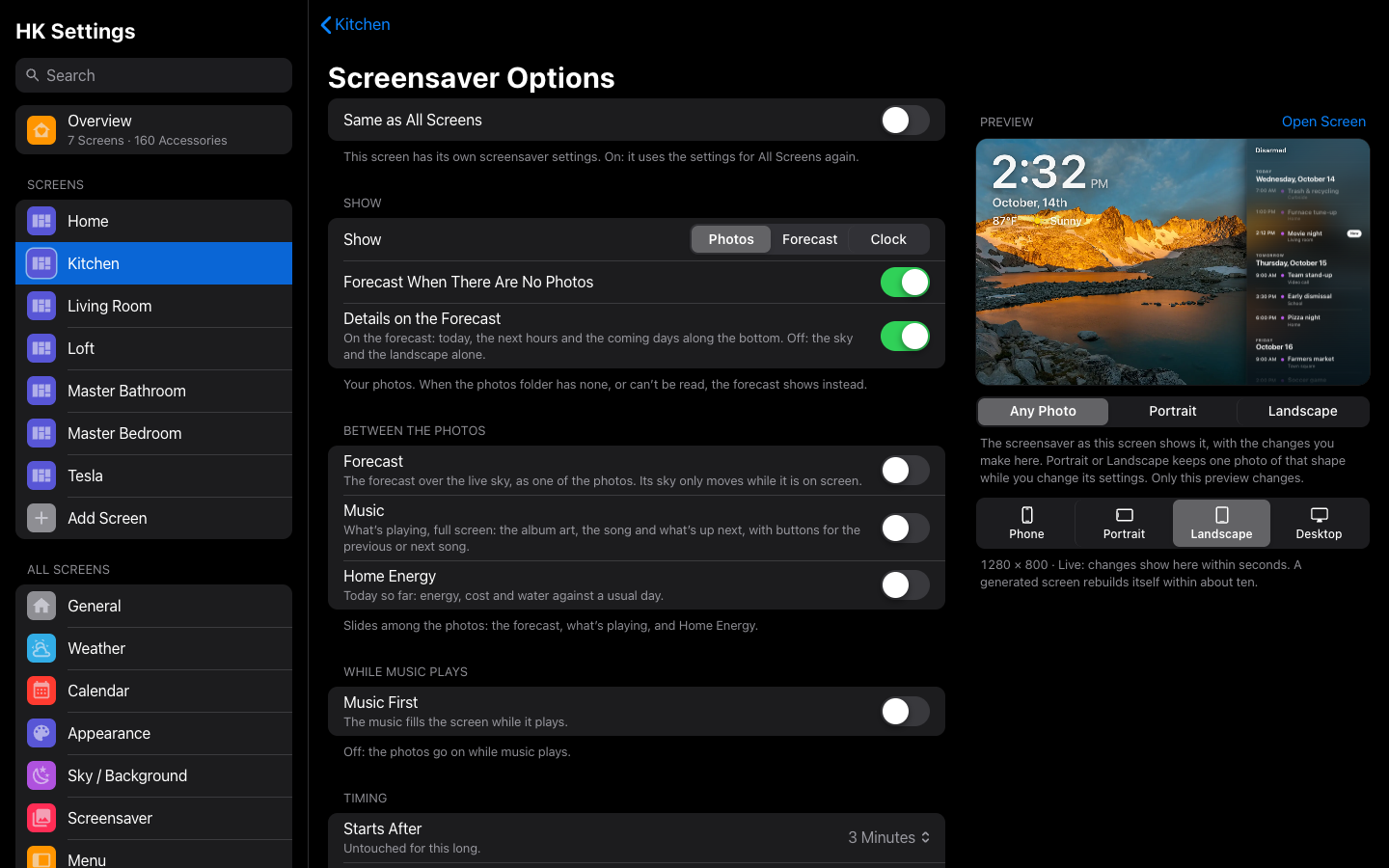
| Same as All Screens | On | The screensaver settings for All Screens (All Screens → Screensaver). Off: this screen has its own (Just This Screen), starting from those; every option below is then this screen’s. A screen set up before 1.3 keeps the options it had. |
| Show | Photos | Photos: your photos, and the forecast whenever there are none, with slides between them (below). Forecast: always the forecast, over the live sky and the season’s landscape (more). Clock: a clock, full screen, with its own groups: its style, color, background, Night Mode and what is over it (more). With Forecast or Clock, the photo settings are hidden (Clock shows them again with Photos behind it). |
| Between the Photos → Forecast | Off | With Show: Photos. The forecast as one of the photos every few photos. |
| Between the Photos → Music | Off | With Show: Photos. What’s playing, full screen, as one of the photos every few photos, only while music plays: the album art, the song, what’s up next, and previous, play or pause, next and volume that work without closing the screensaver (more). With Forecast on too, they take turns. |
| Between the Photos → Home Energy | Off | With Show: Photos. Today so far against a usual day, as one of the photos every few photos: the Energy page’s rings for energy, cost and water, what the house draws now, the house battery, yesterday by now, and the month so far with where its cost is heading (more). The music, the forecast and Home Energy take turns. Home Energy Options chooses its rings and what’s along the bottom. |
| Between the Photos → Weather | Off | With Show: Photos. Today’s weather at a glance over the live sky (Sky Only): the temperature in front of the weather’s own symbol, a line in words, Temperature, Rain (or Snow) and Wind, and the next hours and coming days (more). Weather Options chooses the readings and what’s along the bottom. |
| A Slide | Every 5 Photos | With any slide on. How often a slide comes round: every 3, 5, 10 or 20 photos. It stays for Each Photo For, like a photo. |
| Additional Screens | Off | With Show: Forecast or Clock. Other screens now and then over the forecast or the clock: Forecast (with Show: Clock, unless the forecast is behind the clock already), Music (only while music plays; hidden with Music First, which covers it), Weather (with Show: Clock) and Home Energy. Every 1 to 30 minutes one of them fades in, for Show For 15 seconds to 2 minutes; with more than one on they take turns. None while music plays first, nor in the clock’s Night Mode (more). |
| While Music Plays → Music First | Off | While music plays it fills the screen in place of the photos (or the forecast), and stays; they come back 20 seconds after it stops. With it on, the Music slide is not needed. |
| Forecast When There Are No Photos | On | With Show: Photos. Off: when the folder has no photos (or can’t be read), the screen stays dark instead, as before 1.3. (With the Forecast slide on, the forecast always shows then.) |
| Details on the Forecast | On | Wherever the forecast can show. On the forecast: today, the next hours and the coming days along the bottom. Off: the sky and the landscape alone. |
| Forecast Along the Bottom (Over the Photos) | Off | With Show: Photos. The same details along the bottom of the photos. |
| Starts After | 3 Minutes | 1 to 30 minutes untouched. The one timer: the screen’s In Use sensor stays on for a minute less after each touch, so it is always off before the photos come up (more). |
| Each Photo For | 30 Seconds | 10 seconds to 5 minutes. |
| Fade Back | 0.5 Seconds | From the screensaver to the dashboard, after a touch or when the switch turns off: Instant, 0.5 Seconds, 1 Second or 2 Seconds. |
| Order | Random | Random (every photo once before any repeats) or In Order (by name). |
| Layout | One at a Time | One at a Time or Mosaic: 2 to 5 photos at once, with its Spacing, Line Thickness and Line Color, Changes, and Up To (a different number of photos now and then, a new number every few minutes). With Mosaic, Portrait and Landscape Photos show only Zoom and Focus. More |
| Portrait Photos, Landscape Photos | Portrait: Whole; Landscape: Fill the Screen | Each shape's own Show As (Whole over a blurred copy, or Fill the Screen), Background Blur and Dim, Zoom and Focus (Top / Center / Bottom, Left / Center / Right), with Reset to Default. More |
| Slow Zoom | Off | A slow zoom across each photo. The tablet keeps drawing the whole time, so it runs warmer. |
| Over the Photos → Clock | Corner | Corner: the small clock and date, top left. Large: your Clock Style, centered, with its Clock Style, Color and Night Mode (and over the photos the clock text’s Shadow and Outline). Off: no clock. More |
| Over the Photos → Weather, Now Playing, Timers, Home Status | On | What else shows over the photos: the weather top left, what’s playing anywhere in the house bottom left, running timers bottom right, and the home’s status top right (Home Secured, or what’s open or unlocked). |
| Side Pane → Calendar | Off | The coming events down the right of the screen, from the calendars in All Screens → Calendar: the photos (or the forecast) move over beside it; Home Status moves to its top, and Now Playing and Timers to its foot. A swipe on it scrolls it; a touch anywhere else closes the screensaver (more). |
| Days | Today & Tomorrow | With Calendar. How many days it lists: today, today and tomorrow, or up to 7 days. |
| Side Pane → Music | Off | What’s playing in the same pane, while music plays: the art, the song, the buttons and the volume (they work without closing the screensaver; a tap on the art opens Music). Alone it fills the pane, which comes with the next photo once music plays and goes 20 seconds after it stops; with Calendar, the events are above it. |
| For Automations → Photo Screensaver, In Use | — | Each of its wall tablets’ switch.<tablet>_photo_screensaver and binary_sensor.<tablet>_screen_in_use, made by HK Frontend for every tablet. Tap one to open it. What they do: Screensaver and Idle. |
| Reset to Defaults… | — | Shown once anything is changed. |
| Use WallPanel Instead | Off | Generated. Shown when WallPanel is installed from HACS: it draws this screen’s screensaver instead, with its own options page (and Options in YAML). |
The photos come from Screensaver Photos, at the top of All Screens → Screensaver. Show: Clock (a clock as the screensaver, with its fifteen styles, its background, and your photos behind it if you like) and its options are in A clock.
The wall tablets that run this screen, each with its kiosk app and its state and battery; tap one to open its page. Add a Tablet to This Screen… adds one. Each tablet’s user, room, idle time and Sleep Screen are its own, in All Screens → Wall Tablets.
| Setting | Default | What it does |
|---|---|---|
| Car Browser | Off (Car preset: on) | Fits a car’s narrow browser to a desktop layout. Add ?vw=1000 to the address to change the width it lays out (a bigger number makes everything smaller), or ?vw=off to turn it off in that browser. |
A screen’s page ends with Copy Settings From…: pick another screen, tick what to copy, and select Copy. Only this screen changes.
| Part | Ticked | What it copies |
|---|---|---|
| Menu | Yes | Whether it has a menu (a button, or always open), its Menu Settings (Same as All Screens, or Just This Screen: the highlight, the button or edge tab and its size and position, the tab bar, and the rest) for Tablets & Computers and for Phones |
| Home Page | Yes | The status chips and their order |
| Rooms | Yes | Same as All Screens, or Just This Screen: its room order, Rooms in Menu and Rooms on Pages |
| Cameras | Yes | The camera strip and which cameras, and the live camera |
| Scenes | No | The scenes row and its pills |
| Favorites | No | The favorites |
| Header | Yes | Header on Phones, and Home Assistant Header & Sidebar |
| Pages | Yes | Which pages and custom pages, the Home page, Only These Pages, and each page’s place in the menu |
| Appearance | Yes | Glass, frost, blur, Sky / Background (its Background, the live sky’s settings and each page’s background) |
| Behavior | Yes | Pop-ups, the Now Playing Bar, the Timer Bar, On Every Page, and the Notifications group (Allow Notifications, On the Screensaver, Do Not Disturb) |
| When Idle | Yes | Photo Screensaver, its options (or Same as All Screens), WallPanel instead |
| This Device | No | Car Browser |
A wall tablet’s settings (its user, room, idle time and Sleep Screen) are never copied: they are the tablet’s, not the screen’s. Add Screen → Copy Settings From does the same for a new screen.
| Button | Shown for | What it does |
|---|---|---|
| Delete Screen… | A generated screen | Deletes the dashboard and its settings. A tablet showing it will need another screen. |
| Remove HK Settings… | A YAML screen | The dashboard stays. Its menu, Home page, pages and appearance go back to the defaults. |
A dashboard with no HK settings has no menu and uses the defaults for everything else. Its page offers Set Up This Screen.