Repository navigation
Your First Screen
With HK Frontend installed, the Setup Assistant asks a few questions about your home and makes your first screen. About ten minutes.
Open HK Settings in the sidebar. The first time you open it — before any screen has HK Frontend settings — the Setup Assistant starts by itself. You can run it again at any time from Overview → Setup Assistant.
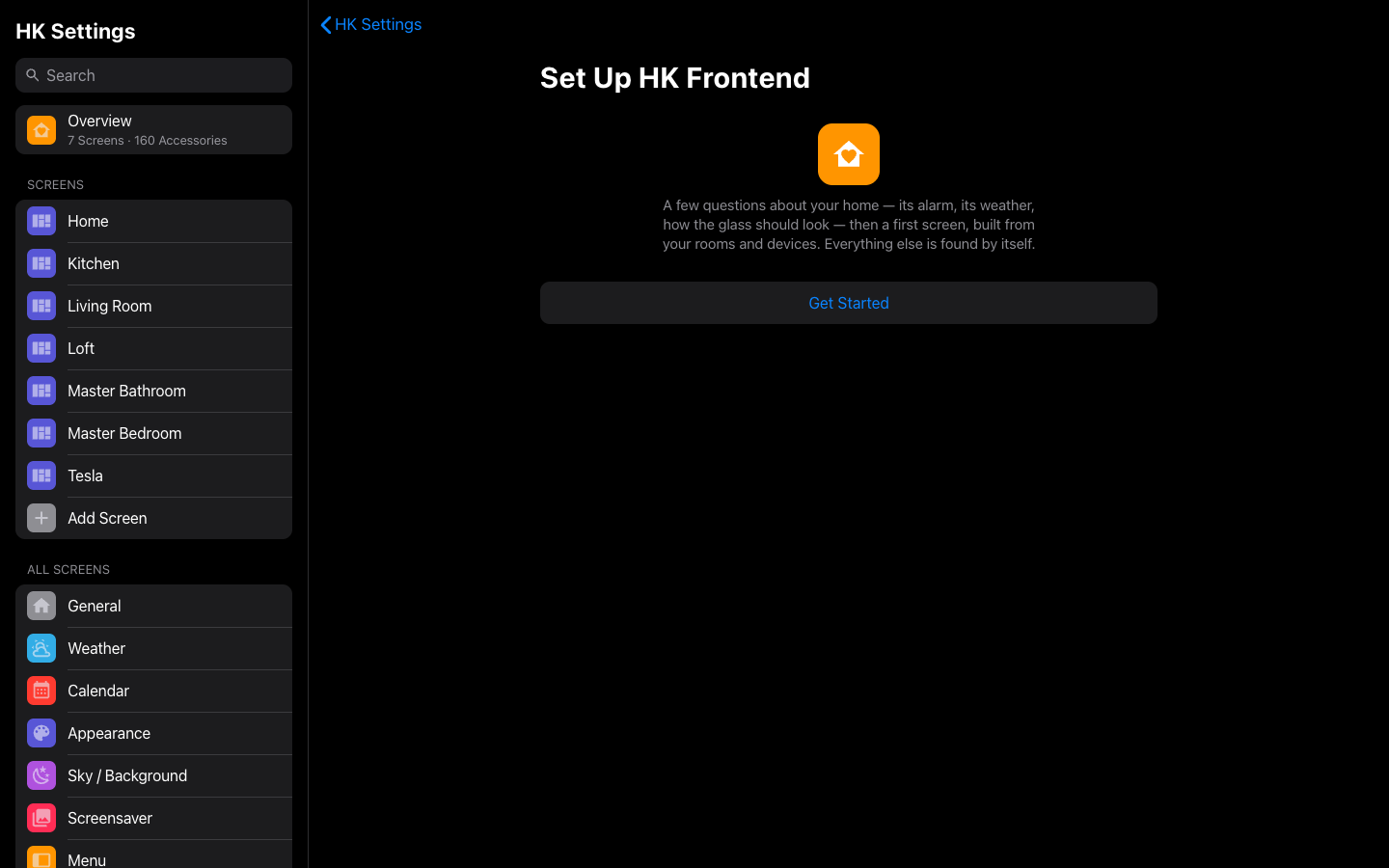
It asks a few questions about your home, then makes your first screen. Every control saves as you change it, and everything can be changed later from the list in HK Settings. Where a step links to another page (for example the radar map’s options), Back returns you to the step.
| Step | What it asks |
|---|---|
| Welcome | Nothing. Select Get Started. |
| General | Alarm Panel — the alarm the header, the Security chip and page, and the keypad use. If you have one, a button offers it. House Timers — timer helpers offered as one-tap timers on the Timers page. |
| Weather | Weather Service (default: the first weather entity), and Place, the name shown above the temperature (default: your home’s name). Optionally, Sensors that replace the weather service’s own readings, and the Radar Map (needs Weather Radar Card from HACS). |
| Appearance | Glass Style for tiles, pills and chips: Glass (the default), Frosted, Tinted (the Home app's flat dark plate, the lightest) or Blur — and Blur's mode: Shared Layer, Pre-rendered (the lightest, still experimental) or Each Card (too heavy for a wall tablet). Frost, Darkness or Blur amount for the style you picked. Page Pills, the look of the pills that open a page. |
| Features | The four optional features. One you have added links to its settings; one you haven’t shows Set Up and a line about what it does. You can also add them later — see What next. |
| First Screen | Your first screen — see the next step. Skip leaves it for later. |
| Done | A link to open the screen you made, and Done. |
A screen is a Home Assistant dashboard that HK Frontend has settings for. There are two ways to get one, both in the First Screen step or, later, from Add Screen in the HK Settings list.
Under New Screen:
-
Name — for example
Kitchen. It becomes the dashboard’s title in the sidebar. -
Shown On — what the screen is for. It sets the starting values, and every one can be changed afterwards:
Shown On Starts with Wall Tablet The menu always open with the time and weather in it, back to Home when idle, no Home Assistant header or sidebar. Phone or iPad The menu behind a button, the time and weather in the header. Computer The menu open beside the page. Car No menu, sized for a car’s browser. Something Else The defaults. -
Only Admins Can Open It — off, unless the screen is for admins only.
-
Select Create Screen.
HK Frontend creates a new dashboard (its address is /hk- followed by the name, for example /hk-kitchen), adds it to the sidebar, and gives it its settings. The dashboard’s whole configuration is one line:
strategy:
  type: custom:hk-dashboard
That line asks HK Frontend to build the screen every time it opens, from your floors, areas and devices. When you move a device to another area or rename an area, an open screen rebuilds itself.
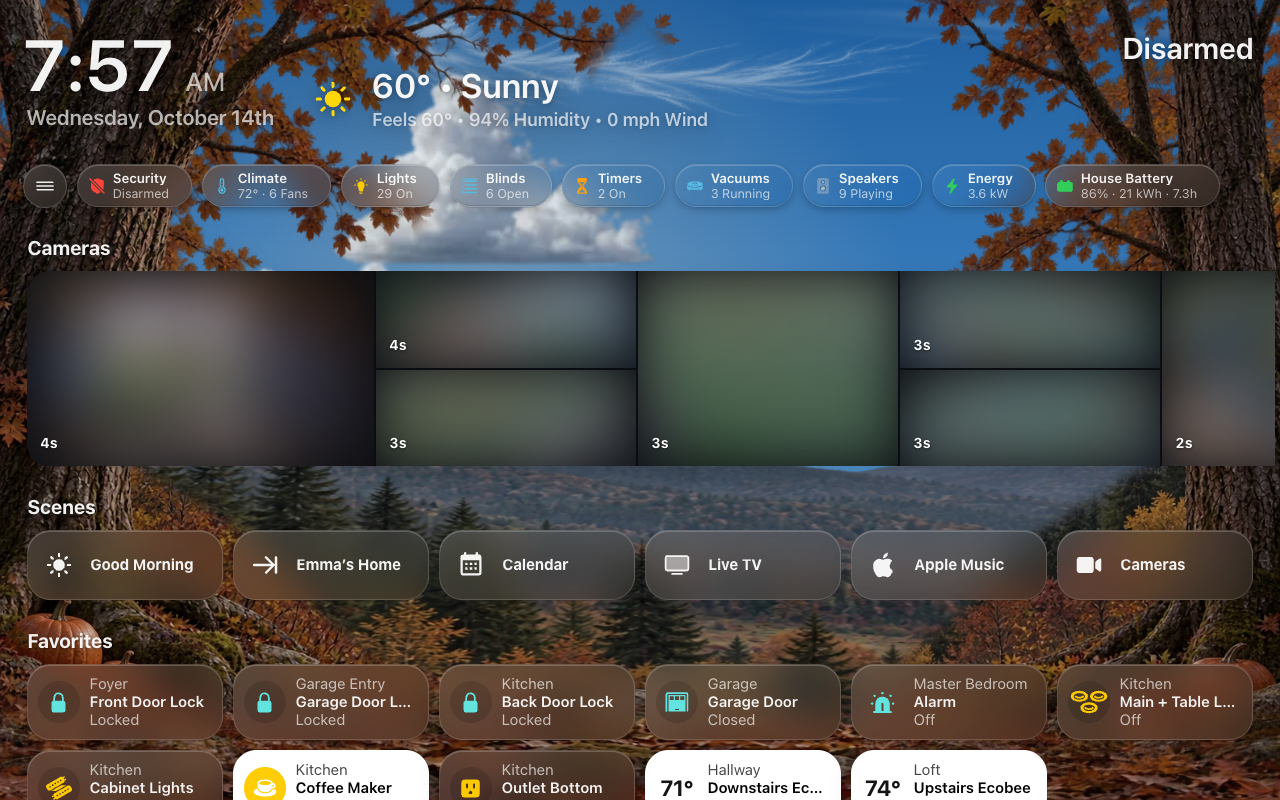
What you should see: open the screen (from the Setup Assistant’s last step, or from the sidebar). The Home page shows the time and weather (in the header, or in the menu on a wall tablet), a row of status chips, and a section of tiles for each room, ordered by floor and then by name. Tapping a chip opens its page — Lights, Climate, Doors & Windows and so on — and tapping a room’s heading opens that room’s page.
Under Existing Dashboards, HK Settings lists the dashboards that don’t have HK Frontend settings yet. Pick one, choose what it’s Shown On, and select Set Up Screen.
The dashboard itself isn’t changed: it gets a page in HK Settings for its menu, appearance and behavior. To look the part, its views should use cards from the card library and the HK Kiosk theme — choose HK Kiosk as each view’s theme in the view’s settings. On a hand-built dashboard the menu starts off unless the Shown On choice turns it on.
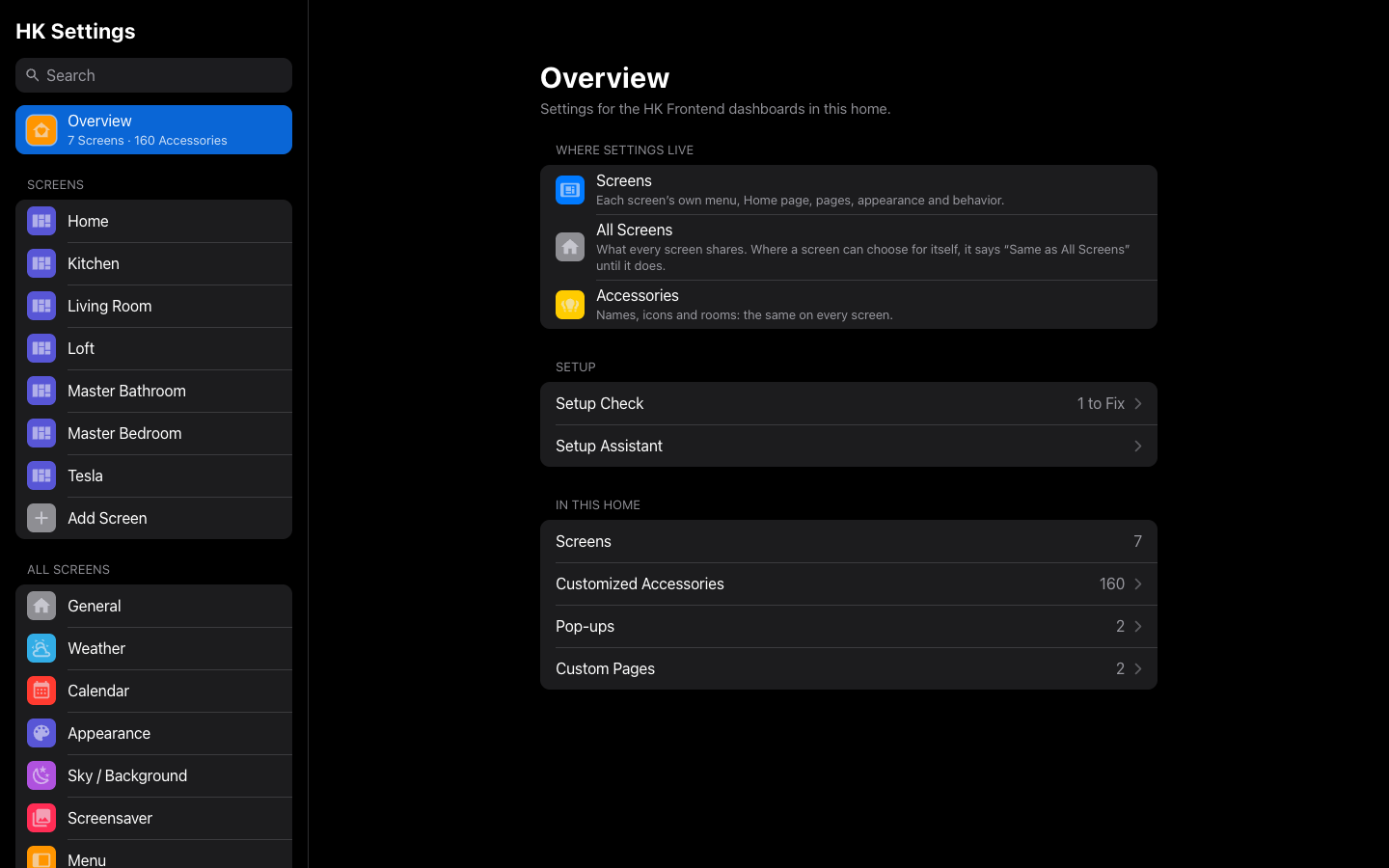
Setup Check reads your Home Assistant and lists what is ready and what to fix. It changes nothing.
Open HK Settings → Overview → Setup Check (it is also under System in the list). Lines are grouped into Needs Doing, Ready and Notes. Fix everything under Needs Doing; the Notes are optional. Select Check Again after fixing something.
What each line means, and how to fix it: Troubleshooting.
You’re done. What’s left is optional.
Until you add them, screens use Home Assistant’s font (Roboto) and Material Design icons. Apple’s license keeps SF Pro and SF Symbols out of the integration, so you make your own copies from Apple’s downloads and put them in a folder under /config — /config/hk_local unless you choose another:
File in /config/hk_local
|
What it is | Made from |
|---|---|---|
fonts/SF-Pro.woff2 |
The font, as a web font |
SF-Pro.ttf from Apple’s SF Pro download, with tools/font/make_woff2.py
|
fonts/SF-Pro.ttf |
Or the font as Apple ships it, instead of the woff2 | The same file, copied as is |
iconset/hk-glyphs.js |
Every hk: icon and the weather symbols |
155 symbols from Apple’s SF Symbols app, with tools/sf_symbols/build_glyphs.py
|
Of the 46 files Apple’s SF Pro installs, use only SF-Pro.ttf — not SF-Pro-Italic.ttf and none of the .otf files. The glyphs need a Mac once, to run the SF Symbols app; the font doesn’t.
The step-by-step guide, including how to do it without a Mac or without Python on the Mac: Your files. The symbol behind every icon: Glyph names.
- Shape your screens: the menu, the Home page’s chips, cameras, scenes and favorites, which pages to show, per-screen appearance — Screens and the pages under it. How HK Settings works — HK Settings.
- Optional features — Music, Live TV, Clean Areas, Alarm PIN, Energy and Notifications. Add each from Settings → Devices & services → HK Frontend → Add feature, then set it up under Features in HK Settings: Features.
- Wall tablets: Fully Kiosk Browser, a user per tablet, the photo screensaver and returning to Home when idle — Wall tablets.
- The live sky and its seasonal decorations — Live Sky.
-
Timers you set from the Timers page need a set of timer helpers that come with the integration:
helpers/quick_timers.yaml, included as a package. The top of that file says how. - Your own dashboards with the same look — Card Library.
- Something not right? Troubleshooting.