Repository navigation
Status Rows
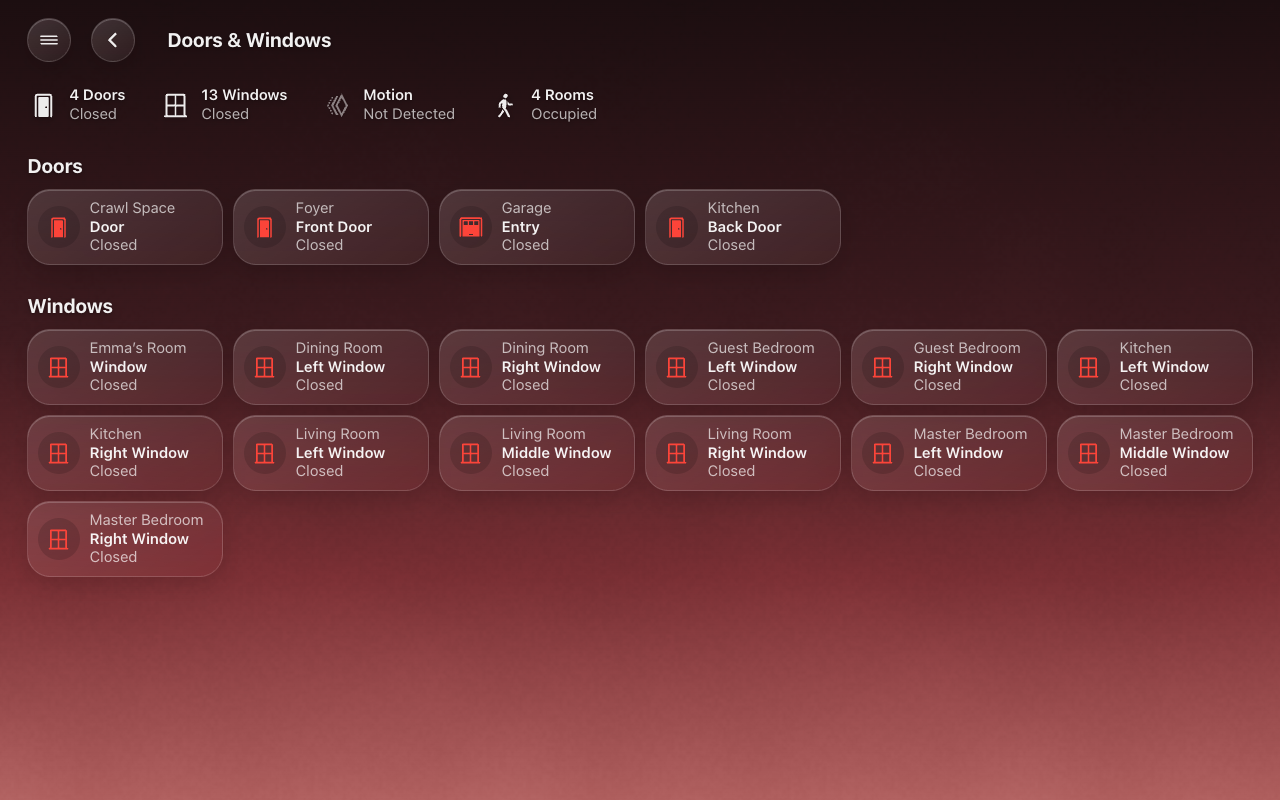
A status row is the line of glyphs and words under a page’s title, as the Home app draws it: Temperature 71° · Security System Disarmed · 4 Lights On · 3 Windows Closed · Motion Emma’s Room. A room page has one, and so do the Climate, Lights, Doors & Windows, Water and Security pages.
Each item shows only when there is something to say: a room with no fans has no Fans item. Tap an item to open what it counts. On a category page that is always a list of accessory pills, each with its room, even for one accessory; closing an accessory you opened from the list brings you back to the list.
Choose what each row shows, and in what order, in HK Settings → All Screens → Status Rows.
 |
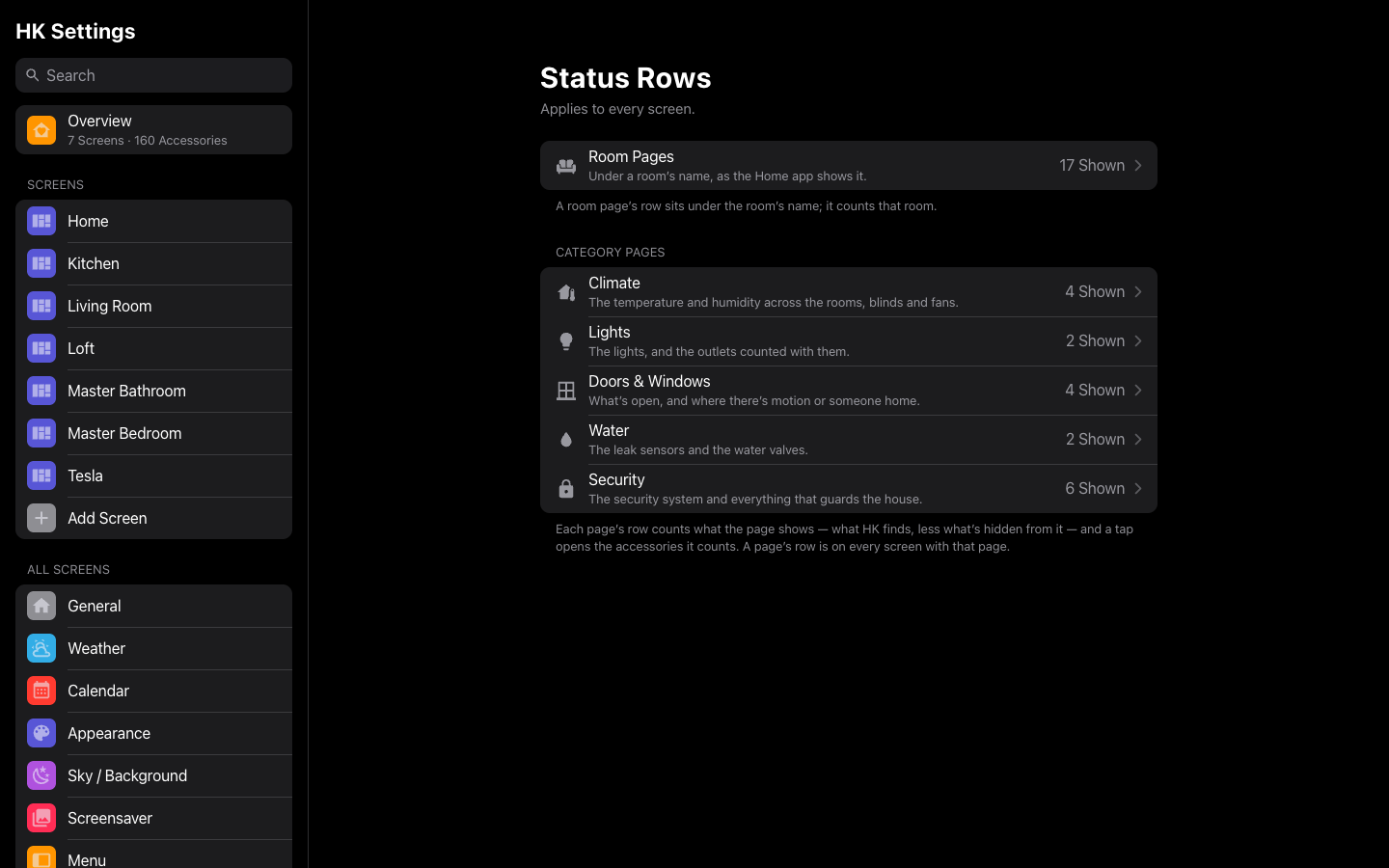 |
| The Doors & Windows page’s row | All Screens → Status Rows |
Under the room’s name. Its temperature and humidity are the area’s own sensors (Settings → Areas → the area → Related sensors). Lights, outlets, fans and the other accessories count the tiles on the room’s page; the sensors count the whole area.
| Item | Says |
|---|---|
| Temperature, Humidity | The reading, with a ring that shows where it sits. |
| Security System | Disarmed, Armed Home, Armed Away, Armed Night … Triggered in orange. |
| TV | On or Off (standby is off). |
| Lights | How many are on: “4 Lights · 3 On”. A switch whose Show As is Light counts as a light; a light group does not count twice. |
| Outlets, Fans | How many are on. A switch shown as an outlet or a fan counts with them. |
| Blinds, Windows, Doors, Garage Doors | Open or Closed, or how many are open. |
| Locks | Locked, or Unlocked in orange. |
| Valves | Running or Off (a gas valve: Open or Closed). |
| Motion, Occupancy | Detected, or Not Detected / None, dimmed. |
| Leak | None, or Detected in orange; No Report while a sleepy sensor hasn’t reported since Home Assistant started. |
| Speakers | Playing or Not Playing. |
By default every item is shown, in the order above.
Under the page’s title. Each page counts what the page itself shows — what each kind’s page in Accessories lists — less the rooms you leave out of that row. Motion, occupancy and leaks say where: Motion · Emma’s Room, 3 Rooms · Occupied, Leak · Kitchen.
| Page | Shown by default | Also available |
|---|---|---|
| Climate | Temperature and humidity ranges, Blinds, Fans | — |
| Lights | Lights, Outlets (the switches counted as lights) | — |
| Doors & Windows | Doors, Windows, Motion, Occupancy | Garage Doors |
| Water | Leak, Valves | — |
| Security | Security System, Locks, Garage Doors, Doors, Windows, Leak | Motion, Occupancy |
One security system opens its own sheet rather than a list; the Security page already has its keypad. The Water page lists its valves above the leak sensors.
All Screens → Status Rows lists the room pages’ row and each category page’s, with how many items each shows (Off when none). Each row’s page has:
| Setting | What it does |
|---|---|
| Shown | What the row shows, in its order. Drag an item to move it; remove one to hide it. Nothing shown: no row. |
| More | What the row could show too. Tap one to add it at the end. |
| Reset to Default Order | Shown when you have changed the row: back to the defaults above. |
| Sources | Category pages. What each item counts, after the rooms left out below; tap one to open its type’s page in Accessories. What counts is changed on each accessory: Hidden Accessories and its Also Count As. The security system is General’s Alarm Panel. |
| Rooms | Category pages. Leave a room out of this row and its lists — an outdoor area’s temperature, a shed’s leak sensor — without hiding it anywhere else. |
Rooms → Status Row opens the room pages’ row.
A dashboard of your own can use the rows as cards: custom:hk-room-status-card
and custom:hk-page-status-card (see the Card library).