Repository navigation
Calendar
The house’s calendars on every screen: a Calendar page with the month, the week or the day, where events are added, changed and deleted, and a calendar pane for the photo screensaver. Both read the same settings: HK Settings → All Screens → Calendar.
Any calendar Home Assistant has works: Local Calendar, Google Calendar, CalDAV, a holiday or school feed. Events can be added, changed and deleted wherever the calendar itself allows it (a Local Calendar does); a read-only feed is shown, never edited.
| Setting | Default | What it does |
|---|---|---|
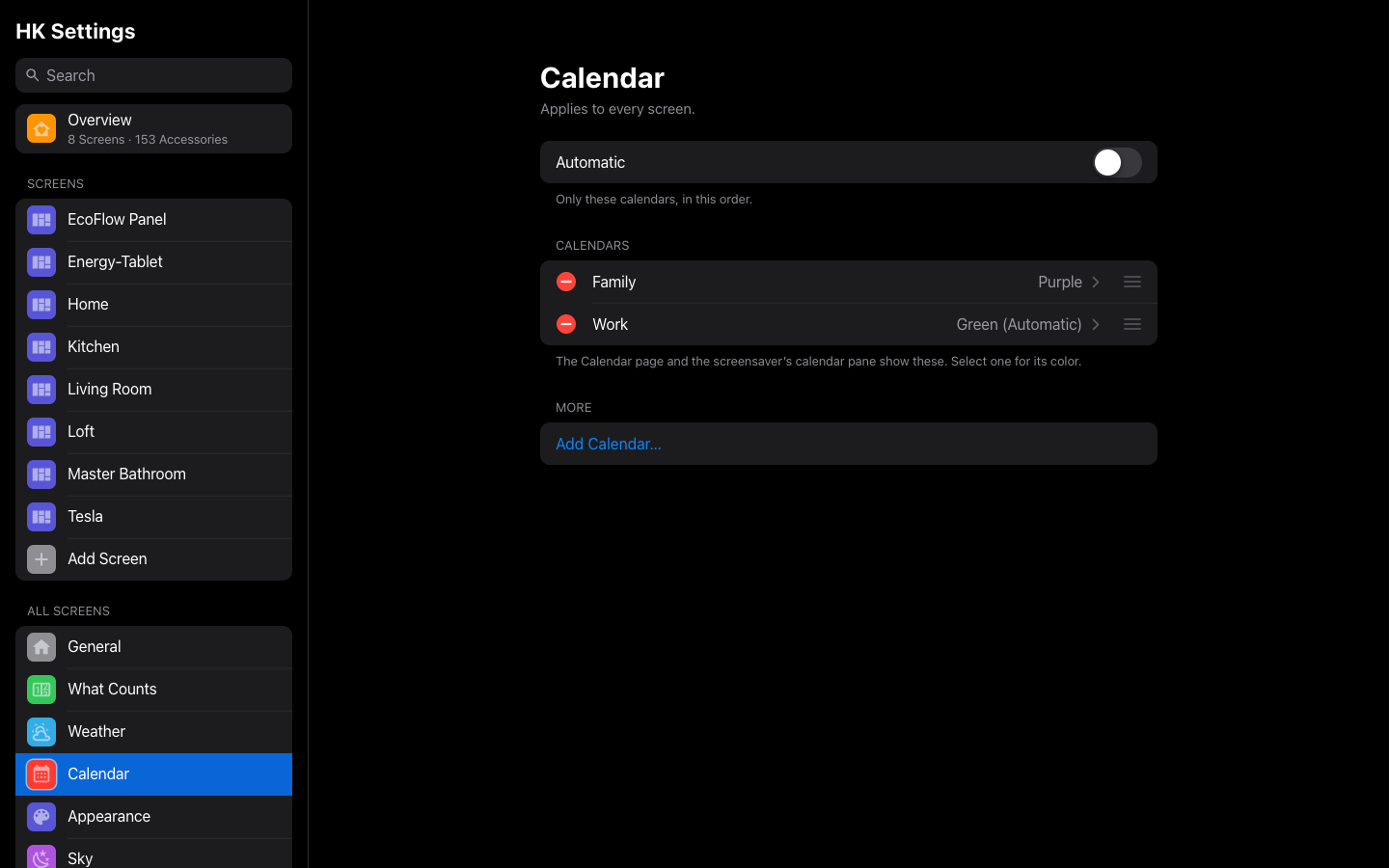
| Automatic | On | Every calendar in Home Assistant, A to Z. Off: only the calendars you choose, in your order (Add Calendar…, drag to reorder). |
| Calendars → a calendar → Color | Automatic | Its events’ color on the page and the screensaver. Automatic: orange, green, purple, blue, pink and so on, by its place in the list; the row says which, Automatic (Green). The page also says whether its events can be added, changed and deleted. |
A generated screen has a Calendar page whenever the house has a calendar; it comes after Weather in the menu. A screen whose Pages are chosen by hand gets it once Calendar is added there.
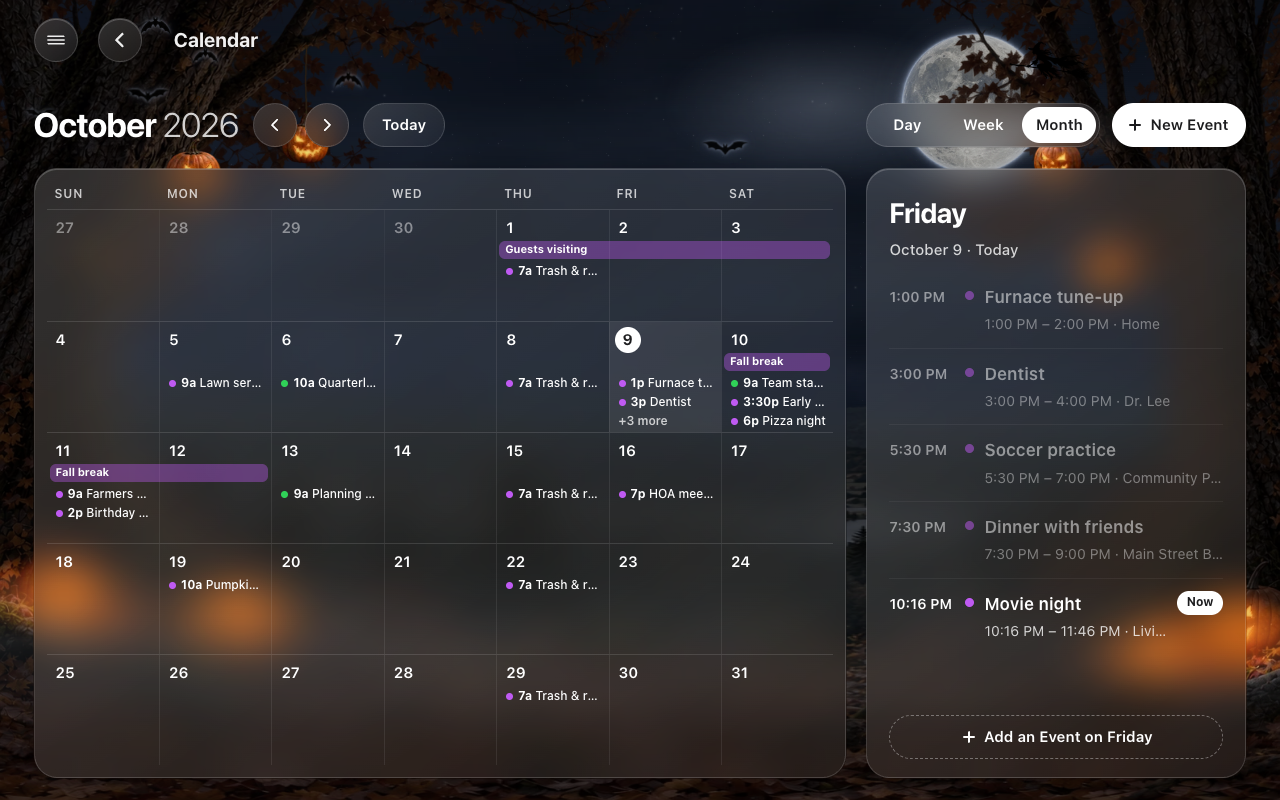
- Month: the month’s weeks, each day with its events (an event lasting several days is one bar across them), and the chosen day’s events beside it. Tap a day to choose it; tap it again to open it in Day.
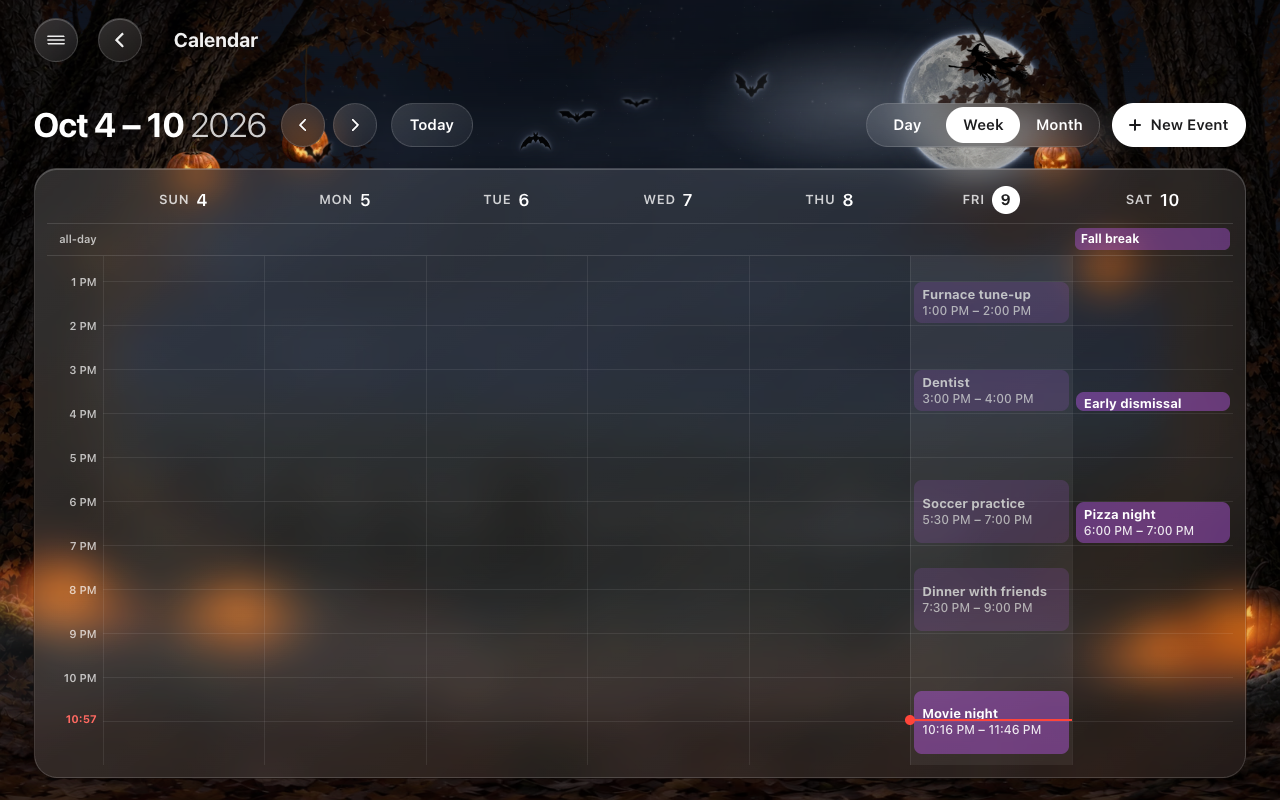
- Week: the week’s hours, day by day, with all-day events along the top and a red line at the time now.
- Day: the day’s hours, a small month to jump to any day, and the chosen event, with Edit and Delete.
- Month, Week and Day are one switch at the top; the white choice slides over to the new view.
- The arrows go back and forward a month, a week or a day; a sideways swipe does the same. Today comes back.
- Weeks start on the first day of the week in your Home Assistant profile (left to the language’s default, Sunday for English), in the week, the month and the small month alike, as the Energy page's weeks do.
- New Event (or a tap on an empty hour in Week or Day, or Add an Event under a day) opens the event sheet: Title, Location, All-day, Starts and Ends (with quick times around the start), Repeat (never, daily, weekly, monthly, yearly), Calendar and Notes.
- Tap an event to see it, then Edit or Delete. A repeating event asks whether to change or delete This Event Only or This and Future Events.
- The event’s sheet (from the page, a calendar’s tile or its notification): on a wall tablet, the event in cards on the left (its calendar, when, where, notes, Edit and Delete) over a little month, and its day as hours on the right, scrolled to the event. Tap a day in the little month to see that day; tap another event in the hours to open it. On a phone it is one column.
 |
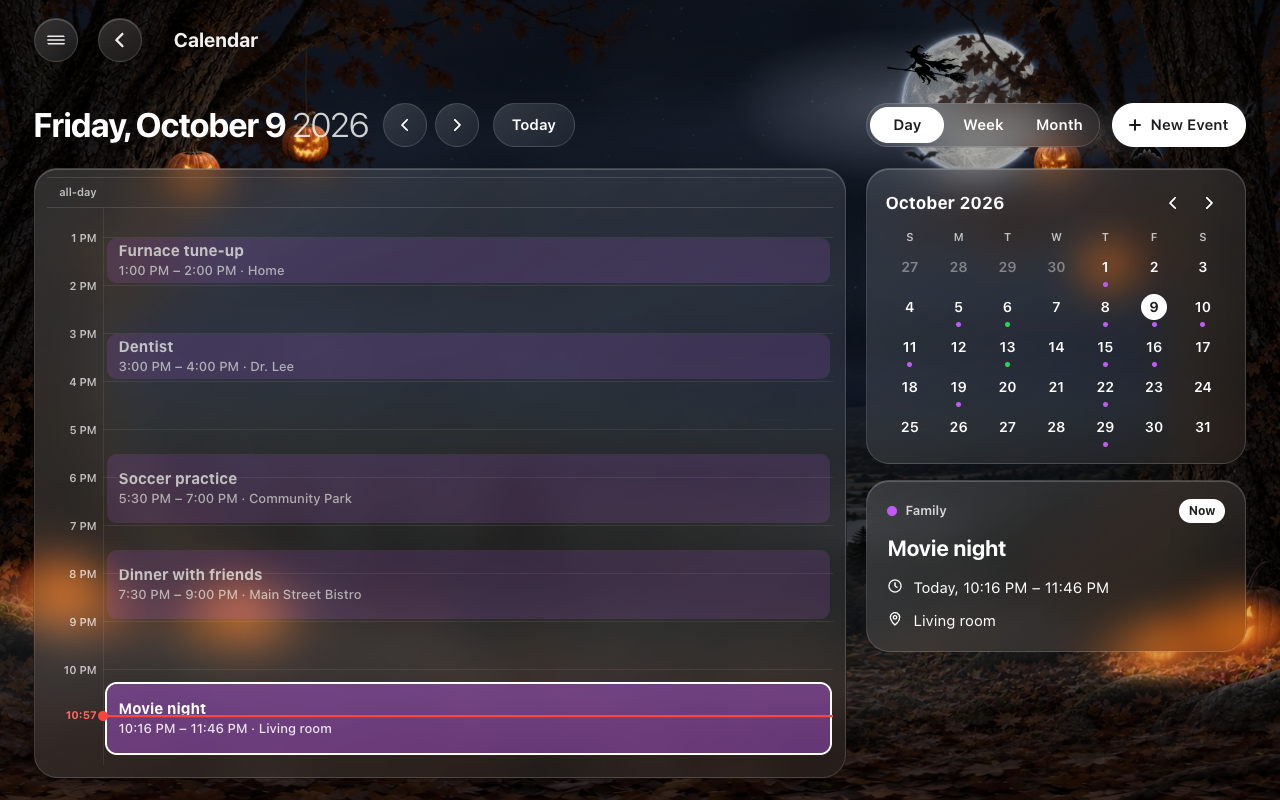 |
| The week | The day, with the chosen event |
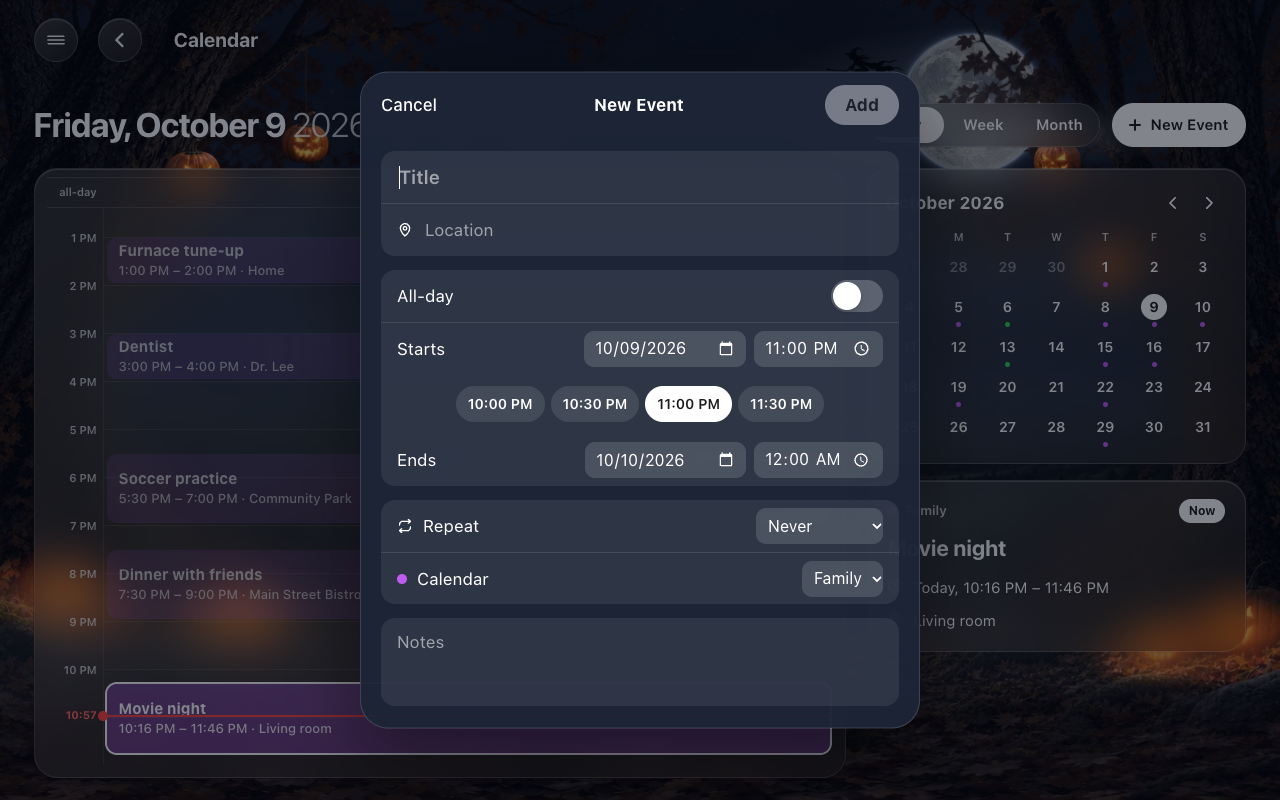
On a phone the page stands up: the month with a dot under each day that has events and the chosen day below it, the week as a list day by day, and the day’s hours.
The page asks Home Assistant for the events of the range it shows, again every five minutes, and straight away after any change made from a screen.
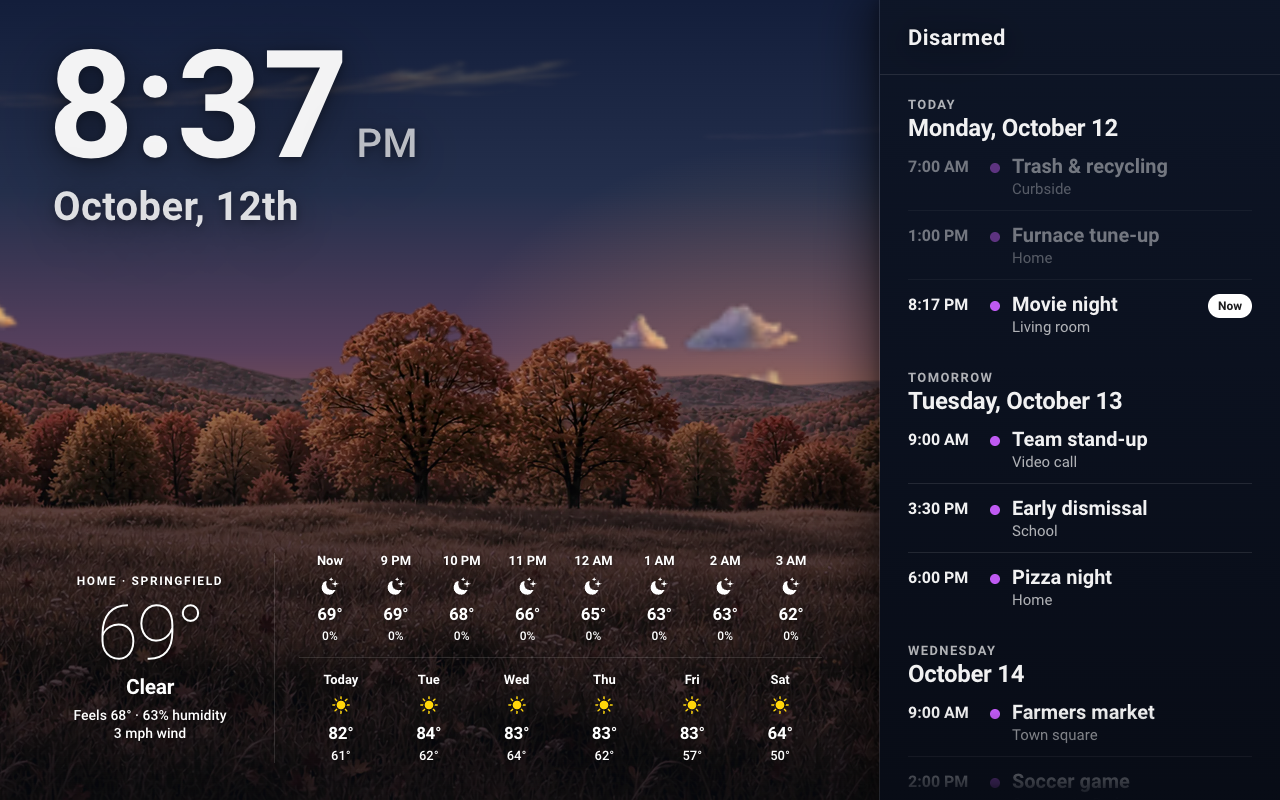
Screensaver Options → Side Pane → Calendar: today’s events and the coming days’ down the right of the screensaver, the photos (or the forecast) beside it.
See Screensaver and Idle.
| Card | What it is |
|---|---|
custom:hk-calendar-card |
The Calendar page. view: month (or week, day) is the view it opens with. |
custom:hk-calendar-pane-card |
The screensaver’s list: days: 2 (1 to 7). |
Both read All Screens → Calendar for which calendars and their colors.