Repository navigation
Alarm PIN
A PIN in front of an alarm that takes none.
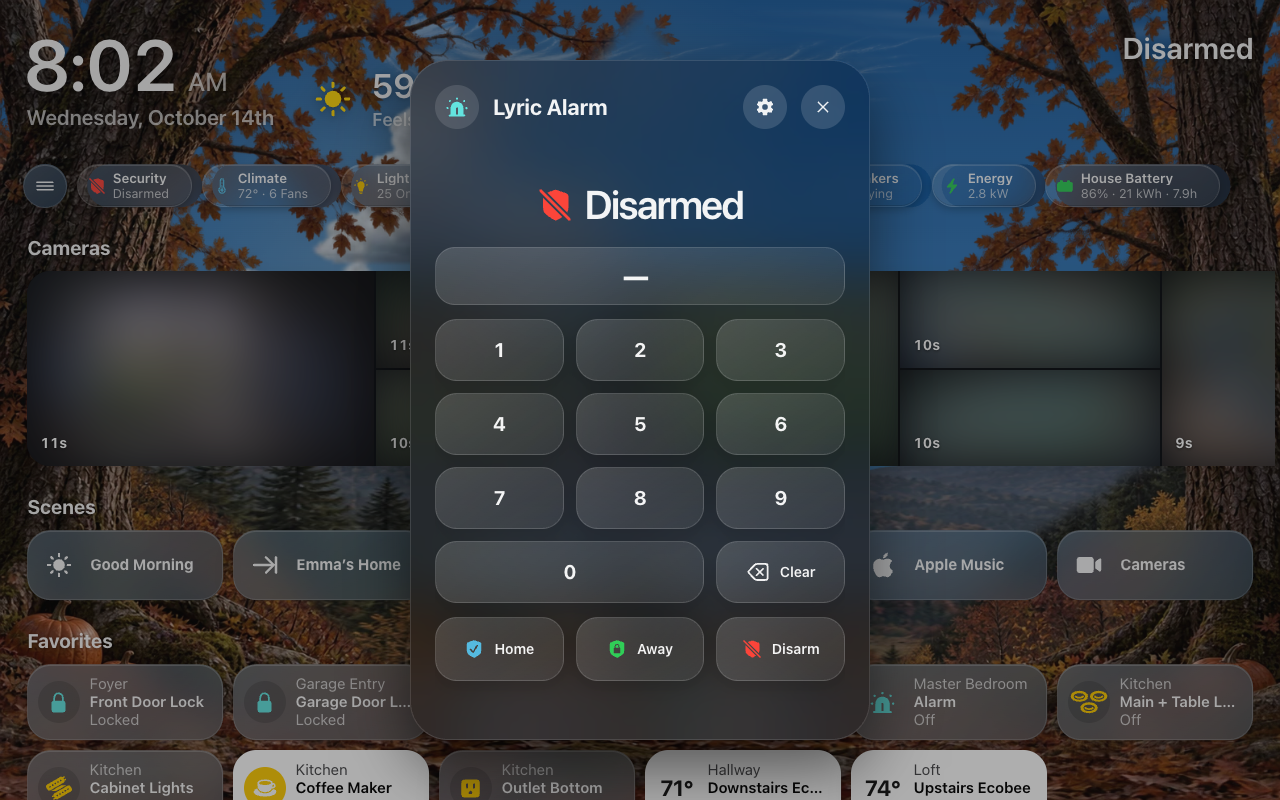
Some alarm integrations arm and disarm for anyone who can call them: their panel asks for no code (for example Honeywell Lyric). Alarm PIN adds a second alarm panel that mirrors that alarm (its state, its availability, its arming modes) and arms or disarms it only with the right PIN. A wrong PIN is refused with Home Assistant’s own error, so every keypad says “Wrong code”: HK Frontend’s keypad, Home Assistant’s alarm card, the companion app, and voice.
-
HK Frontend → Add feature → Alarm PIN.
-
Fill in the form:
Field Notes Alarm to protect Any alarm panel. Its own settings should take no code. PIN, PIN again At least 4 characters, typed twice so a slip cannot be saved. Digits only gives keypads a number pad. Require the PIN to arm On (default): arming needs the PIN too. Off: arming needs none, but a PIN that is given must still be right. Disarming always needs it. -
A new alarm panel appears, on a device named after the alarm with “PIN” added. For an alarm called “Home Alarm” it is
alarm_control_panel.home_alarm_pin. Itsprotectsattribute names the alarm it stands in front of. -
Point your keypads at the PIN panel, not the alarm:
- HK Frontend’s screens: HK Settings → General → Alarm Panel (the Alarm PIN page under Features has a button that does the same).
- Home Assistant’s own alarm cards and your voice assistants.
Add Alarm PIN again to protect another alarm, with its own PIN.
Automations can keep using the alarm itself. It is unchanged, which also means anything that calls it directly still arms and disarms it with no PIN. Keep it off your dashboards and out of what you expose to voice assistants.
Notifications open the keypad. A tap on a notification
about the protected alarm opens the PIN panel’s keypad, whatever the
notification watches (the alarm, the PIN panel, or the Alarm category), and so
does hk_frontend.notify with the alarm as its accessory. In the Alarm
category the two are listed side by side, each saying what it is, and with
both ticked you are notified once (Alarm).
The gear on an Alarm PIN item (“Front Door Alarm PIN”):
| Setting | What it does |
|---|---|
| Alarm to protect | Choose another alarm to move the PIN and its panel to it. The PIN and the arm rule stay the same. |
| New PIN, New PIN again | Type a new PIN twice to change it. Leave both empty to keep the current one. |
| Require the PIN to arm | As above. |
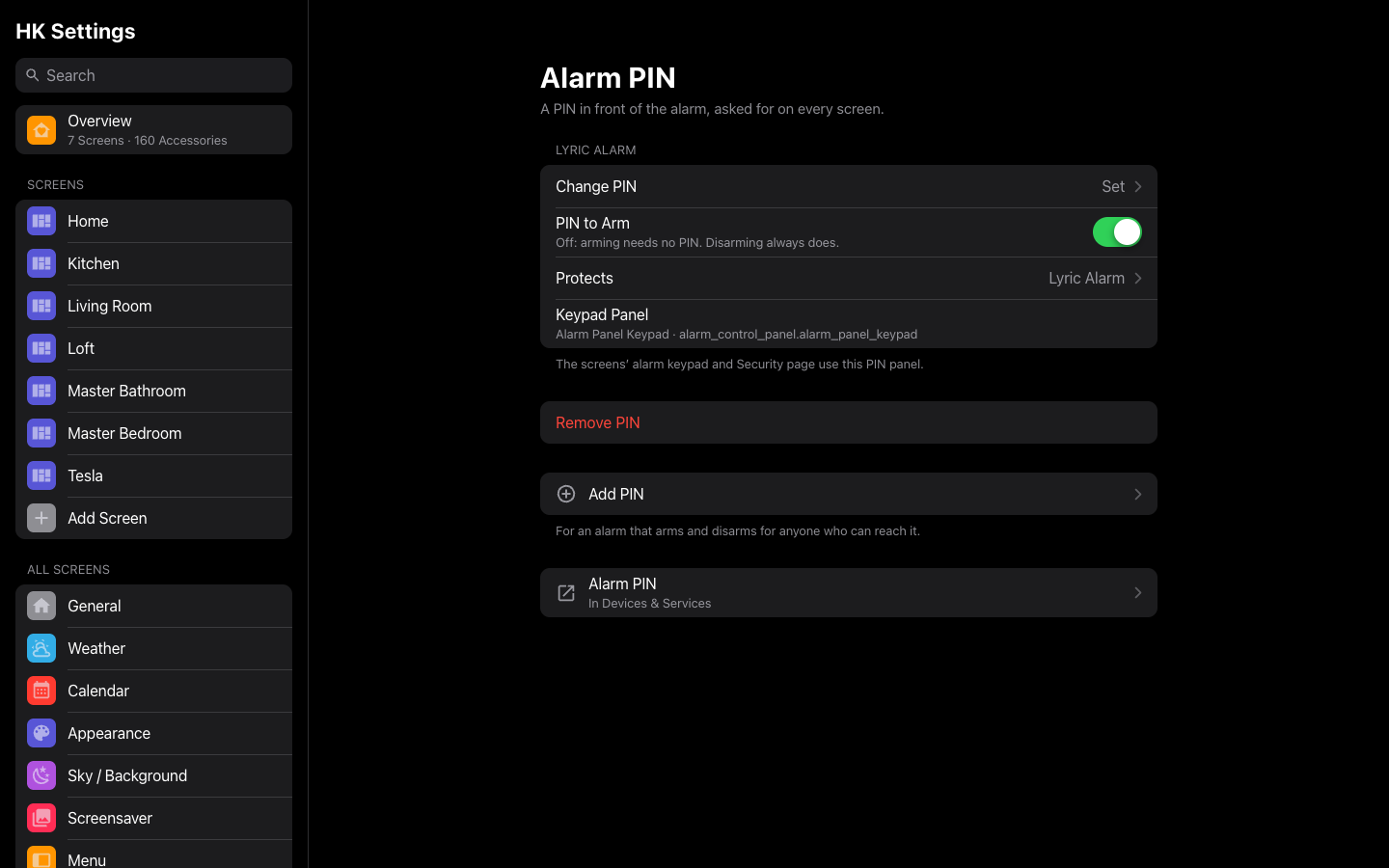
HK Settings → Features → Alarm PIN lists every protected alarm, each with Change PIN, PIN to Arm, Protects (move it to another alarm), its Keypad Panel, Use on All Screens (shown when General → Alarm Panel is another panel; it points every screen at this PIN panel), and Remove PIN. Add PIN protects another one.
Only a salted hash of the PIN (PBKDF2-SHA256) is kept, and diagnostics leave even that out. Nothing can show the PIN again, so a forgotten PIN is replaced, not recovered: set a new one with its gear or on the HK Settings page. The PIN is passed on to the protected alarm only if that alarm asks for a code of its own.