Repository navigation
Home Page
What a generated screen’s Home page shows, and how to change each part. The status chips and the camera strip have pages of their own.
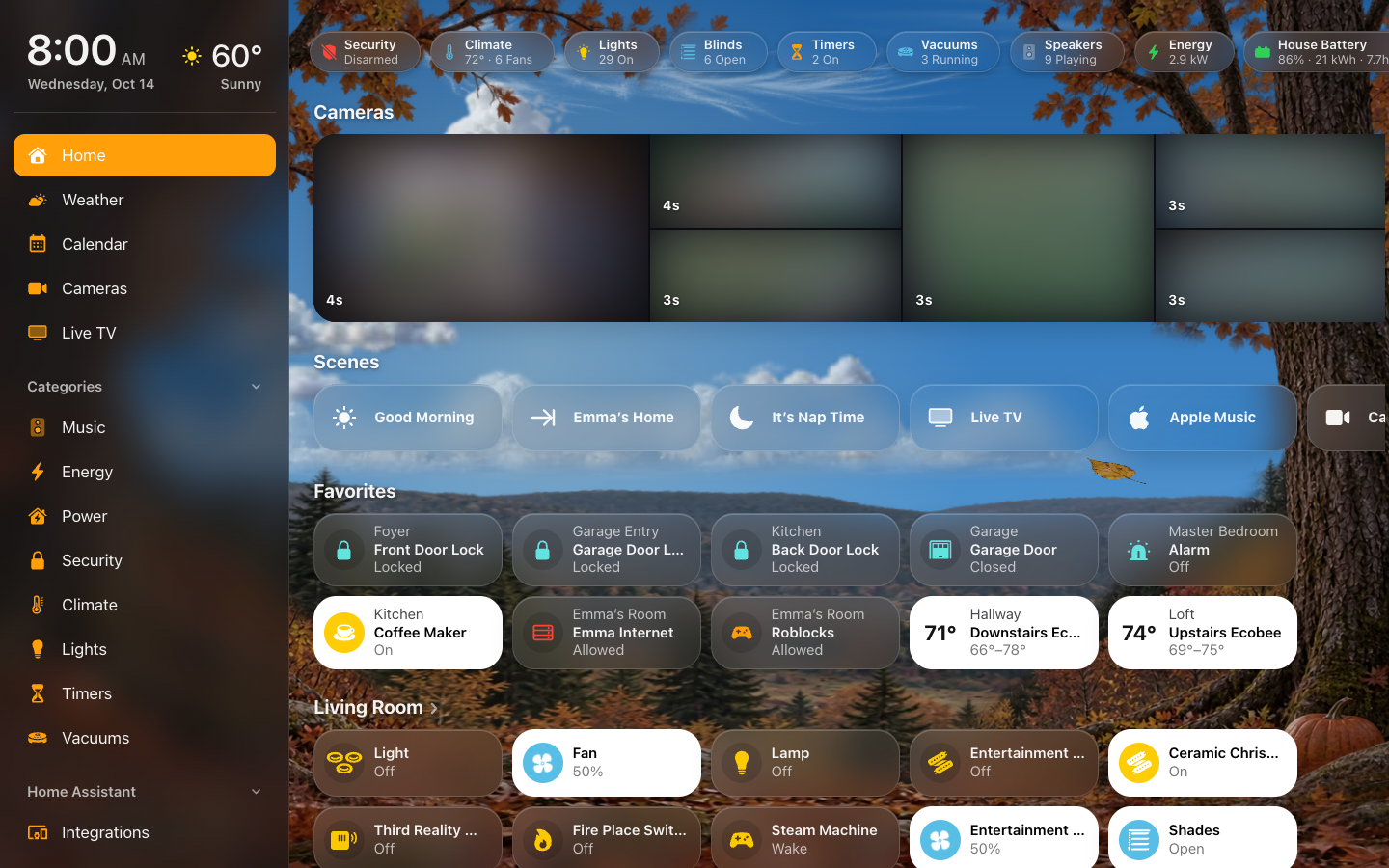
A generated screen’s Home page shows, from the top:
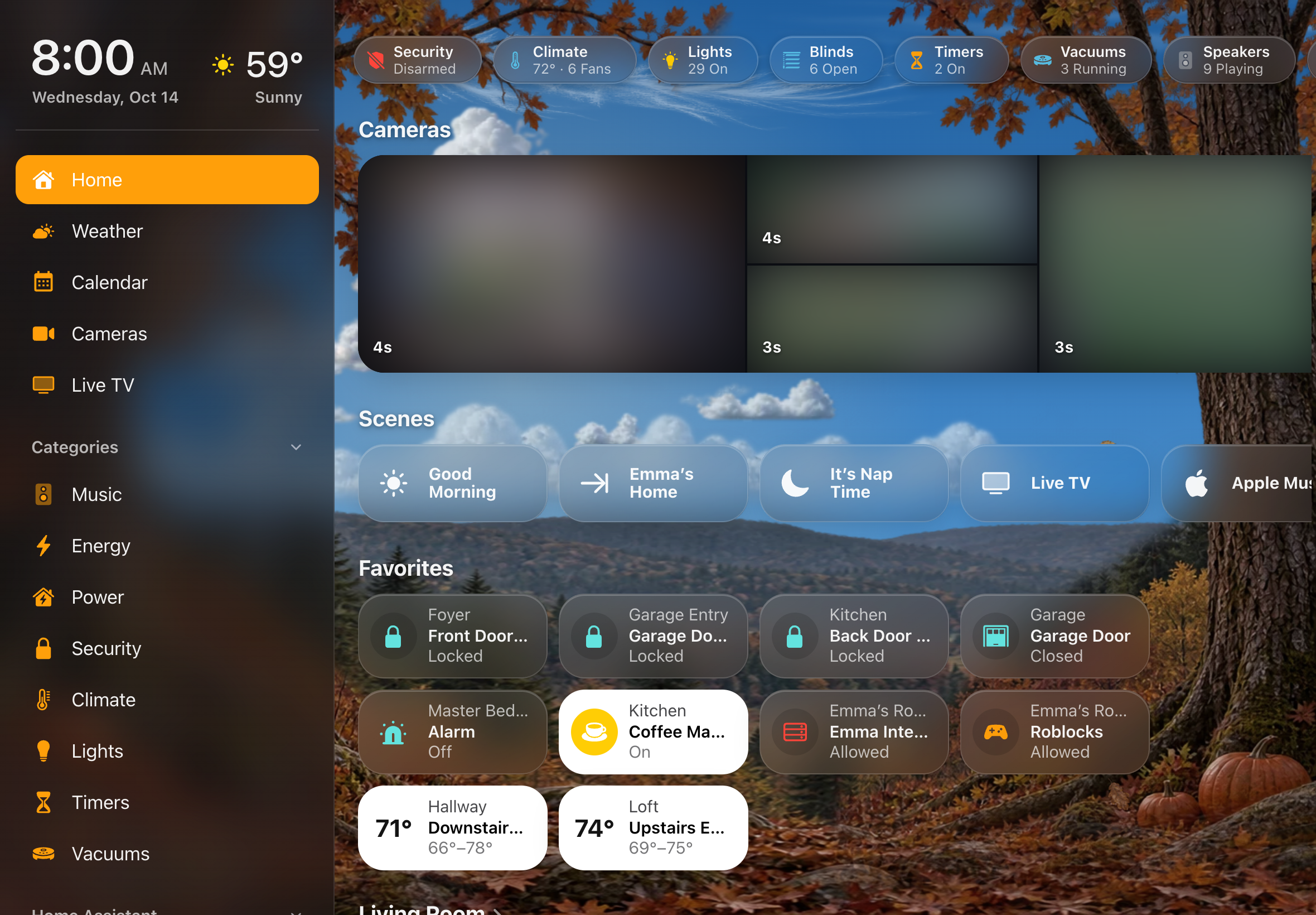
- The header: the time and date, the weather (tap it for the Weather page), and a security line: Home Secured when the alarm is armed and everything is shut, locked and reporting, otherwise what isn’t (“2 Doors Open”). On a screen whose menu shows the time and weather, the header moves into the menu and the status chips move up.
- Status chips: a row of small summaries (Lights, Security, Climate, …).
- The camera strip: one live camera and snapshots of the others.
- Scenes: a row of scene pills, and pills that open a page.
- Favorites, when you have picked some.
- Rooms: a section for each room, with a tile for each accessory.
- More: things you added under Added Accessories that have no room.
Along the bottom, a screen can dock the Now Playing bar (what is playing on its room) and the Timer Bar (running quick timers), on Home or on every page: they are switches in the screen’s Behavior, and what the bar does is under Music → The Now Playing bar.
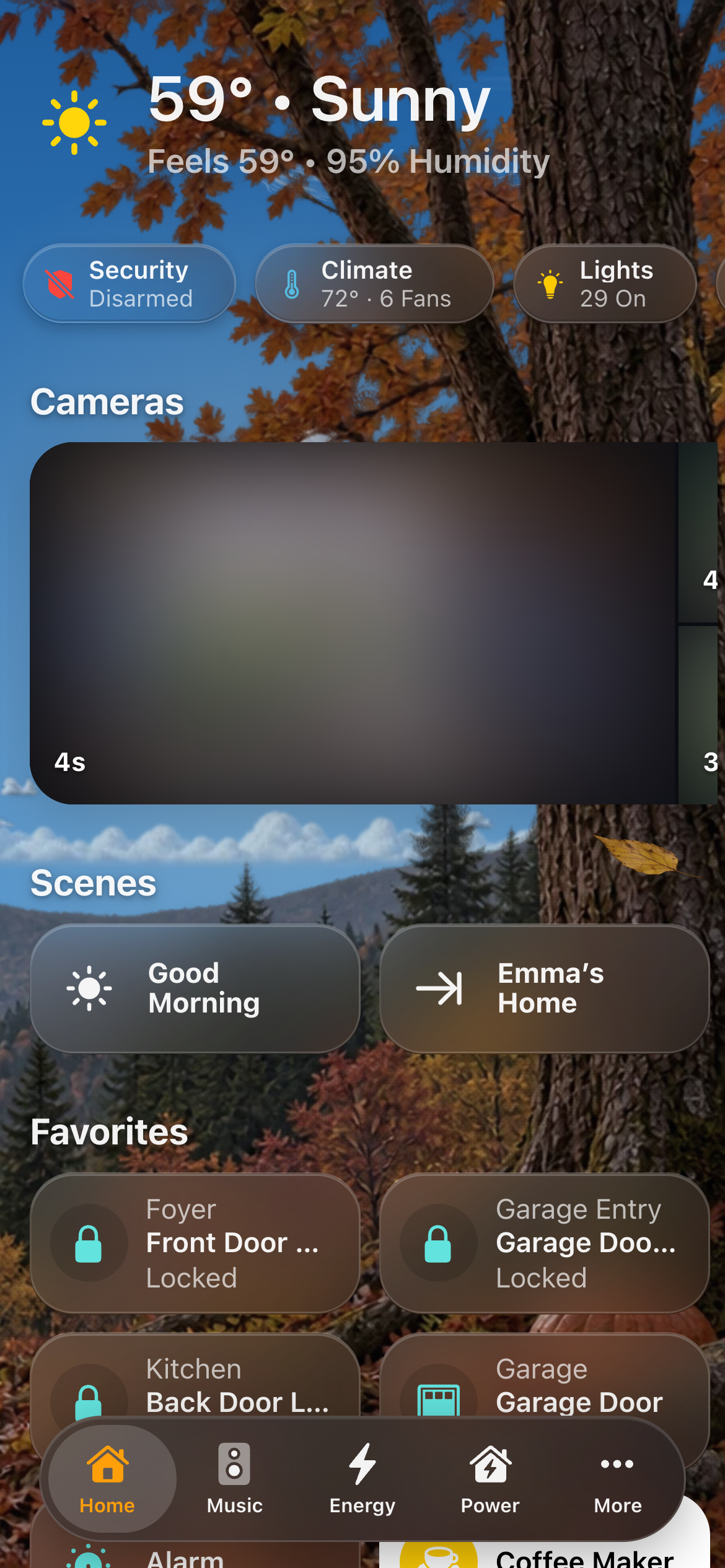
On a phone the tiles reflow to two columns. The screen’s Header on Phones setting (its Header group) picks what sits at the top on a phone held upright (narrower than 640 px): Clock & Weather, the header, or a one-line Weather Strip.
| Setting | Default | What it does |
|---|---|---|
| Status Chips | Automatic | Opens Status Chips. |
| Cameras | Same as All Screens | Opens Cameras: the strip, and which cameras (All Screens’ list, or this screen’s own). |
| Scenes | Automatic | Opens Scenes. |
| Favorites | None | Generated. Opens Favorites. Reads how many, 10 Favorites. |
| Rooms | Same as All Screens | Opens the screen’s Rooms: All Screens’ room order, or Just This Screen. |
Header on Phones is in the screen’s Header group.
A YAML screen draws its own Home page. These settings reach it where it uses
the cards that read them: the status chips (custom:hk-chips-card), the scenes
row (custom:hk-scenes-card), the camera strip (custom:hk-camera-mosaic-card)
and the room order.
The scenes row runs a scene or script, or presses a button, with one tap. A button has no on or off, so its pill lights for a moment when you tap it, to show the press went through. Automatic shows every scene, A to Z. To choose, open Scenes, turn Automatic off, and use Add Scene or Shortcut…. A scene’s name, icon and color come from its accessory settings.
Page pills open a page instead of running anything: a Music pill, a Cameras pill. Add them from More on the Scenes page. Their name, icon and color are the same on every screen, set in All Screens → Appearance → Page Pills; tapping a page pill’s row on the Scenes page opens it there.
| Setting | Default | What it does |
|---|---|---|
| Show Scenes Row | On | The row of scene pills. |
| Automatic | On | A generated screen: every scene, A to Z. A YAML screen: the scenes its YAML lists. Then any page pills. |
| Shown | — | Scenes, scripts and buttons, in order. Choosing here replaces a YAML screen’s own list. A scene’s row opens its accessory settings (its name, icon and color). |
| More | — | Page pills: a pill that opens a page (Weather, Cameras, Live TV, Security, Doors & Windows, Climate, Lights, Timers, Vacuums, Music, Water) instead of running something. A page the screen doesn’t have gets no pill. |
| Add Scene or Shortcut… | — | Any scene, script, button or input button. |
A page pill’s own page (All Screens → Appearance → Page Pills, which lists every page pill):
| Setting | Default | What it does |
|---|---|---|
| Name | The page’s name | The pill’s name on every screen that shows it (for example “Apple Music” for Music). |
| Icon | The page’s icon | An mdi: or hk: icon. |
| Color | The page’s color | White, Yellow, Orange, Red, Pink, Purple, Blue, Teal, Mint or Green. |
Generated screens. A Favorites section above the rooms, for the things you use most. Each favorite shows its room above its name, as the Home app does.
- Open Screens → (the screen) → Favorites and select Add Favorite…, or
- open an accessory’s detail sheet on that screen, tap the gear, and turn on Favorite on this dashboard.
A favorite can have its own name, room line and glyph, and can control several lights together (“Main + Table Lights”). See As a favorite.
Generated screens. A Favorites section above the rooms.
| Setting | Default | What it does |
|---|---|---|
| Favorites | None | The favorites, in order. None: no Favorites section. |
| Add Favorite… | — | A light, switch, fan, cover, lock, thermostat, media player, alarm panel, vacuum, valve, water heater, humidifier, input boolean, scene or script. |
A favorite’s name, room line and icon as a favorite are in its accessory settings.
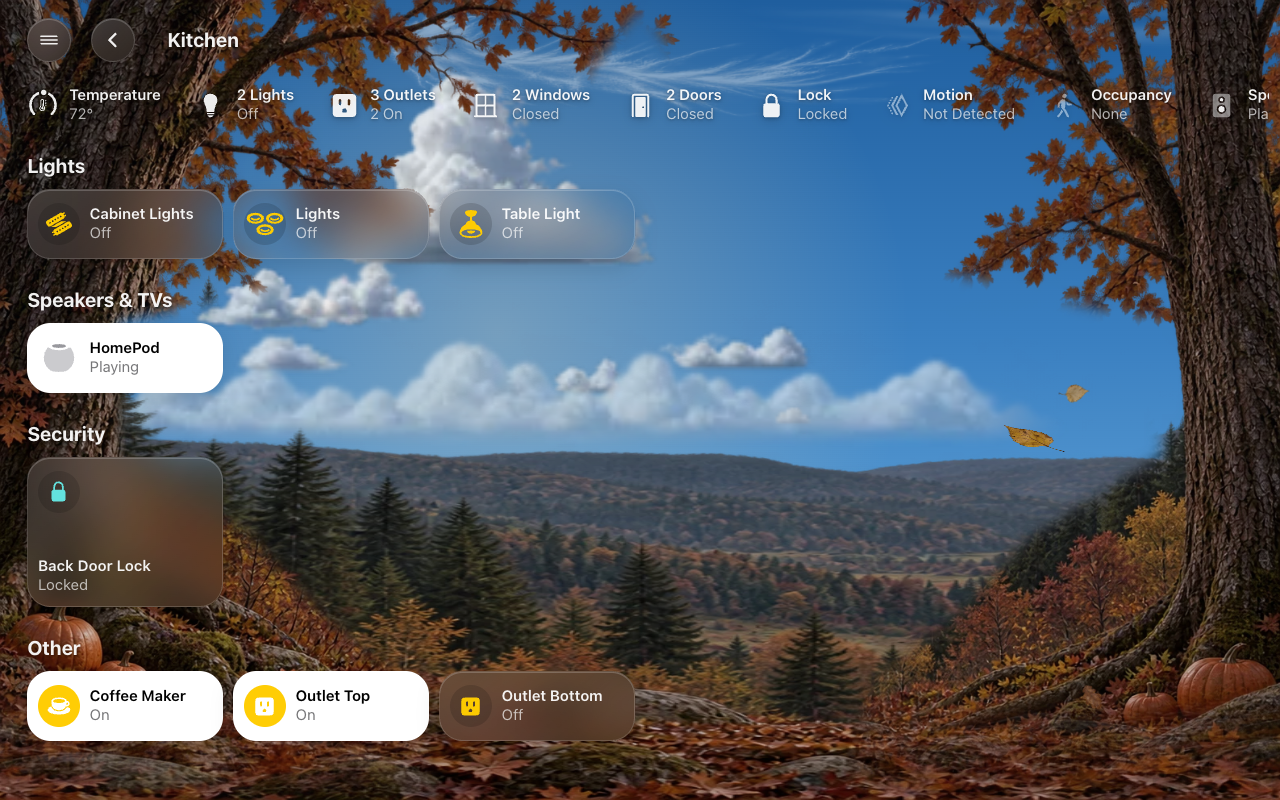
A generated screen has a section on Home for every area with something in it, floor by floor (in your floors’ order), then A to Z. Only things that are in an area get a tile; to show something with no area, add it to Accessories → Added Accessories (Added Accessories) and it appears under More.
A room heading with a › opens the room’s own page (see Room pages).
The rooms’ order, which are on Home, and each room’s own settings (its scenes, tile order, whether it shows, what it’s part of) are in HK Settings → All Screens → Rooms. A screen follows them, or sets its own order in Screens → (the screen) → Rooms (see A screen’s rooms).