Repository navigation
Climate
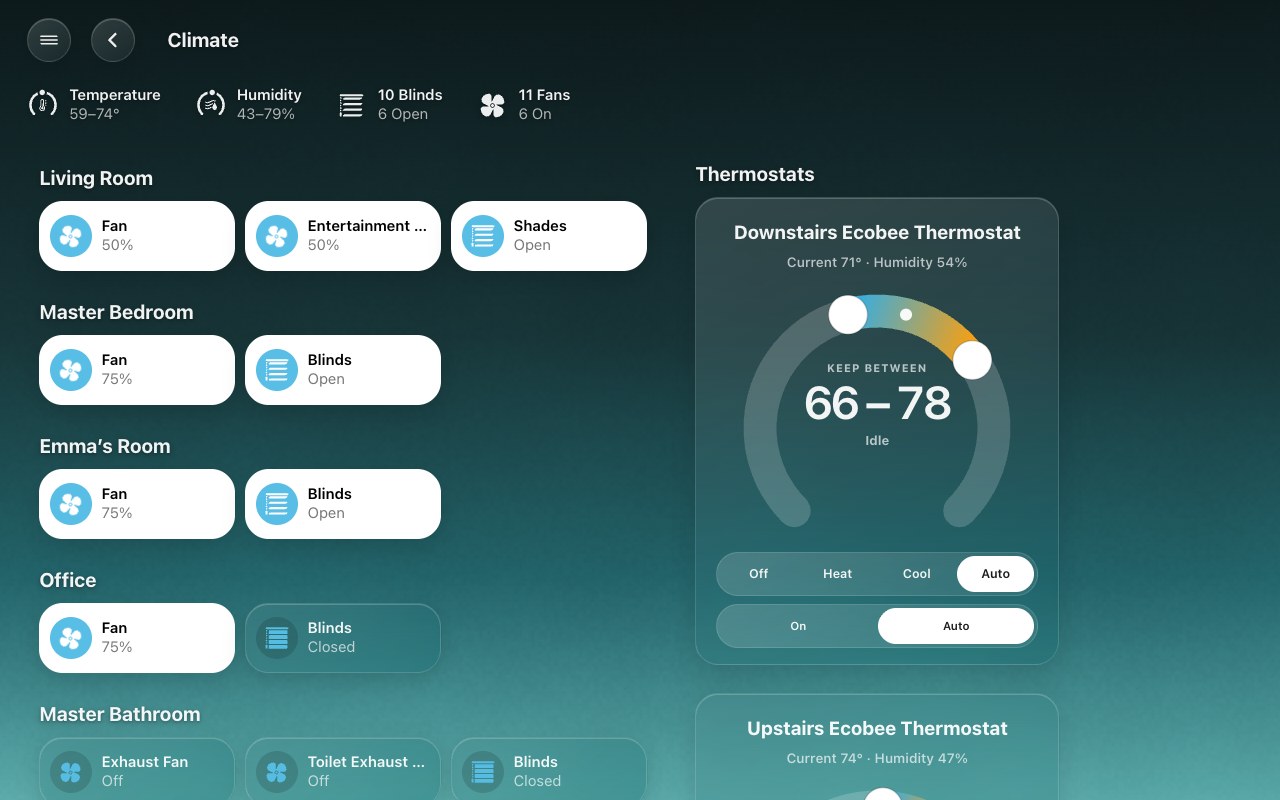
Open Climate from the menu or the Home page’s Climate chip. The status row sits directly below the Climate heading, above the room accessories and thermostats.
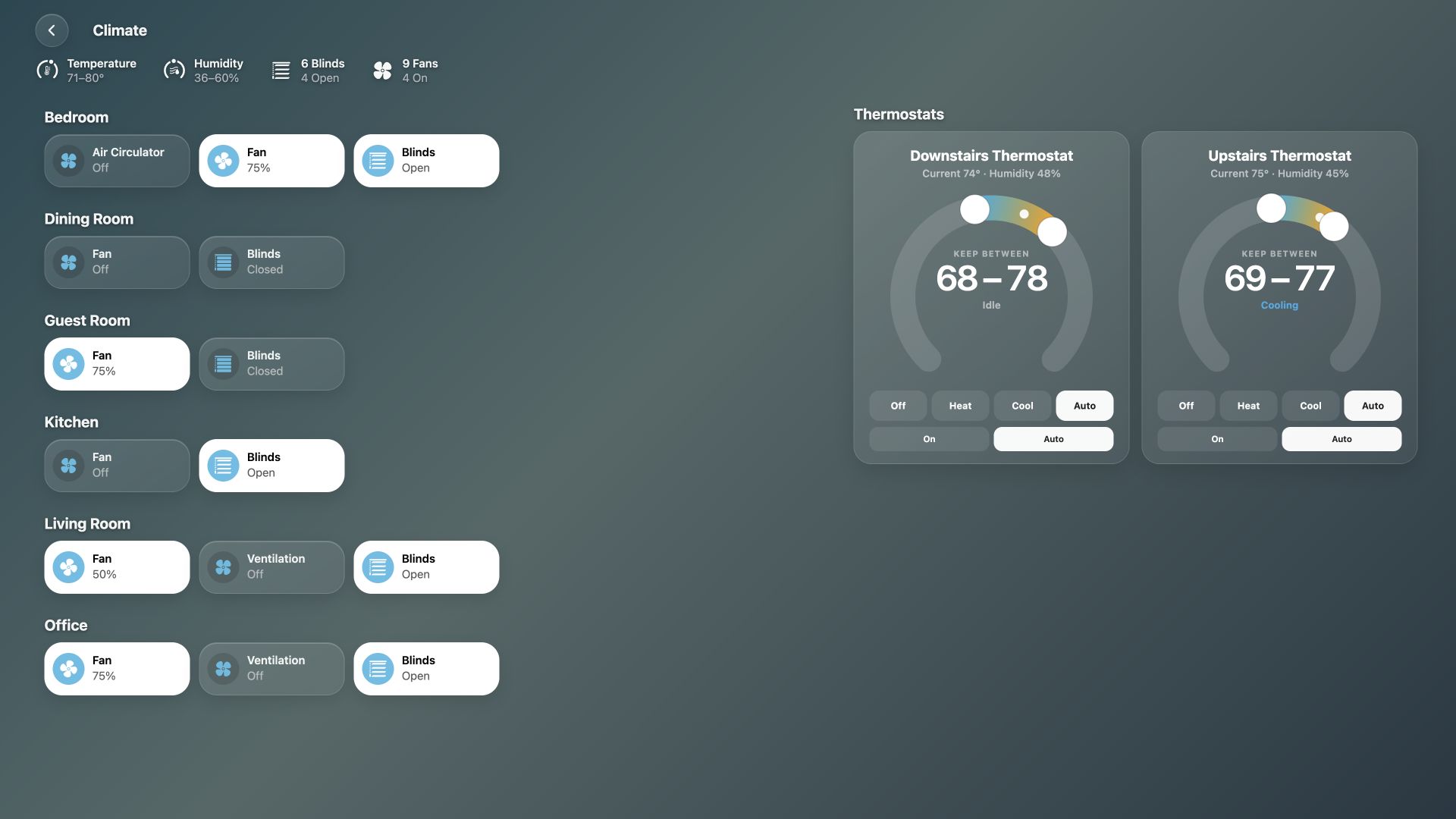
These screenshots use fictional rooms, devices and readings.
The row uses the same summaries as a room page, across the included rooms:
| Summary | Shows |
|---|---|
| Temperature | The lowest and highest current temperatures, in Home Assistant’s configured temperature unit. Equal rounded endpoints become one value. |
| Humidity | The lowest and highest humidity readings. Equal rounded endpoints become one value. |
| Blinds | How many blinds participate, and whether they are open, closed or a mixture. |
| Fans | How many fans participate, and whether they are on, off or a mixture. |
A kind with no sources does not show. Choose the summaries and their order in HK Settings → All Screens → Status Rows → Climate. Turning all four off hides the row. The Lights, Doors & Windows, Water and Security pages have rows of their own (Status rows).
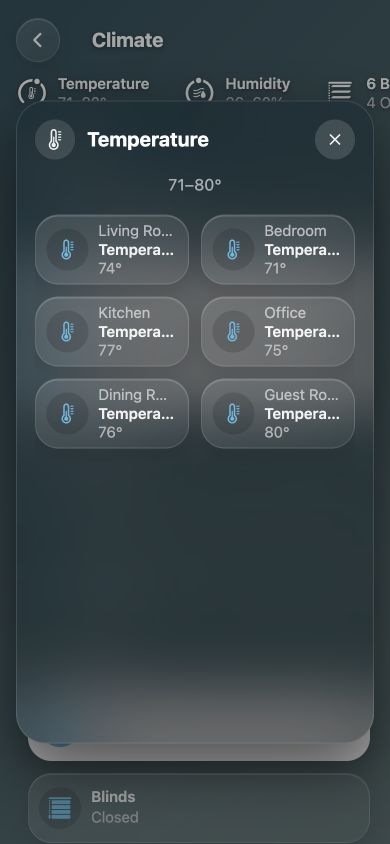
Tap any summary to open a sheet of accessory pills. Each pill carries its room and current reading or state. Even a summary with only one source opens this list.
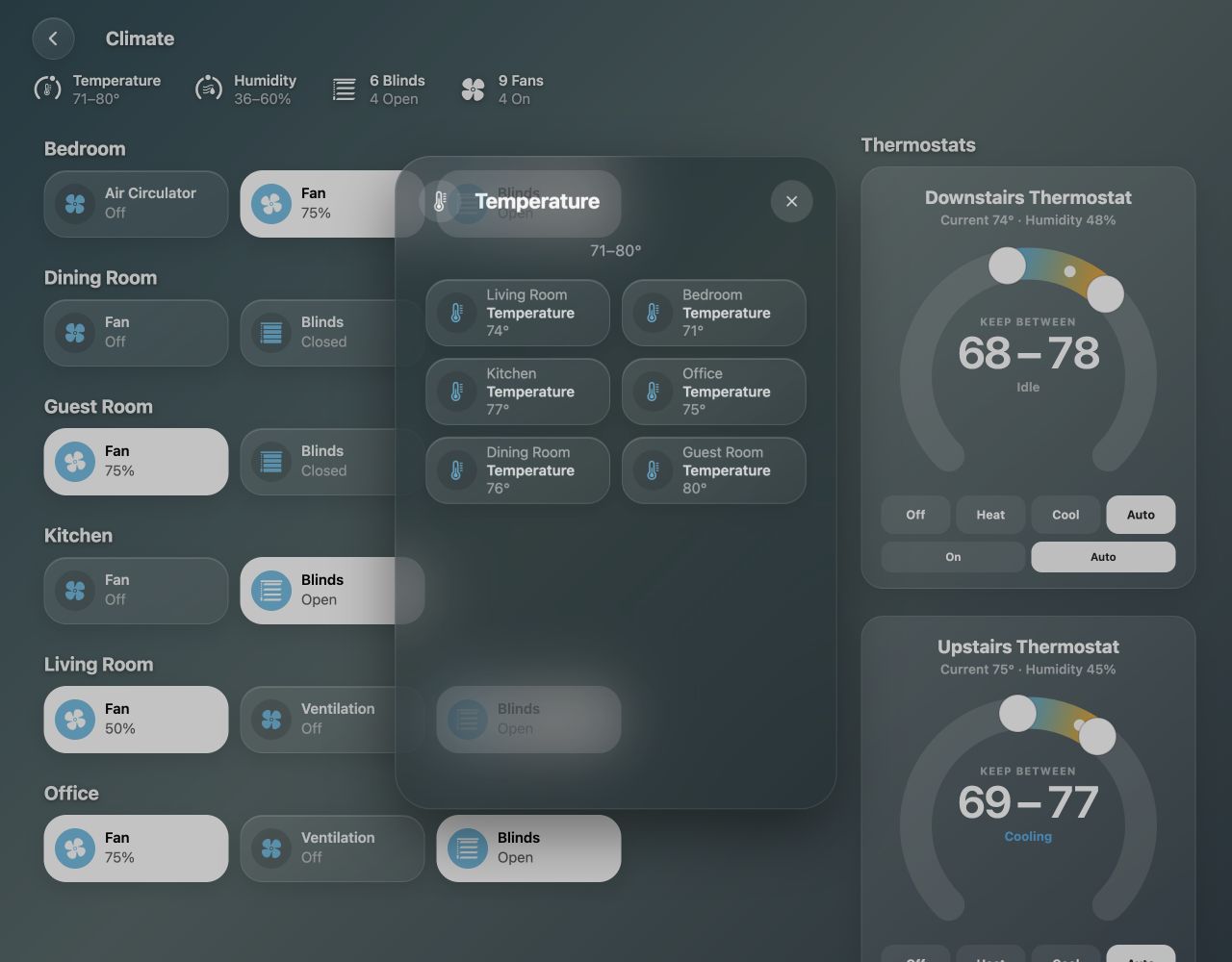
Tap a pill to open that accessory’s controls or sensor details. Back to Temperature (or the category you opened), closing the accessory sheet, or browser Back returns to the category list. Closing the category returns to Climate. Escape and the backdrop also dismiss a sheet. Left alone, an accessory opened from a category closes together with the category.
The summary and its open list update as readings and membership change. An unavailable reading stays in the list, labeled Unavailable, and does not affect the range. If every reading is unavailable, the summary says so.
Automatic temperature and humidity discovery uses the sensors selected in Home Assistant → Settings → Areas → (the area) → Related sensors. When an area has no designated sensor for a reading, its thermostat’s current reading is used instead. Target temperatures are never range readings. Unrelated equipment and diagnostic sensors are not pulled in just because they report temperature or humidity.
To adjust individual sources, change the source itself. To drop one, hide it from Temperature or Humidity in HK Settings → Library → Accessories → Hidden Accessories (Hidden Accessories). To add a compatible sensor that isn’t found, turn on its Also Count As → Temperature or Humidity on its own settings page (Also Count As), or tap Add… on its type’s page. By Page → Temperature → Show All Again… brings back everything automatic discovery finds. Accessories → Temperature or Humidity (under Sensors) lists what is counted now, room by room (Types).
Fans and blinds follow what Accessories → Fans / Blinds & Shades count, including any switches counted as fans. Anything hidden everywhere stays off the page.
The thermostats on the page are the ones Accessories → Thermostats lists. To keep one off the Climate page and chip but in its room (a water heater, for example), hide it from Climate alone in Hidden Accessories, or turn off Climate under its Where it shows.
To leave an entire area out of the Climate summaries, uncheck it in All Screens → Status Rows → Climate → Rooms. This is useful for outdoor areas, an attic or equipment spaces. It affects the Climate summary row and its lists; it does not hide that area’s accessories from the rest of the dashboard.
Each thermostat is a dial, as in the Home app: the current temperature, the target and the mode buttons under it. Drag the dot around the dial, with a finger or the mouse, to set the target: the dot and its colored band follow you as you drag, and the number changes with them. A thermostat set to heat and cool has two dots, one for each setpoint, and they never cross. Let go and the thermostat is set; the dot stays where you put it while the thermostat catches up, and a reading that arrives in the meantime doesn't snap it back. The same dial is on the thermostat's detail sheet, and on a water heater's.
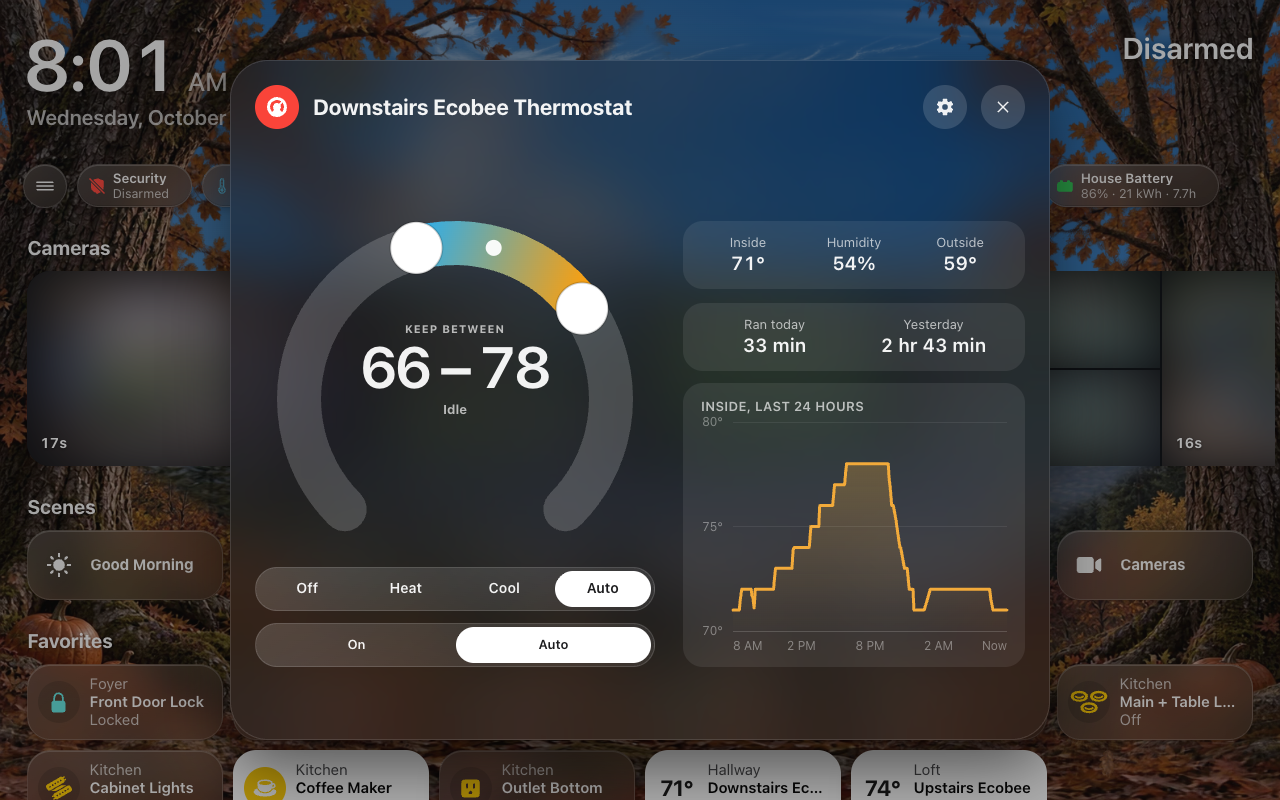 A thermostat's sheet: drag the dot to set the target.
A water heater on the page has the same dial with its own controls, as on its sheet: Heat to its setpoint, its own operation modes (Eco, Electric, Heat Pump…) with Off first where it can be turned off, and Home / Away when it has an away mode. It no longer shows a thermostat’s Off, Heat, Cool and Auto.
The rooms take only the width their busiest room needs — two to four pills across — and the thermostats sit right beside them, as many dials across as fit, with any spare width at the right as on every other page. On narrower pages the rooms give way first and the dials stack. On a phone the room accessories and thermostat section also stack, with no horizontal page overflow. The Thermostats heading stays aligned with the first dial at every width.
After updating HK Frontend, restart Home Assistant and reload each dashboard to load the new source discovery and frontend files.