KorGE
Put a ComposeGL screen on a KorGE stage. It is a view like any other: it draws at its place in the stage's draw order, over your sprites, with KorGE's own input.
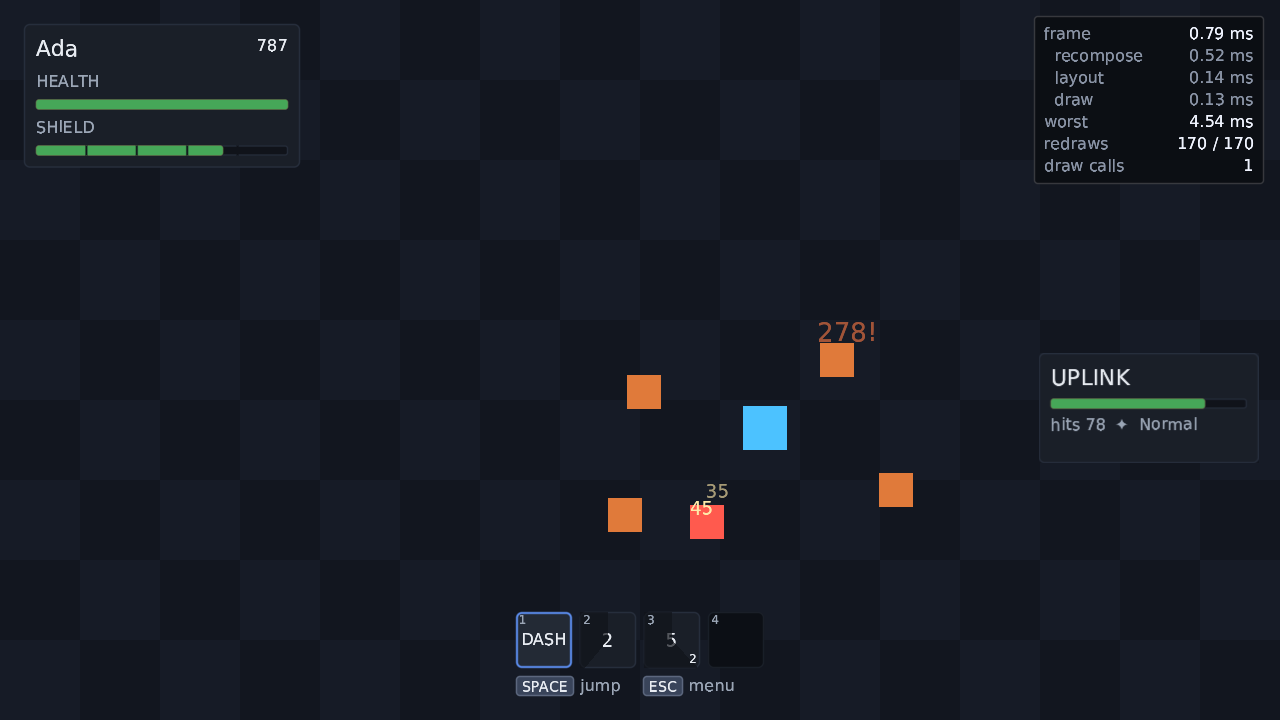
JVM only for now. The module is built on KorGE 6.0.0 and has been run on desktop Linux. See the limits before you start.
plugins {
    kotlin("jvm") version "2.4.20"
    id("org.jetbrains.kotlin.plugin.compose") version "2.4.20"
    application
}

repositories {
    mavenCentral()
    google()   // the Compose runtime reaches for androidx, which lives here
}

dependencies {
    implementation("dev.wildware.composegl:composegl-korge:0.6.0")
    implementation("dev.wildware.composegl:composegl-effects:0.6.0")   // optional: blur, outline, dissolve
}
composegl-korge brings composegl-ui, composegl-render and KorGE 6.0.0 with it.
The health bars, hotbar and damage numbers are in composegl-game; add it too if
you want them (see Game widgets).
You do not need the KorGE Gradle plugin; a plain Kotlin JVM build works.
KorGE's desktop window reaches OpenGL through reflection into AWT. Java 17 and later refuse that unless these packages are opened. Every JVM that opens a KorGE window needs them, your tests included:
val korgeOpens = listOf(
    "--add-opens=java.desktop/sun.java2d.opengl=ALL-UNNAMED",
    "--add-opens=java.desktop/java.awt=ALL-UNNAMED",
    "--add-opens=java.desktop/sun.awt=ALL-UNNAMED",
    "--add-opens=java.desktop/sun.awt.X11=ALL-UNNAMED",
)

application {
    mainClass.set("MainKt")
    applicationDefaultJvmArgs = korgeOpens
}

tasks.test { jvmArgs(korgeOpens) }import dev.wildware.composegl.korge.KorgeBackend
import dev.wildware.composegl.korge.KorgeFonts
import dev.wildware.composegl.korge.composeGl
import dev.wildware.composegl.ui.geometry.Size
import korlibs.io.file.std.resourcesVfs
import korlibs.korge.Korge
suspend fun main() = Korge(windowSize = korlibs.math.geom.Size(1280, 720)) {
val fonts = KorgeFonts().apply {
registerTrueType("default", resourcesVfs["fonts/DejaVuSans.ttf"].readAll(), listOf(13, 16, 20))
}
val backend = KorgeBackend(fonts, window = { views.gameWindow })
composeGl(backend, Size(1280f, 720f)) {
var clicks by remember { mutableStateOf(0) }
Box(Modifier.fillMaxSize(), contentAlignment = Alignment.Centre) {
Panel(Modifier.width(280f)) {
Column(verticalArrangement = Arrangement.spacedBy(12f)) {
Text("HELLO")
Text("Clicked $clicks times")
Button("CLICK ME", onClick = { clicks++ }, initialFocus = true)
}
}
}
}
}That is the whole integration. Container.composeGl(backend, design, policy) makes a
ComposeGlView, sets its content and adds it to the container. The view:
- is sized to the stage, and fits the design size into it with
policy(ScalePolicy.Fitby default), as aViewportdoes on the other backends; - recomposes, lays out and draws once a frame, inside KorGE's render, and takes the frame's time once, so two views in one stage animate on the same clock;
- provides the fonts, clipboard, soft keyboard, haptics, text input, input source, pad cursor and back stack to the content;
- listens to the stage's mouse, touches, keys, typing and pads.
Add your sprites before the view and the interface draws over them. Add them after and they draw over the interface.
Size here is the toolkit's dev.wildware.composegl.ui.geometry.Size. KorGE has its
own Size for the window; keep one of them fully qualified.
Build a ComposeGlView by hand when you need more than the one line:
val ui = ComposeGlView(backend, Size(1280f, 720f)).also { view ->
    view.onBack = { state.back() }                     // Escape, B and Back, once nothing open wanted them
    view.setContent { GameUi(state, view.renderer.budget) }
    addChild(view)
}
It also has host, focus, pointer, source, backs, cursor, player,
input, translators, renderer, viewport and boxSize. Close it when the screen
goes. The backend is the game's: close it once, when the game ends.
KorgeFonts reads TrueType with KorGE, in plain Kotlin. Nothing is rasterised until
text asks for a character, and registering needs no OpenGL, so it can happen on a
loading screen.
val fonts = KorgeFonts().apply {
    registerTrueType("default", resourcesVfs["fonts/DejaVuSans.ttf"].readAll(), listOf(12, 14, 16, 22))
    registerTrueType("cjk", resourcesVfs["fonts/NotoSansSC-Subset.ttf"].readAll(), listOf(12, 14, 16, 22))

    // Colour emoji are pictures standing in for characters.
    registerEncodedPictures(
        "emoji",
        mapOf(
            "🎮" to resourcesVfs["emoji/emoji_u1f3ae.png"].readAll(),
            "👍" to resourcesVfs["emoji/emoji_u1f44d.png"].readAll(),
        ),
        listOf(12, 14, 16, 22),
    )

    // Characters "default" lacks come from these, in order.
    fallBackTo(listOf("cjk", "emoji"))
}-
register(family, font, sizes)takes a KorGEFontyou already loaded. -
registerPictures(family, pictures, sizes)takes decodedBitmaps instead of PNG bytes. -
fallBackTo(family, families)gives one family its own fallbacks. -
families(),sizesOf(family)andfontFor(style)say what is registered. - Asking for a size nobody registered is an error that names the sizes that exist.
- A text size setting asks for whole sizes: register
scaledTextSizes(listOf(16), listOf(1f, 1.25f, 1.5f)). See Widgets.
A family of pictures can only be a fallback. Text does not kern: a width is the sum of the advances, as on every backend.
On a display bigger than the design, glyphs are made again at the screen's scale, so text stays as sharp as the shapes around it.
A picture is a KorgeTexture, which wraps a KorGE Bitmap. KorGE uploads it the
first time it is drawn, and again whenever it changes.
import korlibs.image.atlas.readAtlas
import korlibs.image.bitmap.extract
import korlibs.image.format.readBitmap

val hero = KorgeTexture(resourcesVfs["ui/hero.png"].readBitmap())
Image(hero, Modifier.size(64f))
KorgeTexture(bitmap, smooth = true) samples smoothly when drawn at another size. It
is off by default, which keeps pixel art crisp.
For a skin, name the art and read the file from KorGE's resources. A KorGE atlas works: take each region out as its own bitmap.
val atlas = resourcesVfs["ui/ui.atlas.json"].readAtlas()
val art = ArtAtlas.of(atlas.entries.associate { it.name.removeSuffix(".png") to KorgeTexture(it.slice.extract()) })

val skin = SkinFormat.read(resourcesVfs["ui/game.skin.json"].readString(), art, fonts)

composeGl(backend, Size(1280f, 720f)) {
    ProvideSkin(skin) { Hud(state) }
}
KorgeBackend(fonts, textures = MapTextureSource(mapOf("hero" to hero))) hands
pictures to anything that looks them up by name.
To reload a skin while the game runs, give ReloadingSkin a SkinSource — on desktop,
FileSkinSource on the file in your source tree — and call reloadIfChanged() once a
frame, for example in addUpdater. See Skins.
A ComposeGlView listens to the stage by itself. The mouse and touches go to the
pointer router, keys to whatever has focus and then to Tab, arrows, Enter and Escape,
typed text to the focused field, and pads to pad navigation, or to the pad cursor
while a VirtualCursor is on screen. Everything passes the input source tracker, so
prompts, focus rings and haptics follow what the player last touched.
An event the interface used is marked preventDefault. A game listening on the same
stage checks that and handles only what is left.
To see events before the interface does, wrap input:
view.input = object : InputSink by view.player {
    override fun onKey(event: KeyEvent): Boolean {
        if (event.key == Key.F3 && event.type == KeyEventType.Down) return true.also { toggleBudget() }
        return view.player.onKey(event)
    }
}
When the window loses focus, presses and drags are abandoned and held keys let go.
Build each player's view with listens = false, give each its own box, and put one
KorgeInput in front of an InputRouter:
val half = Size(640f, 720f)
fun playerView(content: @Composable () -> Unit) =
    ComposeGlView(backend, half, listens = false).also { view ->
        view.boxSize = half
        view.setContent(content)
        addChild(view)
    }

val left = playerView { Hud(players[0]) }
val right = playerView { Hud(players[1]) }.also { it.x = 640.0 }

val router = InputRouter()
val listening = KorgeInput(router, { Viewport.oneToOne(Size(1280f, 720f)) }).listen(this)

// After the first frame, when each view knows its viewport:
router.assignPointer(left.viewport, left.player)
router.assignPointer(right.viewport, right.player)
router.assignGamepad(GamepadId(0), left.player)
router.assignGamepad(GamepadId(1), right.player)
Close listening to stop. See Split-screen for how the router decides.
KorgeRenderTarget is a texture the toolkit draws into instead of the window: a
terminal on a wall, the screen on a gun. KorgeRenderTargetView shows it on the stage,
and moves, scales, turns and fades like any sprite.
val panel = WorldPanel(320f, 180f).also { it.setContent { ProvideFonts(fonts) { TerminalScreen(state) } } }
val target = KorgeRenderTarget(320, 180)

// An invisible view just before the picture: it gets the frame's RenderContext first.
object : View() {
    override fun renderInternal(ctx: RenderContext) {
        if (!panel.needsRedraw(System.nanoTime())) return
        val canvas = backend.canvas
        // The panel renders any SceneView in it first, then opens the target's frame itself.
        canvas.renderContext = ctx
        try {
            panel.draw(canvas) { tree -> target.draw(canvas, ctx) { tree() } }
        } finally {
            canvas.renderContext = null
        }
    }
}.addTo(post)

KorgeRenderTargetView(target).addTo(post)
The texture is redrawn only when the panel changed. A WorldPanel is a bare
composition: provide the fonts and skin yourself. target.slice is KorGE's own
texture slice, for drawing it with your own batch; target.read(ctx) reads the pixels
back. What comes out is premultiplied, as KorGE expects. A world panel takes no input
of its own: only your game knows where a click landed on it. Like every KorGE
framebuffer it has a depth and stencil buffer, cleared with the colour, so your own 3D
drawing can go into it too — see Render targets.
A SceneView inside the panel works. That is why the canvas is handed ctx around
the draw: KorGE renders a scene through the frame's RenderContext, before the
target's frame opens. A live scene view makes the whole panel redraw every frame; see
Scene view.
The other way round: your KorGE drawing inside a panel of the interface, with
SceneView. The block's raw hands over the frame's RenderContext, with the scene
view's picture on top of its framebuffer stack, so KorGE's batch and a container's
render(ctx) draw into the panel:
SceneView(scene, Modifier.size(200f, 200f).clip(8f)) {
    clear(Colour.Black)
    raw { ctx -> world.render(ctx as RenderContext) }
}
KorGE remembers the GL state it last set. So round your block the frontend makes KorGE forget it, and KorGE sets everything it needs the next time it draws: your sprites and the interface after the scene draw as they would with no scene. See Scene view.
Everything on Shaders works here. The shared renderer compiles the shaders on KorGE's OpenGL context, and hands KorGE its state back after every frame.
Box(Modifier.outline(Colour.rgb(0x4CC2FF), width = 2f)) {
    Text("KORGE  x  COMPOSEGL", style = "label.title")
}
Panel(Modifier.blur(radius = 8f)) { PausedMenu() }
Modifier.effect(yourShaderEffect) binds your own GLSL. Inside a raw { } block the
canvas hands you the frame's RenderContext; draw there in the stage's coordinates,
not the design's.
Most of a screen needs no GPU. uiTest with its default headless backend clicks,
types and presses pad buttons on a composed screen and checks the tree. See Testing.
To check the pixels KorGE really draws, run a KorGE game in the test and draw inside its render:
views.onAfterRender { ctx ->
    backend.canvas.renderContext = ctx
    try {
        ui.render()          // a uiTest(size, backend) { … }
    } finally {
        backend.canvas.renderContext = null
    }
}
A test needs a context. Two ways, both run in CI:
-
A display: run under Xvfb,
xvfb-run -a ./gradlew test. -
No display:
KORGE_HEADLESS=truemakes KorGE render offscreen with a real driver. On a machine with no GPU, Mesa's llvmpipe does the drawing; also setEGL_PLATFORM=surfacelessso Mesa does not look for a display.
KORGE_HEADLESS=true EGL_PLATFORM=surfaceless ./gradlew testPass KORGE_HEADLESS through to the test JVM (environment("KORGE_HEADLESS", …) in
tasks.test), and remember the JVM flags above.
./gradlew :composegl-demo-korge:runA moving 2D scene with a menu, a HUD, a settings screen, and a terminal panel on a
sprite drawn through a render target. The menu has an outline and a dissolve from
composegl-effects, Chinese and Korean from fallback fonts, and emoji as pictures.
Arrows, Tab, Enter and Escape, a pad or the mouse drive it; F3 shows the frame budget.
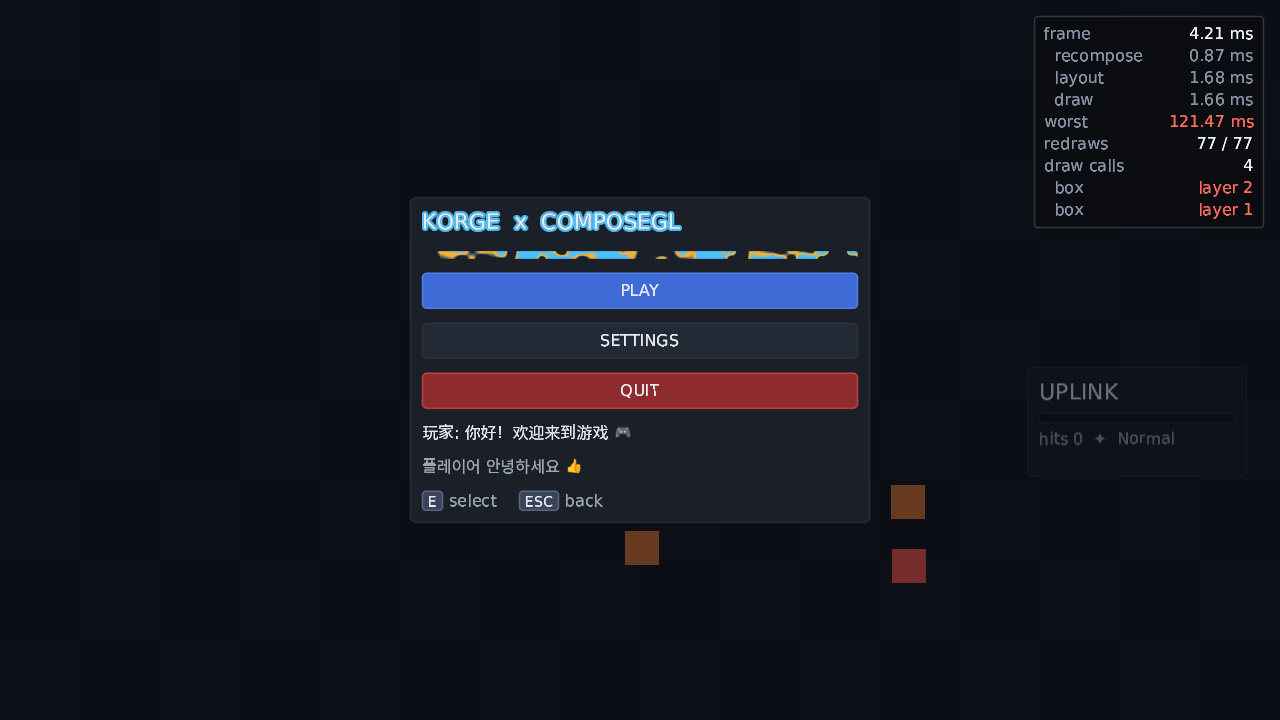
With KORGE_HEADLESS=true it runs with no display, and COMPOSEGL_DEMO_SHOT=out.png
saves a frame and exits.
Honest ones:
- KorGE 6.0.0 is its only stable release, and the only version this is built and tested against.
- JVM only. KorGE is multiplatform, but iOS, Android and the browser (wasm) are not built or tested. They are left out until they are.
- No input method preedit. KorGE 6 does not expose the provisional text an input method shows while you choose, say, a kanji. Committed text still arrives.
- No pad rumble. KorGE 6 reads pads but cannot vibrate one. Haptics buzz a phone on touch and do nothing on a pad.
-
No soft keyboard height. KorGE 6 does not say how tall the on-screen keyboard is.
A game that can ask its platform passes it in with
KorgeBackend(fonts, keyboardHeight = { … }); otherwise it is zero. - A pad's index can shift. KorGE's index is the only identity it gives a pad, and some platforms close the gap when one is unplugged. A pad that moves index looks like one pad leaving and another arriving.
-
A turned view draws upright in the box its corners cover. To turn an interface,
draw it into a
KorgeRenderTargetand turn theKorgeRenderTargetView.
- Backends — the other backends, and how each is a thin wrapper round the same renderer
- Your first screen — the same screen on LibGDX, with every call written out
- Split-screen — the router, in full