Repository navigation
Clipboard
English · 中文
Press Ctrl+Alt+C or type clip to list the text, files and images you copied (while typing, e.g. cli, a hint at the end of the list completes clip ); clip keywords filters, Enter pastes into the front window, and Ctrl+Del removes an item from the history. The item you paste moves to the top and stays on the clipboard (like Ditto and Windows' Win+V), so Ctrl+V pastes it again without opening ALTRun.
| What was copied | Shown as | Enter |
F3 / →
|
|---|---|---|---|
| Text | The beginning of the text | Pastes the text | Save as a snippet / copy, paste, large type |
| Files | The file names (separated by commas); one image file (a picture copied in QQ, WeChat and other chat programs is usually a file in their cache) with a thumbnail | Pastes the files (in Explorer that copies them there) | Add to custom commands / for one file: open, reveal in the file manager, copy path and more |
| Image (screenshot, picture from a web page...) | "Image 1920 × 1080" with a thumbnail | Pastes the image | - / open in the image viewer, reveal in the file manager |
- Images are saved as PNG files in the
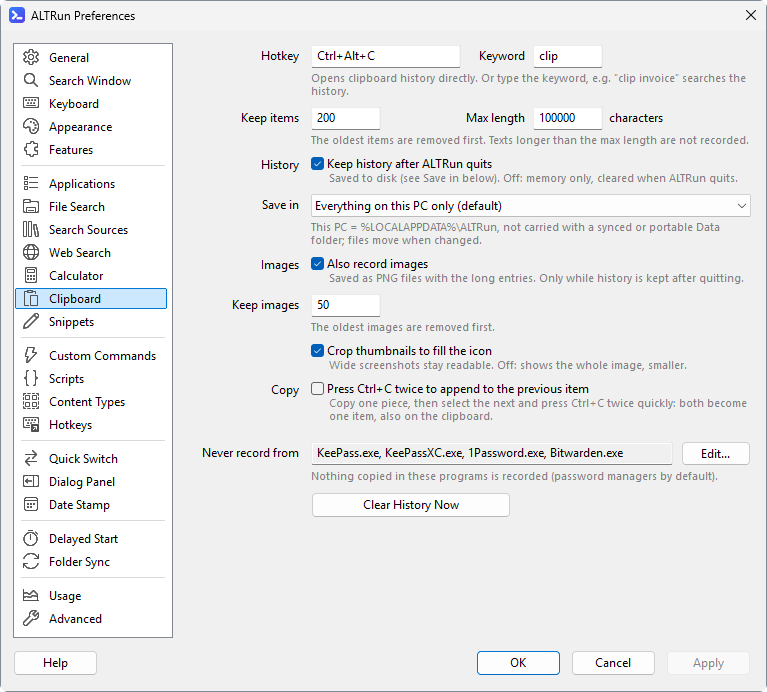
Clipboard\folder (by default on this PC in%LOCALAPPDATA%\ALTRun\Clipboard, so they aren't uploaded every time whenData\is in a synced folder), at most 50 by default (MaxImages), and only recorded while "Keep history after ALTRun quits" is on; to stop recording images, turn off "Also record images" in Preferences → Clipboard - Type
clip imageto see only images - Thumbnails fill the icon square, cropped to the middle, so a wide screenshot doesn't become a thin strip; to see the whole image shrunk instead, turn off "Crop thumbnails to fill the icon" in Preferences → Clipboard (
FillThumbnails). To see an image at full size, press→and open it in the image viewer -
Search the text: select a text item and press
→to search it on each site from Web Search -
Pin: select an item, press
→and choose "Pin". Pinned items always stay at the top (with a pin at the bottom right of the icon), are never pushed out when the history is full, and are kept by "Clear Clipboard History"; good for addresses, account names and the like -
Paste as plain text: the system command "Paste as Plain Text" pastes the clipboard content without formatting (fonts, colors, tables...) and restores the clipboard afterwards. It's handiest as
Ctrl+Shift+Vin custom hotkeys -
Merge copies (off by default, Preferences → Clipboard → "Press Ctrl+C twice to append to the previous item"): copy one piece, then select the next and press
Ctrl+Ctwice quickly; both become one item (separated by a line break) and the clipboard holds the merged text, ready to paste. Like Alfred's Merging, handy for collecting bits from several places. Note: translators such as DeepL also use "press Ctrl+C twice", so with this on both react
Privacy:
- Content copied from password managers (KeePass, 1Password, Bitwarden...) is never recorded, nor is content marked "don't add to clipboard history"
- The clipboard is read about 0.15 s after a copy and closed right away (images are saved as PNG after it is closed), so screen capture tools and other programs that use the clipboard again right after writing it are not blocked
- Add other programs you don't want recorded to
Features.Clipboard.IgnoreApps - With
Persist = 0the history is kept in memory only and is gone when ALTRun quits (no images either); turning it off in Preferences asks whether to delete the history saved so far too; otherwise it's saved on this PC only, in%LOCALAPPDATA%\ALTRun\ClipboardHistory.json(very long items and images separately in%LOCALAPPDATA%\ALTRun\Clipboard\), so it doesn't travel with a synced or portable Data folder. Preferences → Clipboard → "Save in" can keep the text history in the Data folder instead (LocalFiles = 1), or everything (LocalFiles = 0) - Preferences → Clipboard can clear the history ("Clear History Now" first says how many items it deletes; pinned items are kept)