Repository navigation
Quick Switch Panel
English · 中文
The folder panel is the visual way to use Quick Switch. It is enabled by default. When an Open / Save dialog (or a Browse for Folder dialog) appears, the panel attaches below it, or above it if there is not enough room. Click a folder to jump there without remembering a shortcut.
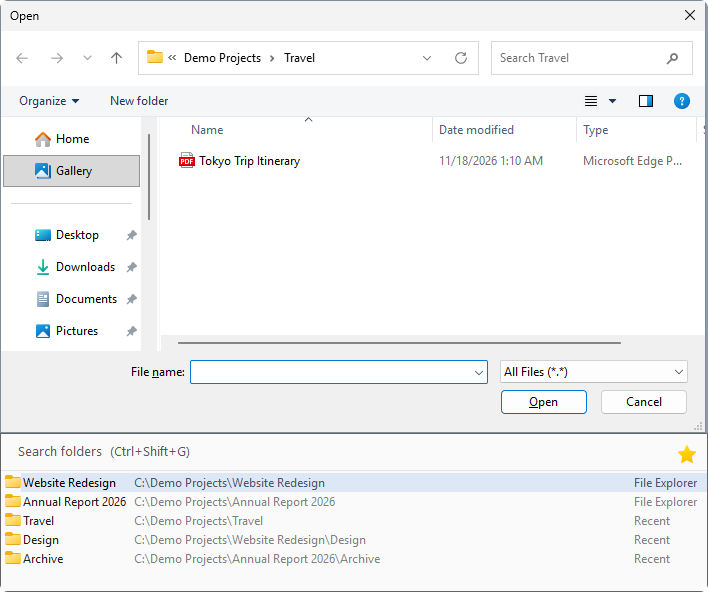
- Lists the current and opposite panels of each Total Commander window, the current tab (and the other side) of each Directory Opus window, open File Explorer windows and recently used folders. Your favorite folders are in the star menu at the top right.
- The search box filters the list first, then searches matching folder and file names with Everything (or ALTRun's built-in file index); folders are listed before files.
- Selecting a file jumps to its containing folder; it does not open or save the file.
- Without Everything, the built-in index covers only the folders listed in Preferences → File Search (by default the Desktop, Documents and Downloads). When nothing is found, the panel shows a row naming them; press
Enter(or click it) to open that page and add the folders you search. - Use
↑/↓to select,Enterto jump andEscto return to the original dialog. With a Chinese input method, the firstEntermay commit the composition; press it again to jump. - The panel hides when the dialog is not in the foreground and uses the current ALTRun theme. It is as wide as the dialog (at least 420 pixels at 100% scaling, at most the width of the screen), and follows when the dialog is resized.
- The panel never covers the dialog's buttons or file list. When there is not enough room below or above the dialog for the whole list, it shows fewer rows (at least 3; scroll for the rest). When even 3 rows don't fit (a tall or maximized dialog), only the search box is shown, below or above the dialog, or over its title bar; click it (or press
Ctrl+Shift+G) to open the list, and it closes again when you go back to the dialog.
In a standard Open / Save dialog, Ctrl+Shift+G temporarily shows the panel and focuses its search box. This works even when automatic display is disabled.
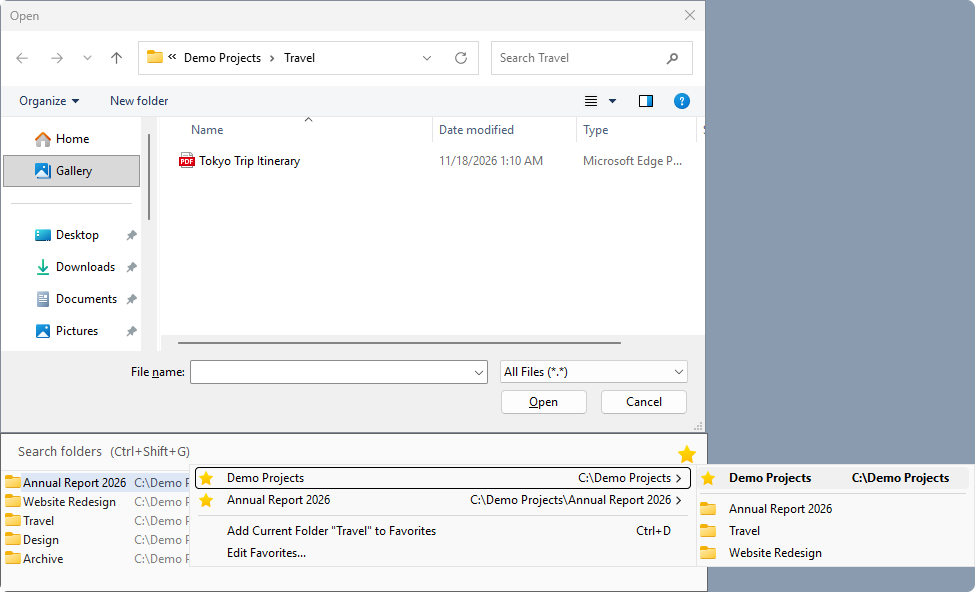
Folders you often save to or open from are in the star menu at the top right of the panel:
-
Jump: click the star (or press
Alt+↓orF4in the panel's search box, as for a drop-down list), then a favorite. A favorite with subfolders opens a submenu with its subfolders (one level); the favorite itself is the first, bold item, so a click always jumps. The first 30 subfolders by name are listed, sorted as in Explorer ("2" before "10"); hidden and system folders are left out. At most 500 are read, so a favorite with thousands of subfolders opens at once ("470+ more folders"). - Search: the panel's search box also finds favorites, listed first and marked "Favorite".
- Add: star menu → Add Current Folder "…" to Favorites for the folder the dialog shows now, or right-click a folder in the panel → Add to Favorites. A short notice confirms it.
-
Keyboard:
Ctrl+Dadds the dialog's current folder while the caret is in the panel (click the panel, or pressCtrl+Shift+G, first). In the dialog itselfCtrl+Dis the date stamp hotkey and adds a date to the file name. - Remove: right-click a favorite in the panel (open in a file manager, or found by the search) → Remove from Favorites.
-
Edit the list: star menu → Edit Favorites..., or Preferences → Dialog Panel → "Favorite folders" → Edit..., one folder per line; environment variables such as
%USERPROFILE%\Documentswork.
Favorites are listed in the order they were added and are saved in ALTRun.json. Subfolders are read when the menu opens, and only on this PC's own drives: for a favorite on a network share, a mapped network drive or a CD, the menu shows the favorite without subfolders, so a disconnected drive can't make the menu hang.
Preferences → Dialog Panel → Search box finds controls the scope:
- Folders only (default): only matching folders are shown.
- Folders and files: search both; folders remain grouped first so files with the same name do not push them out.
Recent folders come from Windows' Recent items. For a file that was opened, its containing folder is used. The default is 10 recent folders; set it to 0 to hide them.
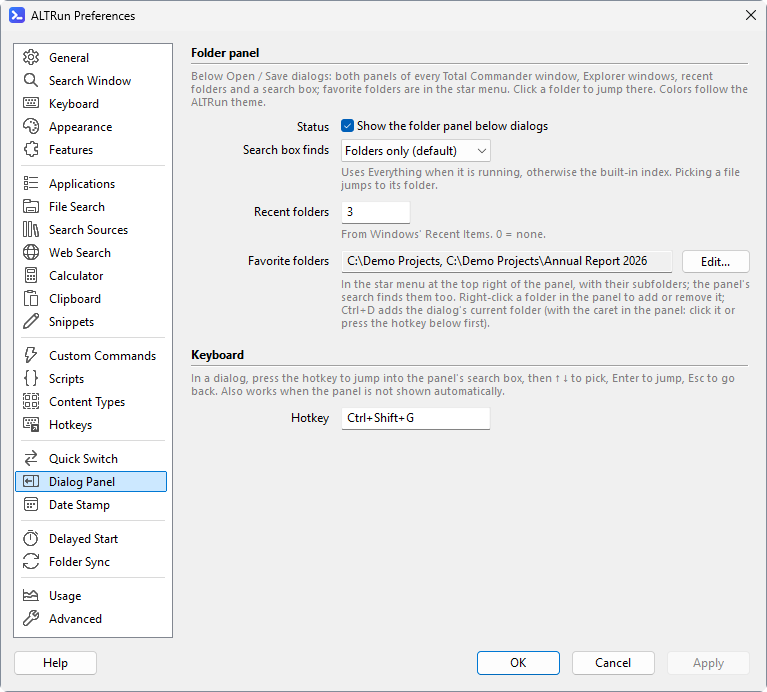
Change these in Preferences → Dialog Panel. They are stored under Extensions.QuickSwitch:
| Setting | Default / values | Purpose |
|---|---|---|
ShowPanel |
1 |
Automatically show the folder panel |
PanelSearch |
folders / all
|
Search folders only, or both folders and files |
Favorites |
[] |
Favorite folders, in the star menu (see Favorite folders) |
RecentFolders |
10 |
Number of recent folders; 0 = none |
MenuHotkey |
Ctrl+Shift+G |
Show the panel and focus its search box |
For the other shortcuts and automatic switching settings, see Quick Switch.