Repository navigation
Recent
English · 中文
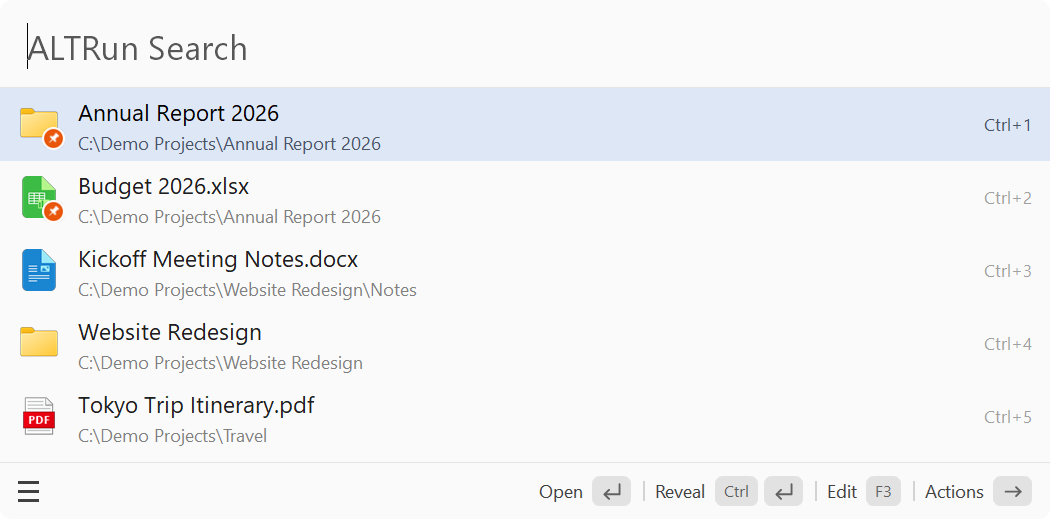
Before you type anything, the search window lists (pinned items have a pin at the bottom right of their icon):
-
Pinned items (shown by default): on any result, press
→to open the action panel and choose Pin to Empty Search Box. Pinned items are your quick favorites in the empty search box (not the same as the dialog panel's Favorite folders). Pinned items are saved inALTRun.json(Features.Recent.Pinned), so they travel with your settings to another PC. To change their order or unpin several at once: Preferences → Search Window → Empty search box → "Show pinned items" → Edit... (Move Up / Move Down / Unpin) - Recently opened items: not shown by default; check Preferences → Search Window → Empty search box → "Show recently used items"; how many show is set on the row below, "Number of recent items to show" (5 by default). Clear... next to the check box forgets them all (pinned items stay)
- Gray text in the search box: "ALTRun Search" by default; change it in Preferences → Search Window → Empty search box → "Placeholder text" (leave blank for the default, or type a single space to show nothing)
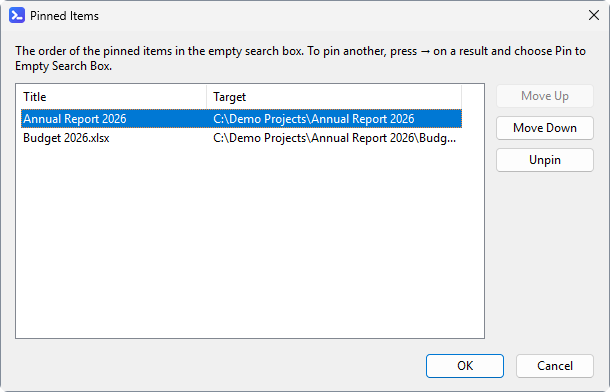
Only results you can open again are remembered: apps, files, folders, URLs, custom commands and system commands; clipboard history, calculations, snippets, web searches and windows are not. Select an item and press Ctrl+Del to unpin it or remove it from the recent items; Preferences → Advanced → "Reset Learned Ranking" clears the recent items too. Uncheck both boxes to show neither.