Repository navigation
Snippets
English · 中文
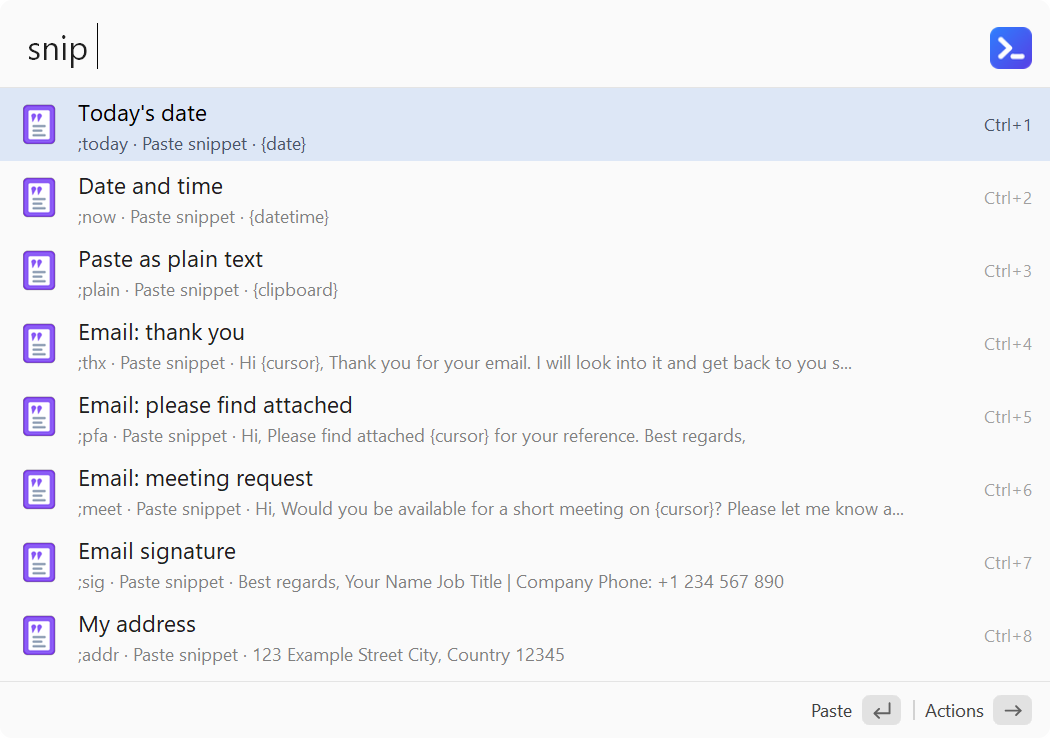
Save text you use often (signatures, addresses, templates...) as snippets. Search by name, keyword or a word in the text, and Enter pastes it into the window you were in before opening ALTRun. Type snip to list all snippets, snip xxx to search snippets only (while typing, e.g. sni, a hint at the end of the list completes snip ).
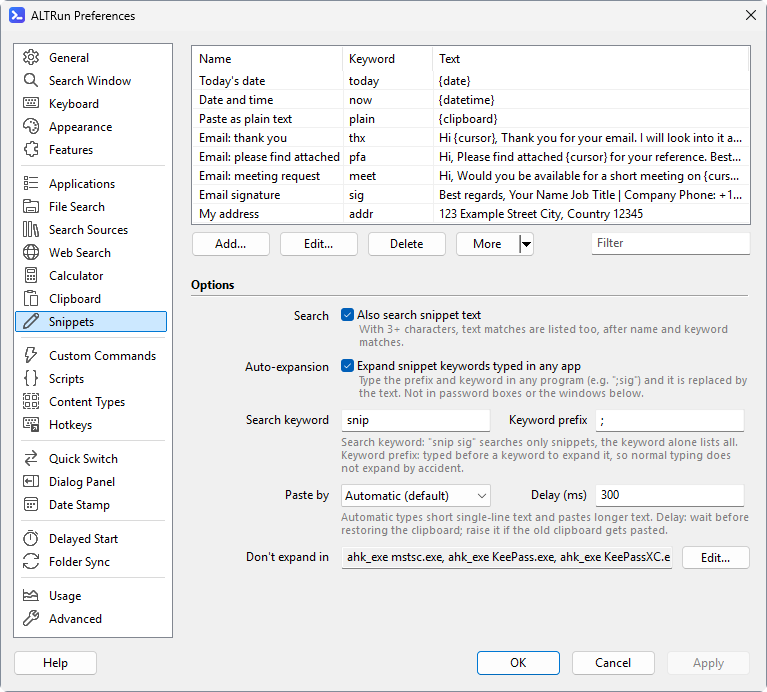
| Field | Description |
|---|---|
| Name | Required. Shown in search results and used for searching. Use words you would type to find it, for example PT quotation
|
| Keyword | Optional and short, for example pq. An exact match ranks first; to auto-expand, type ;pq. The prefix plus the keyword can be at most 40 characters (39 for the keyword with the default prefix ;), without spaces; you're told before saving if it's too long. Several keywords: separate with commas (for example sig, signature); each one searches and expands |
| Text | Required. What gets pasted; can be several lines and use the placeholders below. Words in the text are searchable too (type at least 3 characters; turn it off in Preferences if you don't want this) |
| AutoExpand | Type ;keyword in any program and it's replaced by the text right away |
Replaced when pasting:
| Placeholder | Replaced by |
|---|---|
{date} |
Today's date, in the DateFormat of the date stamp (default dd.MM.yyyy) |
{time} |
The current time HH:mm
|
{datetime} |
Date + time |
{clipboard} |
The text on the clipboard |
{date:yyyy-MM-dd} {time:HH:mm:ss}
|
Your own format (as in FormatTime, for example dddd for the day of the week) |
{date+7} {date-1:dd.MM}
|
A date some days later / earlier, optionally with a format |
{clipboard:1} {clipboard:2}
|
The 1st, 2nd previous text in the clipboard history (like Alfred; {clipboard} is the current clipboard; files and images are skipped) |
{uuid} |
A randomly generated UUID, different each time |
{cursor} |
The cursor ends up here after pasting |
Type ;keyword (for example ;sig) in any program and what you typed is deleted and replaced by the snippet text, like Alfred's snippets. The ; prefix keeps normal typing from triggering it by accident; change it in Features.Snippets.ExpandPrefix. To stop a single snippet from expanding, untick "Expand automatically when typed" in its edit window ("AutoExpand": 0); it can still be searched. Snippets don't expand in ALTRun's own search window, in Windows password boxes, or in the windows listed under Don't expand in.
To see what expands what, type snip in the search window: each snippet's second line starts with what you type to expand it (;sig, ;signature · Paste snippet · ...); Preferences → Snippets lists them too.
Preferences → Snippets → "Don't expand in" (Features.Snippets.ExpandExclude): typing ;keyword in these windows doesn't expand anything. Useful for Remote Desktop, password managers, games, or programs where you really type text starting with ;.
- Click Edit... and enter one window per line, for example
ahk_exe mstsc.exe,ahk_exe KeePass.exe,ahk_class Notepad - Each item can be:
-
ahk_exe program.exe: every window of that program (Task Manager → Details shows the program name) -
ahk_class ClassName: windows of that class - part of the window title (case-sensitive), for example
Remote Desktop Connection
-
- Default: Remote Desktop (
mstsc.exe), KeePass, KeePassXC - Whatever is listed here, snippets never expand in ALTRun's own search window or in Windows password boxes
- To keep a single snippet from expanding, untick "Expand automatically when typed" in its edit window instead
Features.Snippets.PasteMode:
-
Auto(default): types single-line text of up to 100 characters (instant, leaves the clipboard alone); text with several lines, tabs, more characters or emoji goes through the clipboard -
Clipboard: borrows the clipboard +Ctrl+V, then restores the clipboard (the default before 2026.10.14; changed toAutoon upgrade) -
Type: types the text character by character, for programs that don't accept pasting
The clipboard history uses the same setting, but what it pastes stays on the clipboard: with Auto and Clipboard it always goes through the clipboard (nothing is restored, so there is no wait); with Type it is typed and also put on the clipboard.
Preferences → Snippets → "More ▾":
-
Import from a table: paste cells copied from Excel, or click "Open File" to read a CSV / TSV file (UTF-8, or the system's default encoding). Columns: Name | Keyword | Text | Expand automatically (optional,
1/0, blank = on). A header row is skipped, rows without text are skipped, and a missing name is taken from the keyword or the first line of the text - A row whose keyword matches an existing snippet (ignoring case; or whose name matches, when there's no keyword) updates it; other rows are added. If a keyword is too long or has spaces (so it can't expand), auto-expansion is turned off for it
- Imported snippets are saved when you click OK or Apply in Preferences; Cancel discards them
- Export to CSV: with a header row, UTF-8 with BOM, so Excel opens it directly; edit it there and import it again
- Add Examples (in the same menu): adds the default snippets you don't have yet (a snippet with the same name or keyword counts as already there) and tells you how many were added and skipped; saved when you press OK / Apply