Repository navigation
Web Search
English · 中文
Type "keyword search terms" to search a website, for example g autohotkey hotkeys searches Google; Enter opens it in your browser (the default one, or Preferences → General → Browser).

| Keyword | Site |
|---|---|
g |
|
bing |
Bing |
bd |
Baidu |
gh |
GitHub |
wiki |
Wikipedia (English) |
yt |
YouTube |
tb |
Taobao |
jd |
JD.com |
tr |
Google Translate (into Simplified Chinese) |
- Once the keyword is followed by a space (for example
g), only that site shows in the results, not mixed with apps and files - Typing only the keyword (
g) shows "Type after 'g '" andEntercompletes it tog; typing the site name (for examplegoogle) shows the hint too - The keyword and a space (
g) with nothing after it searches the text on the clipboard: the built-in sites all have{query|clipboard}in their URL, the list shows "Search Google for clipboard: '...'" andEnteropens it; if the clipboard has no text (copied files, empty) it says "The clipboard has no text" and can't be opened. If you go on to type search words, those are searched - Select text in any program and press
Ctrl+Alt+\: the action panel can search the selection on every site, see Actions on selected content
Preferences → Web Search: double-click an engine in the list to edit it, or click "Add". Add Built-ins puts back the built-in engines you deleted (an engine with the same Id or keyword counts as already there) and tells you how many were added and skipped; saved when you press OK / Apply. Each engine has these fields:
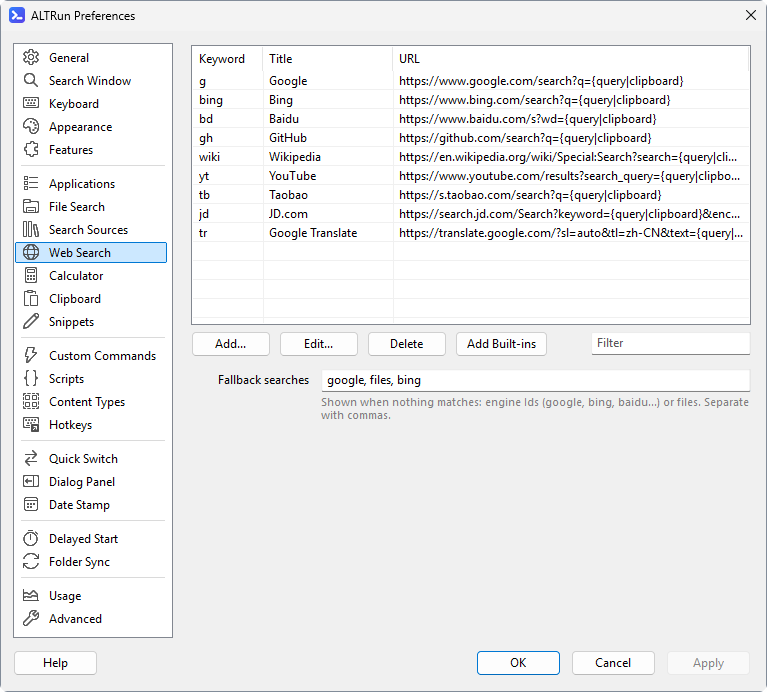
| Field | Description |
|---|---|
| Title | Shown in the result, for example "Search Google for ..." |
| Keyword | Type it followed by a space to search this site. Several keywords: separate them with commas, for example g, ㅎ, google (handy when you switch keyboard layouts: any of them works); hints and completion use the one you typed. In an action panel (the selection hotkey, →), typing a keyword finds that engine's row too (g → "Search Google") |
| URL | The address of the results page; {query} is replaced by what you typed (encoded). With `{query |
| Id | A name (Latin letters) that identifies the engine, used by fallback searches |
| Icon | Optional: an .ico, .png or .exe file; a relative path starts from the Data folder. Download Site Icon visits the website in the URL once, saves its icon in Data\Icons and fills this in. Empty = the built-in icon (the engines above have one) or the browser icon |
Examples:
| Title | Keyword | URL |
|---|---|---|
| Merriam-Webster | dict |
https://www.merriam-webster.com/dictionary/{query} |
| Amazon | amz |
https://www.amazon.com/s?k={query} |
| Local dev server | lh |
`http://localhost:{query |
- The clipboard is read only after the keyword and a space (
g); the completion hint for only the keyword (g) or the engine name (for examplegoogle) doesn't read it - Only text is used: whitespace is merged into one space, at most 200 characters. When text and an image are copied together (for example Excel cells), the text is searched; copied files are not searched
- Content copied from password managers (KeePass, 1Password, Bitwarden...) is not read, just like in the clipboard history; the full address is shown under the title before you press
Enter, so you can see what will be sent - When you upgrade, built-in engines whose URL is still the old default (
{query}) switch to{query|clipboard}; engines whose URL you changed and engines you added are left alone. To get this for them, change{query}to{query|clipboard}in the URL - In the clipboard history, select a text item and press
→to search it with each site
When nothing matches, the list shows a few fallback items, by default "Search Google for '...'", "Search files" and "Search Bing for '...'". Change them in Preferences → Web Search → "Fallback searches": engine Ids or files (file search), separated by commas.
Features.WebSearch → Engines (the engine list, each with Id / Keyword / Title / Url / Icon) and Fallbacks, see Settings reference. The whole feature can be turned off in Preferences → Features.