Repository navigation
Sync Tasks
English · 中文
Keep a folder in step with another one, for example a server share copied into your OneDrive, with Windows' own robocopy. ALTRun runs it in the background, checks risky settings first and tells you how it went.
Preferences → Folder Sync lists the tasks, with their mode and folders. The page only sets tasks up; previewing, running and stopping happen in the task's window (see below).
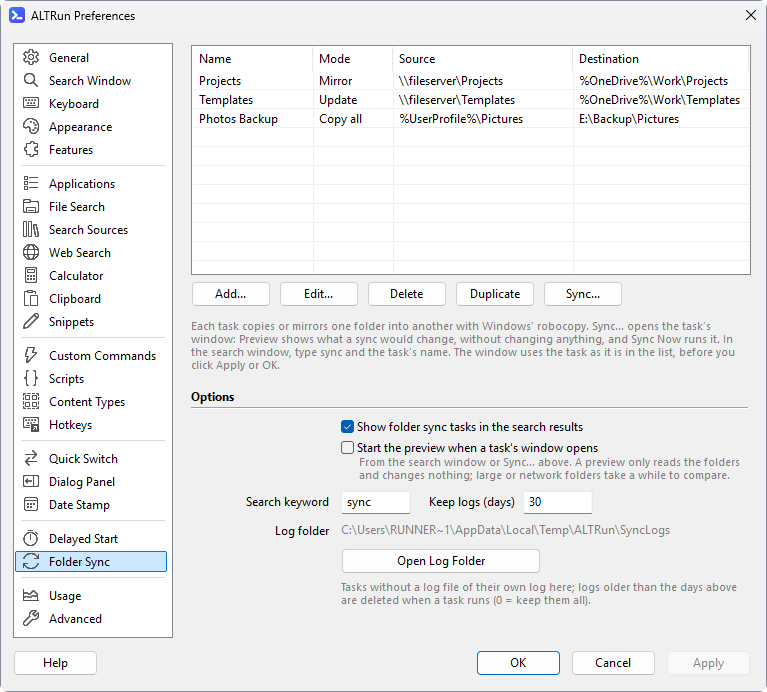
- Add, Edit (or double-click), Delete, Duplicate (a copy to change, e.g. for a second folder).
- Sync... opens the selected task's window, as the task is in the list (no need to click Apply first). It only opens: Preview or Sync Now in the window starts it (or the preview starts at once with the option below). For a task that is running, it shows its progress.
- Options: show the tasks in the search results; Start the preview when a task's window opens (off by default,
Features.Sync.AutoPreview: the preview only reads the folders, but large or network folders take a while to compare, and a run is never started this way); the search keyword (sync), how many days logs are kept, and the log folder.
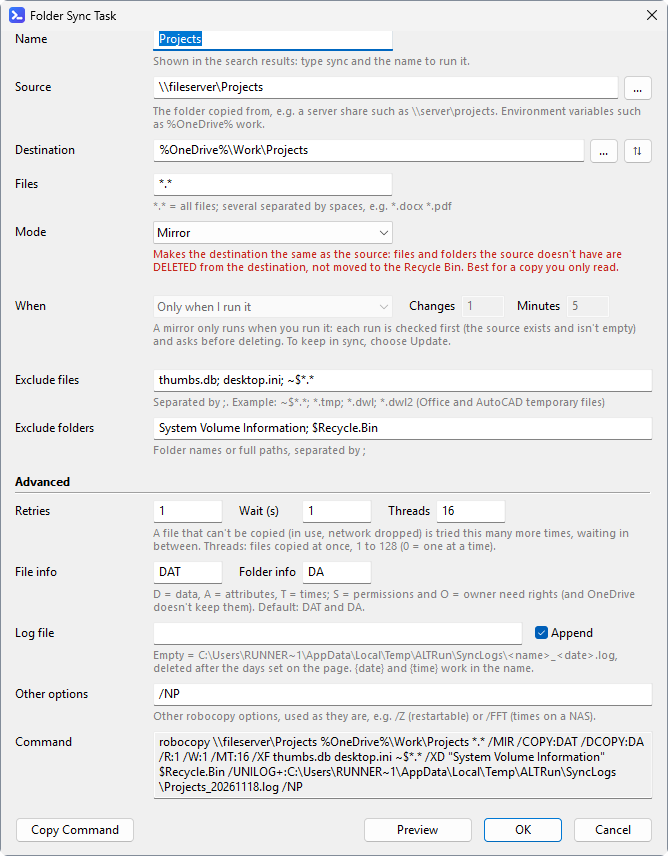
The edit window, top to bottom:
-
Name, Source and Destination (with ⇅ to swap them), Files (
*.*= all). - Mode: Mirror (the destination becomes the same as the source; what the source doesn't have is deleted), Update (new and newer files only, never deletes), Copy all (everything that differs, never deletes), Top folder only. The line under it says what the mode does; mirror's is red.
- When: only when you run it, or Keep in sync (robocopy keeps running and syncs again after changes). A mirror only runs when you run it (see below).
-
Exclude files / Exclude folders, separated by
;. - Advanced: retries and wait, threads, which file and folder information to copy, the log file, other robocopy options.
- Command shows the robocopy command line the task makes, updated as you type, with the log it runs with (the default one when Log file is empty). Copy Command copies it.
- Preview shows what the task would change before you save it. OK checks the task: mistakes (no source, the same folder twice, mirroring into a drive...) must be fixed; a destination that overlaps another task's asks first.
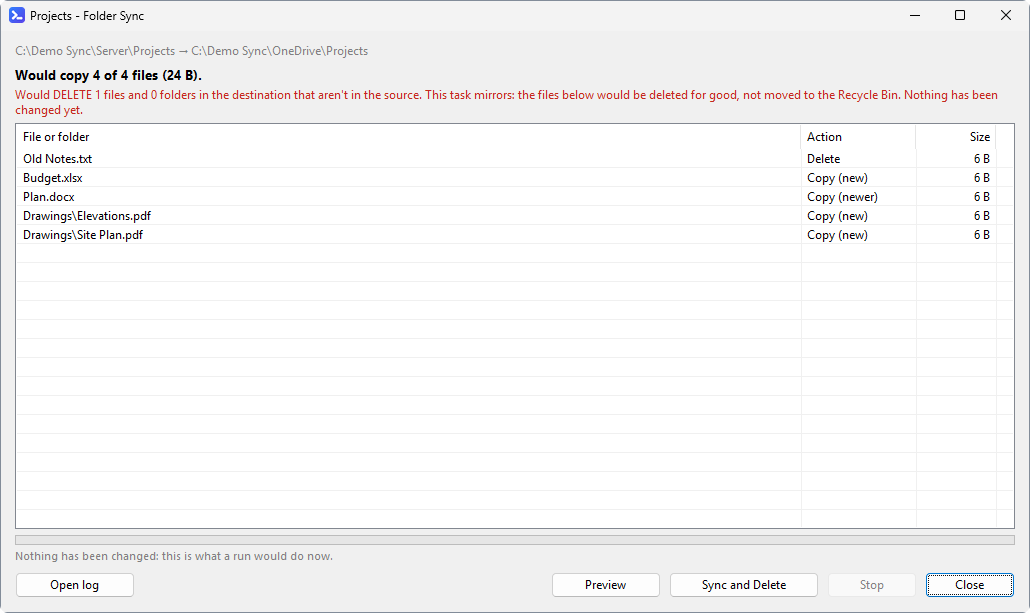
Each task has its own window, - Folder Sync. Preview and Run open it at once, and it follows the task until it ends. Its buttons stay in place: Preview, Sync Now, Stop and Open log are only enabled when they can be used.
-
Checking (a preview, robocopy with
/L, which changes nothing): the changes appear in the list as robocopy finds them, with how many so far and the time. Large folders take a while to compare, so you see it working; Stop ends it. - Preview: what a run would do: how many files it would copy and their size, how many files and folders it would delete (in red above the list), and each of them, deletions first, with why it is copied (Copy (newer)) and its size. Sync Now runs the task as previewed, in the same window. Folders to create are counted only when the task runs without threads (Threads 0): with several threads robocopy doesn't list folders.
- Running: the files appear as robocopy copies them; the bar shows the bytes copied against what the preview found (after a preview, as for every mirror), and moves back and forth for Update and Copy all, which aren't previewed first so large folders aren't compared twice. Stop ends it.
- Done: files copied (and their size), files deleted, and the time; files that couldn't be copied are counted in red, and the bar turns red (yellow when stopped).
- The bar's progress also shows on the window's taskbar button, so you can see it while working in another program (the window can be minimized).
- The list shows the first 2000 changes; the log (Open log) has all of them. A path that doesn't fit shows whole when you point at it; double-click a row to show the file in Explorer.
- The window opens where you last closed one, at the same size, maximized if it was (back to the middle of the screen when that monitor is no longer connected); a second task's window opens a step down and to the right, so it doesn't cover the first. Stored in
Features.Sync.Window. - Closing the window doesn't stop the task: its result in the search window (Enter) or Sync... in Preferences opens the window again. A notification says how it ended when the window isn't in front.
- Type the task's name, or
syncto list all tasks (sync projsearches only them). Enter only opens the task's window (nothing starts until you click Preview or Sync Now there, except the preview with Start the preview when a task's window opens); while it runs, Enter shows its progress. -
→opens the actions: Sync Now (runs it straight away; a mirror is still previewed and asks before deleting), Preview (changes nothing), Open log, open the source or destination folder; while it runs, Show progress and Stop. - The result shows what the task does and how it is doing: Running since 10:05, Monitoring since 10:05, Last run 09:30: OK.
- A task that ends says how it went (files copied and removed) in its window, and with a notification when the window isn't in front. If it fails without a window, ALTRun offers to open its log.
-
Mirror (
/MIR) makes the destination an exact copy of the source: files in the destination that aren't in the source are deleted. Before a mirror runs, ALTRun previews it (/L, which changes nothing); when the run would delete anything, the preview window lists what would be deleted, and nothing runs until you click Sync and Delete (Enter or Esc closes it).- The window opens when the preview has finished. If you have gone on working in another program by then, it can't come to the front (Windows doesn't let a background program take the focus): it flashes in the taskbar and a notification says it is waiting.
- Each task has its own window: previewing another task doesn't close one still waiting.
- A window left open for more than 5 minutes previews again when you click Sync and Delete, as the destination may have changed since.
- Excluded files and folders are never deleted from the destination, even by a mirror. robocopy still counts the ones that are only in the destination as "extras" in its summary; ALTRun doesn't count them as deletions and says they stay.
- A mirror doesn't run when the source folder can't be found or is empty (for example a server share that didn't connect), since that would empty the destination.
- A task doesn't run when the source and destination are the same folder or one is inside the other, or when a mirror would go into a drive, a share, the OneDrive folder or the user folder (it would delete everything else there).
- Source and destination must be full paths (
D:\Sync\Projects,\\server\share\folder). A relative path,\folder(the root of whichever drive is current) or an environment variable that doesn't exist on this PC (%OneDrive%without OneDrive) would make robocopy work in some other folder, so such a task doesn't run. - Other robocopy options are used as they are.
/MIRor/PURGEamong them deletes like a mirror, so such a task is treated as one whatever its mode says: the same preview that asks before deleting, and every check above./MOVor/MOVE(robocopy deletes the files from the source after copying them) is pointed out when you save the task. - A mirror can't keep in sync: robocopy's later rounds would delete without the checks above (a server share that suddenly looks empty would empty the destination). Keep in sync with Update, or run the mirror yourself.
-
Monitoring tasks (
/MON,/MOT) keep running and sync again after changes. They stop when ALTRun quits; when ALTRun only restarts (after changing a setting, an update), they keep running.
Each run is logged: to the task's own log file, or to %TEMP%\ALTRun\SyncLogs\<task name>_<date>.log. Open log opens today's log.
- The logs aren't kept in the Data folder: when that is in OneDrive, logs that grow all the time would keep uploading.
- Logs in
%TEMP%\ALTRun\SyncLogsolder than 30 days are deleted when a task runs (Features.Sync.KeepLogDays,0= keep them all). A task's own log file is never deleted. - Logs are written in Unicode (
/UNILOG), so file names in any language read correctly. -
ALTRun.loggets one line per run: when it started and how it ended (files copied and deleted, or the exit code).
Paths may use %environment variables%; the log file name may use {date} (yyyyMMdd) and {time} (HHmmss).