Repository navigation
Hotkeys
English · 中文
Preferences → Hotkeys: assign a system command to any hotkey, optionally only inside a certain window, or open ALTRun with a search already typed, for example the selected text in one scope.
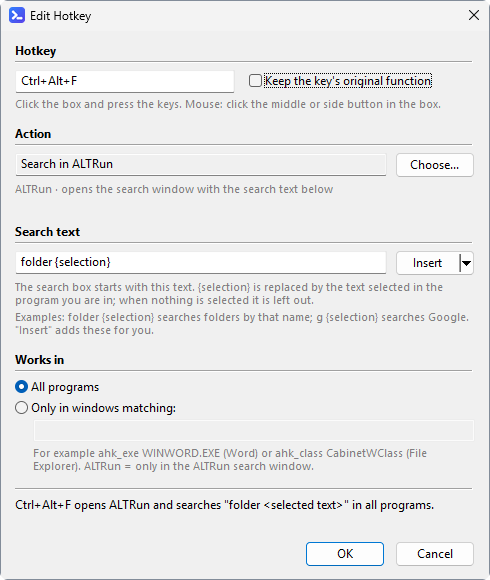
Add... / Edit... open the hotkey window. From top to bottom, each part with a gray line saying what it is for; the line at the bottom says in words what the hotkey will do (for example Ctrl+Alt+F opens ALTRun and searches "folder <selected text>" in all programs.). When another hotkey already uses the same keys in the same windows (only one of them will work), the gray line under the hotkey box turns red and says which one; OK still saves it:
| Part | In the settings file | Description |
|---|---|---|
| Hotkey |
Key, e.g. ^!f
|
Click the box and press the keys (see Setting hotkeys below); mouse hotkeys: click the middle or a side button in the box. With "Keep the key's original function" ticked, the key still does what it normally does (a leading ~) |
| Action | Action |
Choose... opens a list to pick from: Search in ALTRun (Search), Show / hide ALTRun (ToggleWindow), your custom commands (custom:<Id>), your scripts (script:<file name>) and the system commands (the Id, e.g. TerminalHere, is what the file stores). Type to filter it (names, keywords, pinyin initials); ↑ ↓ and Enter choose. The gray line below says what the command is and how it gets the selection; it is red when the custom command was deleted or the script is no longer in the Scripts folder |
| Search text |
SearchText, e.g. folder {selection}
|
Only for Search: the search box starts with this text. {selection} is replaced by the text selected in the program you are in (on one line, at most 100 characters); when nothing is selected, or files are, it is left out and only folder is typed. Insert ▾ adds {selection} at the cursor or puts a scope first: folder (folders), file, doc (documents), pic (pictures), recent, g (Google); see Usage for the prefixes. Empty = an empty search box. The list shows it after the action, like Search: folder {selection}
|
| Works in | WinTitle |
All programs (empty), or only in windows matching a window: ahk_exe WINWORD.EXE, ahk_class CabinetWClass (File Explorer); ALTRun = only in ALTRun's search window |
To copy the selected text ALTRun presses Ctrl+C in that program: with nothing selected it waits up to 2 s before the window opens (programs such as Excel put the text there late), so only use {selection} where you want it. The clipboard is put back afterwards.
Running a custom command: choose it with Choose... (stored as "Action": "custom:<Id>", the command's Id in ALTRun.json). A command with {query} or content types gets the selection as from Actions on selected content: {query} becomes the selected text or path, and a file or command line without {query} gets it as its last argument; selected text with a line break, a double quote or characters a command line treats specially is not passed (a notice says why). With nothing selected, a {query} command with a keyword opens the search window with the keyword typed, so you type the rest. Other commands run directly, without copying the selection. The list shows such a hotkey as Run: <command name>. Deleting the command (on the Custom Commands page, or Ctrl+Del in the results) deletes the hotkeys that run it too; the question before deleting names them. A hotkey whose command is missing anyway (the settings file edited by hand, or synced from another PC) is shown in red as (deleted command) custom:<Id>, and says so when pressed.
Running a script: the same rules for a script with @altrun.argument or @altrun.selection (stored as "Action": "script:<file name>"); see Scripts. Renaming the file breaks the hotkey (shown in red as (script not found) script:<file name>).
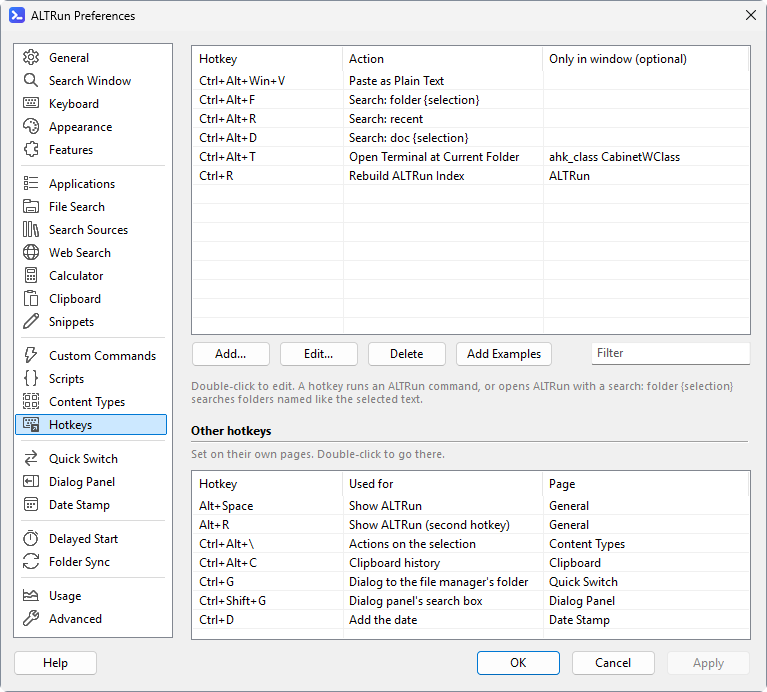
New installs come with six examples:
-
Ctrl+Alt+Win+Vpastes the clipboard as plain text, everywhere (the same key as PowerToys "Paste as plain text") -
Ctrl+Alt+F: select a name anywhere (an email, a drawing list...) and press it: ALTRun searches folders with that name (folder {selection}); with nothing selected it opens withfoldertyped -
Ctrl+Alt+D: the same for documents (doc {selection}) -
Ctrl+Alt+R: recent files and folders (recent) -
Ctrl+Alt+Tin File Explorer (ahk_class CabinetWClass) opens a terminal in the current folder -
Ctrl+Rin the ALTRun search window (ALTRun) rebuilds the index
Delete or change them as you like; existing settings keep their own list. Add Examples below the list adds the ones you don't have (a hotkey with the same key and window counts as already there) and tells you how many were added and skipped; they are saved when you press OK / Apply. To go straight to another scope, add a Search hotkey of your own, for example pic {selection} for pictures or g {selection} to search Google for the selected text. F1–F4 in the search window are built in, see Shortcuts.
Other hotkeys below the list shows the hotkeys set on other pages, as their boxes are now (before OK / Apply too): showing ALTRun and the second hotkey (General), actions on the selection (Selection), clipboard history (Clipboard), Quick Switch and the dialog panel's search box (Quick Switch, Dialog Panel; only in dialogs) and the date stamp (Date Stamp; only in its windows). A feature that is off has none listed. Double-click one to go to the page where it is set.
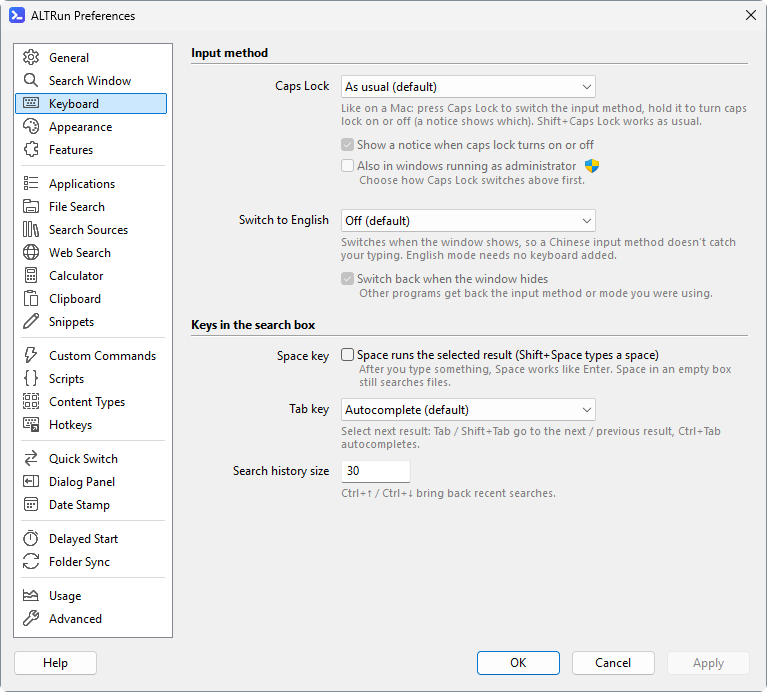
Like on a Mac: in Preferences → Keyboard → Input method, set Caps Lock to one of:
-
Press to switch input method: switches to the next installed input method, like
Win+Space(for example English (US) ↔ Microsoft Pinyin) -
Press to switch Chinese / English mode: switches the mode of the current input method, like pressing
Shiftin Microsoft Pinyin; handy when only a Chinese input method is installed
Holding Caps Lock for 0.3 s turns caps lock on or off (without waiting for you to let go) and briefly shows "Caps Lock On" / "Caps Lock Off" (untick "Show a notice when caps lock turns on or off" to turn that off); Shift+Caps Lock turns caps lock on or off as usual. It's off by default (General.CapsLock). Custom hotkeys that use Caps Lock as a modifier (such as CapsLock & J) don't mix well with it. It also works over remote control such as Chrome Remote Desktop: the very short extra Caps Lock presses that the remote tool sends to sync the caps lock state are ignored.
Also in windows running as administrator: Windows doesn't let programs with normal rights control windows running as administrator, so by default Caps Lock doesn't switch there. Tick "Also in windows running as administrator" (Keyboard.CapsLockElevated) and ALTRun creates a scheduled task (confirm UAC once); from then on every start uses it to run a small helper with administrator rights (no more UAC prompts), and the helper exits with ALTRun. The same helper does Quick Switch in dialogs of programs running as administrator when that option is on: one task for both. ALTRun itself keeps normal rights, so programs opened from it, drag and drop and network drives are not affected. Unticking it deletes the task (confirm once more) unless the Quick Switch option still uses it. After moving the ALTRun folder, turn the option off and on again. Keep ALTRun in a folder only administrators can change (for example C:\Program Files) when you use this option: the task runs ALTRun with administrator rights without asking, so a program that could replace ALTRun in its folder could use it to get those rights. ALTRun warns when its folder can be changed without administrator rights.
Every hotkey in Preferences (the ALTRun hotkey, clipboard history, Quick Switch, date stamp, custom hotkeys) uses the same kind of box, recording the keys directly like Alfred and PowerToys:
- The box shows
Alt+Space,Ctrl+Alt+Cand so on. Click the box, "Press a shortcut..." appears, and the keys you press are recorded -
Esccancels (keeps the old hotkey),Backspace/Deleteclears it (no hotkey). The ALTRun hotkey stays cleared only while the second hotkey or double-tap is set; with neither, saving putsAlt+Spaceback - A single letter, digit, space, Enter and the like would get in the way of typing and need
Ctrl,AltorWin;F1–F24,Pauseand similar keys work on their own - While recording, ALTRun's own hotkeys are paused, and combinations such as
Alt+SpaceorWin+Edon't trigger Windows or other programs - Left or right: by default
Ctrl,Alt,ShiftandWinwork on either side. Tick "Tell left and right Ctrl / Alt / Shift / Win apart" in Preferences → General, and hotkeys recorded from then on keep the side you press: leftAlt+Spaceshows asLAlt+Spaceand only the leftAlttriggers it, so another program (for example voice input onRAlt+Space) can have the right one. Holding both sides records either side. Hotkeys already set stay as they are until you record them again. A hotkey with a side can't be a Windows system hotkey (those don't tell the sides apart), so it works through ALTRun's keyboard hook: it doesn't work while a window running as administrator is in front (see FAQ); over the Start menu or Windows Search it works, and they are closed first - When saving, you're warned if two global hotkeys are the same (for example the ALTRun hotkey and clipboard history both
Ctrl+Alt+C).Alt+SpaceandLAlt+Spacecount as the same (the leftAltwould trigger both);LAlt+SpaceandRAlt+Spacedon't. Hotkeys that only work in some windows (Quick Switch, date stamp, custom hotkeys with a window) can repeat
The settings file still uses AutoHotkey syntax (! Alt, ^ Ctrl, + Shift, # Win, for example !Space; < / > before one of them = only the left / right key, for example <!Space), and you can edit it directly; special forms such as CapsLock & J are kept as they are until you record the hotkey again in Preferences.