Repository navigation
Scripts
English · 中文
Ready-made scripts (translation, a Total Commander command palette, file hashes and more) are in the script library on the website: download one into the Scripts\ folder and use it.
Put your own scripts into the Scripts\ folder (in the program folder; Preferences → Scripts → "Open Scripts Folder", or search for "Open Scripts Folder"; it starts empty: ready-made scripts are in the script library, Preferences → Scripts → "Browse Script Library") and you can find and run them by name or keyword in the search window, like Raycast's Script Commands. To see only scripts, type script (all of them) or script name (typing just script, without the space, shows a hint after the names that start with "script"; Enter on it completes script ; while typing, e.g. scr, the hint is at the end of the list); change the keyword in Preferences → Scripts → "Search keyword". Supported: .ahk (run with the AutoHotkey inside ALTRun, nothing else to install), .ps1, .bat / .cmd, .py (needs Python). Preferences → Scripts lists the scripts found; double-click one to edit it in Notepad:
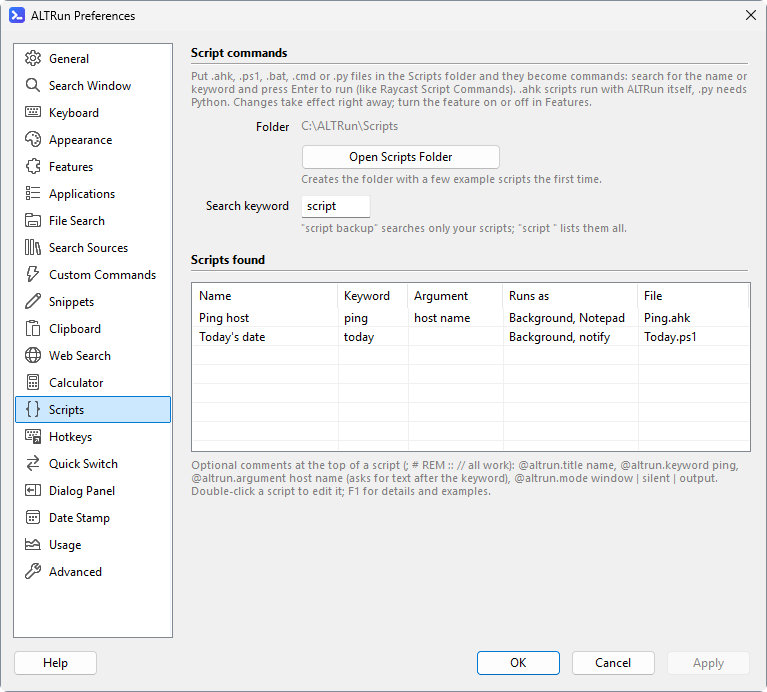
Comments at the top of a script can hold these settings (the comment markers ; # REM :: // all work; all are optional):
| Setting | Description |
|---|---|
@altrun.title name |
The name shown; the file name by default |
@altrun.keyword keyword |
An exact match ranks first |
@altrun.argument hint |
Needs an argument: type "keyword text" and the text is passed to the script as its first argument; when only the name is found, Enter completes it to "keyword " |
@altrun.mode window |
Default: runs normally (with a window) |
@altrun.mode silent |
Runs in the background and shows the last line of its output as a notification when done (nothing printed: "done"); when it fails (ends with an exit code other than 0, can't start, or is stopped after 2 minutes), the first line of its error output or the reason |
@altrun.mode output |
Runs in the background and opens all of its output with the default program for .txt files (usually Notepad) when done; its error output follows after an empty line |
@altrun.mode filter |
Live results: typing "keyword text" runs the script while you type and shows what it prints as results (see Live results below). Needs a keyword; .ahk, .py and .ps1 only |
@altrun.filter altrun |
With filter: run the script once when you type the keyword, then let ALTRun filter what it printed while you type (see below) |
@altrun.selection Text, PDF |
Content types (built-in or your own, separated by commas): the script is offered in the actions panel (Ctrl+Alt+\) of such a selection, after the custom commands, and the selection is passed to it as its first argument (several files: one argument each) |
Example (Scripts\Hash.ps1):
# @altrun.title    File hash
# @altrun.keyword  hash
# @altrun.argument file path
# @altrun.mode     output
Get-FileHash -Algorithm SHA256 $args[0] | Format-List
Type hash D:\Downloads\setup.exe and press Enter; the SHA256 opens in your text editor. Pick a keyword that isn't used by a default command (for example ping already belongs to the built-in Ping command).
A script that runs in the background and shows the last line it prints as a notification (Scripts\Today.ahk; change the mode to output to read everything it prints in your text editor):
; @altrun.title  Today's date
; @altrun.mode   silent
FileAppend(FormatTime(, "dddd, d MMMM yyyy") ", week " SubStr(FormatTime(, "YWeek"), 5), "*")
Scripts for selected content: with @altrun.selection, select something of that type in any program and press Ctrl+Alt+\; the script is in the list. Selected text with a line break or a double quote isn't passed, nor characters the script's shell treats specially (.bat / .cmd run through cmd, .ps1 through PowerShell); the script isn't listed then. The "Types" column of Preferences → Scripts shows each script's types.
A hotkey for a script: in Preferences → Hotkeys, Choose... lists the scripts too (stored as "Action": "script:<file name>", for example script:hash.ps1). A script with @altrun.argument or @altrun.selection gets the selection as its argument, with the same checks; with nothing selected, one with an argument and a keyword opens the search window with the keyword typed. Renaming the file breaks the hotkey: it is shown in red as (script not found) script:<file name> until you choose the script again.
In .ahk scripts, write output with FileAppend("text", "*"). Adding, removing or changing scripts takes effect right away without reloading; select a script and press F3 to edit it in Notepad.
Background scripts (silent / output) are started directly, not through cmd, so &, |, > or quotes in the argument are just text (.bat / .cmd still run through cmd, so a double quote in their argument is refused). They get the same variables as results that run the script: ALTRUN_ACTION (run), ALTRUN_ARG (the first argument), ALTRUN_KEYWORD, ALTRUN_VERSION and the window in front before (ALTRUN_HWND, ALTRUN_PID, ALTRUN_PROCESS); scripts that run normally (window) don't. A background script may run for at most 2 minutes, then it is stopped (what it started keeps running). Its output is read as UTF-8 when it is; otherwise an .ahk script's as the system's ANSI code page (what FileAppend("text", "*") writes) and the others' as the console's code page.
With @altrun.mode filter, a script becomes a search source of its own, like Alfred's Script Filter. Type its keyword and a space: ALTRun runs the script with what you type after it and shows what it prints as results, which open, copy, show the actions panel (→) and edit the script (F3) like any other result.
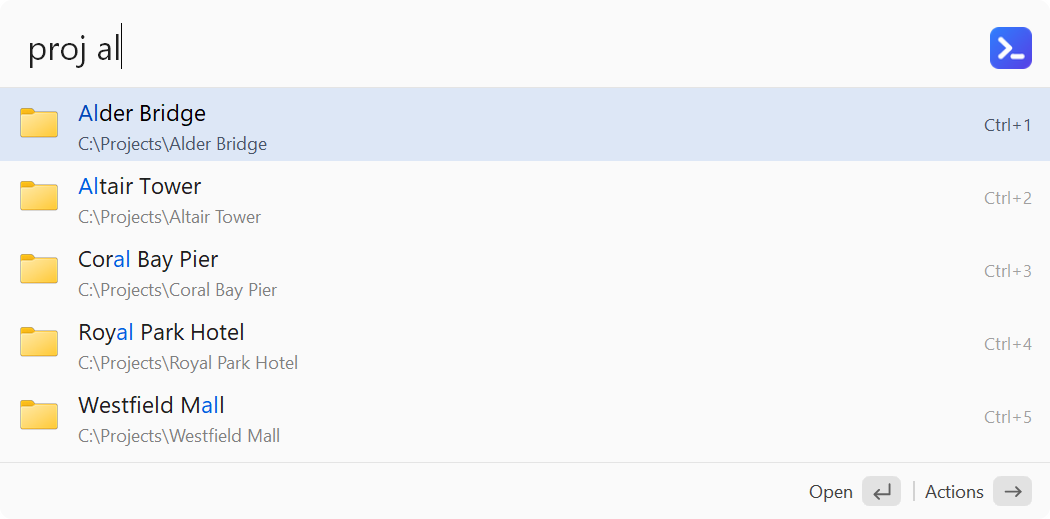
; @altrun.title    Find Project
; @altrun.keyword  proj
; @altrun.mode     filter
query := A_Args[1]
out := ""
Loop Files, "D:\Projects\*" query "*", "D"
    out .= A_LoopFileName "`t" A_LoopFileFullPath "`t" A_LoopFileFullPath "`tfolder`n"
FileAppend(out, "*", "UTF-8-RAW")
Type proj alt: the folders under D:\Projects whose names contain "alt" are listed; Enter opens one.
What the script gets: the text after the keyword as its first argument ("" when nothing is typed yet) and in the variable ALTRUN_QUERY (also ALTRUN_KEYWORD and ALTRUN_VERSION). In .ps1 scripts use $env:ALTRUN_QUERY. The window that was in front before ALTRun was shown is in ALTRUN_HWND (its handle, a decimal number, the same as {hwnd} in custom commands), ALTRUN_PID and ALTRUN_PROCESS (its program's file name, e.g. TOTALCMD64.EXE); they aren't set when that window is gone. A script can list commands for that program, e.g. if (EnvGet("ALTRUN_PROCESS") = "TOTALCMD64.EXE"). The script is started directly, not through cmd, so &, |, > or quotes in the text are just text.
What it prints, either:
- one result per line, separated by tabs:
title⇥subtitle⇥target⇥type⇥icon(only the title is needed; the target is the title when left out), or - JSON, the same names as Alfred's Script Filter:
{"items": [
  {"title": "ALTRun", "subtitle": "D:\\Projects\\ALTRun", "arg": "D:\\Projects\\ALTRun", "type": "folder", "uid": "altrun"},
  {"title": "Wiki", "arg": "https://example.com/wiki", "icon": "C:\\Icons\\wiki.ico"}
]}| Field | Meaning |
|---|---|
title |
Required |
subtitle |
The gray line under the title |
arg |
What Enter works on; the title when left out |
type |
file, folder, url (opened), text (copied) or script (runs the script again with arg, see below). When left out it follows the target: a web address is url, C:\... or \\server\... is file (folder when it ends with \), anything else text
|
icon |
A local .ico / .png / .exe / .dll file; web addresses aren't used. When left out, the file's own icon for files and folders |
uid |
Lets ALTRun learn which result you choose for what you type, as for other results; without it the script's order is kept |
valid |
false: the row can't be run (a hint); with autocomplete, Enter puts "keyword autocomplete" into the search box |
autocomplete |
The text after the keyword that Tab (or Enter on a row that can't run) fills in |
match |
With @altrun.filter altrun: the text ALTRun matches what you type against, instead of the title |
text.largetype |
The text Ctrl+L shows large |
Write UTF-8: in .ahk scripts FileAppend(text, "*", "UTF-8-RAW"); Python and PowerShell already write UTF-8 when run by ALTRun.
When it runs: as soon as you type the keyword and the space, then each time you stop typing for a moment (0.15 s). A run still going is stopped when a new one starts, when you leave the keyword or close the search window, together with any program it started. While it runs, the last results stay; "Running..." shows only when there is nothing yet after 0.3 s. A run can take up to 10 s. Results are kept until the search window closes, so Backspace back to a text you already searched shows them at once.
Results that run the script ("type": "script"): Enter closes the search window and runs the same script again in the background, with the result's arg as its first argument and in ALTRUN_ARG (in .ps1 scripts $env:ALTRUN_ARG). ALTRUN_ACTION is then run (filter while it lists results); the text typed and the window variables are the same. So one script can be a command palette for the program in front: list the commands that fit ALTRUN_PROCESS, and run the one chosen on the window ALTRUN_HWND:
; @altrun.keyword np
; @altrun.mode    filter
if (EnvGet("ALTRUN_ACTION") = "run") {                ; Enter on a result: do it
    hwnd := EnvGet("ALTRUN_HWND")
    if (hwnd != "" && A_Args[1] = "upper") {
        WinActivate("ahk_id " hwnd), A_Clipboard := ""
        Send("^c"), ClipWait(1), Send("{Text}" StrUpper(A_Clipboard))
    }
    FileAppend("Done", "*")                          ; the last line printed is shown as a notification
    ExitApp
}
if (EnvGet("ALTRUN_PROCESS") = "notepad.exe")        ; listing: only for Notepad
    FileAppend("Selection to upper case`t`tupper`tscript`n", "*", "UTF-8-RAW")
The window closes first, so the program you came from is in front again. What the script starts (an editor, a folder window) keeps running when it ends. After it ends, the last line it printed, if any, is shown as a notification; when it fails (can't start, ends with an exit code other than 0, or is stopped after 2 minutes) the reason is shown. Arrow → on such a result: run it, or copy its arg (Alt+Enter).
A list ALTRun filters: when the list doesn't depend on what you type (your projects, servers, bookmarks of a tool), add @altrun.filter altrun. The script then runs once, with an empty text, when you type the keyword and the space; ALTRun keeps what it printed until the search window closes and filters it as you type, the same way it matches other results (fuzzy, pinyin initials too), on match or else the title, best match first. Nothing runs while you type, so this suits slow starters such as PowerShell. Such a list can have up to 2,000 results (other live results: the first 200).
When something goes wrong: one row says what (the first line the script wrote to its error output, its exit code, the JSON problem, or the time-out). Enter on it edits the script, Ctrl+L shows all of the error output. A script that prints nothing shows "No results".
Speed: an .ahk or .py script starts in a fraction of a second; Windows PowerShell takes noticeably longer to start, so a .ps1 script feels slower: use @altrun.filter altrun when you can. A hotkey for a live results script opens the search window with its keyword and the selected line of text. Live results scripts aren't offered for selected content.
Type fy and some text: the translation appears as you type (Chinese → English, other languages → Chinese); Enter copies it, Ctrl+Enter pastes it into the window you came from. It uses DeepL with your own API key (the free plan, 500,000 characters a month, is enough for this). The text you type after fy is sent to DeepL while you type; ALTRun itself sends nothing. DeepL counts the characters of every request, and each pause in typing sends the whole text again, so a sentence typed letter by letter can count several times its length; the hotkey below sends it once.
- Get a DeepL API key (Account → API Keys), and add it as a user environment variable named
DEEPL_AUTH_KEY(Windows search: "Edit environment variables for your account"). The script reads it there, so ALTRun doesn't need to restart. - Download Translate.ahk (raw file: right-click → Save link as) into the
Scripts\folder (Preferences → Scripts → Open Scripts Folder). - Optionally give it a hotkey: Preferences → Hotkeys with the action "Search in ALTRun" and the search text
fy {selection}: select some text in any program and press it to see the translation. The selection is put on one line, and only its first 100 characters are used.
Without a key, or before you type, the row says what to do; a key DeepL doesn't accept, the monthly limit, or no connection show as an error row. To translate into another language, change target in the script (DeepL's codes, for example JA, DE, EN-GB).
A command palette for Total Commander: type tc and part of a command's name, in English or in the language Total Commander uses (pinyin initials too), and Enter runs it in Total Commander. It lists Total Commander's internal commands (cm_..., from TOTALCMD.INC, named by its language file when there is one, e.g. Chinese) and your own commands (em_..., from usercmd.ini, by their menu text). It works on the Total Commander window you came from, or else the one used last. Needs ALTRun 2026.11.16.4 or later.
- Download TC Commands.ahk (raw file: right-click → Save link as) into the
Scripts\folder (Preferences → Scripts → Open Scripts Folder). - In Total Commander, open ALTRun and type
tc(with the space): the commands are listed; type to filter,Enterto run. - Optionally give it a hotkey in Total Commander: Preferences → Hotkeys → Add..., the action "Search in ALTRun", the search text
tc(with the space), works in "only in windows matching"ahk_class TTOTAL_CMD, and a key such asCtrl+Shift+P(it then does this instead of what the key did in Total Commander, if anything). Use "Search in ALTRun" rather than the script itself as the action: a hotkey for a script first copies the selection, which in Total Commander copies the selected files.
How it works: the script reads TOTALCMD.INC in Total Commander's program folder, and wincmd.ini (where COMMANDER_INI, the registry value IniFileName or the program folder says, else %APPDATA%\GHISLER) for the language file and the folder of usercmd.ini. Enter sends a cm_ command as its number (the message WM_USER+51) and an em_ command by name (WM_COPYDATA), as Total Commander's documentation describes. A Total Commander running as administrator doesn't accept them from ALTRun. Commands that need parameters (CD <directory> and the like) aren't listed.