Module Communications and Home
WinForge bundles two "reach out and touch things" modules: a Communications deep-link launcher that builds mailto / Outlook drafts and one-click protocol links for Discord, Teams, Telegram, Slack and Phone Link, and a Home Assistant client that talks to your HA instance over its documented REST API — rendering templates, running scenes, dimming lights, pushing phone notifications and more. Both are fully in-app: Communications never auto-sends anything (it only opens a draft / compose / dialer), and Home Assistant only acts when you click.
兩個「伸手出去」嘅模組:通訊深層連結啟動器(砌 mailto/Outlook 草稿,一撳開 Discord、Teams、Telegram、Slack、Phone Link),同埋一個用 REST API 控制 Home Assistant 嘅客戶端(跑範本、跑場景、校燈、推手機通知)。兩個都喺 app 內做:通訊永遠唔自動寄(只開草稿/撰寫/撥號),Home Assistant 淨係你撳先郁。
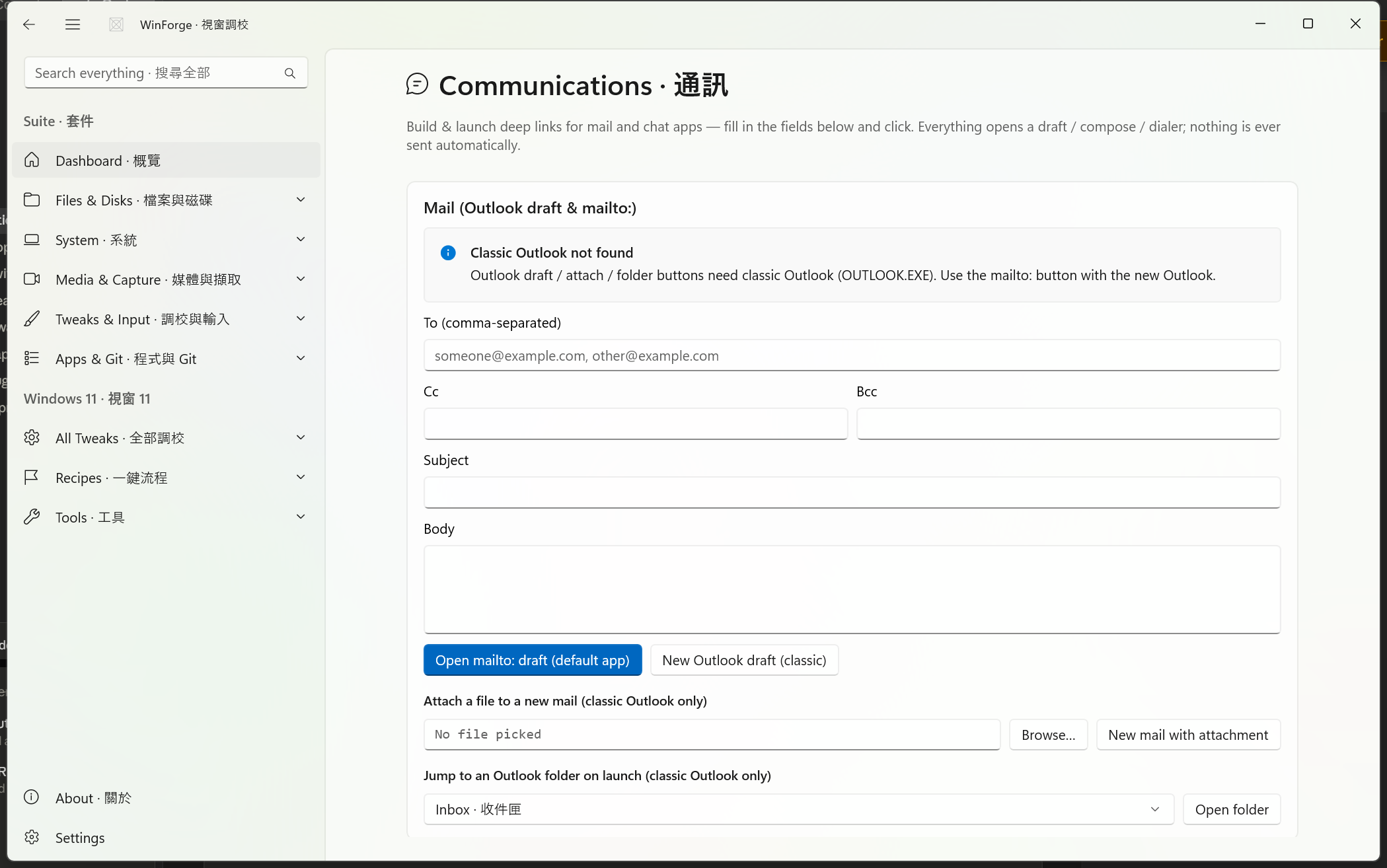
The Communications module is a deep-link launcher, not a mail client. You fill in native in-app fields, click a button, and WinForge builds the correct URI (mailto:, discord://, tg://, slack://, tel:, sms:) or Outlook command line, then hands it to the registered handler via ShellExecute. The guiding rule, repeated all over the source: everything opens a draft / compose / dialer — nothing is ever sent automatically.
通訊模組係個深層連結啟動器,唔係 email client。你喺 app 入面填格、撳掣,WinForge 就砌好正確嘅 URI 或者 Outlook 命令列,再交畀已註冊嘅 handler。原則一句話:全部只會開草稿/撰寫/撥號介面,永遠唔會自動寄出。
The page header reads Communications · 通訊, and a result InfoBar at the bottom reports what was launched (or why it failed) after every action.
Two helpers in CommunicationsService do all the actual launching:
| Helper | What it does · 做啲乜 |
|---|---|
LaunchUri(uri) |
Starts a protocol URI through its registered handler (Process.Start with UseShellExecute = true). Returns a failure TweakResult if the string is empty or no handler is registered for the scheme. |
LaunchExe(exe, args) |
Starts an executable (i.e. OUTLOOK.EXE) with command-line arguments. |
Enc(...) is a thin wrapper over Uri.EscapeDataString used to URL-encode every query value, so subjects, bodies and message text survive special characters.
The Mail (Outlook draft & mailto:) · 信件(Outlook 草稿同 mailto:) card has fields for To · 收件人 (comma-separated), Cc, Bcc, Subject · 主旨 and Body · 內文, plus three launch paths.
| Button | Action | Under the hood |
|---|---|---|
| Open mailto: draft (default app) · 開 mailto: 草稿(預設 App) | OpenMailto(...) |
Builds an RFC 6068 mailto: URI via BuildMailto (subject/cc/bcc/body URL-encoded; @ and , kept readable in the address list) and launches it in the default mail handler. Works with the new Outlook. |
| New Outlook draft (classic) · 開 Outlook 草稿(傳統) | OutlookCompose(...) |
Runs OUTLOOK.EXE /c ipm.note /m "<mailto query>". /c ipm.note forces a brand-new message; /m carries the recipients + encoded query. Classic Outlook only. |
| New mail with attachment · 開附件郵件 | OutlookAttach(...) |
Runs OUTLOOK.EXE /a "<file>" (optionally /m "<to?subject&body>"). /a attaches exactly one file that must exist on disk; classic Outlook only. |
There is also a Jump to an Outlook folder on launch · 開 Outlook 時跳去資料夾 dropdown that runs OUTLOOK.EXE /select outlook:<Folder>. The folder list is CommunicationsService.OutlookFolders:
| Value | English | 粵語 |
|---|---|---|
Inbox |
Inbox | 收件匣 |
Calendar |
Calendar | 行事曆 |
Contacts |
Contacts | 連絡人 |
Tasks |
Tasks | 工作 |
Notes |
Notes | 記事 |
Drafts |
Drafts | 草稿 |
The draft/attach/folder buttons require classic OUTLOOK.EXE (the new Outlook has no /c switch). On load, ResolveOutlookExe() tries to find it and an InfoBar reports the state:
- Classic Outlook detected · 偵測到傳統 Outlook — shows the resolved path.
-
Classic Outlook not found · 揾唔到傳統 Outlook — tells you to use the
mailto:button with the new Outlook.
Resolution order is: the App Paths\OUTLOOK.EXE registry key (checked under both HKCU and HKLM), then common Click-to-Run / MSI install locations under Microsoft Office\root\Office16 (and Office15 / Office14, plus the legacy non-root layout) across ProgramFiles, ProgramFiles(x86) and ProgramW6432.
| Field / Button | Action | Deep link |
|---|---|---|
| Server (guild) ID · Server(guild)ID + Channel ID (optional) · 頻道 ID(可選) → Open channel · 開頻道 | DiscordChannel(guild, channel) |
discord://-/channels/<guild> or discord://-/channels/<guild>/<channel>
|
| DM channel ID · 私訊頻道 ID → Open DM · 開私訊 | DiscordDm(id) |
discord://-/channels/@me/<dmChannelId> |
| DMs home · 私訊主頁 | DiscordDmHome() |
discord://-/channels/@me |
A server (guild) ID is required for Open channel; the channel ID is optional.
Teams uses HTTPS teams.microsoft.com/l/... deep links — they pre-fill the target but never auto-send.
| Field / Button | Action | Deep link |
|---|---|---|
| Chat with (UPNs/emails) · 同邊個傾 (+ optional Topic · 主題名, Pre-filled message · 預填訊息) → Start chat · 開傾偈 | TeamsChat(users, topic, message) |
https://teams.microsoft.com/l/chat/0/0?users=…&topicName=…&message=… |
| Call these users · 打俾佢哋 | TeamsCall(users) |
https://teams.microsoft.com/l/call/0/0?users=… |
| Open meeting form · 開會議表格 | TeamsMeeting(subject, attendees, start, end, content) |
https://teams.microsoft.com/l/meeting/new?subject=…&attendees=…&startTime=…&endTime=… |
The meeting card has Meeting subject, Attendees (emails), and separate Start / End date + time pickers. The page combines each date + time into an ISO-8601 string (yyyy-MM-ddTHH:mm:sszzz) before building the l/meeting/new link, so the Teams "New meeting" form opens pre-filled.
| Field / Button | Action | Deep link |
|---|---|---|
| Share a URL · 分享 URL + Text · 文字 → Share to Telegram · 分享去 Telegram | TelegramShare(url, text) |
tg://msg_url?url=…&text=… (URL + text) or tg://msg?text=… (text only) |
| Open chat by @username · 開傾偈(@使用者名稱) + Post # · 貼文 # → Open chat · 開傾偈 | TelegramResolve(username, post) |
tg://resolve?domain=<username>[&post=<id>] |
A leading @ on the username is stripped automatically. Either a URL or some text is required for sharing.
Slack deep links need IDs, not human names — Team IDs look like Txxxx, channels Cxxxx, users Uxxxx.
| Field / Button | Action | Deep link |
|---|---|---|
| Team ID (Txxxx) + Channel ID (Cxxxx) → Open channel · 開頻道 | SlackChannel(team, channel) |
slack://channel?team=…&id=… |
| Team ID + User ID (Uxxxx) for DM → Open DM · 開私訊 | SlackDm(team, user) |
slack://user?team=…&id=… |
| Focus workspace · 對焦 workspace | SlackOpen(team) |
slack://open?team=… |
Open channel and Open DM both require a Team ID plus the channel/user ID; Focus workspace needs only the Team ID.
| Field / Button | Action | Deep link |
|---|---|---|
| Phone number · 電話號碼 → Call · 打電話 | PhoneCall(number) |
tel:<number> (RFC 3966) — opens the dialer, never auto-dials |
| Phone number + SMS text · SMS 文字 → Text (SMS) · 傳 SMS | PhoneSms(number, body) |
sms:<number>[?body=…] — opens compose, never auto-sends |
Numbers are sanitised by CleanNumber, which keeps only digits and the characters +, *, #. These rely on the Windows Phone Link app (or another registered tel:/sms: handler) being installed.
Windows blocks apps from silently changing the default handler. The Open Default apps settings · 開「預設 App」設定 button is the one place the module deliberately opens a Settings page — it launches ms-settings:defaultapps so you can reassign the mailto, discord, tg, msteams and slack handlers yourself.
Safety · 安全 Communications never sends, dials, or texts on its own — every button opens a draft, compose window, or dialer that you then confirm. The
mailto:-style buttons require a registered handler for each scheme; if none exists, the result bar reports "no handler for this scheme". The Outlook draft / attach / folder buttons only work with classicOUTLOOK.EXE. The/aattachment path requires a file that actually exists on disk.
The Home Assistant module is an in-app REST client for your own HA instance. It uses HttpClient with a long-lived access token, and the endpoints are verified against developers.home-assistant.io/docs/api/rest. There is no redirect — template rendering, config checks, restarts, history plots, scene runs, light/climate control, notifications, camera snapshots, calendars and the error log all run inside WinForge against the real /api/... endpoints.
Home Assistant 模組係個 app 內 REST client。用
HttpClient加一個 long-lived access token,所有 endpoint 都對返官方 REST 文件。冇 redirect — 跑範本、驗 config、重啟、畫歷史、跑場景、控制燈同冷氣、推通知、影鏡頭、睇日曆同錯誤記錄,全部喺 app 內對住真嘅/api/...做。
The page header reads Home Assistant · 家居助理. The body is a Connection card followed by a Pivot with nine tabs.
Set your HA base URL and long-lived token once. SaveConfig trims the URL (stripping a trailing slash) and persists both via SettingsStore (keys ha.baseUrl and ha.token), so they survive restarts. The token box is a password field.
-
Save · 儲存 —
SaveCfg_Clickpersists the config and echoes the normalised base URL. -
Test · 測試 —
Test_Clicksaves first, thenPing()(GET /api/) verifies the URL + token. Success shows Connected · 連得到 with the{"message":"API running."}body; failure shows the HTTP status.
Every other action is gated by a Guard(...) check: if no base URL + token are set, it shows Set the base URL and token first · 請先填 base URL 同權杖. Result bodies longer than 600 characters are truncated with an ellipsis.
| Tab | Header | Endpoint(s) |
|---|---|---|
| Template | Template · 範本 | POST /api/template |
| Config | Config · 設定 |
POST /api/config/core/check_config, restart & reload services |
| States | States · 狀態 |
GET /api/states, history, POST /api/states/<id>
|
| Automation | Automation · 自動化 | scenes, scripts, events, intents |
| Devices | Lights & Climate · 燈與冷氣 |
light.* / climate.* services |
| Notify | Notify · 通知 |
notify.* services |
| Camera | Camera · 鏡頭 | GET /api/camera_proxy/<id> |
| Calendar | Calendar · 日曆 |
GET /api/calendars + events |
| Error log | Error log · 錯誤記錄 | GET /api/error_log |
Render a Jinja template against live state. The box defaults to {{ states('sun.sun') }}. Render · 渲染 posts {"template":"..."} to POST /api/template and prints the plain-text result (or [HTTP <status>] plus the error body on failure).
The blurb is explicit: validate the configuration before restarting — restart is only safe after a valid check.
| Button | Action | Endpoint |
|---|---|---|
| Check config · 驗證設定 | CheckConfig() |
POST /api/config/core/check_config → shows Config valid · 設定有效 only when the body contains "valid", otherwise Config invalid — do NOT restart · 設定無效 — 唔好重啟
|
| Restart HA · 重啟 HA | Restart() |
POST /api/services/homeassistant/restart — behind a confirmation dialog |
| Reload domain · 重載網域 | ReloadDomain(domain) |
POST /api/services/<domain>/reload |
| Reload entry · 重載整合 | ReloadConfigEntry(id) |
POST /api/services/homeassistant/reload_config_entry with {"entry_id":"..."}
|
The Reload domain dropdown lets you reload without a full restart, choosing from: automation, scene, script, template, input_boolean, group. Reload entry needs a config_entry_id typed in.
Restarting pops a Restart Home Assistant? · 重啟 Home Assistant? dialog warning that it restarts the whole instance and recommending a config check first.
-
Load entities · 載入實體 —
States()(GET /api/states) loads every entity id into a filterable box and reports the count. -
24-hour history · 24 小時歷史 → Plot history · 畫走勢 —
History(id, 24)callsGET /api/history/period/<ISO start>?filter_entity_id=…&end_time=…&minimal_response, parses the numeric states, and draws an in-app sparkline (a WinUIPolyline) with amin … · max … · N ptscaption. Non-numeric entities report "No numeric history in the last 24h". -
Set in-memory state · 寫自訂狀態 → Set · 設定 —
SetState(id, value, attrs)doesPOST /api/states/<entity_id>with{"state": …}plus an optional attributes JSON object. The attributes box is validated withIsValidJsonbefore sending.
| Control | Action | Endpoint |
|---|---|---|
Run scene · 跑場景 (pick from refreshed scene.* list) |
RunScene(id) |
POST /api/services/scene/turn_on with {"entity_id":"scene.x"}
|
Run script · 跑腳本 (pick from script.* list) |
RunScript(id) |
POST /api/services/script/<object_id> |
| Fire a custom event · 掟自訂事件 → Fire · 掟出 | FireEvent(type, data) |
POST /api/events/<event_type> with optional JSON data |
| Trigger an intent · 觸發意圖 → Handle · 觸發 | HandleIntent(name, data) |
POST /api/intent/handle with {"name":"<Intent>","data":{…}}
|
Refresh · 重整 re-populates the scene and script pickers from /api/states. Event data and intent data are both validated as JSON before sending. (A generic CallService(domain, service, jsonData) helper backs the same /api/services/<domain>/<service> pattern.)
The Light · 燈 picker is filled from the light.* domain. Sliders set Brightness % · 光暗 % and Colour temp (K) · 色溫 (K).
| Button | Action | Endpoint / body |
|---|---|---|
| Apply · 套用 | SetLight(id, brightnessPct, colorTempK, rgb) |
POST /api/services/light/turn_on with brightness_pct (clamped 0–100) and color_temp_kelvin (clamped 2000–6500); RGB is also supported by the service |
| Off · 熄 | LightOff(id) |
POST /api/services/light/turn_off |
The Thermostat · 冷氣 picker is filled from climate.*:
| Button | Action | Endpoint / body |
|---|---|---|
| Set temp · 設溫度 | SetThermostatTemp(id, t) |
POST /api/services/climate/set_temperature with {"temperature":n} (defaults to 21 if blank) |
| Set mode · 設模式 | SetHvacMode(id, mode) |
POST /api/services/climate/set_hvac_mode with {"hvac_mode":"…"}
|
The HVAC mode dropdown (HomeAssistantService.HvacModes) offers: off, heat, cool, heat_cool, auto, dry, fan_only.
-
Load targets · 載入目標 —
NotifyTargets()readsGET /api/services, scans thenotifydomain, and lists every service asnotify.<name>(e.g.notify.notify,notify.mobile_app_*). -
Push notification · 推通知 —
Notify(target, title, message)posts toPOST /api/services/notify/<target>with{"title":…,"message":…}(title omitted if blank). A target and a non-empty message are required, so you can push a real notification straight to your phone.
-
Snapshot · 影一格 —
CameraSnapshot(id, tmp)doesGET /api/camera_proxy/<entity>, writes the current JPEG to a temp file, and shows it inline in the page. The camera picker is filled from thecamera.*domain on demand. -
Save… · 儲存… — writes the last captured snapshot to a file you pick (
ha-snapshot-<timestamp>.jpg). It warns Take a snapshot first · 先影一格 if nothing has been captured yet.
-
Load · 載入 —
Calendars()(GET /api/calendars) lists your calendar entities. -
Today · 今日 —
CalendarEvents(id, today, tomorrow)queriesGET /api/calendars/<entity>?start=…&end=…for the current day and lists each event's summary, start and end. Date-only anddateTimeevents are both handled.
-
Tail log · 睇 log —
ErrorLog()(GET /api/error_log) pulls the current session'shome-assistant.logas plain text (showing "(log is empty)" when there's nothing). - Copy · 複製 — copies the log text to the Windows clipboard.
Safety · 安全 The Home Assistant module acts on your real smart home. Restart HA restarts the whole instance and is therefore gated behind a confirmation dialog — the UI insists you run Check config first and refuses to mark a config "valid" unless HA returns
"valid". Reloads, set-state, fired events and triggered intents all change live state immediately. The long-lived token is stored locally viaSettingsStore; treat it like a password and revoke it in HA if your machine is compromised. All raw JSON inputs (attributes, event data, intent data) are validated before they are sent.
- Home — the WinForge wiki index and module map.
Part of Home · WinForge wiki.
Each control on the live page is numbered on the screenshot below and explained in the legend — what every button, toggle, tab, box and label does, in English and 粵語. Captured from the running app via UI Automation. 下面每個控件都有編號,逐個解釋佢哋嘅功能同標籤意思。
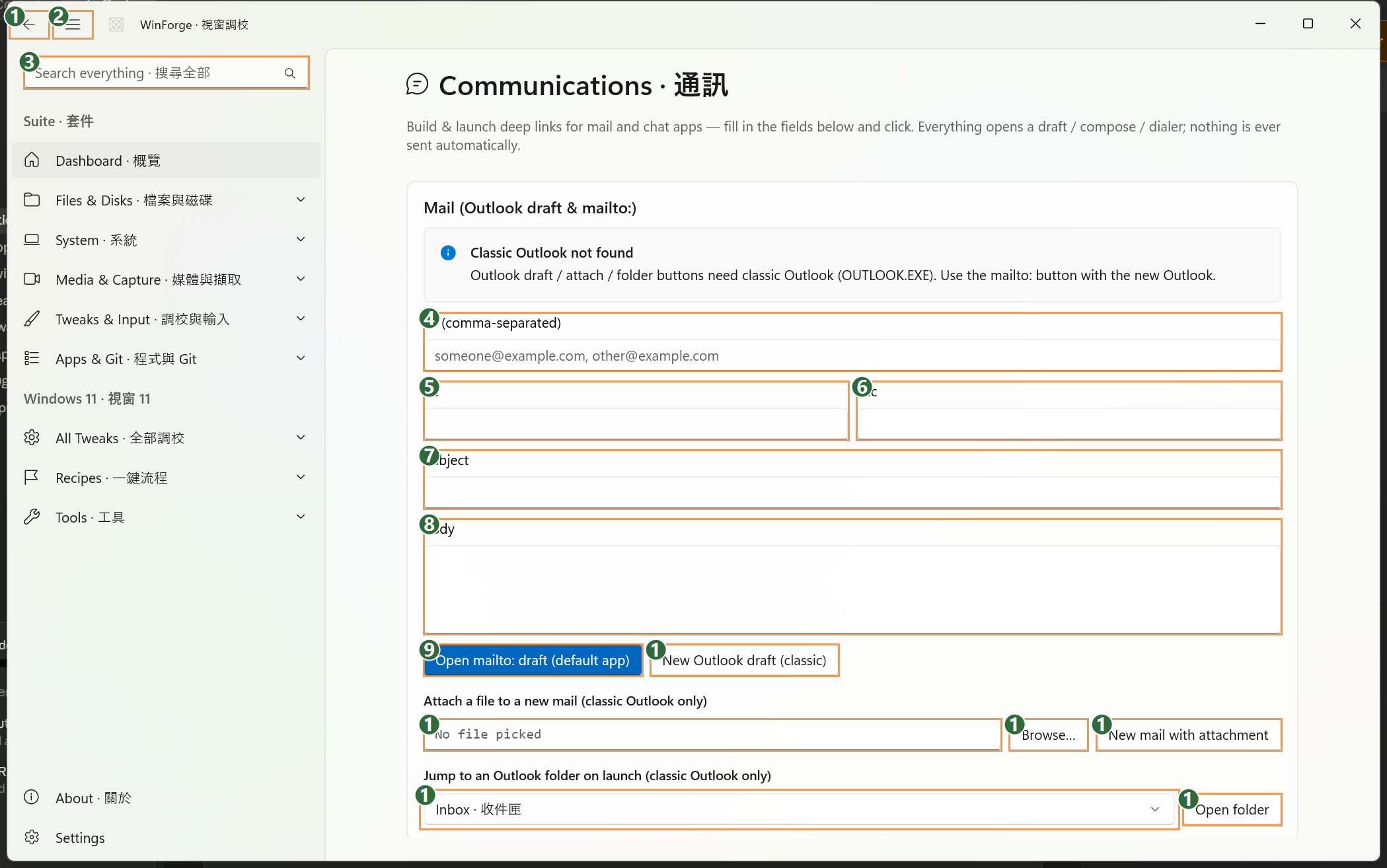
| # | Control | What it is & does · 功能 | Label meaning · 標籤意思 |
|---|---|---|---|
| 1 | Button | App-wide Back button — returns to the previous page / module you came from. Part of the shell, not this module. | "Back" — go back. 返回上一頁。 |
| 2 | Button | App-wide Toggle Navigation button — collapses or expands the left navigation pane. Part of the shell. | "Toggle Navigation" — 開/關側邊導覽欄。 |
| 3 | Search box | App-wide Search everything box — filters/jumps across all WinForge tweaks and modules. Part of the shell, not specific to mail. | "Search everything · 搜尋全部" — search across the whole app. 搜尋全部。 |
| 4 | Edit box | To recipient field for the mail draft. Its contents are passed to both the mailto: draft (button 9) and the classic-Outlook draft (button 10). Accepts several addresses separated by commas. | "To (comma-separated)" — 收件人,用逗號分隔多個地址。 |
| 5 | Edit box | Cc field — carbon-copy recipients, included when you build either draft. | "Cc" — carbon copy. 副本收件人。 |
| 6 | Edit box | Bcc field — blind-carbon-copy recipients, included in the draft (mailto: only). | "Bcc" — blind carbon copy. 密件副本收件人。 |
| 7 | Edit box | Subject line of the mail draft. | "Subject" — 主旨(信件標題)。 |
| 8 | Edit box | Body of the mail draft — the message text that pre-fills the draft. | "Body" — 內文(信件正文)。 |
| 9 | Button |
Open mailto: draft — builds a mailto: link from the To/Cc/Bcc/Subject/Body fields and opens it in your default mail app (works with new Outlook, Thunderbird, etc.). Opens a draft only; never auto-sends. |
"Open mailto: draft (default app)" — 用預設 App 開 mailto: 草稿。 |
| 10 | Button | New Outlook draft (classic) — opens the same To/Cc/Bcc/Subject/Body content as a compose window in classic OUTLOOK.EXE. Needs classic Outlook installed (see the detection banner on the page). | "New Outlook draft (classic)" — 開傳統 Outlook 草稿。 |
| 11 | Edit box | Attachment path field — shows the file you picked to attach. Read-only placeholder until you browse; populated by button 12. | "No file picked" placeholder — 未揀檔案。 |
| 12 | Button | Browse… — opens a file picker; the chosen file's path is written into field 11. | "Browse…" — 瀏覽…(揀檔案)。 |
| 13 | Button | New mail with attachment — opens a classic-Outlook draft using the picked file (field 11) plus the To/Subject/Body fields, with the file attached. Classic Outlook only. | "New mail with attachment" — 開附件郵件。 |
| 14 | Dropdown | Outlook folder picker — choose which classic-Outlook folder (Inbox, Sent, etc., listed bilingually) to jump to on launch. Each entry is shown as "English · 粵語". | (empty name) Outlook folder selector. 揀 Outlook 資料夾。 |
| 15 | Button | Open folder — launches classic Outlook focused on the folder selected in dropdown 14. Classic Outlook only. | "Open folder" — 開資料夾。 |
How to use it · 點用 — This module never sends anything: every button just opens a draft, compose window, dialer, or app — you review and send yourself. For mail, type your recipients into To / Cc / Bcc (4–6), fill Subject (7) and Body (8), then click Open mailto: draft (9) to use your default mail app or New Outlook draft (10) for classic Outlook. To send an attachment, click Browse… (12) to pick a file (its path appears in field 11), then New mail with attachment (13). To open Outlook at a specific folder, choose it in the dropdown (14) and click Open folder (15); both attachment and folder actions require classic OUTLOOK.EXE, which the page detects and reports in a banner.

| # | Control | What it is & does · 功能 | Label meaning · 標籤意思 |
|---|---|---|---|
| 1 | Button | App-shell back button — returns to the previous page you came from. Part of the window frame, not this module. | "Back" — go back / 返回上一頁。 |
| 2 | Button | App-shell hamburger — collapses or expands the left navigation pane. Part of the window frame, not this module. | "Toggle Navigation" — show/hide the side menu / 開合左邊導覽。 |
| 3 | Search box | Global WinForge search — type to jump to any module or setting across the whole app. Belongs to the shell, not just this page. | "Search everything · 搜尋全部" — search across the entire app. 搜尋全部 = search everything. |
| 4 | Edit (URL box) | The base URL of your Home Assistant instance. Saved with Save, then every REST call (templates, states, scenes, lights, etc.) is sent to this address. | Placeholder shows the default http://homeassistant.local:8123 — your HA server address. |
| 5 | Edit (password box) | Your Home Assistant long-lived access token — the bearer credential that authorises every request. Created in HA under your profile. Stored masked and persisted via SettingsStore. | "Long-lived access token · 長期存取權杖" — 長期存取權杖 = long-lived access token (a non-expiring API key). |
| 6 | Button | Saves the URL + token to disk so the connection persists between launches. Does not contact the server. | "Save · 儲存" — 儲存 = save. |
| 7 | Button | Saves the config then pings the server (GET /api/) to confirm the URL and token actually connect; shows "Connected · 連得到" or an HTTP error. |
"Test · 測試" — 測試 = test the connection. |
| 8 | Tab | Opens the Template workspace (the tab shown here): render a Jinja2 template against live HA state. | "Template · 範本" — 範本 = template. |
| 9 | Tab | Opens Config: validate the configuration, restart HA (with a confirm dialog), and reload a domain or a single integration entry without a full restart. | "Config · 設定" — 設定 = configuration / settings. |
| 10 | Tab | Opens States: load all entities, plot a 24-hour history sparkline for one entity, and write a custom in-memory state. | "States · 狀態" — 狀態 = entity states. |
| 11 | Tab | Opens Automation: run scenes and scripts, fire a custom event, and trigger an intent. | "Automation · 自動化" — 自動化 = automation. |
| 12 | Tab | Opens Lights & Climate: pick a light and set brightness / colour temperature or turn it off, and set a thermostat's target temperature or HVAC mode. (Further tabs — Notify, Camera, Calendar, Error log — sit off-screen to the right.) | "Lights & Climate · 燈與冷氣" — 燈 = lights, 冷氣 = air-con / climate. |
| 13 | Edit (multi-line) | The Jinja template editor. Type a template here (defaults to {{ states('sun.sun') }}); pressing Render evaluates it against live state. |
No label (icon-less input field) — the template input box. |
| 14 | Button | Sends the template text to HA's /api/template endpoint and shows the rendered result below. Prompts you to connect first if URL/token are missing. |
"Render · 渲染" — 渲染 = render / evaluate the template. |
| 15 | Edit (read-only output) | Displays the rendered template result returned by HA (or an HTTP error). Shows "Rendering…· 渲染緊…" while the request runs. | No label — the render-output area. |
How to use it · 點用 — First fill in your server address (4) and a long-lived token (5) from your Home Assistant profile, press Save (6), then Test (7) to confirm WinForge can reach the server. Once connected, the credentials are remembered, so on later visits you can go straight to the work tabs (8–12). On the default Template tab, type a Jinja expression in the editor (13) and press Render (14) to see live state evaluated in the output box (15) — a quick way to probe entities before moving on to States, Automation, or Lights & Climate.