Module Registry and Devices
These four power-user modules let WinForge reach the deepest, most fragile parts of Windows 11 without ever launching regedit.exe, devmgmt.msc, or a separate rescue tool — everything happens inside the app, fully bilingual, with confirmation dialogs guarding anything destructive. The in-app Registry Editor browses and edits the live 64-bit hive; the Devices manager enables/disables PnP hardware; the ViVeTool module flips hidden Windows feature flags; and System Doctors runs eight guided rescue routines that genuinely repair common breakages.
呢四個模組係 WinForge 最深入 Windows 11 嘅地方:應用程式內登錄編輯器、裝置管理員、ViVeTool 隱藏功能旗標、同八位「系統醫生」。全部喺 app 內做、雙語、危險動作有確認框,唔會叫出 regedit、devmgmt.msc 或者外部工具。

Safety · 安全 — Every module on this page can change or destroy system state. Registry edits to
HKLM/HKCR, disabling a wrong device (display, disk, keyboard),/fullreseton the feature store, and take-ownership all need administrator rights and can leave Windows in a broken or unbootable state if misused. WinForge confirms destructive actions and surfaces an "Access denied — relaunch as administrator" hint, but it cannot undo a bad write for you. Make a restore point first.本頁每個模組都會改動系統狀態。改
HKLM/HKCR、停用錯嘅裝置、對功能旗標/fullreset、取得擁有權等都需要管理員權限,用錯可能令 Windows 壞掉甚至開唔到機。WinForge 會就危險動作彈確認框,但無法幫你還原一次錯誤寫入。請先建立還原點。
A real registry browser and editor built into WinForge — no redirect to regedit.exe. It lazily walks the hive tree, lists values with their real types, and lets you create, edit and delete values, all bilingual.
Pages/RegistryEditor.xaml.cs · Services/RegistryHelper.cs
The tree exposes four root hives, mapped to their familiar long names:
| Root · 根 | Long name | Enum (RegRoot) |
|---|---|---|
| HKCU | HKEY_CURRENT_USER |
RegRoot.HKCU |
| HKLM | HKEY_LOCAL_MACHINE |
RegRoot.HKLM |
| HKCR | HKEY_CLASSES_ROOT |
RegRoot.HKCR |
| HKU | HKEY_USERS |
RegRoot.HKU |
Every operation opens the base key with RegistryView.Registry64 — the 64-bit view, which is where real Windows 11 settings live (no accidental WOW6432Node redirection). On launch the editor preloads a populated, useful key so values are visible immediately:
HKCU\Software\Microsoft\Windows\CurrentVersion\Explorer\Advanced
- The tree is lazy: each node starts with
HasUnrealizedChildren = trueand only enumerates its subkeys (viaRegistryHelper.GetSubKeyNames, sorted case-insensitively) when you expand it. This keepsHKLMbrowsable without freezing. - Clicking a key loads its values into the right-hand list; the path bar · 路徑列 shows the full
HKEY_…\Sub\Keylocation. - The unnamed default value is shown as
(Default · 預設).
Values are read with RegistryValueOptions.DoNotExpandEnvironmentNames (so REG_EXPAND_SZ shows the raw %VAR%, not the expanded path). Each row shows a friendly type label and formatted data:
| Kind | Type label · 類型 | How data is shown |
|---|---|---|
String |
REG_SZ |
raw text |
ExpandString |
REG_EXPAND_SZ |
raw text (unexpanded) |
DWord |
REG_DWORD |
0x00000001 (1) — hex + decimal |
QWord |
REG_QWORD |
0x…16 (…) — hex + decimal |
MultiString |
REG_MULTI_SZ |
lines joined with ` |
Binary |
REG_BINARY |
space-separated hex bytes (DE AD BE EF) |
The toolbar exposes four actions, all bilingual:
-
New value · 新增值 — a dialog with a name box, a Type dropdown (
REG_SZ,REG_EXPAND_SZ,REG_DWORD,REG_QWORD,REG_MULTI_SZ,REG_BINARY) and a data box. Numeric input accepts decimal or0x…hex; multi-string takes one value per line; binary takes hex pairs separated by spaces/commas/tabs. - Edit · 編輯 — re-edits the selected value in place using the same parser. The dialog header shows the value name and type.
- Delete · 刪除 — confirms first ("This cannot be undone · 呢個動作無法復原"), then removes the value (the key itself is not deleted here).
- Refresh · 重新整理 — re-reads the current key.
Writes go through RegistryHelper.SetValue, which calls CreateSubKey(..., writable: true) then SetValue(name, value, kind). If Windows refuses the write, WinForge shows a precise bilingual hint:
Access denied — relaunch WinForge as administrator to edit this key. · 存取被拒 — 以管理員身分重開 WinForge 先可以改呢個機碼。
Safety · 安全 — Most
HKLMandHKCRwrites require elevation, and a wrongREG_DWORDin places like…\Session Manageror boot/driver keys can prevent Windows from starting. Edit deliberately; the editor performs exactly the change you type, with no validation of whether the value is "safe".
An in-app device manager built on Get-PnpDevice — no devmgmt.msc redirect. It lists every present device, lets you filter, and enables or disables hardware, with confirmation on disable.
Pages/DevicesModule.xaml.cs · Services/DeviceManager.cs
DeviceManager.ListAsync() runs:
Get-PnpDevice -PresentOnly |
  Select-Object Class, FriendlyName, Status, InstanceId |
  Sort-Object Class, FriendlyName | ConvertTo-Json -Compress
Only present devices are shown. Each row (DeviceInfo) carries:
| Field | Meaning · 意思 |
|---|---|
| Class | device class (Bluetooth, Display, Net, AudioEndpoint…) |
| FriendlyName | human name (falls back to InstanceId if blank) |
| Status |
OK when healthy (IsOk) |
| InstanceId | the stable id used for enable/disable |
The filter box (placeholder "Filter devices (e.g. Bluetooth, Audio)… · 篩選裝置…") matches live against both the display name and the class, and the count line reads "N / M devices · N / M 個裝置" so you can see how many matched.
Each device row has an Actions menu (MenuFlyout):
| Action | Command run | Notes |
|---|---|---|
| Enable · 啟用 | Enable-PnpDevice -InstanceId '…' -Confirm:$false |
runs immediately |
| Disable · 停用 | Disable-PnpDevice -InstanceId '…' -Confirm:$false |
always confirms first |
The instance id is escaped (' → '') before being passed to PowerShell. After any action the list reloads so the new status shows up.
If WinForge is not elevated, a tip bar appears up front: "Relaunch WinForge as administrator to enable/disable devices. · 以管理員身分重開 WinForge 先可以啟用/停用裝置。" When an op fails without admin, the result message says it needs administrator rights rather than failing silently.
Safety · 安全 — Disabling is genuinely destructive. The confirmation dialog spells it out: "Disabling the wrong device (display, disk, keyboard) can make the PC unusable until re-enabled. · 停用錯嘅裝置(顯示、磁碟、鍵盤)可能令部機用唔到,要重新啟用先得返。" The default button on that dialog is Cancel, not Disable. If you disable your only input or boot device, you may need Safe Mode to recover.
3. ViVeTool — hidden Windows feature flags · 功能旗標
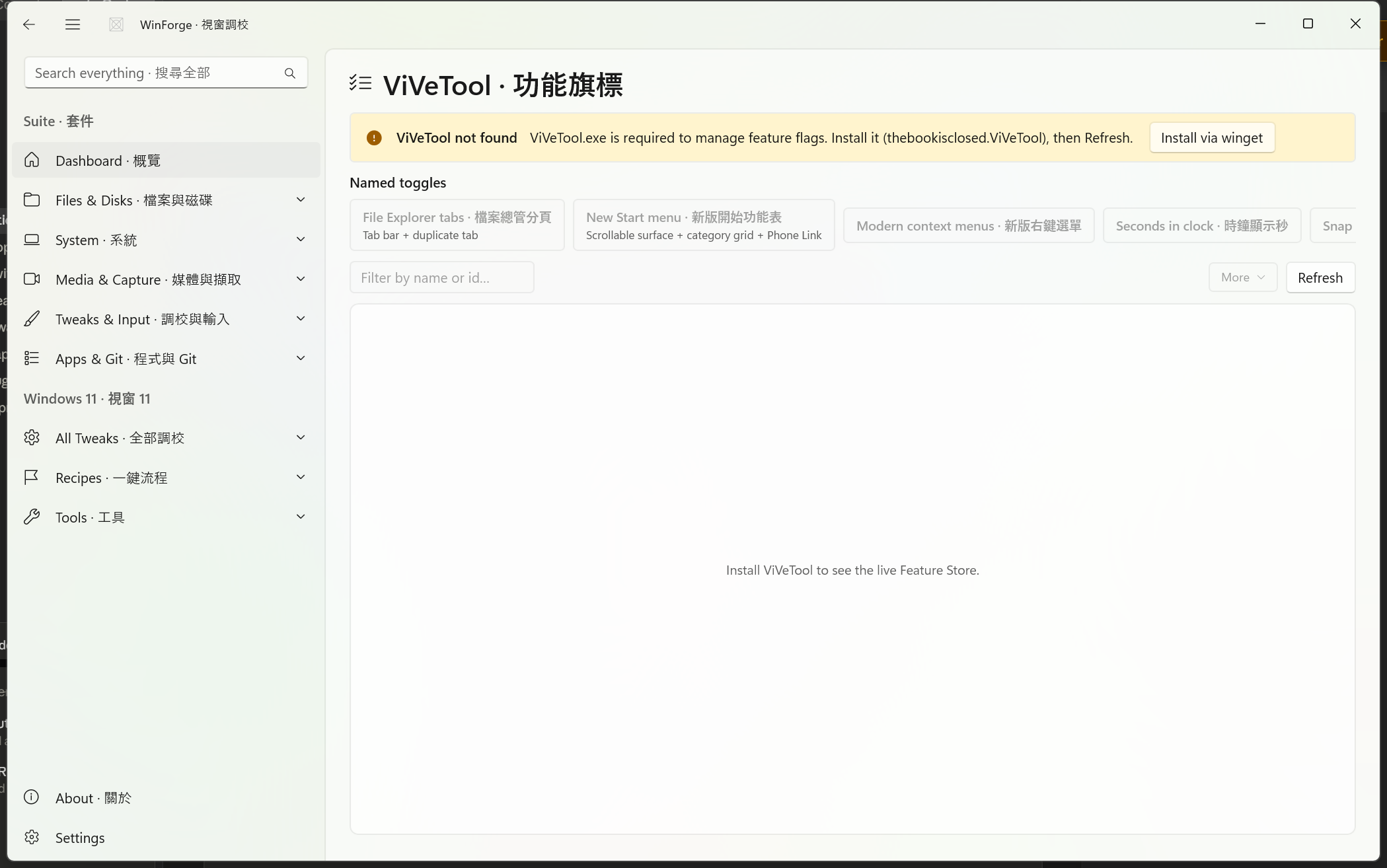
This module wraps the real ViVeTool.exe (the thebookisclosed.ViVeTool / ViVe project) to read and flip Windows 11's hidden Feature Store — the gated, A/B-tested features Microsoft ships disabled. Everything runs in-app; there is no external Windows UI.
Pages/ViveToolModule.xaml.cs · Services/ViveToolService.cs
On open, ViveToolService.IsAvailable() locates ViVeTool.exe by checking PATH (via where.exe) and then bounded-depth searches the usual winget/manual install folders (LocalAppData, Program Files, ProgramData, …\WinForge\tools). If it's missing, an info bar offers a one-click Install via winget · 用 winget 安裝 button, which runs:
winget install --id thebookisclosed.ViVeTool -e --accept-source-agreements --accept-package-agreements
QueryAsync() runs ViVeTool /query, parses each [Feature 12345678] block into a ViveFeature (Id / State = Enabled·Disabled·Default / Priority / Type = Override·Experiment), and then labels known ids using a bundled bilingual dictionary (ViveDictionary.ById). The list sorts named features first, then by id, and the filter box matches id, English name, 粵語 name, state, or type.
The dictionary is only a label hint — the live store is always the source of truth. IDs are never hard-coded as "real": a candidate id is only acted on if it actually exists in your build's store.
Each feature's Actions menu offers, after a confirm dialog that shows the id, resolved name, current state, and "requires admin + reboot":
| Action | ViVeTool command | Elevated |
|---|---|---|
| Enable · 啟用 | /enable /id:<id> |
yes |
| Disable · 停用 | /disable /id:<id> |
yes |
| Reset to default · 重設為預設 | /reset /id:<id> |
yes |
Instead of hunting raw ids, the Named toggles · 有名嘅切換 panel exposes curated, human-named feature groups. Each toggle carries a set of candidate ids; at click time WinForge resolves them against the live store and only acts on ids actually present on your build (missing ones are listed and skipped). The bundled toggles are:
| Toggle · 切換 | 粵語 |
|---|---|
| File Explorer tabs | 檔案總管分頁 |
| New Start menu | 新版開始功能表 |
| Modern context menus | 新版右鍵選單 |
| Seconds in clock | 時鐘顯示秒 |
| Snap Layouts (updated) | 新版貼齊版面 |
| Energy Saver | 節能模式 |
| Taskbar 'End Task' | 工作列「結束工作」 |
| Click to Do / AI actions | Click to Do/AI 操作 |
Each toggle dialog offers Enable or Reset to default, and notes whether the feature is shell-only (a quick explorer.exe restart is enough) or store-level (needs a reboot).
| Verb · 動作 | What it does | Command / behaviour |
|---|---|---|
| Scan available-but-disabled · 掃描可試但未開 | diffs the live store against the name dictionary to surface known experiments present but not enabled | filters the list to "N available to try" |
| Last Known Good status · LKG 狀態 | read-only diagnostic |
ViVeTool /lkgstatus, shown in a monospace pane |
| Export profile… · 匯出設定檔 | save current config |
/export "<file>" (.json / .vto / .bin) |
| Import profile… · 匯入設定檔 | apply a saved config | /import "<file>" |
| Restart Explorer · 重啟檔案總管 | apply shell-only flags | taskkill /f /im explorer.exe & start explorer.exe |
| Reboot now · 立即重新開機 | apply store-level flags | shutdown /r /t 0 |
| Full reset · 完全重設 | wipe every custom flag |
/fullreset — guarded |
After a successful flag change, WinForge offers (but never forces) the matching apply step — Restart Explorer for shell-only features, or Reboot now for store-level ones.
Safety · 安全 —
/fullreset(Full reset · 完全重設) removes every custom feature configuration and returns the store to Windows defaults — all your prior toggles are wiped, it needs admin + reboot, and cannot be undone. The dialog's primary button is Wipe everything, but the default focus is Cancel. Feature flags are experimental by nature: enabling a half-finished experiment can break the shell until you reset it.
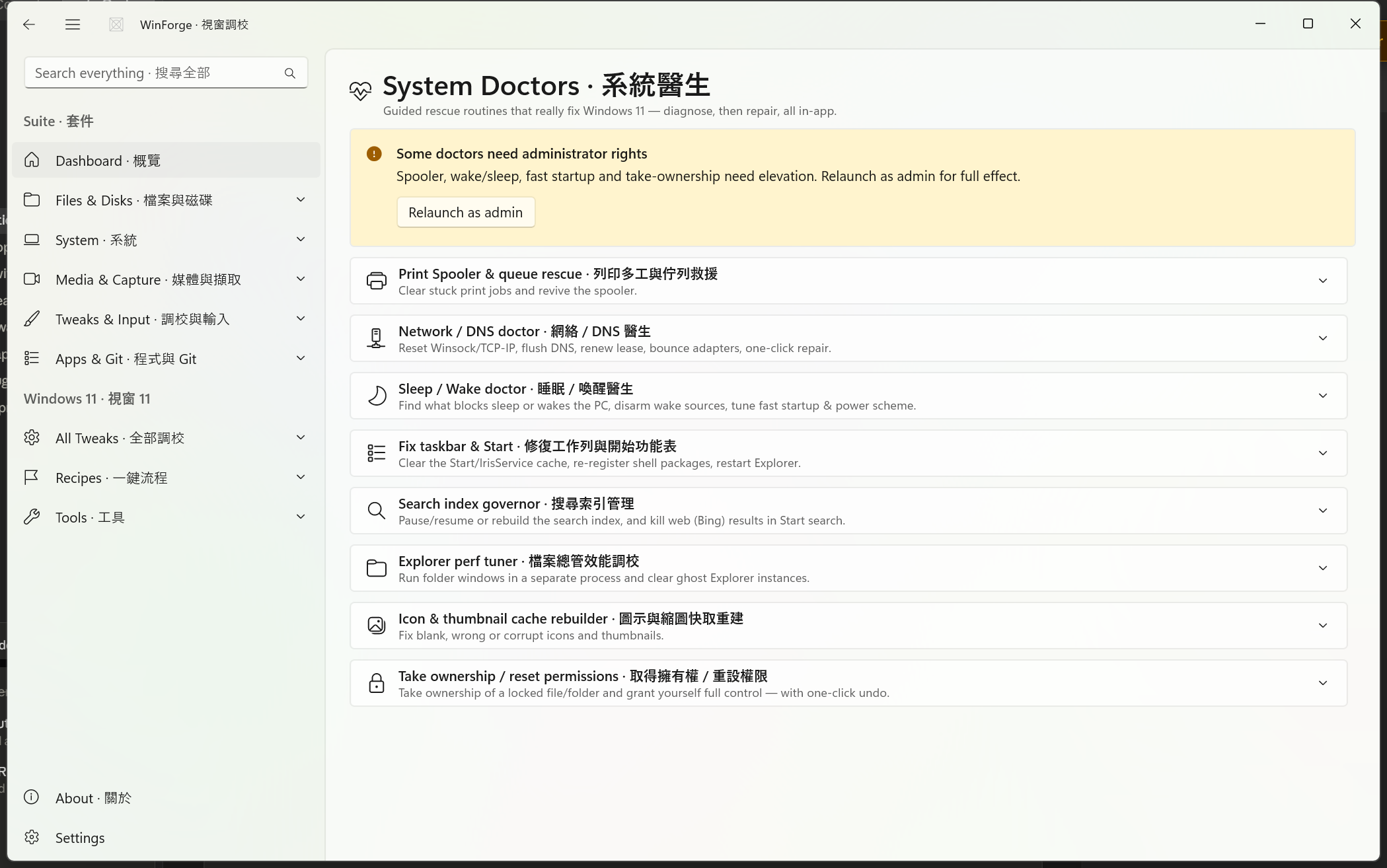
Eight guided rescue routines for the things that routinely break on Windows 11. Each "doctor" is an expander card that diagnoses first (parsing real command output into a native bilingual list, not a raw dump) and then offers targeted repair buttons. Destructive buttons are tinted with the system caution colour.
Pages/SystemDoctorsModule.xaml.cs · Services/SystemDoctors.cs
If WinForge isn't elevated, a warning bar appears with a Relaunch as admin · 以管理員身分重新啟動 button — several doctors (spooler, wake/sleep, fast startup, take-ownership) need elevation for full effect.
| # | Doctor · 醫生 | Diagnose · 診斷 | Key repairs · 主要修復 |
|---|---|---|---|
| 1 | Print Spooler & queue rescue · 列印多工與佇列救援 | list stuck jobs (Win32_PrintJob) |
cancel a job · purge queue + restart spooler · restart spooler only |
| 2 | Network / DNS doctor · 網絡 / DNS 醫生 | list adapters (Get-NetAdapter) |
flush DNS · reset Winsock · reset TCP/IP · release+renew · bounce adapter · one-click repair |
| 3 | Sleep / Wake doctor · 睡眠 / 喚醒醫生 | what blocks sleep · last wake · wake timers · wake-armed devices · fast-startup state | disarm a wake device · disable all wake timers · toggle fast startup · unlock Ultimate Performance |
| 4 | Fix taskbar & Start · 修復工作列與開始 | — | clear IrisService cache, re-register shell packages, restart Explorer |
| 5 | Search index governor · 搜尋索引管理 | service state + web-results state | pause/resume search · rebuild index · disable/enable web (Bing) results |
| 6 | Explorer perf tuner · 檔案總管效能調校 | SeparateProcess + explorer count | separate-process ON/OFF · kill ghost Explorers |
| 7 | Icon & thumbnail cache rebuilder · 圖示與縮圖快取重建 | — | rebuild icon cache · rebuild thumbnail cache |
| 8 | Take ownership / reset permissions · 取得擁有權 / 重設權限 | — | take ownership + full control · undo (reset ACLs) |
Every doctor runs real, verifiable commands. The notable ones:
1) Print Spooler · 列印多工
-
Rescue (purge queue) —
Stop-Service Spooler -Force→ delete everything under…\System32\spool\PRINTERS\*→Start-Service Spooler. -
Cancel job — removes the selected
Win32_PrintJobviaRemove-CimInstance.
2) Network / DNS · 網絡
| Button · 按鈕 | Command |
|---|---|
| Flush DNS · 清 DNS | ipconfig /flushdns |
| Reset Winsock · 重設 Winsock | netsh winsock reset |
| Reset TCP/IP · 重設 TCP/IP | netsh int ip reset |
| Release + renew · 釋放+重續 | ipconfig /release & ipconfig /renew |
| Bounce adapter · 重啟介面卡 |
Disable-NetAdapter → wait → Enable-NetAdapter
|
| Repair connection (all) · 修復連線(全部) | flushdns + winsock reset + ip reset + release/renew + netsh advfirewall reset
|
3) Sleep / Wake · 睡眠/喚醒 — diagnostics use powercfg /requests, /lastwake, /waketimers, /devicequery wake_armed. Repairs include powercfg /devicedisablewake "<device>", disabling RTC wake (RTCWAKE 0 on AC + DC), toggling HiberbootEnabled (fast startup), and duplicating + activating the Ultimate Performance scheme (powercfg -duplicatescheme e9a42b02-… then /setactive).
4) Fix taskbar & Start · 修復工作列與開始 — stops Explorer, deletes the HKCU\…\IrisService cache key, re-registers ShellExperienceHost and StartMenuExperienceHost appx packages, then relaunches Explorer. (Your screen flashes; open apps keep running.)
5) Search · 搜尋 — pause/resume toggles the WSearch service; Rebuild index stops WSearch, deletes Windows.edb, resets SetupCompletedSuccessfully, restarts the service; Disable web results sets HKCU\…\Policies\…\Explorer\DisableSearchBoxSuggestions = 1 and bounces Explorer.
6) Explorer · 檔案總管 — Separate process writes SeparateProcess (DWORD) under …\Explorer\Advanced; Kill ghost Explorers restarts the shell once to clear orphaned explorer.exe instances.
7) Caches · 快取 — Rebuild icon cache runs ie4uinit.exe -show and deletes IconCache.db + iconcache*; Rebuild thumbnail cache deletes thumbcache_*.db. Both bounce Explorer.
8) Take ownership · 取得擁有權 — pick a file or folder (with a recursive checkbox, on by default):
| Button · 按鈕 | Command |
|---|---|
| Take ownership + full control · 取得擁有權+完整控制 |
takeown /f "<path>" [/r /d y] & icacls "<path>" /grant "<you>":F [/t /c]
|
| Undo — reset permissions · 還原 — 重設權限 | icacls "<path>" /reset [/t /c] |
Every doctor result shows a green/red InfoBar, and raw command output is available in a monospace, copyable Output · 輸出 pane.
Safety · 安全 — The destructive doctors (purge spooler queue, repair connection, rebuild search index, fix taskbar & Start, take ownership) restart services, drop the shell, or rewrite ACLs — and several need admin. Repair connection resets Winsock, TCP/IP and the firewall, which will drop your current network session. Take ownership changes file permissions system-wide if pointed at a system folder recursively; use the Undo — reset permissions button to restore inherited ACLs. None of these can be silently reverted, so read the button label before clicking.
- Module-System-Monitor-and-Services — live process/service control and resource monitoring, the natural companion to these low-level tools.
- Home — the full WinForge module index.
Part of Home · WinForge wiki.
Each control on the live page is numbered on the screenshot below and explained in the legend — what every button, toggle, tab, box and label does, in English and 粵語. Captured from the running app via UI Automation. 下面每個控件都有編號,逐個解釋佢哋嘅功能同標籤意思。

| # | Control | What it is & does · 功能 | Label meaning · 標籤意思 |
|---|---|---|---|
| 1 | Button | App-shell back button — returns to the previously viewed WinForge module. It is part of the navigation frame, not the Registry Editor itself. | "Back" = go back / 返回上一頁。 |
| 2 | Button | Toggles the left navigation pane (the WinForge sidebar) open or collapsed, giving the registry tree more room. Also a shell control, not page-specific. | "Toggle Navigation" = show/hide the navigation pane / 展開或收起導覽列。 |
| 3 | Search box | The global WinForge search field at the top of the app. Type here to find modules and settings across the whole app; it is not a registry-key search. | "Search everything · 搜尋全部" = search across everything in WinForge. 搜尋全部 means "search all". |
| 4 | Button | Opens the "New value" dialog for the currently selected key. You enter a value name, pick a type (REG_SZ, REG_EXPAND_SZ, REG_DWORD, REG_QWORD, REG_MULTI_SZ, REG_BINARY) and the data, then click Create to write it via the registry helper. Requires a key to be selected first. | "New value" → label shown as 新增值 ("add a new value"). |
| 5 | Button | Opens the "Edit value" dialog for the row selected in the values list, pre-filled with the current data; saving writes the new data back to the registry. Disabled (greyed) until you select a value row. | "Edit" → label shown as 編輯 ("edit"). |
| 6 | Button | Deletes the selected value after a confirmation dialog that warns the action cannot be undone. Disabled until a value row is selected. | "Delete" → label shown as 刪除 ("delete"). |
| 7 | Button | Re-reads and reloads the values of the current key, refreshing the list to reflect any external changes. | "Refresh" → label shown as 重新整理 ("reload / refresh"). |
How to use it · 點用 — This is an in-app registry editor (it does not launch the Windows regedit.exe). On the left, expand the four root hives (HKEY_CURRENT_USER, HKEY_LOCAL_MACHINE, HKEY_CLASSES_ROOT, HKEY_USERS), which load their sub-keys lazily as you open them, then click a key to list its values on the right (the page preloads a populated Explorer key so values are visible at once). Select a value row to enable Edit (5) and Delete (6), or use New value (4) to add one; click Refresh (7) after any change to re-read the key. If editing a protected key fails with "access denied", relaunch WinForge as administrator. Note that controls 1–3 belong to the WinForge shell (back, sidebar toggle, global search), not to the registry editor itself.

| # | Control | What it is & does · 功能 | Label meaning · 標籤意思 |
|---|---|---|---|
| 1 | Button | App-wide Back button in the title bar — returns to the previous page / home you came from. Not specific to Devices. | "Back" = go back / 返回。圖示按鈕,無雙語名。 |
| 2 | Button | Toggle Navigation — collapses or expands the left-hand navigation pane so the device list gets more room. App-wide chrome, not Devices logic. | "Toggle Navigation" = 開/關側邊導覽欄。 |
| 3 | Search box | Global Search everything box at the top of the window — the app-wide search across all of WinForge. It is not the device filter; for narrowing this list use #4. | "Search everything · 搜尋全部" = 搜尋成個 WinForge(全部模組),唔淨係呢一頁。 |
| 4 | Search box | The device filter for this page. Typing here live-filters the list as you type (Filter_TextChanged → ApplyFilter), matching against each device's display name and its class (e.g. type "Bluetooth" or "Audio"). Empty box shows everything. The count "X / Y devices" updates accordingly. |
Placeholder "Filter devices (e.g. Bluetooth, Audio)…" / 「篩選裝置(例如 Bluetooth、Audio)…」= 即時篩選裝置清單,可按名或類別。 |
| 5 | Button |
Refresh — re-runs the device enumeration (Reload → DeviceManager.ListAsync, backed by Get-PnpDevice) and re-applies your current filter. Use after enabling/disabling a device or plugging in hardware. |
"Refresh" / 「重新整理」= 重新讀取裝置清單。 |
| 6 | Button | Close — closes this module / window. App-wide chrome. | "Close" = 關閉 / 收埋呢一頁。圖示按鈕。 |
Not numbered but central to the page: each device row carries an actions button that opens a small menu with Enable · 啟用 and Disable · 停用. Enable runs DeviceManager.Enable immediately; Disable first pops a confirmation dialog ("Disable device? · 停用裝置?") warning that disabling the wrong device — display, disk, keyboard — can make the PC unusable until re-enabled. Both actions need WinForge to be running as administrator; if it is not, an info bar tells you to relaunch elevated.
How to use it · 點用 — Wait for the list to load (the counter shows "X / Y devices"), then type a keyword like Bluetooth or Audio into the filter box (#4) to narrow it down. Open a device's row menu and pick Enable or Disable; confirm the warning dialog for a disable. Hit Refresh (#5) afterwards to confirm the new state, and remember that enable/disable only work when WinForge is launched as administrator.

| # | Control | What it is & does · 功能 | Label meaning · 標籤意思 |
|---|---|---|---|
| 1 | Button | Navigates back to the previous page in the app. Standard WinUI back button. | "Back" — return to the previous screen. 返回上一頁。 |
| 2 | Button | Collapses or expands the app's left navigation pane to give the feature list more room. | "Toggle Navigation" — show/hide the side menu. 收起/展開左側導覽。 |
| 3 | Search box | App-wide search box in the title bar. Type to jump to any module across WinForge (not the in-page feature filter — use #10 for that). | "Search everything · 搜尋全部" — search every module. "全部" = everything. |
| 4 | Button | Installs ViVeTool itself by running winget for the thebookisclosed.ViVeTool package, then re-detects and reloads. Only shown when ViVeTool.exe is not found. |
"Install via winget · 用 winget 安裝" — fetch ViVeTool through Windows' winget package manager. |
| 5–6 | Buttons (named toggles) | Per-named-toggle action buttons in the "Named toggles · 有名嘅切換" panel. Each is one curated feature group (e.g. a named experiment) carrying a list of candidate feature IDs. Clicking opens a dialog that resolves which of those IDs actually exist on your build, then lets you Enable the group or Reset to default; shell-only groups can apply via Explorer restart, others need a reboot. (Disabled here because ViVeTool isn't installed yet.) | Each button's label is the toggle's name shown bilingually as "English · 粵語" with a small grey description note underneath. Icon/text empty in capture because the panel is disabled. |
| 7–9 | Buttons (feature-list row) | Repeated controls on a feature-list row. The live store (/query) is listed one feature per row; the row's action button (the "…" / actions control) opens a flyout menu with Enable · 啟用, Disable · 停用, and Reset to default · 重設為預設 for that single feature ID, each shown in a confirm dialog before applying. Disabled in this capture (no ViVeTool present). |
Row-level controls; names are empty because they render per-item from the loaded feature data and the list is currently empty. Inferred: per-feature enable/disable/reset. |
| 10 | Filter box | In-page filter for the loaded Feature Store. Type a feature id, English or 粵語 friendly name, state, or type to narrow the visible rows live as you type. | "Filter by name or id… · 用名或 ID 篩選…" — filter the list by feature name or numeric ID. |
| 11 | Button | Re-detects whether ViVeTool is installed and reloads the live Feature Store (/query), refreshing the whole list. |
"Refresh · 重新整理" — reload the feature list. |
| 12 | Button (More menu) | The "More · 更多" split/menu button. Opens a menu of global verbs: Scan available-but-disabled experiments · 掃描可試但未開嘅實驗, Last Known Good status · Last Known Good 狀態, Export profile… · 匯出設定檔…, Import profile… · 匯入設定檔…, Restart Explorer · 重啟檔案總管, Reboot now · 立即重新開機, and the guarded Full reset (wipe all flags) · 完全重設(清除全部旗標). Disabled until ViVeTool is detected. | "More · 更多" — opens the overflow menu of store-wide actions. 更多 = more. |
How to use it · 點用 — If you see the "ViVeTool not found" bar, click Install via winget (#4) and wait for it to finish, then Refresh (#11) to load the live Feature Store. Use the filter (#10) to find a feature by id or name, then click that row's actions button (#7–9) and pick Enable / Disable / Reset — every change is confirmed in a dialog and needs admin plus a reboot (or an Explorer restart for shell-only features). For curated experiments, click a named toggle (#5–6) to enable a whole group of related IDs at once, and reach for the More menu (#12) to scan for hidden experiments, export/import a profile, or do a full reset.

| # | Control | What it is & does · 功能 | Label meaning · 標籤意思 |
|---|---|---|---|
| 1 | Button | Goes back to the previous page in the WinForge shell, leaving this module. | "Back" — the navigation back arrow. |
| 2 | Button | Collapses or expands the left navigation pane so the doctor list fills more of the window. | "Toggle Navigation" — show/hide the side menu. |
| 3 | Search box | The global app search box at the top of the shell. Type to find modules, tweaks and settings across all of WinForge. | "Search everything · 搜尋全部" — English then 粵語 for "search everything". |
| 4 | Button | Relaunches WinForge with administrator rights. It appears in the warning bar because the spooler, wake/sleep, fast startup and take-ownership doctors need elevation; clicking it restarts the app elevated and closes the current instance. | "Relaunch as admin" (粵語 in-app: 以管理員身分重新啟動) — restart with admin privileges. |
| 5 | Card (Expander) | Print Spooler & queue rescue. Expands to: Diagnose queue (lists stuck print jobs, each row offering Cancel), Rescue spooler (purge queue) (stops the spooler, clears the queue, restarts it — destructive), and Restart spooler only. | "Print Spooler & queue rescue · 列印多工與佇列救援" — fix the print spooler service (多工 = the print spooler / spool service) and its queue (佇列). |
| 6 | Card (Expander) | Network / DNS doctor. Expands to diagnostics (List adapters, each row with Bounce) and fixes: Flush DNS, Reset Winsock, Reset TCP/IP, Release + renew, and Repair connection which runs all of the above at once (destructive). | "Network / DNS doctor · 網絡 / DNS 醫生" — repair networking and DNS (網絡 = network). |
| 7 | Card (Expander) | Sleep / Wake doctor. Diagnostics: What blocks sleep, Last wake source, Wake timers, Wake-armed devices (each row offers Disarm), Fast startup state. Fixes: Disable all wake timers, Turn off / Turn on fast startup, Unlock Ultimate Performance power plan. | "Sleep / Wake doctor · 睡眠 / 喚醒醫生" — diagnose what stops the PC sleeping or wakes it (睡眠 = sleep, 喚醒 = wake). |
| 8 | Card (Expander) | Fix taskbar & Start. One Repair taskbar & Start button (destructive) that clears the Start/IrisService cache, re-registers shell packages and restarts Explorer; the screen flashes but open apps stay running. | "Fix taskbar & Start · 修復工作列與開始功能表" — repair the taskbar (工作列) and Start menu (開始功能表). |
| 9 | Card (Expander) | Search index governor. Check search state, then Pause search / Resume search, Rebuild index (destructive), and Disable / Enable web results to remove Bing web answers from Start search. | "Search index governor · 搜尋索引管理" — manage the Windows Search index (搜尋索引 = search index, 管理 = manage). |
| 10 | Card (Expander) | Explorer perf tuner. Check Explorer state, then Separate process: ON/OFF (run folder windows in their own process) and Kill ghost Explorers to clear stuck/leftover Explorer processes. | "Explorer perf tuner · 檔案總管效能調校" — tune File Explorer performance (檔案總管 = File Explorer, 效能調校 = performance tuning). |
| 11 | Card (Expander) | Icon & thumbnail cache rebuilder. Two buttons: Rebuild icon cache and Rebuild thumbnail cache, to fix blank, wrong or corrupt icons and thumbnails. | "Icon & thumbnail cache rebuilder · 圖示與縮圖快取重建" — rebuild the icon (圖示) and thumbnail (縮圖) caches (快取 = cache). |
| 12 | Card (Expander) | Take ownership / reset permissions. Inside: a path box with Browse folder… / Browse file…, an "Apply to all contents (recursive)" checkbox (on by default), then Take ownership + full control (destructive) and Undo — reset permissions to revert. | "Take ownership / reset permissions · 取得擁有權 / 重設權限" — take ownership of a locked file/folder (取得擁有權 = take ownership) and reset its permissions (重設權限). |
How to use it · 點用 — Each doctor is a collapsed card; click one (5–12) to expand it. For repairs, run the diagnostic button first (e.g. "Diagnose queue", "List adapters", "What blocks sleep") to see a parsed bilingual list and per-row actions like Cancel, Bounce or Disarm, then pick a fix. Buttons tinted with a caution colour (Rescue spooler, Repair connection, Rebuild index, Fix taskbar & Start, Take ownership) are the heavier, more disruptive actions — use them once the lighter steps don't help. Every result, including any command output you can copy, shows in the InfoBar at the bottom of the card; if a fix reports needing admin rights, click "Relaunch as admin" (4) and try again.