Windows Tweaks Overview
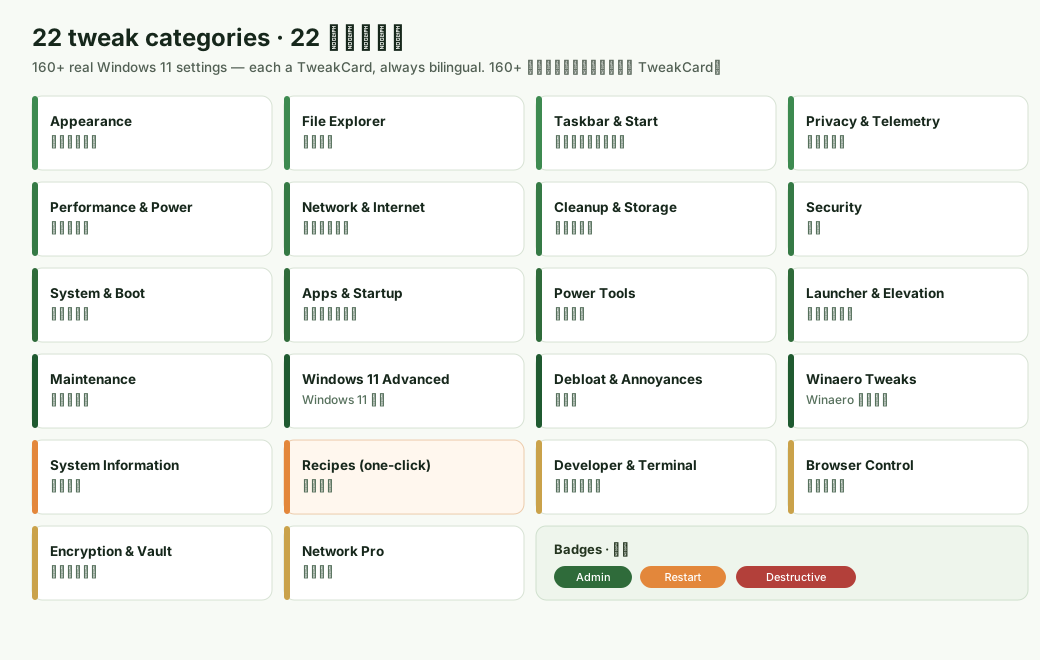
WinForge ships 160+ real Windows 11 tweaks organised into 22 categories, every one of them backed by an actual registry write, powercfg/netsh call, shell command or PowerShell script — nothing is cosmetic. The whole surface is data-driven: each tweak is a single TweakDefinition carrying its own read/write behaviour and bilingual text, and a reusable TweakCard renders it the same way everywhere. This page explains how a tweak card works, what the badges mean, how results show up inline, and lists all 22 categories with the detailed page that documents each.
WinForge 將 160+ 個真實 Windows 11 調校分成 22 個分類,每一個都會真正改動系統(登錄檔、電源、網絡等等),唔係淨係換個樣。整個系統係「資料驅動」:每個調校都係一個
TweakDefinition,自己帶住讀/寫邏輯同雙語文字,再由共用嘅TweakCard統一顯示。
Every tweak in the catalog is one immutable TweakDefinition record (Models/TweakDefinition.cs). It is fully self-contained — the UI is just a thin renderer over the data:
| Field | 中文 | What it carries |
|---|---|---|
Id |
識別碼 | Stable unique id |
Title / Description
|
標題/說明 |
LocalizedText — always holds both English (En) and 粵語 (Zh) |
Kind |
種類 |
Toggle, Action, Choice or Info (see below) |
Category |
分類 | Stamped on by the catalog when registered |
RequiresAdmin |
需要管理員 | Tweak touches HKLM, services, powercfg, etc. |
Destructive |
具破壞性 | Hard/impossible to undo — UI confirms first |
Restart |
重啟範圍 |
None, Explorer, SignOut or Reboot
|
Keywords |
關鍵字 | Extra search terms (either language) |
TabularOutput |
表格輸出 | Action returns CSV → rendered as a sortable grid |
Each kind plugs in different delegates: a Toggle supplies GetIsOn / SetIsOn; a Choice supplies Choices + GetCurrentChoice / SetChoice; an Action supplies ActionLabel + RunAsync; an Info supplies GetInfo.
每個調校都係一個完整、不可變嘅紀錄,自己帶埋讀寫邏輯,UI 只係薄薄一層渲染。
The whole list is assembled in Catalog/TweakCatalog.cs, which pulls each category's *.All() set, stamps the Category onto every item, and exposes:
-
TweakCatalog.All— every tweak across all categories -
ByCategory(cat)/CountFor(cat)— the tweaks (and count) for one category -
Search(query)— cross-language search over theSearchHaystack(title + description + keywords, both languages, lower-cased)
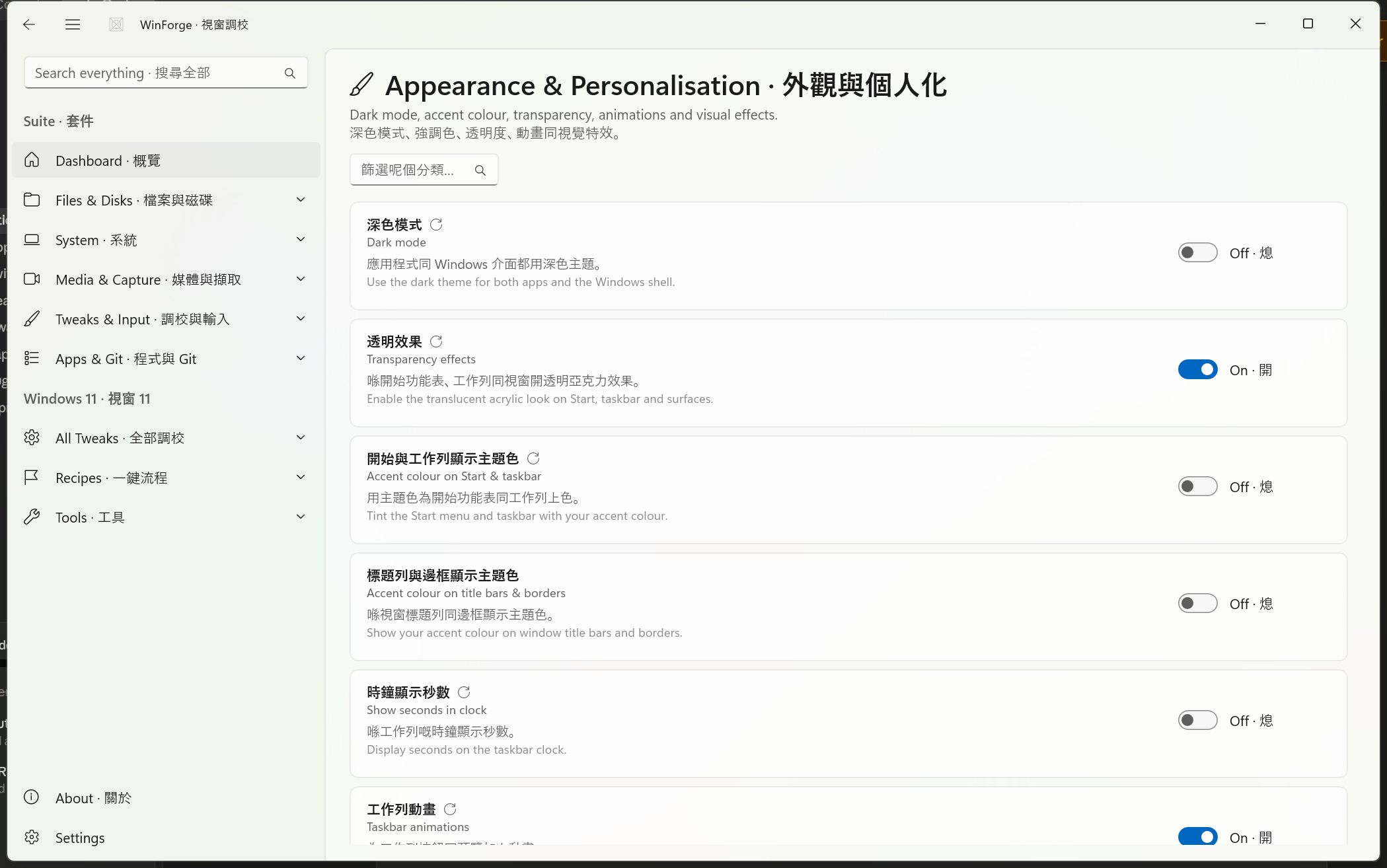
Controls/TweakCard.xaml.cs renders one TweakDefinition. Title and description are always shown in both languages — primary (your chosen language) on top, secondary underneath — and they re-render live when you switch language. Based on Kind, the card builds one of four control surfaces:
A ToggleSwitch labelled On · 開 / Off · 熄. Its initial state comes from GetIsOn(). Flipping it calls SetIsOn(value) and shows an inline success bar. If the write throws (e.g. you're not elevated), the switch snaps back to its real state and an error bar appears instead — no silent failures.
A ComboBox (min width 170) listing each TweakChoice as <En> · <Zh>. The current value is pre-selected via GetCurrentChoice(); picking a new one calls SetChoice(value). On failure it reverts the selection and surfaces the error.
A Button showing ActionLabel. Clicking runs RunAsync(ct):
- If the tweak is
Destructive, a confirmation dialog (Are you sure? · 確定嗎? → Proceed · 繼續 / Cancel · 取消) appears first. - While running, the button is disabled and shows a spinner (
ProgressRing). - The returned
TweakResultdrives an inlineInfoBar: Done · 完成 (green) or Failed · 失敗 (red), with the bilingual message.
A wrapping, selectable text block showing GetInfo(), plus a small Refresh · 重新整理 button to re-read the value on demand.
Two badges sit on the card and are toggled by UpdateBadges():
| Badge | 中文 | Meaning |
|---|---|---|
| Admin | 管理員 | Shown when RequiresAdmin is true — the tweak writes to HKLM, services, powercfg, etc. and needs elevation |
| Restart | 重啟 | Shown when Restart != None — the change needs Explorer/sign-out/reboot to take effect |
When you apply a tweak that needs a restart, the success bar spells out the exact scope:
-
Explorer → "Applied. Restart Explorer to see the change. · 已套用。重啟檔案總管就睇到變化。" — and offers a one-click Restart Explorer · 重啟檔案總管 button (
taskkill /f /im explorer.exe & start explorer.exe). - SignOut → "Applied. Sign out and back in to take effect. · 已套用。登出再登入後生效。"
- Reboot → "Applied. Reboot to take effect. · 已套用。重新開機後生效。"
If an action or write fails only because the app isn't elevated, the error bar offers a Relaunch as admin · 以管理員身分重新啟動 button that restarts WinForge elevated.
Safety · 安全 Cards marked Admin · 管理員 write to machine-wide locations (
HKLM, services, power policy) and need an elevated WinForge. Cards marked Destructive (e.g. deleting caches, resetting network stacks) always pop a Proceed · 繼續 / Cancel · 取消 confirmation before doing anything. Restart badges tell you when a change only takes hold after restarting Explorer, signing out, or rebooting. See Tweaks-Apps-PowerTools-Maintenance for the no-UAC elevated launcher.
Actions never open a separate window — everything appears inside the card:
- A success/error
InfoBar(Done · 完成 / Failed · 失敗) with the bilingual message. - If the action returns text output, an output pane opens below with Copy · 複製 and Save… · 儲存… buttons. Save uses a Win32 COM save dialog so it works even when WinForge is elevated.
- If the tweak sets
TabularOutputand the output parses as CSV, WinForge renders it as a real grid (header row + separator + selectable cells) and labels it Table · N rows × M cols · 表格 · N 列 × M 欄. The CSV parser is RFC-4180-aware (handles quoted fields, embedded commas/quotes/newlines) and drops trailing noise lines whose column count doesn't match the header. - Otherwise the raw output shows in a monospace, scrollable box labelled Output · N chars · 輸出 · N 字. Either way the full untruncated text stays available for Copy / Save.
WinForge groups its categories into the Windows 11 nav group, a Recipes group, and a Tools group (Group = "tools"). The order below matches Categories.All in Catalog/Categories.cs.
| # | Category · 分類 | Blurb | Documented in |
|---|---|---|---|
| 1 | Appearance & Personalisation · 外觀與個人化 | Dark mode, accent colour, transparency, animations and visual effects. | Tweaks-Appearance-Explorer-Taskbar |
| 2 | File Explorer · 檔案總管 | Show file extensions, hidden files, classic menus and Explorer behaviour. | Tweaks-Appearance-Explorer-Taskbar |
| 3 | Taskbar & Start · 工作列與開始功能表 | Taskbar alignment, Search, Widgets, Task View and Start menu layout. | Tweaks-Appearance-Explorer-Taskbar |
| 4 | Privacy & Telemetry · 私隱與遙測 | Advertising ID, telemetry, activity history, location and tailored ads. | Tweaks-Privacy-Performance-Network |
| 5 | Performance & Power · 效能與電源 | Power plans, hibernation, fast startup, game mode and responsiveness. | Tweaks-Privacy-Performance-Network |
| 6 | Network & Internet · 網絡與互聯網 | Flush DNS, reset Winsock, change DNS servers and inspect connections. | Tweaks-Privacy-Performance-Network |
| 7 | Cleanup & Storage · 清理與儲存 | Temp files, caches, Recycle Bin, Windows Update cache and thumbnails. | Tweaks-Cleanup-Security-System |
| 8 | Security · 安全 | UAC, Defender, SmartScreen, firewall and account protections. | Tweaks-Cleanup-Security-System |
| 9 | System & Boot · 系統與開機 | Long paths, restore points, boot options, clipboard and developer mode. | Tweaks-Cleanup-Security-System |
| 10 | Apps & Startup · 應用程式與啟動 | Startup items, winget upgrades, running processes and Explorer restart. | Tweaks-Apps-PowerTools-Maintenance |
| 11 | Power Tools · 進階工具 | God Mode, hosts file, restart to UEFI, system repair and quick power actions. | Tweaks-Apps-PowerTools-Maintenance |
| 12 | Launcher & Elevation · 啟動器與提權 | Create a no-UAC elevated launcher via Task Scheduler, and run the suite as admin. | Tweaks-Apps-PowerTools-Maintenance |
| 13 | Maintenance & Diagnostics · 維護與診斷 | Services, scheduled tasks, disk health, SFC/DISM, drivers, updates, event logs and power reports. | Tweaks-Apps-PowerTools-Maintenance |
| 14 | Windows 11 Advanced · Windows 11 進階 | Input precision, storage, performance, boot, Explorer extras and every Settings deep link. | Tweaks-Debloat-Winaero-Advanced |
| 15 | Debloat & Annoyances · 去煩擾 | Switch off Copilot, Recall, Bing search, Search Highlights, lock-screen tips and ads. | Tweaks-Debloat-Winaero-Advanced |
| 16 | Winaero Tweaks · Winaero 進階調校 | Coloured title bars, snappier menus, classic balloon tips, faster shutdown, lock-screen/boot options. | Tweaks-Debloat-Winaero-Advanced |
| 17 | System Information · 系統資訊 | Live read-out of OS build, CPU, RAM, GPU, disk, uptime and activation. | Tweaks-Apps-PowerTools-Maintenance |
| 18 | Recipes (one-click) · 一鍵流程 | Bundled multi-step chores that run with a single button — cleanup, privacy, gaming, dev setup and more. | Recipes |
| 19 | Developer & Terminal · 開發與終端機 | winget, Docker, Node/Python/.NET, env vars, ports, and the claude/codex/opencode/gh CLIs. | Home |
| 20 | Browser Control · 瀏覽器控制 | Launch Chrome/Edge in any mode, open flags/settings, set policies, manage profiles and caches. | Home |
| 21 | Encryption & Vault · 加密與保險庫 | BitLocker, VeraCrypt, EFS/cipher, certificates and advanced Defender/firewall controls. | Home |
| 22 | Network Pro · 網絡進階 | Adapters, IP/DNS, Wi-Fi profiles, firewall rules and deep network diagnostics. | Home |
-
Windows 11 · Windows 11 (
Group = "win11", the default) — categories 1–17 above: the core tweak surface. -
Recipes · 一鍵流程 (
Group = "recipes") — category 18, the one-click bundles. -
Tools · 工具 (
Group = "tools") — categories 19–22: the heavier standalone modules (Developer & Terminal, Browser Control, Encryption & Vault, Network Pro).
The five detailed tweak pages walk through every toggle, choice and action in each category, with the real registry keys and CLI commands behind them:
- Tweaks-Appearance-Explorer-Taskbar — 外觀、檔案總管、工作列
- Tweaks-Privacy-Performance-Network — 私隱、效能、網絡
- Tweaks-Cleanup-Security-System — 清理、安全、系統
- Tweaks-Apps-PowerTools-Maintenance — 應用程式、進階工具、維護(含啟動器同系統資訊)
- Tweaks-Debloat-Winaero-Advanced — 去煩擾、Winaero、Windows 11 進階
For the bundled multi-step workflows that chain many of these tweaks together, see Recipes.
Part of Home · WinForge wiki.