Module System Monitor and Services
Four of WinForge's "built-in MMC replacements" live on one page of the wiki because they share a philosophy: everything happens inside WinForge — no redirect to taskmgr, services.msc, taskschd.msc or eventvwr.msc. Each module is a thin, bilingual WinUI 3 surface over a small managed/PowerShell service that does the real work — reading live counters, driving the *-Service cmdlets, calling Start/Enable/Disable-ScheduledTask, or wrapping Get-WinEvent.
粵語:呢一頁集合咗四個「內建管理工具」——系統監察、服務、排程工作同事件檢視器。全部喺 WinForge 入面做哂,唔使彈去 Windows 嗰啲 .msc。
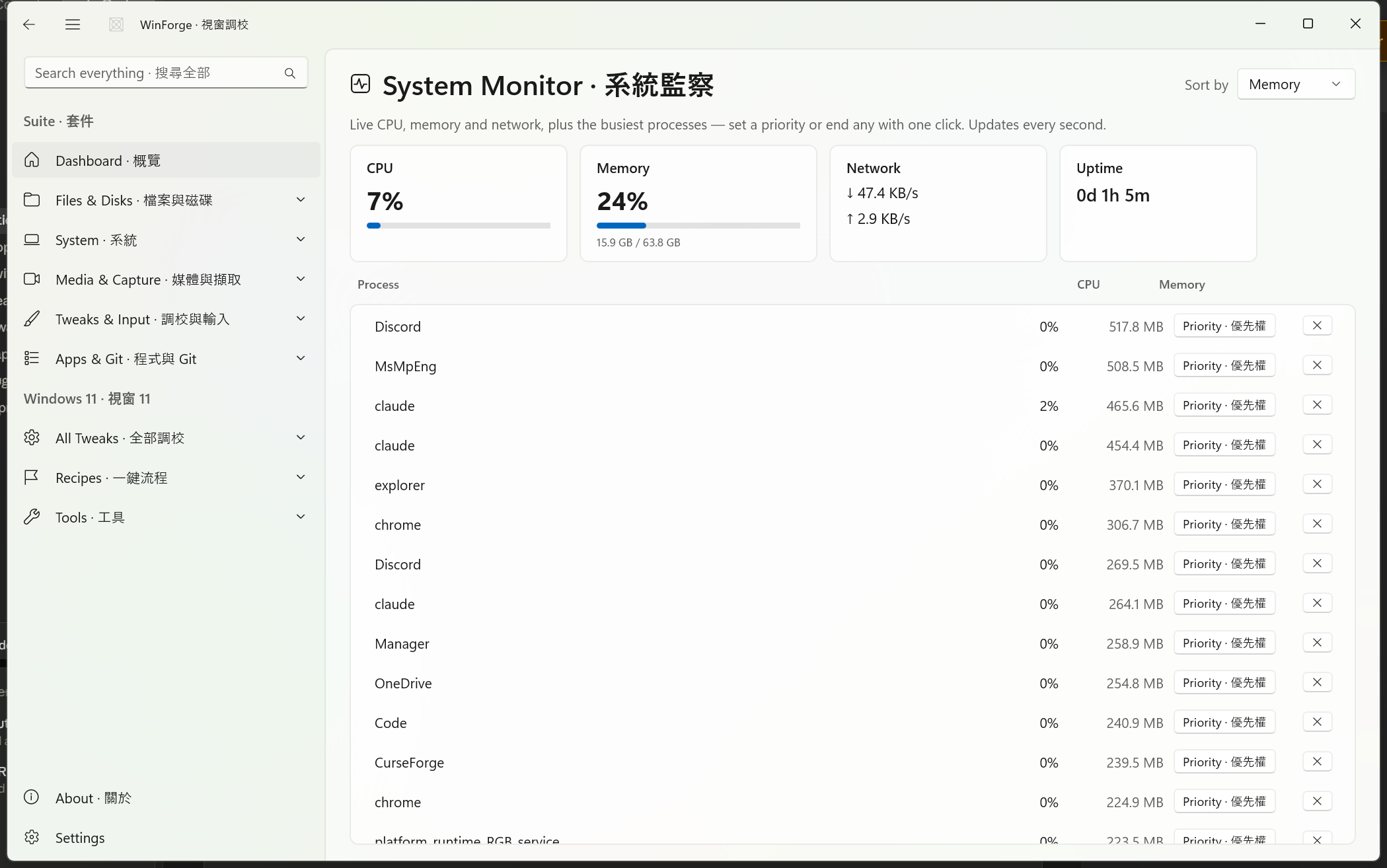
A Process-Explorer-style live monitor. It refreshes every second (a DispatcherTimer at TimeSpan.FromSeconds(1)), draws four headline gauges, and lists the busiest processes with one-click priority, affinity, efficiency-mode and end-task controls.
Source:
Pages/SystemMonitorModule.xaml.cs,Services/SystemMonitor.cs
The top of the page shows four live readouts, each recomputed on every tick:
| Gauge | 標籤 | What it reads | How it's measured |
|---|---|---|---|
| CPU | CPU | Total CPU busy % |
GetSystemTimes kernel/user/idle deltas (P/Invoke), clamped 0–100 |
| Memory | 記憶體 | Used % + used / total bytes |
GlobalMemoryStatusEx (dwMemoryLoad, ullTotalPhys, ullAvailPhys) |
| Network | 網絡 | Live ↓ down / ↑ up per second |
NetworkInterface IPv4 byte-count deltas across all "Up" non-loopback/non-tunnel NICs |
| Uptime | 運行時間 |
Xd Yh Zm since boot |
Environment.TickCount64 |
The CPU and Memory gauges drive an animated bar (CpuBar.Width = 188 × cpu/100, RamBar.Width = 208 × memPct/100). Byte values everywhere are formatted by SystemMonitor.Bytes() into B / KB / MB / GB / TB.
Note: the monitor is intentionally pure managed code + P/Invoke (no GPU or per-disk counters) — the four gauges above are CPU, memory, network and uptime.
The list shows the top 14 processes (TopN = 14), each row carrying:
-
Process · 程序 —
p.ProcessName -
CPU — per-process share of one second of total CPU capacity, derived from
TotalProcessorTimedeltas divided by elapsed time × core count, clamped 0–100 -
Memory · 記憶體 — working set (
p.WorkingSet64)
Sort by · 排序 lets you flip between Memory · 記憶體 (default) and CPU. Sorting happens in the service (OrderByDescending on the chosen key, with the other key as tie-breaker) and the bound collection is reconciled in place — rows are inserted/moved/removed rather than rebuilt, so an open context menu survives the next refresh.
Each row has a priority button that opens a MenuFlyout, plus an end-task button.
Priority class · 優先權 (sets Process.PriorityClass):
| Menu item | 中文 | ProcessPriorityClass |
|---|---|---|
| High | 高 | High |
| Above normal | 高於正常 | AboveNormal |
| Normal | 正常 | Normal |
| Below normal | 低於正常 | BelowNormal |
| Idle (low) | 閒置(低) | Idle |
Efficiency mode · 效率模式 (the same Win11 "EcoQoS" Task Manager shows):
- Efficiency mode: on · 效率模式:開 and off · 關
- Implemented via
SetProcessInformationwithPROCESS_POWER_THROTTLING_STATE(PT_EXECUTION_SPEEDthrottle) plusSetPriorityClassto Idle/Normal, opened withPROCESS_SET_INFORMATIONrights. Verified against the MS Learn EcoQoS docs; requires Windows 11 (build 22000+) and silently returnsfalsewhere unsupported or denied.
CPU affinity… · CPU 親和性… opens a ContentDialog:
- A checkbox grid (4 columns) of CPU 0 … CPU N-1 for up to 64 logical cores (
CoreCount = min(64, ProcessorCount)), pre-ticked from the process's currentProcessorAffinitymask. -
Apply · 套用 writes the chosen bitmask back via
Process.ProcessorAffinity(a zero mask is ignored — you can't pin a process to no cores). - All cores · 全部核心 resets to every core.
- Cancel · 取消 leaves it unchanged.
End task calls SystemMonitor.Kill(pid) (Process.Kill()), then re-ticks immediately so the row disappears.
Safety · 安全 Setting a critical system process to Idle priority, pinning it to a single core, or ending it can make Windows sluggish or unstable until reboot. Efficiency mode and affinity changes are not persisted — they reset when the process restarts. Changing priority/affinity/efficiency on processes owned by other users (or by the system) needs WinForge to be running as administrator; otherwise the call silently fails. Ending the wrong process can cause unsaved-data loss.
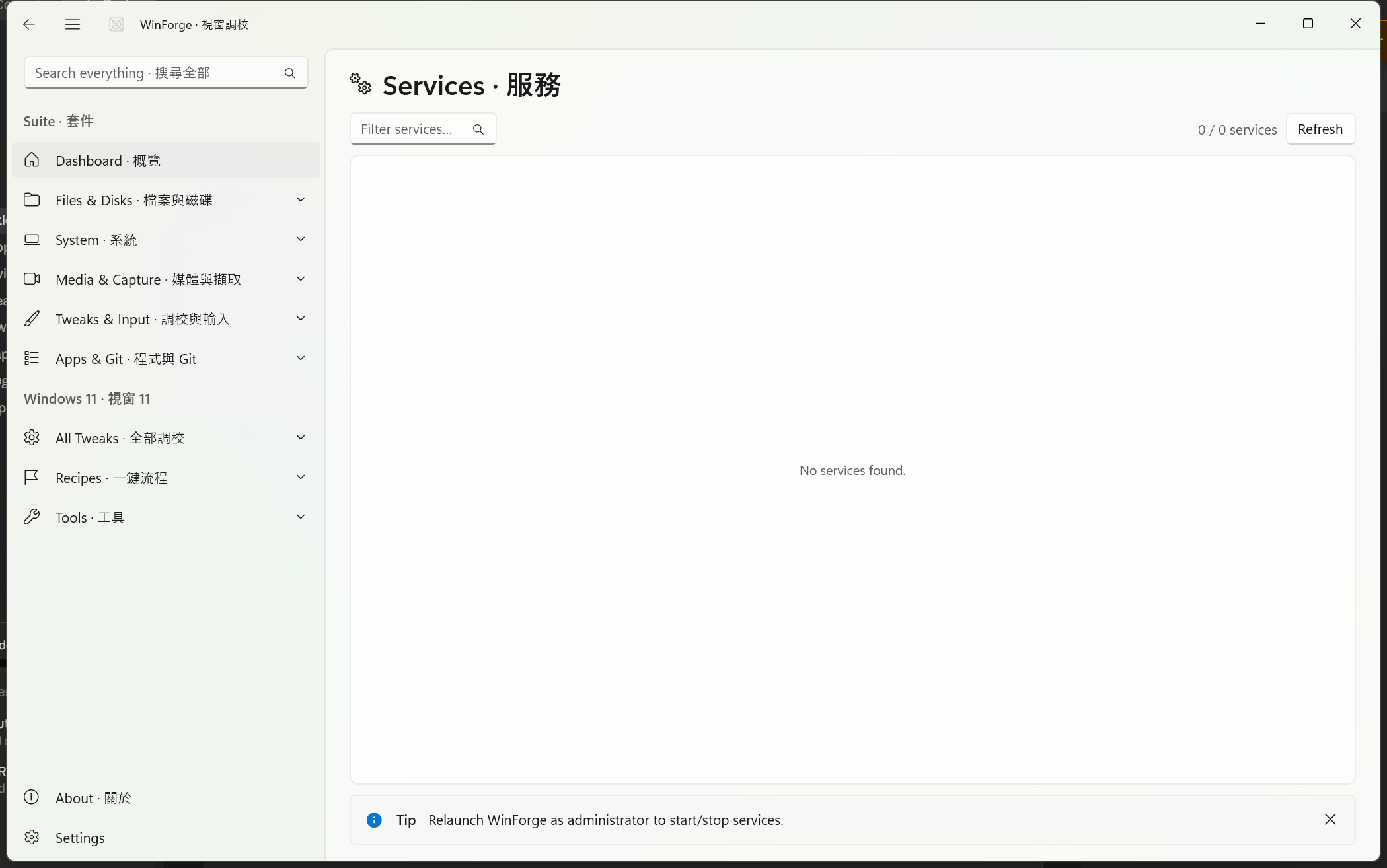
An in-app Services Manager that fully replaces the services.msc redirect: list, search, start / stop / restart, and change startup type.
Source:
Pages/ServicesModule.xaml.cs,Services/ServiceManager.cs
Services are enumerated with CIM, not the .NET ServiceController, so you also get the start mode and host PID:
Get-CimInstance Win32_Service |
  Select Name,DisplayName,State,StartMode,Status,ProcessId |
  Sort DisplayName | ConvertTo-Json
Each row (ServiceInfo) carries Name, DisplayName · 顯示名稱, State, StartMode · 啟動類型, Status and ProcessId; IsRunning is derived from State == "Running".
-
Filter services… · 篩選服務… — live
AutoSuggestBoxfiltering on display name or service name (case-insensitiveContains). - The count line shows
shown / totalservices · 個服務, and a friendly empty-state ("No services match your filter · 冇服務符合你嘅篩選"). - Refresh · 重新整理 re-runs the CIM query.
The actions button opens a MenuFlyout driving the standard *-Service cmdlets:
| Action | 中文 | Glyph | Command |
|---|---|---|---|
| Start | 啟動 | 0xE768 |
Start-Service -Name '<n>' |
| Stop | 停止 | 0xE71A |
Stop-Service -Name '<n>' -Force |
| Restart | 重啟 | 0xE72C |
Restart-Service -Name '<n>' -Force |
Startup type · 啟動類型 (a submenu → Set-Service -StartupType):
| Item | 中文 |
-StartupType value |
|---|---|---|
| Automatic | 自動 | Automatic |
| Manual | 手動 | Manual |
| Disabled | 停用 | Disabled |
After every action the list reloads and an InfoBar reports Done · 完成 or Failed · 失敗 with the cmdlet output. If a call fails and WinForge is not elevated, the bar shows a targeted hint: "Start 'Display Name' needs administrator rights · 需要管理員權限".
Safety · 安全 Most service control needs administrator rights — on launch, an un-elevated WinForge shows a tip: "Relaunch WinForge as administrator to start/stop services · 以管理員身分重開 WinForge 先可以啟動/停止服務." Setting a critical service (e.g. networking, audio, Windows Update infrastructure) to Disabled or Stopping it can break Windows features or connectivity.
Stop/Restartuse-Force, which terminates dependent services too.
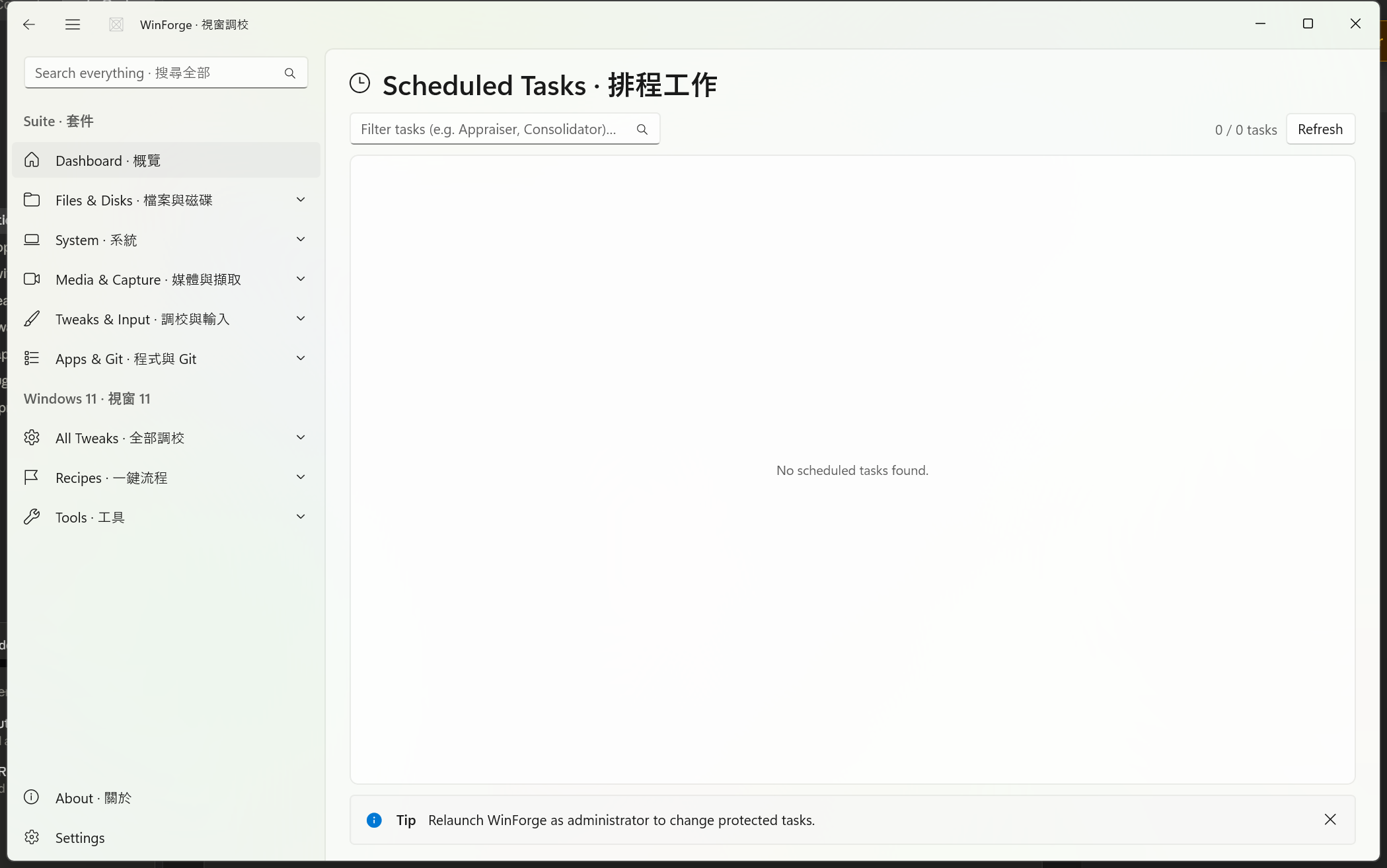
An in-app Task Scheduler — list, search, and run / stop / enable / disable tasks without taskschd.msc.
Source:
Pages/ScheduledTasksModule.xaml.cs,Services/TaskSchedulerManager.cs
Tasks are listed with the Scheduler PowerShell module:
Get-ScheduledTask |
  Select TaskName,TaskPath,State,Author |
  Sort TaskPath,TaskName | ConvertTo-Json
Each TaskInfo row shows TaskName · 工作名稱, TaskPath · 路徑, Author · 作者, and a bilingual State badge:
| Raw state | 顯示 |
|---|---|
| Ready | 就緒 |
| Running | 執行中 |
| Disabled | 已停用 |
| Queued | 排隊中 |
| Unknown | 未知 |
IsDisabled is derived from State == "Disabled"; Full is TaskPath + TaskName.
- Filter tasks (e.g. Appraiser, Consolidator)… · 篩選工作 — live filter on task name or path (case-insensitive). Those example names hint at the kind of telemetry/compatibility tasks people come here to disable.
- Count line:
shown / totaltasks · 個工作, with an empty-state. - Refresh · 重新整理 re-queries.
The actions button opens a MenuFlyout. Each item passes both -TaskName and -TaskPath (single-quotes are escaped) so identically-named tasks in different folders are addressed precisely:
| Action | 中文 | Glyph | Command |
|---|---|---|---|
| Run | 執行 | 0xE768 |
Start-ScheduledTask |
| Stop | 停止 | 0xE71A |
Stop-ScheduledTask |
| Enable | 啟用 | 0xE73E |
Enable-ScheduledTask |
| Disable | 停用 | 0xE711 |
Disable-ScheduledTask |
As with Services, every action reloads the list and reports Done · 完成 / Failed · 失敗 in an InfoBar, with a "needs administrator rights · 需要管理員權限" hint when a non-elevated call fails.
Safety · 安全 On launch, an un-elevated WinForge shows: "Relaunch WinForge as administrator to change protected tasks · 以管理員身分重開 WinForge 先可以改受保護嘅工作." Many built-in maintenance tasks (defrag, restore points, Windows Update orchestration) are scheduled tasks — disabling them stops that maintenance from running. Running a task executes its action immediately, regardless of its normal trigger. Disabling is reversible (just Enable it again).
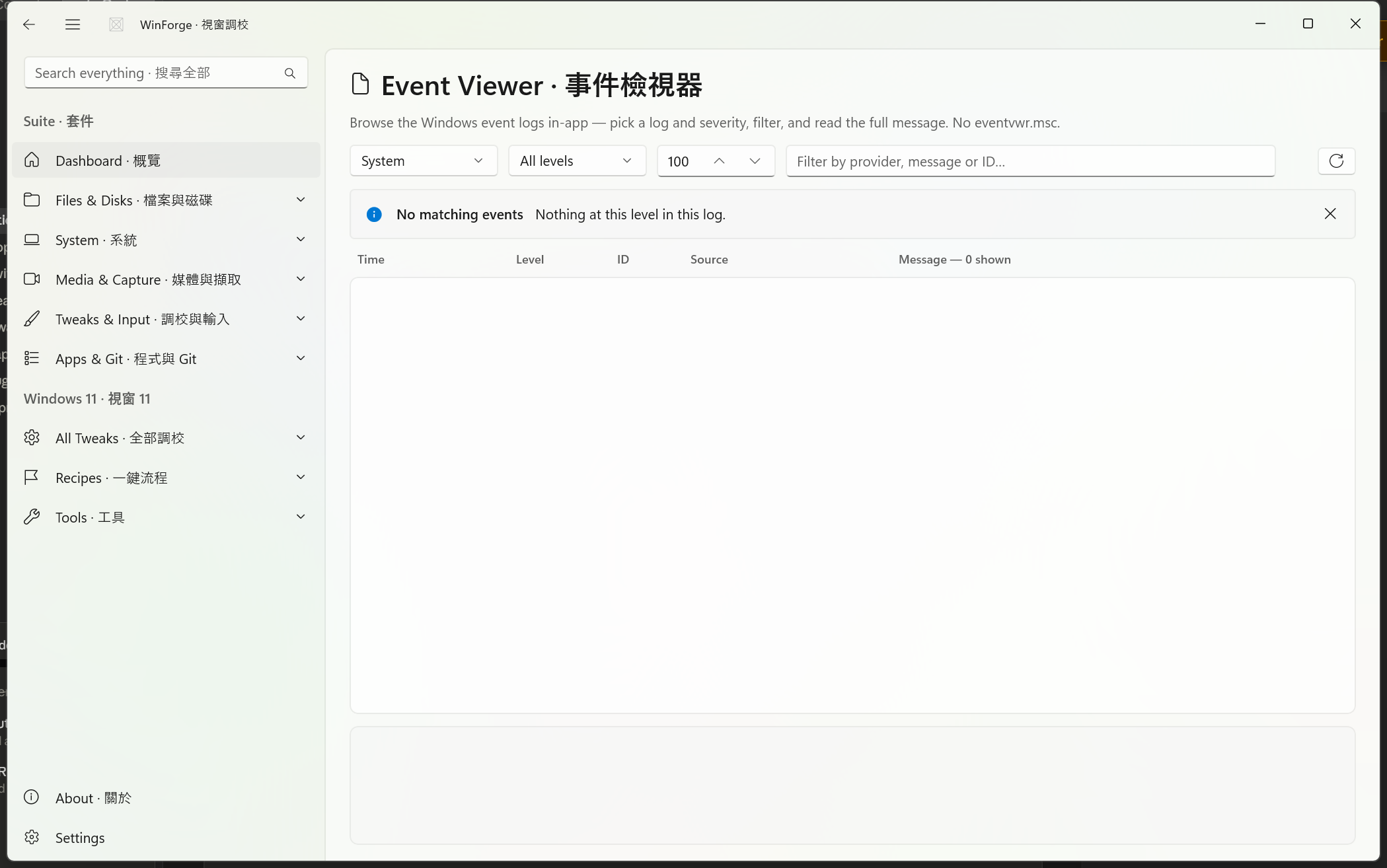
An in-app Event Viewer that wraps Get-WinEvent — browse the System / Application / Security / Setup logs with a level filter and a full-message detail pane, replacing eventvwr.msc.
Source:
Pages/EventViewerModule.xaml.cs,Services/EventLogService.cs
Three controls at the top build the query:
- Log — a combo of System · Application · Security · Setup.
-
Level · 層級 — a combo mapping to a
Get-WinEventlevel clause:
| Menu item | 中文 | Maps to | Level= |
|---|---|---|---|
| All levels | 所有層級 | all |
(no clause) |
| Errors | 錯誤 | error |
1,2 (Critical + Error) |
| Warnings+ | 警告以上 | warn |
1,2,3 (+ Warning) |
| Information | 資訊 | info |
4 |
-
Count box — how many events to pull (
-MaxEvents, default 100).
These build a query like:
Get-WinEvent -FilterHashtable @{LogName='System'; Level=1,2,3} -MaxEvents 100
  | Select Time,Id,Level,Provider,Message | ConvertTo-Json -Depth 3
Changing any of the three (Query_Changed) re-runs the query against Windows.
Each EventRow becomes a list row with columns Time · 時間, Level · 層級, ID, Source · 來源 (provider) and the first line of the Message · 訊息. Levels are colour-coded:
-
Critical / Error → red (
#E81123) -
Warning → amber (
#B88A00) - everything else → the theme's secondary text brush
The message column header live-updates to "Message — N shown · 訊息 — 顯示 N 條." Selecting a row fills the detail pane: a header line of Level · ID · Source · Time plus the complete, untruncated message body.
Filter by provider, message or ID… · 用來源、訊息或 ID 篩選… filters the already-fetched rows client-side (case-insensitive Contains across provider, full message, and the ID string) — no re-query, instant narrowing.
Safety · 安全 The Event Viewer is read-only — it never writes or clears logs. The one caveat is the Security log: it requires elevation, so on an empty result the module shows "The Security log needs administrator rights — relaunch WinForge as admin · 安全記錄要管理員權限."
All four modules deliberately avoid shelling out to the legacy MMC snap-ins. The benefits:
-
Bilingual everywhere — every column, state, action and error is English + 粵語, which the
.mscconsoles never are. -
One consistent surface — same filter box, same
InfoBarresult pattern, same elevation hints across Services, Tasks and Events. - Honest about admin — instead of a UAC wall mid-action, each page tells you up front when elevation is required, and explains which action failed and why when it does.
For low-level system surfaces that pair naturally with these, see Module-Registry-and-Devices (registry editor + device manager).
Part of Home · WinForge wiki.
Each control on the live page is numbered on the screenshot below and explained in the legend — what every button, toggle, tab, box and label does, in English and 粵語. Captured from the running app via UI Automation. 下面每個控件都有編號,逐個解釋佢哋嘅功能同標籤意思。
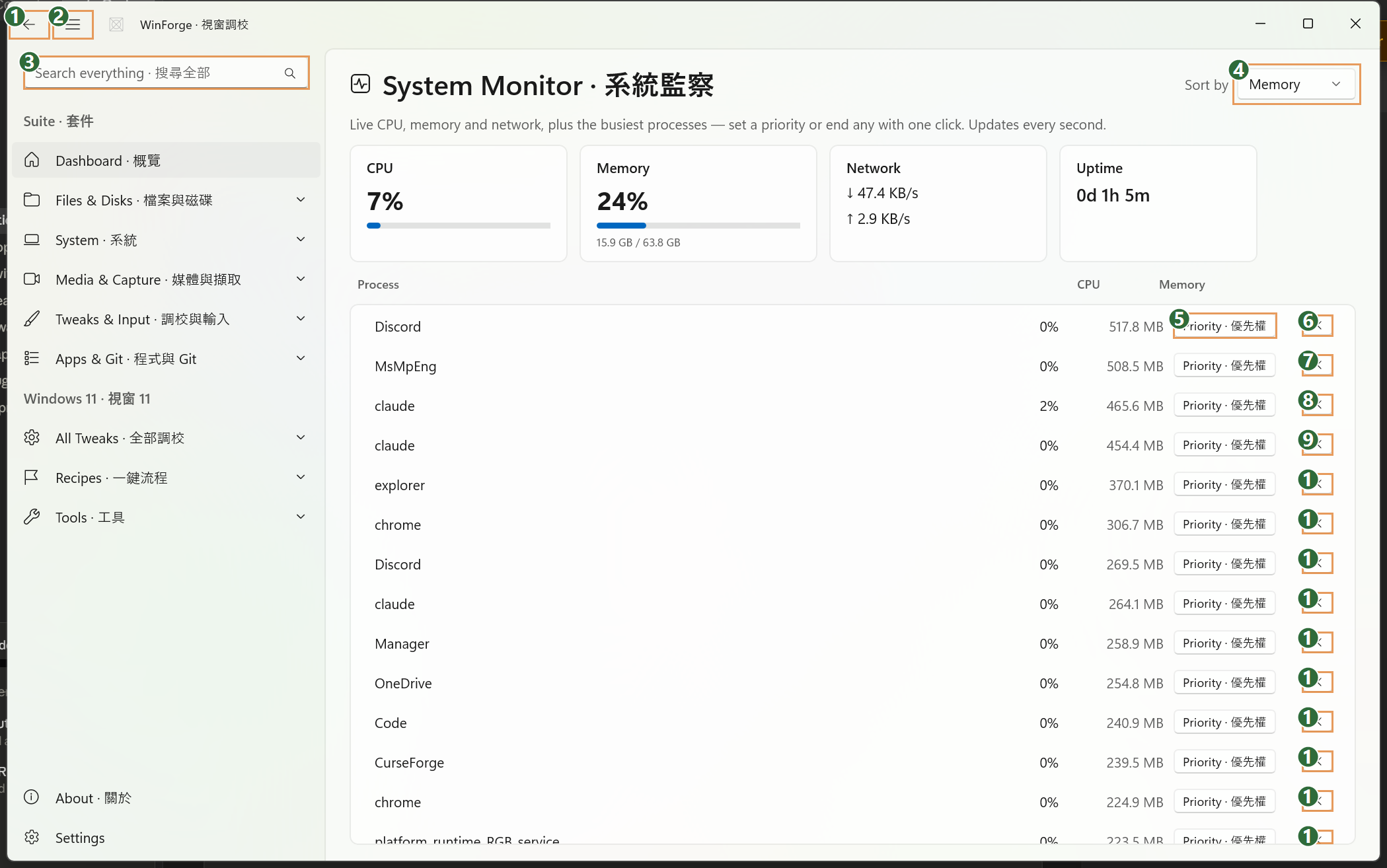
| # | Control | What it is & does · 功能 | Label meaning · 標籤意思 |
|---|---|---|---|
| 1 | Button | Returns to the previous page / closes this module and goes back in the navigation history. Part of the app shell, not the monitor itself. | "Back" — go back to where you came from. |
| 2 | Button | Collapses or expands the left navigation pane, giving the live charts and process list more room. App-shell control. | "Toggle Navigation" — show/hide the side menu (導覽). |
| 3 | Search box | Global app search ("Search everything"). Type here to jump to any WinForge module or setting; it is the shell's omnibox, not a filter for this page's process list. | "Search everything · 搜尋全部" — search across the whole app; 搜尋全部 = "search everything". |
| 4 | Dropdown | The Sort by selector. It chooses how the busiest-process list is ordered: "Memory · 記憶體" (default) or "CPU · CPU". Changing it re-samples the top 14 processes by that metric and refreshes immediately. | Icon/empty name in the legend, but it is the sort dropdown beside the "Sort by · 排序" label; options are Memory (記憶體) and CPU. |
| 5 | Button | The Priority action button on the first process row. Clicking it opens a flyout menu for that process: set scheduling priority (High 高 / Above normal 高於正常 / Normal 正常 / Below normal 低於正常 / Idle 閒置), toggle Efficiency mode on/off (效率模式), or open a CPU affinity dialog to pick which logical cores it may run on. | "Priority · 優先權" — set the process's CPU scheduling priority; 優先權 = "priority". |
| 6–18 | Buttons (per-row) | Per-process End task buttons — one per row in the top-processes table. Clicking the button on a row immediately terminates that process by PID (SystemMonitor.Kill) and refreshes the list. (The matching per-row Priority buttons, like #5, sit just to their left in each row.) |
Icon-only (empty name) — the small action button at the right end of each process row; it ends / kills that process. |
| 19 | Button (per-row) | The End-task button for the last (partially visible) row at the bottom of the list; same behaviour as 6–18 — terminates that process. | Icon-only — end task for the final row. |
How to use it · 點用 — Watch the live CPU, Memory, Network and Uptime tiles at the top; they update once per second. Use the Sort by dropdown (4) to rank the process list by Memory or CPU and spot whatever is hogging your machine. To tame a process, click its Priority button (5 and the per-row equivalents) and lower its priority, switch on Efficiency mode, or pin it to specific cores via CPU affinity; to stop it outright, click the row's End task button (6–19). Everything acts on the process in place, so the list keeps refreshing while you work without redirecting you to another tool.

| # | Control | What it is & does · 功能 | Label meaning · 標籤意思 |
|---|---|---|---|
| 1 | Button | App-shell back button. Returns you to the previous page / module you came from in WinForge. | "Back" — go back. The 粵語 equivalent is 返回 (return to the previous screen). |
| 2 | Button | App-shell navigation toggle. Collapses or expands the left-hand navigation pane so you have more room for the services list. | "Toggle Navigation" — show/hide the side menu. 粵語: 開關側欄導覽。 |
| 3 | Search box | Global "search everything" box in the app header (not part of this module). Type to jump to any module, setting, or tweak across WinForge. | "Search everything · 搜尋全部" — search across the whole app. 搜尋 = search, 全部 = everything. |
| 4 | Filter box | The module's own service filter. As you type, the list narrows live to services whose display name or service name contains your text (case-insensitive); the count above updates to "shown / total". Clear it to show all services again. | "Filter services…" (粵語 placeholder: 篩選服務…) — type to filter the service list. 篩選 = filter, 服務 = services. |
| 5 | Button | Refresh. Re-queries Windows for the current list of services and their live status, then re-applies your active filter. Use it after starting/stopping a service or when status looks stale. | "Refresh" (粵語: 重新整理) — reload the list. 重新整理 = refresh / reload. |
| 6 | Button | App-shell close button. Closes the current module/overlay window. | "Close" — close. 粵語: 關閉。 |
Each service row in the list (not separately numbered) carries its own Actions button on the right. Clicking it opens a menu with Start · 啟動, Stop · 停止 and Restart · 重啟, plus a Startup type · 啟動類型 submenu offering Automatic · 自動, Manual · 手動 and Disabled · 停用. Each choice runs the matching ServiceManager operation on that service and reports the outcome in the info bar at the bottom.
How to use it · 點用 — When the page opens it loads every Windows service and shows a running "shown / total" count. Type in the filter box (4) to find the service you want, then click its row's Actions button to start, stop, restart it, or change its startup type. Changing service state needs administrator rights — if WinForge isn't elevated, an info bar prompts you to relaunch as administrator, and failed actions explain that admin rights are required. After an action the list reloads automatically, but you can press Refresh (5) any time to re-read live status.

| # | Control | What it is & does · 功能 | Label meaning · 標籤意思 |
|---|---|---|---|
| 1 | Button | App-shell back button — returns to the previous page / module you came from. Part of the window frame, not the Scheduled Tasks module itself. | "Back" = go back / 返回上一頁。 |
| 2 | Button | App-shell hamburger — collapses or expands the left navigation pane so the module list takes more or less width. Window chrome, shared by every module. | "Toggle Navigation" = switch the navigation pane open/closed / 開關側邊導覽欄。 |
| 3 | Search box | Global app search at the top of the window. Type here to jump to any setting or module across WinForge; it is the app-wide finder, separate from the per-task filter below. | "Search everything" = the English; "搜尋全部" = search everything / 搜尋全部嘢。 |
| 4 | Filter box (Search) | The module's own task filter. As you type, the list below is filtered live to tasks whose name or registry path contains your text (case-insensitive); clearing it shows all tasks again. Matching runs on TaskName and TaskPath. |
"Filter tasks (e.g. Appraiser, Consolidator)…" — placeholder hint to type part of a task name; the 粵語 form is "篩選工作(例如 Appraiser、Consolidator)…" / 即係篩選工作。 |
| 5 | Button | Refresh — re-reads the full list of Windows scheduled tasks from the Task Scheduler and re-applies your current filter. Run it after you change a task, or to pick up tasks created elsewhere. | "Refresh" = reload the list / "重新整理" = refresh / 重新讀取清單。 |
| 6 | Button | App-shell close button at the bottom-right — dismisses the current panel / closes the window. Window chrome, not specific to this module. | "Close" = close / 關閉。 |
Each task row in the centre list (not separately numbered above, because the list loads after the page opens) shows the task name, its registry path in monospace, and a state label (StateText), followed by an "Actions · 操作" button. Clicking that button opens a flyout menu with four commands — Run · 執行 (start the task now), Stop · 停止 (kill a running task), Enable · 啟用 (allow it to run on schedule), and Disable · 停用 (turn it off) — each acting on that one task.
How to use it · 點用 — When the page opens it loads every Windows scheduled task; type part of a name in the filter box (4) to narrow the list, and the counter shows "X / Y tasks · X / Y 個工作". Pick a task's Actions · 操作 button and choose Run, Stop, Enable, or Disable; a result bar reports success or failure. Changing protected/system tasks needs administrator rights — if WinForge is not elevated you'll see a tip to relaunch as administrator, and a failed action will say it "needs administrator rights · 需要管理員權限". Hit Refresh (5) any time to reload the list and confirm the new state.

| # | Control | What it is & does · 功能 | Label meaning · 標籤意思 |
|---|---|---|---|
| 1 | Button | App chrome control — returns to the previous page / module you came from. Part of the WinForge shell, not the Event Viewer itself. | "Back" = go back · 返回上一頁。 |
| 2 | Button | App chrome control — collapses or expands the left-hand navigation pane so the module gets more width. | "Toggle Navigation" = show/hide the side menu · 開關側邊導覽列。 |
| 3 | Search box | Global WinForge search bar (shell-level), not the event filter. Type here to jump to any module or setting across the whole app. | "Search everything · 搜尋全部" — search everything in WinForge · 搜尋成個 app。 |
| 4 | Dropdown | Log picker (LogBox). Chooses which Windows event log to read: System / Application / Security / Setup. Changing it re-runs the Get-WinEvent query for that log. Security needs admin rights. |
Icon-only here, but it lists the four log names (System·系統, Application·應用程式, Security·安全, Setup·安裝)。 |
| 5 | Dropdown | Severity picker (LevelBox). Filters by level: All levels / Errors / Warnings+ / Information. Changing it re-queries the selected log at that severity. |
Icon-only; expands to "All levels·所有層級, Errors·錯誤, Warnings+·警告以上, Information·資訊"。 |
| 6 | Number box | Event count limit (CountBox) — how many recent events to pull (defaults to 100). Raising/lowering it changes the query cap; pairs with the +/- steppers (9, 10). |
No text label — numeric "max events to fetch · 取幾多條事件"。 |
| 7 | Filter box | In-list text filter (FilterBox). Typing here narrows the already-loaded rows by provider name, message text, or event ID — instant, no re-query. |
"Filter by provider, message or ID…" = filter by source, message or ID · 用來源、訊息或 ID 篩選。 |
| 8 | Button | Refresh / reload — re-runs the query for the current log, level and count (Refresh_Click → Reload). Icon-only (top-right of the toolbar). |
Empty name — inferred "Refresh · 重新整理"。 |
| 9 | Button | Stepper that increases the event-count value in box 6 by one step. | "Increase" = increase the count · 增加數量。 |
| 10 | Button | Stepper that decreases the event-count value in box 6 by one step. | "Decrease" = decrease the count · 減少數量。 |
| 11 | Button | Close — dismisses the page / detail overlay (standard WinUI close glyph). | "Close" = close · 關閉。 |
How to use it · 點用 — Start at the two dropdowns: pick a log in 4 (System, Application, Security or Setup) and a severity in 5 (e.g. Errors), optionally set how many recent events to fetch in 6 (use 9/10 to nudge the number); WinForge runs Get-WinEvent and fills the list. To find a specific event, type a provider name, keyword or ID into the Filter box (7) — it trims the loaded rows live without re-querying. Click any row to read its full message in the detail pane, hit 8 to refresh after picking new options, and remember the Security log only returns events when WinForge is run as administrator.