Module Network and Tunnels
WinForge bundles four real networking modules into one control surface: a Cloudflare & Tunnel console driving the cloudflared and warp-cli CLIs, a VPN & Mesh panel that wraps NordVPN, Tailscale, the built-in Windows VPN client and WireGuard, a TCPView-style Connections inspector built directly on iphlpapi.dll, and a native Hosts Editor. Everything runs in-app — no redirect to Settings, Notepad, or a browser — and every action genuinely changes the system.
呢一版集合咗四個真正會改動系統嘅網絡模組:用 cloudflared / warp-cli 嘅 Cloudflare 與 Tunnel 控制台、包住 NordVPN / Tailscale / Windows 內置 VPN / WireGuard 嘅 VPN 與網狀網 面板、直接行 iphlpapi.dll 嘅 連線檢視器,同埋一個原生 hosts 編輯器。全部喺 app 內完成,唔會跳去設定或記事本。
Safety · 安全 — This page covers admin-only and destructive operations: installing/removing Windows services, importing WireGuard tunnels, dropping live TCP sockets, ending processes, and overwriting the system
hostsfile. WinForge surfaces a clear elevation hint when a step is denied; relaunch as administrator when prompted. Long-running commands (tunnelrun, quick tunnels, the DoH proxy) intentionally open in a visible terminal so you can watch and stop them.
| Module · 模組 | Source page | Backs onto | What it touches |
|---|---|---|---|
| Cloudflare & Tunnel | Pages/CloudflareModule.xaml.cs |
cloudflared, warp-cli
|
Named/quick tunnels, DNS route, Access, DoH, WARP |
| VPN & Mesh | Pages/VpnMeshModule.xaml.cs |
NordVPN, Tailscale, Windows VPN, WireGuard | Connect/disconnect, Meshnet, exit nodes, Serve/Funnel, profiles, .conf import |
| Connections | Pages/ConnectionsModule.xaml.cs |
iphlpapi.dll |
Live TCP/UDP sockets, drop connection, end process |
| Hosts Editor | Pages/HostsEditorModule.xaml.cs |
%SystemRoot%\System32\drivers\etc\hosts |
Block/redirect domains, backup, flush DNS |
All four are defensive: the wrapper services (CloudflareService, TailscaleService, NordVpnService, WireGuardService, WindowsVpnService, ConnectionsService, HostsService) never throw — failures come back as bilingual messages in an InfoBar, and a missing engine shows a one-click auto-install (winget) prompt instead of an error.
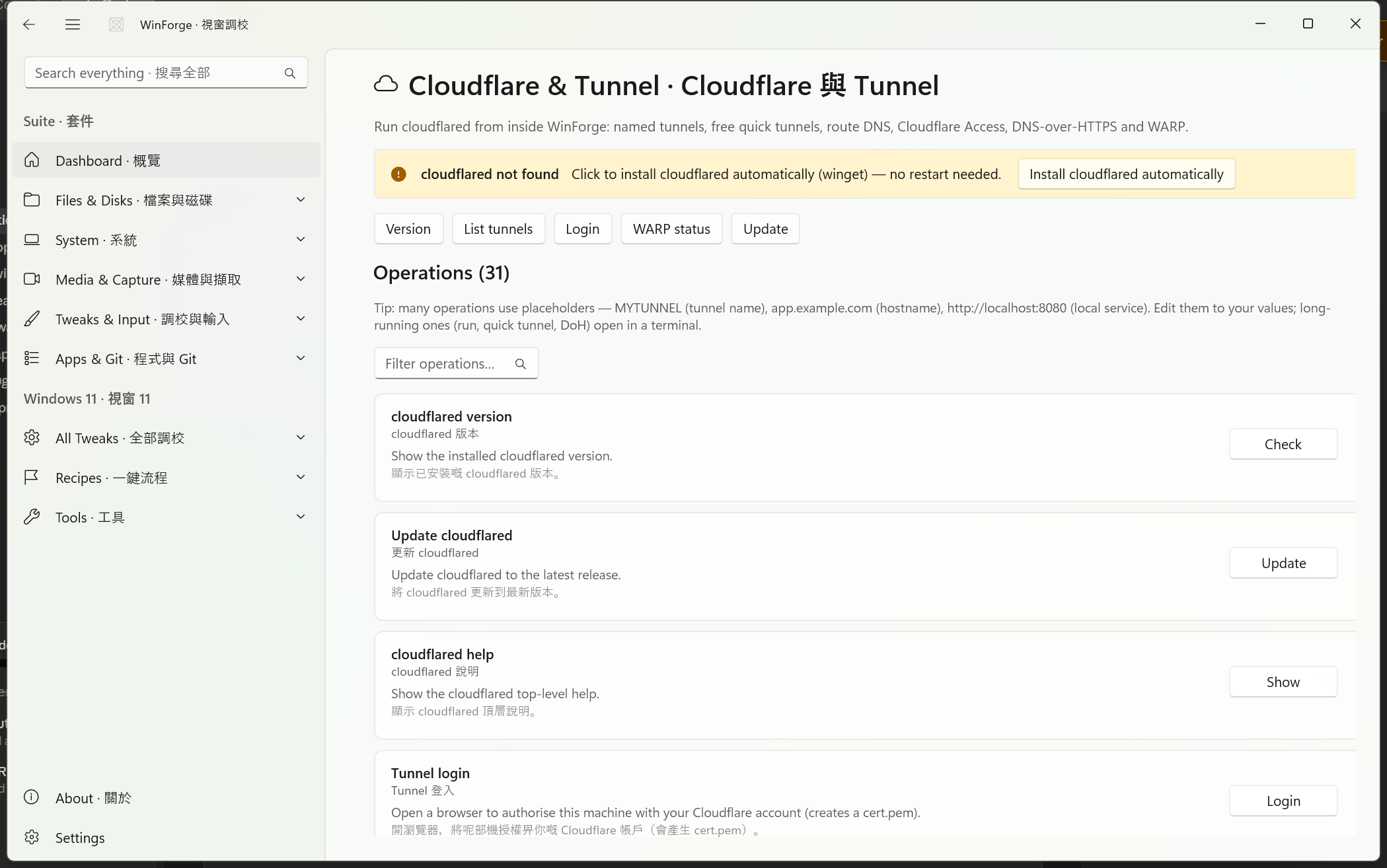
Run cloudflared from inside WinForge — named tunnels, free quick tunnels, DNS routing, Cloudflare Access, a DNS-over-HTTPS proxy and WARP — without ever touching a terminal yourself for the short commands. Quick commands capture their text output into the in-page console; long-running ones (tunnel run, the quick tunnel, the DoH proxy, Access binds) open in Windows Terminal (falling back to cmd.exe /k) so they stay visible.
喺 WinForge 直接用 cloudflared:具名 tunnel、免費快速 tunnel、DNS 路由、Cloudflare Access、DoH 代理同 WARP。短指令擷取輸出;長跑指令會喺終端機開出嚟。
On load the page runs cloudflared --version. If it is not found, an InfoBar offers Install cloudflared automatically via winget package Cloudflare.cloudflared — no restart needed. A parallel warp-cli --version check governs the WARP operations.
The top strip exposes five one-tap buttons (CloudflareModule.BuildQuickActions):
| Button · 按鈕 | Command |
|---|---|
| Version · 版本 | cloudflared --version |
| List tunnels · 列出 tunnel | cloudflared tunnel list |
| Login · 登入 |
cloudflared tunnel login (opens in terminal) |
| WARP status · WARP 狀態 | warp-cli status |
| Update · 更新 | cloudflared update |
Output is captured and shown in an output pane (trimmed to the last 4000 characters for long dumps).
Below the quick strip is the full, filterable catalog from Catalog/CloudflareOperations.cs — each rendered as a TweakCard. Many operations use placeholders you edit to your own values: MYTUNNEL (tunnel name), app.example.com (hostname), http://localhost:8080 (local service).
Basics · 基本
| Operation · 操作 | Command |
|---|---|
| cloudflared version · 版本 | cloudflared --version |
| Update cloudflared · 更新 | cloudflared update |
| cloudflared help · 說明 | cloudflared help |
Auth & named tunnels · 驗證同具名 tunnel
| Operation · 操作 | Command | Note |
|---|---|---|
| Tunnel login · Tunnel 登入 | cloudflared tunnel login |
Browser auth; creates cert.pem (terminal) |
| List tunnels · 列出 Tunnel | cloudflared tunnel list |
|
| Create tunnel · 建立 Tunnel | cloudflared tunnel create MYTUNNEL |
|
| Tunnel info · Tunnel 資料 | cloudflared tunnel info MYTUNNEL |
|
| Tunnel token · Tunnel 權杖 | cloudflared tunnel token MYTUNNEL |
Connector token |
| Route DNS to tunnel · DNS 路由 | cloudflared tunnel route dns MYTUNNEL app.example.com |
|
| Route IP range · 路由 IP 範圍 | cloudflared tunnel route ip add 10.0.0.0/24 MYTUNNEL |
WARP-to-Tunnel |
| List routed IPs · 列出已路由 IP | cloudflared tunnel route ip list |
|
| Run tunnel · 執行 Tunnel | cloudflared tunnel run MYTUNNEL |
Stays open (terminal) |
| Clean up tunnel · 清理 Tunnel | cloudflared tunnel cleanup MYTUNNEL |
destructive |
| Delete tunnel · 刪除 Tunnel | cloudflared tunnel delete MYTUNNEL |
destructive |
Quick tunnel · 快速 Tunnel — expose http://localhost:8080 over a free *.trycloudflare.com URL with no account:
cloudflared tunnel --url http://localhost:8080 (opens in terminal, stays open).
Service · 服務 (both require admin)
| Operation · 操作 | Command |
|---|---|
| Install service · 安裝服務 | cloudflared service install |
| Uninstall service · 移除服務 |
cloudflared service uninstall (destructive) |
Cloudflare Access · 存取
| Operation · 操作 | Command |
|---|---|
| Access login · 登入 | cloudflared access login https://app.example.com |
| Access curl · 已驗證請求 | cloudflared access curl https://app.example.com |
| Access TCP bind · TCP 綁定 |
cloudflared access tcp --hostname ssh.example.com --url localhost:2222 (stays open) |
| Access SSH config · SSH 設定 | cloudflared access ssh-config --hostname ssh.example.com |
DNS over HTTPS · DoH — run a local DoH proxy on port 5053 pointing at Cloudflare's resolver:
cloudflared proxy-dns --port 5053 --upstream https://1.1.1.1/dns-query (stays open).
WARP (warp-cli) · WARP
| Operation · 操作 | Command |
|---|---|
| WARP version · 版本 | warp-cli --version |
| WARP register · 註冊 | warp-cli registration new |
| WARP connect · 連線 | warp-cli connect |
| WARP disconnect · 斷線 | warp-cli disconnect |
| WARP status · 狀態 | warp-cli status |
| WARP settings · 設定 | warp-cli settings |
| WARP mode: WARP · 模式 |
warp-cli mode warp (full encrypted tunnel) |
| WARP mode: DoH · 模式 |
warp-cli mode doh (1.1.1.1 over HTTPS only) |
| WARP account · 帳戶 | warp-cli account |
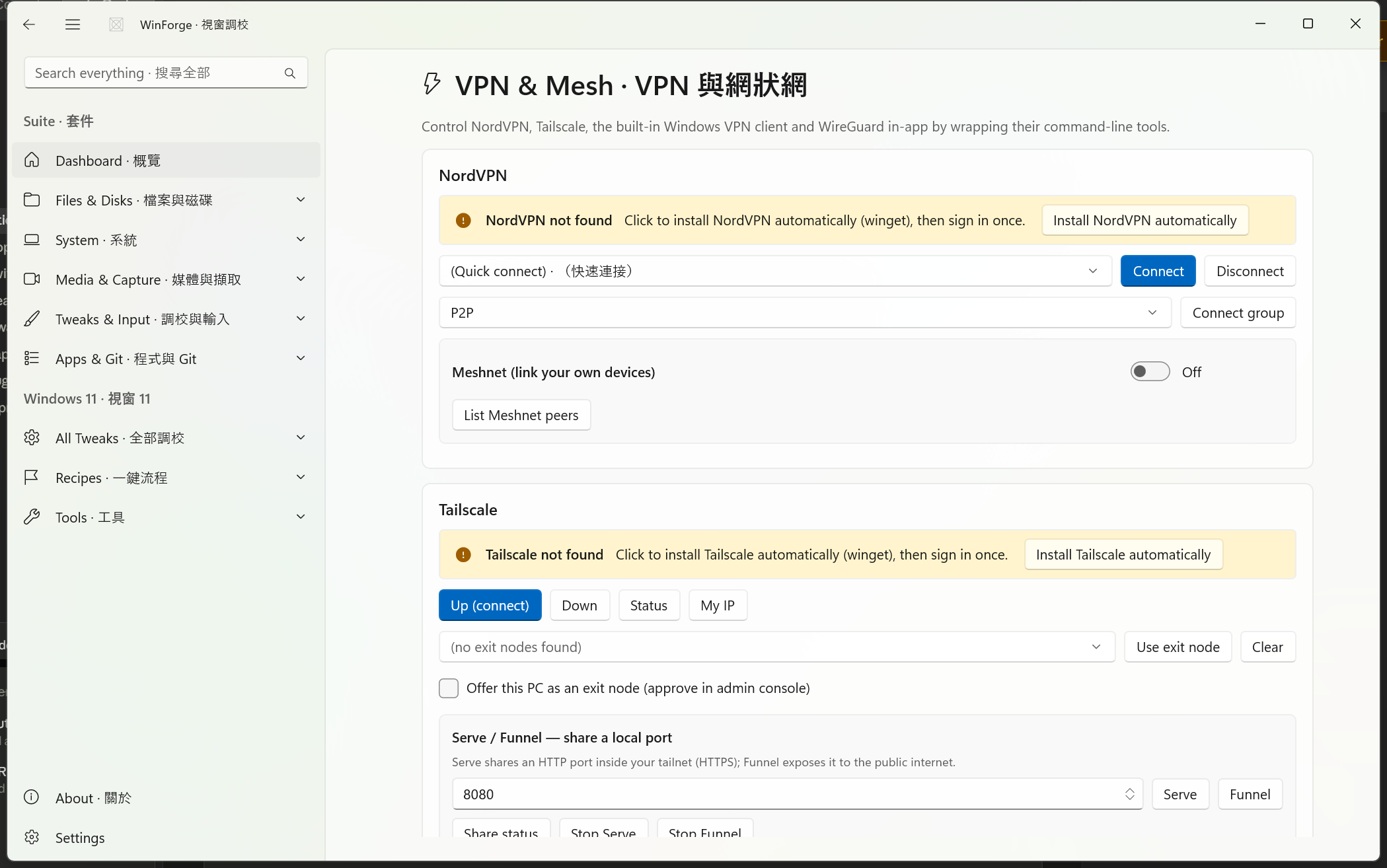
One panel controls four very different stacks by wrapping their command-line tools. Each section has its own engine bar that offers a one-click winget install when the tool is missing (NordVPN.NordVPN, tailscale.tailscale, WireGuard.WireGuard).
一個面板包住四套唔同嘅工具。每一段都有自己嘅引擎提示,搵唔到就一鍵 winget 安裝。
Wraps C:\Program Files\NordVPN\NordVPN.exe (NordVpnService).
-
Connect · 連接 — quick-connect (
-c) or to a chosen country by name (-c -n "United States"). The country picker is bilingual and includes Hong Kong (香港), Taiwan (台灣), Japan (日本), Singapore (新加坡) and more. -
Disconnect · 斷開 —
-d. -
Connect group · 連接群組 —
-c -g <group>forP2P,Double_VPN,Onion_Over_VPN,Dedicated_IP,Obfuscated_Servers. -
Meshnet · 網狀網 — a toggle runs
set meshnet on|off; List Meshnet peers runsmeshnet peer list. (The service also exposes per-peer incoming allow/deny viameshnet peer incoming allow|deny.)
Wraps C:\Program Files\Tailscale\tailscale.exe (TailscaleService). Status is parsed from tailscale status --json.
-
Up / Down · 連接 / 斷開 —
tailscale up/tailscale down. -
Status · 狀態, My IP · 我嘅 IP (
ip -4), Ping · Ping (ping <host>). -
Mesh devices · 網狀網裝置 — a live list parsed from
status --json: hostname, Tailscale IP, and a green/grey online dot. Your own machine is tagged "(this PC · 呢部機)". -
Exit nodes · 出口節點 — a picker is auto-populated from peers advertising
ExitNodeOption. Use exit node runsset --exit-node=<ip> --exit-node-allow-lan-access; Clear runsset --exit-node=. A checkbox offers this PC as an exit node viaset --advertise-exit-node(approve it afterwards in the Tailscale admin console). -
Serve / Funnel · 分享本機 port — Serve (
serve --bg <port>) shares a local HTTP port inside your tailnet over HTTPS; Funnel (funnel --bg <port>) exposes it to the public internet. Share status (serve status), Stop Serve (serve reset) and Stop Funnel (funnel reset) round it out.
Safety · 安全 — Funnel publishes a local port to the entire internet. Confirm the port is what you intend before clicking, and use Stop Funnel when finished.
Wraps the PowerShell VPN cmdlets and rasdial.exe (WindowsVpnService) — no redirect to the Settings app.
-
Add a profile · 新增設定檔 — give a name and server address, pick a tunnel type, and WinForge runs
Add-VpnConnectionwith-AuthenticationMethod MSChapv2 -EncryptionLevel Optional. Supported tunnel types: Automatic · 自動, IKEv2, L2TP/IPsec, SSTP, PPTP. -
Profiles list · 設定檔 — populated from
Get-VpnConnection(both-AllUserConnectionand per-user), showing tunnel type, server address, connection status and a live connected dot. -
Actions ▾ per row — Connect (
rasdial.exe "<name>"), Disconnect (rasdial.exe "<name>" /disconnect), and Remove (Remove-VpnConnection, guarded by a confirmation dialog).
Wraps the official C:\Program Files\WireGuard\wireguard.exe (WireGuardService).
-
Import .conf… · 匯入 — pick a
.conffile and WinForge installs it as a tunnel service via/installtunnelservice(needs admin). -
Tunnels · 隧道 — listed from
%ProgramData%\WireGuard\Configurations, with a live "(active · 使用中)" status derived from the matchingWireGuardTunnel$<name>Windows service. -
Remove · 移除 —
/uninstalltunnelservice "<name>"behind a confirmation dialog (needs admin).
Safety · 安全 — Importing or removing a WireGuard tunnel installs/uninstalls a Windows service, so these steps require administrator rights. Adding or connecting some Windows VPN profiles may also prompt for elevation.
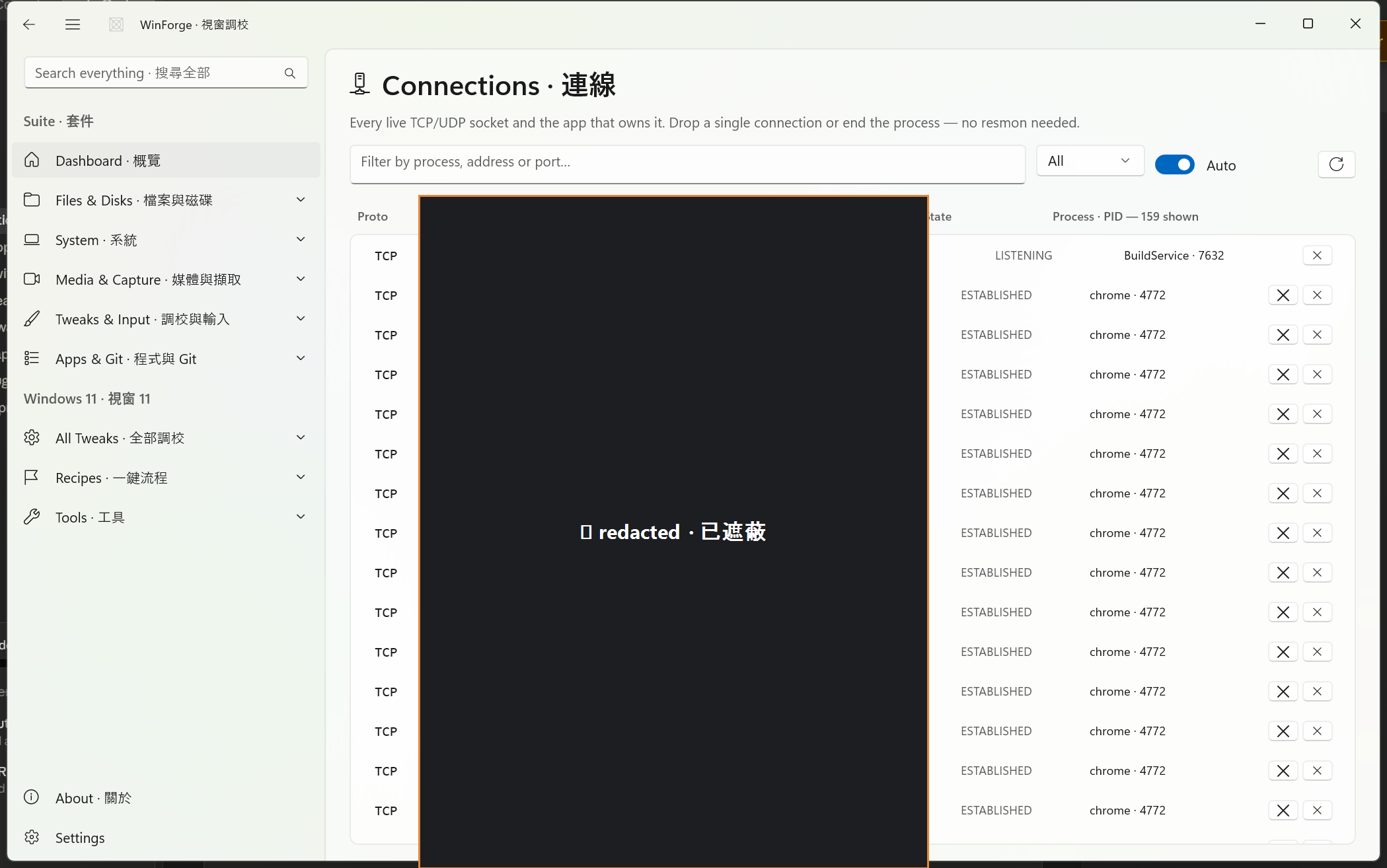
A TCPView-style live viewer for every IPv4 TCP and UDP socket and the process that owns it, built directly on iphlpapi.dll (GetExtendedTcpTable / GetExtendedUdpTable) — no netstat shell-out, no resource monitor.
TCPView 風格嘅即時檢視,列出每一條 IPv4 TCP/UDP 連線同擁有佢嘅程序,直接行 iphlpapi.dll。
| Column · 欄 | Detail |
|---|---|
| Proto · 協定 | TCP or UDP |
| Local address · 本機位址 | addr:port |
| Remote address · 遠端位址 |
addr:port, or *:* for listeners/UDP |
| State · 狀態 | Decoded TCP state: LISTENING, ESTABLISHED, CLOSE_WAIT, TIME_WAIT, … |
| Process · PID | Owning process name and PID |
- Filter · 篩選 — by process name, local/remote address, state, or PID.
- Proto picker · 協定 — All · 全部 / TCP / UDP.
- Auto · 自動 — a 2-second refresh toggle; rows reconcile in place (sorted by process, then proto, then local address) so the list does not flicker. The column header shows the live count ("… shown · 顯示 … 條").
-
Drop connection · 切斷連線 — calls
SetTcpEntrywithDELETE_TCBto tear down a single TCP socket. Only shown for sockets that can actually be dropped (ESTABLISHEDorCLOSE_WAIT). On success you get "Connection dropped · 已切斷連線"; a non-zero return explains it either already closed or that dropping needs administrator rights. - End process · 結束程序 — terminates the owning process (System / Idle, PID ≤ 4, are protected). Access-denied gives a clear "try running WinForge as admin · 試吓以管理員身分執行" hint.
Safety · 安全 — Dropping a TCP connection and ending a process both affect whatever app owns that socket; the connection drop in particular needs administrator rights to succeed against most sockets. WinForge guards PIDs 0 and 4 and tells you plainly when elevation is the blocker.
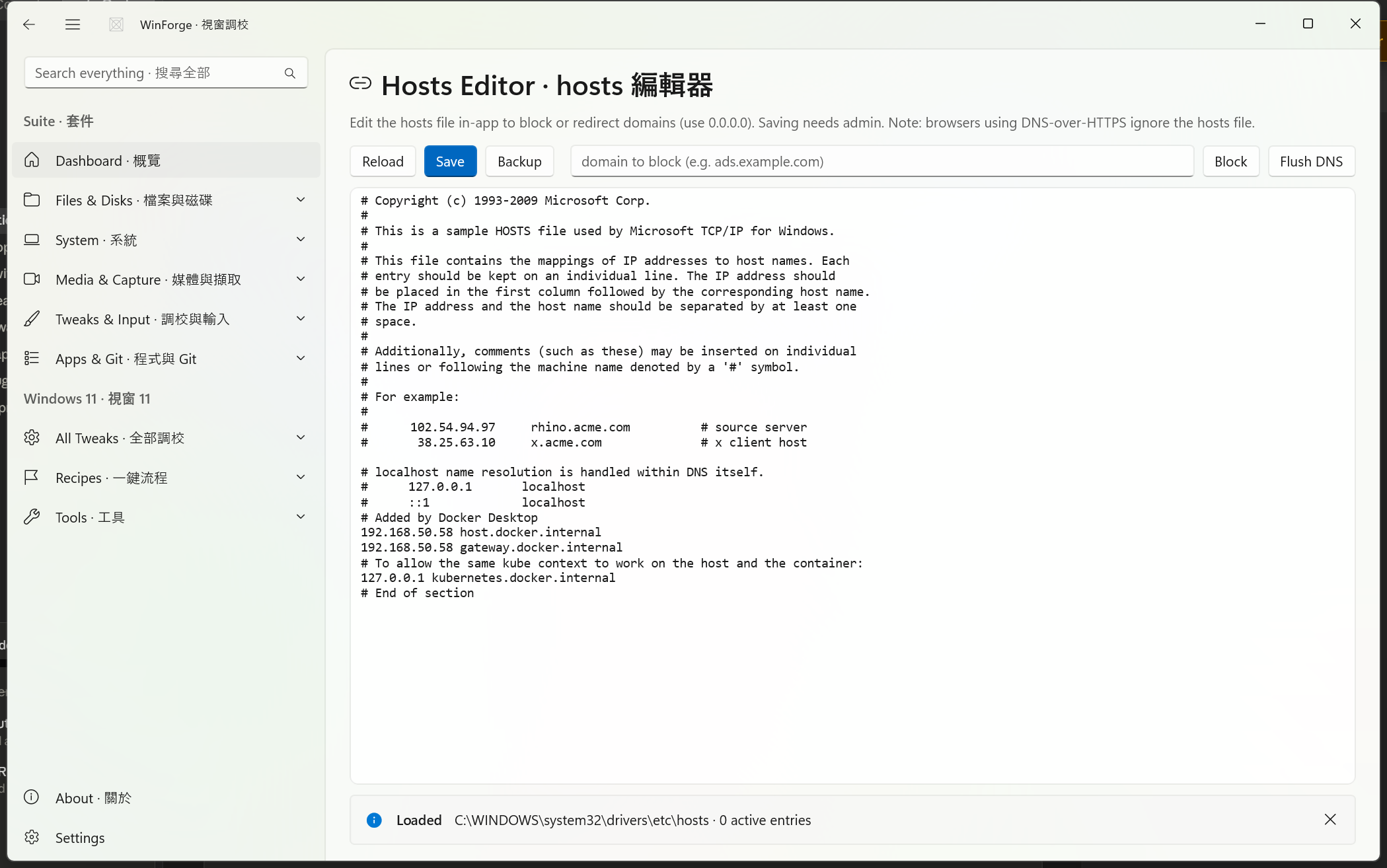
A native editor for C:\Windows\System32\drivers\etc\hosts (HostsService) that replaces the old "open in Notepad" redirect. Edit the file in-app to block or redirect domains, back it up, save (admin) and flush the DNS cache.
喺 app 內直接編輯 hosts 檔,封鎖或重新導向域名,備份、儲存(管理員)同清 DNS。
- Reload · 重新載入 — re-reads the file and reports the path plus the count of active (non-comment) entries.
-
Block · 封鎖 — type a domain (e.g.
ads.example.com) and WinForge appends0.0.0.0 ads.example.com, skipping it if an active line already maps that domain. The change is staged in the editor — click Save to apply. -
Backup · 備份 — copies the live file to
hosts.wtbaknext to it. -
Save · 儲存 — writes the file. Without elevation this raises
UnauthorizedAccessExceptionand WinForge shows "Saving the hosts file needs administrator rights — relaunch WinForge as admin · 儲存 hosts 檔需要管理員權限". -
Flush DNS · 清 DNS — runs
ipconfig /flushdnsso your change takes effect immediately.
Note · 注意 — Browsers using DNS-over-HTTPS bypass the
hostsfile, so a blocked domain may still resolve inside such a browser even after a flush. WinForge states this directly in the header blurb.
Safety · 安全 — Saving overwrites the system
hostsfile and requires administrator rights. Use Backup first; a mistaken entry can break name resolution for the whole machine until corrected.
- Engine-missing bars never block you — they offer a one-click winget install and re-check automatically once it finishes.
- Cloudflare placeholders (
MYTUNNEL,app.example.com,http://localhost:8080) are meant to be edited on the card before you run the command. - For developer-facing sharing, Tailscale Serve/Funnel and Cloudflare quick tunnel overlap; quick tunnel needs no account, while Funnel needs your tailnet but gives a stable name. See also Module-Productivity for the dev-focused tooling that pairs with these.
Part of Home · WinForge wiki.
Each control on the live page is numbered on the screenshot below and explained in the legend — what every button, toggle, tab, box and label does, in English and 粵語. Captured from the running app via UI Automation. 下面每個控件都有編號,逐個解釋佢哋嘅功能同標籤意思。

| # | Control | What it is & does · 功能 | Label meaning · 標籤意思 |
|---|---|---|---|
| 1 | Button | App-wide Back button in the title bar — returns to the previously viewed module/page. | "Back" = go back to the previous page. |
| 2 | Button | App-wide Toggle Navigation button — collapses or expands the left-hand navigation pane so the content area gets more room. | "Toggle Navigation" = show/hide the side navigation menu. |
| 3 | Search box | Global Search everything box in the title bar (not specific to this module) — type to search across all of WinForge's modules and operations. | "Search everything · 搜尋全部" — English plus 粵語 "搜尋全部" = search across everything. |
| 4 | Button | One-click installer inside the warning bar that appears when cloudflared is not found. Clicking it installs cloudflared via winget automatically (no restart), then re-checks; the bar disappears once cloudflared is present. Only shown when the engine is missing. | "Install cloudflared automatically" = auto-install the cloudflared CLI. |
| 5 | Button | Quick action: runs cloudflared --version and prints the installed cloudflared version into the output panel at the bottom. |
"Version · 版本" — English plus 粵語 "版本" = the installed version. |
| 6 | Button | Quick action: runs cloudflared tunnel list and shows your named tunnels in the output panel. |
"List tunnels · 列出 tunnel" — 粵語 "列出 tunnel" = list your tunnels. |
| 7 | Button | Quick action: launches cloudflared tunnel login in a terminal, opening a browser so you can authorise this machine with your Cloudflare account (creates a cert.pem). |
"Login · 登入" — 粵語 "登入" = sign in / authorise this machine. |
| 8 | Button | Quick action: runs warp-cli status and shows the current Cloudflare WARP connection status in the output panel. |
"WARP status · WARP 狀態" — 粵語 "WARP 狀態" = the WARP connection status. |
| 9 | Button | Quick action: runs cloudflared update to update cloudflared to the latest release, with results in the output panel. |
"Update · 更新" — 粵語 "更新" = update cloudflared. |
| 10 | Search box | Filter operations box for the Operations list below. Type to live-filter the operation cards (by title, description and keywords) so only matching ones show. | "Filter operations… · 篩選操作…" — 粵語 "篩選操作" = filter the operations. |
| 11 | Button | Per-operation action button on an operation card (the captured one is the cloudflared version card). Clicking runs that card's command — here cloudflared --version — and shows the result. Many cards have such a button; the label reflects the action (Check, Show, Update, Set, Bind, Register, Status…). |
"Check · 查睇" — 粵語 "查睇" = check / look at. The action label for a read-only "show me" command. |
| 12 | Button | Another per-operation action button further down the Operations list (the captured one is the cloudflared help card). Clicking runs that card's command — here cloudflared help — and displays the output. |
"Show · 顯示" — 粵語 "顯示" = show / display. The action label for a command that prints information. |
How to use it · 點用: If the warning bar appears, click Install cloudflared automatically (4) first so the CLI is present. Use the quick action buttons (5–9) along the top for the common jobs — check the version, list tunnels, log in, see WARP status, or update — and read results in the output panel at the bottom of the page. For everything else, scroll the Operations list and run individual cards with their action button (11, 12); use Filter operations (10) to narrow the list. Note that many operations contain placeholders (MYTUNNEL, app.example.com, http://localhost:8080) you should edit to your own values, and long-running ones (tunnel run, quick tunnels, DoH proxy) open in a separate terminal window.

| # | Control | What it is & does · 功能 | Label meaning · 標籤意思 |
|---|---|---|---|
| 1 | Button | Goes back to the previous page in the app's navigation history. | "Back" — 返回上一頁。 |
| 2 | Button | Collapses or expands the left navigation pane. | "Toggle Navigation" — 開關左邊導覽列。 |
| 3 | Search box | App-wide search box in the title bar; type to find modules and settings. | "Search everything · 搜尋全部" — both halves mean search across the whole app. |
| 4 | Button | Appears in the "NordVPN not found" warning bar. Clicking it auto-installs NordVPN via winget (NordVPN.NordVPN); you then sign in once. |
"Install NordVPN automatically" — 自動安裝 NordVPN。Only shown when NordVPN isn't detected. |
| 5 | Dropdown | NordVPN country picker. The first entry is Quick connect (no country); pick a country to target it. Feeds the Connect button (#6). | Empty accessible name; it lists countries as "English · 粵語" plus a quick-connect default. |
| 6 | Button | Connects NordVPN — runs nordvpn connect to the chosen country (#5), or quick-connect if none is selected. |
"Connect" (UI shows 連接) — 連接。 |
| 7 | Button | Disconnects the active NordVPN session (nordvpn disconnect). |
"Disconnect" (UI shows 斷開) — 斷開連接。 |
| 8 | Dropdown | NordVPN specialty-group picker (e.g. P2P, Double VPN, Onion Over VPN); underscores in group names are shown as spaces. Feeds Connect group (#9). | Empty accessible name; lists NordVPN server groups. |
| 9 | Button | Connects to the selected NordVPN group (nordvpn connect <group>). |
"Connect group" (UI shows 連接群組) — 連接到所選群組。 |
| 10 | Toggle / 開關 | Meshnet on/off switch. Turning it on/off runs nordvpn meshnet on/off to link your own devices over NordVPN's mesh. (Icon-only here — no accessible text.) |
No name in the legend; this is the Meshnet enable toggle under "Meshnet (link your own devices) · Meshnet(連接自己嘅裝置)". |
| 11 | Button | Lists your Meshnet peer devices (nordvpn meshnet peer list) and shows them in the result bar. |
"List Meshnet peers" (UI shows 列出 Meshnet 裝置) — 列出 Meshnet 上嘅裝置。 |
| 12 | Button | Appears in the "Tailscale not found" warning bar. Auto-installs Tailscale via winget (tailscale.tailscale); you then sign in once. |
"Install Tailscale automatically" — 自動安裝 Tailscale。Only shown when Tailscale isn't detected. |
| 13 | Button | Brings Tailscale up / connects this machine to your tailnet (tailscale up), then refreshes status. |
"Up (connect)" (UI shows Up(連接)) — 連接(Up)。 |
| 14 | Button | Takes Tailscale down / disconnects (tailscale down), then refreshes status. |
"Down" (UI keeps Down) — 斷開(Down)。 |
| 15 | Button | Refreshes and shows Tailscale status and the mesh-devices list in the console. | "Status" (UI shows 狀態) — 狀態。 |
| 16 | Button | Shows this machine's Tailscale IP address (tailscale ip). |
"My IP" (UI shows 我嘅 IP) — 我嘅 IP 地址。 |
| 17 | Dropdown | Exit-node picker; lists available exit nodes as "name · ip". Selecting one feeds Use exit node (#18). Shows "(no exit nodes found)" when empty. | Empty accessible name; the Tailscale exit-node chooser. |
| 18 | Button | Routes all traffic through the chosen exit node (tailscale set --exit-node <ip>). |
"Use exit node" (UI shows 用出口節點) — 用所選嘅出口節點。 |
| 19 | Button | Clears the exit node so traffic stops routing through it (tailscale set --exit-node=). |
"Clear" (UI shows 清除) — 清除出口節點。 |
| 20 | Checkbox | Advertises this PC as an exit node so other tailnet devices can route through it (tailscale set --advertise-exit-node); must still be approved in the Tailscale admin console. |
"Offer this PC as an exit node (approve in admin console)" (UI: 將呢部機提供做出口節點(喺管理主控台批准)) — 自薦做出口節點,要喺管理主控台批准。 |
| 21 | Search box | Local-port input for sharing. The numeric port you type here is used by Serve (#22) and Funnel (#23). | Empty accessible name; the port number to share via Serve/Funnel. |
| 22 | Button | Serves the given local port inside your tailnet over HTTPS (tailscale serve), then shows serve status. |
"Serve" — 喺 tailnet 內分享(Serve)。 |
| 23 | Button | Funnels the given local port to the public internet (tailscale funnel), then shows status. |
"Funnel" — 公開到全互聯網(Funnel)。 |
| 24 | Button | Shows current Serve/Funnel sharing status (tailscale serve status). |
"Share status" (UI shows 分享狀態) — 分享狀態。 |
| 25 | Button | Stops Serve sharing and resets it (tailscale serve reset). |
"Stop Serve" (UI shows 停止 Serve) — 停止 Serve。 |
| 26 | Button | Stops Funnel sharing and resets it (tailscale funnel reset). |
"Stop Funnel" (UI shows 停止 Funnel) — 停止 Funnel。 |
| 27 | Dropdown | Tunnel-type picker for the built-in Windows VPN section — choose IKEv2 / L2TP / SSTP / PPTP for a new profile, used by the "Add" action with the profile name and server address. | Empty accessible name; lists Windows VPN tunnel types as "English · 粵語". |
How to use it · 點用 — Each engine has its own block, and a yellow notice with an auto-install button (#4, #12) appears when the tool isn't found yet. For NordVPN, pick a country (#5) and Connect (#6), or choose a specialty group (#8) and Connect group (#9); Disconnect (#7) ends the session, and the Meshnet toggle (#10) plus List peers (#11) manage your own linked devices. For Tailscale, Up/Down (#13/#14) connect or disconnect, Status (#15) and My IP (#16) report state, the exit-node picker (#17) with Use/Clear (#18/#19) routes through another node while the checkbox (#20) offers this PC as one, and the port box (#21) with Serve/Funnel (#22/#23) shares a local port either inside your tailnet or to the public internet. To add a built-in Windows VPN profile, choose a tunnel type (#27) and supply a name and server address before adding it; WireGuard tunnels are imported from a .conf file (importing or removing one needs administrator).

| # | Control | What it is & does · 功能 | Label meaning · 標籤意思 |
|---|---|---|---|
| 1 | Button | Returns to the previous page in WinForge's navigation history. Part of the app shell, not the module itself. | "Back" = go back · 返回上一頁。 |
| 2 | Button | Collapses or expands the left navigation pane so the connections table gets more width. Part of the app shell. | "Toggle Navigation" = show/hide the side menu · 開關側邊導覽欄。 |
| 3 | Search box | The global app-wide search at the top of the shell — type to jump to any WinForge module or setting. Not specific to this page. | "Search everything · 搜尋全部" — search across the whole app; 搜尋全部 = search everything. |
| 4 | Dropdown | The protocol filter (ProtoBox). Choose All / 全部, TCP, or UDP to show only that kind of socket; changing it immediately re-runs the snapshot. |
Icon-only here, but its choices read All·全部 / TCP / UDP — pick which transport protocol to list. |
| 5 | Filter box | Free-text filter (FilterBox). As you type, the list keeps only rows whose process name, local or remote address, state, or PID contains your text (case-insensitive). |
"Filter by process, address or port…" / 用程序、位址或連接埠篩選… — type a process name, IP/host, or port number to narrow the list. |
| 6 | Toggle / 開關 | The auto-refresh switch (AutoSwitch). When On, a timer re-snapshots every 2 seconds so the table stays live; turn it Off to freeze the current view. Defaults to On. |
"Auto" / 自動 — automatic periodic refresh; 自動 = automatic. |
| 7 | Button | The manual refresh button (RefreshBtn, arrow-circle glyph). Click to re-read all live TCP/UDP sockets right now, regardless of the Auto setting. |
Icon-only (no label) — a circular-arrow "refresh / 重新整理" icon. |
| 8–28 | Buttons (per-row actions) | Rows 8–28 are the per-connection action buttons that sit at the right end of each table row. Each row can show up to two: a Drop connection button (trash/disconnect glyph, only shown when the socket can be killed) which calls KillTcp to tear down that single connection, and an End process button (×/close glyph) which calls SystemMonitor.Kill to terminate the owning process (System/Idle, PID ≤ 4, are protected). Both actions need admin rights and report the outcome in the result bar. |
Icon-only buttons with tooltips: "Drop this connection · 切斷呢條連線" (cut just this socket) and "End process · 結束程序" (kill the whole owning app). |
How to use it · 點用 — Leave Auto · 自動 (6) on to watch sockets appear and disappear in real time, or turn it off and use Refresh (7) to take a manual snapshot. Narrow the list with the protocol dropdown (4) and the free-text filter (5) — for example type a port like 443 or an app name to find who's talking to where. When you spot an unwanted connection, hover its row and use the row's Drop connection button to cut just that socket, or End process to close the owning app entirely; both need WinForge running as administrator, and the green/amber bar above the table tells you whether it worked.

| # | Control | What it is & does · 功能 | Label meaning · 標籤意思 |
|---|---|---|---|
| 1 | Button | App-shell back button — returns you to the previous page in WinForge's navigation history. Not part of the module itself. | "Back" — go back / 返回上一頁. |
| 2 | Button | App-shell button that collapses or expands the left navigation pane (hamburger). Not part of the module. | "Toggle Navigation" — show/hide the side menu / 開關側邊導覽。 |
| 3 | Search box | App-shell global search box for finding modules and settings across WinForge. Not specific to this page. | "Search everything · 搜尋全部" — search across the whole app; 搜尋全部 = search everything. |
| 4 | Text box | Type a single domain you want to block here, then press Block (8). WinForge prepends a 0.0.0.0 <domain> line to the editor so the domain resolves nowhere. Field clears after blocking. |
Placeholder "domain to block (e.g. ads.example.com)" / 要封鎖嘅域名(例如 ads.example.com)— the domain you want blackholed, with an example. |
| 5 | Button | Re-reads the hosts file from disk into the editor, discarding unsaved edits, and reports the file path plus how many active entries it contains. | "Reload" / 重新載入 — load the file again from disk. |
| 6 | Button | Writes the editor contents back to the hosts file. Needs administrator rights; if WinForge isn't elevated it shows an error asking you to relaunch as admin. After saving you should Flush DNS (9) to apply. | "Save" / 儲存 — save changes to the hosts file. |
| 7 | Button | Makes a timestamped backup copy of the current hosts file (before you make risky edits) and shows the backup's destination path. | "Backup" / 備份 — back up the current hosts file. |
| 8 | Button | Takes the domain typed in box 4 and inserts a 0.0.0.0 <domain> blocking line into the editor. If the box is empty it warns you. The line is only in the editor until you press Save (6). |
"Block" / 封鎖 — add a block entry for the typed domain. |
| 9 | Button | Runs ipconfig /flushdns to clear Windows' DNS resolver cache so your hosts changes take effect immediately. |
"Flush DNS" / 清 DNS — clear the DNS cache. |
| 10 | Multi-line text editor | The main editing surface showing the full hosts-file text. Edit lines directly here (comments start with #); changes apply only after Save. |
No label (icon-less editor) — this is the live contents of the hosts file. |
| 11 | Button | Closes the status/notification bar (the InfoBar that reports Loaded / Saved / Backed up / errors). | "Close" / 關閉 — dismiss the result message banner. |
How to use it · 點用 — When the page opens it auto-loads the hosts file into the editor (10) and shows the path plus active-entry count. To blackhole an unwanted domain, type it into box 4 and press Block (8) — or edit lines by hand in the editor — then press Backup (7) if you want a safety copy. Press Save (6) to write the file (run WinForge as administrator, or saving fails), and finally Flush DNS (9) so the change takes effect. Use Reload (5) any time to discard edits and pull the on-disk version back. Note: browsers using DNS-over-HTTPS bypass the hosts file entirely.