Repository navigation
Git Mergetool
You can use Nibtree's three pane Merge Tool from the Terminal too. After a one-time setup, git mergetool opens each conflicted file in a Nibtree window, and closes it again when you are done.
This is handy if you do most of your git work on the command line but like a visual tool for conflicts.
Run these lines once in the Terminal. They assume Nibtree is in your Applications folder.
APP="/Applications/Nibtree.app/Contents/MacOS/nibtree"
git config --global mergetool.nibtree.cmd "\"$APP\" merge \"\$BASE\" \"\$LOCAL\" \"\$REMOTE\" \"\$MERGED\""
git config --global mergetool.nibtree.trustExitCode true
git config --global merge.tool nibtreeWhat each line does:
-
APP=...stores the path to the program inside the app, just to keep the next line short. -
mergetool.nibtree.cmdtells git how to start Nibtree. The wordmergeswitches the app into merge tool mode, followed by the four files git prepares: the common ancestor (BASE), your version (LOCAL), the other version (REMOTE) and the file to write the result to (MERGED). -
trustExitCode truelets git read from Nibtree whether you finished the file or gave up. -
merge.tool nibtreemakes it the toolgit mergetooluses by default.
Leave out --global to set it up for one repository only. If the app lives somewhere else, change the APP path.
On Windows, run the same lines in Git Bash (it comes with Git for Windows), with this APP line instead:
APP="$(cygpath -m "$LOCALAPPDATA")/Nibtree/nibtree.exe"- Run a merge, rebase or pull that stops on conflicts.
- Run
git mergetool. - For each conflicted file, a Nibtree window opens.
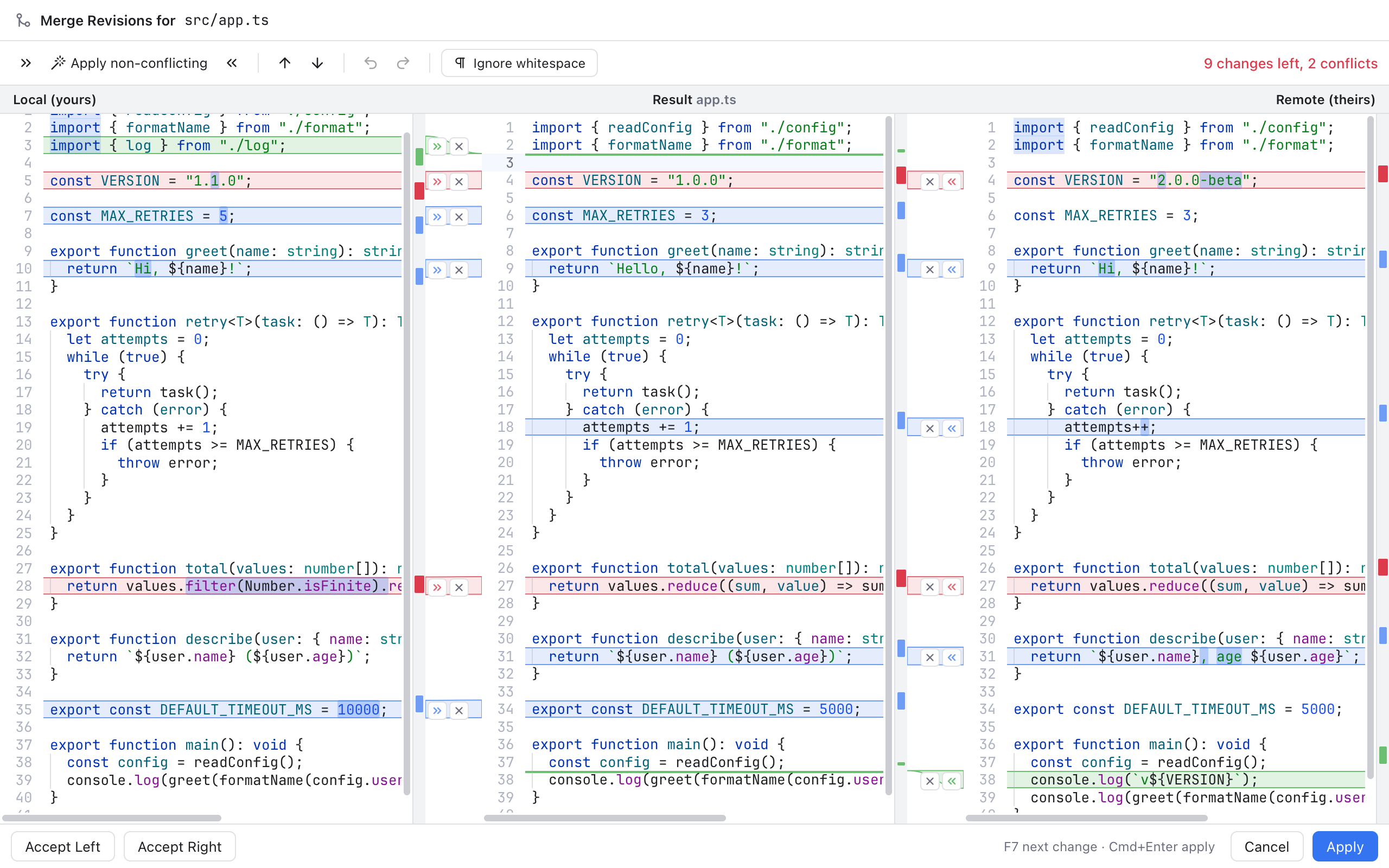
The merge tool in its own window, opened by git mergetool.
The window has only the merge tool. Its heading reads Merge Revisions for and the file, such as src/app.ts; the window's own title bar says Merge app.ts. The left pane is Local (yours), the right pane is Remote (theirs), and the Result is in the middle. The top right counts what is left, for example 9 changes left, 2 conflicts. Everything from the Merge Tool page works here: apply and ignore buttons, Apply non-conflicting, F7 navigation, undo and Ignore whitespace.
Turning Ignore whitespace on or off here also saves it as your default (the same switch as in Settings > Git).
When you are done with the file:
-
Apply (or Cmd+Enter, from any pane) writes the result to the file and closes the window. Nibtree tells git it succeeded, so git marks the file as resolved and moves on to the next one. If changes are still unresolved, or the result still has conflict markers (
<<<<<<<), you are asked first (Save Anyway). - Cancel (or Esc), or closing the window, leaves the file untouched. Nibtree tells git it did not finish, so the file stays unresolved. If you changed anything, you are asked (Discard Changes) before it is thrown away. Quitting with Cmd+Q also leaves the file unresolved, but without asking.
Accept Left and Accept Right also work: they resolve the whole file with one side and close the window.
After the last file, finish the operation in the Terminal as usual, for example git merge --continue or git rebase --continue.
- Git keeps a backup of each conflicted file with a
.origending. If you do not want those, rungit config --global mergetool.keepBackup false. - Binary files (such as images) cannot be merged as text. The window says so and offers Quit; resolve those with
git checkout --oursorgit checkout --theirsinstead. - If the files git passed cannot be read, the window says Could not load the files passed by git mergetool with the reason, and offers Quit.
- The merge window does not check for updates or show What's New, and it never starts the MCP server. Its menu bar is short: Nibtree (with Settings...), Edit, Window and Help.
- If git passes an empty or missing ancestor (for example when both sides added the same file), the merge starts from an empty result.
- Opening the full app is separate: starting Nibtree with a folder or a workspace file instead of
mergeopens it normally, for example"$APP" ~/code/acme.
These pages are generated from docs/wiki. To correct something, open a pull request against the source file; edits made here are overwritten.
Using Nibtree
- Getting Started
- Welcome Screen
- Workspaces
- Files Panel
- File Operations
- File Icons
- Rounded Panels
- Editor and Tabs
- Pin Reorder and Wrap Tabs
- Single Tab Title
- Split Editor
- New File and Unsaved Changes
- Unload Hidden Tabs
- Editing Code
- Code Appearance
- Markdown Editor
- Image and PDF Preview
- Search Everywhere
- Recent Files
- Navigation Bar
- Find and Replace
- Changes and Commits
- Sign In Prompts
- Commit Box Layout
- Repository Actions
- Commit Options
- Ignoring Files
- Diffs
- Inline Diffs
- Staging View
- Revert a Change
- Resolving Conflicts
- Merge Tool
- Blame
- History and Log
- Merge Commits
- Branches and Tags
- Branches Popup
- Remotes
- Stashes
- Shelf
- Git Menu
- Git Dialogs
- Interactive Rebase
- Worktrees
- AI Agents
- AI Tasks
- AI Usage
- Keep Computer Awake
- Submodules
- Git LFS
- GitHub
- Git Console
- Terminal
- Terminal Features
- Scripts
- Navigation
- Menus
- Settings
- Settings Search
- Color Themes
- Settings Terminal and Automation
- Settings Files
- Updates
- Status Bar and Help
- Notifications
- Memory Use
- Clear Cache
- MCP and CLI
- Git Mergetool
- Keyboard Shortcuts
- Keyboard Shortcuts Editor
- Troubleshooting
- Troubleshooting Git
Developers
- Developer Guide
- Architecture
- Project Layout
- Backend
- How Folder Watching Works
- Folder Watching Bugs We Fixed
- How Workspace Files Work
- How the Preview Scheme Works
- Backend Services
- How Terminal Features Work
- Terminal Bugs We Fixed
- Frontend
- How the Rich Markdown Editor Works
- Rich Markdown Bugs We Fixed
- Git Menu Links
- Menu Keys and Routing
- Frontend Modules
- Blame Bugs We Fixed
- Project Color And Title Bar
- One Diff View
- Diff Bugs We Fixed
- Merge Tool Layouts
- Merge Tool Bugs We Fixed
- Color Theme Bugs We Fixed
- How the Connected Diff Works
- Rounded Panels Bugs We Fixed
- Update Bugs We Fixed
- Status Bar Bugs We Fixed
- MCP and CLI Bugs We Fixed
- Repository Actions Bugs We Fixed
- How the Changes Tab Works
- CodeMirror Patterns
- How the Cursor Works
- How Editor Features Work
- How the Path Bar Works
- Commands and Events
- Settings Reference
- Commands Workspace and Changes
- Commands Branches and Remotes
- Commands History and Extras
- Commands App and Tools
- Testing
- Test Suites
- Debugging
- Debugging with MCP
- Measuring Setting Memory
- How Terminal Memory Is Measured
- How Markdown Diagrams Work
- Releases and CI
- Publishing the Wiki
- Versioning and Changelog
- Browser Version Packages
- Browser Release Checks
- Docker Image
- Platforms and Signing
- Windows Support
- Windows Bugs We Fixed
- Windows MCP and CLI
- Docs and Screenshots
- UI Library
- UI Library MCP
- UI Library Bugs
- UI Library Migration
- Contributing
How features work
- Welcome screen
- Workspaces and folders
- Files panel
- File operations
- File icons
- Editor and tabs
- Pin, reorder and wrap tabs
- Single tab title
- Split editor
- New File and unsaved changes
- Unload hidden tabs
- Editing code
- Code appearance
- Markdown editor
- Image and PDF preview
- Search Everywhere
- Recent Files
- Navigation Bar
- Find and replace
- Changes and commits
- Sign-in prompts
- Commit box layout
- Repository actions
- Commit options
- Ignoring files
- Diffs
- Inline diffs
- Staging view
- Revert a change
- Resolving conflicts
- Merge tool
- Blame
- History and log
- Merge commits
- Commit tabs
- Branches and tags
- Branches popup
- Remotes
- Stashes
- Shelf
- Git menu
- Git dialogs
- Interactive rebase
- Worktrees
- AI agents
- AI usage
- Keep computer awake
- AI tasks
- Submodules
- Git LFS
- GitHub account
- Git Console
- Back and Forward
- Integrated terminal
- Scripts tool window
- Menu bar
- Settings
- Search in Settings
- Color themes
- Rounded panels
- Updates and release channels
- Status bar and help links
- Notifications
- Memory readout and memory log
- Clear Cache
- MCP server and command line tool
- git mergetool mode