Repository navigation
Terminal Features
The terminal does more than run a shell. You can split it, search its output, Cmd+click file paths, drop files on it and rename it. The basics (opening, the header, several terminals, editor tabs) are on Terminal.
Every optional part has a switch in Settings, Terminal. A part that is off is not loaded at all, so it uses no memory. See Terminal, GitHub and Automation Settings.
Split a terminal to see two shells side by side, for example a dev server next to your git commands.
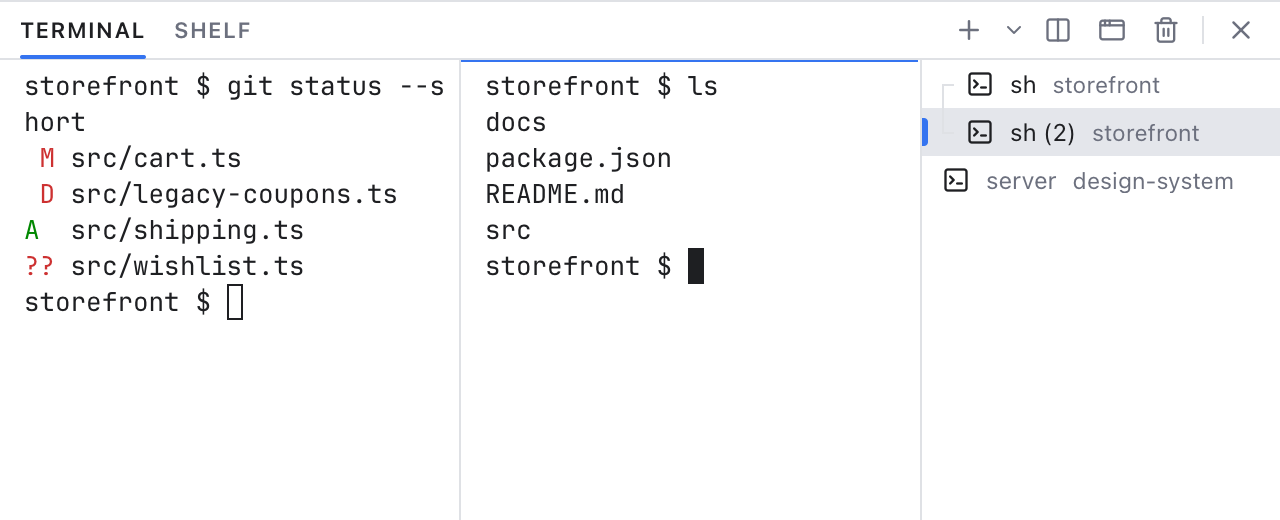
Two split terminals side by side. In the list on the right, a thin line joins the split pair; the third terminal stands alone.
- Click Split Terminal in the panel header, press Cmd+\ in a terminal (Ctrl+Shift+5 on Windows and Linux), or right-click a terminal and choose Split Terminal.
- The new terminal starts in the same folder with the same shell, to the right of the one you split. You can split again for three or more.
- Drag the line between two terminals to change their widths. Double-click it to make the two equal again.
- Click into a terminal to work in it. The focused one has a thin colored line on top, and the header buttons (Kill, Move, Split) act on it.
- Kill one of them and its neighbor takes the room.
Split terminals belong to the panel. Moving one into the editor area takes it out of its group, and the others stay split.
Double-click a name in the terminal list, or the name in the header when there is only one terminal. Type a new name and press Enter. Esc keeps the old one. You can also right-click and choose Rename.... Names last until you close the terminal or quit.
Press Cmd+F in a terminal (Ctrl+Shift+F on Windows and Linux), or right-click and choose Find.... A small bar opens in the top right corner of the terminal.

Find in the terminal: every match is highlighted, the current one stronger, with the count beside the field.
- Type to search. Text you selected on one line becomes the search.
- Enter goes to the previous match, which is older output, higher up. Shift+Enter goes down to the next one. The arrow buttons do the same.
-
Cc, W and .* turn on Match Case, whole Words and Regex (a regular expression, a pattern such as
err(or)?). Option+C, Option+W and Option+X toggle them from the keyboard. - The count shows "3 of 12", or "No results". Up to 1000 matches are counted.
- Esc closes the bar and puts you back in the terminal.
New output is searched as it arrives. Find in terminal in Settings turns this off.
Tools print file paths all the time: compiler errors, test failures, git status. Hold Cmd (Ctrl on Windows and Linux) and point at one: it gets an underline. Cmd+click it to open the file in the editor, at the line and column when the path has them.
These forms work: src/cart.ts, src/cart.ts:12, src/cart.ts:12:5 and src/cart.ts(12,5). Paths from git diff such as a/src/cart.ts work too.
- Relative paths are read from the terminal's folder. If your shell reports its folder after
cd(some prompts and shell setups do), that folder is used; otherwise the folder the terminal started in. - Only files that exist inside an open workspace folder become links.
- Web addresses are links too: Cmd+click opens them in your browser.
Clickable file paths in Settings turns file links off.
Drag files or folders from Finder (File Explorer on Windows) onto a terminal. A blue outline shows where they will land. Drop them, and their paths are typed at the prompt, quoted when they contain spaces or special characters, with a space after them. Nothing runs until you press Enter. Dropping on the Files panel still copies files, as before.
Drop files to type their paths in Settings turns this off.
Right-click inside a terminal for Copy, Paste, Select All, Clear and Find..., then the terminal's own items:
- New Terminal Here: a new terminal with the same shell and folder.
- Split Terminal: only in the panel.
- Rename...
- Move Terminal into Editor Area or Move Terminal into Panel.
- Kill Terminal: closes at once, without asking.
A row in the terminal list, and the name in the header, have the same terminal items.
On a Mac:
- Cmd+C copies the selection. With nothing selected it does nothing.
- Cmd+V pastes, Cmd+A selects everything and Cmd+K clears the terminal.
- Cmd+F finds and Cmd+\ splits.
- Other Cmd shortcuts, such as Cmd+B (Files panel), still work in the app. Everything else goes to the shell, so Ctrl+C stops a command as usual.
- Option types special characters, as in Terminal.app. Turn on Option as Meta key to use Option+B and Option+F to move by word, and other shortcuts from emacs (a text editor whose keys many shells use).
On Windows and Linux, copy and paste are Ctrl+Shift+C and Ctrl+Shift+V, and links open with Ctrl+click. All keys are on Keyboard Shortcuts.
- Visual bell: when the shell rings its bell (for example after a failed Tab completion), the terminal flashes briefly. A terminal that is out of sight gets a dot in the list instead. On by default.
- Smooth scrolling: scrolling with the mouse wheel glides instead of jumping. Off by default.
- GPU acceleration: the terminal draws with the graphics card (WebGL), which keeps busy output smooth. If the graphics card is not available, or stops working, it goes back to normal drawing by itself. It uses about 70 MB more for the first terminal, mostly graphics memory, and about 10 MB for each other one; turn it off to save that. With Font ligatures on, the terminal always uses normal drawing, since ligatures need it.
- Unicode 11 widths: emoji and wide characters (such as Chinese and Japanese) take the right number of columns, so the text after them lines up. It applies to output printed after you change it.