Repository navigation
Updates
Nibtree checks GitHub now and then for a newer version and tells you when one is out. It never downloads or installs anything on its own: you decide when to update.
- About 30 seconds after the app starts, and then every 6 hours, it asks GitHub for the list of releases.
- If a newer version is out on your channel, Update available: 1.2.0 appears on the right of the status bar. A beta adds (beta), as in Update available: 1.2.0-beta.1 (beta).
- Click it to open the update window.
If you are offline, or GitHub does not answer, the automatic check fails quietly and tries again later. Nothing pops up. Windows that git mergetool opens (see Git Mergetool) do not check for updates or show What's New.

Nibtree 0.1.0 is available: the notes of the two releases since 0.1.0-beta.1, and the buttons.
The window's title names the new version, such as Nibtree 0.1.0 is available. Below it you see the version you have and the notes of every release since yours, newest first, each with its date. Beta releases carry a Beta tag. Its buttons:
-
Download opens the new installer in your browser: the
.dmgon a Mac, the-setup.exeon Windows (or the release page if there is none). - Later closes the window. The status bar keeps showing the update.
- Skip This Version closes the window and stops announcing this version (see below).
- View on GitHub opens the release page.
Esc closes the window, like Later.
After Skip This Version, the status bar and the automatic checks stay quiet about that version and any older one. A newer release is announced as usual. Checking by hand with Check Now still shows it, marked You skipped this version., with Stop Skipping in place of Skip This Version.

Check Now for a skipped 0.1.0: the note You skipped this version. and Stop Skipping in place of Skip This Version.
Stop Skipping undoes the skip, and the status bar shows the update again.
To install on a Mac, open the downloaded .dmg and drag Nibtree into Applications, replacing the old copy. On Windows, quit Nibtree and run the downloaded -setup.exe; it replaces the old version. Your settings are kept, since they live in ~/.nibtree (C:\Users\<you>\.nibtree on Windows, see Settings).
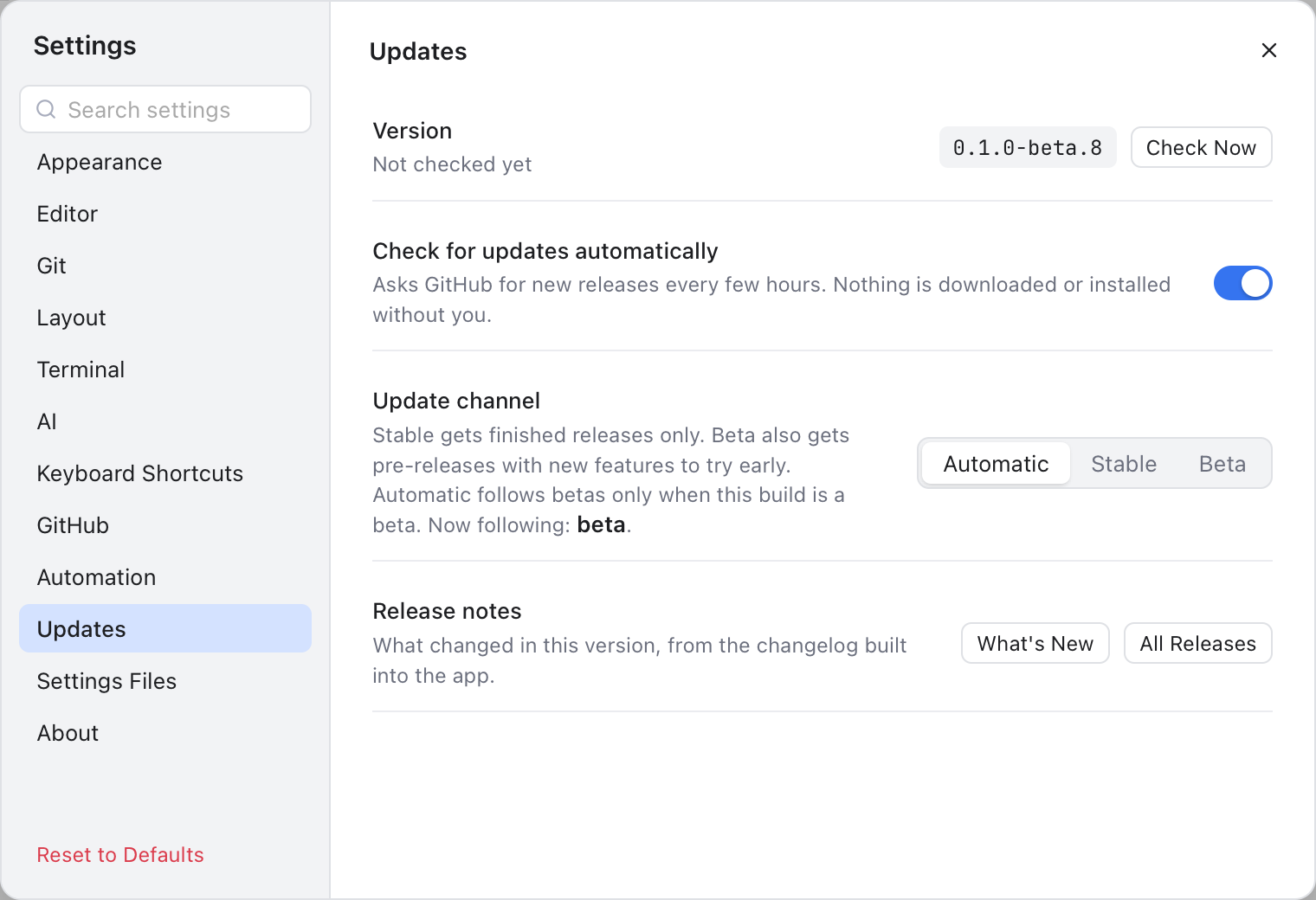
The version, the automatic check and the update channel.
- Version shows the version you run and when it last checked: "Not checked yet", "Checking...", "Checked 5 min ago: up to date" or "Last check failed" with the reason. Check Now (or Nibtree > Check for Updates... in the menu bar) checks right away. If there is a newer version, the update window opens (for a version you skipped, it says so and offers Stop Skipping); otherwise a note says Nibtree is up to date. If the newest version is one you skipped, the Version line says (skipped) after it.
- Check for updates automatically (on by default) turns the regular check on or off. Check Now still works when it is off.
- Update channel picks which releases you hear about (see below). The default is Automatic. Changing it checks again at once, quietly.
- Release notes: What's New shows the notes for your version, All Releases opens the list on GitHub.
- Skipped version appears after you skip one. Announce Again (or Stop Skipping in the update window) undoes the skip.
New features first go out as betas, test versions such as 1.2.0-beta.1. On GitHub they are marked as pre-releases. Once a beta has proven itself, it becomes a stable release such as 1.2.0.
The Update channel setting decides which of these you are offered:
- Stable: finished releases only.
- Beta: betas too, so you can try new features early.
- Automatic (the default): a beta build follows betas, a stable build follows stable releases. Settings shows which one it is following now.
flowchart LR
    B["Beta release 1.2.0-beta.1"] --> S["Stable release 1.2.0"]
    B -- "offered to" --> BC["Beta channel"]
    S -- "offered to" --> BC
    S -- "offered to" --> SC["Stable channel"]
A stable install is never moved to a beta unless you choose Beta yourself. When a beta line ends in a stable release, beta users are offered that stable release too.

What changed in the version you just installed.
After you update, What's New in Nibtree and the version opens once, the first time the new version starts, and lists what changed. The notes are built into the app, so this works offline. A beta build says "A beta build: these changes are still being tested."
- Earlier versions unfolds the notes of older releases.
- All releases on GitHub opens the full list.
- Got It (or Esc) closes the window.
You can open it again any time with Help > What's New, from Settings, Updates (What's New) or Settings, About (Release Notes). Help > Release Notes opens the list of releases on GitHub.
Click Check Now in Settings, Updates: a Could not check for updates note shows the reason, and the Version line keeps it. Common ones are no internet connection, "GitHub rate limit reached, try again later", or "The update check timed out". See Troubleshooting.