Repository navigation
AI Agents
The AI panel runs AI coding agents, such as Claude Code or Codex, next to your code. Each project of your workspace is listed with its worktrees, and each worktree with the agents working in it. An agent runs in its own editor tab, and the panel shows what it is doing.

The AI panel: storefront has a worktree for a fix, and Claude Code is working in it.
Click the robot button in the right activity bar, under the Files button, or choose View > AI Agents. The panel opens on the right, in place of the Files panel. Click the button again, or the X in the panel, to hide it. Click the Files button to go back to the file tree.
Every folder of your workspace is a project, marked folder, and so is every repository found in it. Start an agent in a folder project to work in that folder, git or not; agents in its subfolders are listed under it too. A workspace folder that is a repository itself is listed once, as the repository.
Under each repository the panel shows a card for each of its worktrees. A worktree is an extra checkout of the same repository in its own folder, with its own branch (see Worktrees). Agents in different worktrees never touch each other's files, so you can let several agents work at once, each on its own task.
A card shows the branch on top and the folder below it, then the agents working there. The repository's own folder is marked primary; a worktree whose folder is gone is marked missing. Hover a card for its + (start an agent) and ... (more actions) buttons.
Type in Filter to find a worktree or agent by its branch, folder, name or task. Click a project's name to fold it.
If your workspace opened a worktree as a folder of its own, it is still listed once, under its repository.
- Hover a worktree and click +, then pick an agent. The agent starts in that worktree.
- Click New Agent at the top of the panel, or choose View > New AI Agent..., to start one in the active repository.
- Right-click a project or worktree and choose Start Agent.
The menu lists the agents installed on your Mac: Claude Code, Codex, Gemini CLI, OpenCode, Cursor CLI, GitHub Copilot CLI, Aider, Amp and Qwen Code. Nibtree looks for them where your terminal does, on your login shell's PATH. Blank Terminal opens a plain terminal in the same folder. If you install an agent while the app runs, click Refresh in the panel.
The agent opens in a new editor tab, like a terminal tab. Above its output, a dimmed line shows the command that started it. Type to it as you would in a terminal.

The + after an agent's tab starts another agent or a terminal in the same worktree.
While an agent's tab is shown, a + follows the tabs. Click it to start another agent, or a Blank Terminal, in the same worktree; the new tab opens in the same editor group.
Click + next to a repository for New Task: a task name becomes a branch and a worktree with an agent in it, and several agents can race on the same task. See AI Tasks. For full control, right-click the repository and choose New Worktree...: pick a branch and a folder as in Worktrees, and Then start an agent.
Each agent row shows its state, a short mark for the agent (CC for Claude Code, Cx for Codex...), what it is working on (when the agent says so) and how long ago its state changed (now, 4m, 2h):
| Mark | State | Meaning |
|---|---|---|
| Spinner | Starting, Working | The agent starts or works on a request. |
| Orange ? | Needs you | It asks a question or needs your permission. |
| Green check | Done | It finished and waits for the next request. |
| Empty ring | Ready | It waits for your first request. |
| Square | Exited | The agent closed. |
A card takes the mark of its most urgent agent. Above the list, 1 needs you and 2 working count the agents; click needs you to jump to the agent that is waiting.
Agents show their state in the terminal title, and the panel reads it from there. When an agent in a hidden tab finishes or needs you, its tab gets a dot, and so does the robot button while the AI panel is hidden.
Click an agent row to show its tab. Right-click it for Restart Agent, Stop Agent, Rename... and Close Agent Tab. When an agent exits, its tab stays with the last output and a Restart button.

The first agent you start asks how agents should work.
The first time you start an agent, Nibtree asks how agents should work:
- Ask before acting: the agent asks you before it edits files or runs commands.
-
Full autonomy: the agent acts without asking. Nibtree adds the agent's own flag for this, for example
--dangerously-skip-permissionsfor Claude Code. This is safest in a worktree of its own.
Your answer is remembered. Change it any time in Settings > AI.

Settings > AI: the permission mode and every agent, found or not.
Settings > AI has:
- Agent permissions: Ask on first start (the default), Ask before acting or Full autonomy.
- Usage in status bar: see AI Usage.
- Link into new worktrees: see AI Tasks.
- Agents: each agent with where it was found. Look Again searches the PATH again.
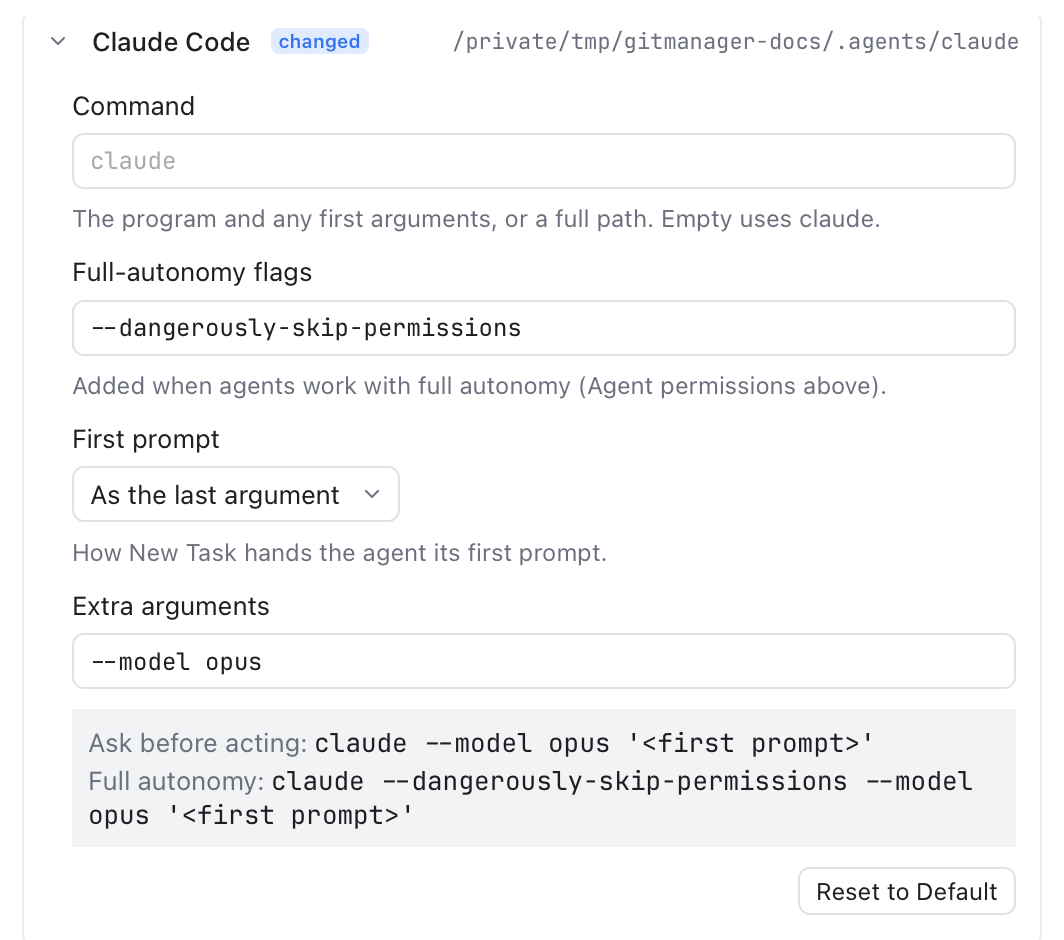
Claude Code's command, flags and first prompt, with a preview of what runs.
Click an agent in Settings > AI > Agents to change what starts it. If a provider renames its command or a flag, change it here; no app update needed.
-
Command: the program and any first arguments, such as
claude,npx -y @openai/codexor a full path. Empty uses the default. -
Full-autonomy flags: added in full-autonomy mode, such as
--dangerously-skip-permissions. Empty the field for none. - First prompt: how New Task hands the agent its prompt: as the last argument, after a flag you type, typed into it once it starts, or not at all.
-
Extra arguments: added each time it starts, such as
--model opus.
The gray box shows the command each permission mode runs. Reset to Default undoes your changes.
- Agents run with your own account and settings, exactly as in a terminal. Nibtree never sends anything to them by itself.
- Agent tabs are not reopened after you quit the app; your worktrees stay.
- Clear Cache keeps agents running, like terminals.
- Closing an agent's tab stops the agent. Removing a worktree from the panel (right-click, Remove Worktree...) closes the agents in it first.
- Worktrees
- Terminal
- MCP and CLI: AI tools can also drive Nibtree itself.