Repository navigation
Getting Started
Nibtree is a small, fast Git app for macOS and Windows. It shows what changed in your projects, lets you commit, switch branches and sync with a server, and has a friendly three pane tool for fixing merge conflicts.
Open the Releases page on GitHub and look under the newest release.
- Download the
.dmgfile. It works on both Apple Silicon and Intel Macs. - Open the
.dmgand drag Nibtree into your Applications folder. - The first time only: builds are not signed by Apple yet, so macOS warns about an "unidentified developer". Right-click (or Control-click) the app in Applications and choose Open, then Open again in the warning. After that it opens normally. If macOS still refuses, see Troubleshooting.
- Download the file that ends in
-setup.exe. It is for 64-bit Windows 10 and 11. - Run it. It installs Nibtree for your account only, so it needs no administrator rights, and adds it to the Start menu.
- The first time only: the installer is not signed yet, so Windows SmartScreen says "Windows protected your PC". Click More info, then Run anyway.
Nibtree draws its window with Microsoft Edge WebView2, which Windows 10 and 11 already have. If it is missing, the installer downloads it.
Nibtree uses the git already installed on your computer for every change it makes, so your hooks, passwords and signing keys work the same as in a terminal. If you have never used git on this computer, install it first: on a Mac with xcode-select --install, on Windows with Git for Windows.
When nothing is open you see the welcome screen (see Welcome Screen).

The welcome screen with its sidebar and your recent projects.
- Open picks any folder. It can be one repository (a project folder that git tracks), a folder with many repositories inside, or a plain folder with no git at all.
- Clone copies a repository from a server, such as GitHub, into a new folder and can open it right away (see Clone).
- ... has Open Workspace from File..., which opens a saved workspace (see Workspaces).
- The list below reopens what you used before: workspaces and folders, each with a colored badge. Type to search it.
- Customize in the sidebar sets the theme and font sizes, and Learn has the docs, the shortcuts and the GitHub links.
Next time you start the app, it reopens the folders you had open when you quit. If you closed the folder before quitting, it starts on the welcome screen.
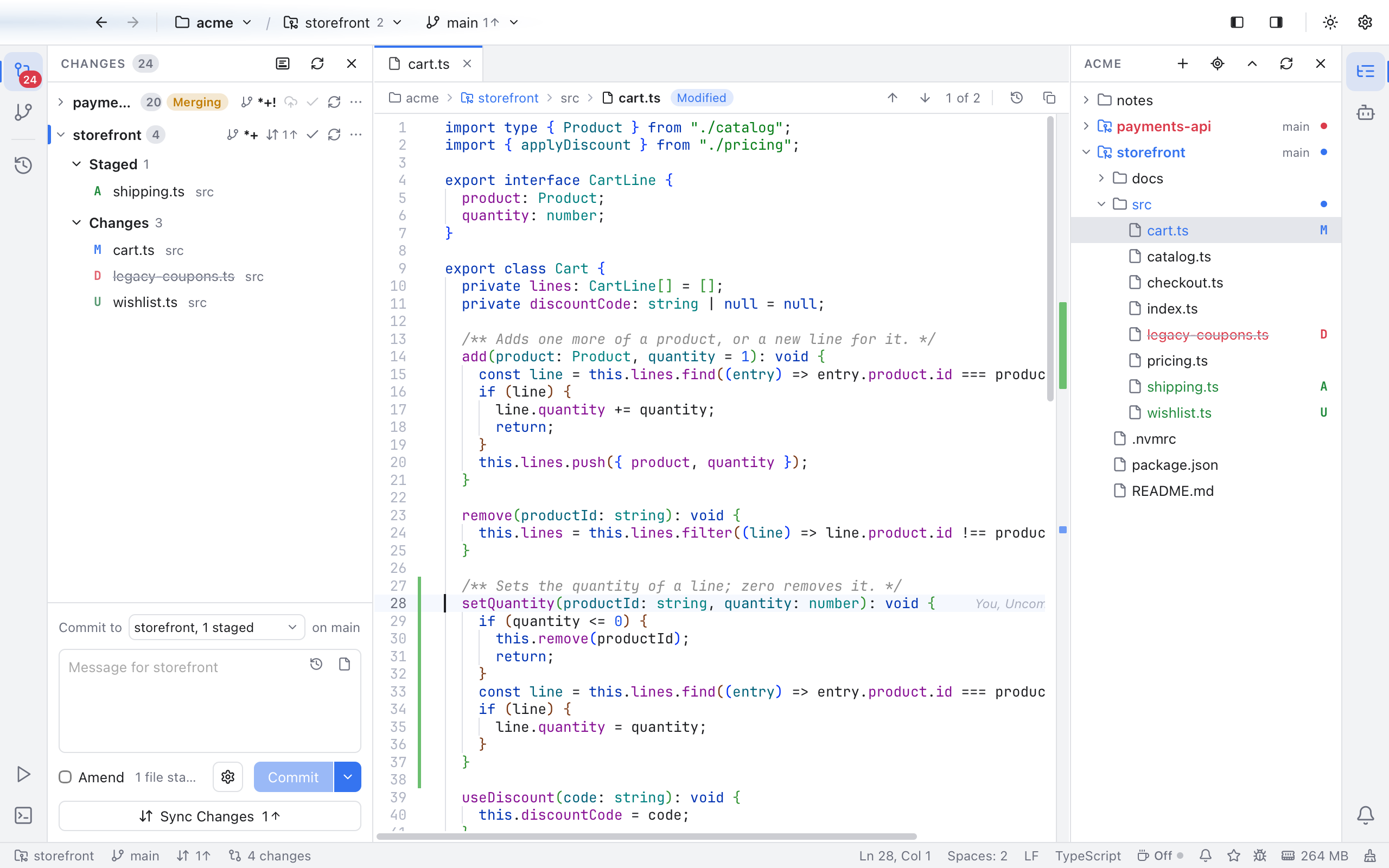
The main window: Changes on the left, a file in the editor with its path bar, the Files panel on the right and the status bar at the bottom.
From top to bottom and left to right:
- Menu bar (at the top of the screen on a Mac, inside the window on Windows). Nibtree, File, Edit, View, Code, Git, Window and Help. The Git menu holds commit, push, pull, fetch, merge, rebase, stash and the other git actions. See Menus and Git Menu. Fetch, pull, push and stash are also on each repository row in Changes (see Repository Actions).
-
Header (the top bar of the window).
- On the left: Back and Forward arrows, then the workspace name (click it for the folder menu).
- Then the active repository and the number of repositories found. It shows when the workspace holds more than one repository, or when the repository is not the folder itself.
- Then the current branch, with how many commits you can push or pull. Click it to switch branches.
- On the right: two buttons that show or hide the left and right activity bars, a light and dark theme toggle, and Settings (Cmd+,). While git is working, a spinner and its progress line show up here too.
- Left activity bar (the thin icon strip on the left edge). Its icons pick what the left sidebar shows: Changes (Shift+Cmd+G, with a badge counting your changed files), Branches and Stashes (Shift+Cmd+E) and the Log (Shift+Cmd+L, the commit history, which opens in the middle). At the bottom of the strip, Scripts lists the scripts of your projects (see Scripts) and Terminal (Ctrl+`) opens the bottom panel. Click the active icon again to hide its view. Option+Cmd+B hides or shows the left sidebar.
- Left sidebar. Changes shows your edited files and the commit box. Branches and Stashes shows branches, tags and stashes.
- Editor area (the middle). It holds tabs for open files, diffs, commits and terminals. The Log also opens here. When nothing is open, it shows shortcuts to get started (see Editor and Tabs).
- Bottom panel, under the editor. Its tabs are Terminal (see Terminal), Run (the output of scripts, once one ran), Git Console (the git commands the app ran, when turned on in Settings, Git, see Git Console) and Shelf (see Shelf). Ctrl+` shows or hides it.
- Right sidebar with the Files panel, a tree of every file in the workspace. The right activity bar has one icon to show or hide it (Cmd+B).
- Status bar (the bottom line). It shows the repository, branch and number of changes of what you are looking at, the cursor position, update notices, Star and feedback buttons, and the app's memory use. See Status Bar and Help.
You can drag the edge between a sidebar or the bottom panel and the editor to resize it. Double-click the edge to put it back to its normal size.
The two layout buttons next to the theme toggle hide or show the activity bars (the filled side shows a visible bar), like View > Left Activity Bar and View > Right Activity Bar. The sidebars stay usable with their keys, such as Option+Cmd+B and Cmd+B.
- Open a folder that is a git repository.
- Edit a file, in Nibtree or any other editor. The change shows up in Changes on its own within a moment.
- Click the file to see its diff, then hover it and click the + to stage it (staging means "put this in the next commit").
- Type a message in the commit box and click Commit, or press Cmd+Enter.
- Click Sync Changes under the commit box (Publish Branch for a branch the server does not have yet), or choose Git > Push..., to send it to the server (see Remotes).
- Workspaces: open several folders and repositories at once.
- Changes and Commits: staging, discarding and amending.
- Branches and Tags and Remotes: work with others.
- Resolving Conflicts: what to do when a merge stops.
- Keyboard Shortcuts: every shortcut, also in Help > Keyboard Shortcuts.
- MCP Server and Command Line Tool: let AI tools and scripts use Nibtree.