Repository navigation
Find and Replace
Nibtree has two ways to find and replace text: a find bar inside one file, and Replace in Files for the whole workspace.

The find bar over cart.ts with the Replace row open: the search "line", the match counter, the Cc, W and .* toggles, and the Replace, Replace All and Exclude buttons.
Press Cmd+F in an editor to open the find bar at the top of it. Press Cmd+R to open it with the Replace row too. The same items are in the Edit menu: Find... and Replace....
If you selected a short piece of text on one line, the find field starts with it. Otherwise it keeps your last search. Pressing Cmd+F again while the bar is open selects the field's text, so you can type a new search.
As you type, the editor jumps to the first match after the cursor and highlights every match. The selected match is brighter than the others.
Next to the field, a counter tells you where you are:
- 3/12: the third of twelve matches is selected.
- 12 results: twelve matches, none selected.
- 0 results in red: nothing matches.
- Invalid regex in red: the regular expression has a mistake. Hover the field to see what is wrong.
Very many matches show as 10000+.
The three buttons inside the field change how text matches. The keys work while the Find or Replace field has focus.
- Cc (Option+C): Match Case, upper and lower case must match exactly.
- W (Option+W): Words, whole words only.
-
.* (Option+X): Regex, the text is a regular expression (a search pattern, such as
set\w+).
| Key | What it does |
|---|---|
| Enter, or Cmd+G | Next match |
| Shift+Enter, or Shift+Cmd+G | Previous match |
| F3 and Shift+F3 | Next and previous match |
| Option+Enter | Select all matches |
| Ctrl+Cmd+G | Select all matches (also Edit > Select All Occurrences) |
| Tab | Move between the Find and Replace fields |
| Esc | Close the bar and go back to the text |
The up and down arrow buttons next to the counter also move between matches.
Select All Occurrences (the button with the carets, or Ctrl+Cmd+G) puts a cursor on every match, so you can edit them all at once. Without the find bar, it selects every place where the selected text, or the word at the cursor, appears. It works for up to 1,000 matches.
To add matches one by one instead, press Cmd+D (Select Next Occurrence). Option+Shift+click adds a cursor anywhere.
Click the arrow at the left of the bar, or press Cmd+R, to show the Replace row.
- Replace (or Enter in the Replace field) replaces the selected match and moves to the next one.
- Replace All (or Shift+Cmd+Enter in the Replace field) replaces every match in the file. The counter then says, for example, 12 replaced.
- Exclude skips the selected match and moves on. Replace All leaves excluded matches alone. Exclusions are forgotten when you change the search or close the bar.
With Regex on, the replacement can use $1 for the first group, $& for the whole match, and \n or \t for a new line or a tab.
Replacing in one file only changes the editor text. Nothing is written until you save (Cmd+S), and Cmd+Z undoes it.
The find bar works in every text pane, also in diffs and the merge tool. Read-only panes, such as the sides of a diff, show the find row only. In a diff, each side's bar sits above that side, so both sides stay lined up.
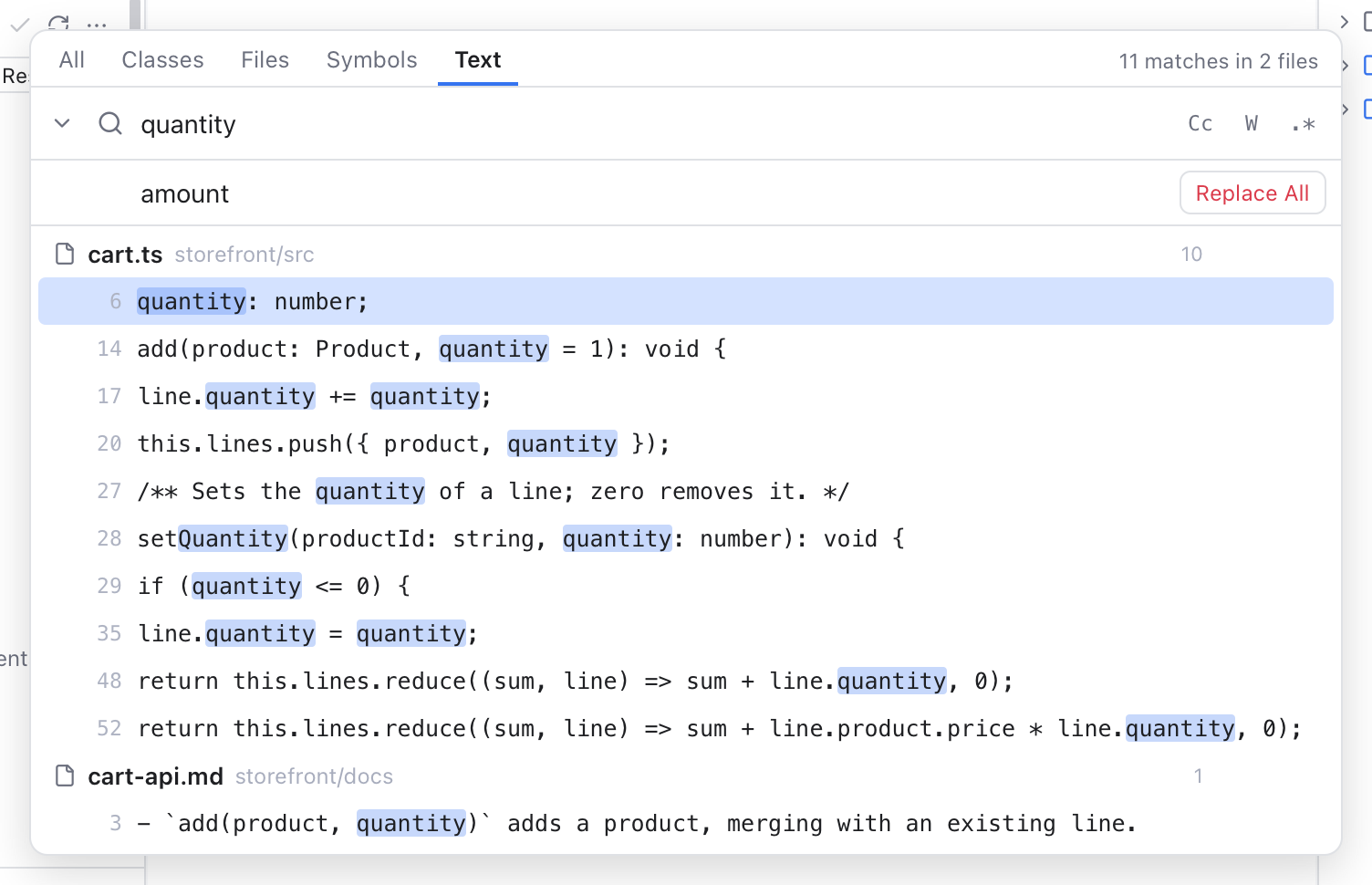
Replace in Files: "quantity" will become "amount", with a Replace button on each file.
Replace in Files changes text in many files at once, straight on disk. Open it with Shift+Cmd+R, or Edit > Replace in Files.... It is the Text tab of Search Everywhere with a second field, Replace with. On the Text tab, the arrow left of the search field shows or hides it.
- Type what to find. The results list every matching line, grouped by file.
- Type the replacement in Replace with. Leave it empty to delete the matches.
- Click Replace All to replace in every file, or the Replace button on one file's heading to replace only there.
- A dialog says how many matches in how many files will change, and asks you to confirm. Files are written right away, and this cannot be undone in Nibtree. (Git can still show you the change in Changes, and you can roll it back there.)
- A message such as Replaced 12 matches in 4 files confirms it, and the results refresh.
While it counts or writes, the button reads Stop. Stopping keeps the files already done; every file is either fully replaced or not touched at all.
The Cc, W and .* options work as in the find bar, and the regex replacement uses the same $1 and \n rules.
To keep your work safe, Replace in Files skips some files and says so in the dialog and the message:
- Files with unsaved changes in an open tab. Save or revert them first.
- Symbolic links (shortcuts to other files).
- Read-only files.
- Binary files and files over 5 MB, like the search.
A file that changes on disk while it is being replaced is not written, and is reported as failed.