Repository navigation
Diffs
A diff shows two versions of a file side by side, with the differences highlighted. A colored band joins each change's lines across the sides, through the line numbers, so you see where a block came from and where it went. Each side scrolls on its own, and the other follows to keep matching lines level. Use it to check your work before you commit, and to stage only some of the changes in a file.
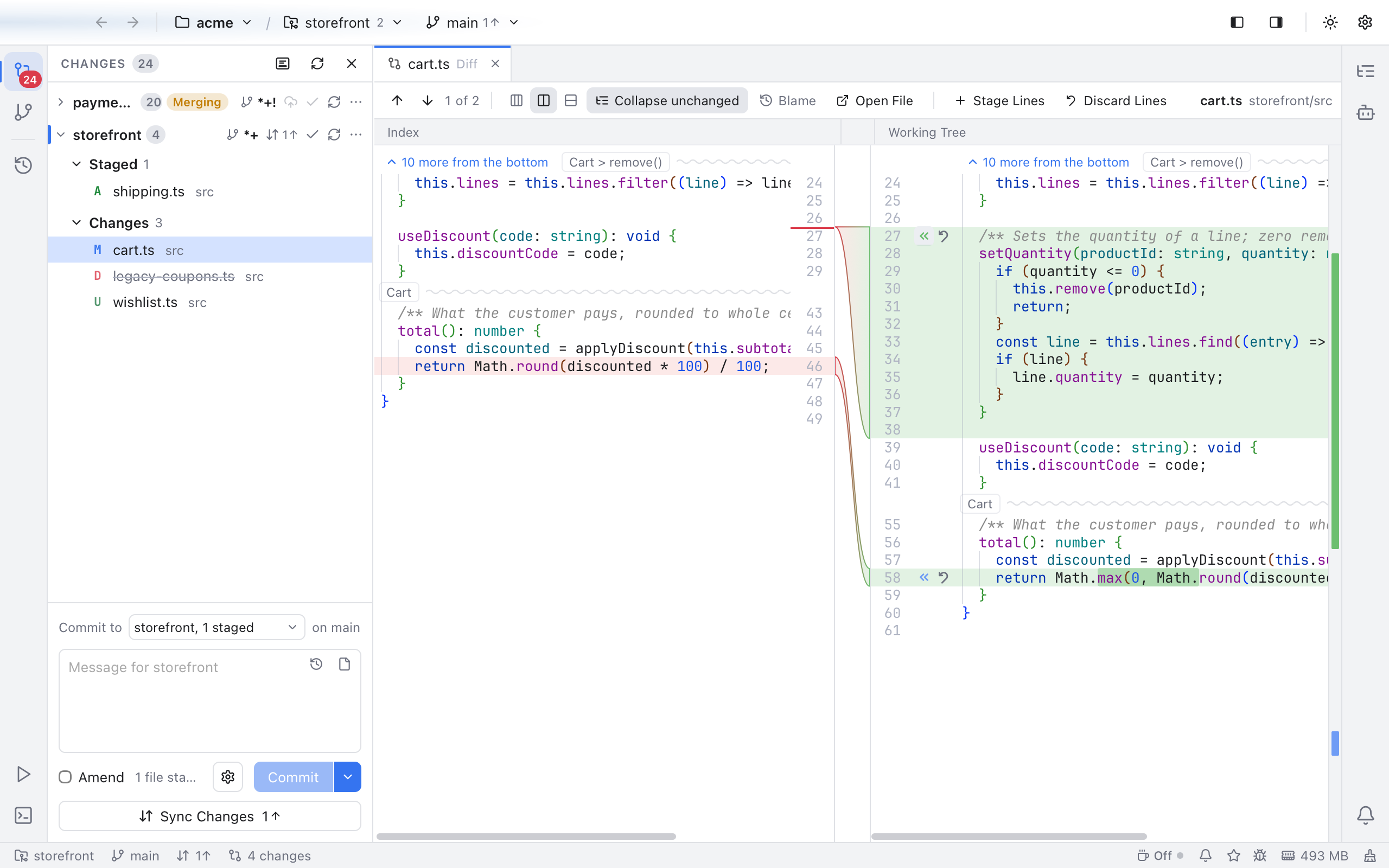
A side-by-side diff of cart.ts: the toolbar, the Index and Working Tree labels, folded unchanged lines and a band for each change.
- Open Changes (Shift+Cmd+G).
- Click a file.
The diff opens in the Diff tab in the editor area. Use the Up and Down arrow keys in the Changes list to step through files; the diff follows. The right end of the toolbar shows the file name and its folder (with the repository in front when there are several).
The diff updates by itself when the file changes, and keeps its scroll position. With no file selected, the area says Select a file in Changes to see its diff (with a Show Changes button when the sidebar is hidden), or Resolve conflicts to continue while any file has a conflict.
Which two versions you see depends on the group you clicked:
- A file under Changes: the left side is the Index (what is staged, or the last commit when nothing is staged) and the right side is the Working Tree (the file on disk now).
- A file under Staged: the left side is HEAD (the last commit) and the right side is Index (staged).
Commits in the Log use the same view, read-only, comparing the commit with its parent. So do commit tabs, the compare tabs of the Git menu and the Branches popup, and shelved changes.
To see both versions in one column instead, click Inline in the toolbar. See Inline Diffs.
- Old lines are soft red on the left and new lines green on the right, and the changed words are stronger.
- The strip next to the scrollbar has a tick for every change. Click a tick to jump there.
The toolbar above the diff has:
- Up and Down arrows for the previous and next change. F7 and Shift+F7 do the same while the diff has focus. After the last change they wrap to the first.
- A counter such as 1 of 2, or 2 changes when none is picked, or No changes.
When you open a diff it jumps to the first change.
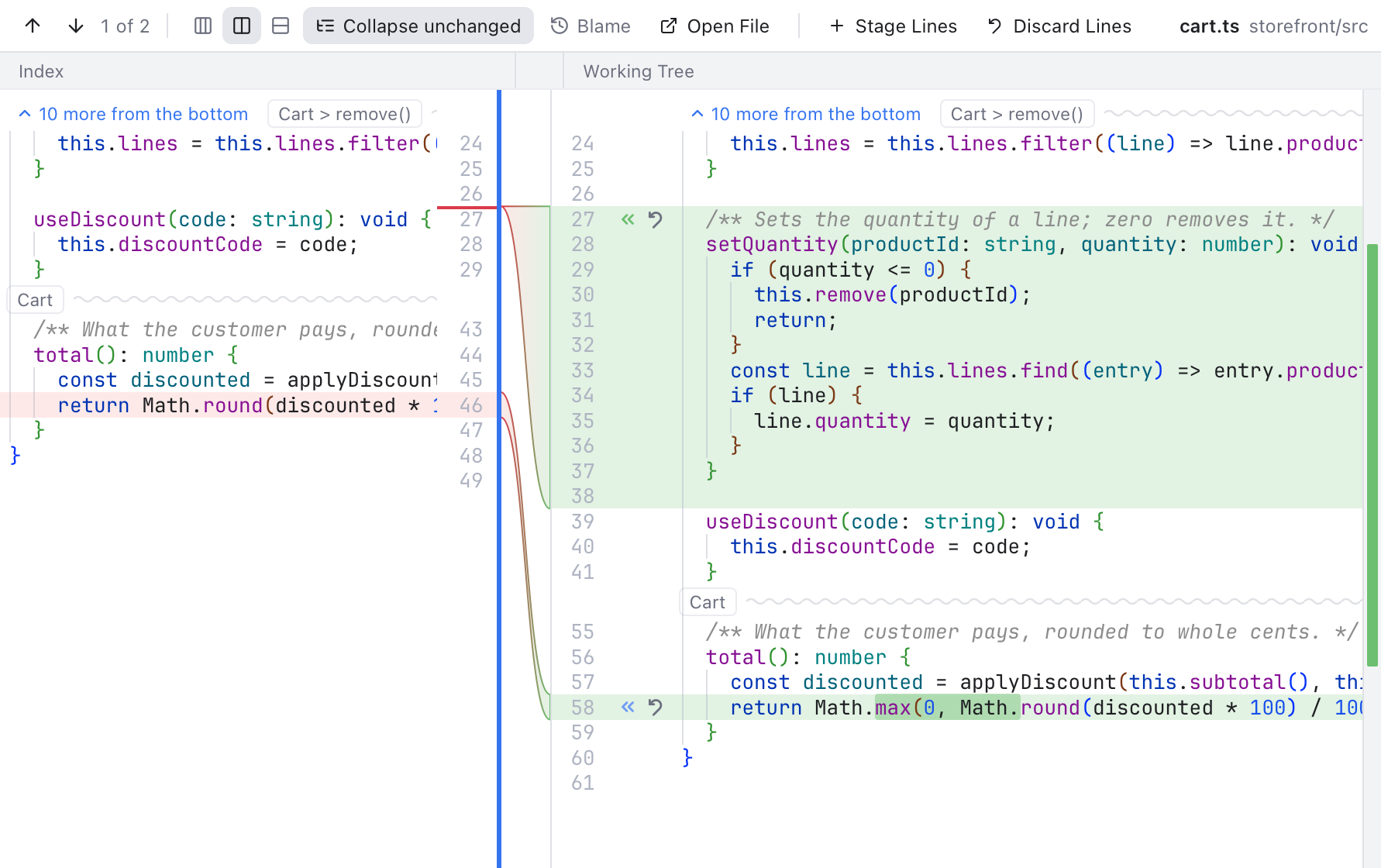
The line between the sides, highlighted under the pointer, with the left side made narrower.
The two sides start equally wide. To give one side more room, drag the line between them (the pointer turns into a resize arrow when you are on it). The labels above the sides and the find bars follow.
- Double-click the line to make the sides equal again.
- With the line focused, the Left and Right arrow keys move it in small steps, and Shift with an arrow in bigger steps.
- Each side keeps at least 15% of the width.
Three panes (Staging View, Merge Tool) resize the same way: drag the edge of a column of bands.
The split is remembered and used for every diff, in Changes, the Log and diff tabs alike. The column of change buttons between the sides keeps its width.
Click into one side and press Cmd+F. That side's find bar opens above the diff, so the two sides stay lined up while you search. The sides are read-only, so there is no Replace row. See Find and Replace.
Collapse unchanged (on by default) folds long runs of lines that are the same on both sides, keeping three lines of context around each change. A folded run shows as a wavy line named after the code below it, such as Cart > remove() (or 23 unchanged lines outside a class or function). At its left, 10 more from the top and 10 more from the bottom open its ends; a click elsewhere shows it all. Turn the button off to see the whole file. Nibtree remembers your choice for every diff.
You do not have to stage a whole file. Each change (a "hunk", one block of changed lines) has its own button beside its line numbers.
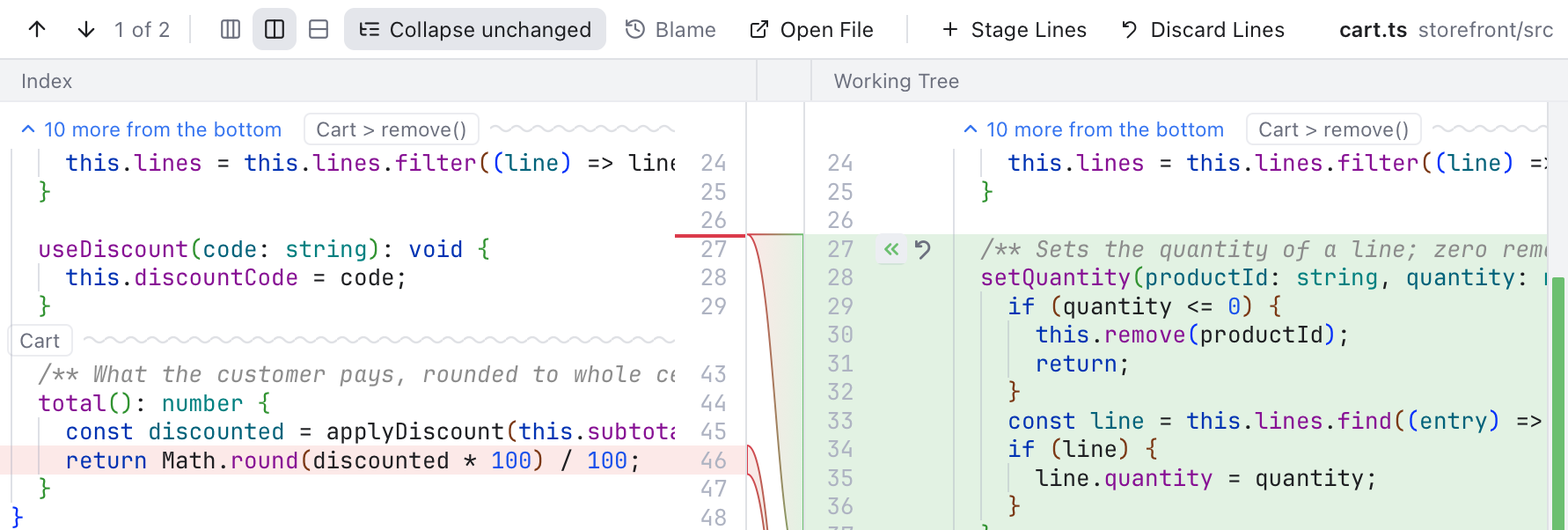
The diff toolbar at 1 of 2, and the first change with its « button beside its line number.
- In a diff from Changes, « (Stage this change) copies that one change into the index. The curved arrow next to it reverts the change (Revert a Change).
- In a diff from Staged, » (Unstage this change) takes that one change out of the index.
Example: in src/cart.ts you fixed a bug and also added a debug log. Stage only the fix, commit it, and keep the log for later.
The file may then appear in both Staged and Changes until every part is staged.
The Blame button in the diff toolbar shows who last changed each line on the right side, and when. See Blame. It uses the same setting as the Blame button in the editor.
Open File, after Blame in the toolbar, opens the real file from your working tree in an editor tab, so you can edit it. When the right side is the working tree (unstaged changes, Compare with Working Copy, Show Diff with Working Tree), the file opens at the line your cursor is on, or at the top line you were looking at. In other diffs, such as a commit in the Log or a branch comparison, it opens at the top. If the file no longer exists in the working tree, a message says so.
A changed image or PDF shows its old version on the left and the new one on the right, under the same labels as a text diff. Both images zoom and scroll together. See Image and PDF Preview.
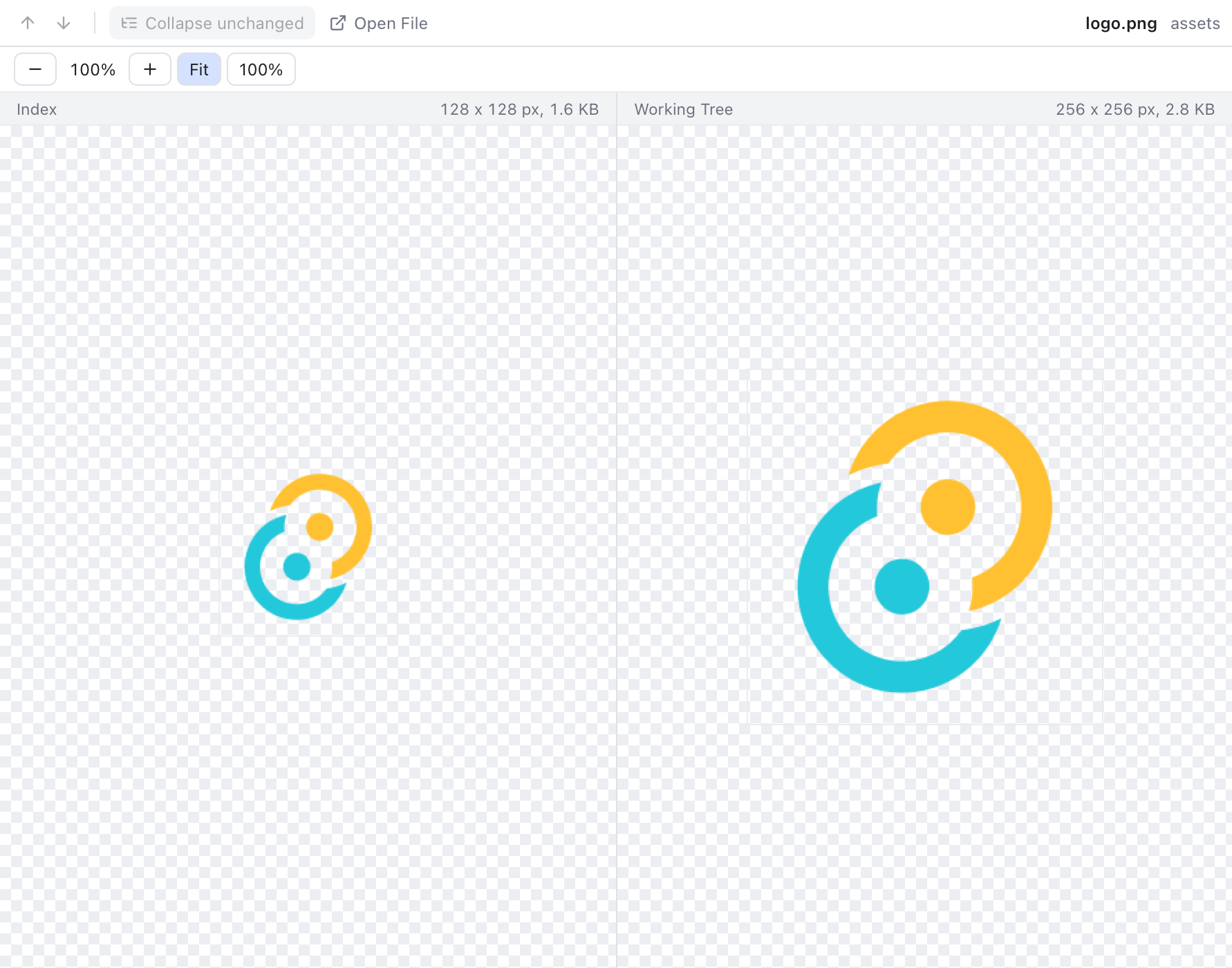
The logo in the last commit on the left and the bigger one in the working tree on the right, with their sizes.
- No content changes: the file changed in a way that is not text, for example only its permissions.
- Binary file, no text diff: binary files that are not images or PDFs are not compared.
- File too large to diff: very large files are skipped to keep the app fast.
- Stored in Git LFS: for a file kept in Git LFS, the diff shows the old and new sizes instead of text. See Git LFS.
Diffs and the merge tool never wrap long lines, so both sides stay aligned. Scroll sideways for long lines. The Line spacing and Render whitespace settings apply here too (see Editing Code).