Repository navigation
Revert a Change
Sometimes you want to throw away one change in a file and keep the rest. Revert does that for a single change. A "change" (git calls it a hunk) is one block of lines that differ, with unchanged lines around it.
You can revert in the Changes diff, in a commit's diff, and in the file editor. A commit's diff can also apply one of its changes to your working tree.
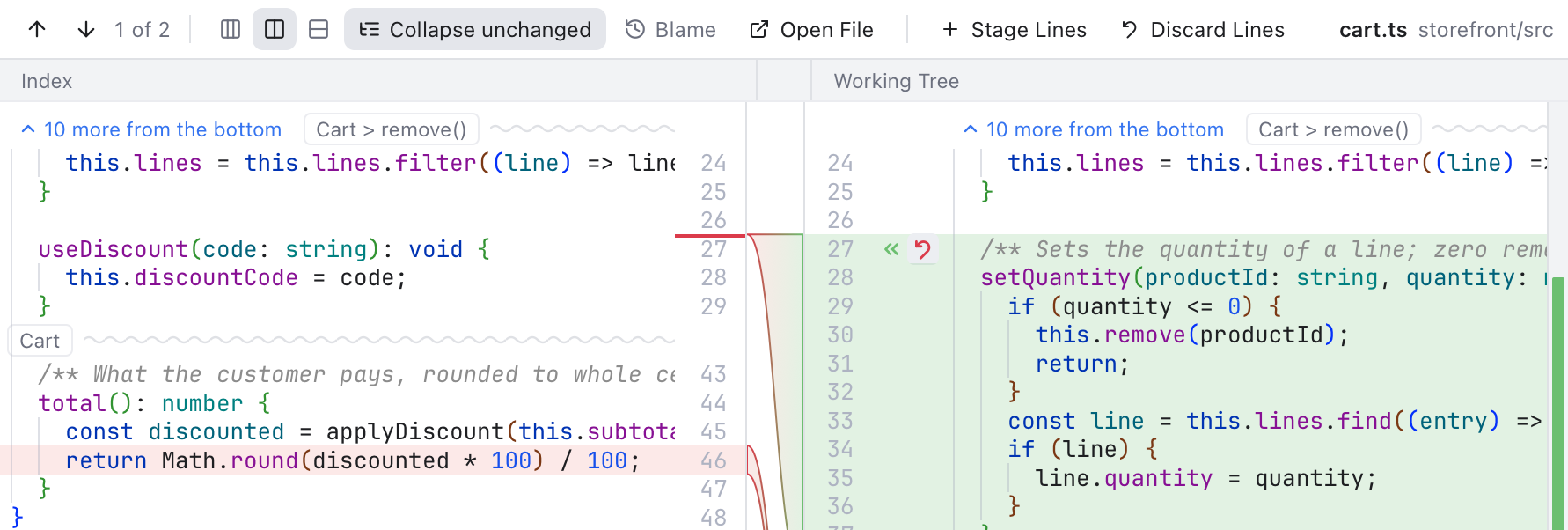
The first change of cart.ts with its Stage arrow and its Revert button (under the pointer) beside its line number.
Select a file under Changes to open its diff. Each change has two buttons on its first line, beside the working tree's line numbers:
- «, Stage this change, copies the change into the index (the staging area, what the next commit will hold).
- The curved arrow next to it, Revert this change, puts the staged version of those lines back in your working tree file.
In the inline layout, the same two buttons sit on the first line of each change: + to stage and the curved arrow to revert.
Revert always asks first. When you confirm, the file on disk changes and the diff reloads. A message says how many lines were discarded, with an Undo button that puts your lines back.
Revert is offered for Changes (the working tree against the index) and in the Changes tab that N changes in the status bar opens (the working tree against the last commit). A diff from Staged has Unstage this change instead.
If the file changed after the diff was shown, for example in another editor, nothing is reverted: a message asks you to check the diff and try again, so you never lose lines you have not seen.

Added lines in cart.ts with their green bar beside the line numbers: click it to revert them.
While you edit, colored bars beside the line numbers show what changed since the last commit (see Editor and Tabs). The pointer turns into a hand over a bar. Click it to revert that change:
- For added or modified lines, click the bar beside them.
- For deleted lines, click the small red wedge where they were.
After you confirm, the last commit's lines replace the change in the editor. This is an ordinary edit, the same as typing:
- Edit > Undo brings your lines back.
- Nothing is saved until you save the file, or until auto save does.
Conflict blocks have their own bar and are not reverted this way; use the conflict actions instead (see Resolving Conflicts).
[TODO:revert-change-commit.png]
A commit's diff in the History panel, with Revert under the pointer and the Apply arrow beside the change's line number.
Every diff that shows a commit, in the History panel or a commit tab, has two buttons on each change. A branch compare has them too.
- The curved arrow, Revert this change in the working tree, takes that change out of your working tree file. Its lines go back to how they were before the commit.
- », Apply this change to the working tree, copies that change into your file, like cherry-picking (copying a commit onto your branch) one change instead of a whole commit.
Inline, the same buttons sit on the first line of each change. Revert asks first, and both leave the index alone and offer Undo. If your file has changed too much around those lines, nothing happens and a message says so.
Compare with Revision and the diff of a revision against the working tree have Revert only, since their right side already is your file.
Like the staging view, a commit can show three columns: its parent, the commit and your Working Tree. Pick Three panes in the diff toolbar, or Side by side for commits in Settings > Git. The bands on the left show the commit's changes, with the same Revert and Apply buttons beside the parent's line numbers; the bands on the right show how your file differs from the commit. A merge commit shows parent 1, the merge and parent 2 instead (see Merge Commits).
The two places compare with different versions, the same ones their colors show:
- The Changes diff compares the working tree with the index, so Revert brings back the staged lines. If you never staged the file, that is the last commit.
- The editor and the Changes tab compare with the last commit (HEAD), so Revert brings back the committed lines, even when a newer version is staged. The staged version stays staged.
- A commit's diff brings back the lines as they were in the commit's parent.