Repository navigation
Inline Diffs
Every diff can show its two versions side by side, or inline in one column. Inline is handy in a narrow window, or when long lines get cut off in two columns.
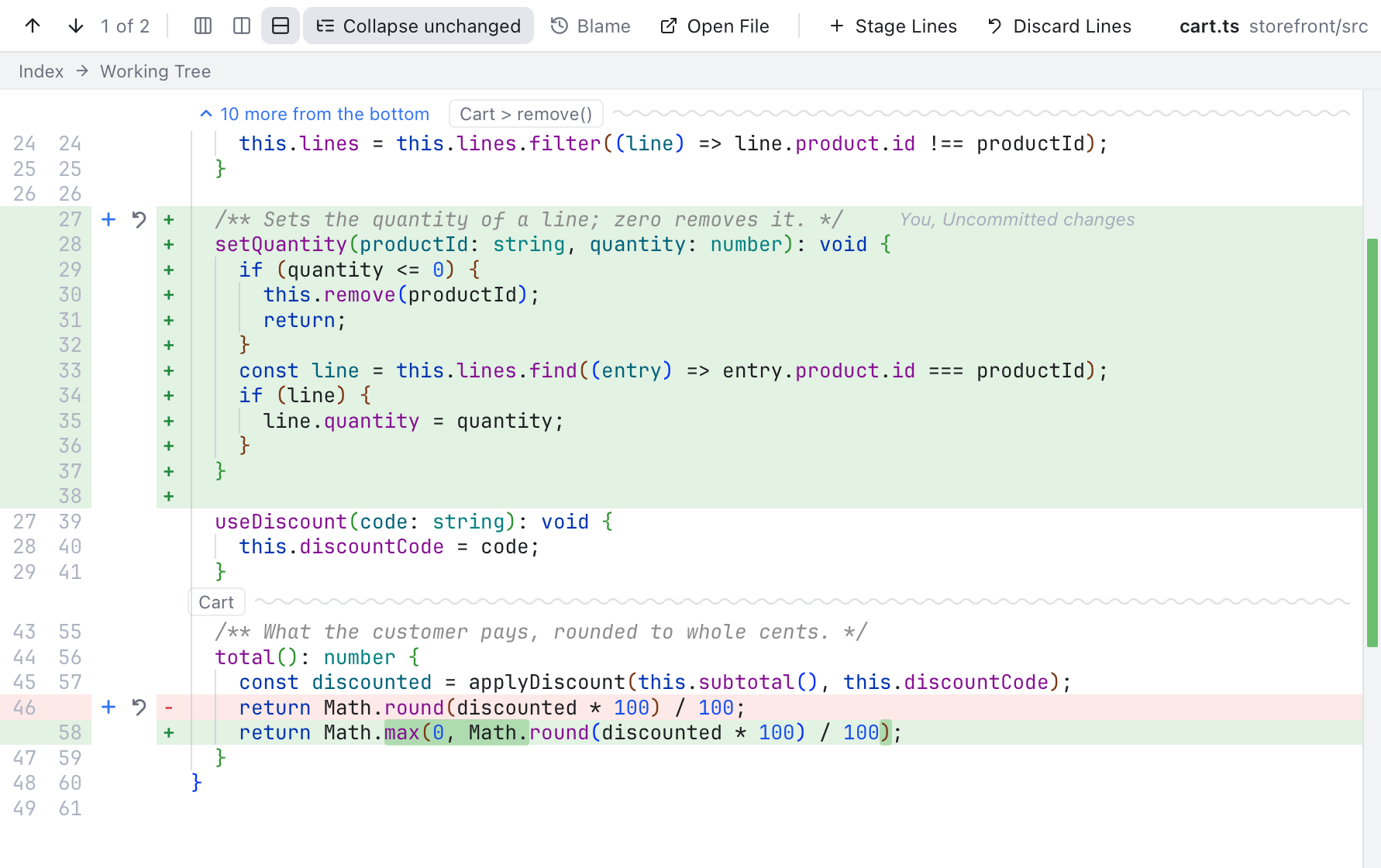
An inline diff of cart.ts: the old and new line numbers on the left, a red - or green + before each changed line, each change's removed lines above the lines that replace them, and the layout buttons in the toolbar.
Pick Diff layout in Settings > Git, or use the two buttons in the diff toolbar, after the change counter:
- Side by side (a box split down the middle): the old version on the left, the new one on the right. This is the default.
- Inline (a box split across): one column. Each change shows the lines it removed, then the lines it added.
The highlighted button is the layout in use, and both places change the same setting. Your choice is remembered and used for every diff: in Changes, the Log, commit tabs, compare tabs and the Changes tab of the status bar. The buttons are greyed out for images, PDFs and files without text changes.
- Each line has its own color: removed lines are a soft red and added lines green, also inside a changed block (old lines followed by their new lines).
- Right before the text, a red - marks a removed line and a green + an added line, like
git diff. - Inside a changed block, the exact words that changed are a stronger red in the old lines and a stronger green in the new ones.
- Two columns of line numbers sit on the left: the old version's number, then the new version's. A removed line has only an old number, an added line only a new one.
- The label above the diff names both versions, such as Index and Working Tree, with an arrow between them.
Removed lines are real text: you can select them, copy them and find them. Cmd+F searches both versions, and a match inside folded unchanged lines opens them.
Everything else works as in the side by side layout: the Up and Down arrows (F7 and Shift+F7), the counter, Collapse unchanged, Open File, the strip of change ticks and Blame, which shows who wrote each new line (removed lines have no blame).
In a diff from Changes, the first line of each change has a small + button between the line numbers and the code, Stage this change. In a diff from Staged, the button is -, Unstage this change. They do the same as the « and » buttons of the side by side layout (see Diffs).
In a diff from Changes, the curved arrow after the + is Revert this change. See Revert a Change.
Stage Lines, Unstage Lines and Discard Lines take exactly the lines you select: select only the new lines to add them while keeping the old ones, select only removed lines to remove just those, or both. With no selection, they take the line the cursor is on.
These pages are generated from docs/wiki. To correct something, open a pull request against the source file; edits made here are overwritten.
Using Nibtree
- Getting Started
- Welcome Screen
- Workspaces
- Files Panel
- File Operations
- File Icons
- Rounded Panels
- Editor and Tabs
- Pin Reorder and Wrap Tabs
- Single Tab Title
- Split Editor
- New File and Unsaved Changes
- Unload Hidden Tabs
- Editing Code
- Code Appearance
- Markdown Editor
- Image and PDF Preview
- Search Everywhere
- Recent Files
- Navigation Bar
- Find and Replace
- Changes and Commits
- Sign In Prompts
- Commit Box Layout
- Repository Actions
- Commit Options
- Ignoring Files
- Diffs
- Inline Diffs
- Staging View
- Revert a Change
- Resolving Conflicts
- Merge Tool
- Blame
- History and Log
- Merge Commits
- Branches and Tags
- Branches Popup
- Remotes
- Stashes
- Shelf
- Git Menu
- Git Dialogs
- Interactive Rebase
- Worktrees
- AI Agents
- AI Tasks
- AI Usage
- Keep Computer Awake
- Submodules
- Git LFS
- GitHub
- Git Console
- Terminal
- Terminal Features
- Scripts
- Navigation
- Menus
- Settings
- Settings Search
- Color Themes
- Settings Terminal and Automation
- Settings Files
- Updates
- Status Bar and Help
- Notifications
- Memory Use
- Clear Cache
- MCP and CLI
- Git Mergetool
- Keyboard Shortcuts
- Keyboard Shortcuts Editor
- Troubleshooting
- Troubleshooting Git
Developers
- Developer Guide
- Architecture
- Project Layout
- Backend
- How Folder Watching Works
- Folder Watching Bugs We Fixed
- How Workspace Files Work
- How the Preview Scheme Works
- Backend Services
- How Terminal Features Work
- Terminal Bugs We Fixed
- Frontend
- How the Rich Markdown Editor Works
- Rich Markdown Bugs We Fixed
- Git Menu Links
- Menu Keys and Routing
- Frontend Modules
- Blame Bugs We Fixed
- Project Color And Title Bar
- One Diff View
- Diff Bugs We Fixed
- Merge Tool Layouts
- Merge Tool Bugs We Fixed
- Color Theme Bugs We Fixed
- How the Connected Diff Works
- Rounded Panels Bugs We Fixed
- Update Bugs We Fixed
- Status Bar Bugs We Fixed
- MCP and CLI Bugs We Fixed
- Repository Actions Bugs We Fixed
- How the Changes Tab Works
- CodeMirror Patterns
- How the Cursor Works
- How Editor Features Work
- How the Path Bar Works
- Commands and Events
- Settings Reference
- Commands Workspace and Changes
- Commands Branches and Remotes
- Commands History and Extras
- Commands App and Tools
- Testing
- Test Suites
- Debugging
- Debugging with MCP
- Measuring Setting Memory
- How Terminal Memory Is Measured
- How Markdown Diagrams Work
- Releases and CI
- Publishing the Wiki
- Versioning and Changelog
- Browser Version Packages
- Browser Release Checks
- Docker Image
- Platforms and Signing
- Windows Support
- Windows Bugs We Fixed
- Windows MCP and CLI
- Docs and Screenshots
- UI Library
- UI Library MCP
- UI Library Bugs
- UI Library Migration
- Contributing
How features work
- Welcome screen
- Workspaces and folders
- Files panel
- File operations
- File icons
- Editor and tabs
- Pin, reorder and wrap tabs
- Single tab title
- Split editor
- New File and unsaved changes
- Unload hidden tabs
- Editing code
- Code appearance
- Markdown editor
- Image and PDF preview
- Search Everywhere
- Recent Files
- Navigation Bar
- Find and replace
- Changes and commits
- Sign-in prompts
- Commit box layout
- Repository actions
- Commit options
- Ignoring files
- Diffs
- Inline diffs
- Staging view
- Revert a change
- Resolving conflicts
- Merge tool
- Blame
- History and log
- Merge commits
- Commit tabs
- Branches and tags
- Branches popup
- Remotes
- Stashes
- Shelf
- Git menu
- Git dialogs
- Interactive rebase
- Worktrees
- AI agents
- AI usage
- Keep computer awake
- AI tasks
- Submodules
- Git LFS
- GitHub account
- Git Console
- Back and Forward
- Integrated terminal
- Scripts tool window
- Menu bar
- Settings
- Search in Settings
- Color themes
- Rounded panels
- Updates and release channels
- Status bar and help links
- Notifications
- Memory readout and memory log
- Clear Cache
- MCP server and command line tool
- git mergetool mode